Setting Up Modifiers
Modifiers are applied modifications to aan PLUItem entry. Modifiers are very customizable in Sail POS, but initial setup can be a little daunting at first. This guide will walk you through the ins and outs of how modifiers work and how to configure them.
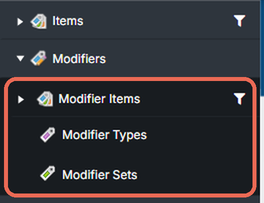
In the POS section of Back Office,Backoffice, under Modifiers, you will see the following sections:

The following sections in this document describe each of these concepts and how they relate. At a high level, here are the individual concepts summarized:
|
Modifier |
Modifier Types |
Modifier Sets |
|---|---|---|
|
|
Defines what options are shown when a Modifier Set is prompted. You can also specify a % of the |
A collection of Modifier |
|
Cheeses Meats |
Standard Pizza Toppings |
Cheese Selection Select Pizza Toppings |
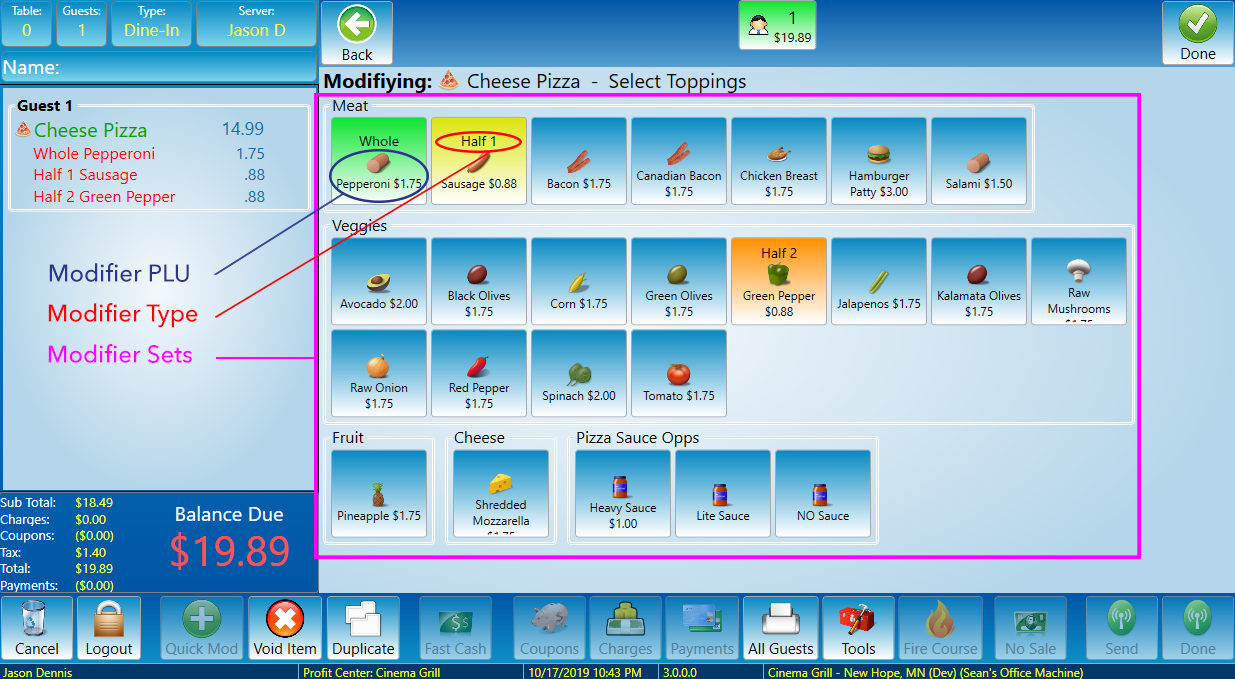
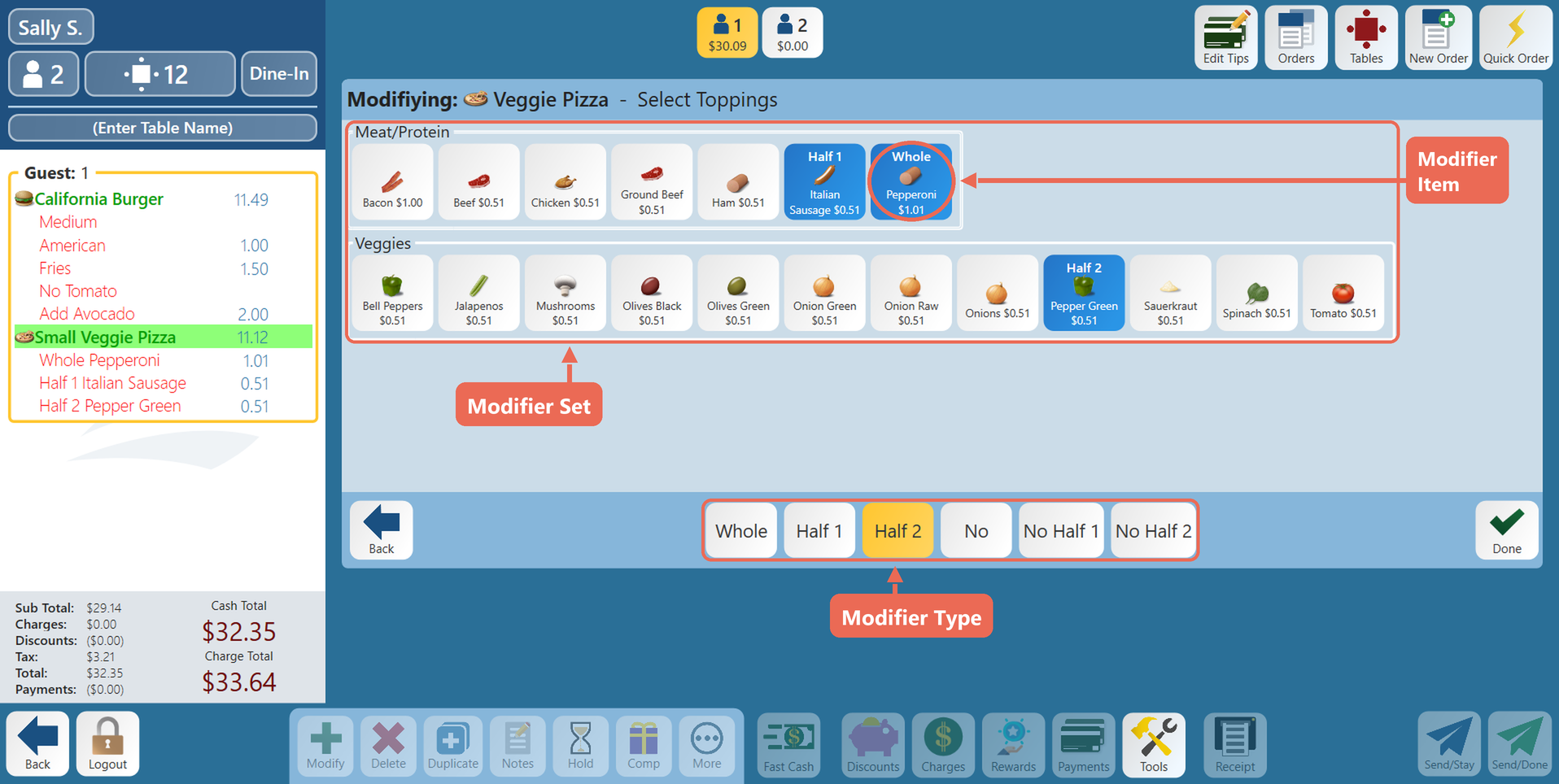
Modifier PLUsItems
When a modifier is applied to aan PLU,Item, they are ultimately child PLUsItems under its parent PLU.Item. These child PLUsItems used as modifiers have many of the same properties as a normal PLU,Item, including the ability to prompt for additional modifiers (eg. a Side Salad Modifier PLU,Item, may prompt for dressing selections). The Modifier PLUsItems area works almost identically to the normal PLUsItems area, but is designed to house PLUsItems that are strictly for modifications. Take the following cheeseburgerCalifornia Burger rang in as an example:

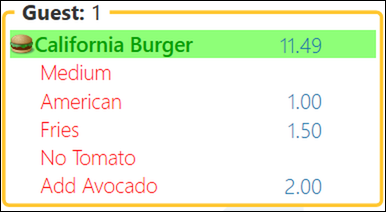
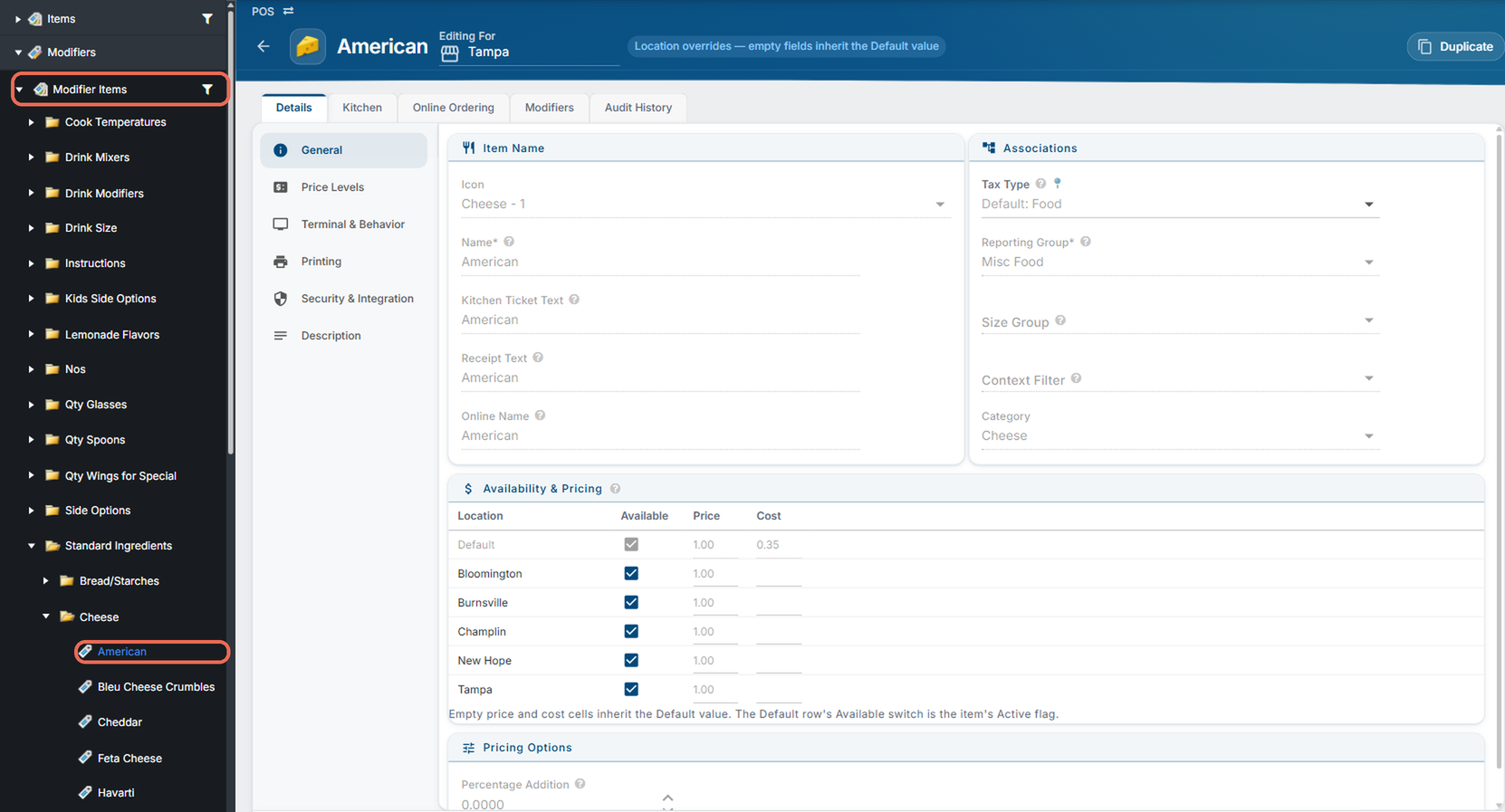
Medium, American, WellFries, DoneTomato and Raw MushroomsAvocado are all Modifier PLUsItems with their individual pricing applied to each. As you can see below, the ‘American’ Modifier PLUItem setup looks very similar to a normal PLUItem setup. Modifier Items have their own list in the menu, under Modifiers --> Modifier Items.

Modifier Types
A Modifier Type defines how a modifier prompt reacts and the available selections given to the user. Your system comes with a typical list of Modifier Types, but you can customize or add additional types as needed
These are the 3 most common modifier types, and are included with all default installations of Sail POS:
|
Modifier Type |
Description |
|---|---|
|
|
|
|
Allows toggling on or off |
|
Quantity |
Includes number options such as 1, 2 and 3 |
|
Standard |
Includes a set of options to be applied, |
|
Pizza Toppings |
Includes pizza selections, Whole, Half 1 and Half 2 |
Click New Modifier Type to add your own.
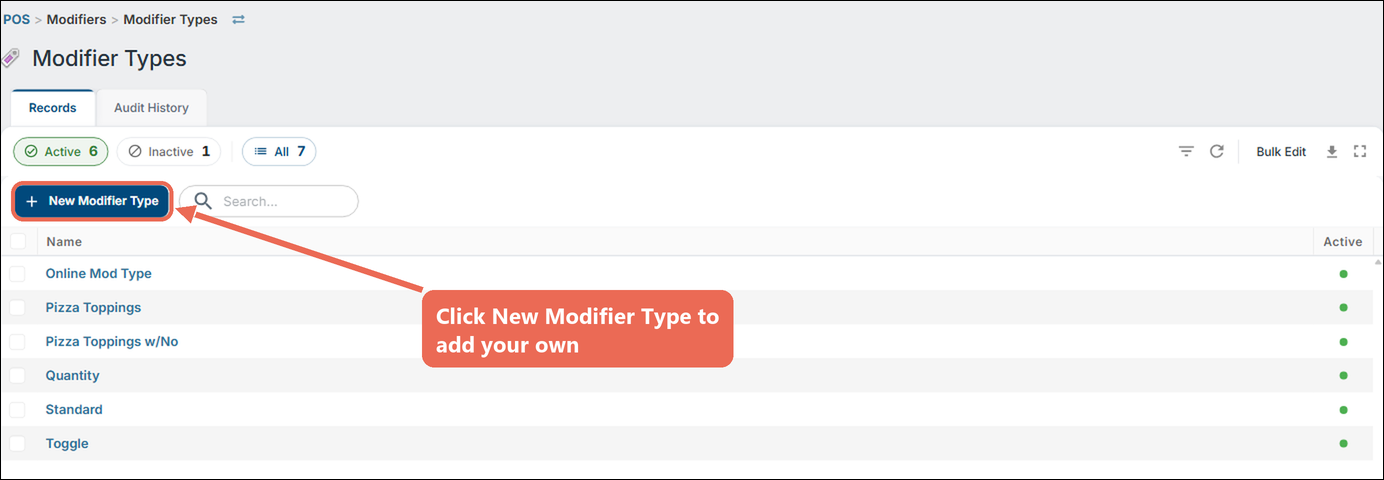
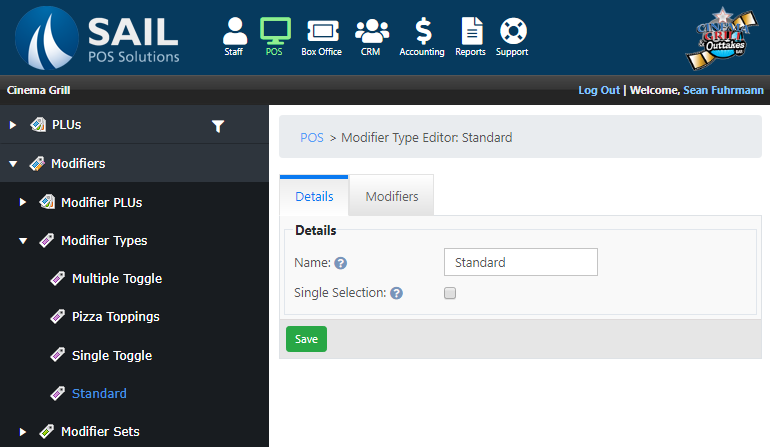
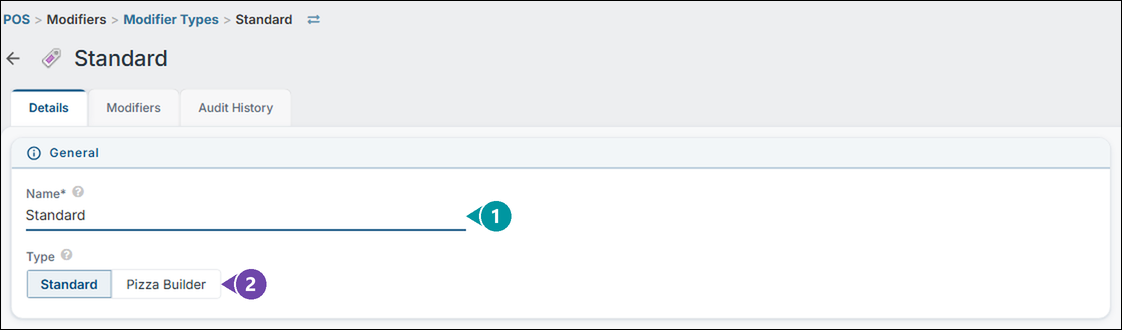
When defining a Modifier Type, in the Details tab you can specifyspecify:
- A
andname. - The
whetherType: Standard for most modifier types, ornotPizza Builder for pizza toppings (its modifiers can be placed on the left half, the whole, or the right half).
Whether the user is allowed to select multiple options, or if only one selectionone, is allowed.set on the Modifier Set (see Modifier Sets below).
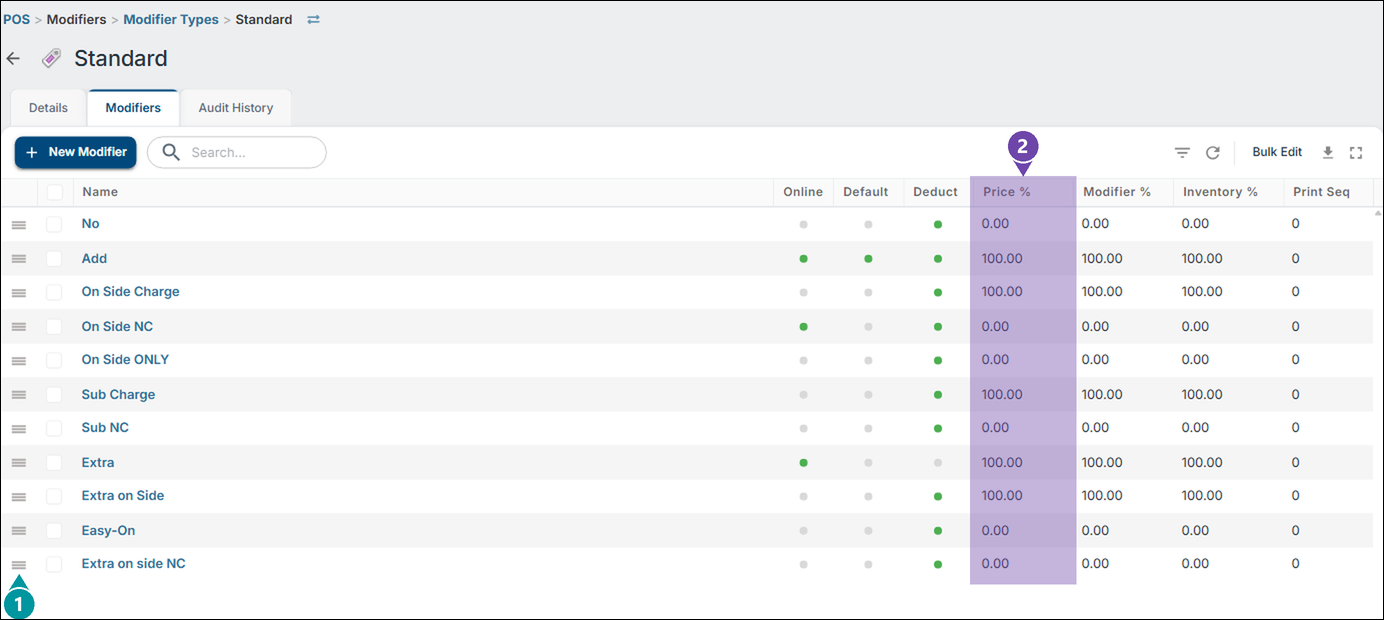
On the Modifiers tab you define what options that can be applied.applied (click New Modifier to add one). You can also drag them up and down by the handle on the left (1) to specify in what order they will be prompted.
In addition, you can specify a percentage that will be applied to the Modifier PLUItem price.price, in the Price % column (2). For example, if you have an ‘American Cheese’ Modifier PLUItem that costs $1.50 - when you want to ‘Add’ that item, you want to charge the full $1.50 (100%). However, if you want to specify that they would like ‘No’ ‘American Cheese’, you wouldn’t want to charge for that, thus it is set to 0% of the price so it rings up for $0.00.

- Online: the modifier is available for online ordering.
- Default: the modifier that is pre-selected online for the ingredients an item already comes with. One modifier per type.
- Deduct: online ordering only. Choosing this modifier for an ingredient the item already comes with takes off the portion the guest already paid for. Leave it on for options that change or replace what comes on the item (Add, No, Easy-On), and turn it off for options added on top (Extra), so those charge their full amount.
- Modifier %: how the modifier is counted when a set limits the quantity (e.g. a ‘Double’ modifier at 200% counts as 2).
- Inventory %: how much the modifier takes off inventory when it is used.
- Print Seq: the order the modifier prints on kitchen tickets, kitchen video and receipts (lowest first). Leave 0 to keep the order it was entered in.
Modifier Sets
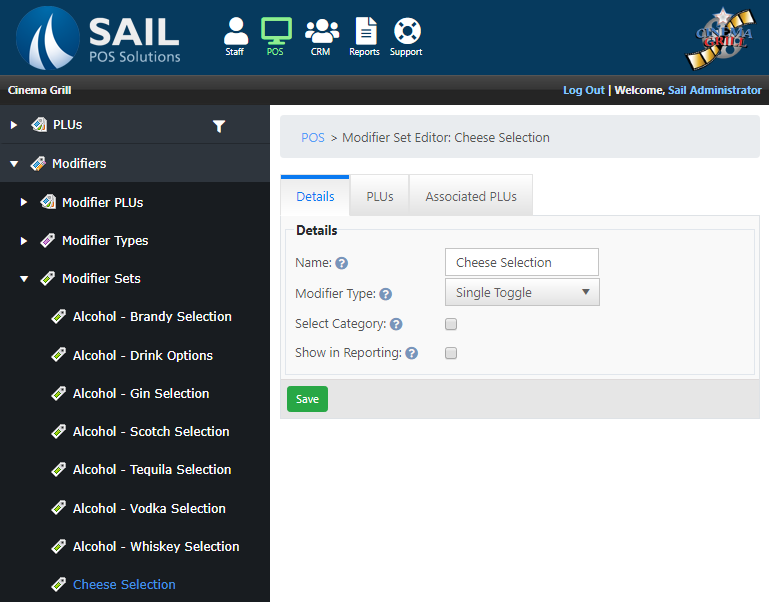
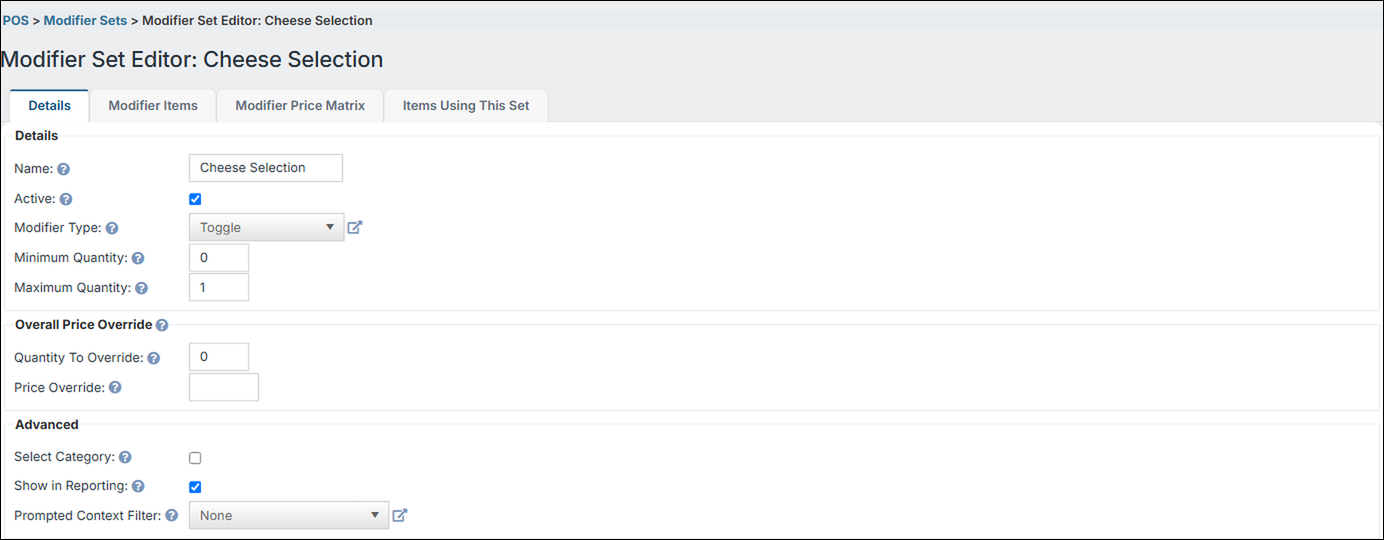
A Modifier Set houses a collection of PLUsItems to be prompted. It also defines how the prompt reacts by configuring its Modifier Type described above. For example, if you have a cheeseburger on your menu, you would want to prompt the user for what type of cheese they would like. A ‘Cheese Selection’ Modifier Set would be created that would specify a ‘Single Toggle’ Modifier Type, with a Maximum Quantity of 1, and various cheese PLUsItems would be assigned to the Modifier Set, such as American, Cheddar, etc. See below:
On
|
|
|---|---|
|
| tab
|
|
|
|
|
|
You specify which PLUs are included in this Modifier Set by adding them to the PLUs tab. Here you have the ability to order the prompted modifier PLUs, as well as set the order they display by dragging them.
In addition, you can specify a price override. For example, here in this ‘Cheese Selection’ Modifier Set, all cheese PLUs have a Price Override of $0 as this set will be applied to a Cheeseburger PLU where the cheese is included for free.
In addition, you can easily add all PLUs from a PLU Category by selecting itItems in the dropset.
Click ‘Add Category PLUshere to Set’
Note:more Youabout can add both regular PLUs and Modifier PLUs tocreating a modifier set.

Modifier Prompts
There are 2 different ways that modifiers can be applied to an item, each are described below:
StandardAll ModifiersIngredients
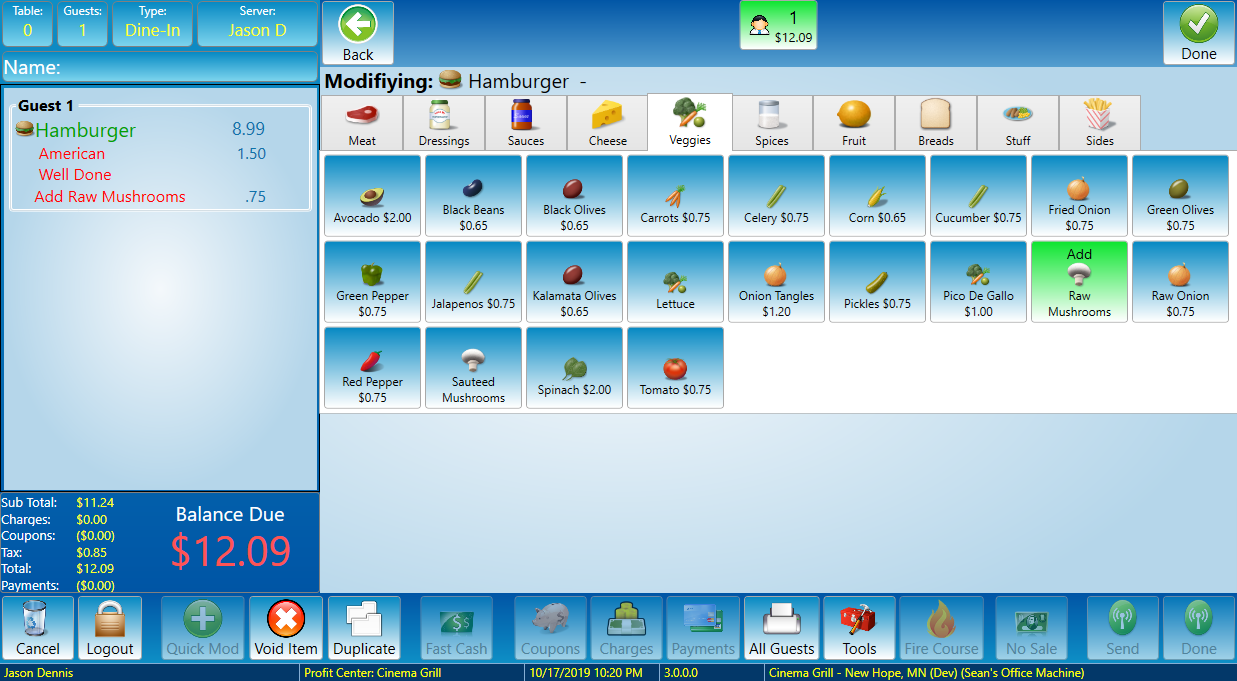
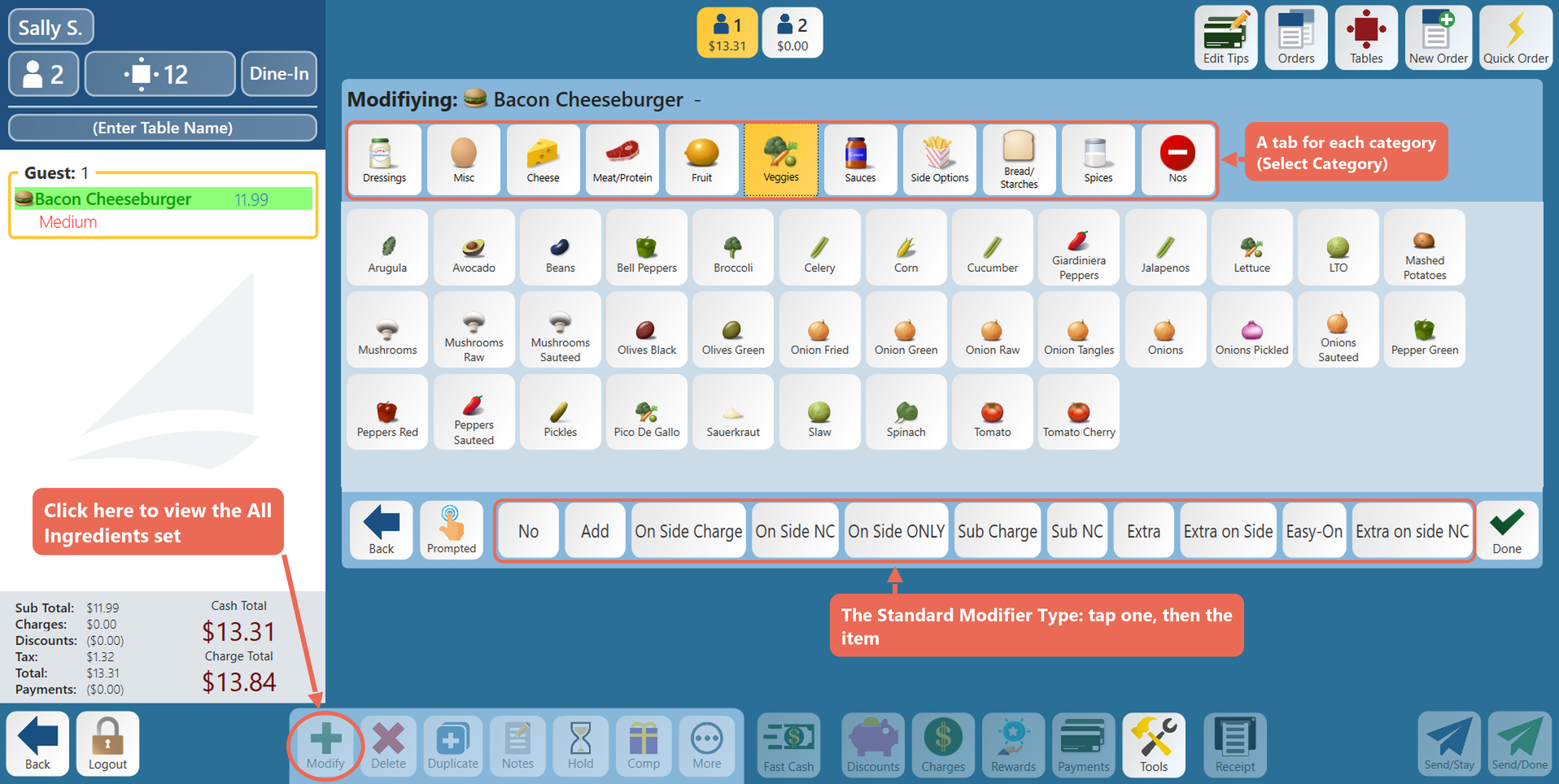
StandardThe modifiersAll areIngredients set is the list of modifiers that can be applied to any item, at any time.time, by selecting the item on the order and pressing Modify. As shown below, the list of modifiers here are populated from the ‘Standard’this Modifier Set, which typically containcontains all of the PLUsItems in the ‘Standard’Standard Ingredients’ Modifier PLUItem Category, while applying the the ‘Standard’ Modifier Type. (An Item can use a different set here: its Default Modifier Set, on the Item’s Details tab under Terminal & Behavior.)
This is also an example of a Modifier TypeSet that is setup to use ‘Select Category’. As you can see it groups the Modifier PLUsItems into tabs based on the PLUs,Item’s PLUItem Category.
ForcedPrompted Modifiers
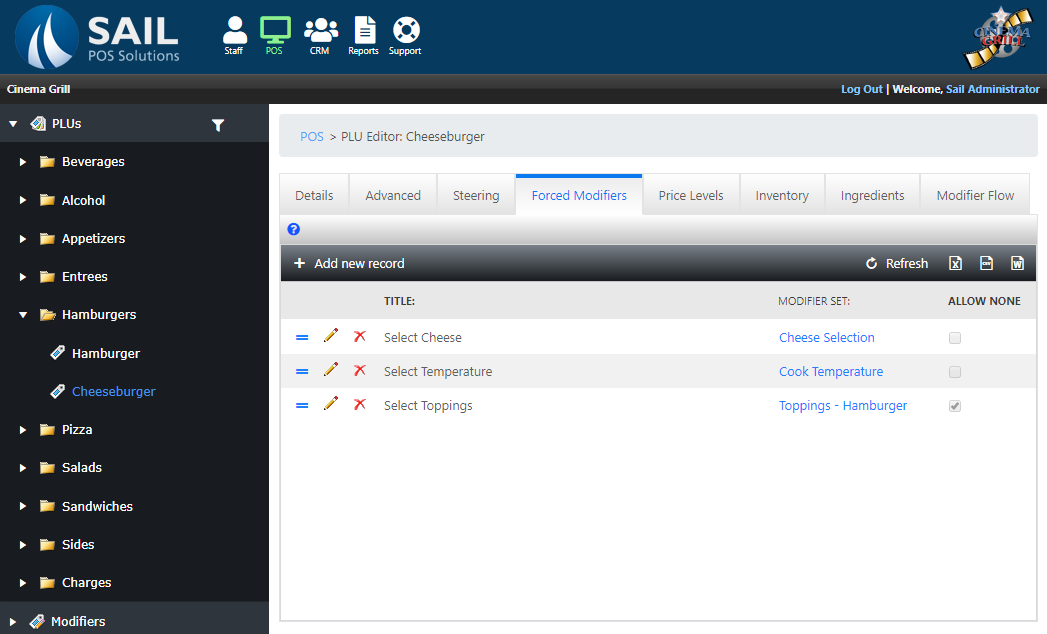
ForcedPrompted modifiers are a list of Modifier Sets to be prompted, in a particular order, when the PLUItem is rang in.
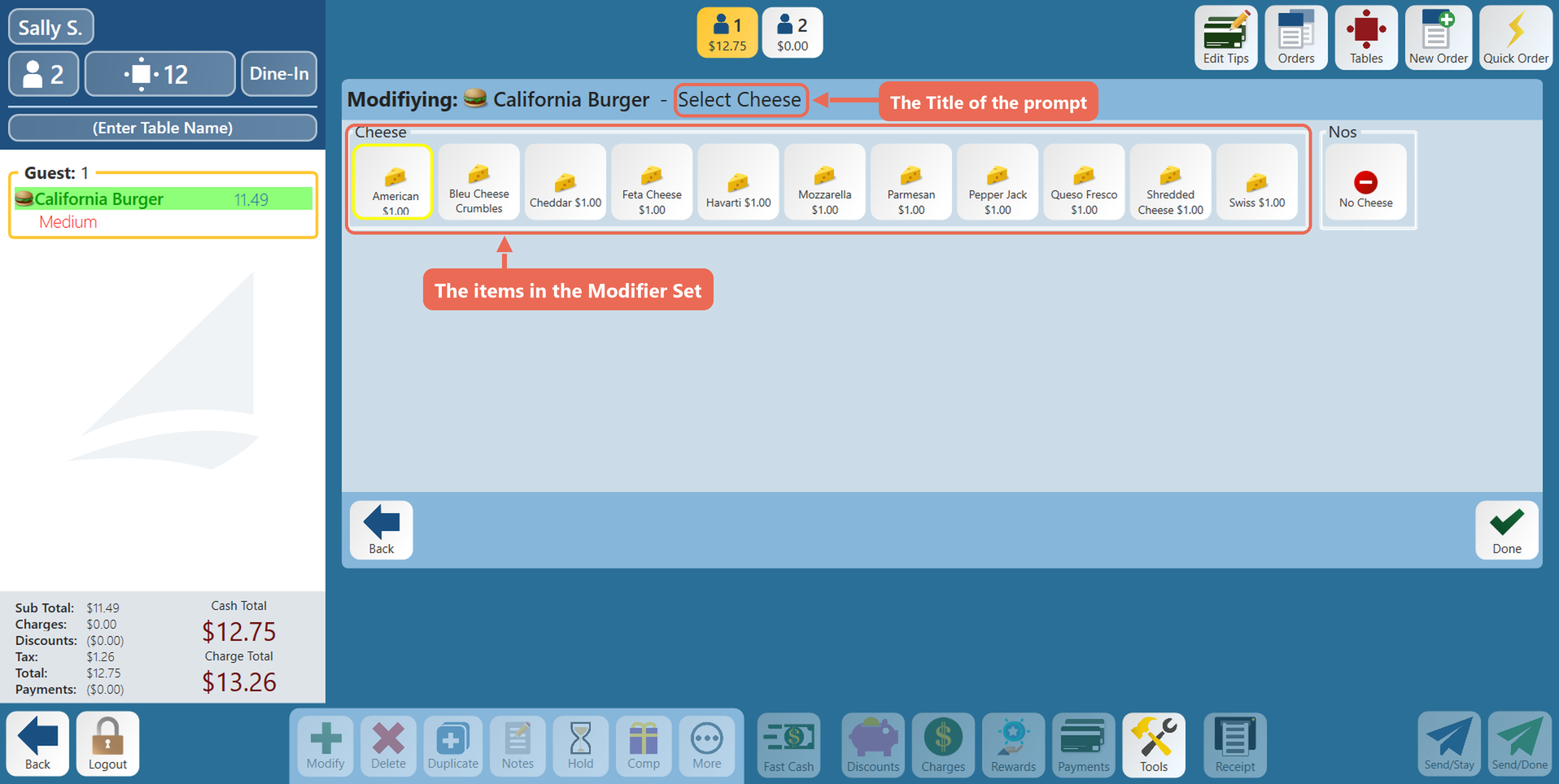
Let’s continue using the cheeseburgerburger example. When ringing in a cheeseburgerburger you may want to prompt the user for various things. In the example below, we specify that we would like to prompt for the cheese, cook temptemp, the cheese and anya toppingsside they want onwith their burger. This is done on the Item’s Modifiers tab, under Prompted Sets, by specifying the various Modifier Sets that contain the appropriate selections. The Title is what the terminal shows above the choices.
You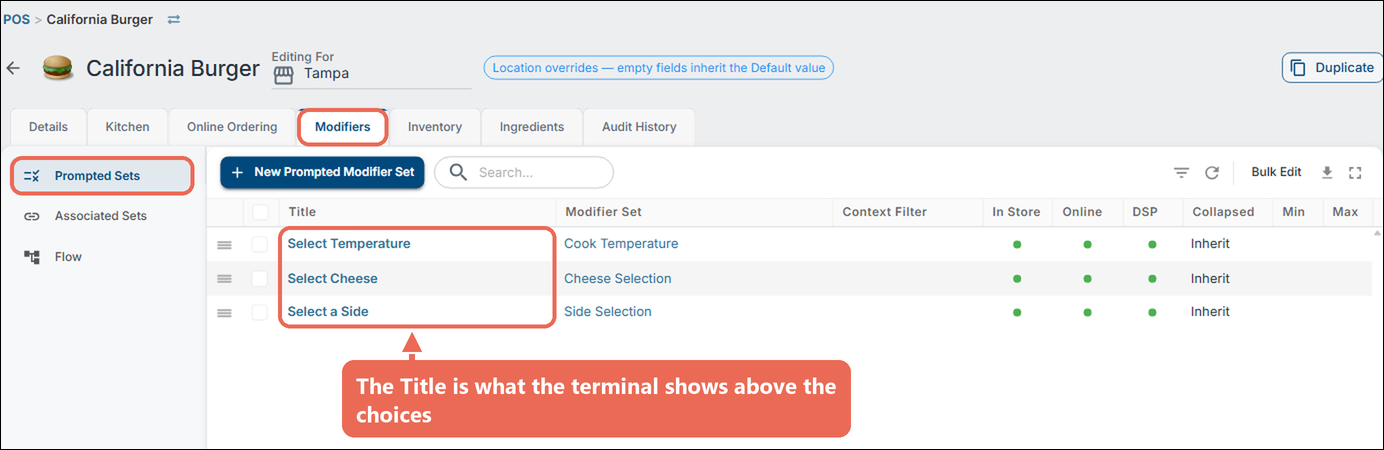
This alsois specify whether or nothow the usercheese isprompt allowedlooks to bypasson the prompt without selecting one, or if they are forced to pick one, by toggling the Allow None flag.terminal:
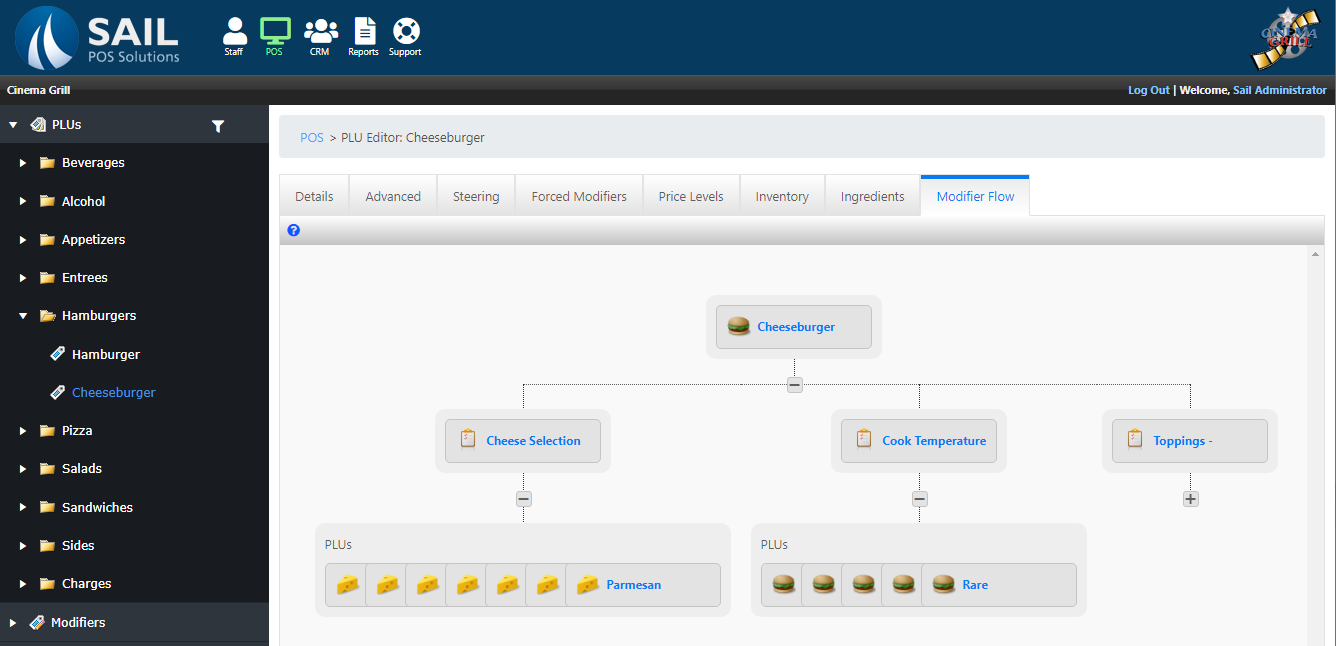
There is also a visualization available to show all available prompts, with links to the Modifier Sets and their child Modifier PLUs.