How to modify, duplicate or add a note to a menu item
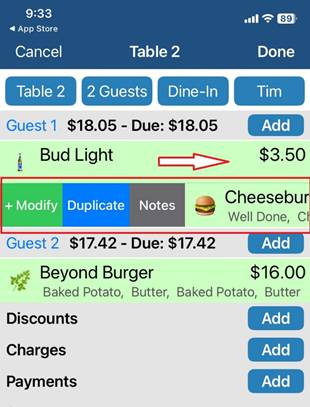
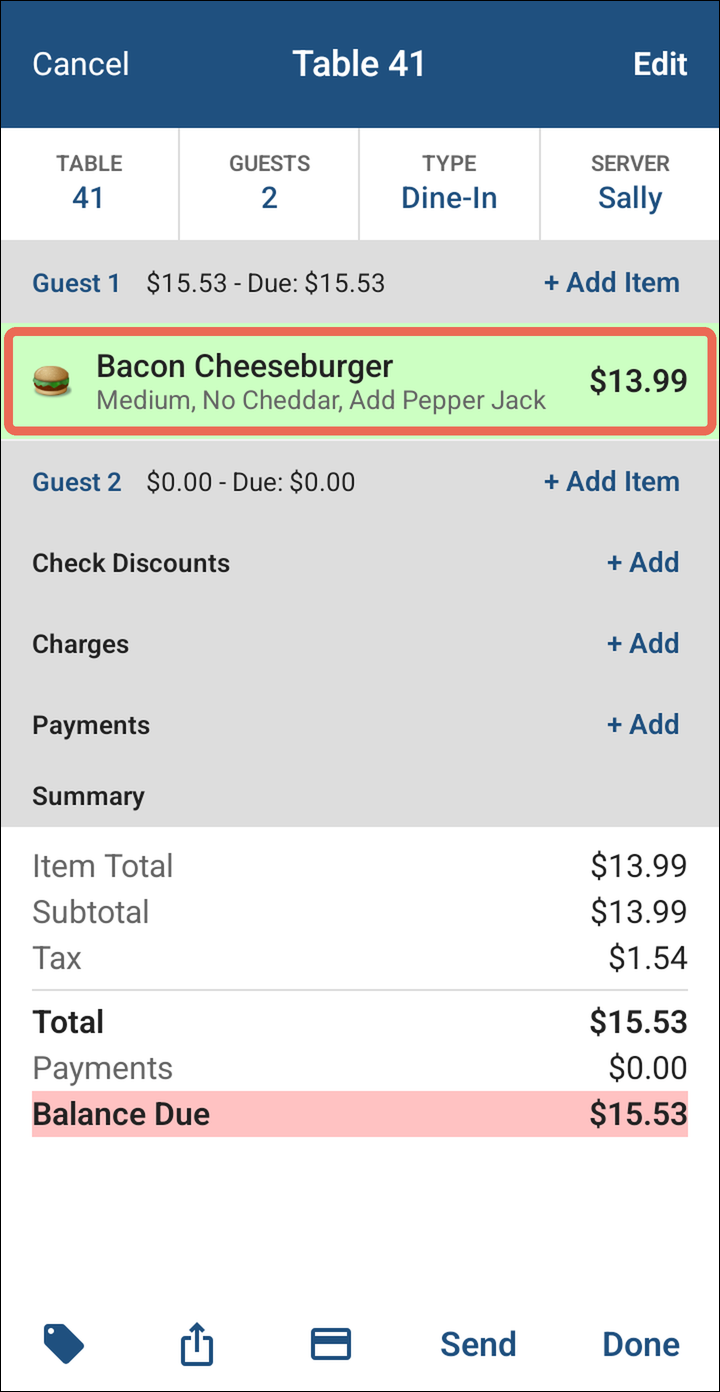
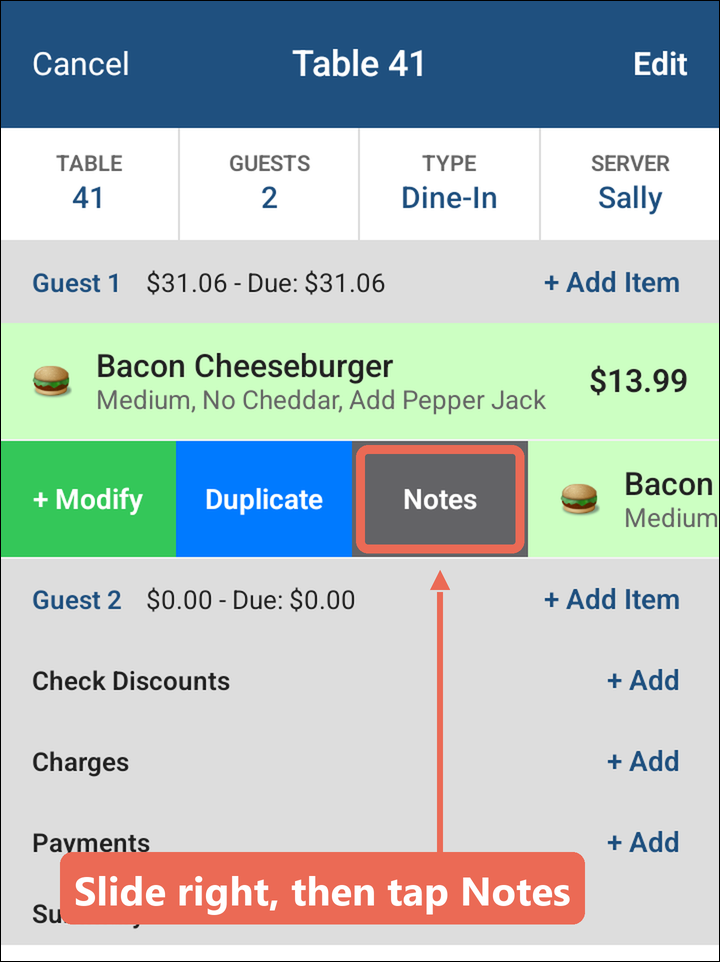
SlideThis rightwill walk you through how to change the ingredients on thean menuitem, itemring youin wantanother toone modify,just duplicate,like it, or add a note for the kitchen on a handheld. Slide the item to the right on the order to see + Modify, Duplicate and Notes.
Modifying an item
-
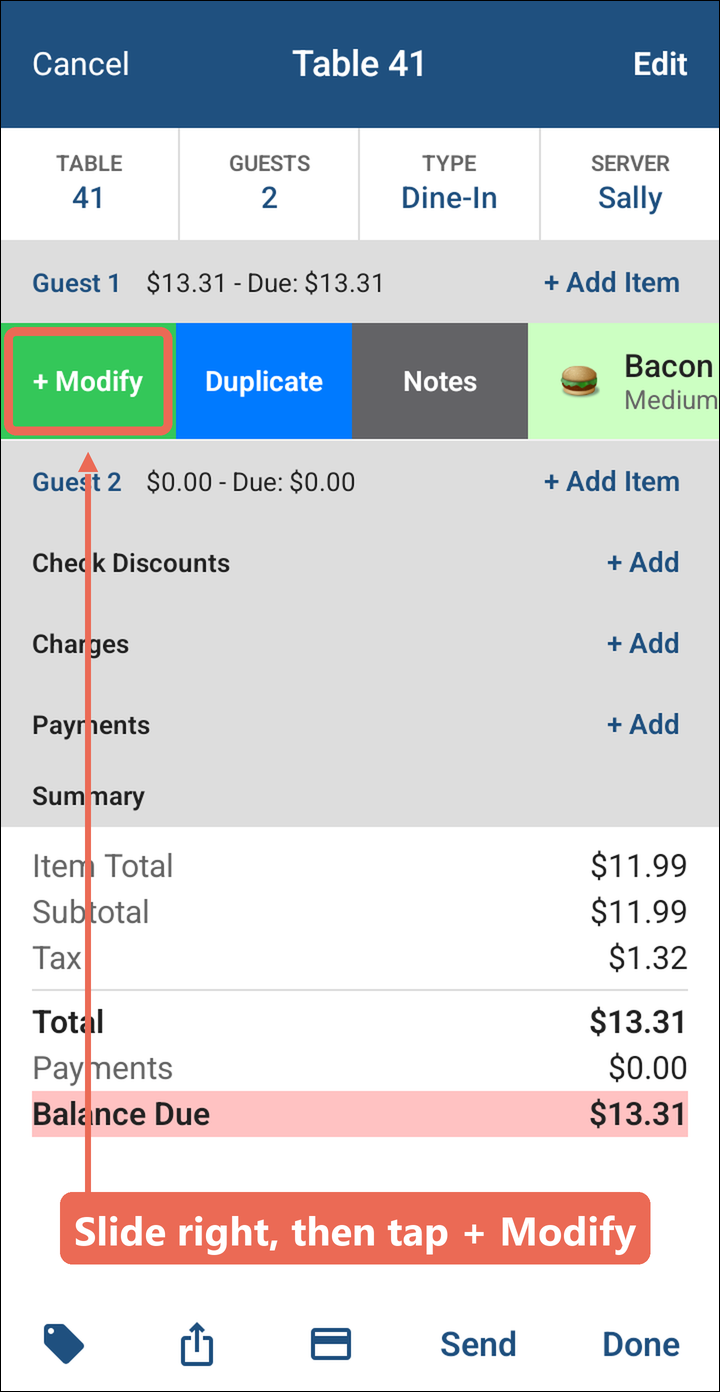
Slide the item to the right and tap + Modify.
-
theModifyTapItemClick + ModifyChoosegroup the ingredientcategoryis in.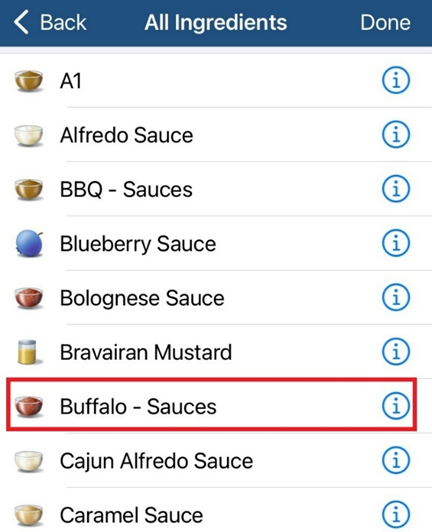
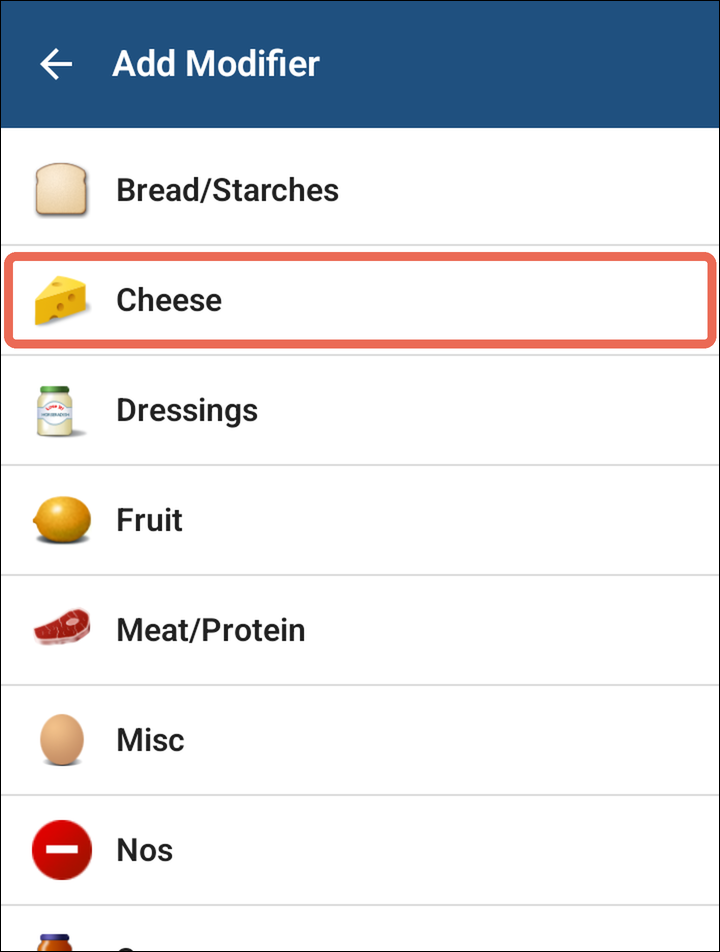
-
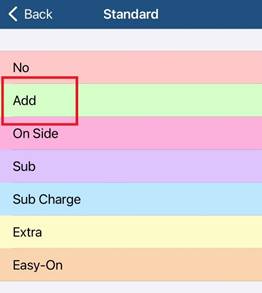
Tap the ingredient. Each tap changes it to the next choice (No, Add, On Side and so on), shown next to its name.
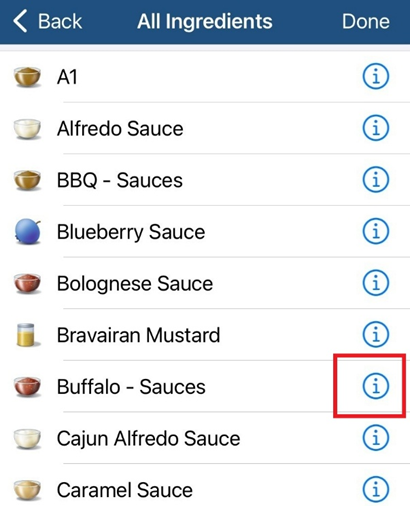
ChooseNote: To pick the choice straight from a list, tap the i icon next to the ingredient& Click Doneinstead.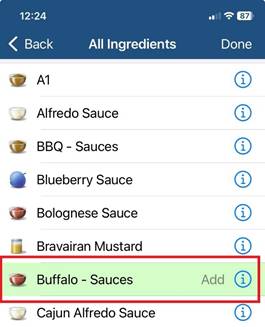
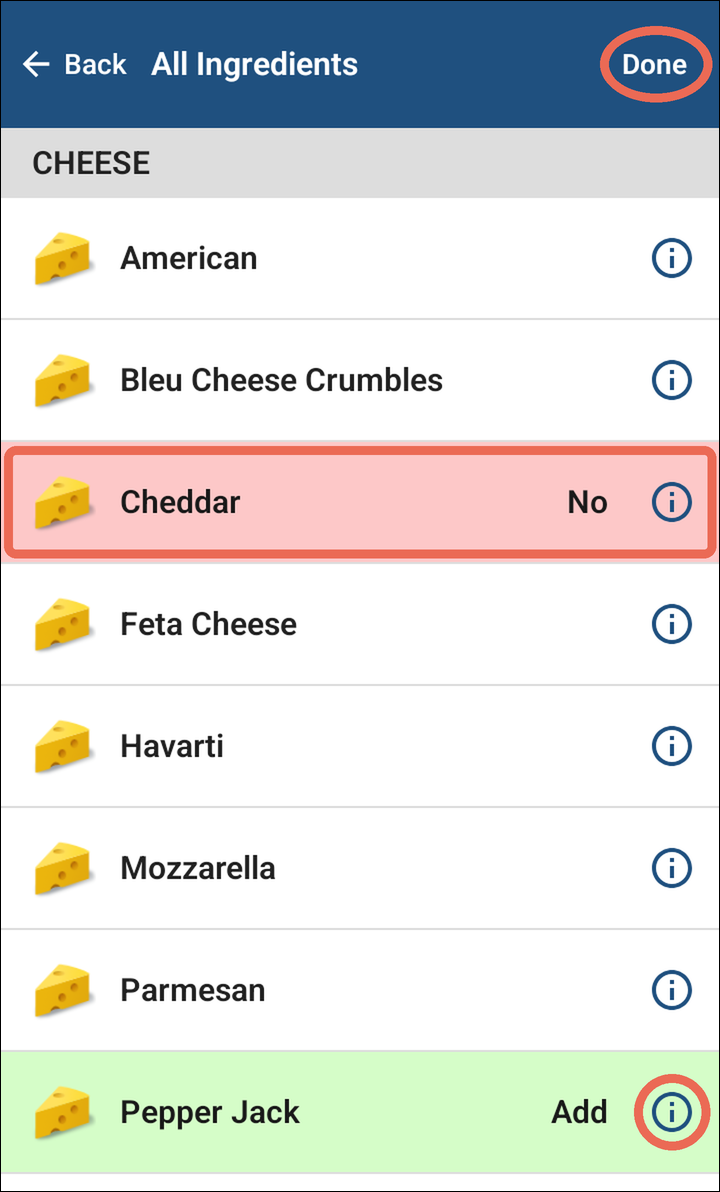
Note:Click -
If you tapped the i
iconicon, tap the choice you want.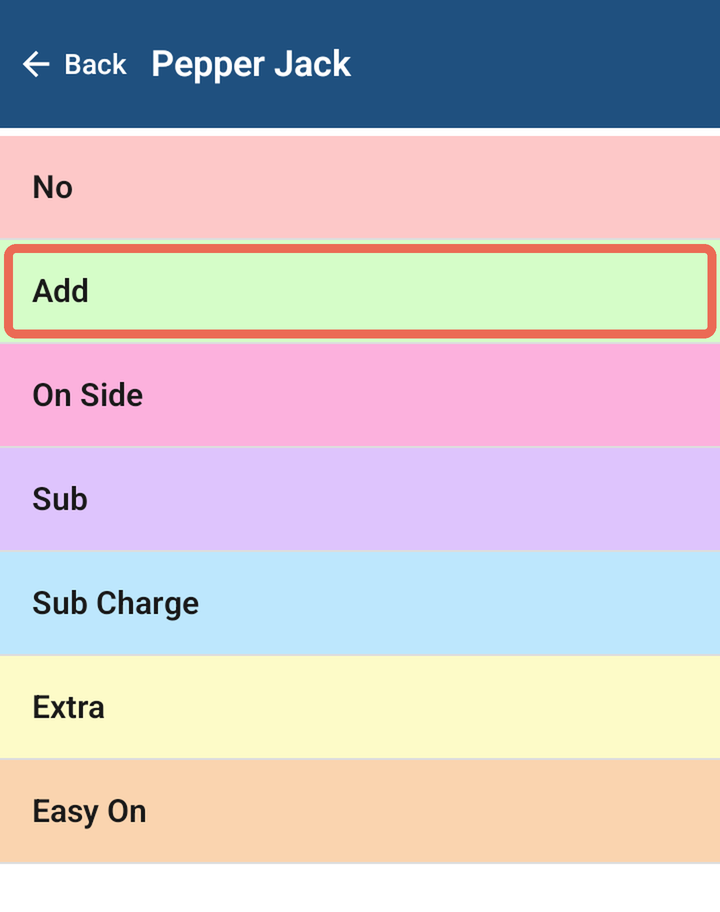
-
Tap Back to
a
Duplicating an item
-
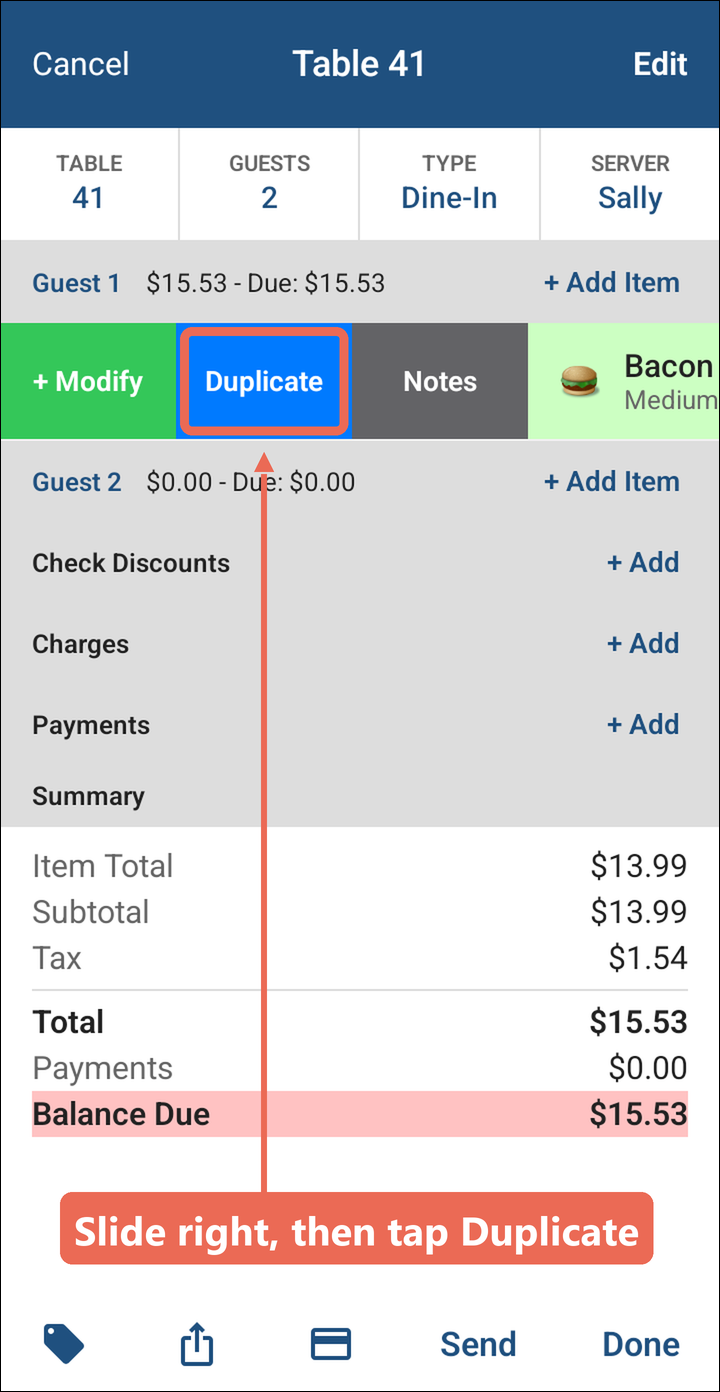
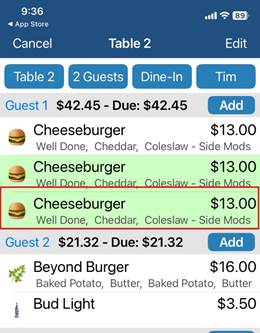
Slide the item to the right and tap Duplicate.
-
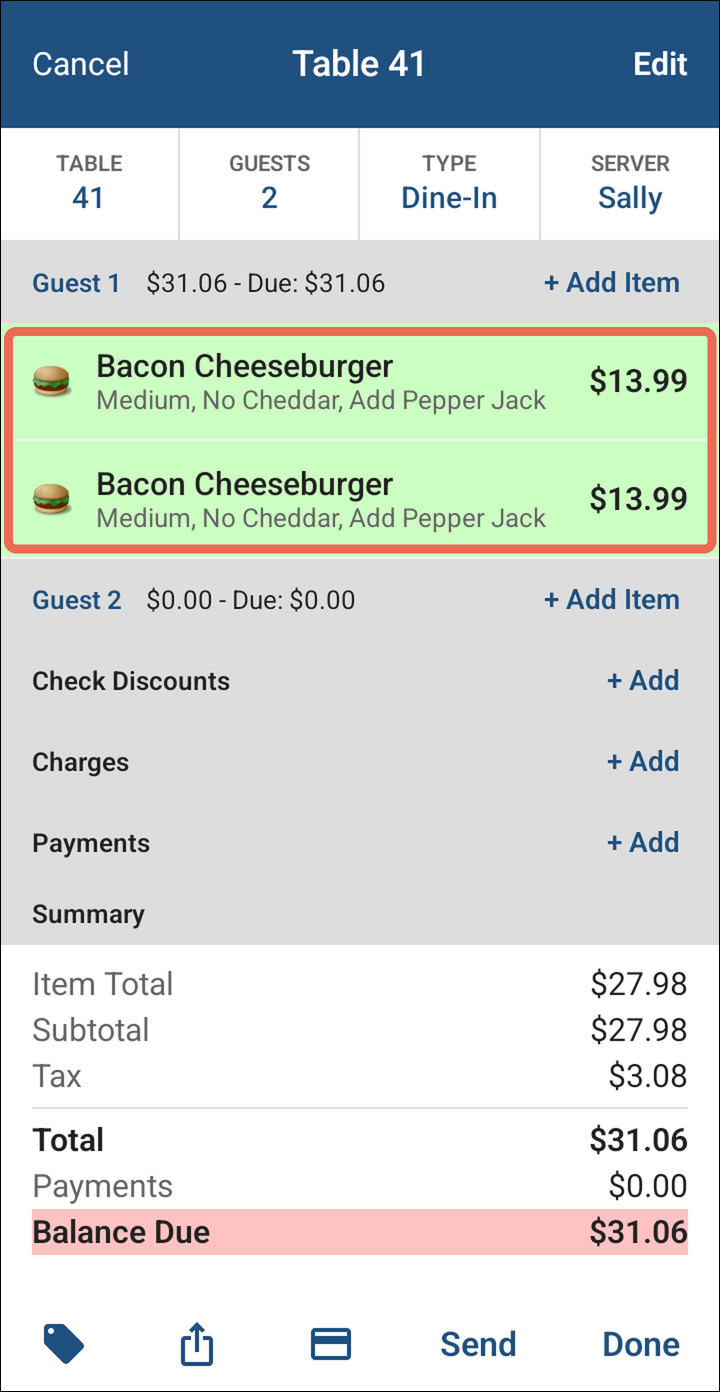
A second one is added for the same guest, with the same changes.
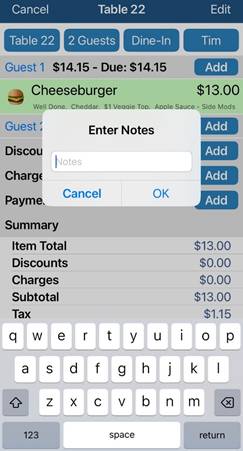
Adding a prepnote modifierto an item
-
Slide the item to the right and tap Notes.
-
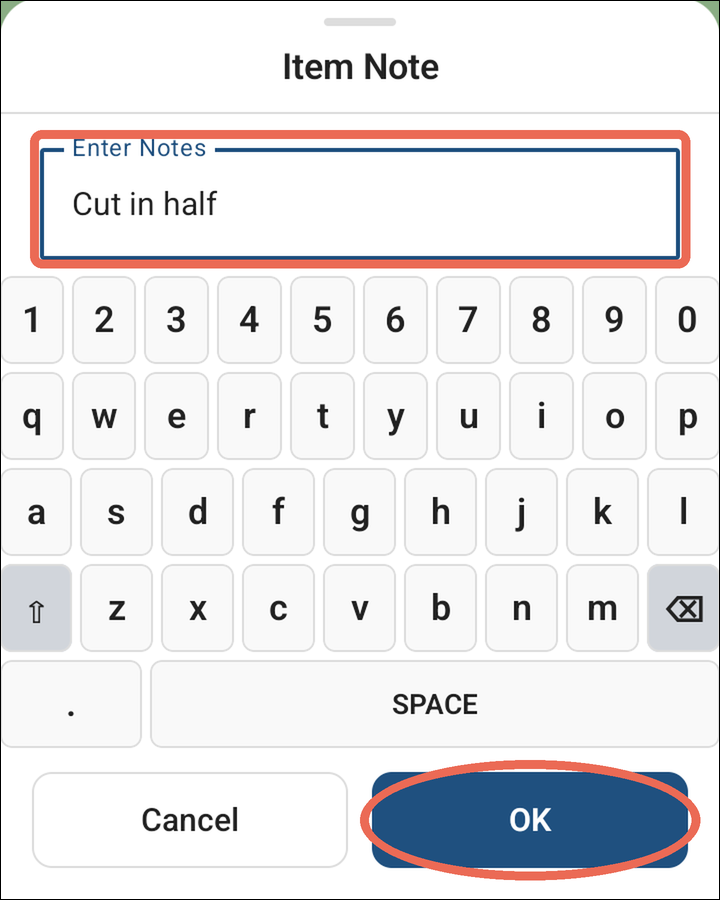
Type the note and tap OK.
-
The note shows under the item, before its other changes.
Duplicate Item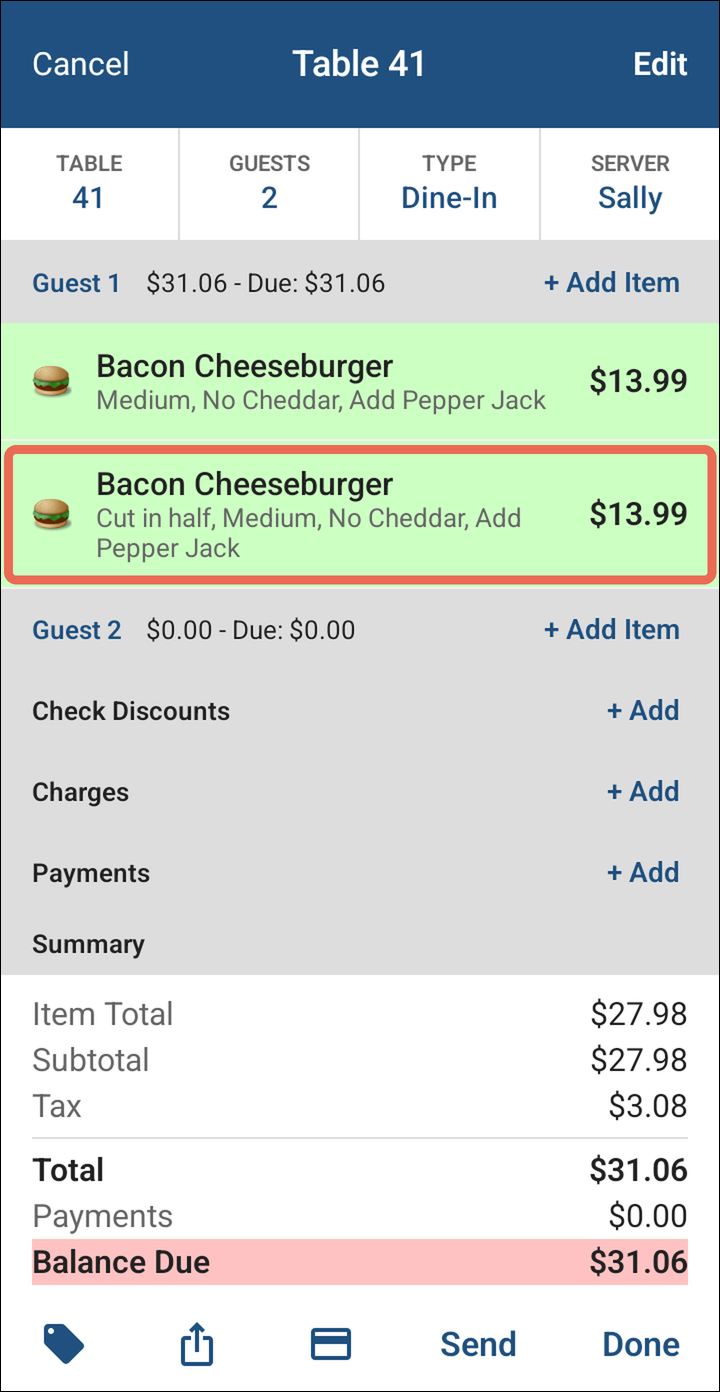
TypeNote: NoteRemember &to Clicktap OkSend or Done to send your changes. Once an item has been paid, it can't be modified, duplicated or given a note.