
Release 2026.8.1 "Up Hill"
Notes: This release consists of 5 New features and Improvements. Use the page navigation section on the top left of this screen to jump between the features you'd like to read about.
**This release will NOT require a handheld update**
**This release WILL require a handheld update to version 2026.8.1**
If you would like any additional information or help setting up any of these new features, please contact support at:
Support@ingageit.com or call (612) 861-5277
New Features
Improvements
1. Discount Enhancements
We have added 4 new options in discounts
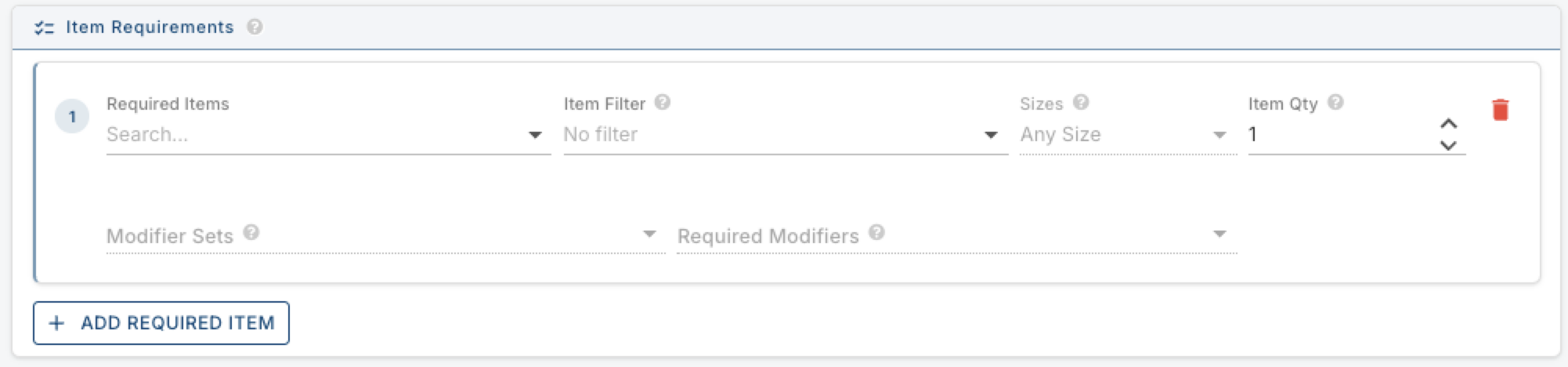
Item Requirements
- You can now require specific items to be on the order before a discount can be applied. If the requirements aren't met, the discount will be greyed out and unavailable.
- Requirements are configured on the Requirements tab of the discount editor. In the Item Requirements section, click + Add Required Item to set up a requirement. You can specify:
- Required Item — a specific item or select an item filter
- Size — any size or a specific size
- Item Qty — the minimum quantity of that item required
- Modifier Sets / Required Modifiers — optionally require specific modifiers on the item
- Mod Qty — the minimum number of required modifiers
- You can add multiple item requirements to a single discount.
- Example: A "2 Large 2-Topping Pizzas" discount can be configured to require 2 Large BYO Pizzas, each with 2 toppings selected — the discount won't be available until those exact items are on the order.
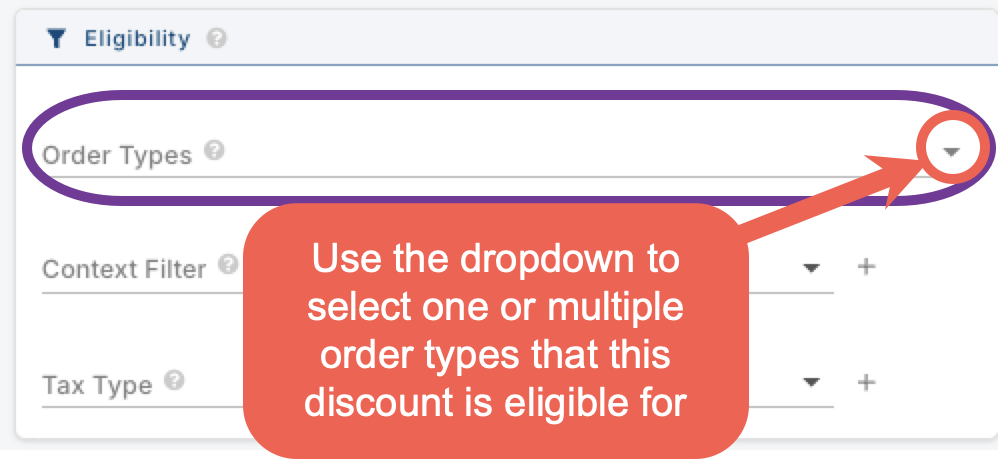
Order Type Requirement
- You can now restrict a discount to one or more specific order types. If the order doesn't match the selected type(s), the discount will be greyed out and unavailable.
- This is found on the Requirements tab of the discount editor under the Eligibility section. Use the Order Types dropdown to select which order types the discount applies to.
- Examples: A discount available only for online orders, or a happy hour discount only valid for Dine In.
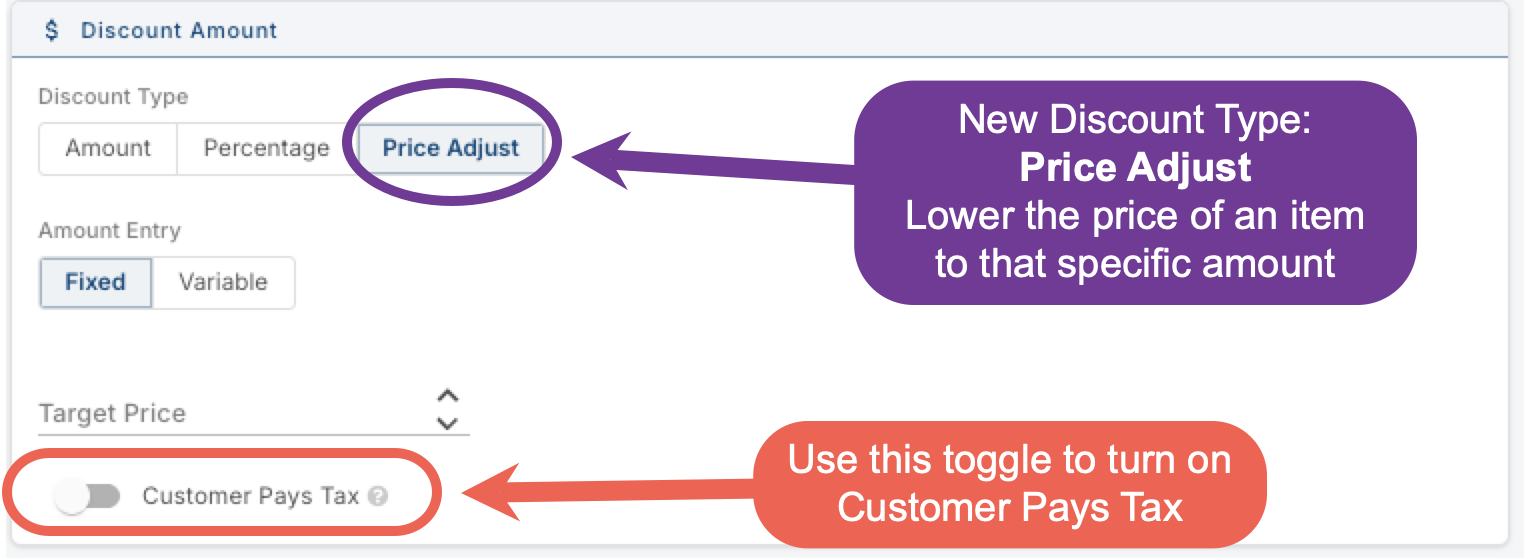
Price Adjust
- A new Price Adjust discount type has been added. Instead of discounting by a dollar amount or percentage, Price Adjust sets the item to a specific target price regardless of what it normally costs.
- Price Adjust discounts lower each item to a target price, so they can only be applied to items — not the whole check.
- Example: A burger normally priced at $14.00 can be discounted to a flat $10.00 using a Fixed Price Adjust discount.
- You'll also notice the Discount Amount section has been reorganized. Previously there were four flat options (Fixed Amount, Variable Amount, Fixed Percentage, Variable Percentage). Now you first choose the discount type — Amount, Percentage, or Price Adjust — and then choose whether it is Fixed or Variable, making it easier to navigate.
Customer Pays Tax
- A new Customer Pays Tax toggle has been added to the Discount Amount section of the discount editor. When turned on, the discount reduces the subtotal but the customer still pays the full tax as if the discount weren't applied.
- This applies to both check and item discounts.
- Example: A $5.00 item is comped for the guest, but the tax on that $5.00 is still calculated and charged to the customer.
2. OLO: Quick add buttons with quantity controls
3. Shortcut Actions
Fixes
Something was fixed