
Release 2026.8.1 "Up Hill"
Notes: This release consists of 3 New features and Improvements. Use the page navigation section on the top left of this screen to jump between the features you'd like to read about.
**This release WILL require a handheld update to version 2026.8.1**
If you would like any additional information or help setting up any of these new features, please contact support at:
Support@ingageit.com or call (612) 861-5277
Improvements
1. Discount Enhancements
We have added 4 new options in discounts
Item Requirements
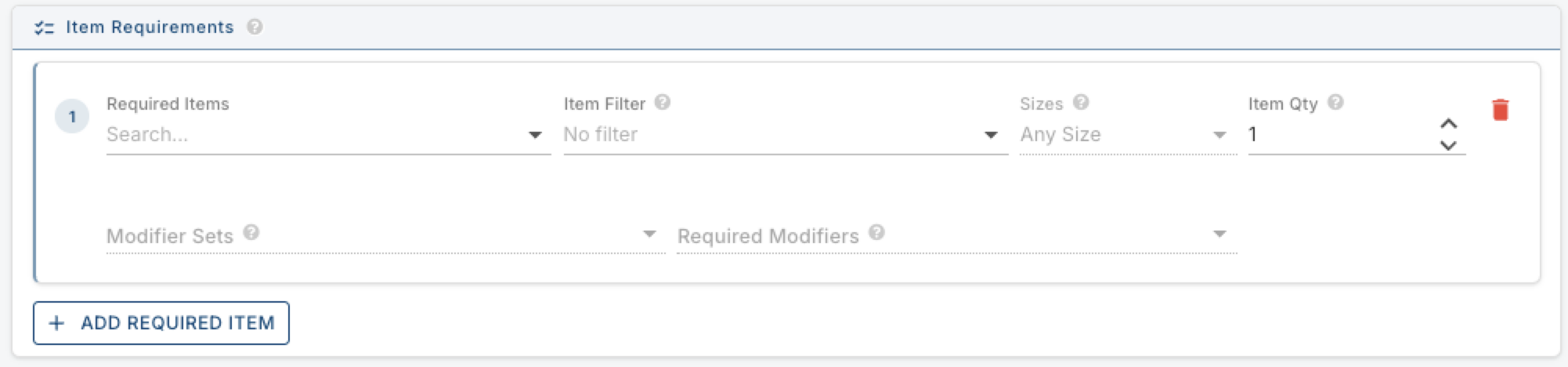
- You can now require specific items to be on the order before a discount can be applied. If the requirements aren't met, the discount will be greyed out and unavailable.
- Requirements are configured on the Requirements tab of the discount editor. In the Item Requirements section, click + Add Required Item to set up a requirement. You can specify:
- Required Item — a specific item or select an item filter
- Size — any size or a specific size
- Item Qty — the minimum quantity of that item required
- Modifier Sets / Required Modifiers — optionally require specific modifiers on the item
- Mod Qty — the minimum number of required modifiers
- You can add multiple item requirements to a single discount.
- Example: A "2 Large 2-Topping Pizzas" discount can be configured to require 2 Large BYO Pizzas, each with 2 toppings selected — the discount won't be available until those exact items are on the order.
Order Type Requirement
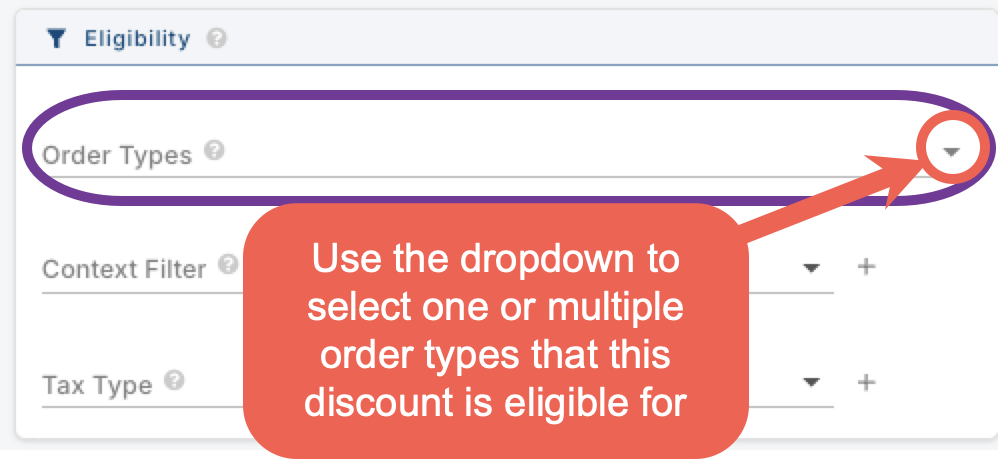
- You can now restrict a discount to one or more specific order types. If the order doesn't match the selected type(s), the discount will be greyed out and unavailable.
- This is found on the Requirements tab of the discount editor under the Eligibility section. Use the Order Types dropdown to select which order types the discount applies to.
- Examples: A discount available only for online orders, or a happy hour discount only valid for Dine In.
Price Adjust
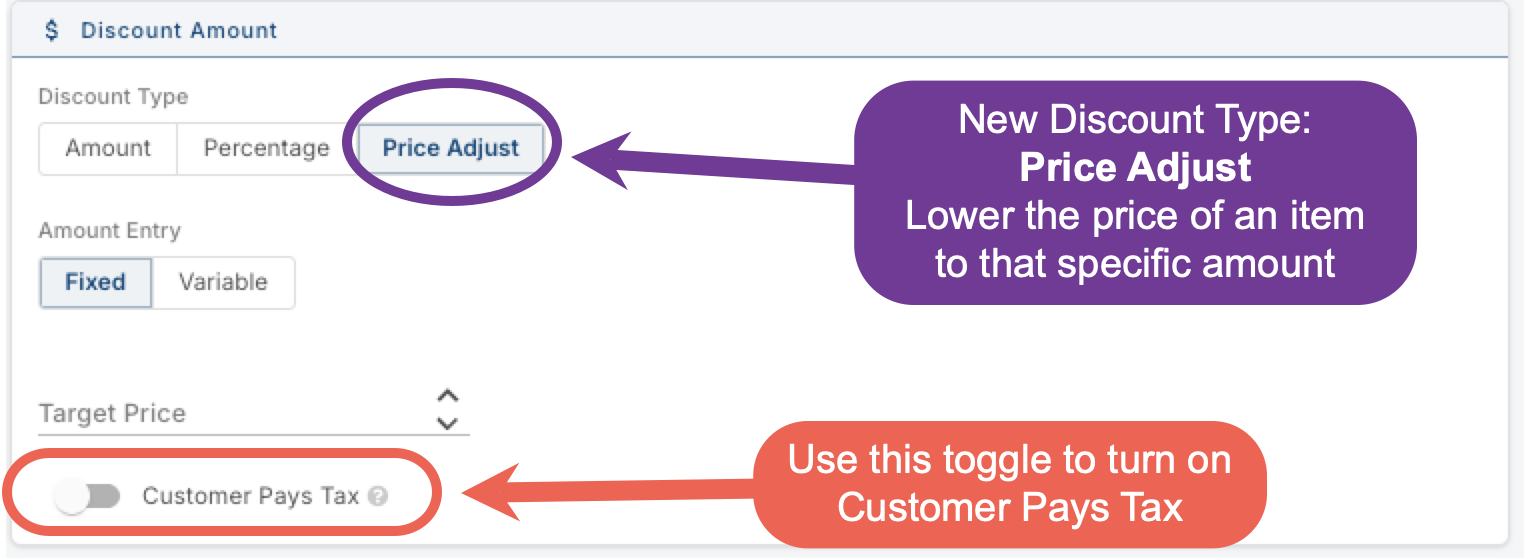
- A new Price Adjust discount type has been added. Instead of discounting by a dollar amount or percentage, Price Adjust sets the item to a specific target price regardless of what it normally costs.
- A key difference between a Price Adjust discount and a normal price adjustment is that the change is reported as a discount rather than simply changing the price of the item. This keeps the item at its regular menu price and records the difference as a discount, so it shows up in discount reporting instead of being hidden as a price change.
- Price Adjust discounts lower each item to a target price, so they can only be applied to items — not the whole check.
- Example: A burger normally priced at $14.00 can be discounted to a flat $10.00 using a Fixed Price Adjust discount.
- You'll also notice the Discount Amount section has been reorganized. Previously there were four flat options (Fixed Amount, Variable Amount, Fixed Percentage, Variable Percentage). Now you first choose the discount type — Amount, Percentage, or Price Adjust — and then choose whether it is Fixed or Variable, making it easier to navigate.
Customer Pays Tax
- A new Customer Pays Tax toggle has been added to the Discount Amount section of the discount editor. When turned on, the discount reduces the subtotal but the customer still pays the full tax as if the discount weren't applied.
- This applies to both check and item discounts.
- Example: A $5.00 item is Discounted for the guest, but the tax on that $5.00 is still calculated and charged to the customer.
2. Online Ordering: Quick Add Buttons with Quantity Controls
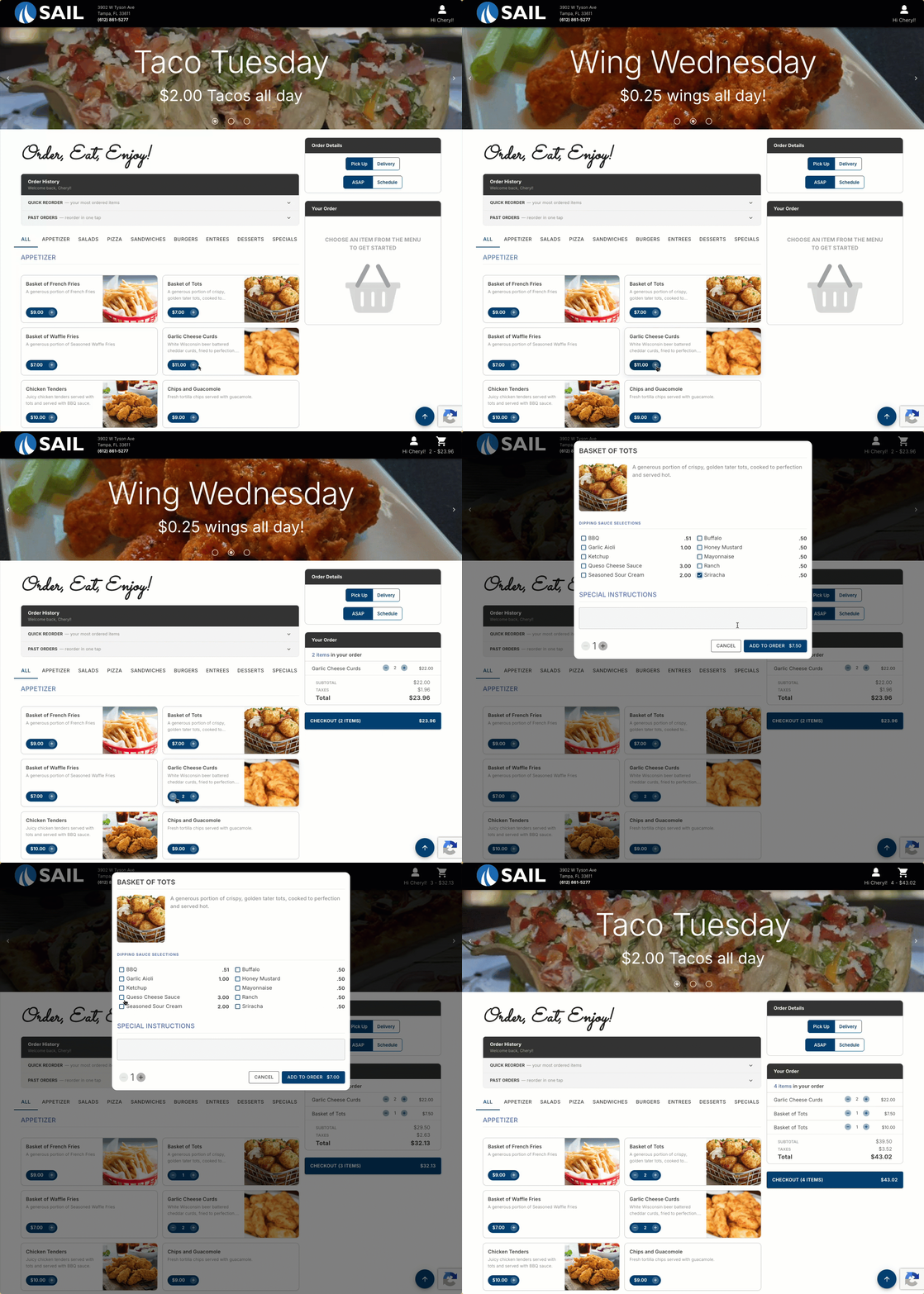
- Items on the online ordering menu now display a quick add button showing the item's price. This lets guests add items to their cart and adjust quantities directly from the menu without having to open the item first.
- Items without prompted modifiers — clicking the button instantly adds the item to the cart. The button expands to show – and + controls so the guest can adjust the quantity right from the menu.
- Items with prompted modifiers — clicking the + button will open the modifier prompt each time, so the guest can make their selections before the item is added.
3. 15 Additional New Actions
- This release finishes the rollout of new actions that began in a previous release. An additional 15 actions are being added this sprint.
- As a reminder, an Action is a single step that performs a specific function, and a Shortcut is a button made up of one or more actions. Actions without a checkmark in the "Can it be used in a Shortcut" column can still be placed directly on a screen as a standalone button — they just can't be combined into a shortcut with other actions.
- Below is a table with the new actions included in this release, covering the action name, what it does, whether it can be used in a Shortcut, and which devices it supports.
| Action Name | Group | What it does | Available in Shortcuts | Available on Terminals | Available on Handheld |
| Apply Note | Items | Adds a note to the selected items (or last item). Set the text, or leave blank to prompt. | ✓ | ✓ | ✓ |
| Apply Charge | Items | Applies the configured charge. Prompts for a value if the charge is a variable amount or percentage. | ✓ | ✓ | ✓ |
| Ungroup Quantity | Items | Splits a quantity-grouped item into individual items, dividing price, tax, and modifiers across them. | ✓ | ✓ | |
| Change Modifier | Items | Re-treats the selected modifier(s), or the last one, to a chosen treatment (e.g. make a topping Extra or No) and reprices. | ✓ | ✓ | ✓ |
| Set Table # | Order | Sets the order's table number. Set the value, or leave blank to prompt. | ✓ | ✓ | ✓ |
| Set Table Name | Order | Sets the order's table name. Set the value, or leave blank to prompt. | ✓ | ✓ | ✓ |
| Set Tax Exemption | Order | Sets or removes tax exemption on the selected items, or the whole order. May prompt for a note. | ✓ | ✓ | |
| Lookup Rewards Member | Order | Looks up a loyalty member (or registers one) and attaches them to the selected guest(s). Rewards locations only. | ✓ | ||
| Fast Cash | Payments | Closes the order to cash and shows change due. Optional confirm step; press and hold to skip it. | ✓ | ||
| Open Cash Drawer | Payments | Opens the cash drawer (No Sale). Needs a configured drawer and the access right. | ✓ | ||
| Select Items | Selection | Selects rows on the order (items, charges, discounts, payments) so the next action acts on them. Optional item filter and guest scope. | ✓ | ✓ | |
| Clear Item Selection | Selection | Clears the order's selection — the whole order, or just the current guest. | ✓ | ✓ | |
| Print Receipt | Receipts | Saves the order and prints a customer receipt of the chosen type (per-seat, combined, or selected guest). | ✓ | ✓ | ✓ |
| Print Last Receipt | Receipts | Reprints the customer receipt for the last transaction at this terminal. | ✓ | ||
| Print Last CC Voucher | Receipts | Reprints the last card voucher — customer copy, merchant copy, or both. Needs Reprint CC Receipt. | ✓ |
Fixes
- Fixed an issue where applying a 100% check-level discount could cause balancing discrepancies. Orders now balance correctly when a full check discount is applied.
No Comments