
Release 2026.6.3 "Roy Rogers"
Notes: This release consists of 2 Online Ordering Improvements. Use the page navigation section on the top left of this screen to jump between the features you'd like to read about.
**This release WILL require a handheld update to version 2026.6.3**
If you would like any additional information or help setting up any of these new features, please contact support at:
Support@ingageit.com or call (612) 861-5277
Improvements
1. Online Ordering Order Minimums
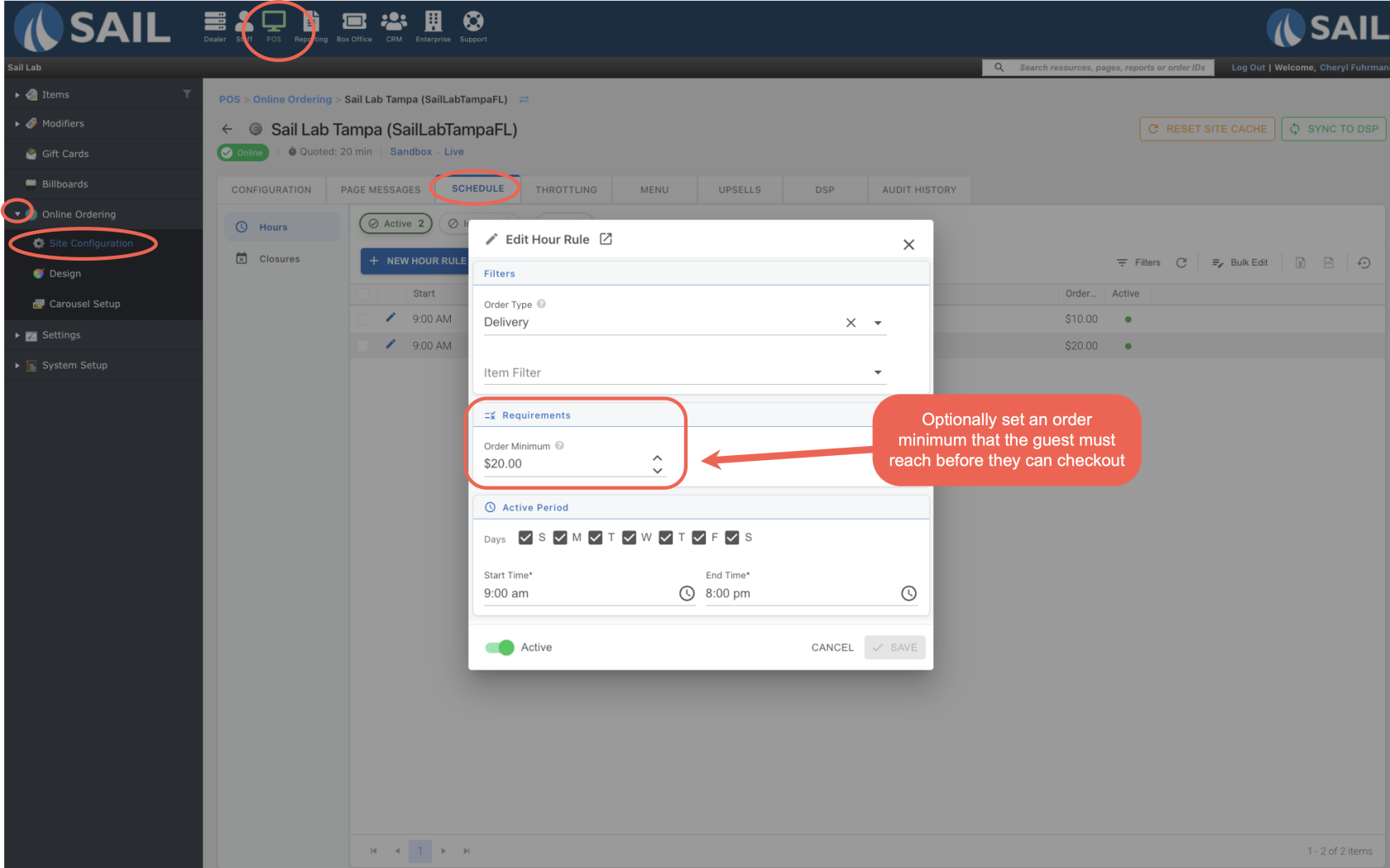
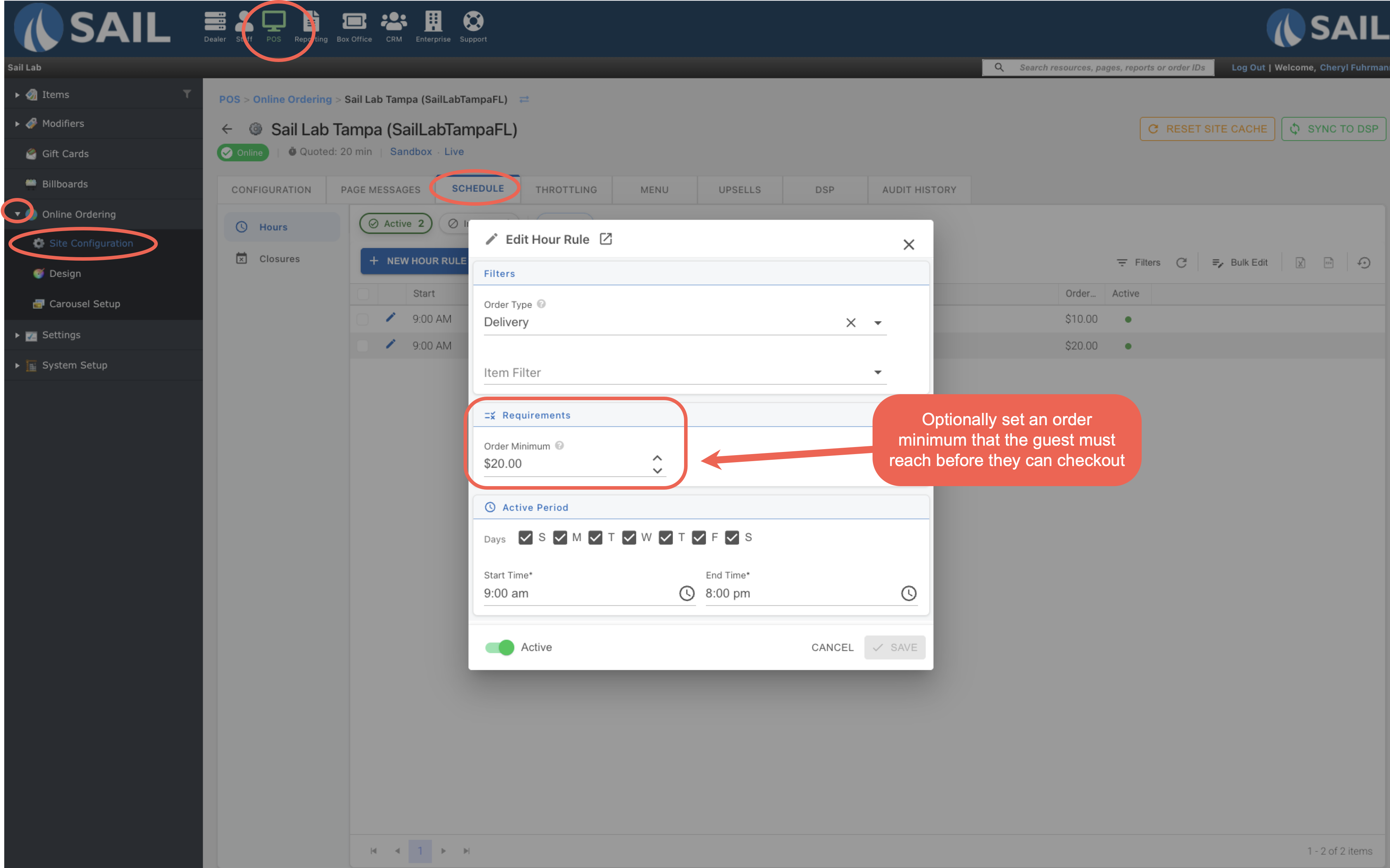
- You can now set an Order Minimum on individual hour rules in the Online Ordering Schedule tab. This is the minimum subtotal a guest must reach before they can check out.
- Because the minimum is set on a specific hour rule rather than the order type itself, you have more flexibility — for example, you could set a higher minimum only on busy weekend evenings, or apply a minimum only to your Delivery hours without affecting Pickup.
- To set an order minimum, go to Backoffice --> POS --> Online Ordering --> [your location] --> Schedule tab --> edit an Hour Rule --> Order Minimum field.
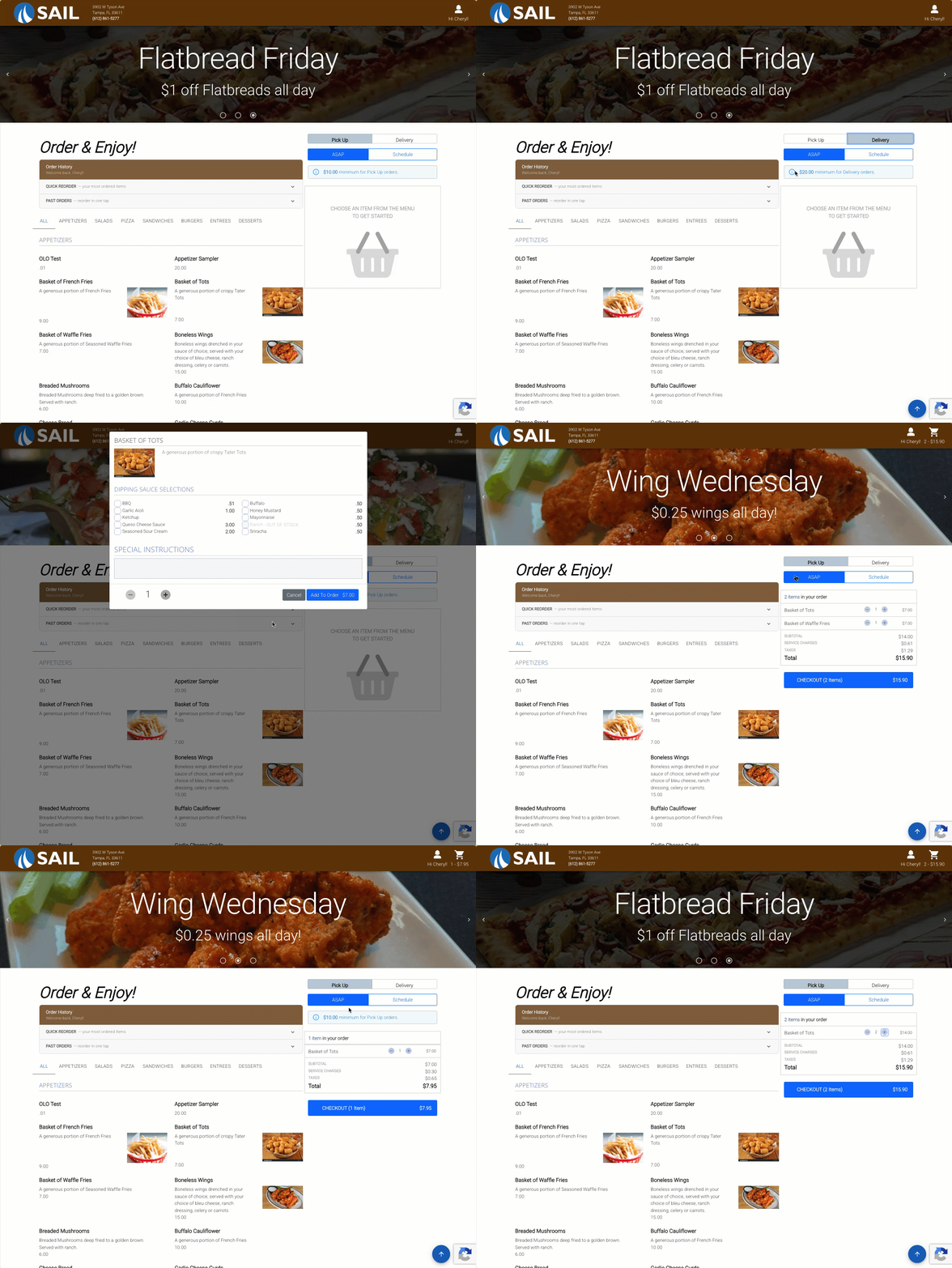
- Guests will see the minimum displayed above the cart on the online ordering site. If Pickup and Delivery have different minimums, the message will update automatically when they switch between the two.
- The minimum is validated twice — once when the guest clicks the Checkout button, and again when they click Place Order on the checkout screen, in case they edited their cart after proceeding to checkout.
2. Online Ordering: Improved Order Timing Visibility for Guests
- Several improvements have been made to help guests know when their order will be ready throughout the online ordering experience.
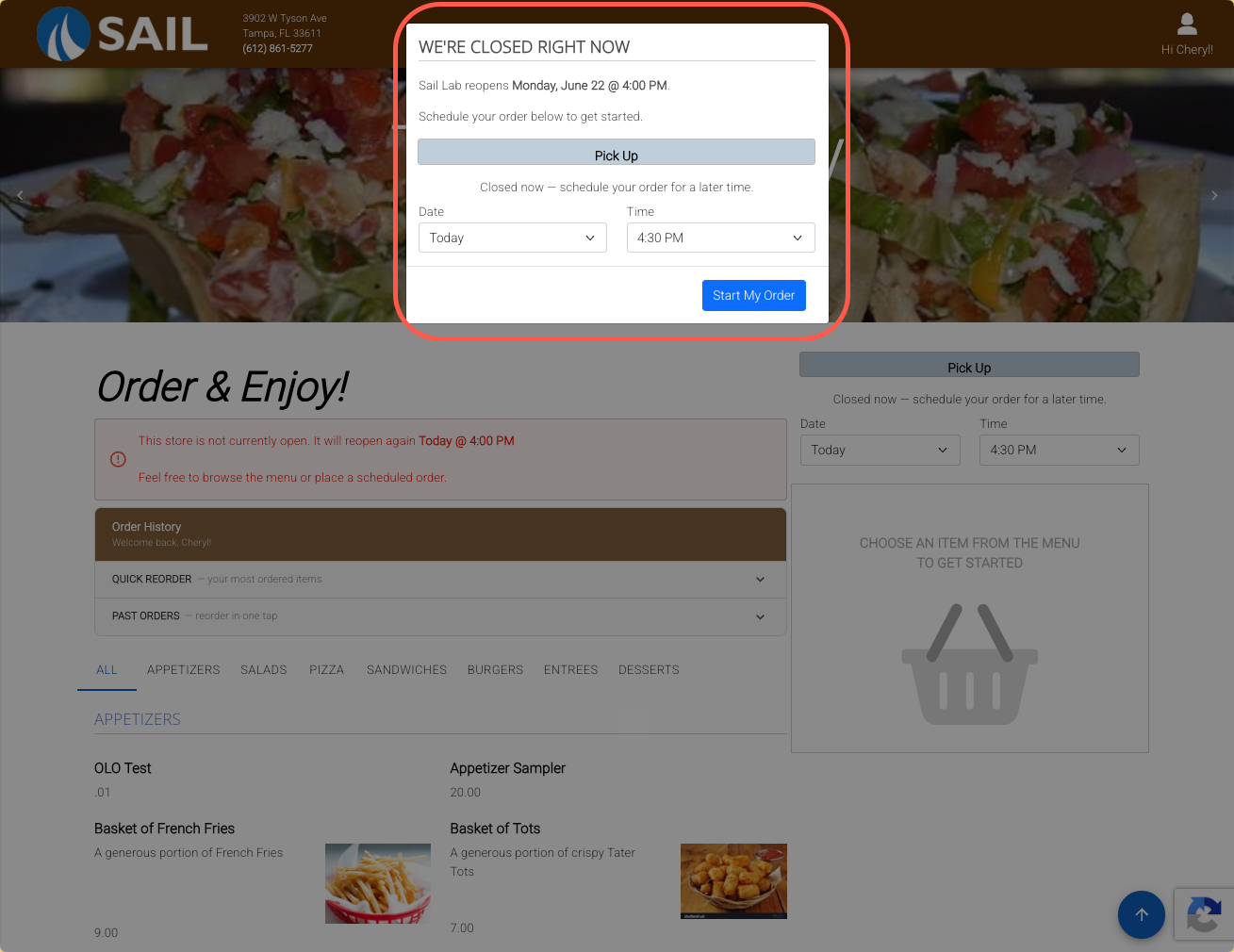
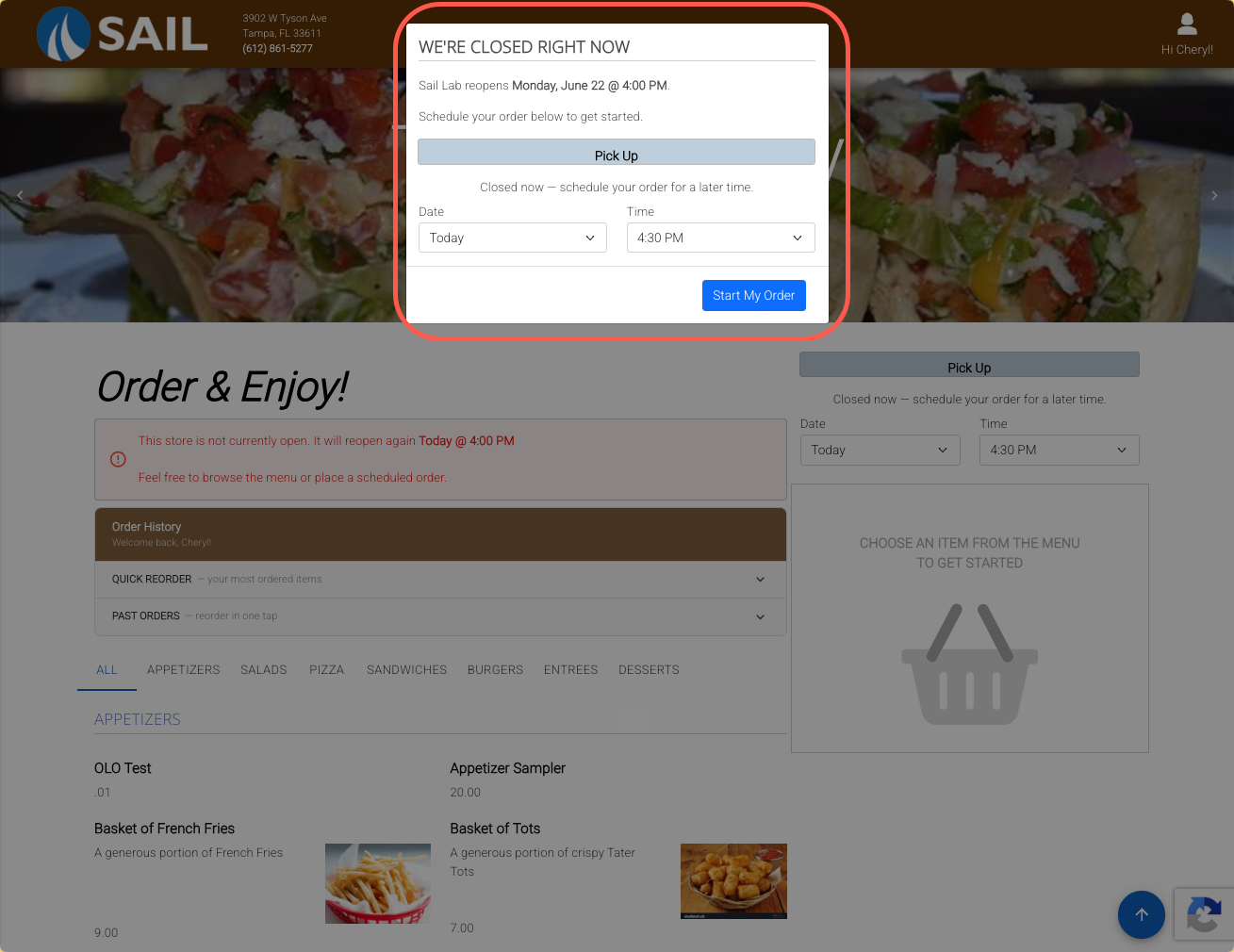
- When the restaurant is closed: Guests are now greeted with a "We're Closed Right Now" modal when they land on the ordering site. It displays the next opening time, lets them select Pickup or Delivery, and pre-fills the date and time to the next available slot. Guests must click "Start My Order" to proceed to the menu.
- While browsing: The ASAP button simply displays “ASAP” with no estimated time. This is intentional, as the estimated ready time is withheld until checkout to avoid discouraging guests before they place their order or creating unrealistic expectations if they spend an extended amount of time building their order before checking out.
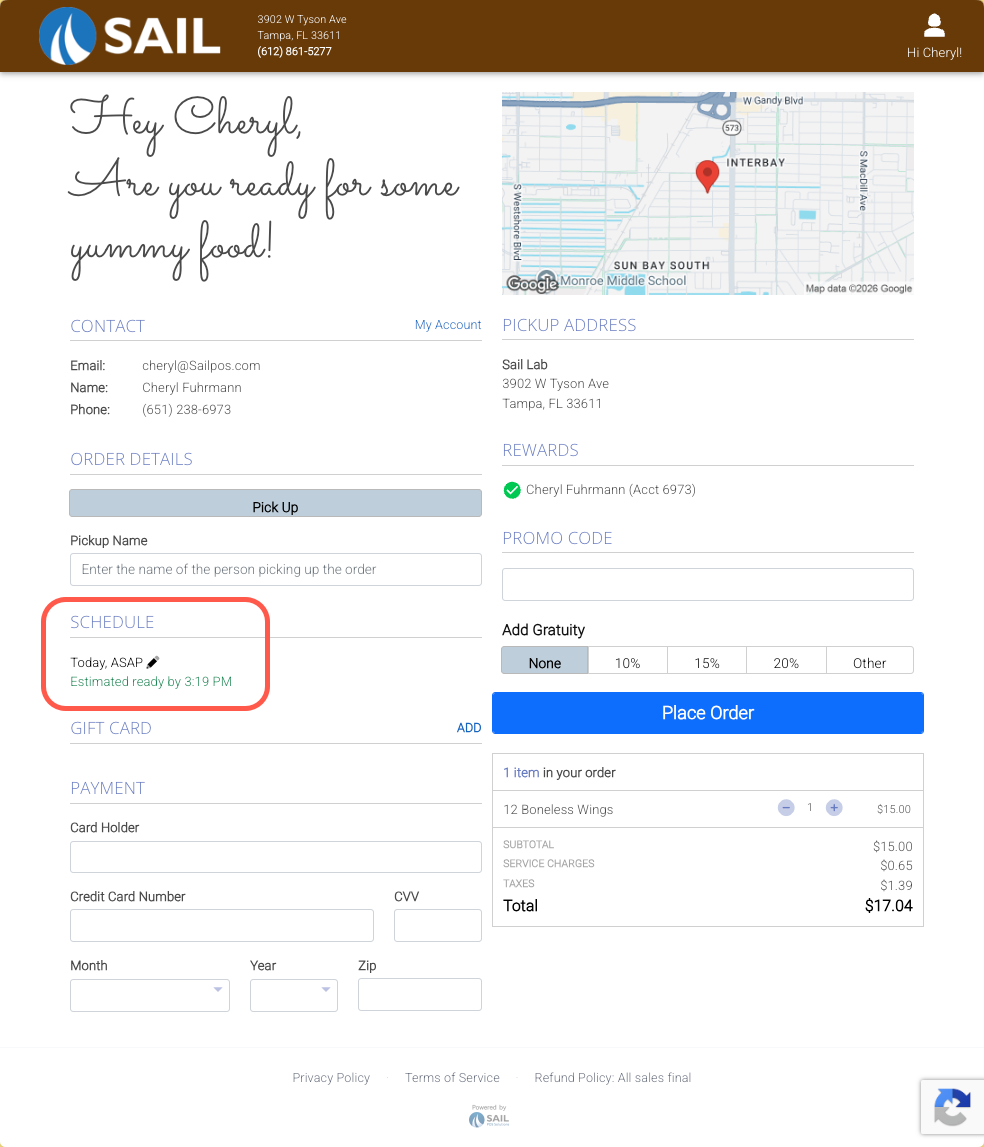
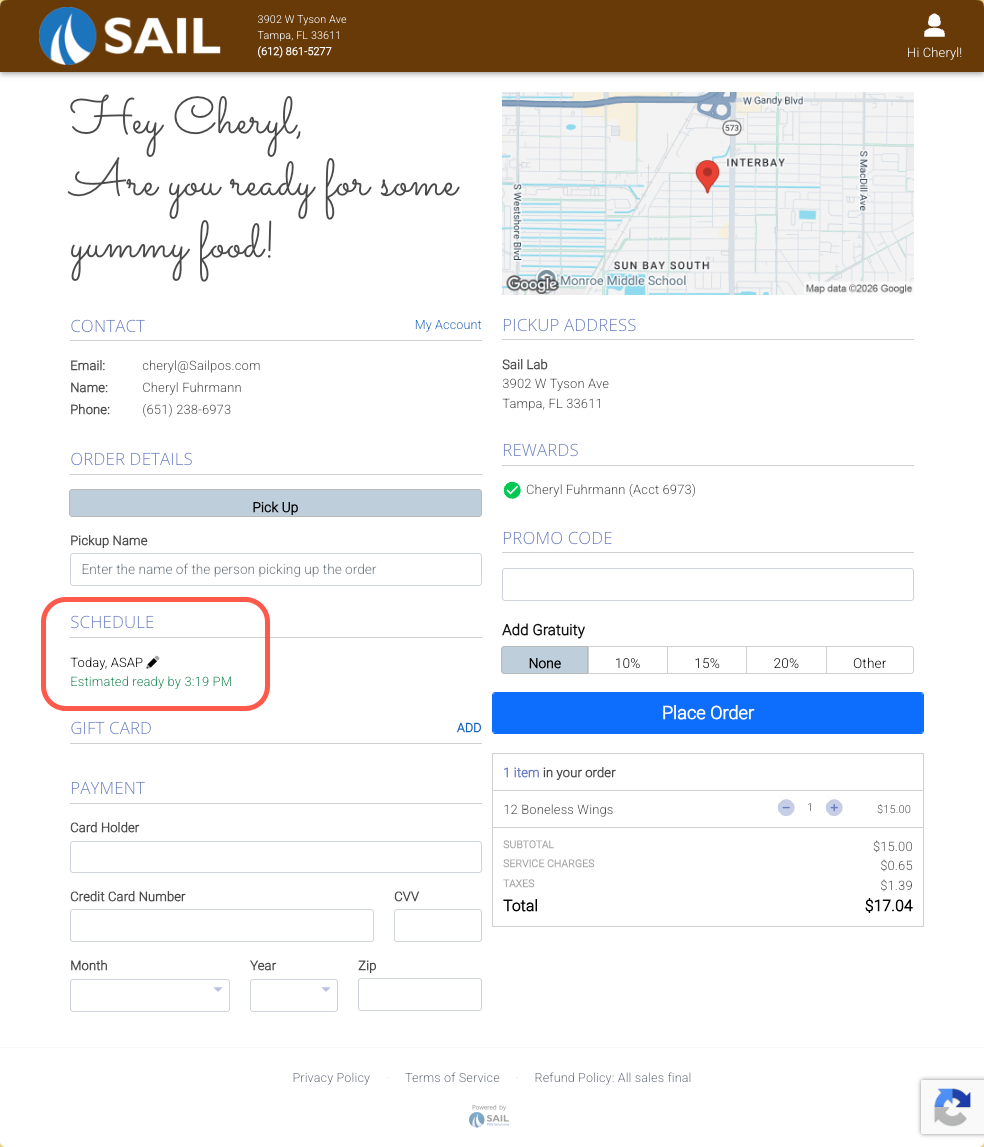
- On the checkout screen: The Schedule section now shows the selected time, and for ASAP orders, displays "Estimated ready by X:XX PM" in green beneath it. This is the first point in the flow where guests see their specific estimated time.
- After placing the order: Guests land on an Order Confirmation screen that displays the final Order Ready time.
Fixes
- Fixed an issue with not being able to edit the Starting balance or credit limit in CRM
No Comments