
Release 2026.9.1 "White Russian"
Notes: This release consists of 7 New features and Improvements. Use the page navigation section on the top left of this screen to jump between the features you'd like to read about.
**This release WILL require a handheld update to version 2026.9.1**
If you would like any additional information or help setting up any of these new features, please contact support at:
Support@ingageit.com or call (612) 861-5277
New Features
1. Label printing
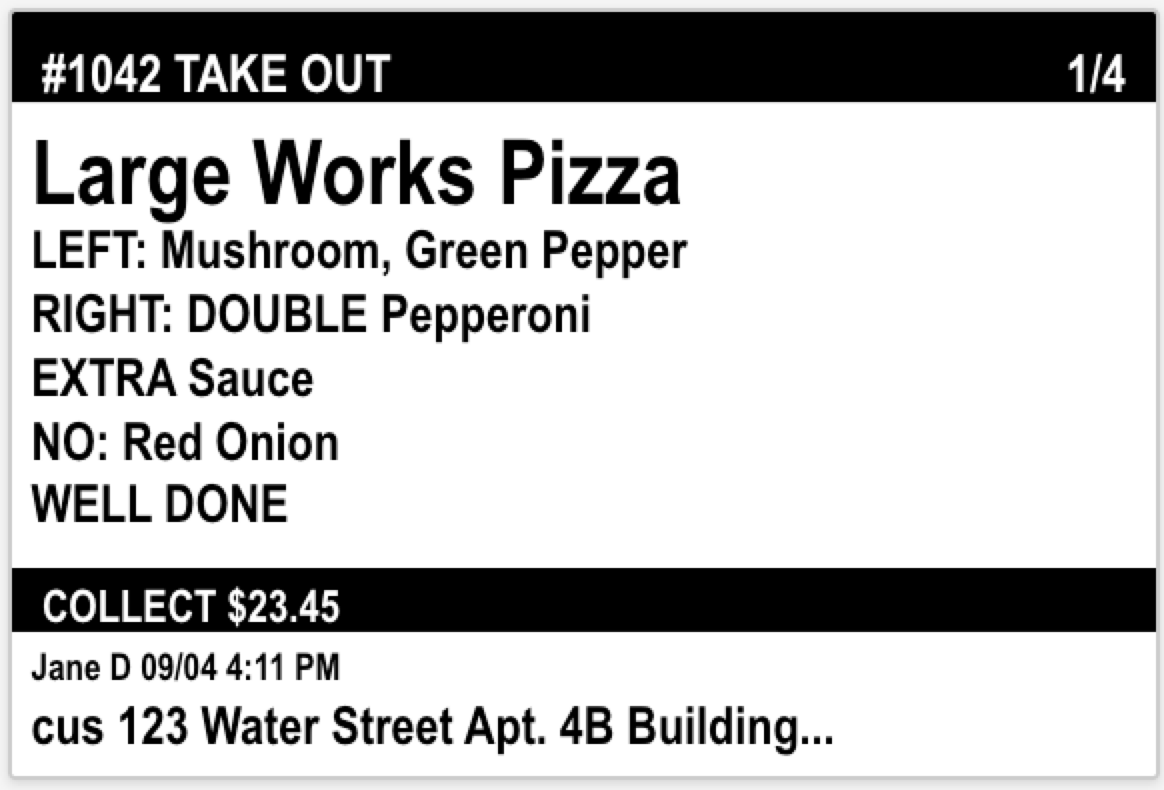
- Sail now supports label printing for item labels — a dedicated label printer that prints item labels as orders come in. This is useful for pizza boxes, delivery bags, grab-and-go items, or anything that needs a label with order and customer details attached.
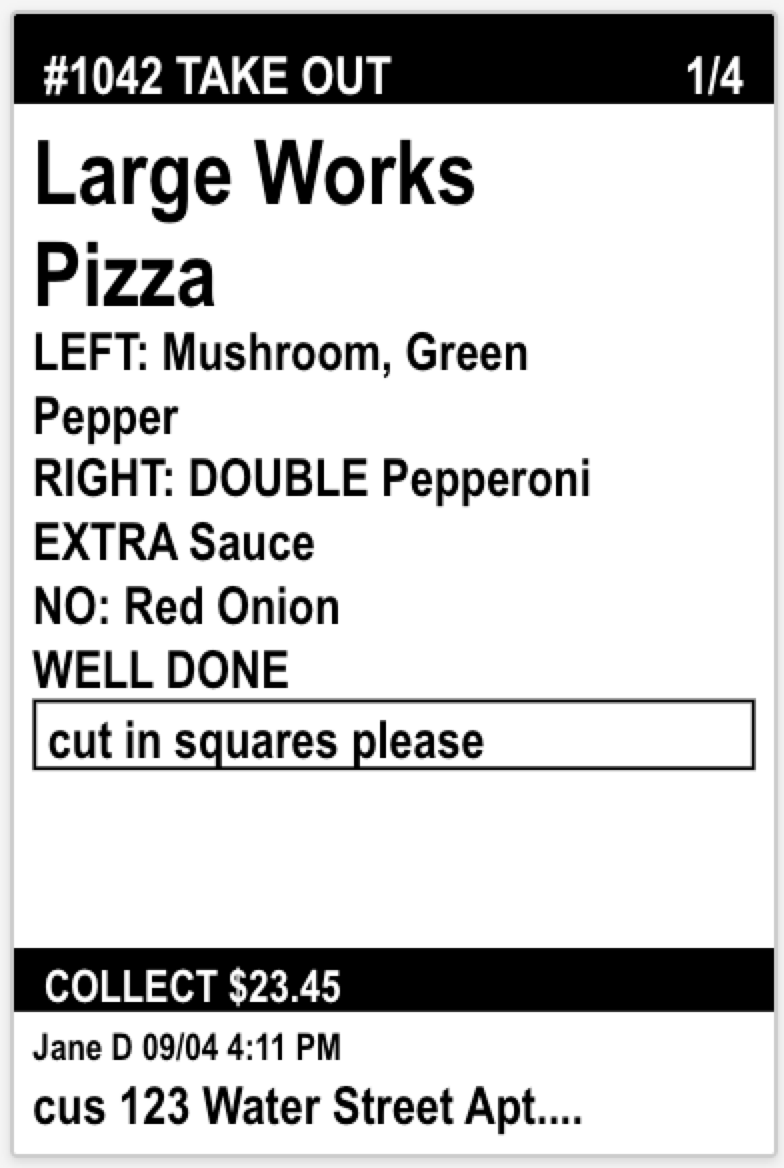
- Labels can include order details, customer info (name, phone, address), item name, size, modifiers, and item notes. If an item's content doesn't fit on one label, it automatically continues onto additional labels rather than truncating.
- Label Print Rules work similarly to Auto Print Rules — you choose what triggers the print (Send, Payment, Closed, etc.), which items are included, and when it's active.
- Contact support to get label printing set up for your location.
- Here is an example of a Horizontal Label
- Here is an example of a Vertical Label
Improvements
2. Online Ordering: Featured and Popular Sections
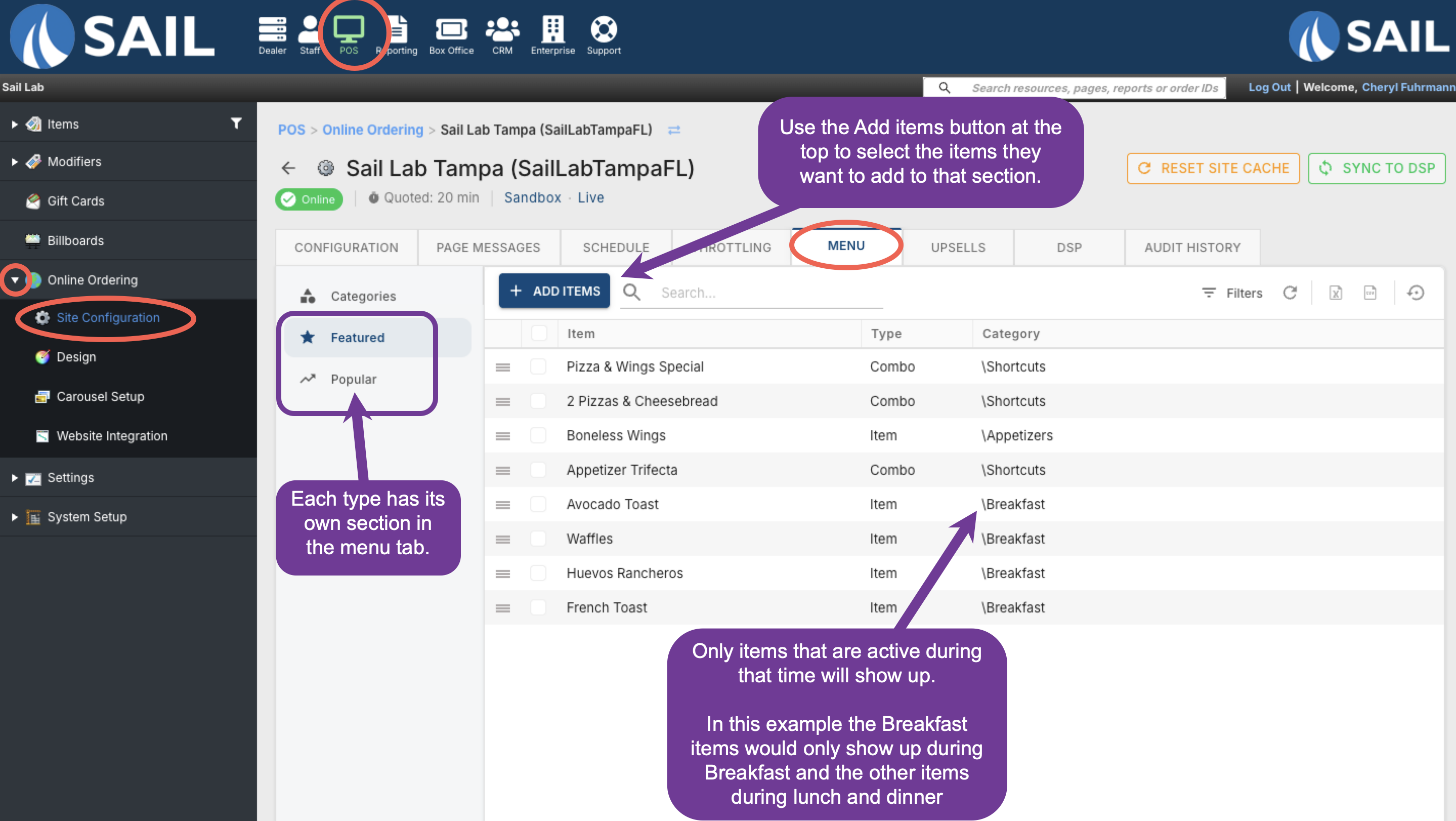
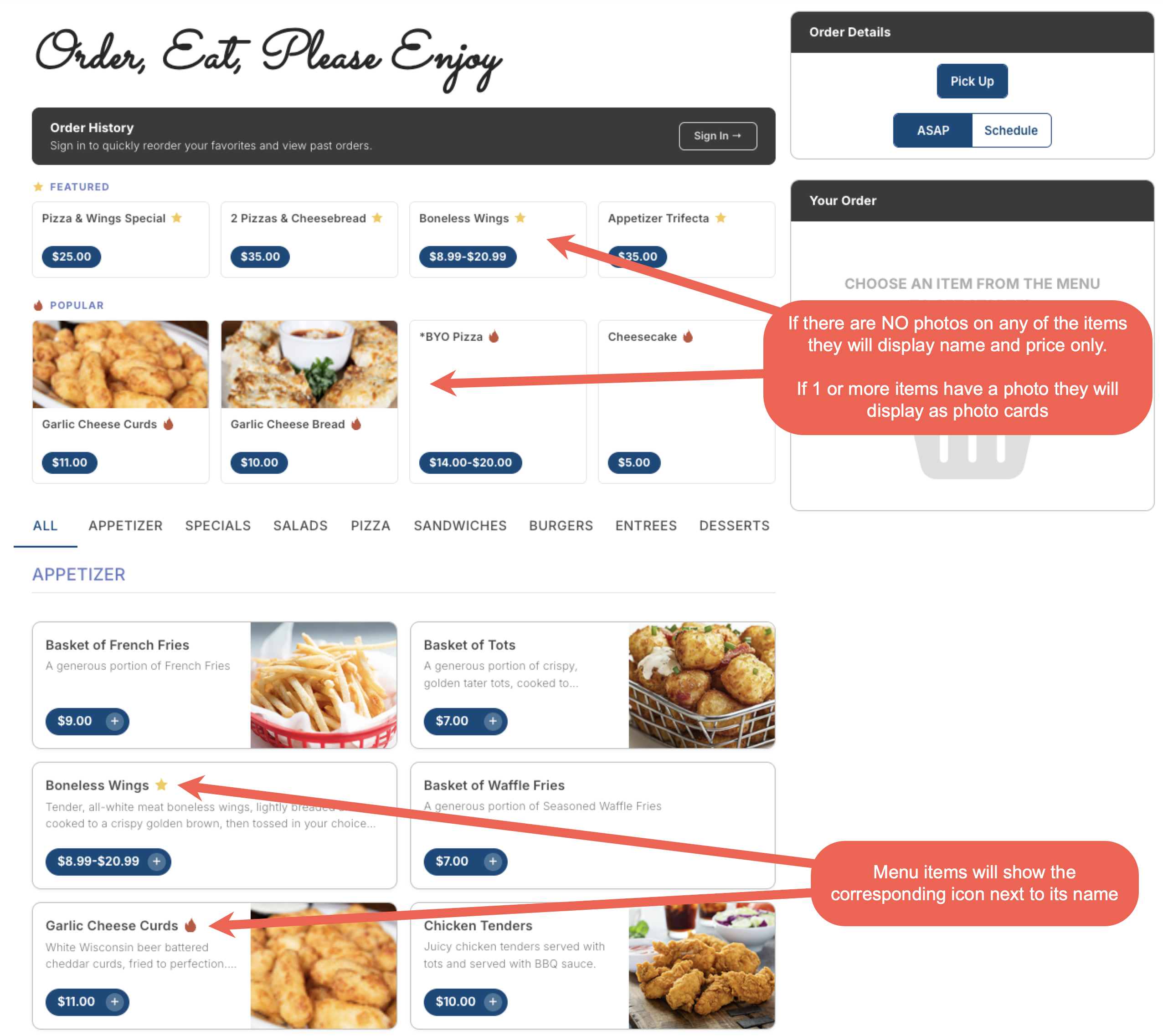
- Two new sections — Featured and Popular — can now appear at the top of your online ordering menu, just below the Order History bar and above the category tabs. These give guests quick access to promoted or best-selling items without having to browse through the full menu.
- Both sections are disabled by default. A section only appears on the menu once items have been added to it in Backoffice.
- To configure, go to Backoffice --> POS --> Online Ordering --> Site Configuration --> [your OO site] --> Menu tab. Each section has its own grid where you can add and remove items using the + Add Items button.
3. Online Ordering: Collapse Modifier Sets by Default
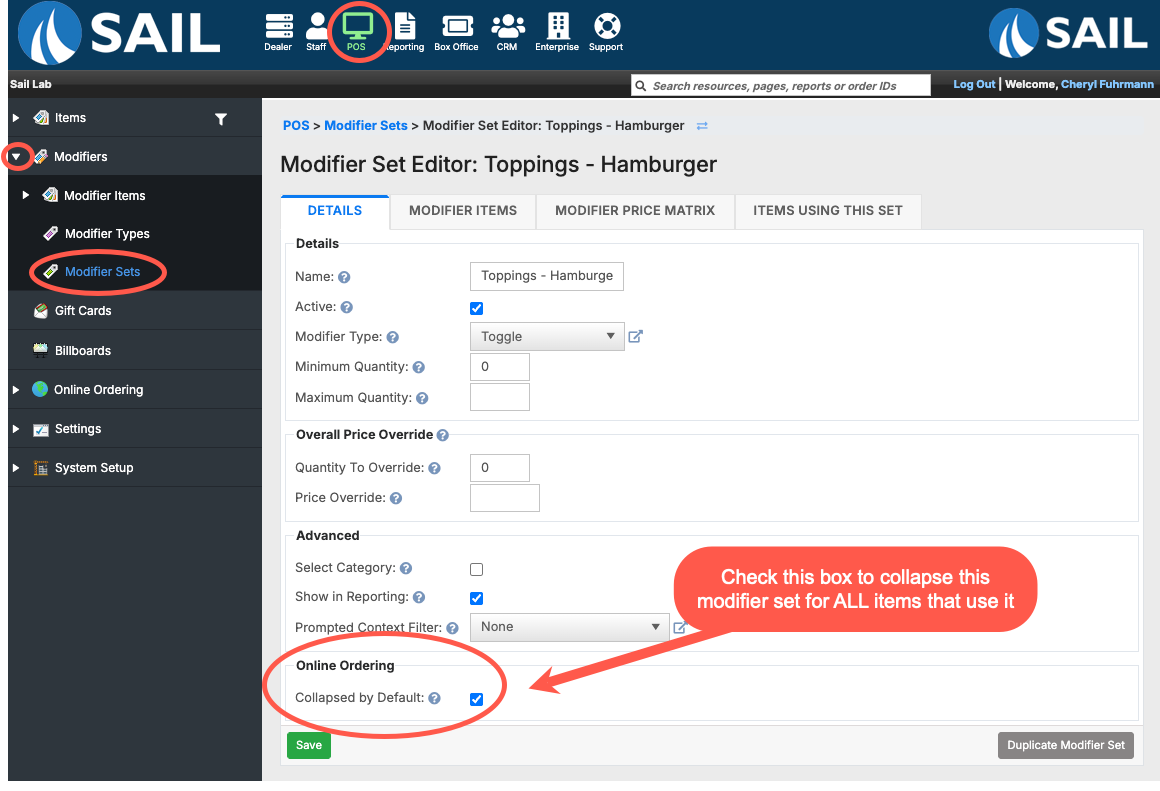
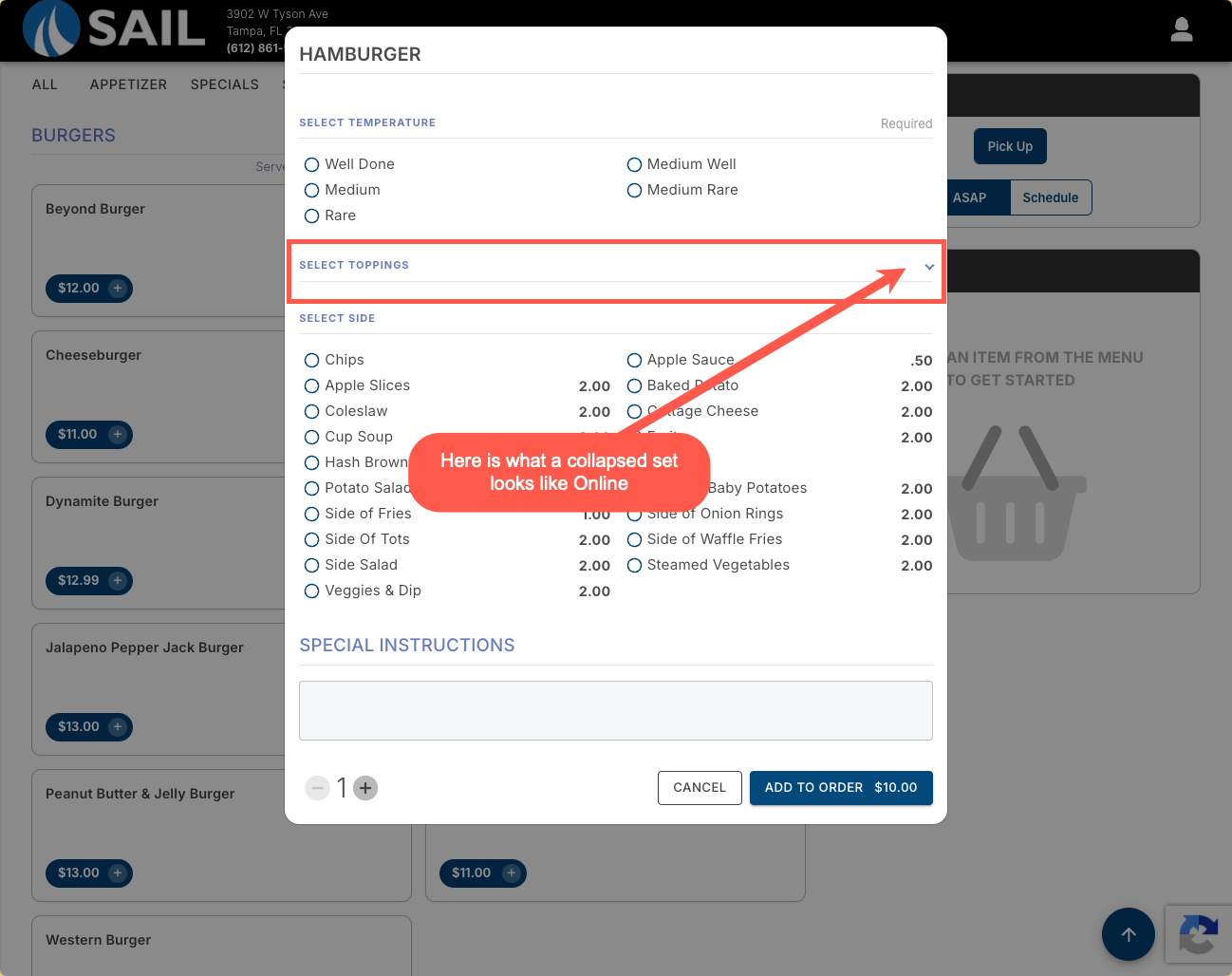
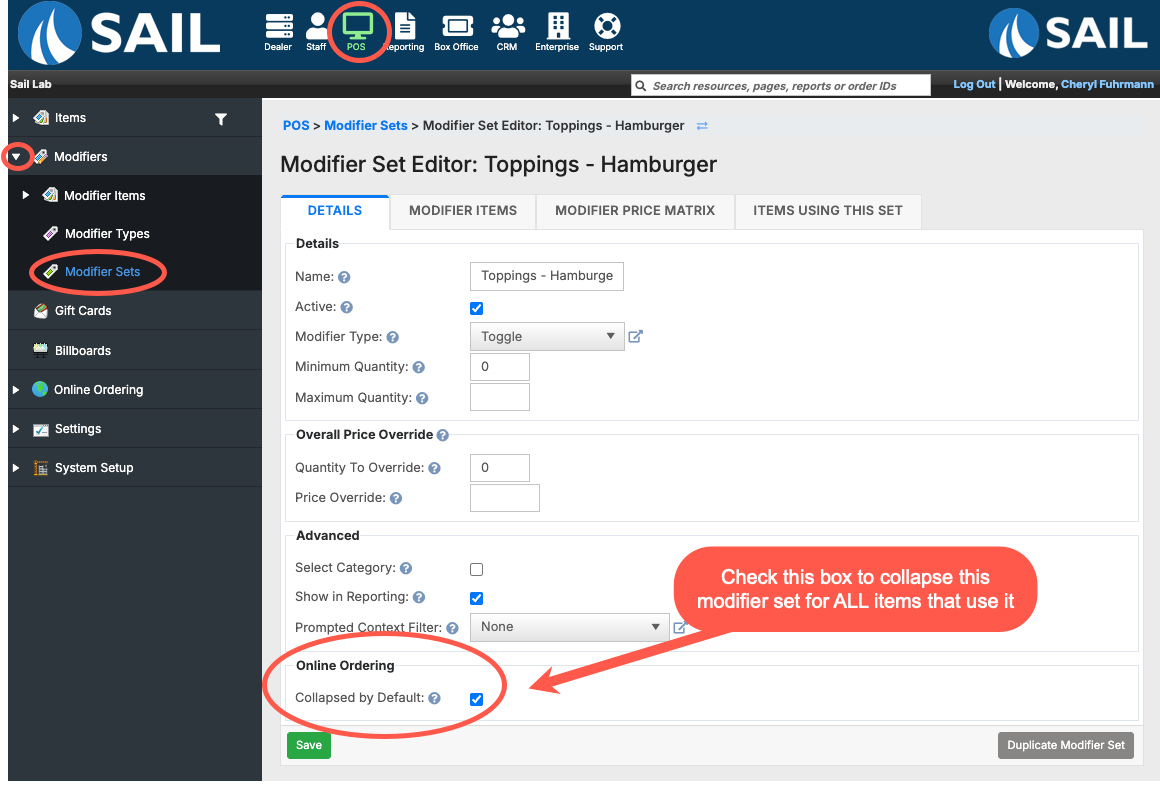
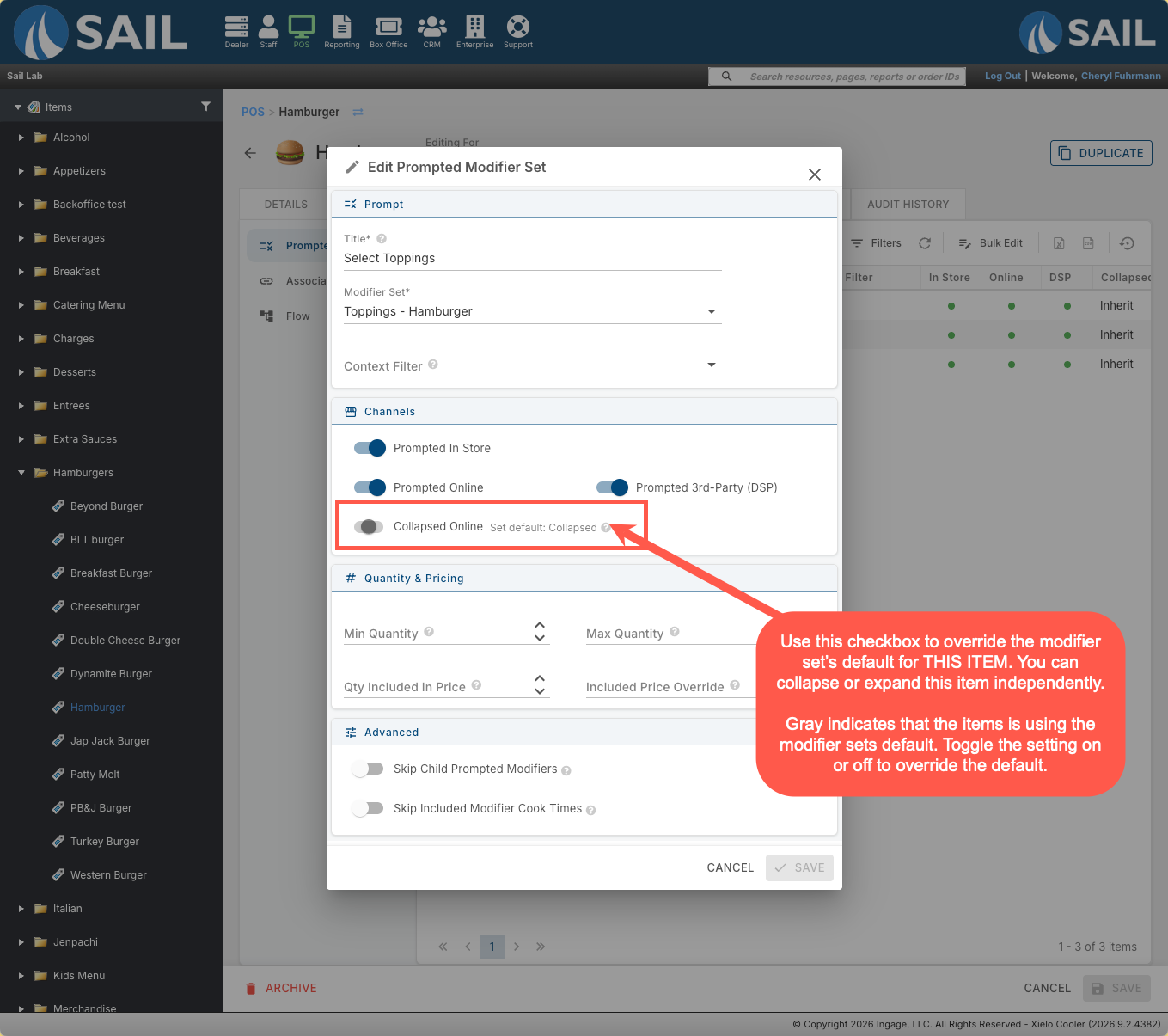
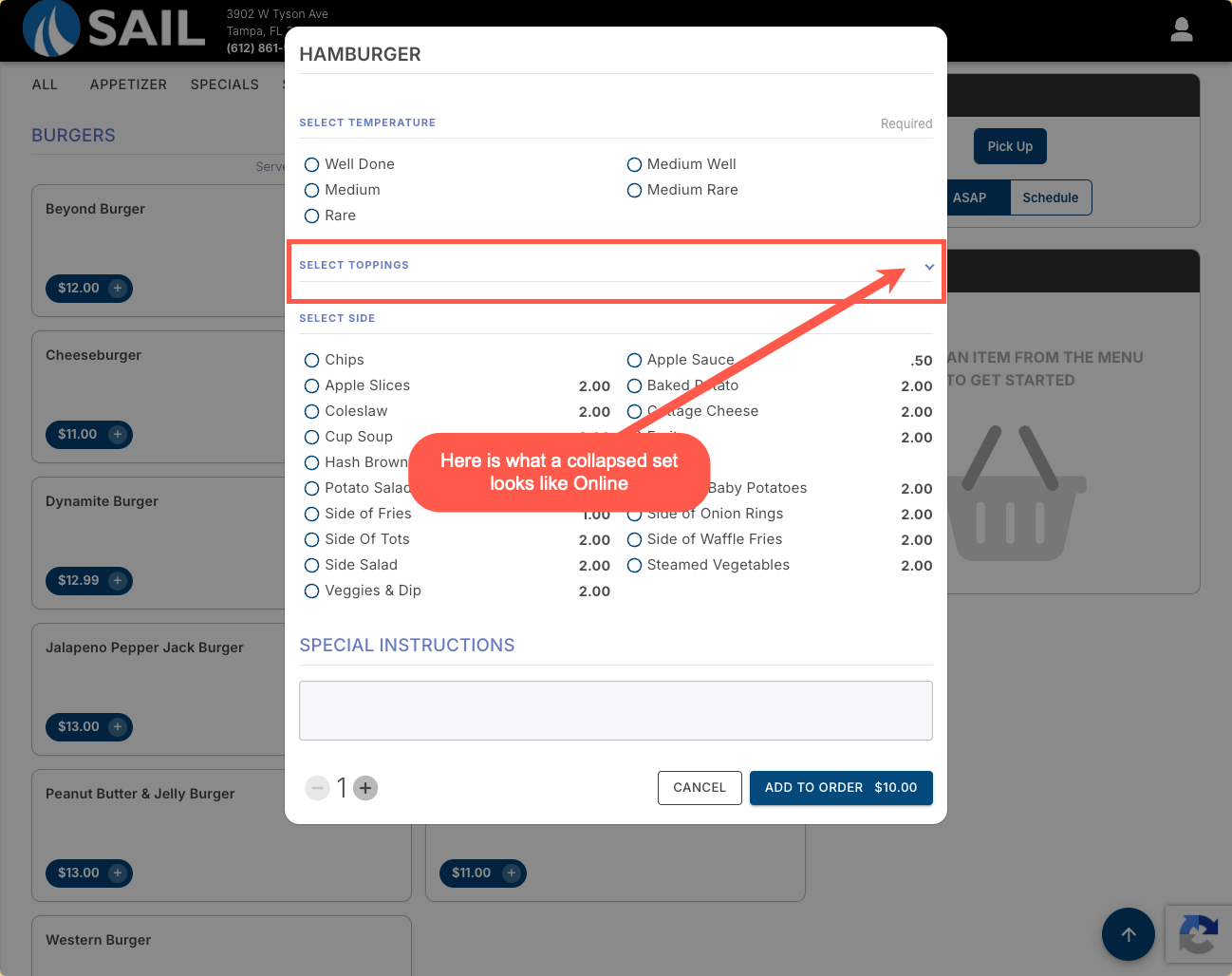
- You can now configure a Prompted Modifier Set to display collapsed on the online ordering menu. Guests will see the section header with a dropdown arrow and must tap to expand it before making selections.
- This setting can be configured at two levels:
- Modifier Set level — go to Backoffice --> POS --> Modifiers --> Modifier Sets --> edit a set --> Details tab --> Online Ordering section --> check Collapsed by Default. This collapses the modifier set for all items that use it.
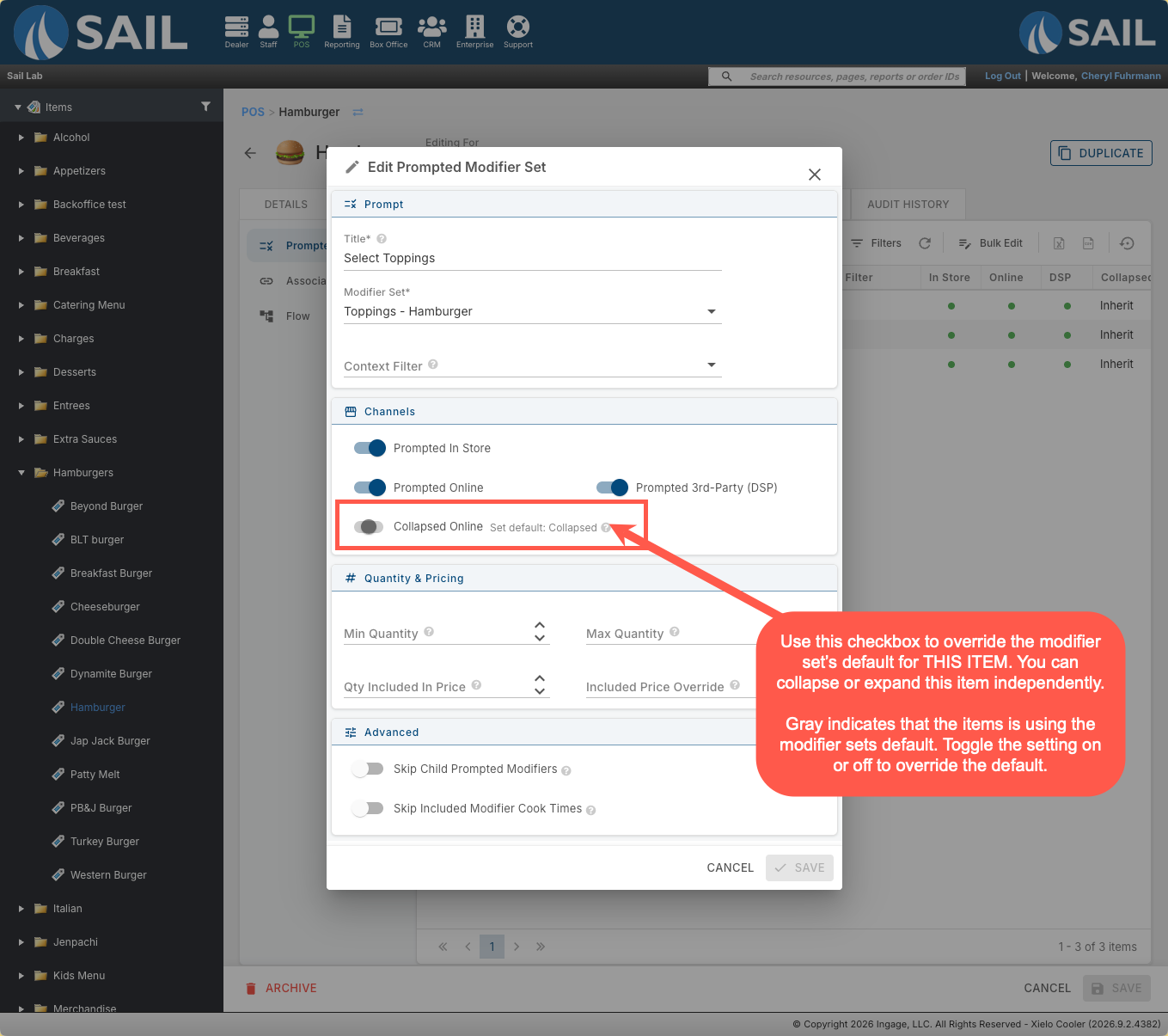
- Item level — go to the item's Prompted Modifier Sets --> edit the prompted set --> toggle Collapsed Online. When gray, the item inherits the modifier set's default. Toggling it on or off overrides the default for that specific item only.
- Modifier Set level — go to Backoffice --> POS --> Modifiers --> Modifier Sets --> edit a set --> Details tab --> Online Ordering section --> check Collapsed by Default. This collapses the modifier set for all items that use it.
- Recommendation: We recommend not collapsing modifier sets that are required, as guests may miss them. This setting works best for optional modifier sets that guests can reasonably skip — such as extra toppings or add-ons.
4. Online Ordering: Modifications Now Visible in Cart and Email Receipt
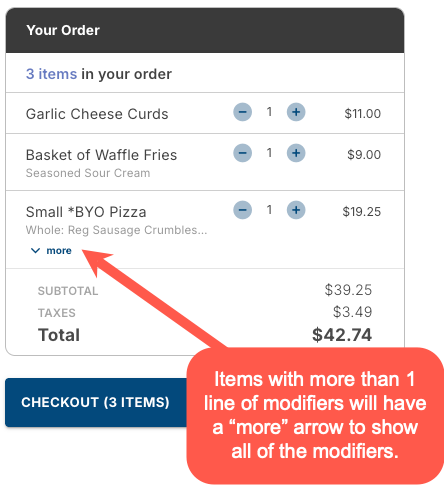
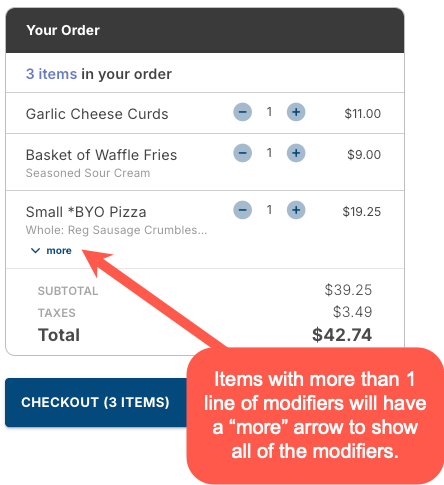
- Guests can now see their item modifications listed directly in the cart beneath each item name, so they can confirm their customizations without having to reopen the item.
- Items with a long list of modifications display a short preview by default, with a "more" arrow to expand and see the full list.
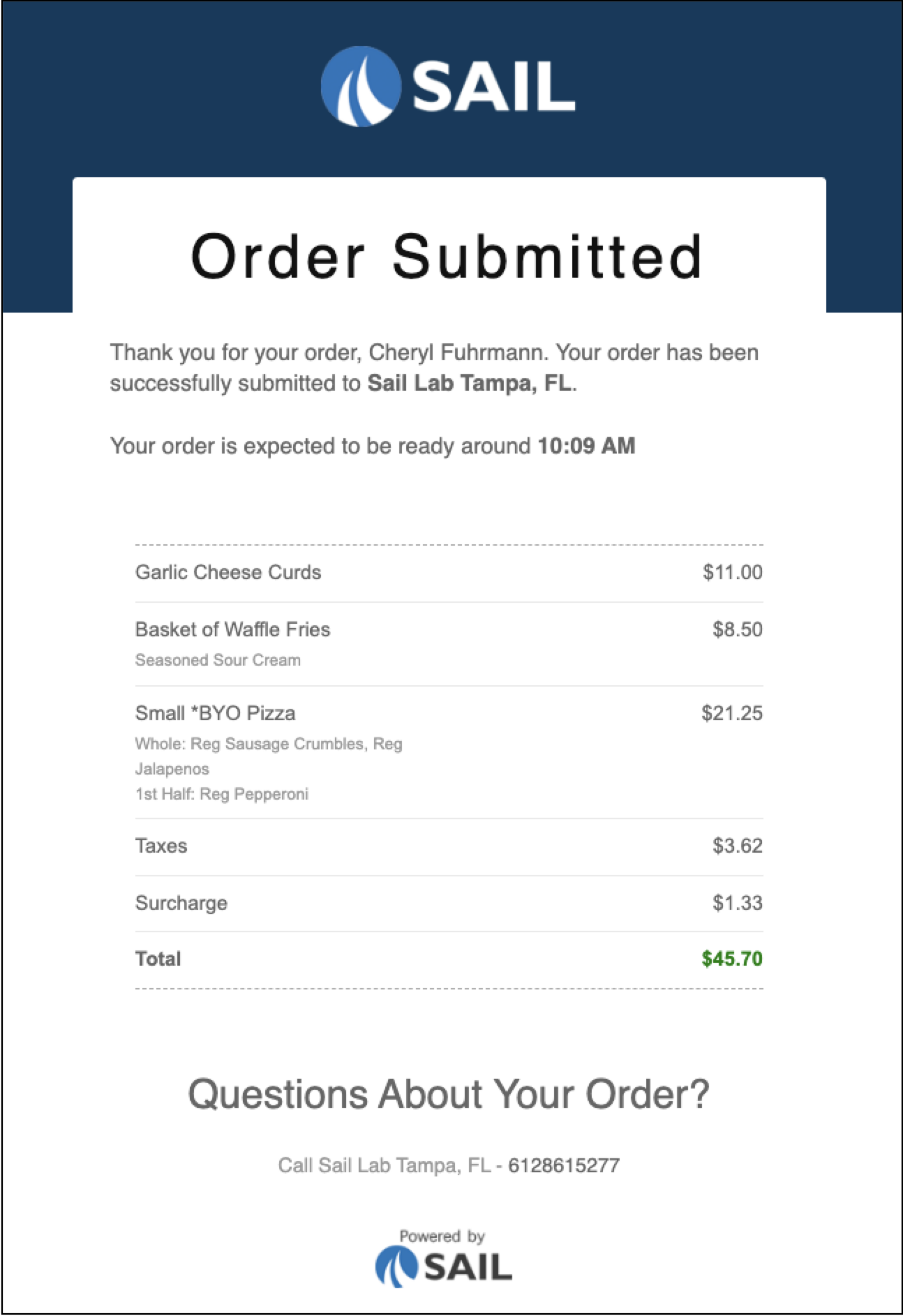
- Pizza modifications are organized by placement (Whole, 1st Half, 2nd Half) so guests can quickly see what goes where, including any amount modifiers (Regular, Double, Extra) or removals (No).
- The emailed order confirmation receipt shows the same modification detail in the same format as the cart, so the two always match.
- Items with no modifications display normally with no empty modification area.
5. Manage Floor Plan Sections Directly on the Terminal
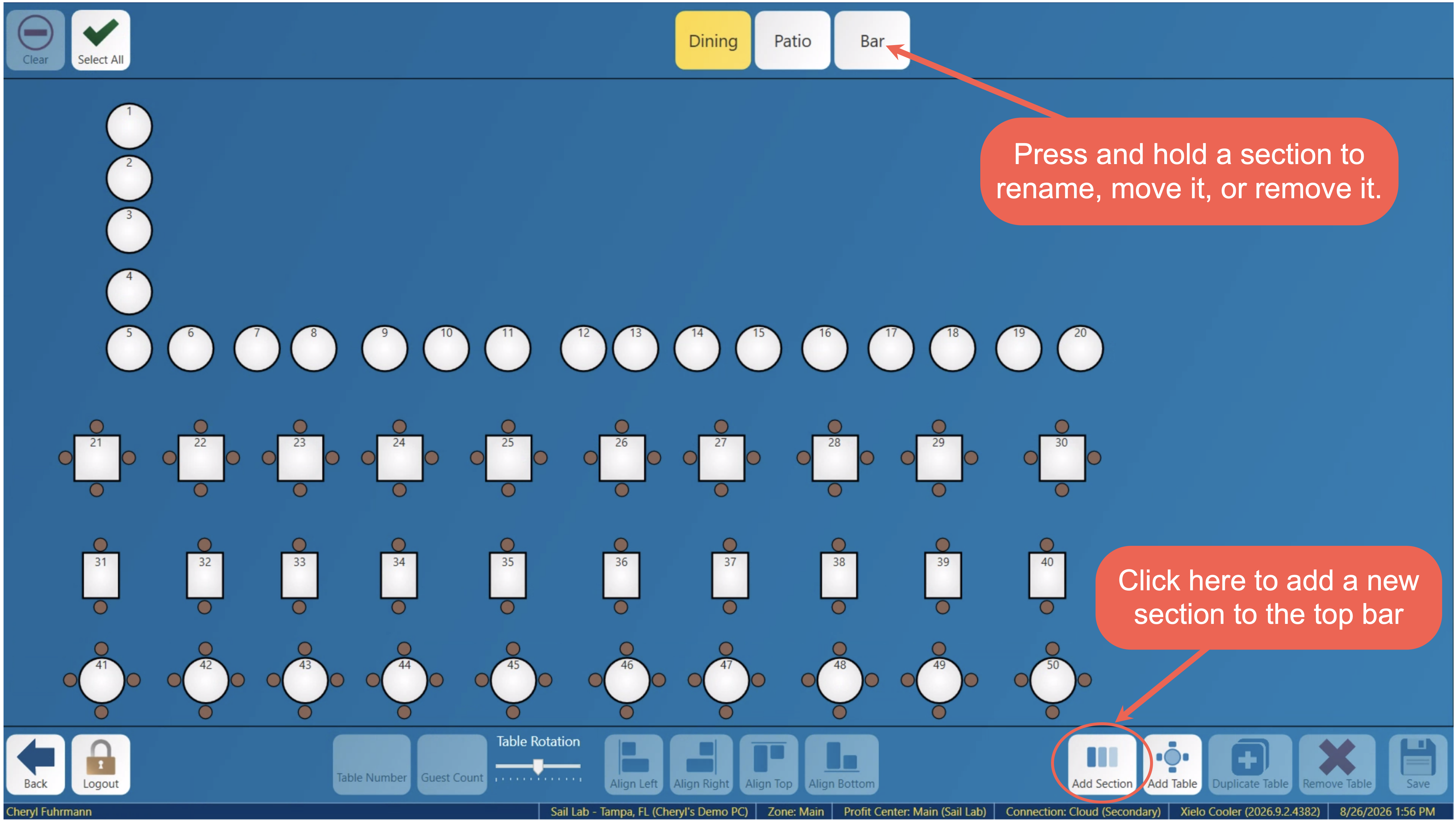
- You can now add, rename, move, and remove floor plan sections directly from the Table Layout Editor on the terminal — no more switching back and forth between Backoffice and the terminal to set up your floor plan.
- A new "Add Section" button has been added to the bottom toolbar.
- To rename, move, or remove an existing section, simply press and hold the section tab at the top of the screen.
- Because sections can now be fully managed from the terminal, the Restaurant Layout section in Backoffice is no longer needed and will be removed.
6. New Sales vs. Labor By Day Part Report
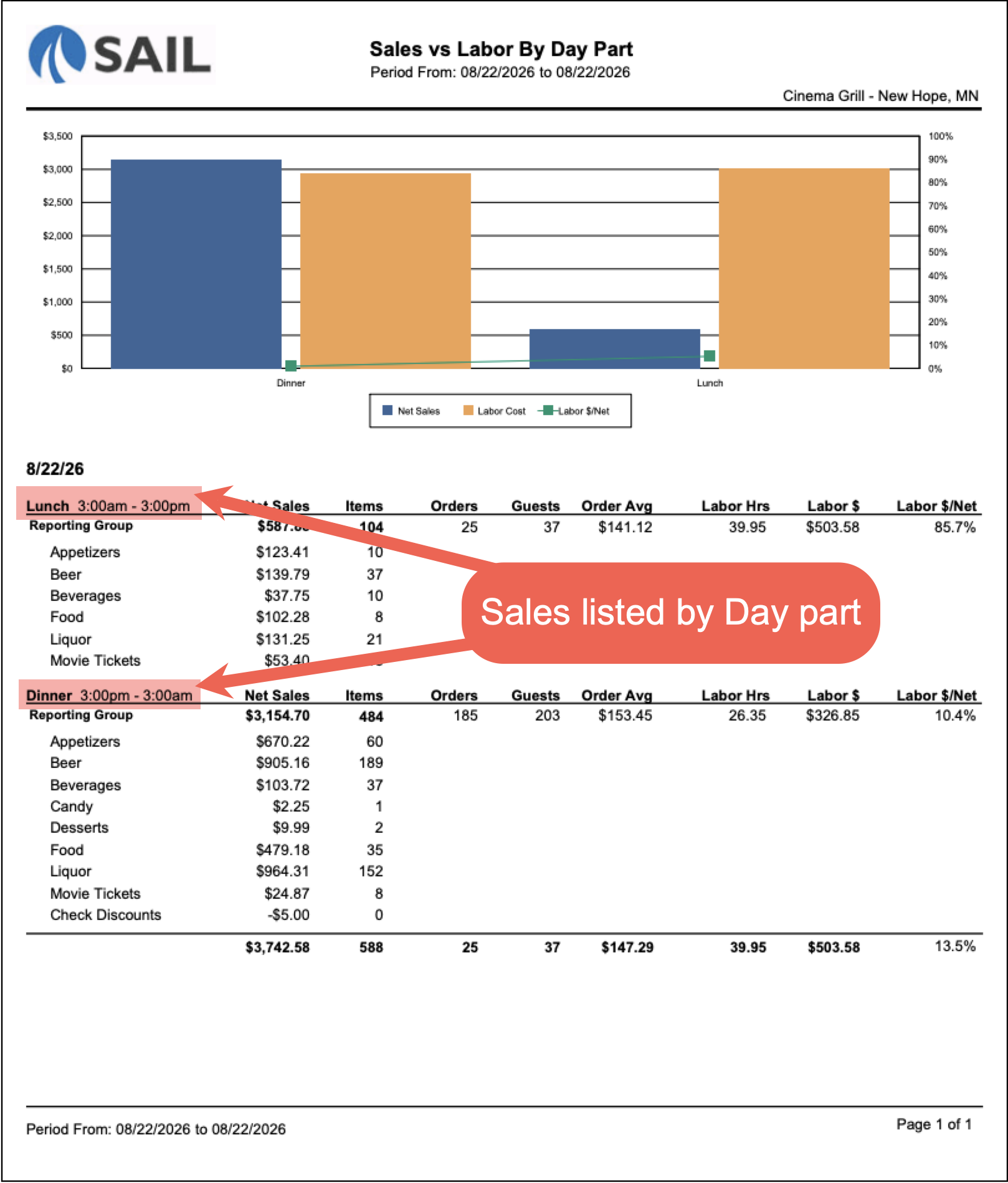
- A new Sales vs. Labor By Day Part report has been added to Reporting. It works similarly to the Sales vs. Labor By Hour report, but instead of breaking data down by time interval, it summarizes sales and labor by your configured day parts (for example, Lunch and Dinner).
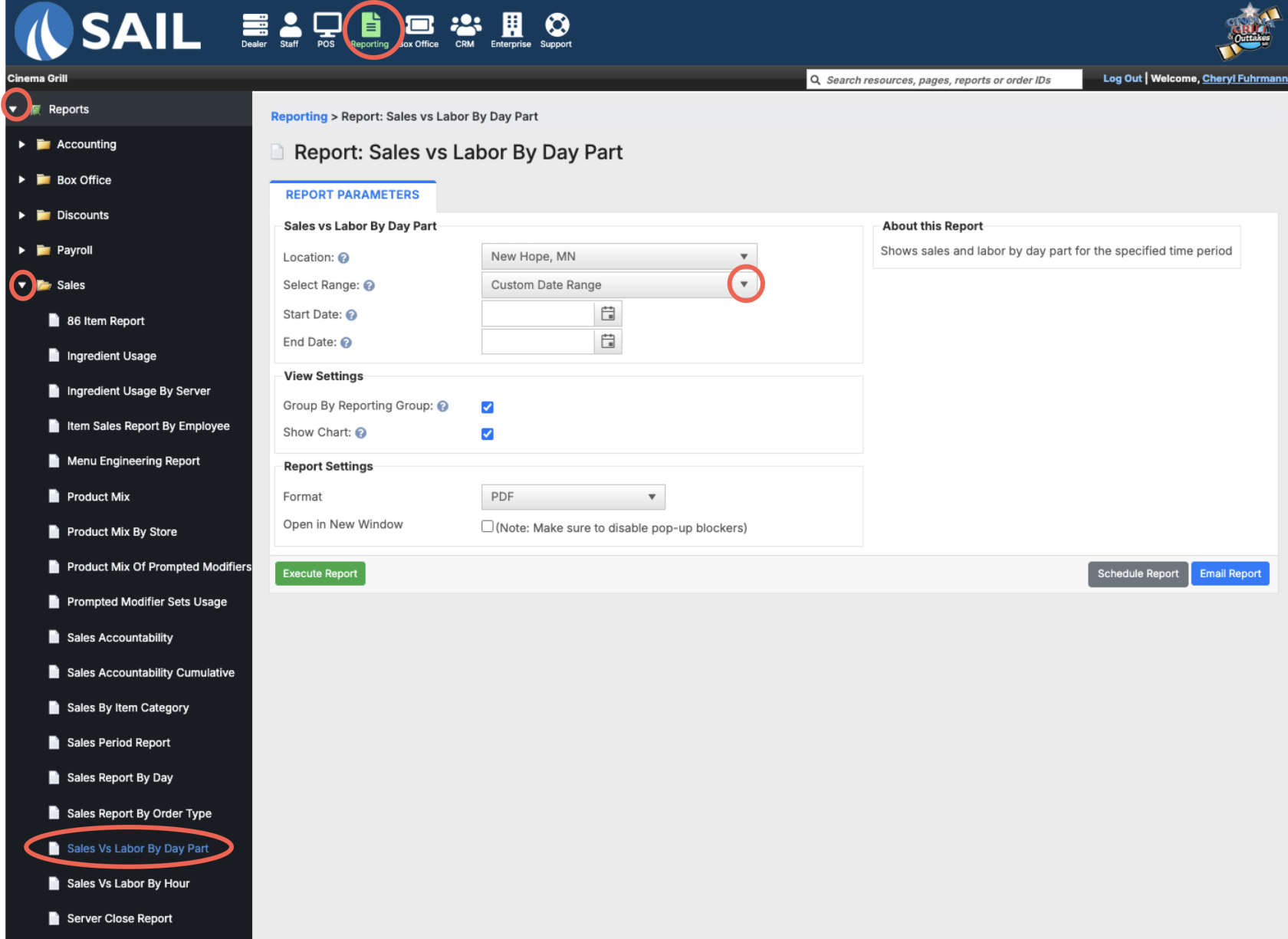
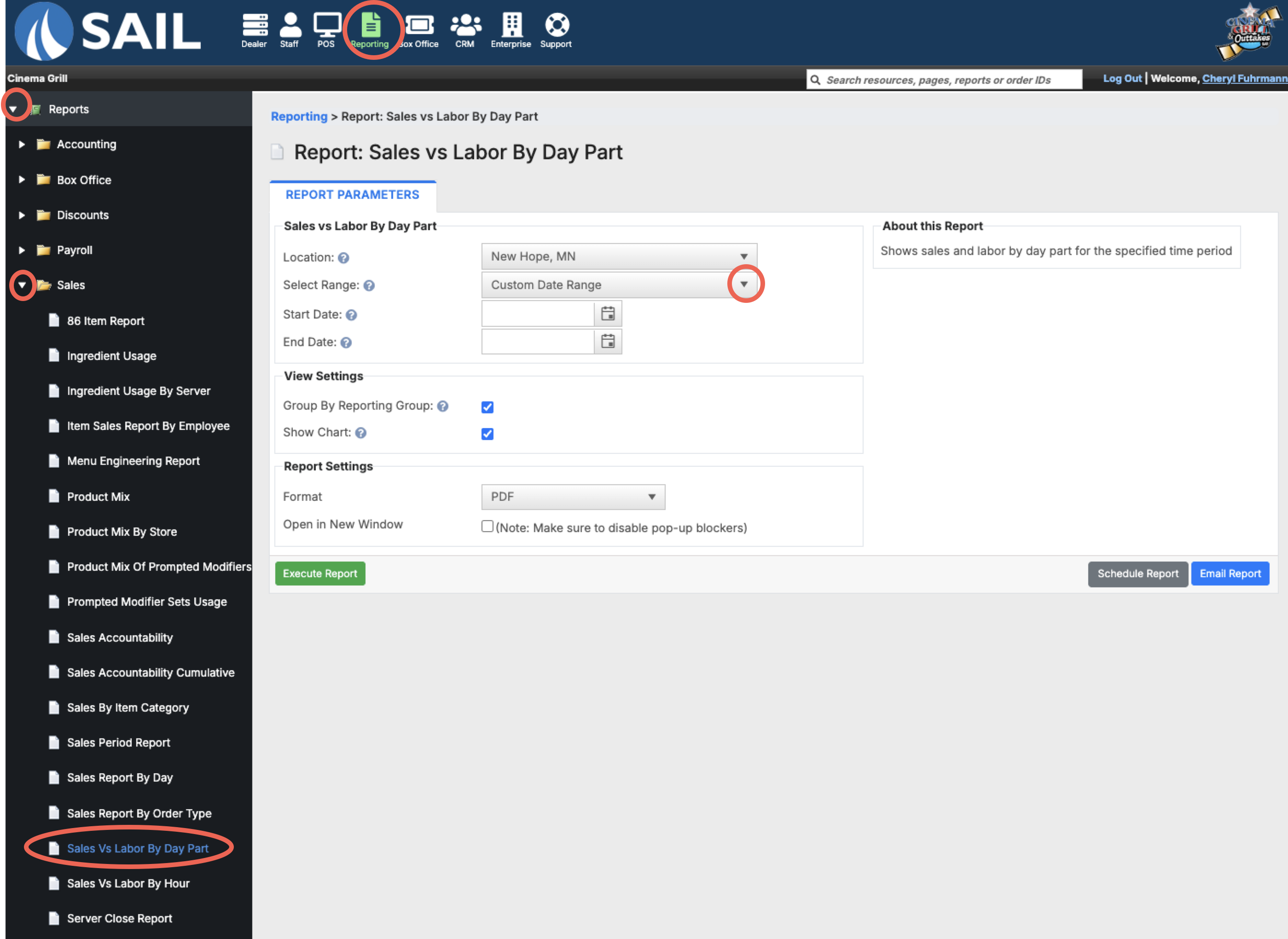
- To find the report, go to Backoffice --> Reporting --> Reports --> Sales --> Sales vs. Labor By Day Part.
- Report parameters include a date range, with optional View Settings to Group by Reporting Group and Show Chart.
- Report parameters include a date range, with optional View Settings to Group by Reporting Group and Show Chart.
- Each day part section shows Net Sales, Items, Orders, Guests, Order Average, Labor Hours, Labor $, and Labor $/Net.
- Example Report:
7. The item editor has a new look
- The item editor has been redesigned with a cleaner layout. Nothing was removed — every setting is still there with the same name and same permissions. What changed is how they're organized.
- The old editor had eleven tabs, with a crowded "Advanced" tab that held most settings. The new editor sorts everything into seven tabs with sub-tabs grouped by what you're setting up (Details, Kitchen, Online Ordering, Modifiers, etc.).
- Navigating between items is significantly faster — you'll notice the difference right away.
- A few highlights of the new experience:
- One store picker at the top controls every tab — no more switching the location separately on each tab
- Price, cost, availability, and size prices are all in a single grid
- Prompted modifier sets can be edited inline, several rows at a time using the bulk edit option
- Ingredients can be added in bulk from a searchable picker
- If a save is blocked, a red dot appears on the tab with the problem field
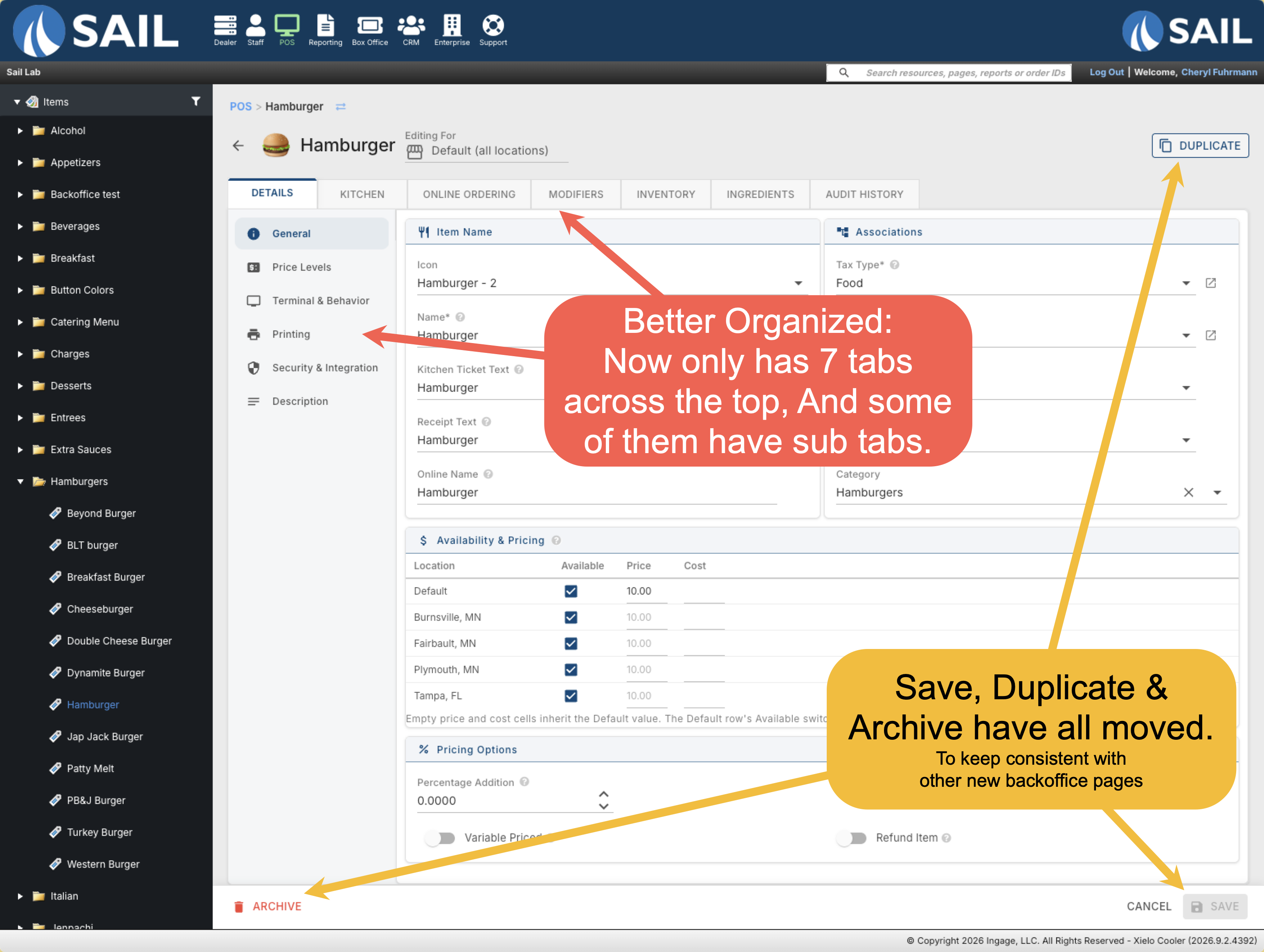
To learn more about where things moved or what has changed with the item editor click this link.
To learn more about how to create a new menu item click this link
Fixes
- Fixed an issue where orders from the previous night could still appear on KVS the following morning.
- Fixed an issue where handhelds would not display the complete 86 List when more than 60 items were included.
No Comments