
Release 2026.9.2 "Xielo cooler"
Notes: This release consists of 5 New features and Improvements. Use the page navigation section on the top left of this screen to jump between the features you'd like to read about.
**This release will NOT require a handheld update**
**This release WILL require a handheld update to version 2026.9.2**
If you would like any additional information or help setting up any of these new features, please contact support at:
Support@ingageit.com or call (612) 861-5277
New Features
1. Employee Breaks
Employees can now clock out for a break and back in, right from the time clock — no more approximating break time after the fact.
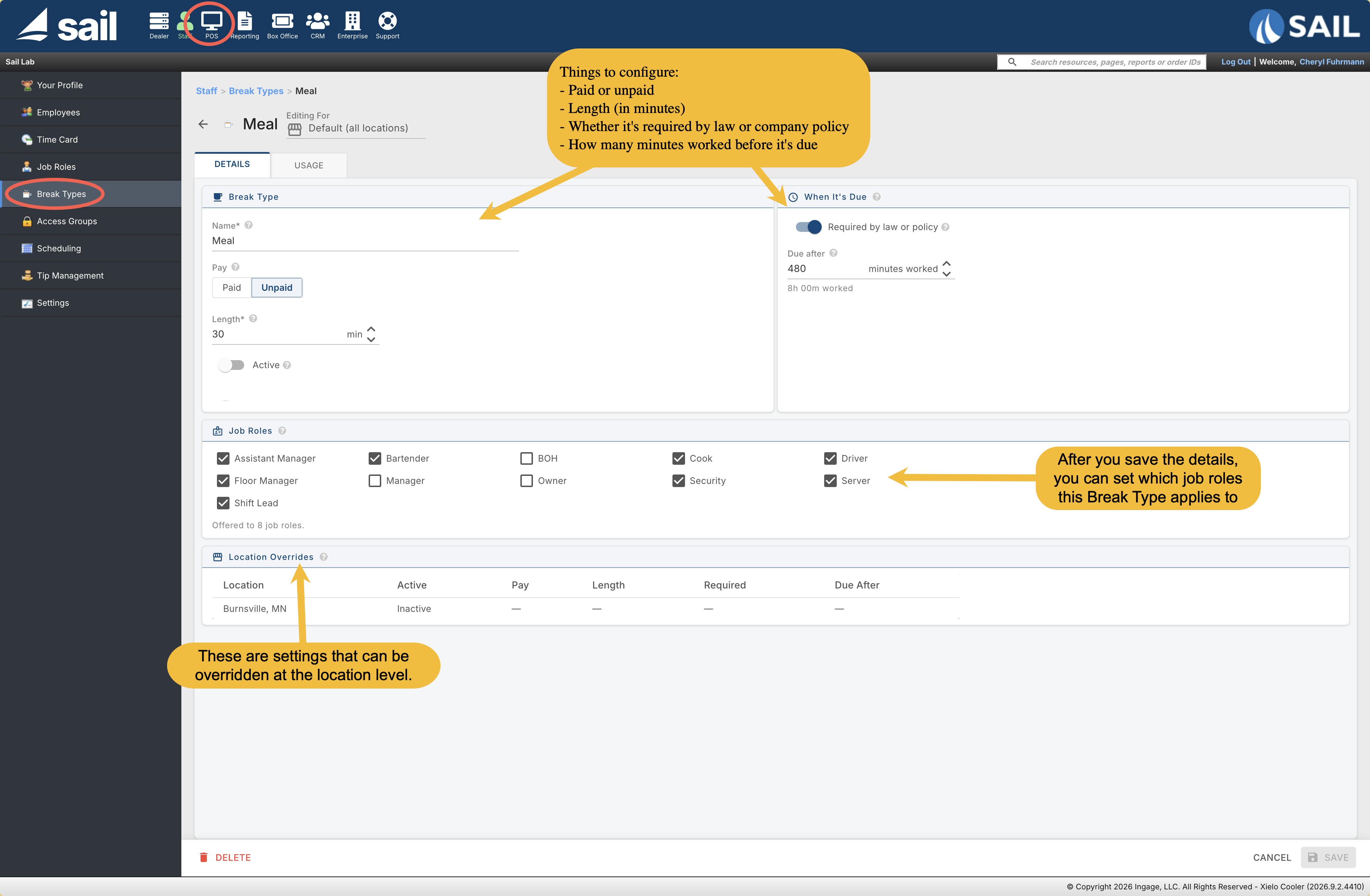
Break Types. Set up named breaks (Rest, Meal, Smoke Break, or whatever your policy calls for) under Staff → Break Types. For each one, configure:
- Paid or unpaid
- Length (in minutes)
- Whether it's required by law or company policy
- How many minutes worked before it's due
- Which job roles this break applies to
Clock-Out Break Prompt (company default). Under Staff → Settings → Break Policies, turn on one company-wide switch to prompt employees about breaks they didn't take, in addition to required breaks — which are always asked about regardless of this setting. It's off by default, and can be overridden for an individual job role.
Assigning breaks to job roles. Each break type lists every job role it applies to, so the fastest way to set this up is right from Staff → Break Types — turn a role on or off for that break type without opening each role individually. The same toggle is also available on the role itself under Staff → Job Roles, along with the option to override the Clock-Out Break Prompt for that role.
Starting and ending a break. From the Launcher, an employee taps the Time Clock button and chooses Start Break. If their role has only one break type, they simply confirm and are signed out until they return. If more than one applies, they pick which break they're taking, then confirm.
Getting back to work. When an employee on break enters their access code, they're prompted to end the break before doing anything else — there's no way into the system while a break is still open.
Clocking out.
- If a required break wasn't taken during the shift, the employee sees a short screen listing each missed required break as Taken or Waived. Every one has to be answered before they can finish clocking out.
- If Prompt at Clock Out is turned on (company-wide or per job role), any other break type not taken during the shift is also flagged at clock out, with a simple "I took this break" checkbox.
Time Card and reporting.
- Break time is reflected accurately on the Clock-Out Receipt, the Time Card, and the Staff dashboard — hours worked and overtime are already net of unpaid break time.
- Managers can add, edit, or delete break rows directly on an employee's Time Card, with a full audit history of changes.
- The Staff dashboard shows when an employee is currently on break, and flags punch exceptions like a break that never ended, overlapping breaks, an unusually long break, or a missed required break.
- Pay type and length on a past shift stay as they were when the break was taken — changing a break type from unpaid to paid, for example, won't change how it's recorded on shifts already in the books. The break's name, though, isn't frozen — renaming Rest to Break updates it everywhere, including past shifts.
A note on payroll reports. Payroll Report and Payroll Report With Overtime will not reflect break time and are being phased out by the end of the year. If you use Employee Breaks, switch to Payroll Details, Payroll Summary, or Payroll Summary With Tip Details instead.
Improvements
4. Other
Fixes
Something was fixed