
How to close a table/order
This document will detail how to close a table/order from a terminal
To see how to close a table/order from a handheld please click the link
To close a table or an order you will need to locate the order you would like to close. Once it has been located, pay it out in the manner the guest chooses in order to close the table. This document will go into detail on how to accomplish these steps and note any necessary details along the way.
From Outside the order
-
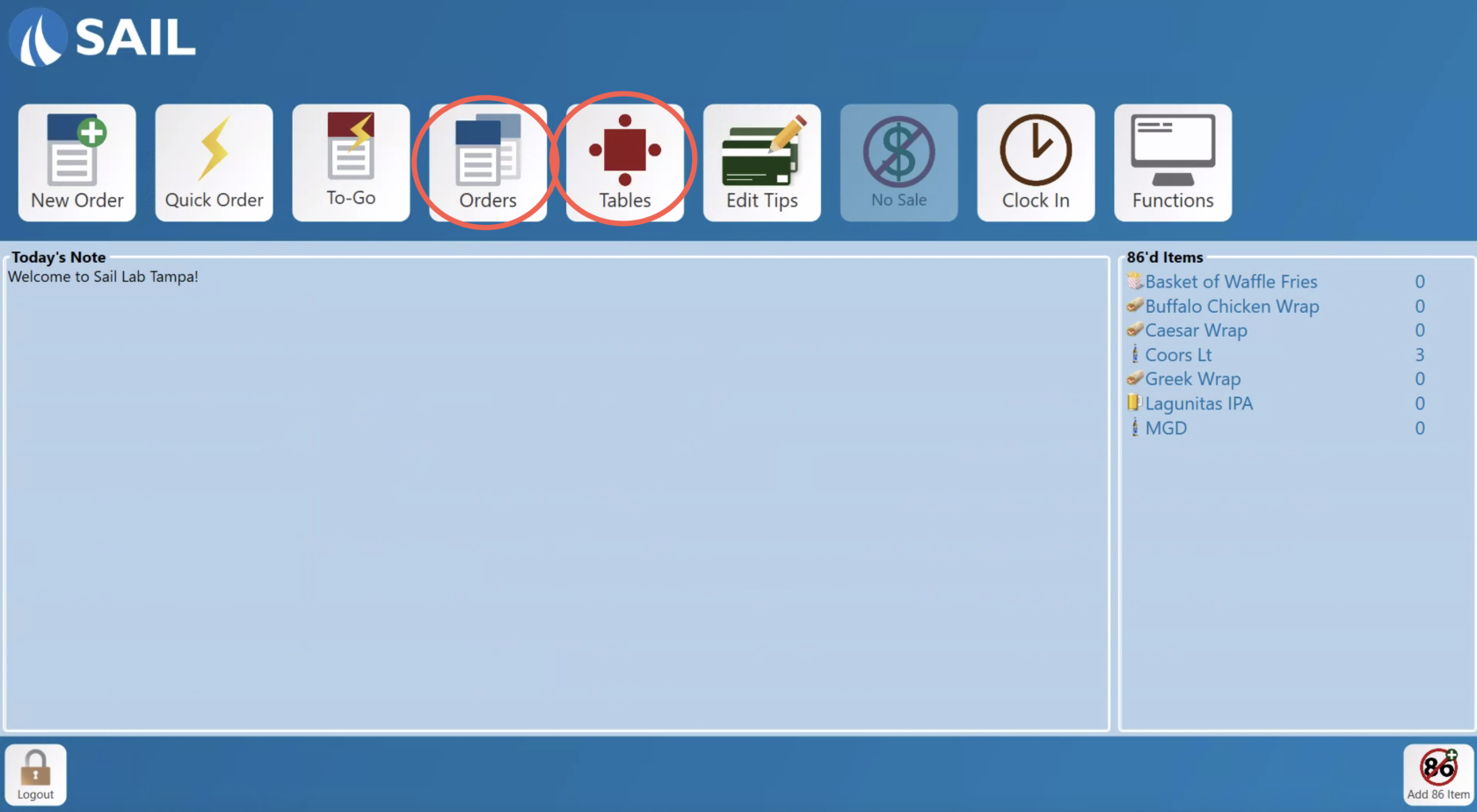
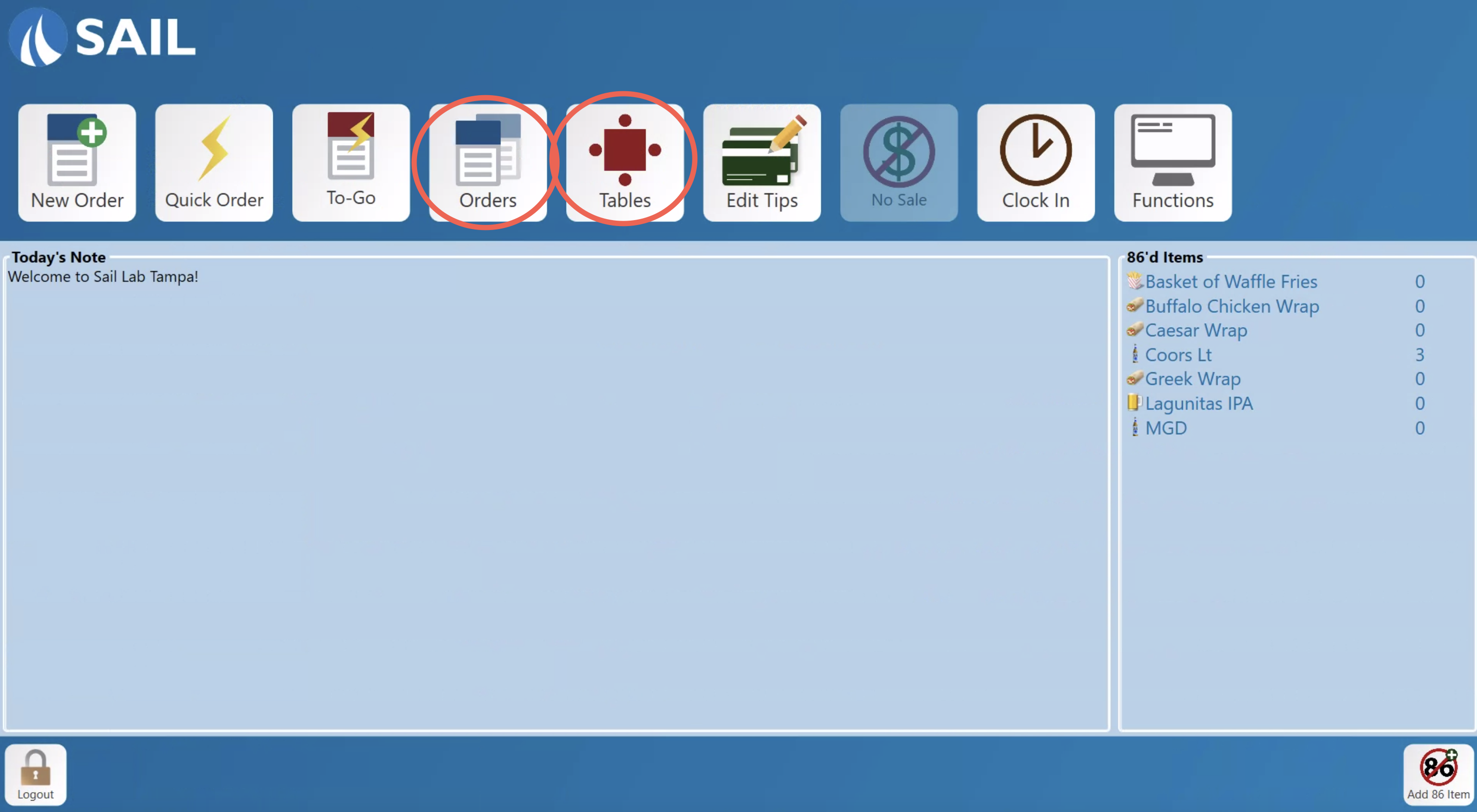
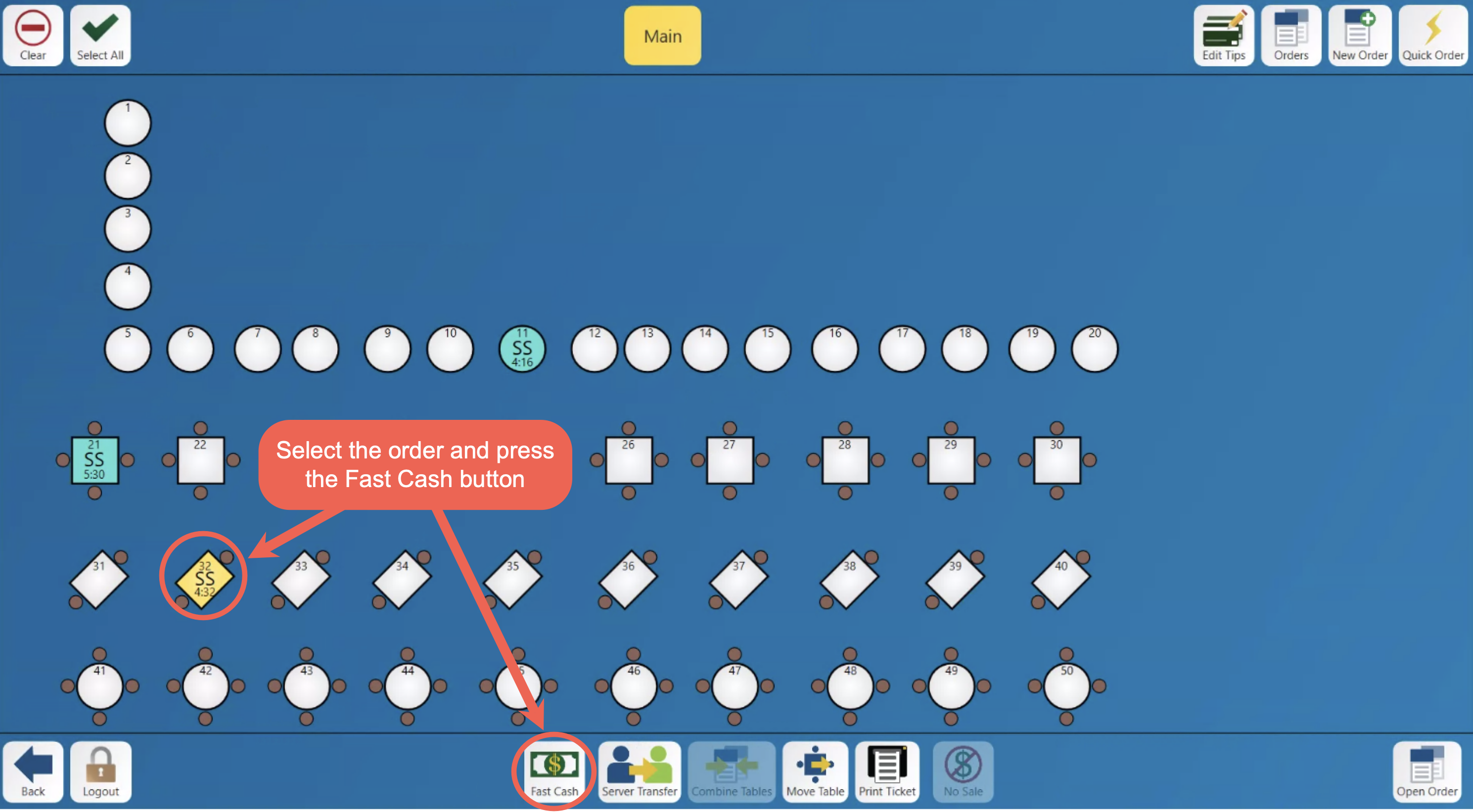
First you must locate the order in either the Tables or Orders screen.

-
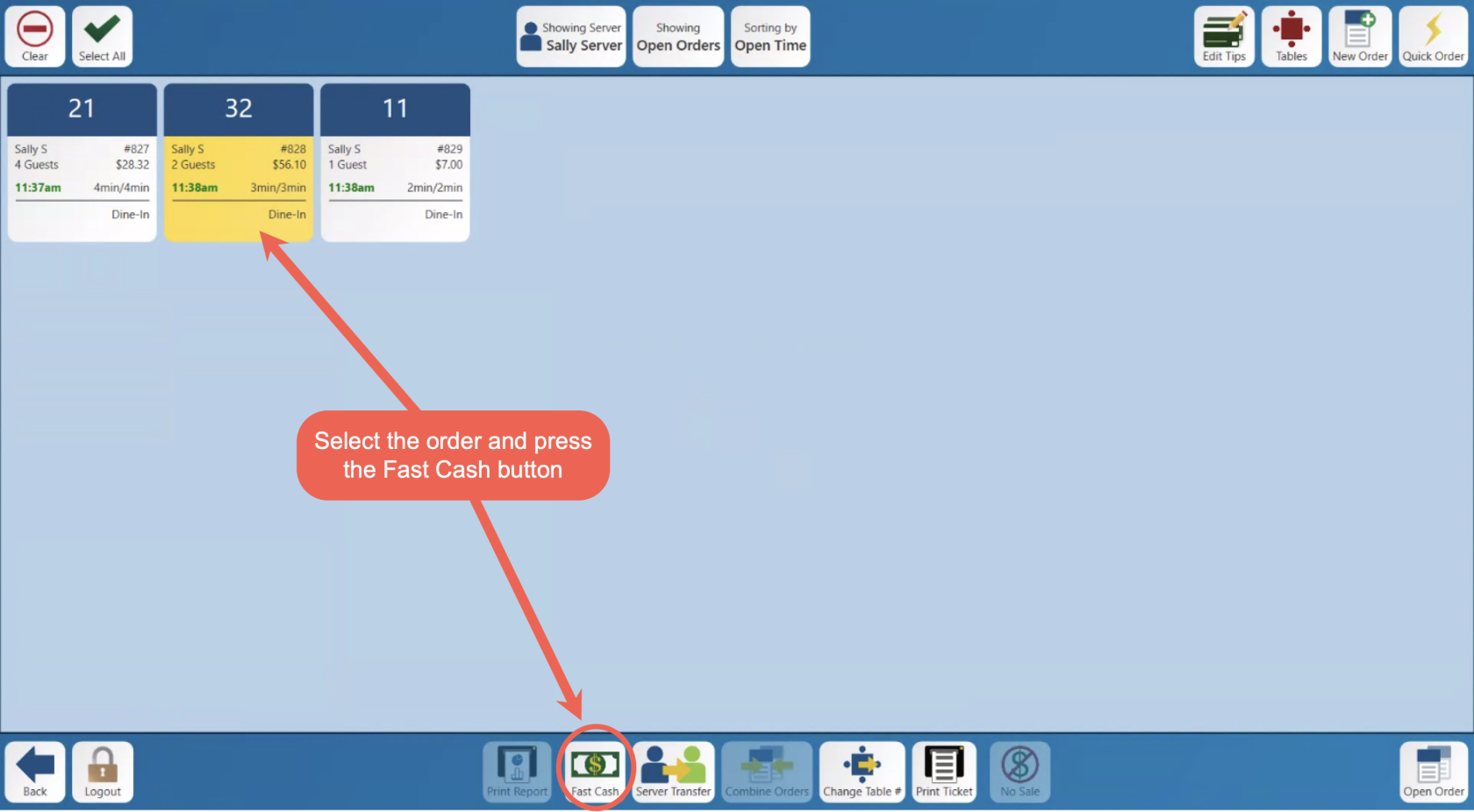
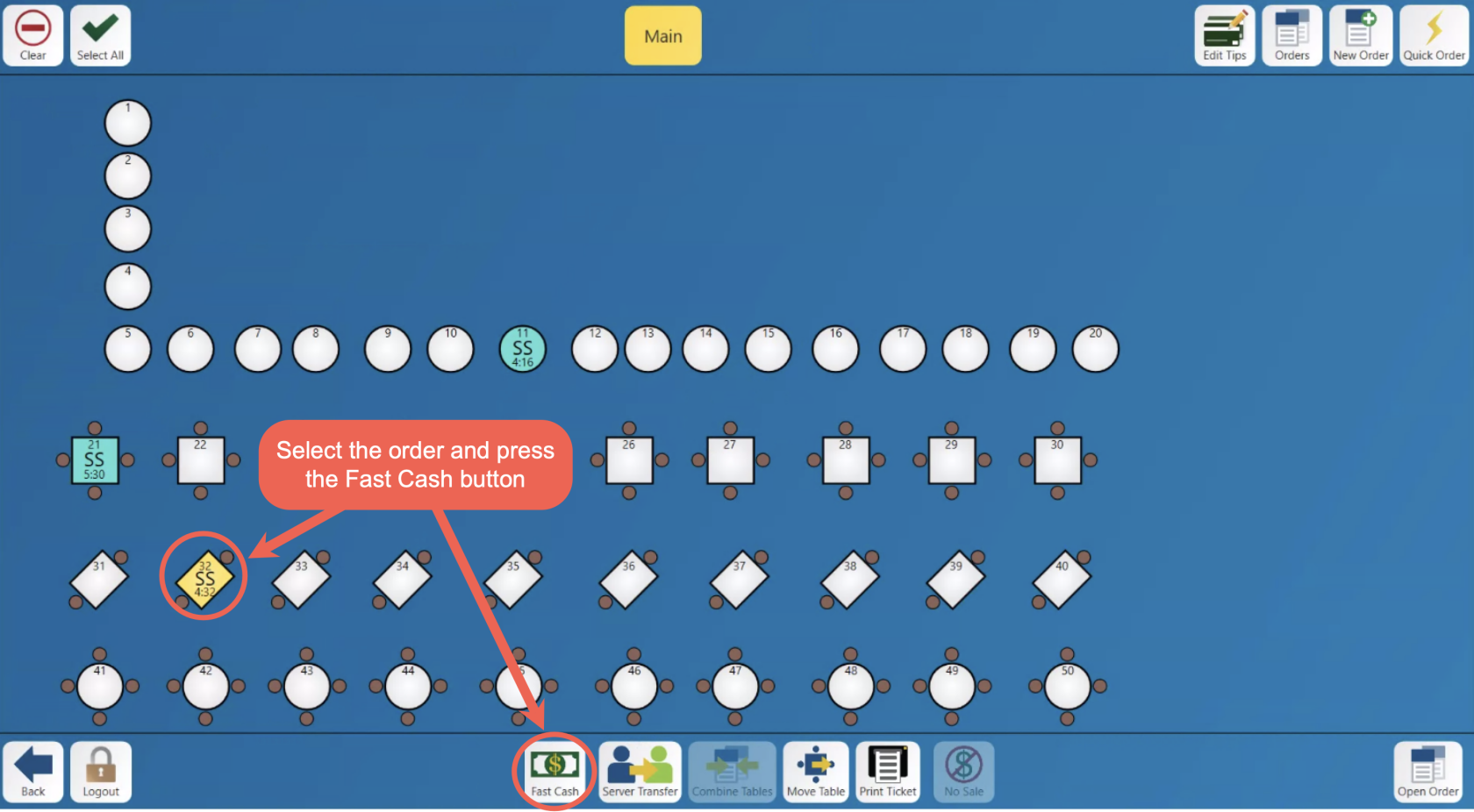
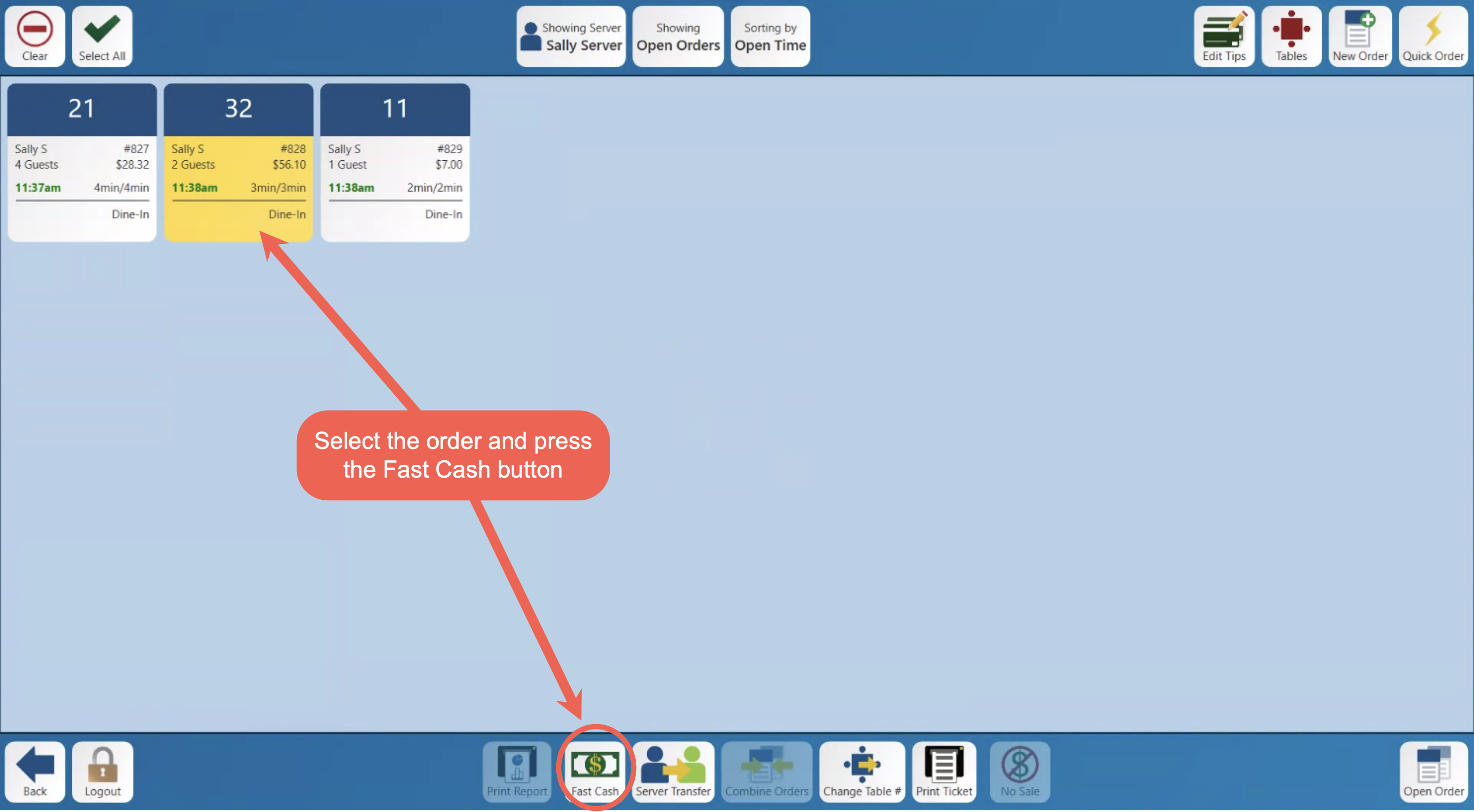
Fast cash is the quickest and easiest way to close an order.
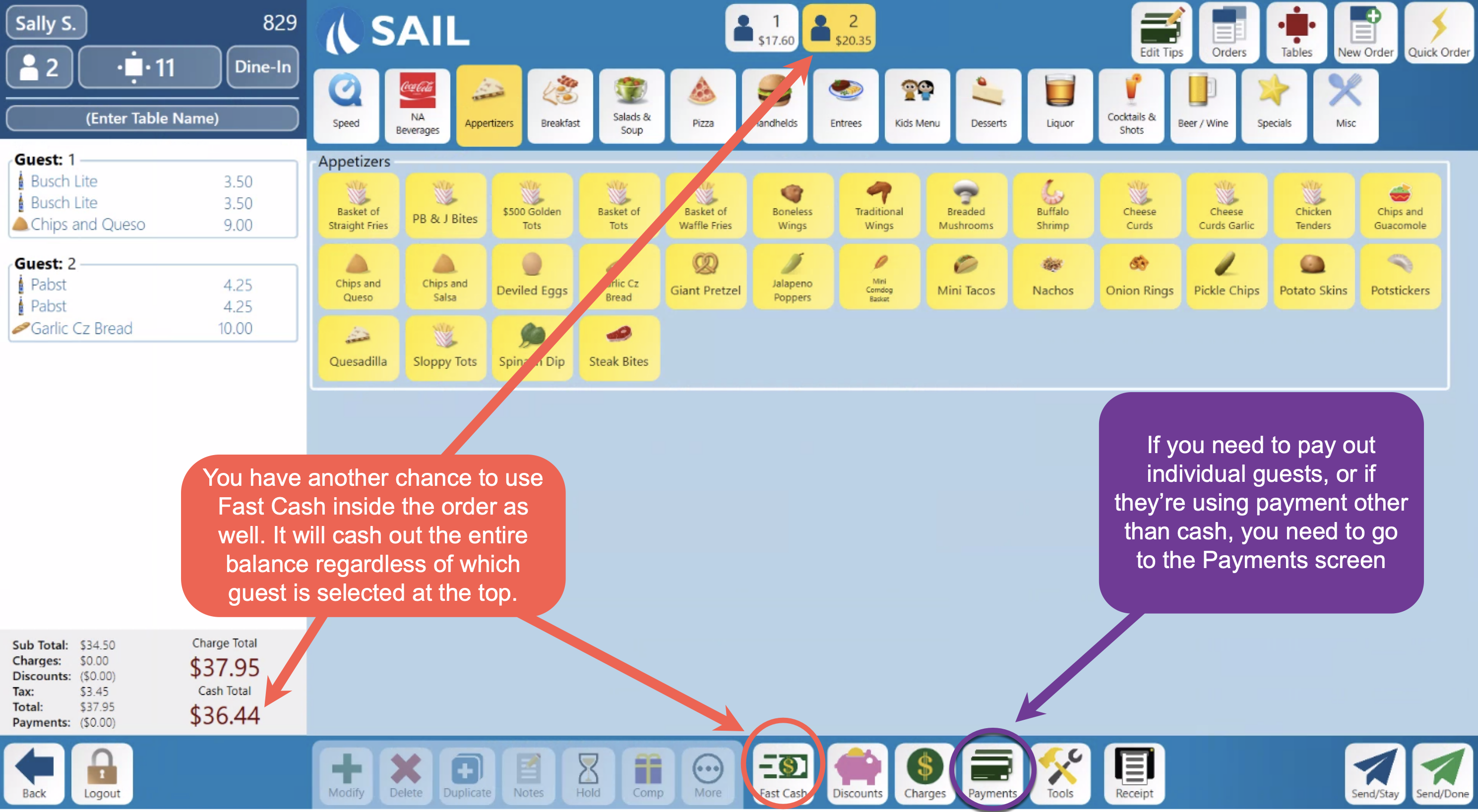
- It will close out the entire balance regardless of how many guests
- Fast cash will not calculate change for you.


-
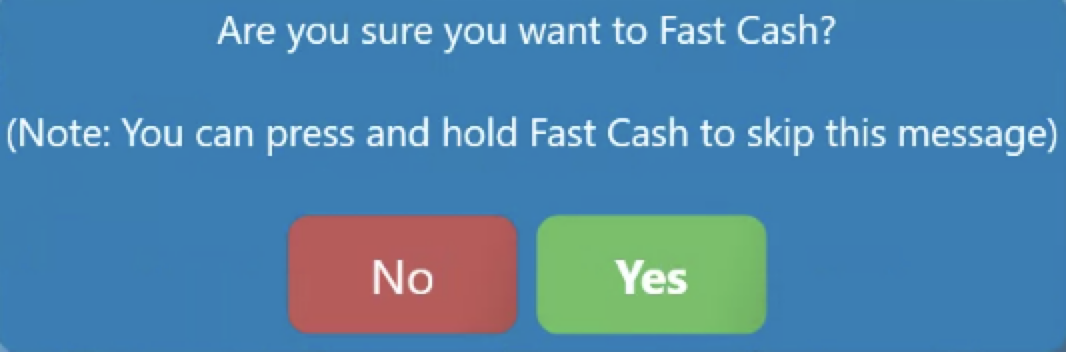
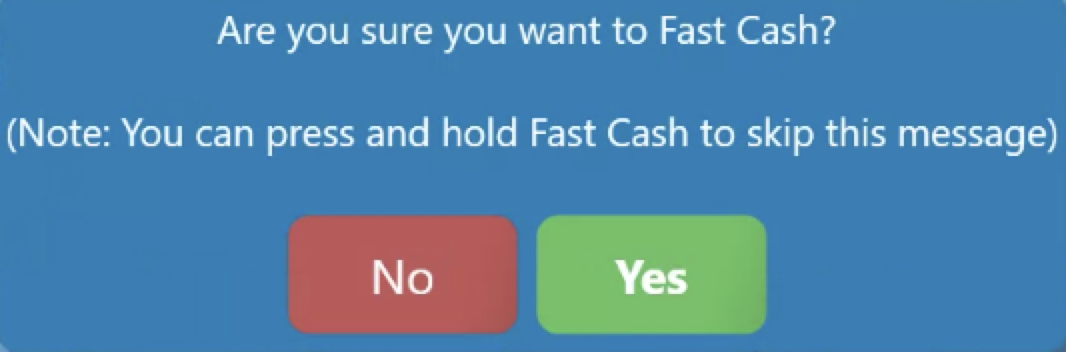
Selecting fast cash on any page will create a prompt.
-
If you press and hold fast cash it will skip the prompt.

-
-
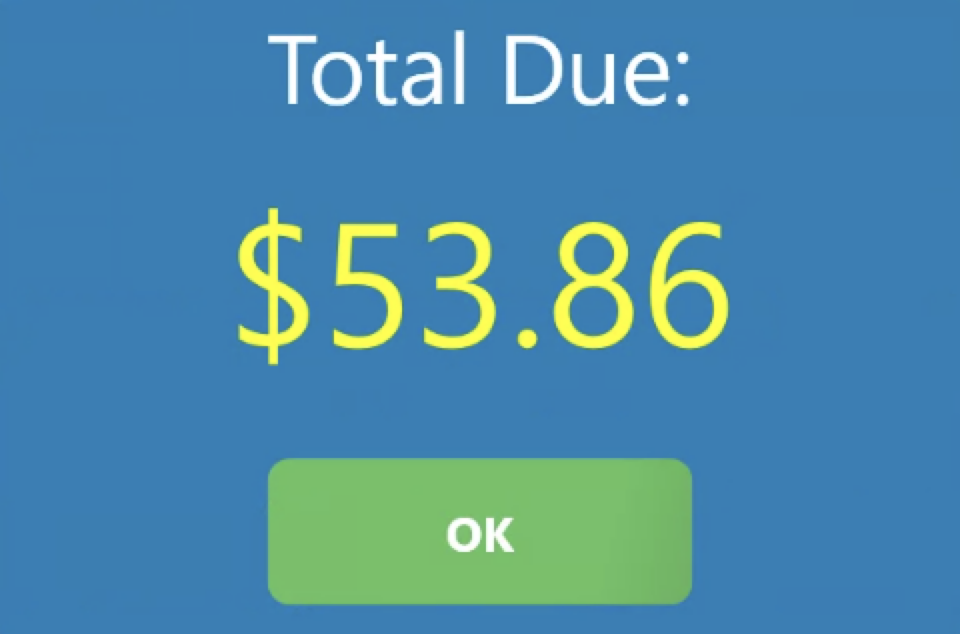
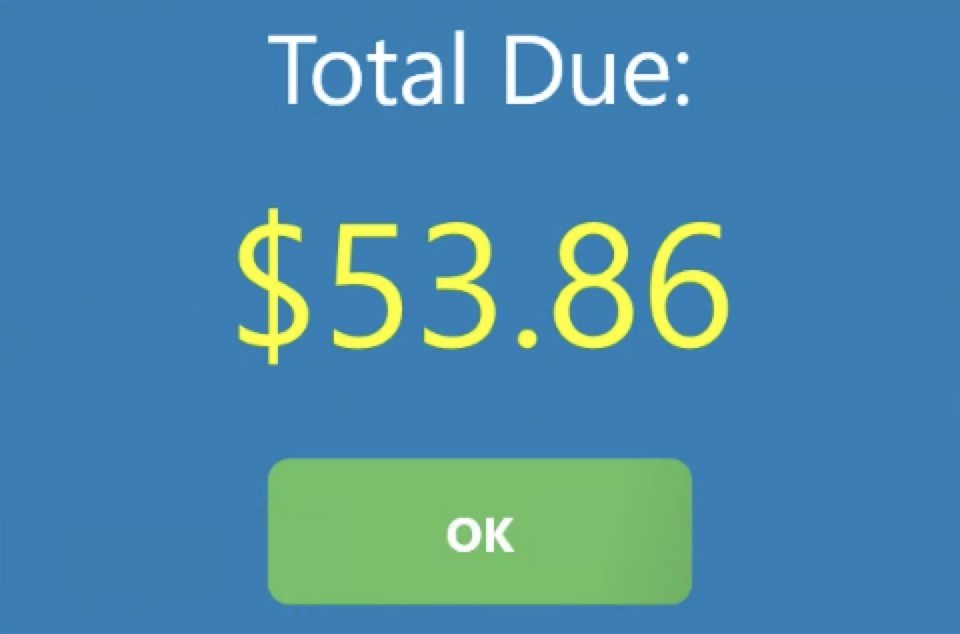
Once you have selected fast cash if there is a cash drawer on your terminal it will open.
-
Select ok, add the cash to your bank, and the order will be closed.

-
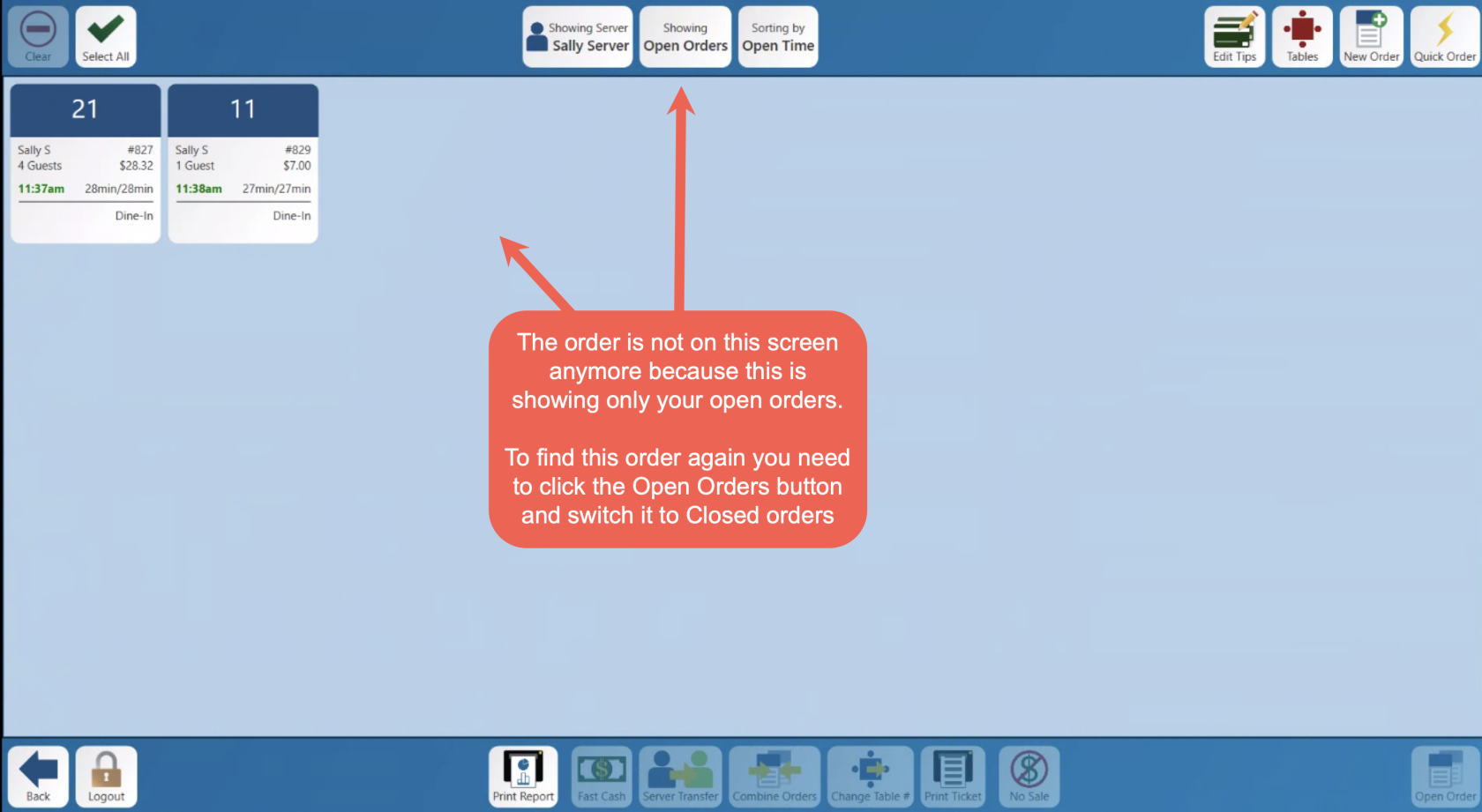
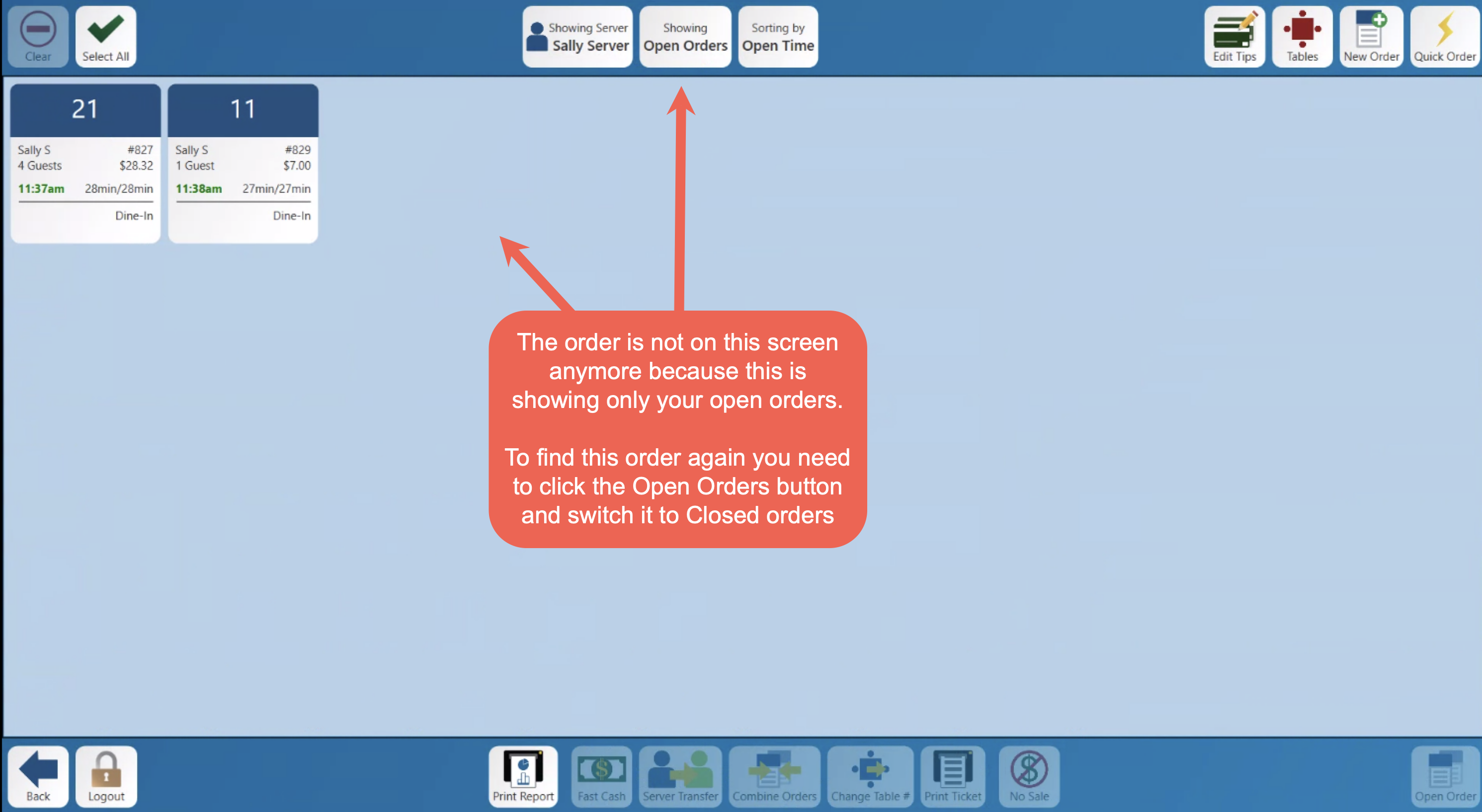
- Now that the order is closed it is now longer on this screen.
- If you'd like to learn how to reopen a closed table/order please click the link

- If you'd like to learn how to reopen a closed table/order please click the link
From Outside the Order with a Card
Fast Credit charges the full balance of an order to a card and closes it, without opening the order.
-
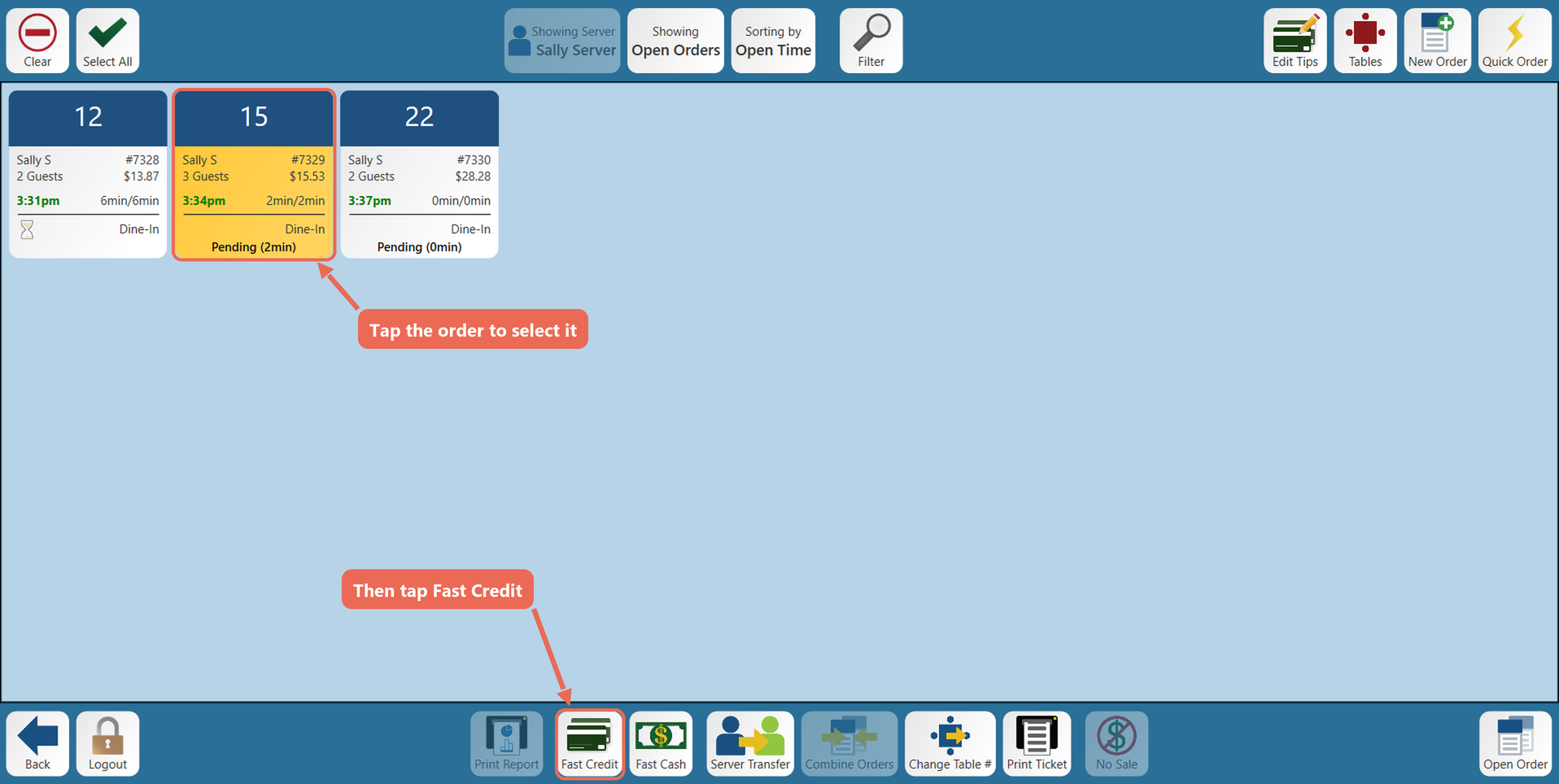
Locate the order in either the Tables or Orders screen and select it. Fast Credit pays one order at a time: to pay several orders together, combine them first.
-
Select Fast Credit. There is no "Are you sure?" prompt: the card reader is where you can still cancel.
-
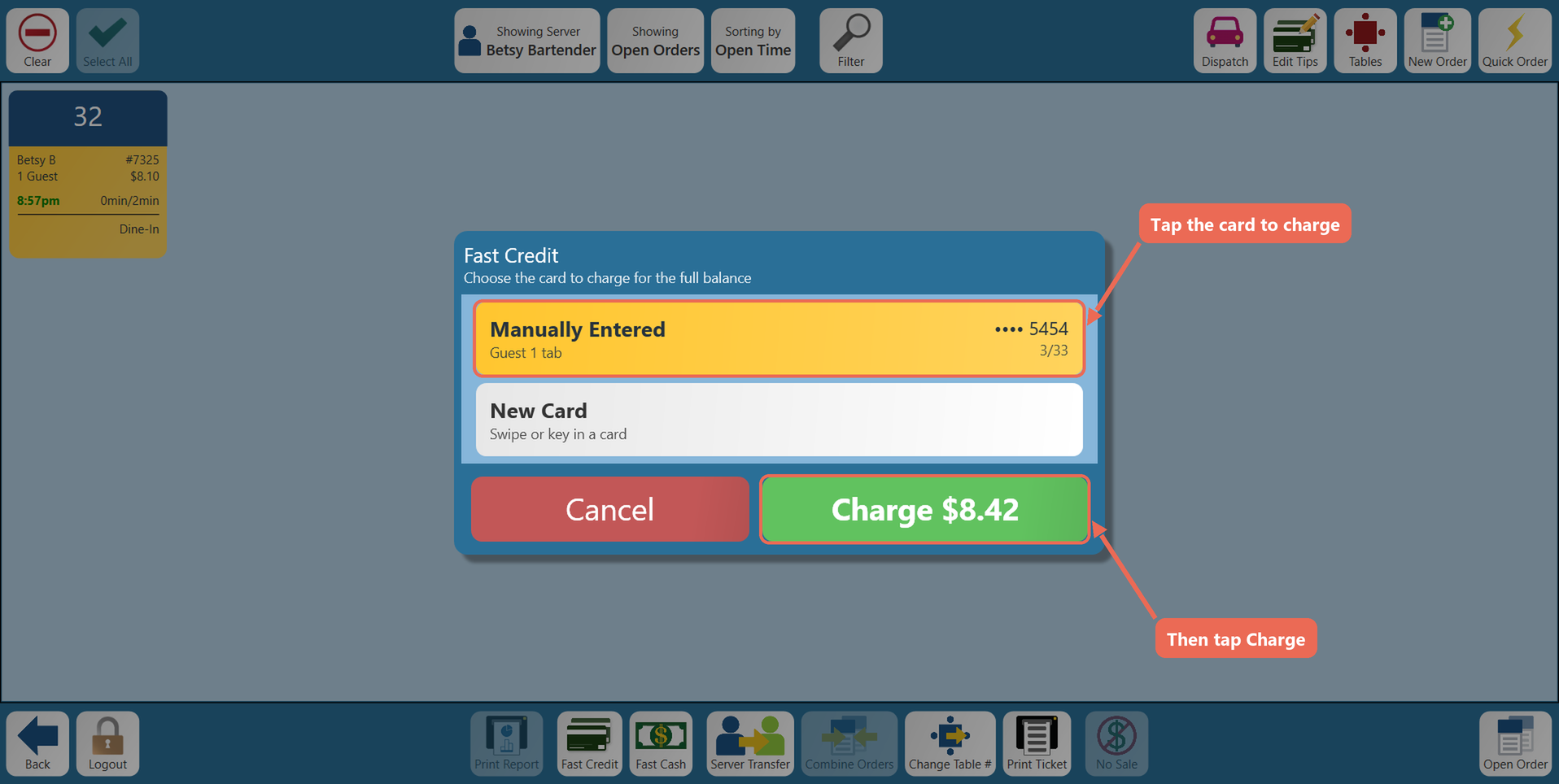
If the order has an open tab, choose the card to charge:
- A tab's card: the card already on the tab, with the guest it belongs to.
- New Card: charge a different card.
Then select Charge; the button shows the amount that will be charged. An order without a tab skips this step.
-
For a new card, the guest inserts, taps or swipes their card on the card reader. A tab's card is charged without the guest doing anything.
-
Once the card is approved, the order is closed and is no longer on this screen.
Note: If the card is approved for less than the balance, the order stays open with the rest still due. Open the order to collect the rest.
Note: Fast Credit is greyed out when more than one order is selected, the order is locked or already paid, or the terminal can't take cards.
From Inside the Order
-
If the customer is not paying with cash or a card, or if you want the system to calculate change for you, open the order.
-
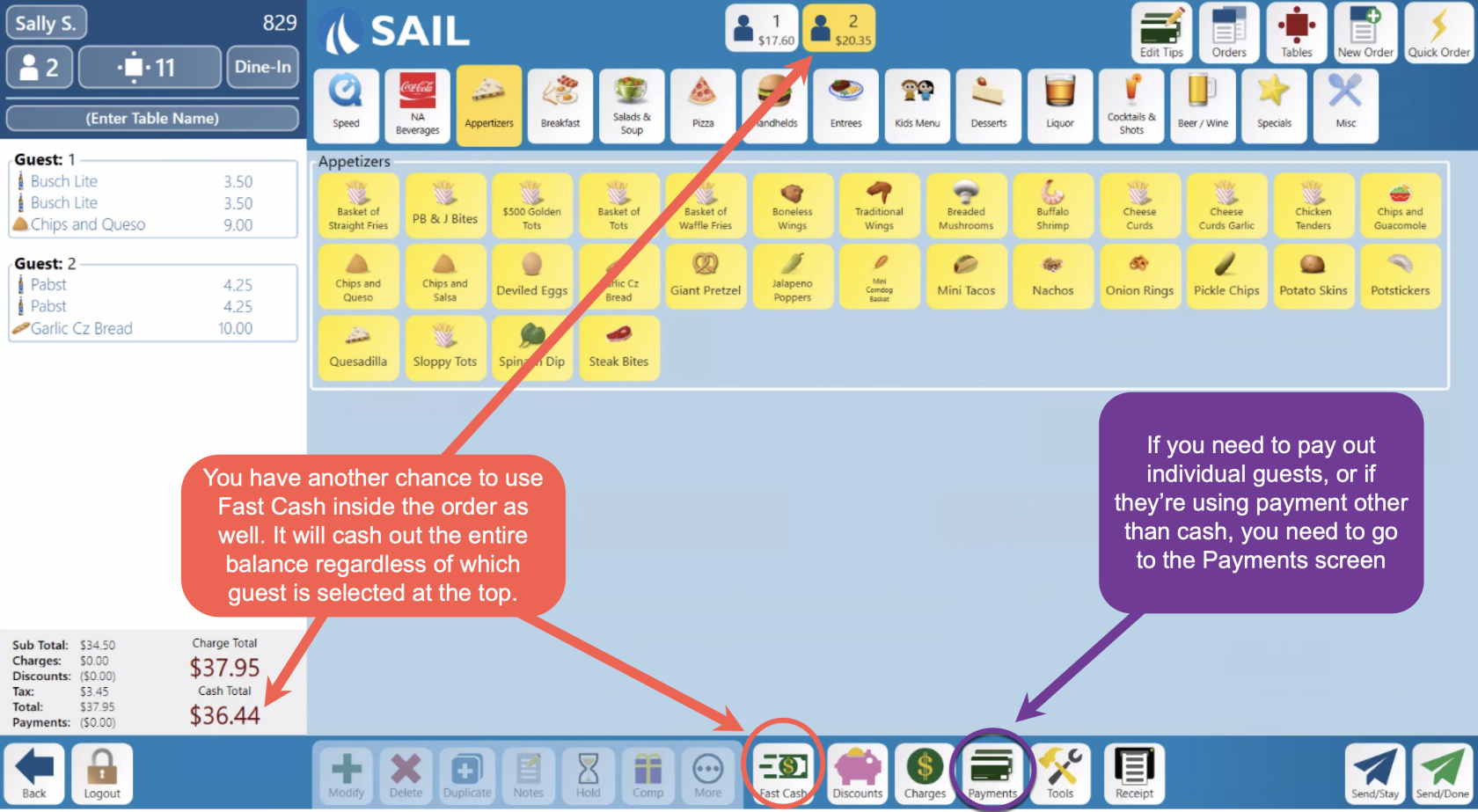
Once you have opened the order you have another chance to select fast cash.
-
Of you need to click on the payment button on the bottom toolbar

-
-
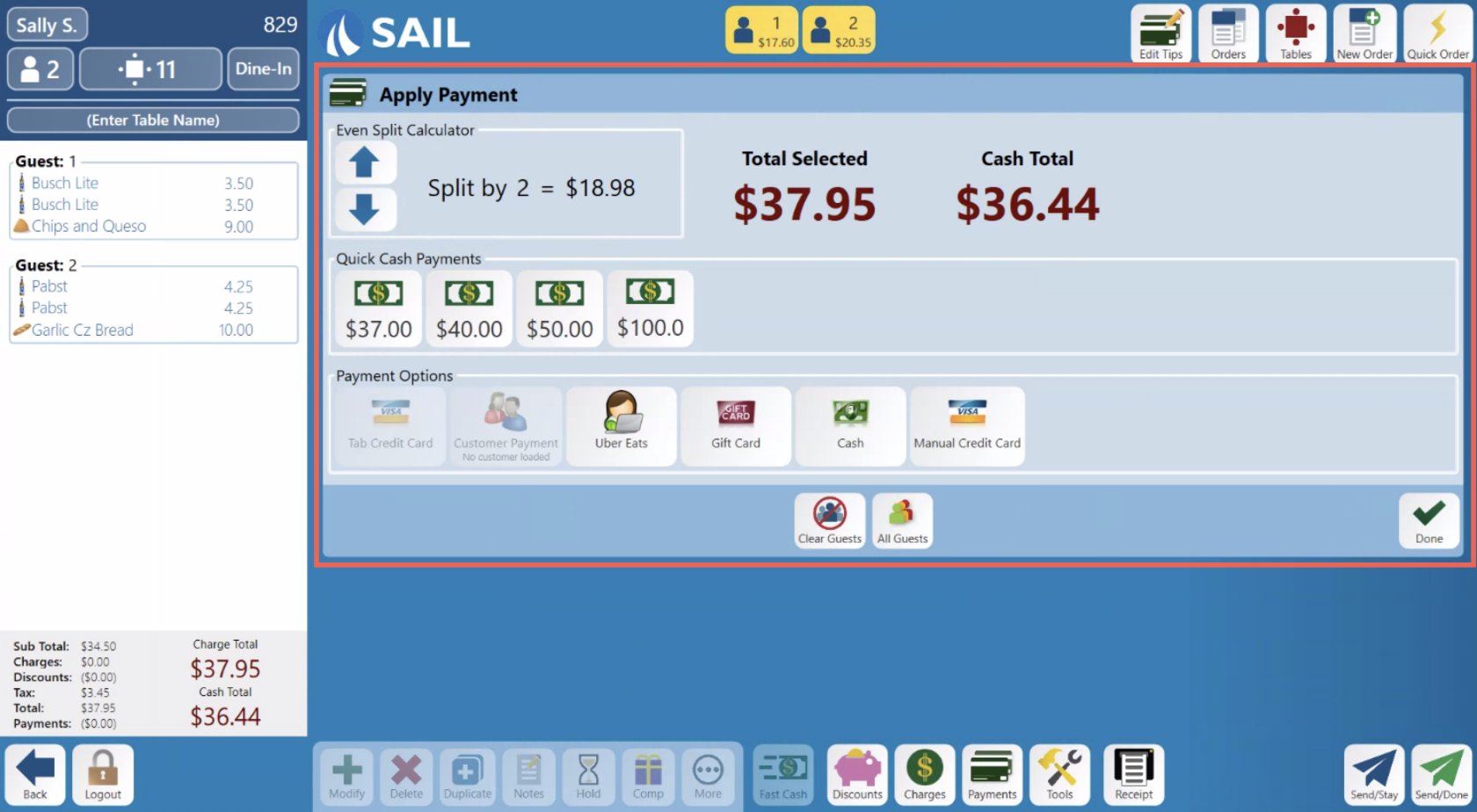
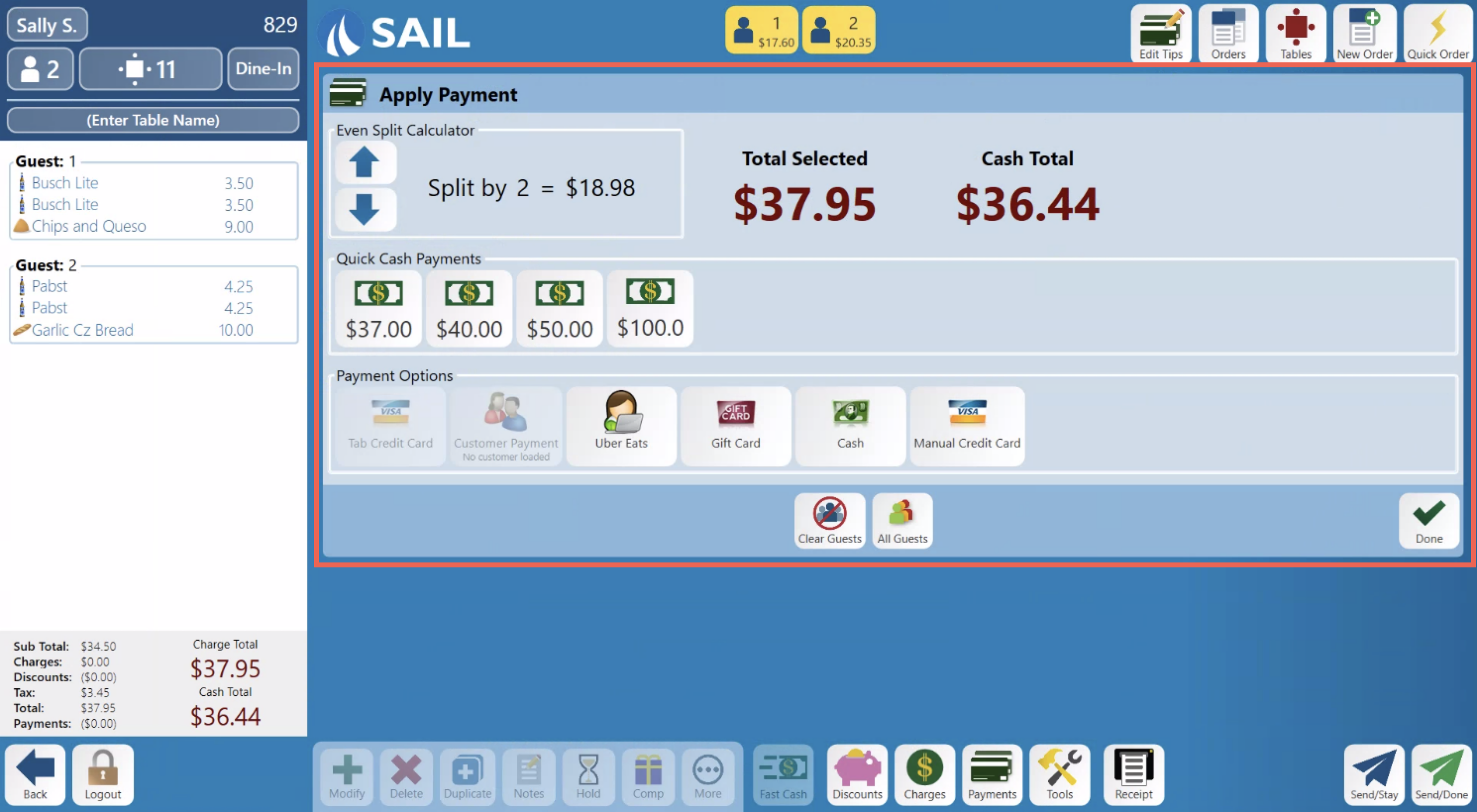
On the payments screen there are several options to select in order to run a payment. Select the payment option that matches what the guest has chosen as their payment type.
-
See How to Process a Payment for more specific information on payments.
-
Once the balance has been paid the table will be closed.

-
A Table with a Running Timer
A table with a timed item (like a pool table) can't be closed while its timer is running: the timer has to be stopped first, so the guest pays for the time played. If you go to pay first, the terminal asks.
-
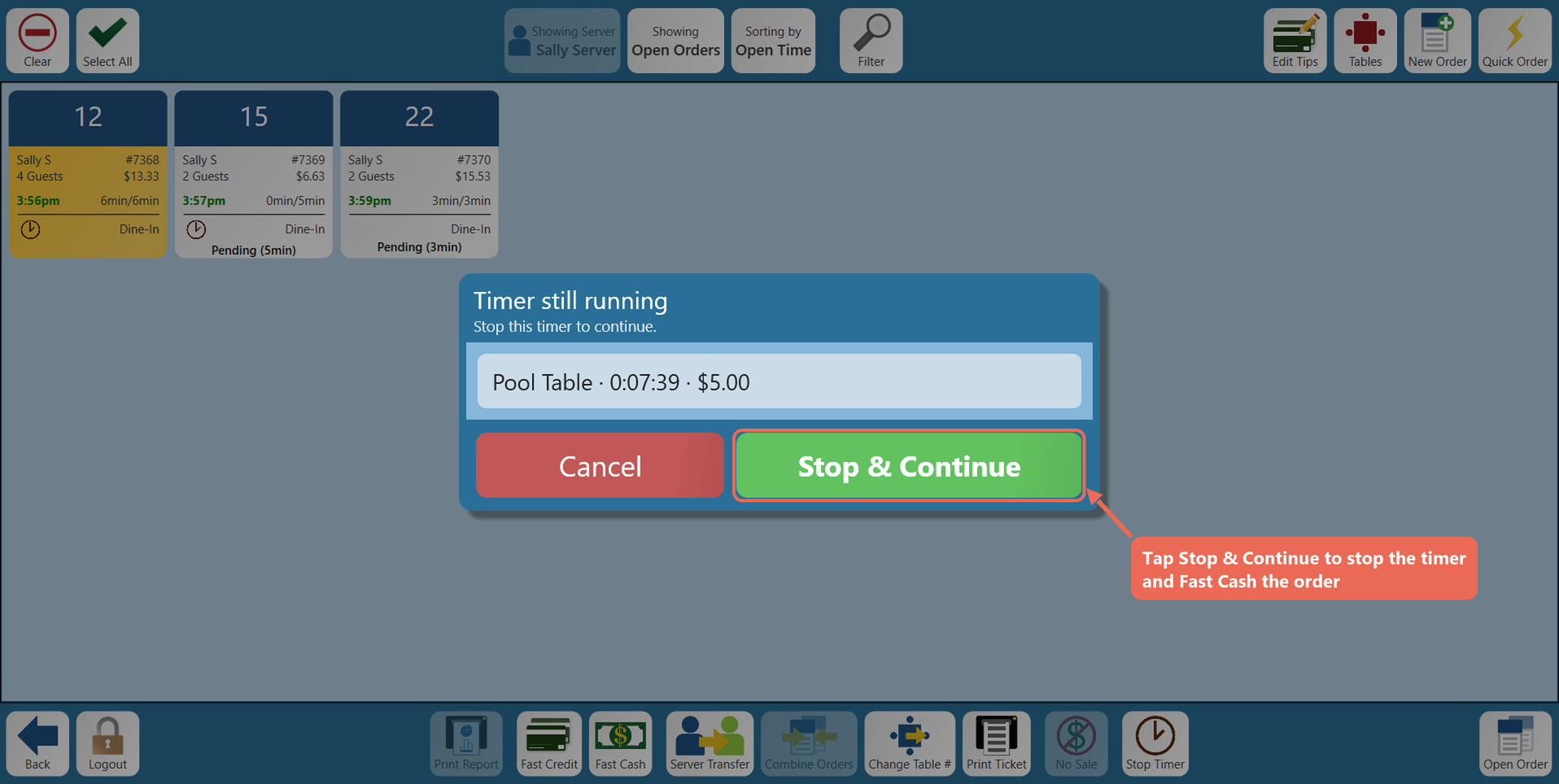
From outside the order, Fast Cash and Fast Credit show Timer still running with each running timer, its time and the amount so far. Tap Stop & Continue (Stop All & Continue when there are several) to stop the timers and close the order, or Cancel.
-
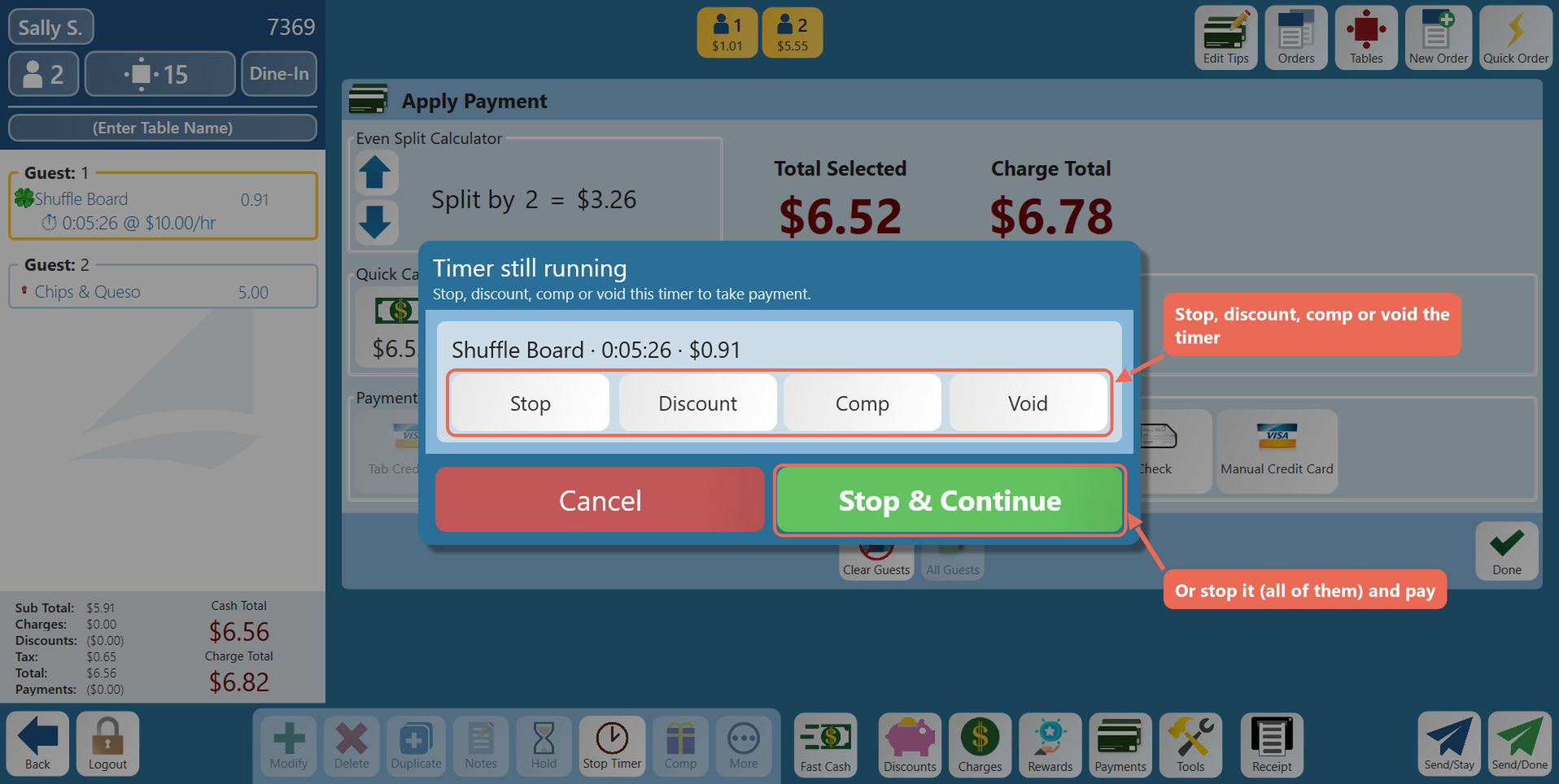
From inside the order, picking a payment on the Payments screen shows Timer still running too. For each timer, tap Stop, Discount, Comp or Void, or tap Stop & Continue to stop them all and go on with the payment.
Click here to learn more about How to use timed items on the terminal.