
How to use timed items on the terminal
This document will walk through using timed items on a terminal. A timed item is charged by how long it's used, like a pool table, a bowling lane or a shuffle board. When it's rung in, a timer starts and the price grows until the timer is stopped. A timer has to be stopped before the order can be paid.
Timed items are set up in Backoffice. Click here to learn more about How to set up a timed item.
Ringing in a timed item
Ring in a timed item like any other item. Its timer starts right away. Under the item, the order shows the stopwatch, how long it has run and its price per hour. The price grows every few seconds while the timer runs.
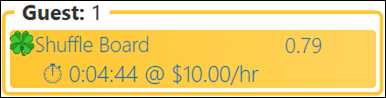
Note: if the item has a Minimum Charge, the price starts at the minimum and only grows once the time is worth more. If it has a Maximum Charge, the price stops growing at the maximum.
Stopping a timer
- Select the timed item on the order.
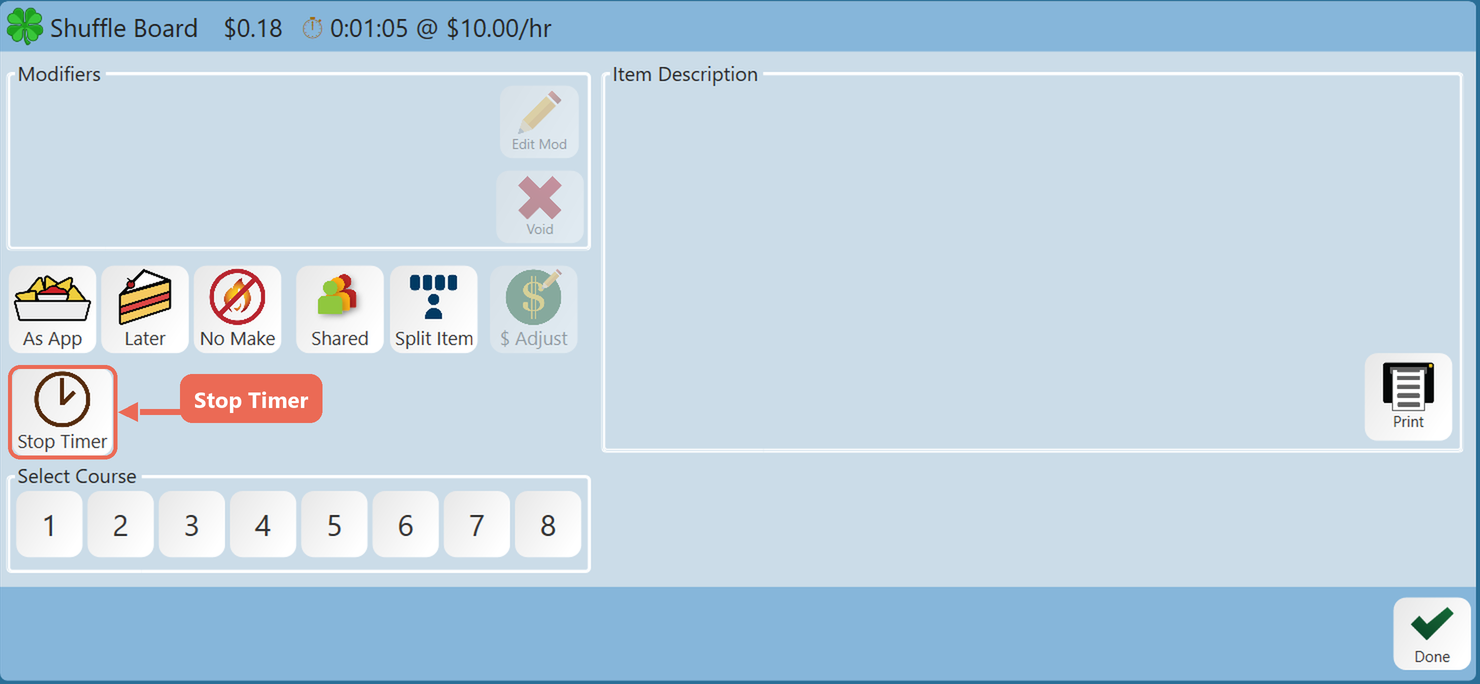
- Tap Stop Timer on the bottom toolbar.
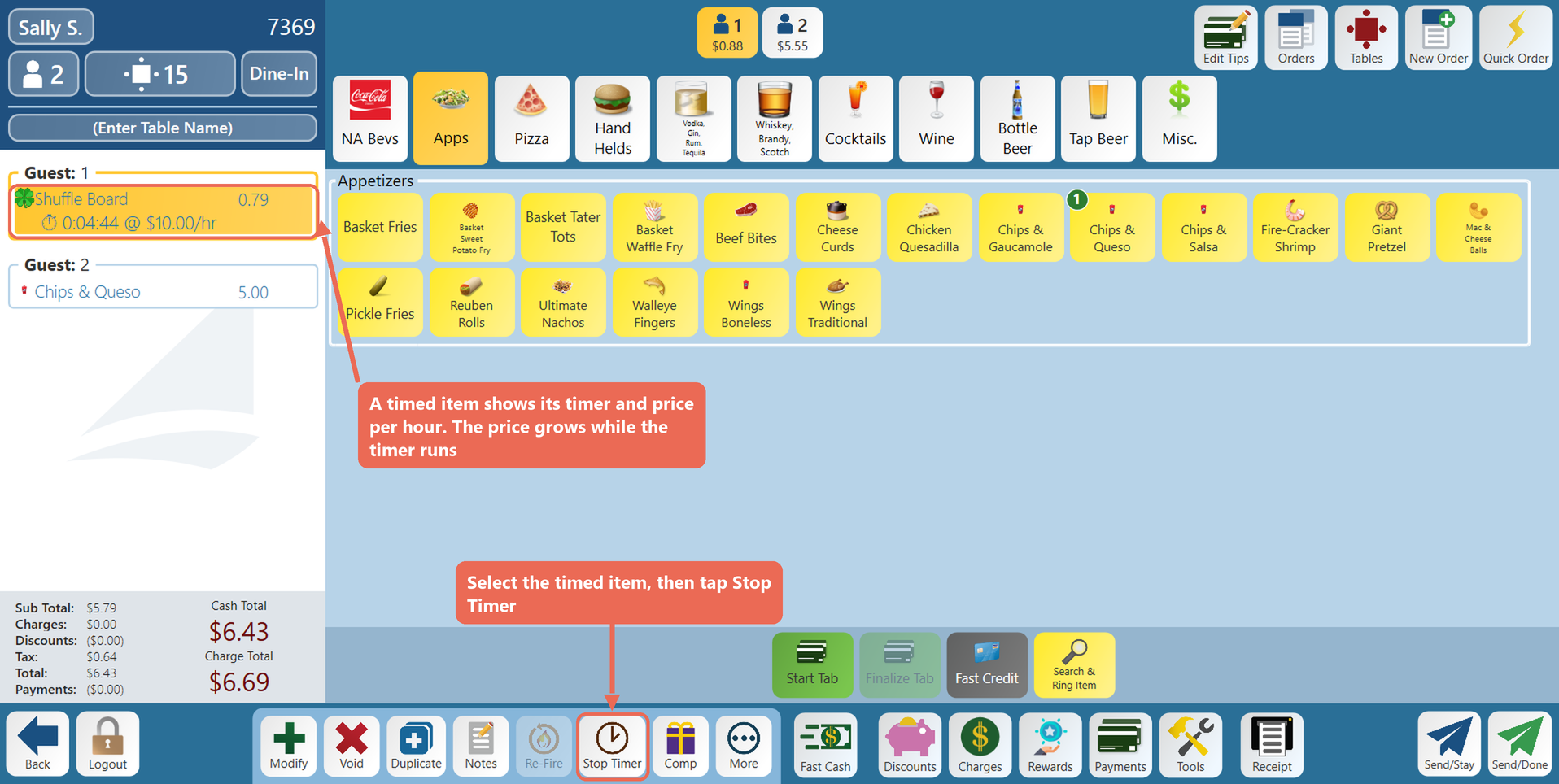
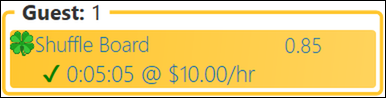
The stopwatch turns into a green check, and the price stays where it is.
If nothing is selected, Stop Timer stops the order's timer; if the order has more than one running, it asks which ones to stop.
Starting a stopped timer again
If the guests keep playing, select the stopped item and tap Resume Timer (it takes the place of Stop Timer). The time keeps adding up from where it stopped.
Note: a timer can't be resumed once the item has been paid or comped - ring the item in again to start a new session. If the item or the order has a discount, remove the discount first.
Stop Timer and Resume Timer on the More screen
The item's More screen has the same buttons: Stop Timer while the timer runs, Resume Timer once it's stopped.
Stopping timers without opening the order
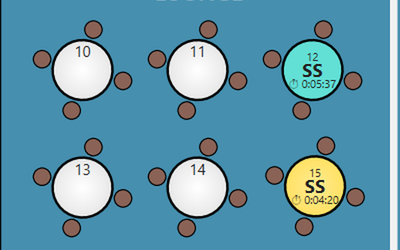
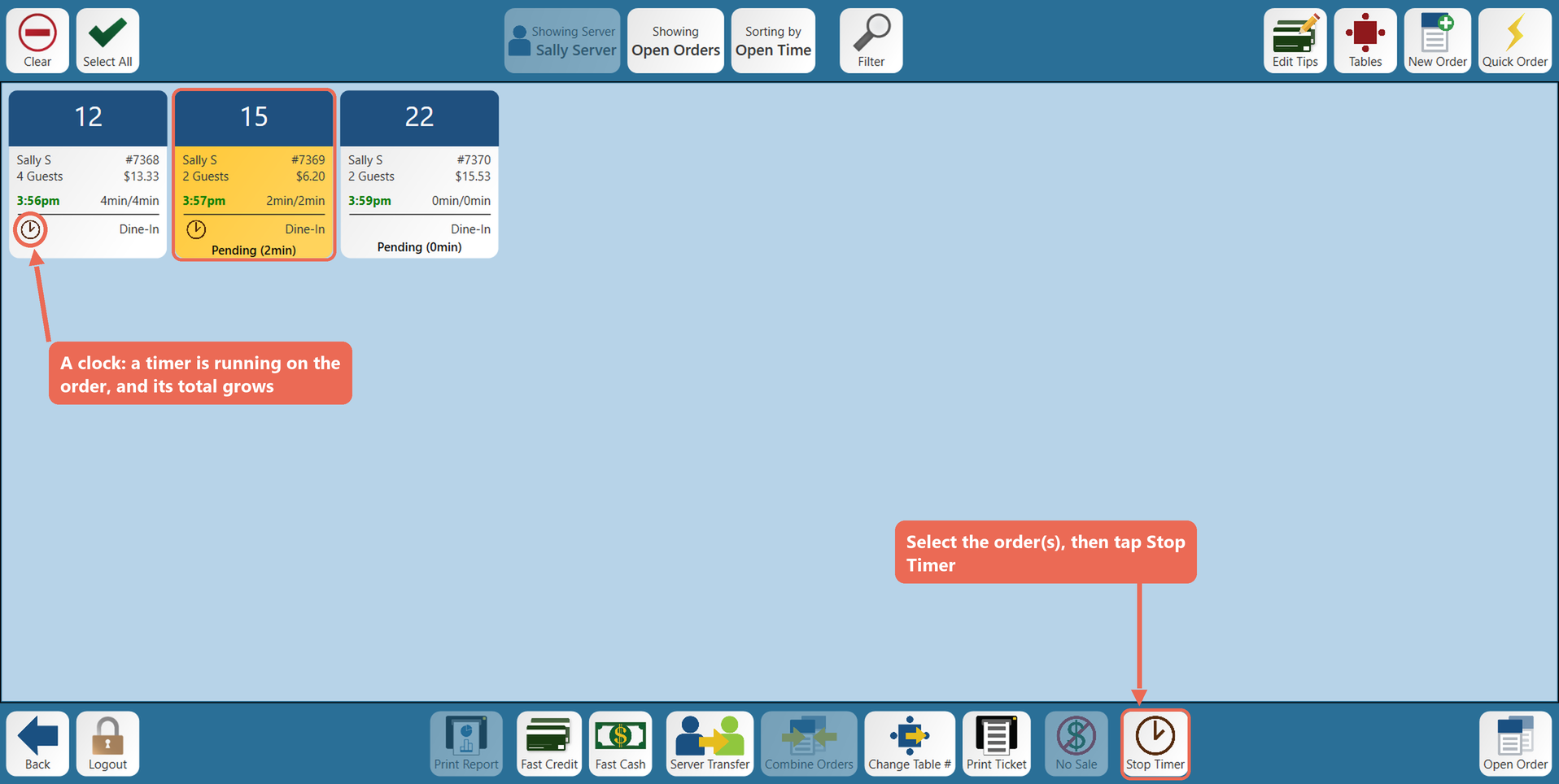
On the Orders screen, an order with a running timer shows a clock, and its total grows. On the Table View, the table shows the running timer.
- On the Orders screen or the Table View, select the order or table (or several).
- Tap Stop Timer on the bottom toolbar (next to No Sale). It only lights up when a selected order has a running timer.
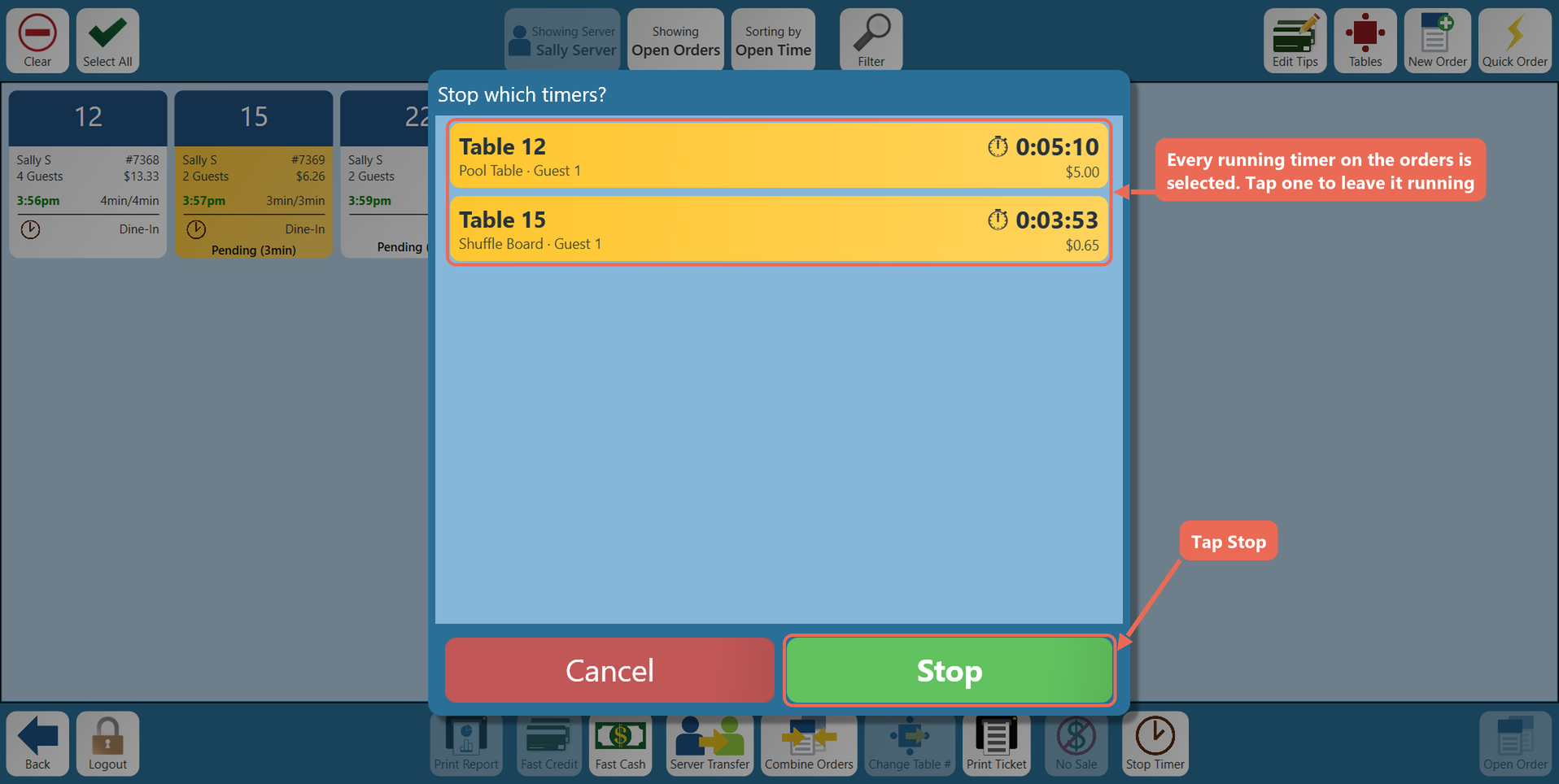
- If there's only one timer, it stops right away. If there are more, the Stop which timers? window lists them, all selected. Tap any you want to leave running, then tap Stop.
Paying for an order with a timer
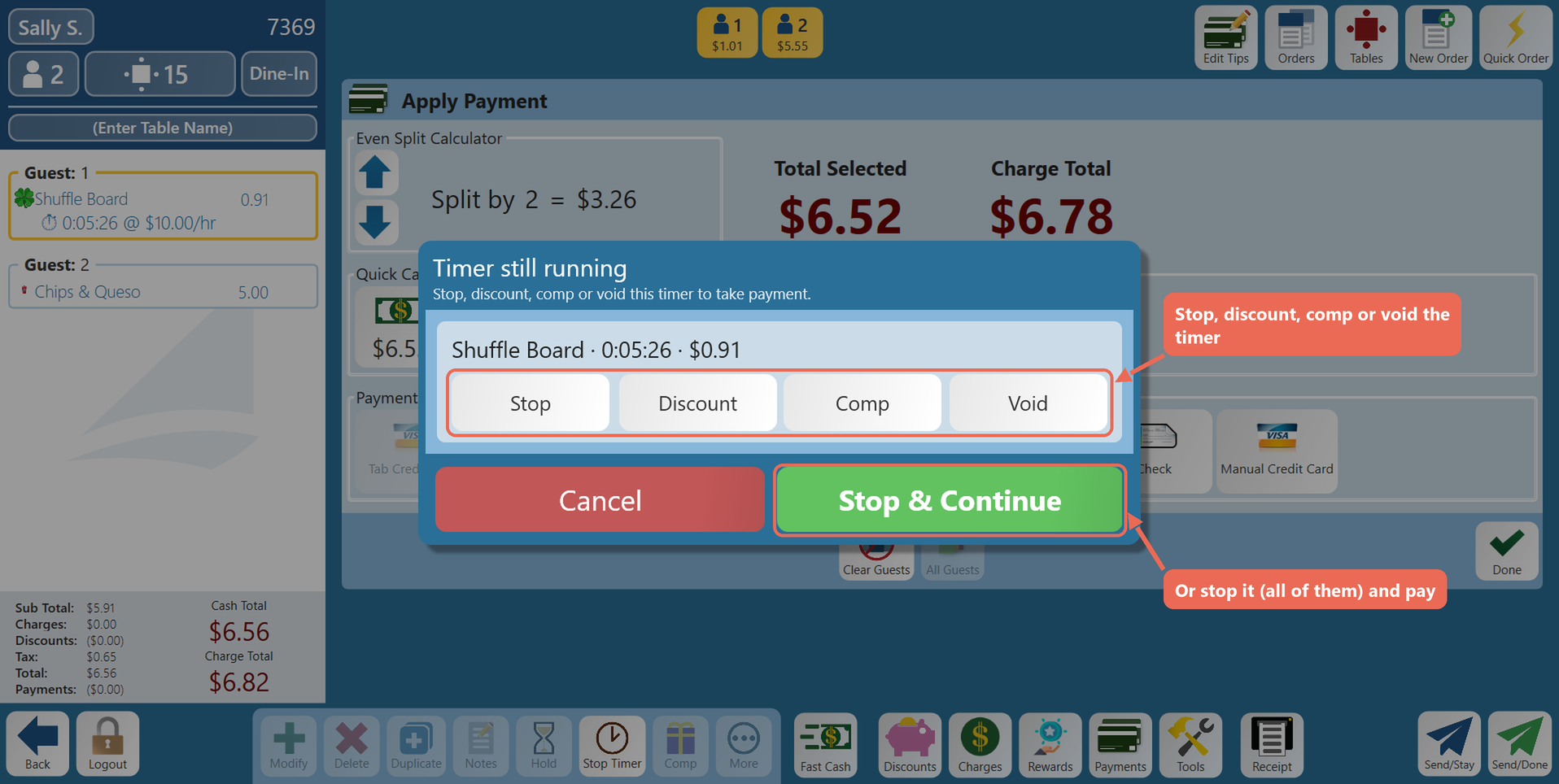
An order can't be paid while a timer on it is running. If you go to pay first, the terminal asks:
- On the Payments screen, pick the payment as usual. The Timer still running window lists each running timer with its time and amount so far. For each one, tap Stop, Discount, Comp or Void - or tap Stop & Continue (Stop All & Continue when there are several) to stop them all and go on with the payment. Cancel goes back without paying.
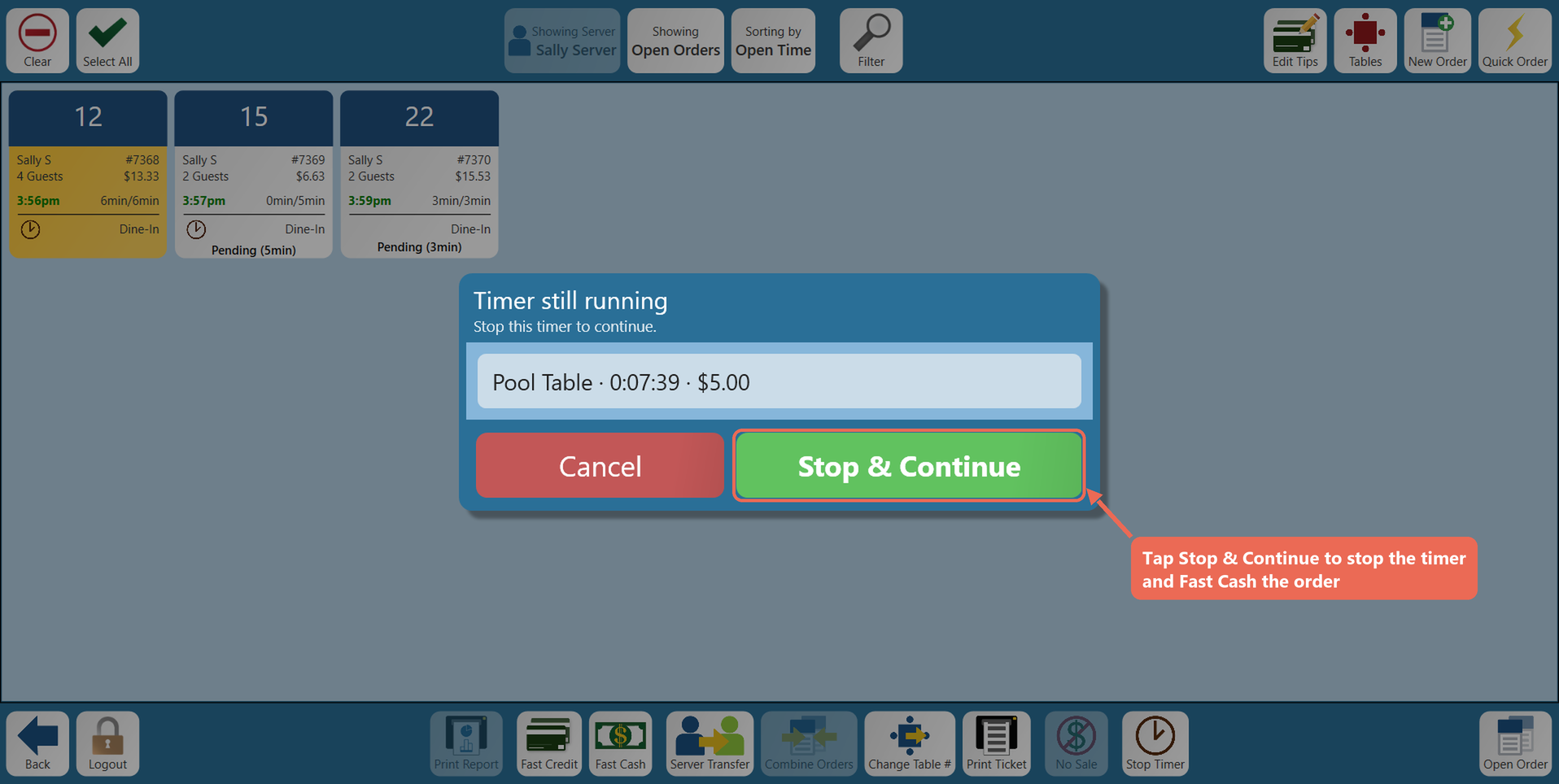
- Fast Cash and Fast Credit ask the same before they pay the order. On the Orders screen and the Table View, tap Stop & Continue to stop the timer and finish paying, or Cancel.
Note: a guest check printed while a timer is running says "Timer running" under the item, so the guest knows the amount isn't final.
Click here to learn more about How to close a table/order.
No Comments