
How to view your open orders
This document will show you how to view your open orders, and how to filter the Orders screen to find the order you are looking for.
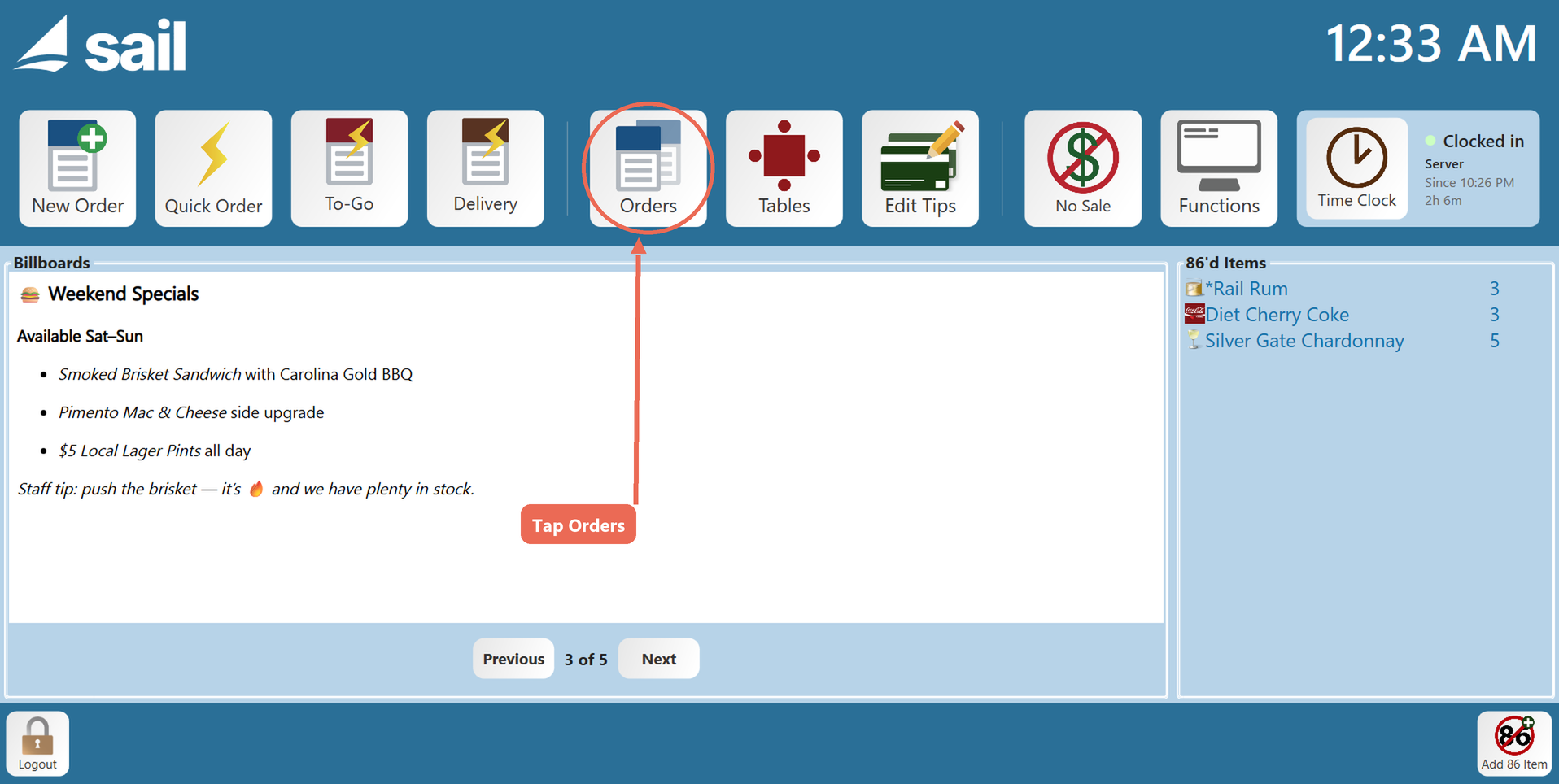
The Orders screen can be opened by tapping the Orders button. (This button can be found on most of the screens.) If you want more information on all the functions of the Orders screen, see the Orders Screen article.
Viewing open orders
-
On the home screen, tap Orders.
-
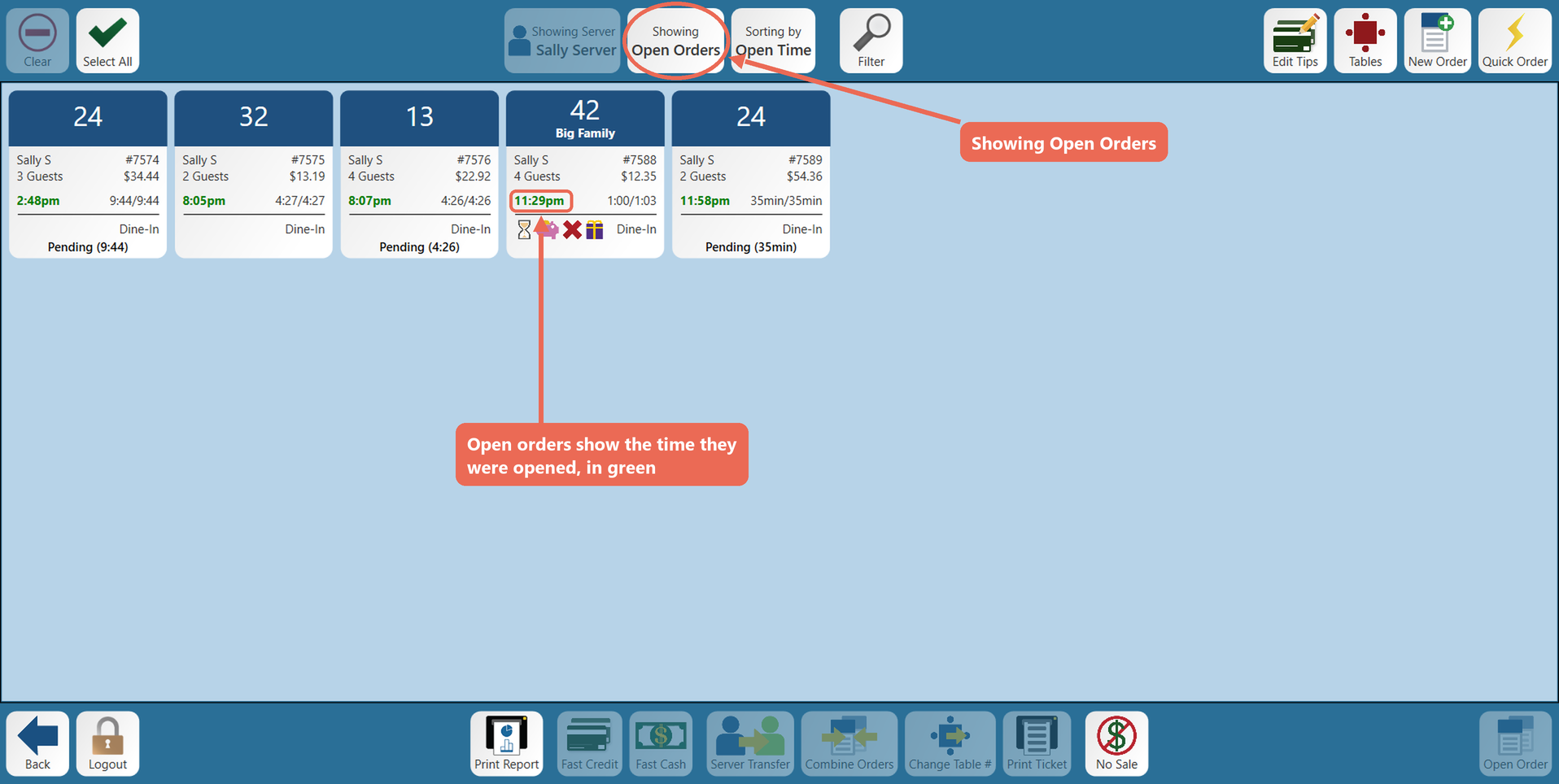
Once you have the Orders screen open, you will see your orders in the middle of the screen. To check that these are your open orders:
- The Showing button at the top middle of the screen says Open Orders.
- Each order shows the time it was opened in green.
-
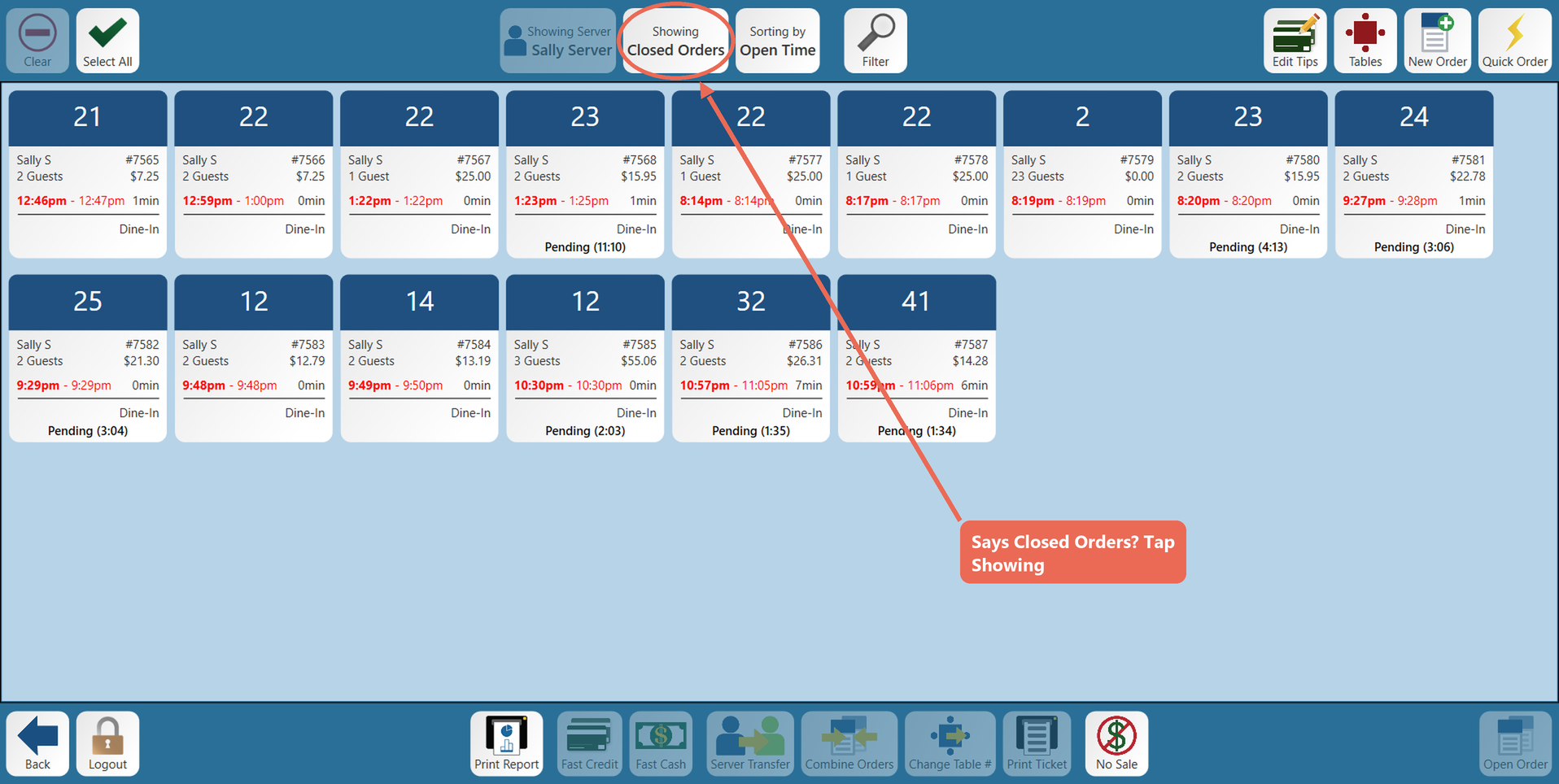
If the button says something else, such as Closed Orders, tap it.
-
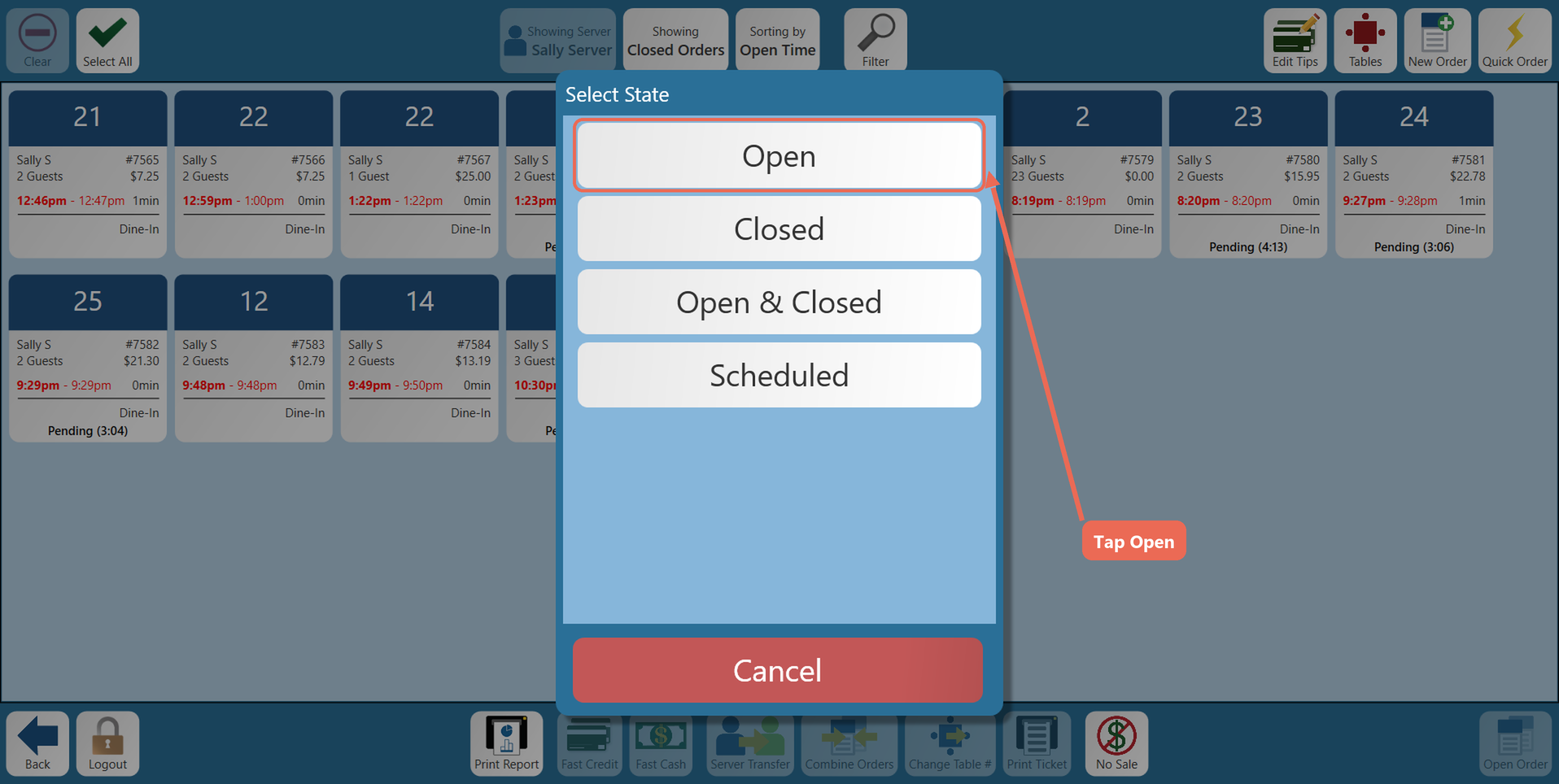
Tap Open. Your open orders show again.
Note: You see only your own orders. A manager, or anyone whose job role has the View All Orders permission, can tap Showing Server to see other servers' orders. See How to view a closed order for more on the Showing and Showing Server buttons.
Filtering orders
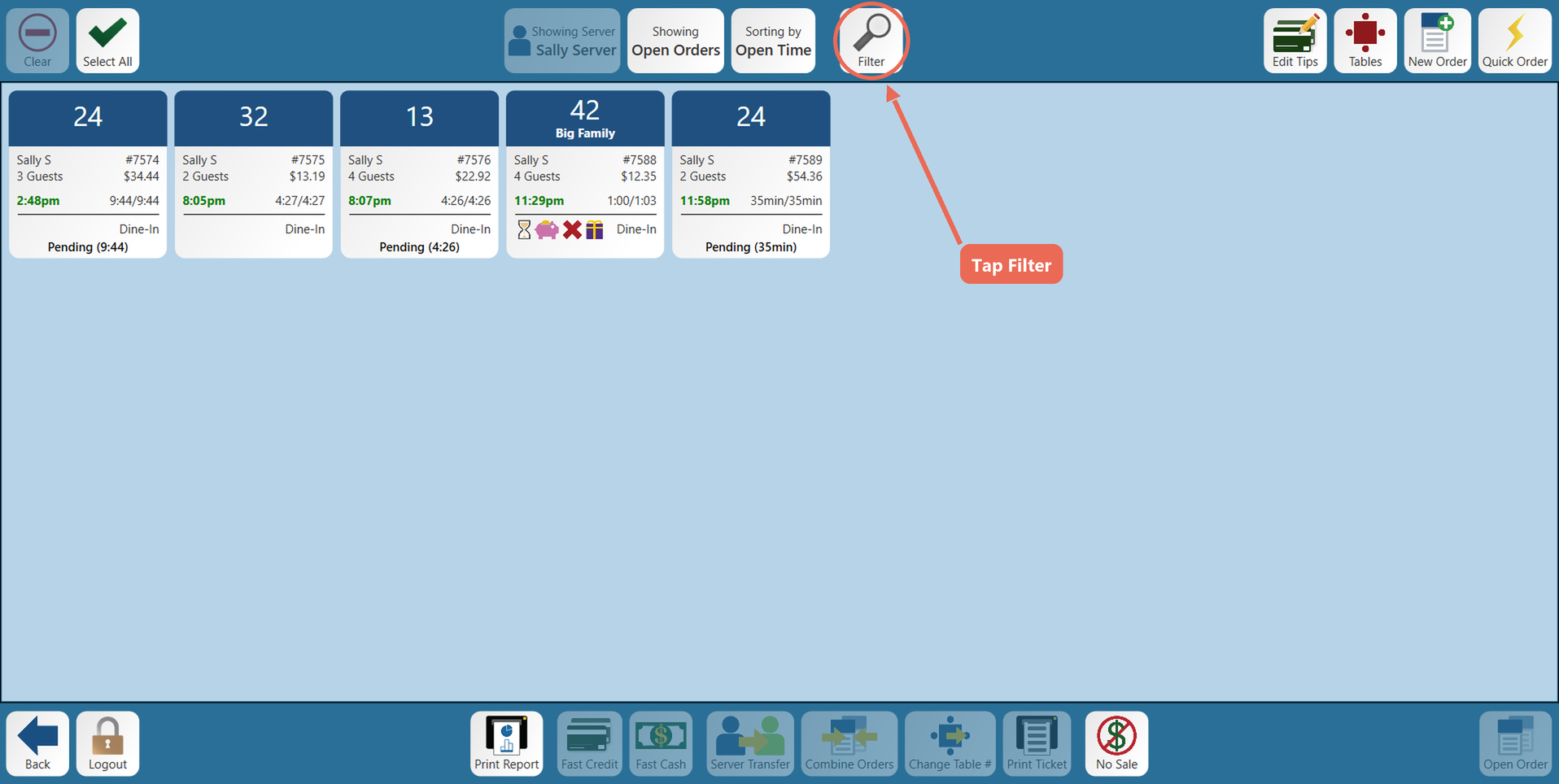
When there are a lot of orders on the screen, use Filter to find the one you are looking for.
-
On the Orders screen, tap Filter.
-
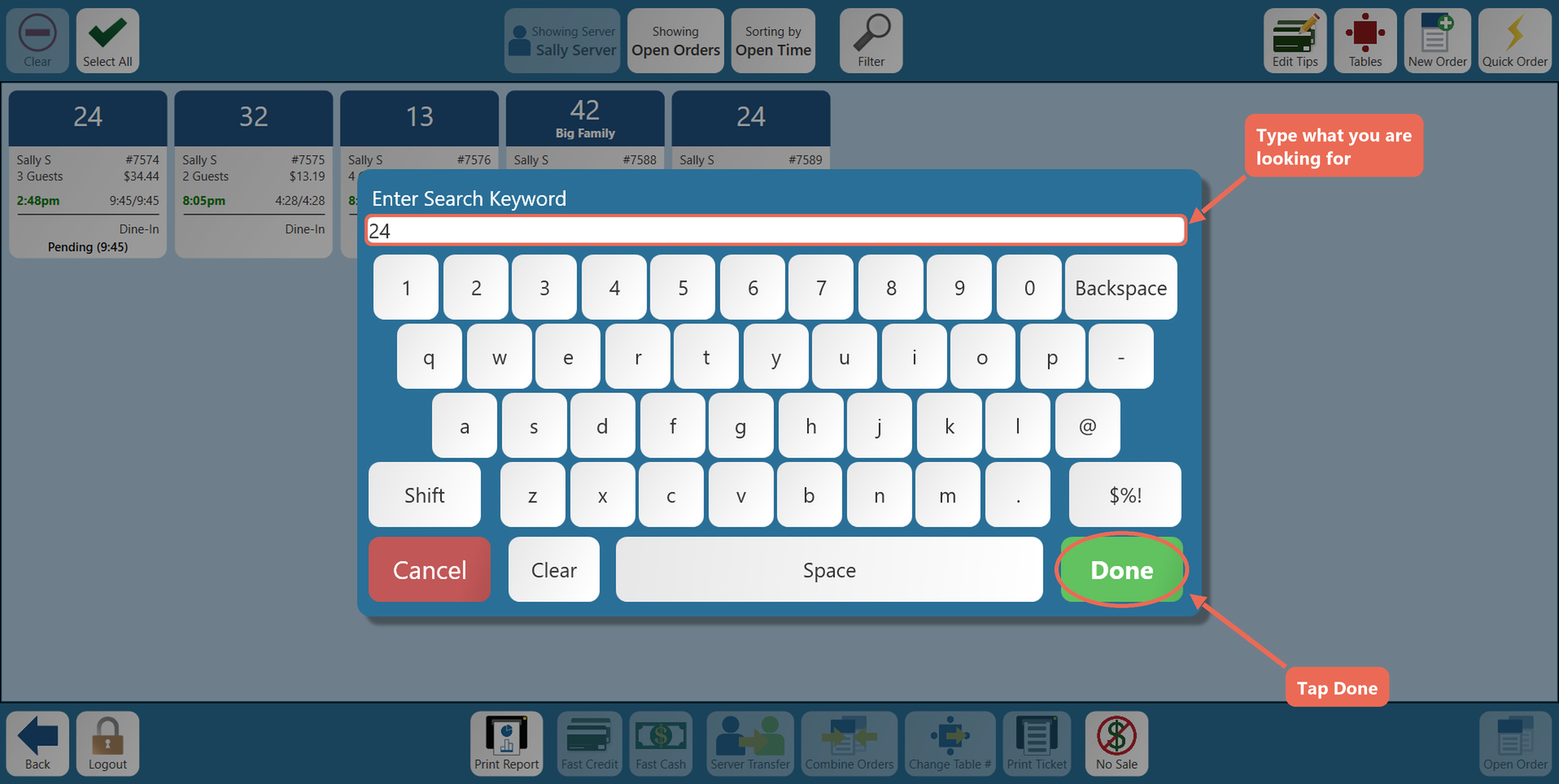
Type what you are looking for and tap Done. You can type a table number, a table name, an order number, an order type (such as To-Go), a server's name, an amount or a guest count. Part of a word or number is enough.
-
Only the orders that match stay on the screen, and the Filter button turns yellow and says Clear. Tap Clear to see all the orders again.
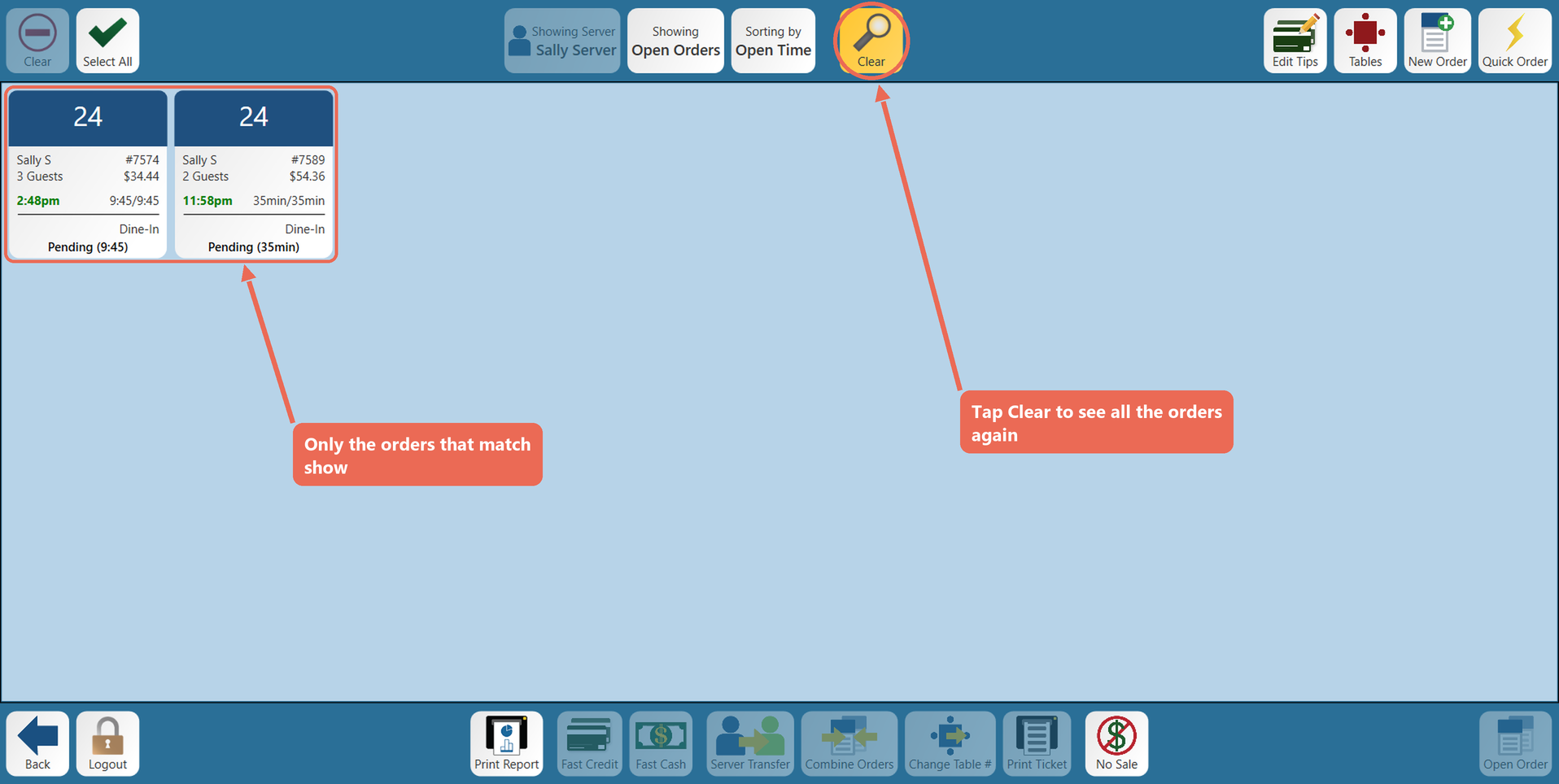
Note: The filter stays on until you tap Clear, even after you open an order and come back.
To put the orders in a different order, see How to sort orders on the order view screen.
No Comments