
How to exit and restart Sail Software
This will walk through how to close Sail on a terminal and start it up again - for example, when support asks you to restart Sail.
Exit Sail Software from the Log In screen
-
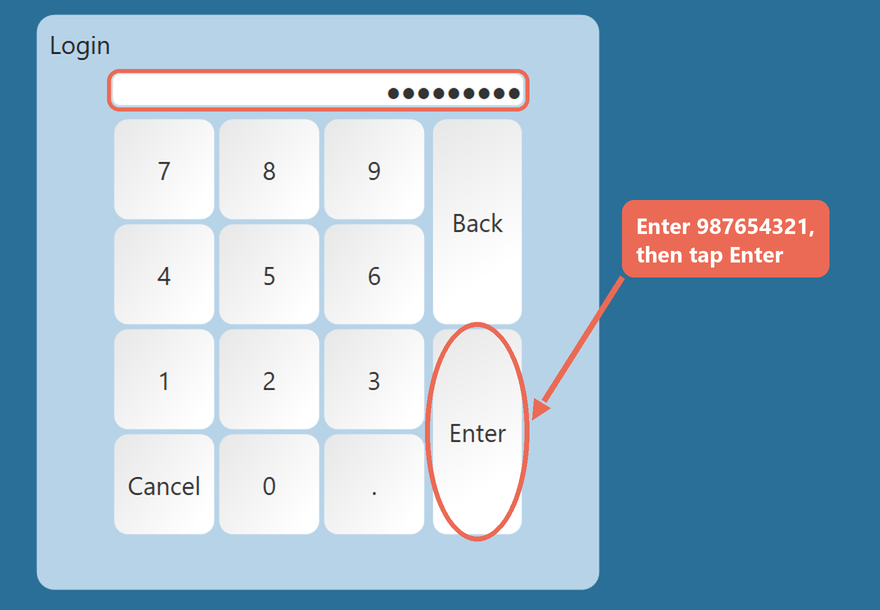
On the Log In screen enter 987654321 and tap Enter. Sail closes.
Exit Sail Software from any other screen
-
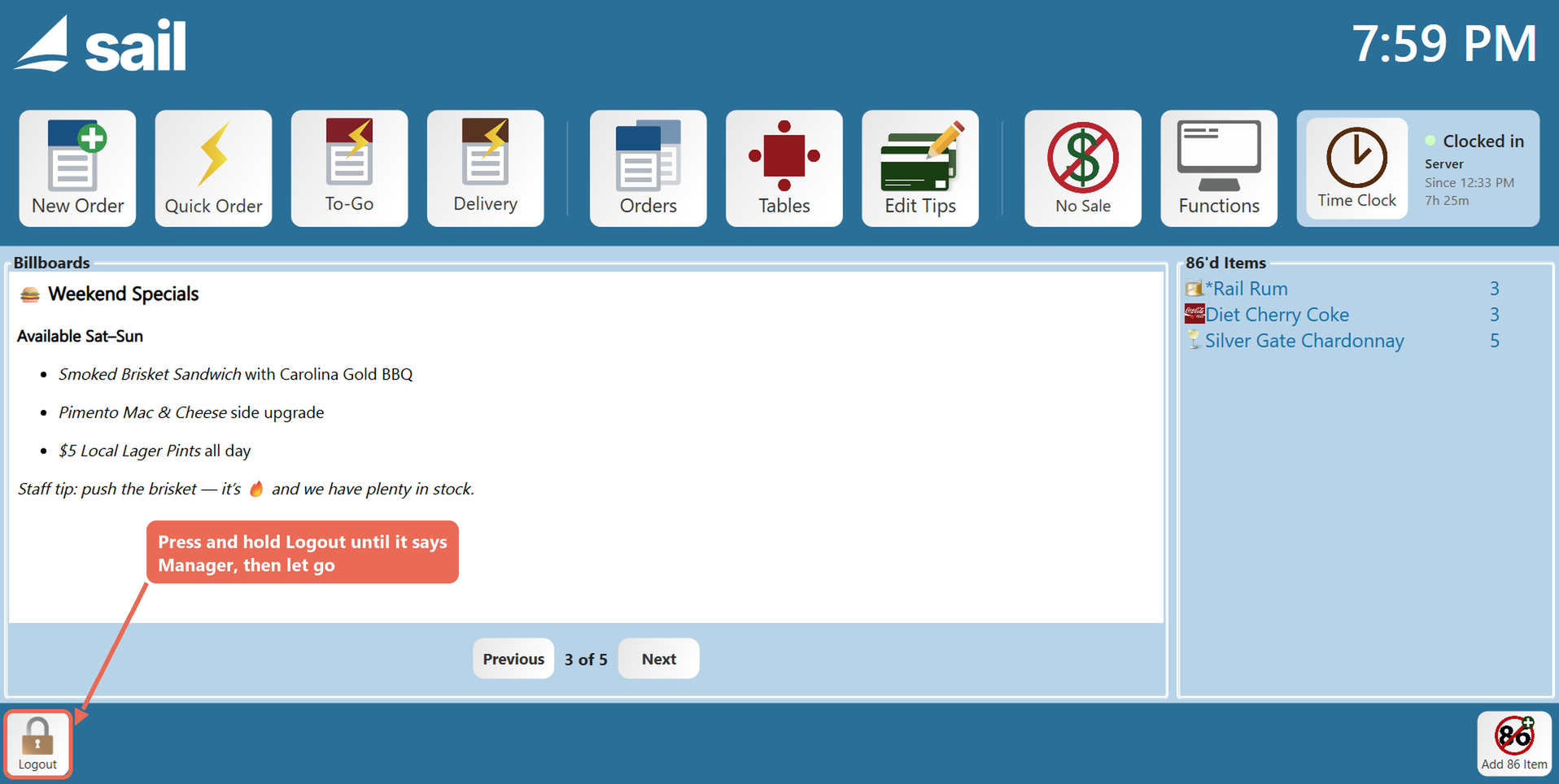
Press and hold the Logout button at the bottom left until it changes to Manager, then let go.
-
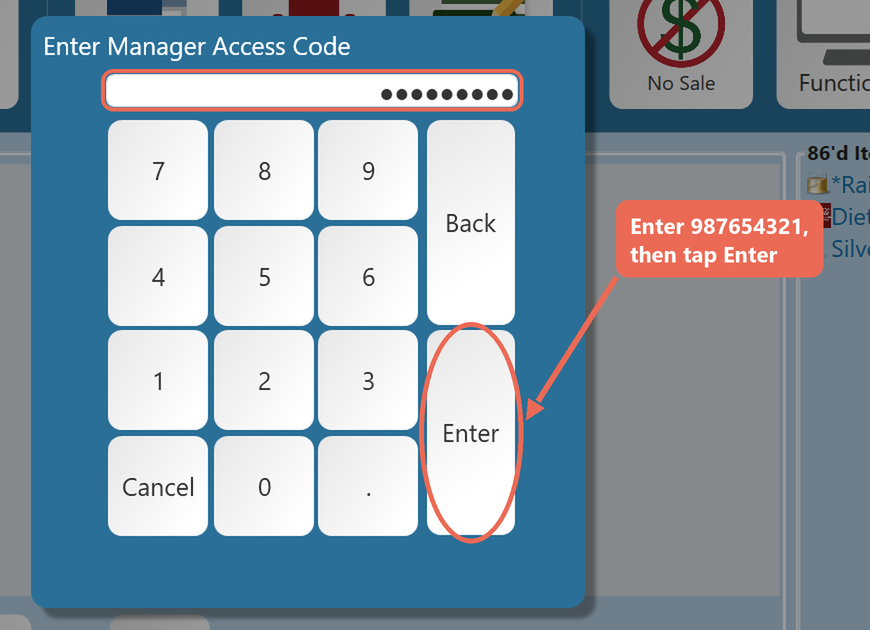
The Enter Manager Access Code window opens. Enter 987654321 and tap Enter. Sail closes.
Start Up Sail Software from the desktop
-
Double-tap (or double-click) the Sail POS icon on the terminal's desktop. Sail opens on the Log In screen.

No Comments