
How to use the Split Calculator
This document will walk you through how to use the Split Calculator on the Payments screen to divide a check evenly between 2 or more guests. It works out each guest's share for you, so you don't have to move items between guests first.
To split one item between guests instead of the whole check, click here to learn more about splitting and un-splitting an item.
Opening the Payments screen
1. Open the order and tap Payments at the bottom of the screen.
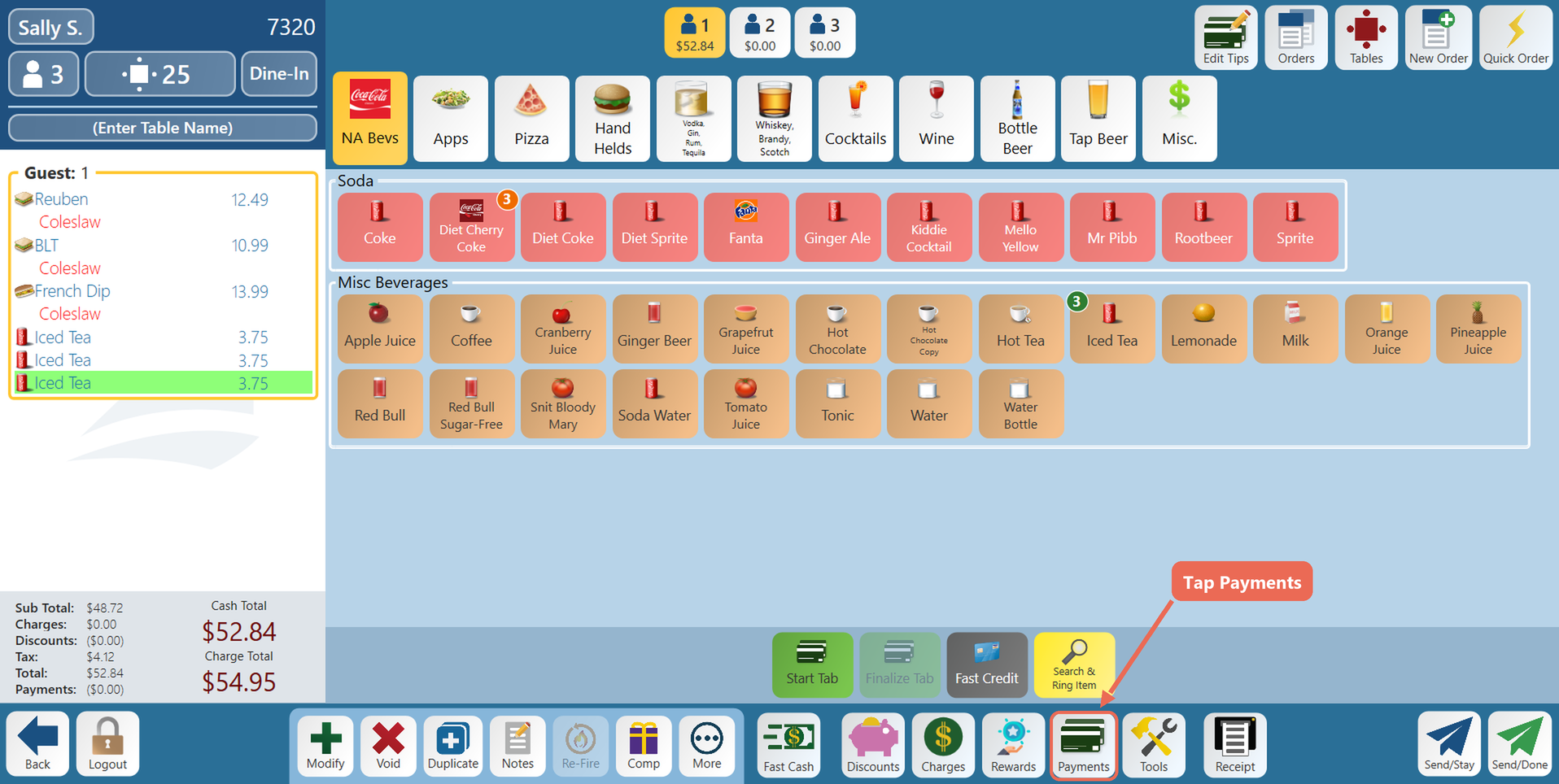
2. The Payments screen opens. The Split Calculator is the Even Split Calculator box in the top left corner.
Setting how many ways to split
1. Tap the arrows until the calculator shows the number of guests who are paying. In this example, 3 guests are sharing a $52.84 check.
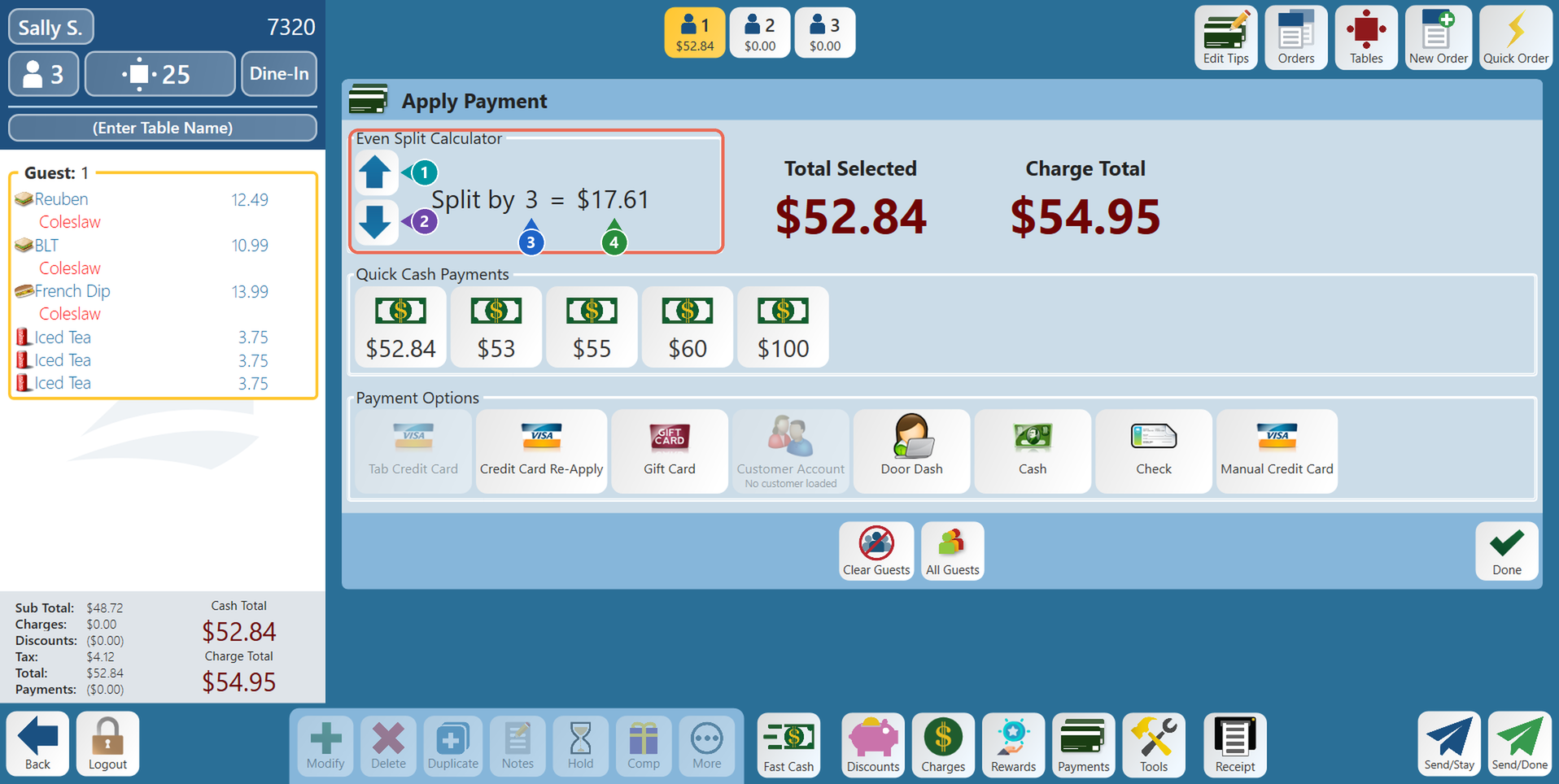
- 1. Up arrow - Adds one more guest to the split.
- 2. Down arrow - Takes one guest off the split. It can't go below 1.
- 3. Split by - How many guests are paying.
- 4. Each share - What each guest pays, tax included.
Note: The calculator divides the guests you have selected at the top of the screen and starts at how many they are. If the order is on more than one guest, tap All Guests first so the whole check is split.
Paying one share
1. Tap the way the guest is paying under Payment Options.
2. When the Select Amount list opens, tap Split. Only that guest's share is paid.
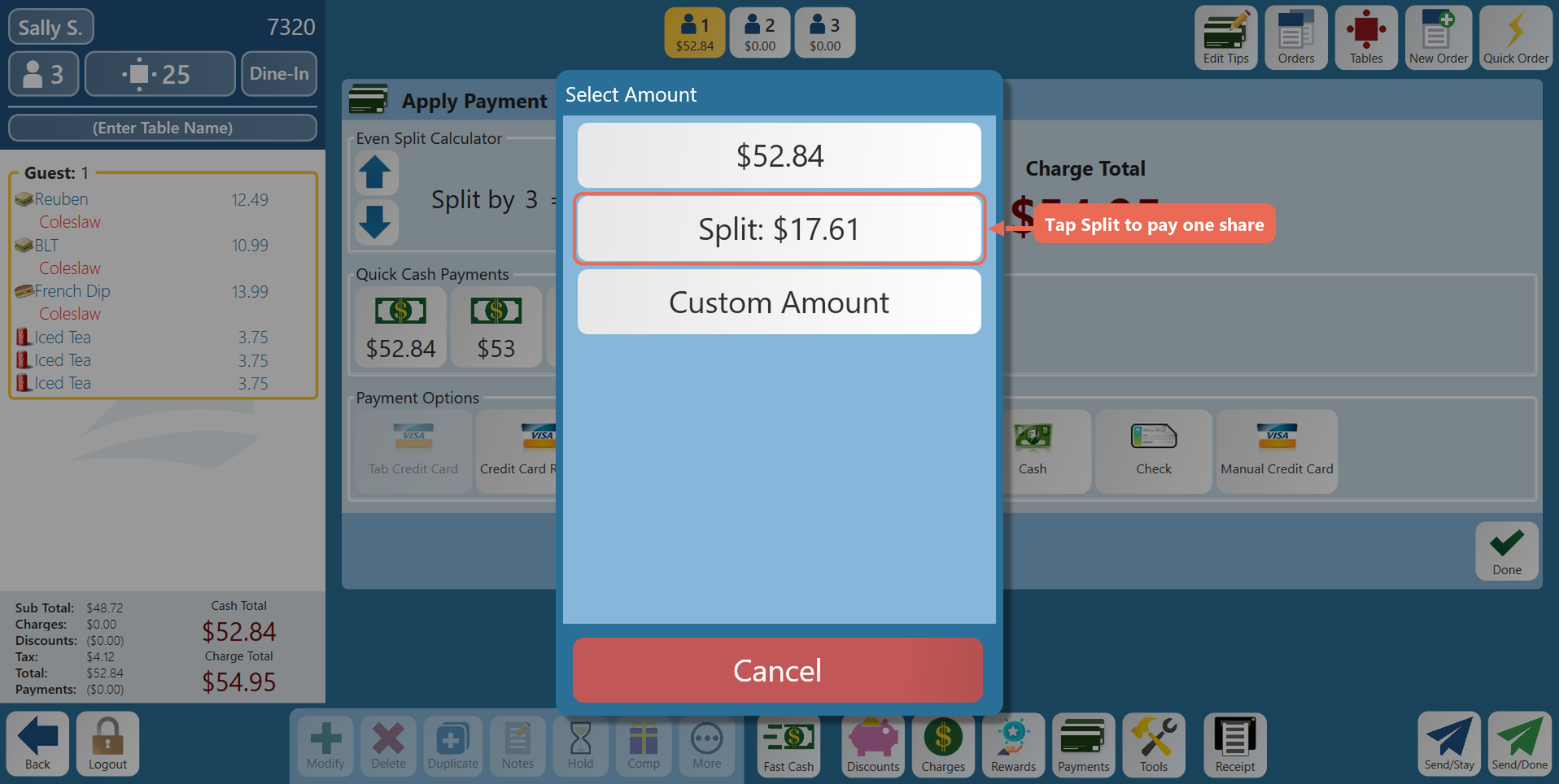
If the payment asks you to enter an amount instead (Cash does), type the amount the calculator shows and tap Enter.
Paying the rest of the shares
1. After each payment, the payment shows on the order and the calculator goes back to Split by 1 with what's left to pay. Tap the up arrow until it shows the number of guests who still need to pay, then pay the next share the same way.
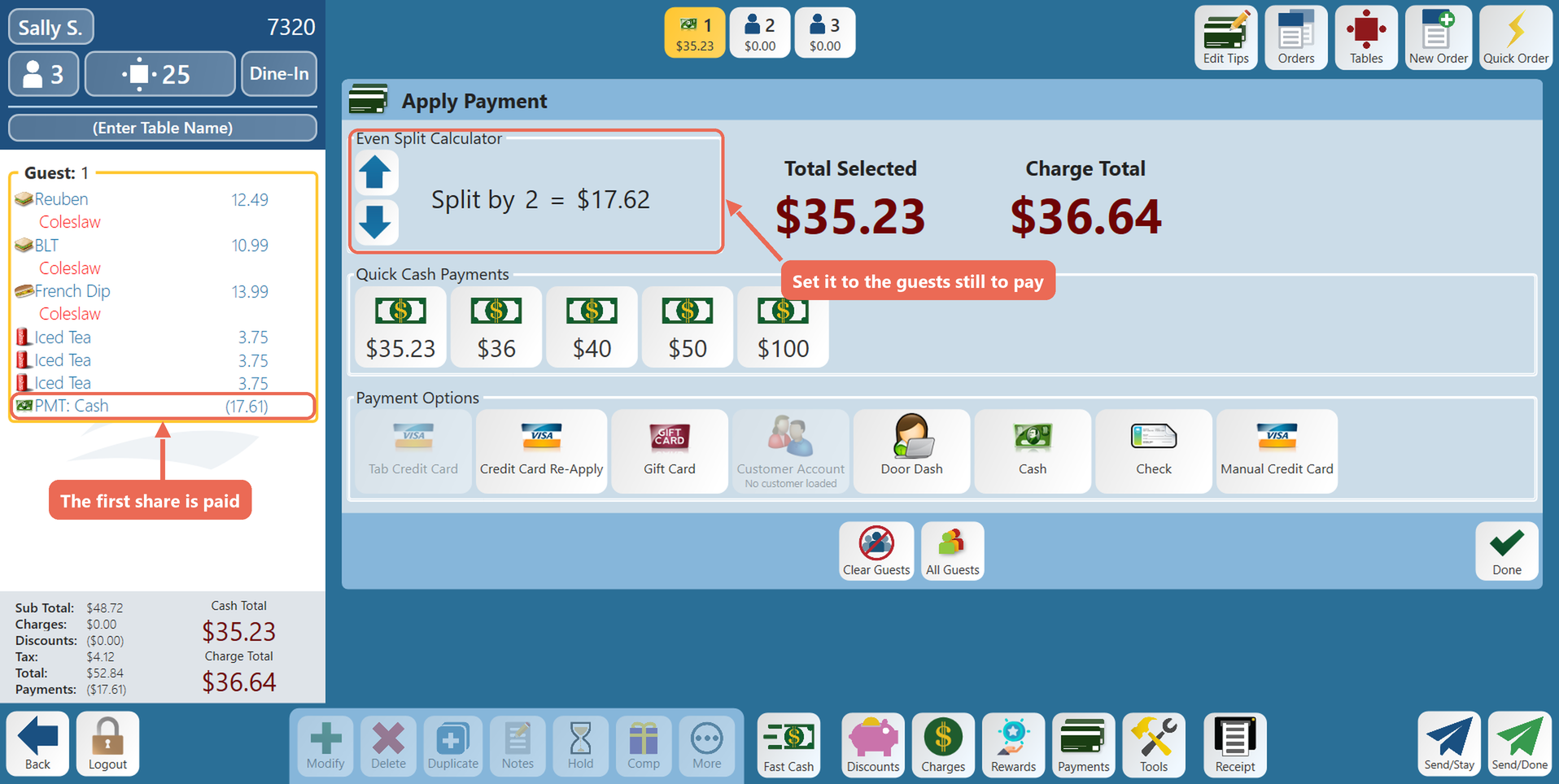
2. For the last guest, leave the calculator on Split by 1: it shows exactly what's left, and paying it closes the order.
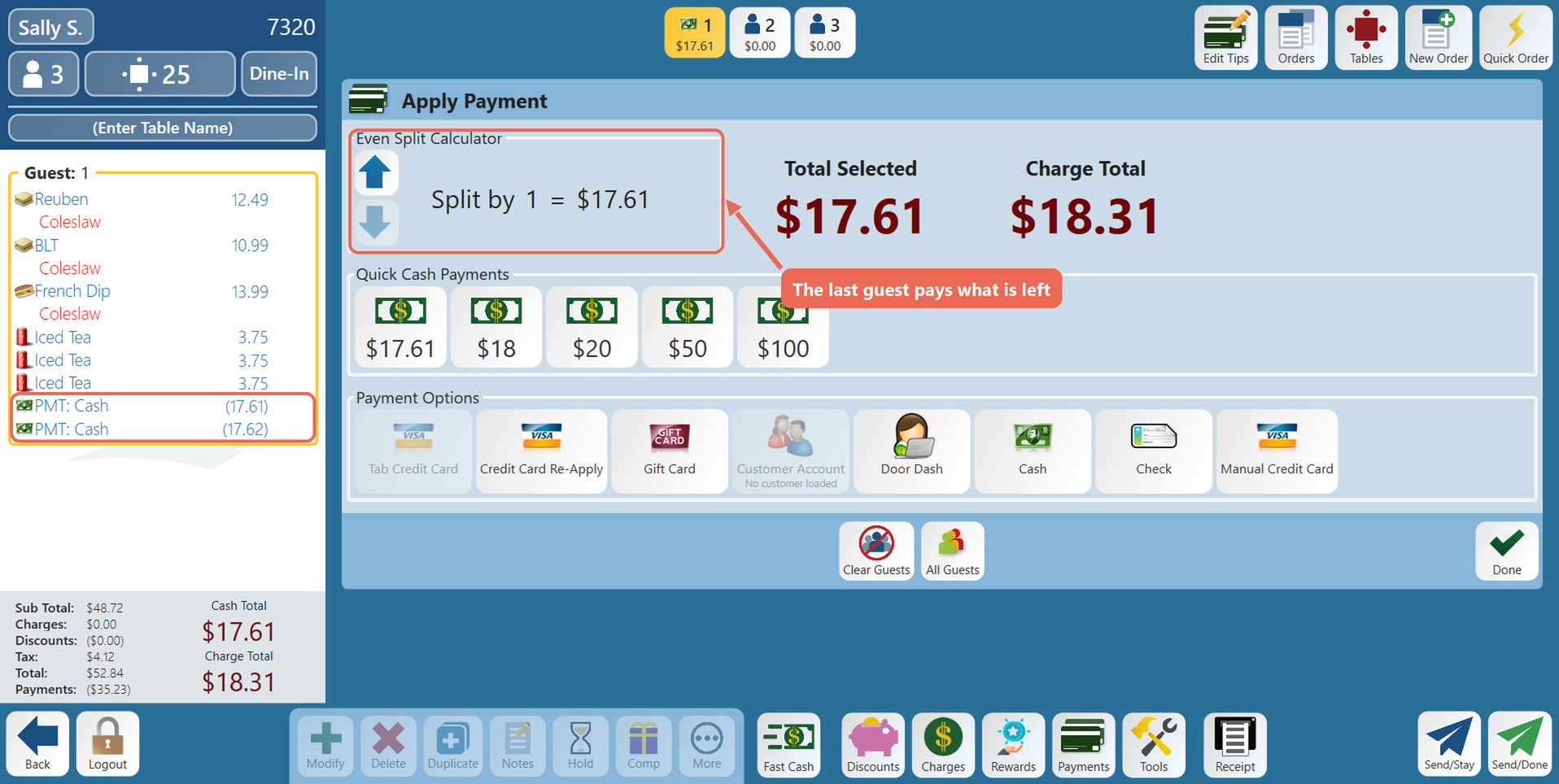
Note: When the check doesn't divide evenly, the shares can differ by a penny. Here the guests paid $17.61, $17.62 and $17.61, which adds up to the $52.84 total.
Orders with a running timer
If the order has a timed item that is still running, tapping an arrow asks you to stop the timer first. The split is worked out from the balance at that moment, so the timer stops when you say yes. If you say no, the split doesn't change.
Click here to learn more about closing a table/order.
No Comments