
How to start and pay out a tab
This document will walk you through tabs on the terminal: starting a tab with the guest's card, adding to it each time they order, and paying it out when they're done.
A tab keeps the guest's card on the order. Nothing is charged until you pay the tab out, so the guest can keep ordering on the same order all night.
Starting a tab
1. Start the order and ring in the guest's first drinks.
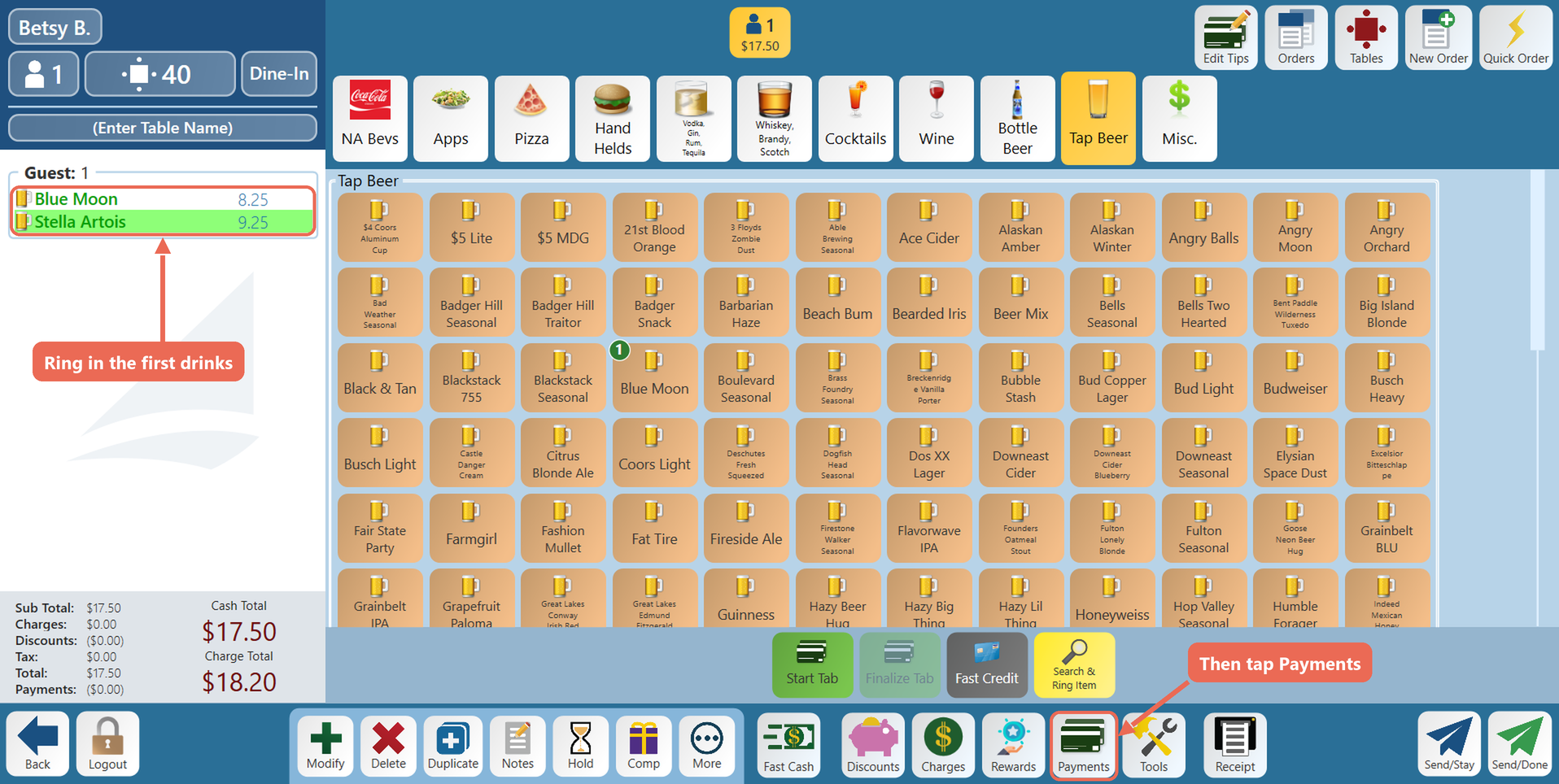
2. Tap Payments, then Credit Card under Payment Options. The guest swipes, inserts or taps their card on the card reader.
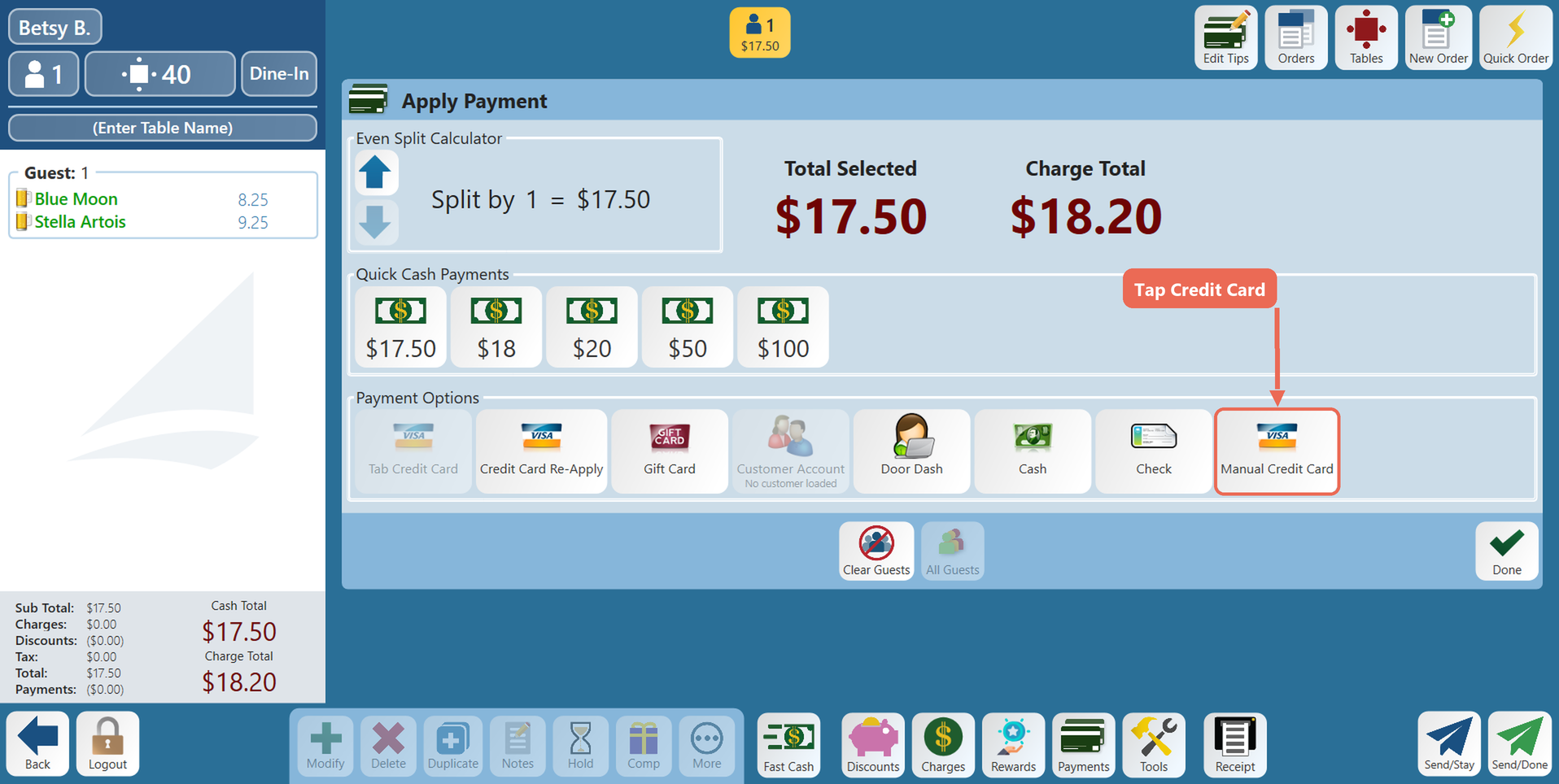
3. When the Select Amount list opens, tap Start Tab.
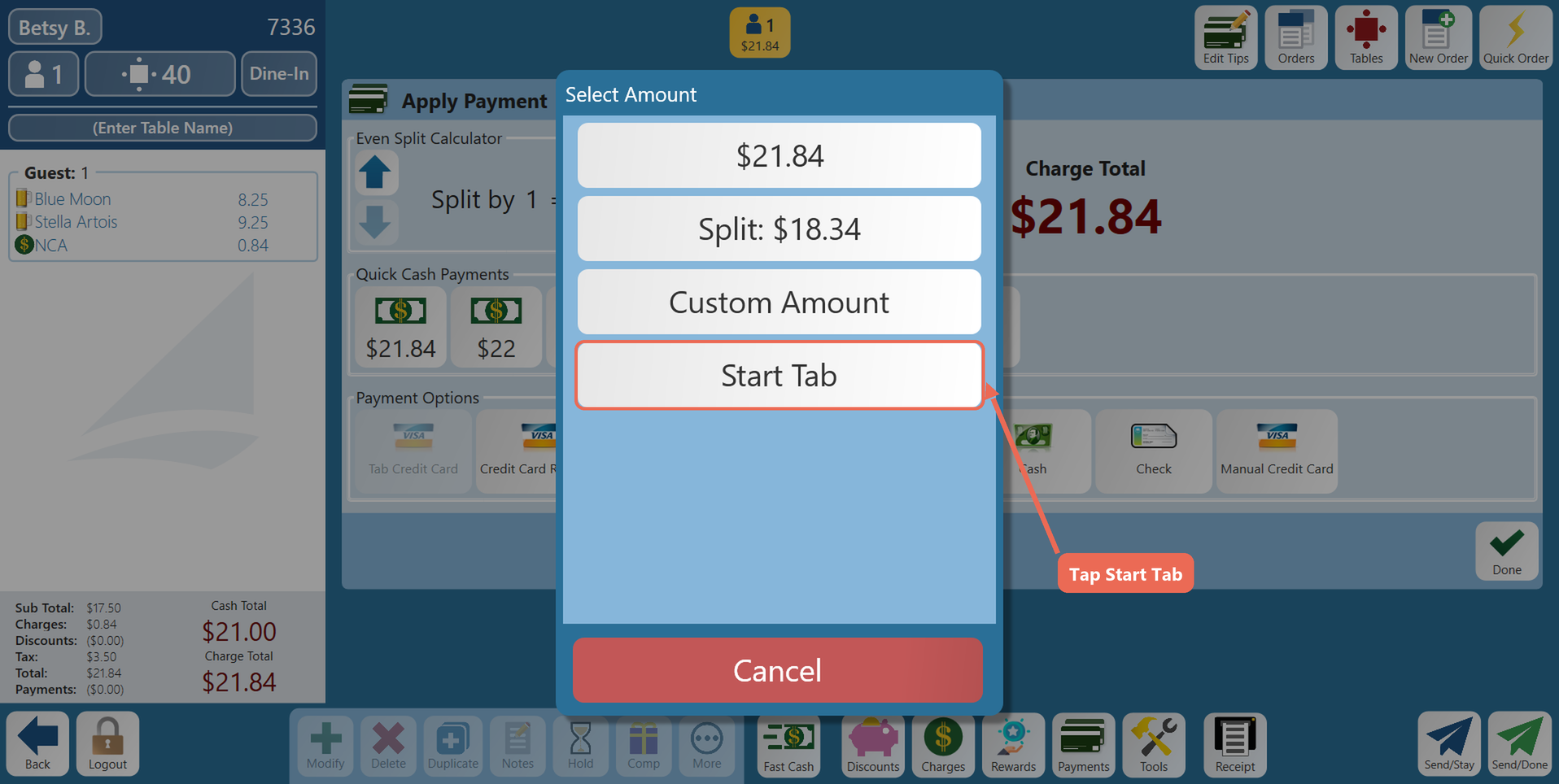
4. The tab is open. It shows on the order as TAB: CC with the last four digits of the card, and the name on the card fills in the table name.
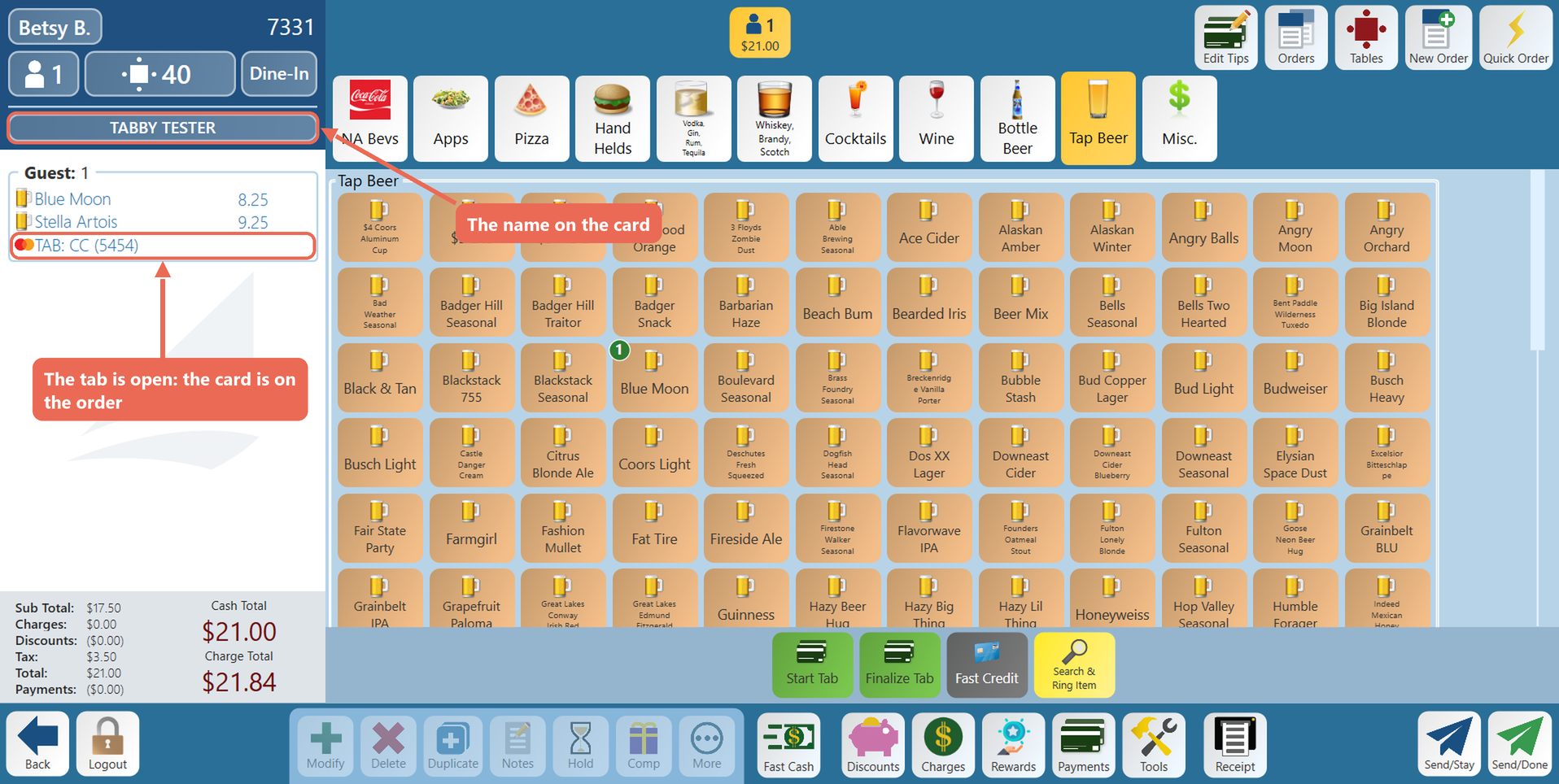
5. Tap Send/Done to send the drinks and leave the order.
Starting a tab before ordering
A tab can be started before anything is rung in, for example when a guest hands over their card as they sit down at the bar.
1. Start the order without ringing anything in. When your terminal has a card reader, have the guest swipe their card on the empty order. The Select Amount list shows only Start Tab - tap it. If your order screen has a Start Tab button, you can tap it instead.
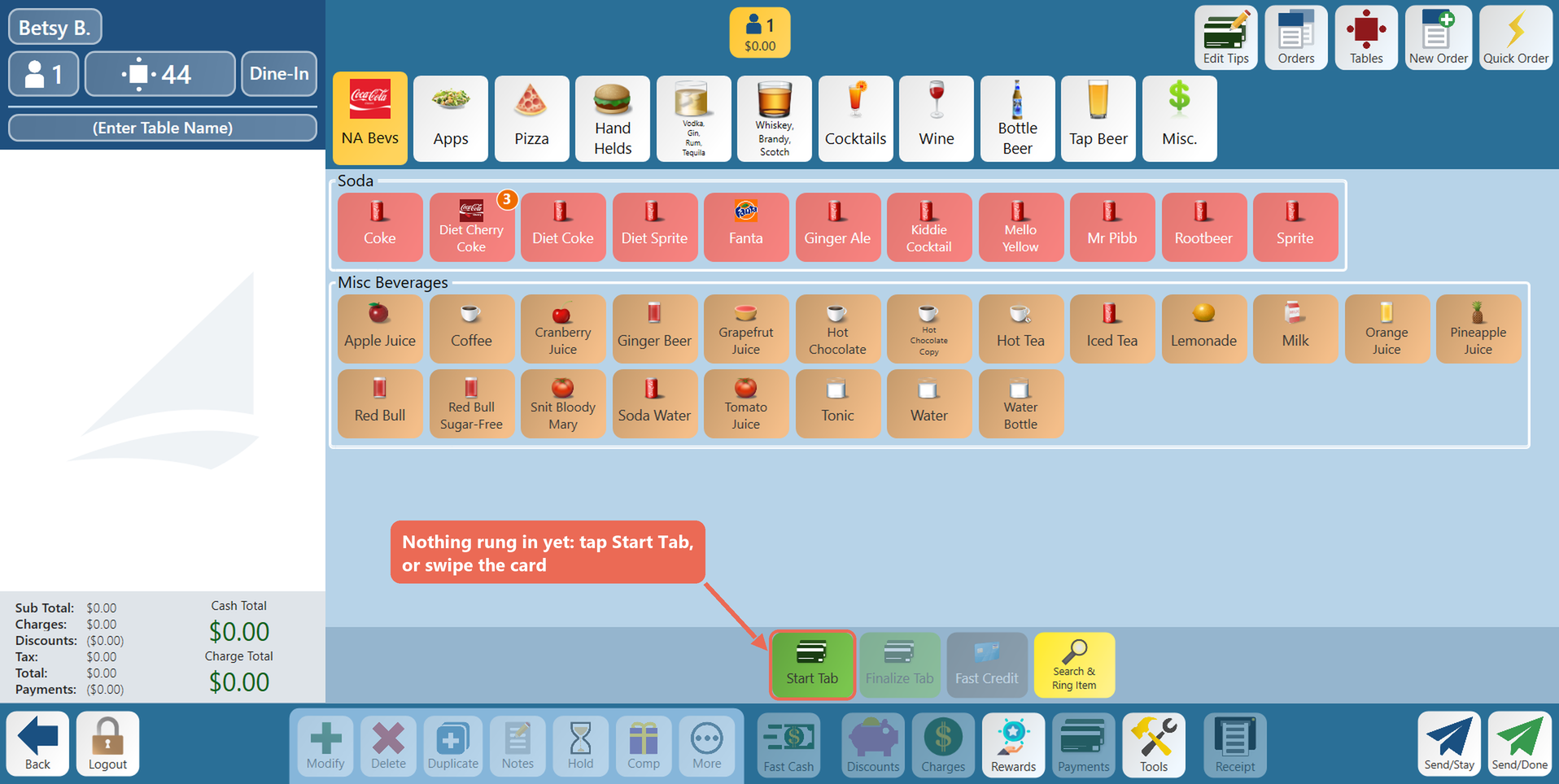
2. The tab opens on the empty order.
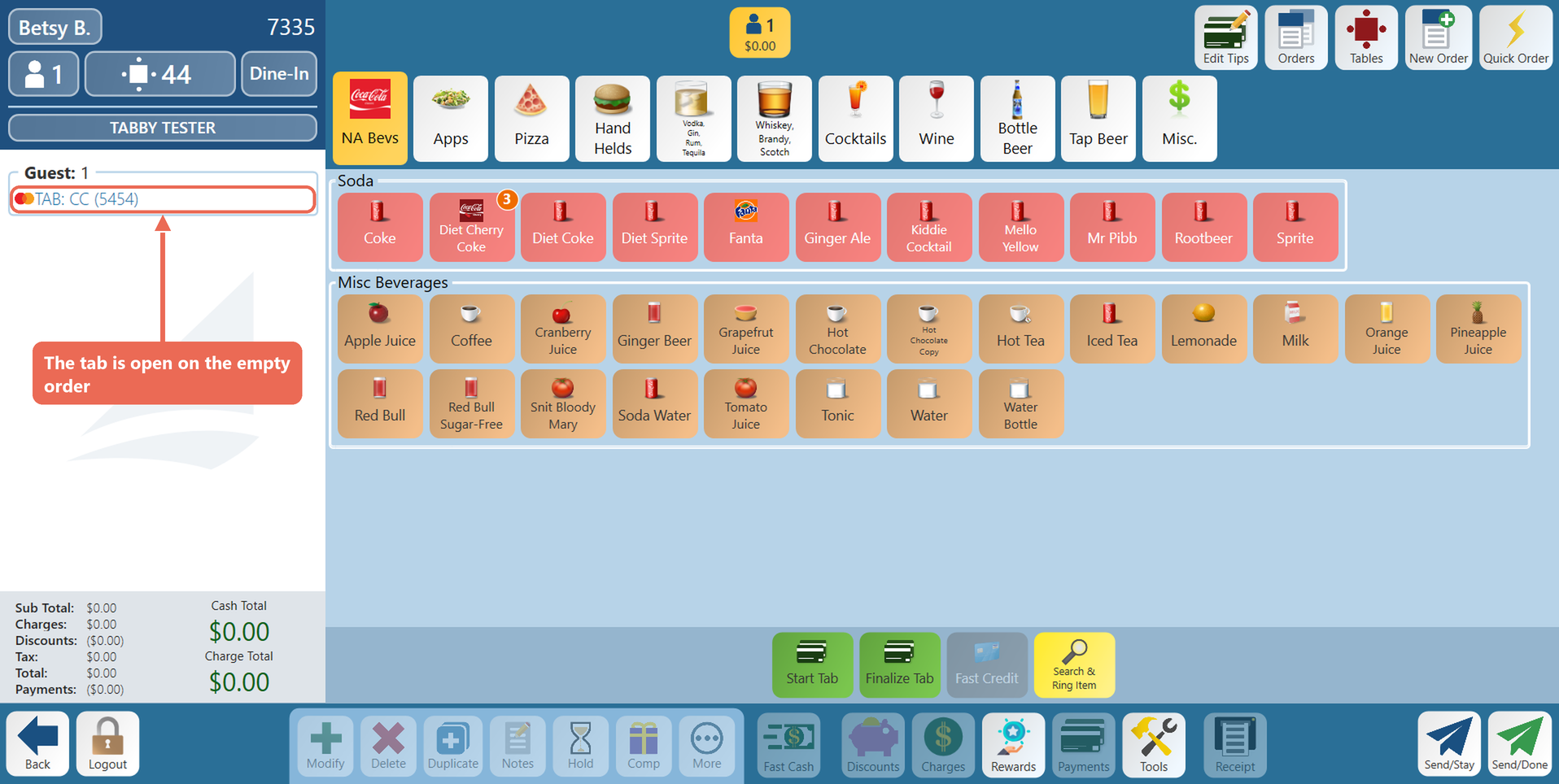
3. Ring in the guest's drinks when they order. Add to the tab and pay it out the same way as any other tab.
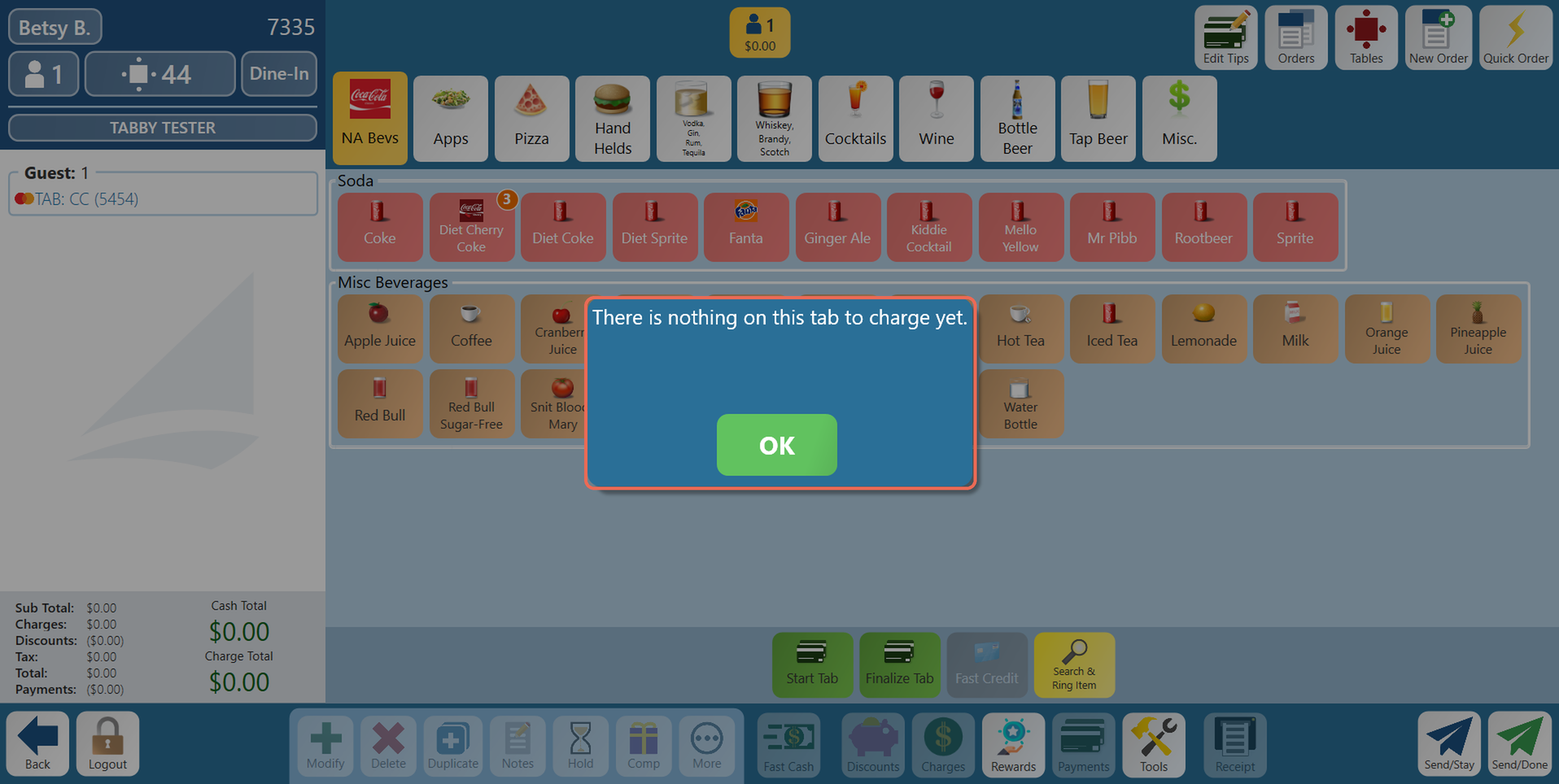
Note: A tab with nothing on it stays open until something is rung in. If you try to pay it out first, the terminal shows There is nothing on this tab to charge yet.
Adding to the tab
Each time the guest orders again, add it to the same order.
1. Tap Orders and open the guest's order. The name on their card shows on it.
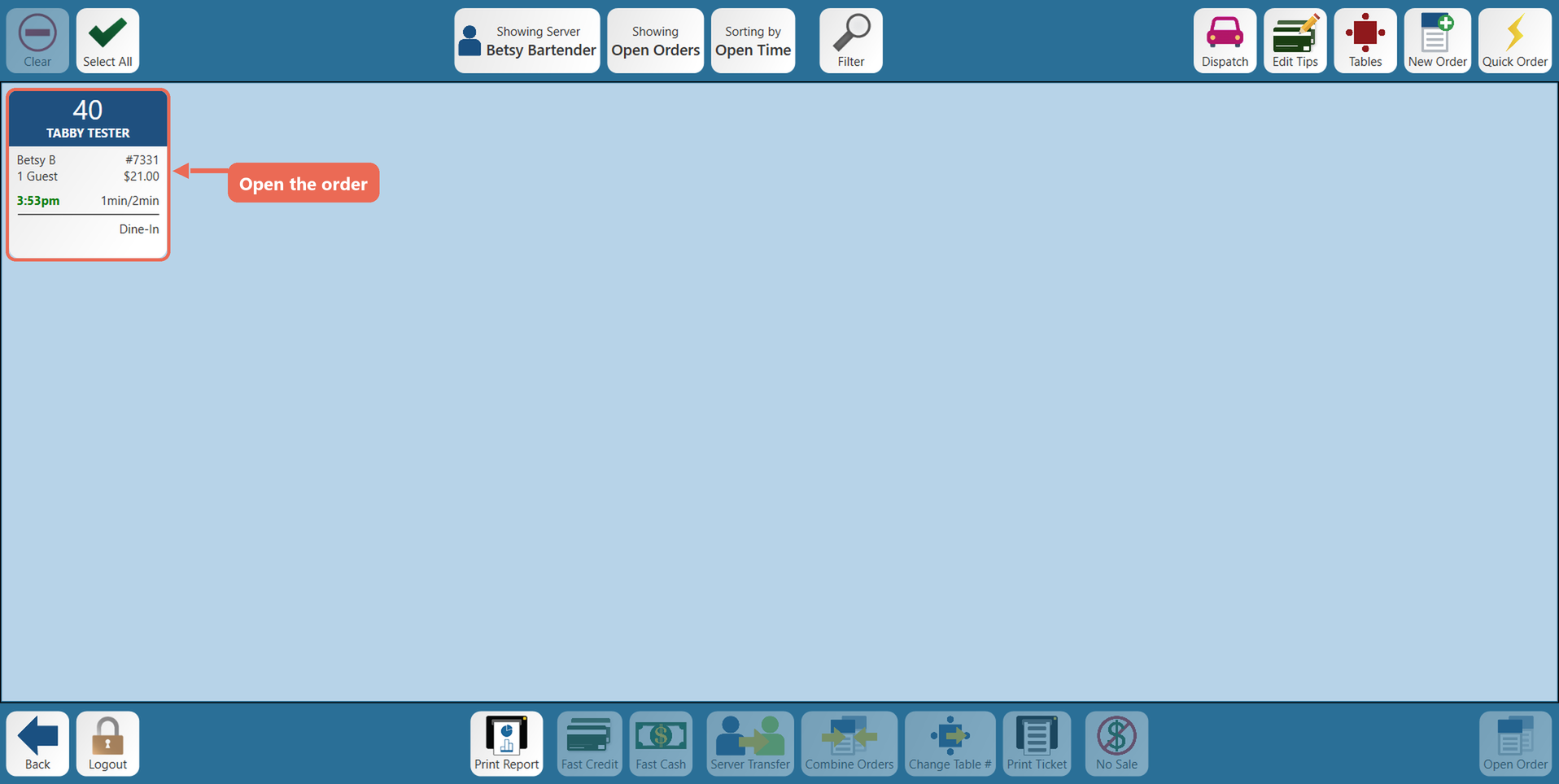
2. Ring in what they ordered and tap Send/Done. The tab stays on the order, so you can do this as many times as you need.
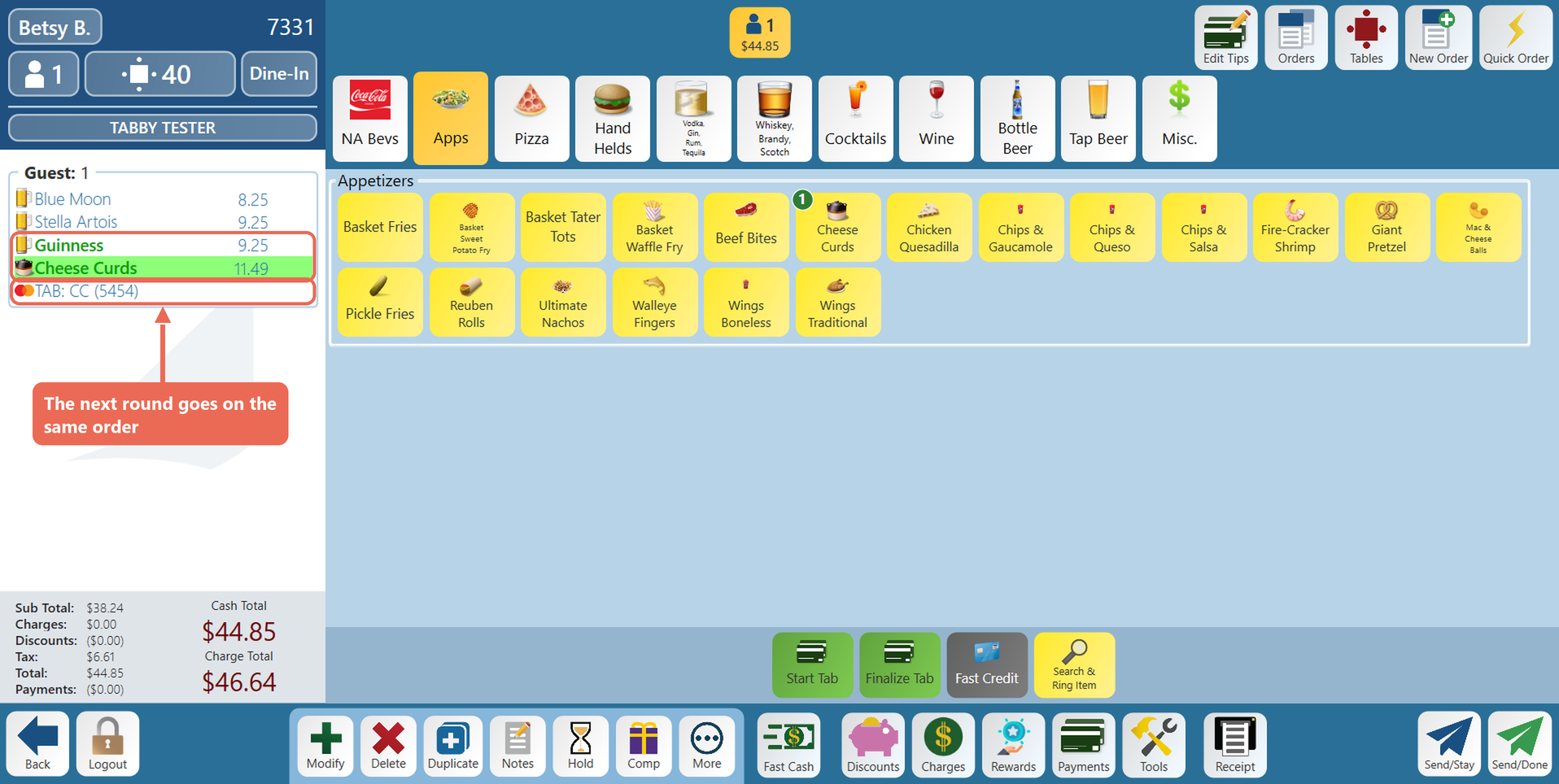
Paying out the tab
1. Open the order and tap Payments. The Tab Credit Card button is now blue. Under its name it shows the name on the card. Tap it.
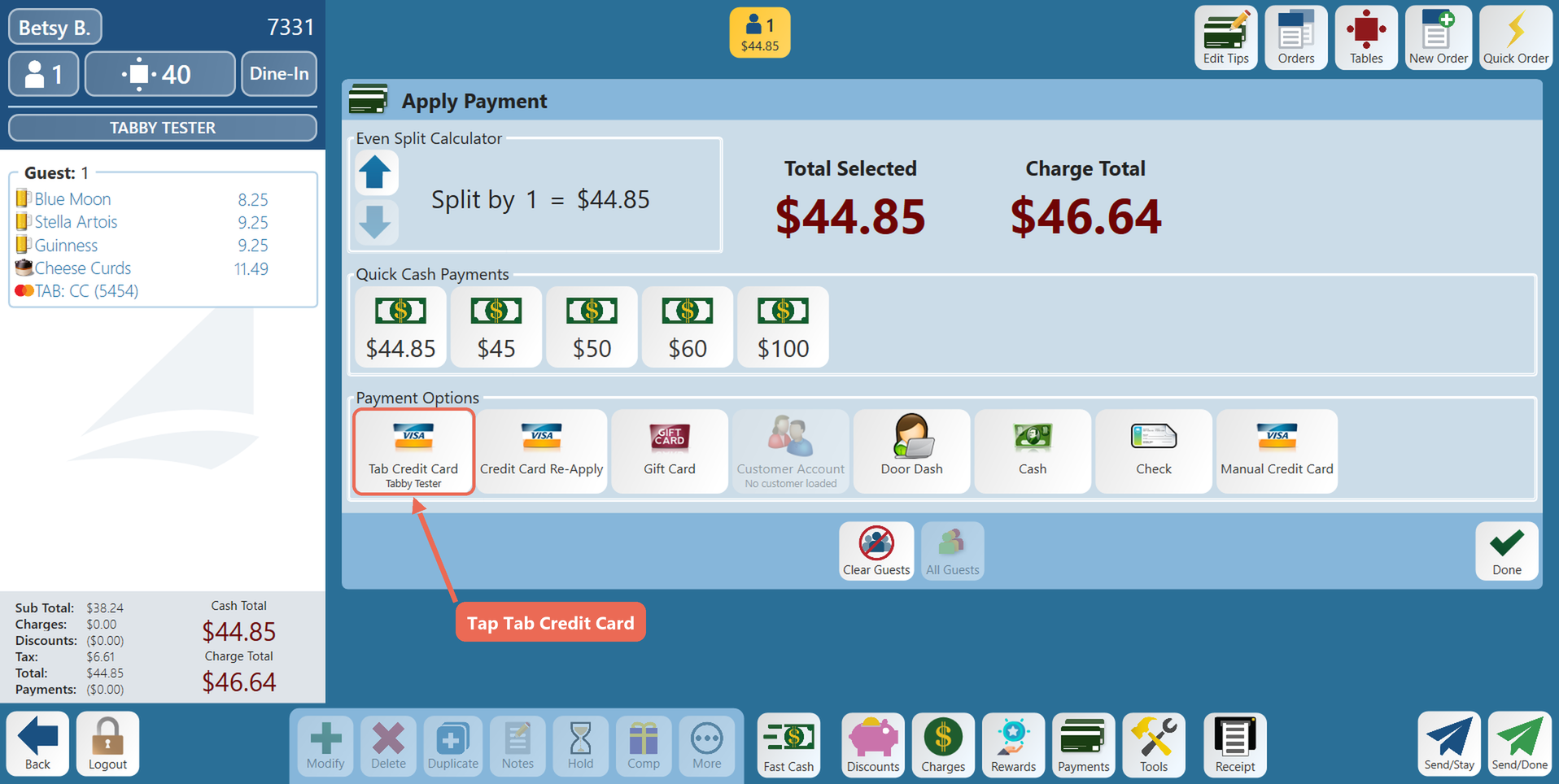
2. Tap the full amount. The card is charged and the order closes.
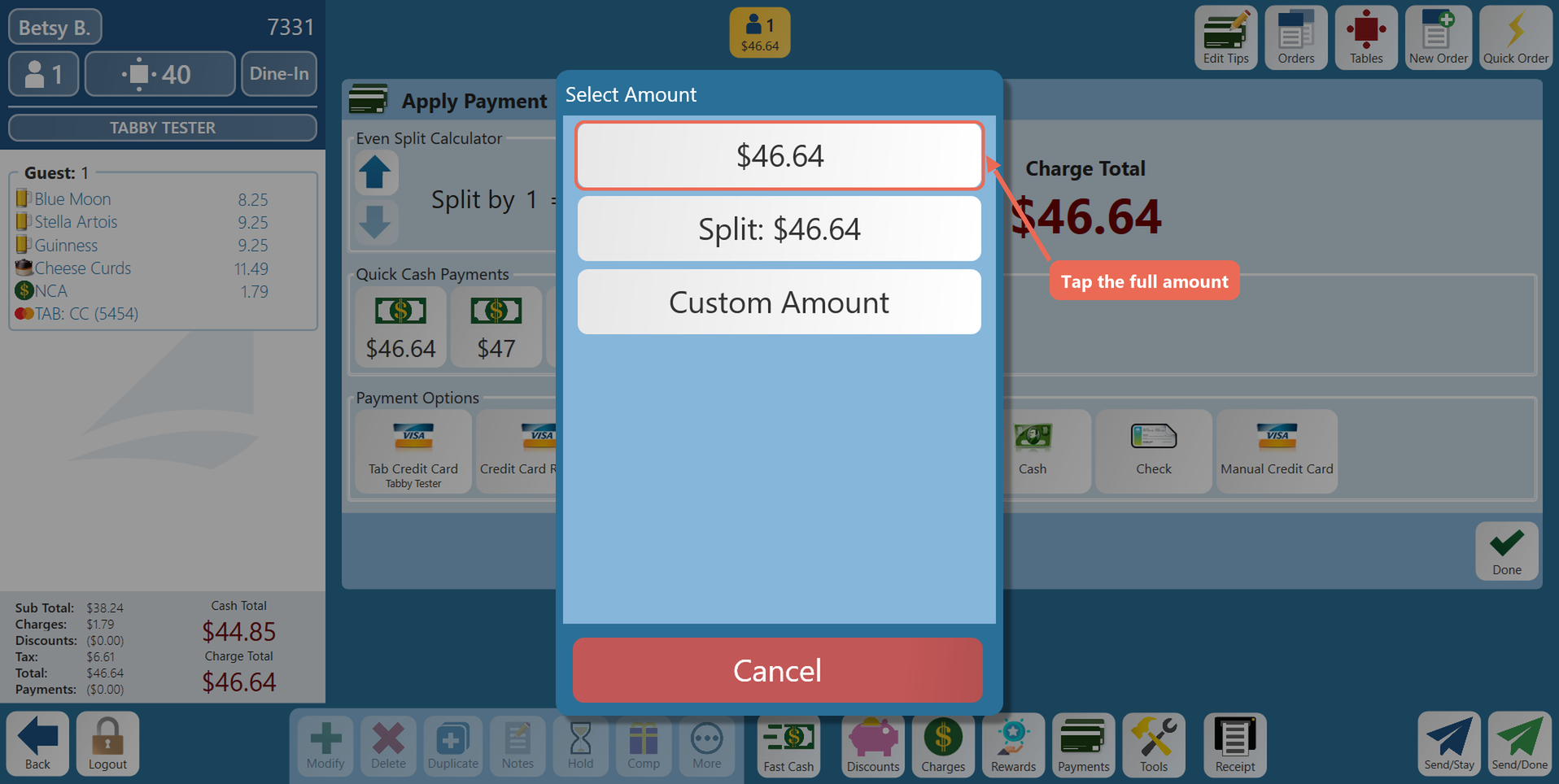
Note: Paying out a tab doesn't ask for a tip. Add the guest's tip later on the Edit Tips screen.
Click here to learn more about entering tips.
Using the Start Tab and Finalize Tab buttons
Your order screen may have Start Tab and Finalize Tab buttons. They do the same as the steps above in one tap.
1. To start a tab, ring in the first drinks and tap Start Tab. The guest runs their card on the reader, or you type it in, and the tab opens.
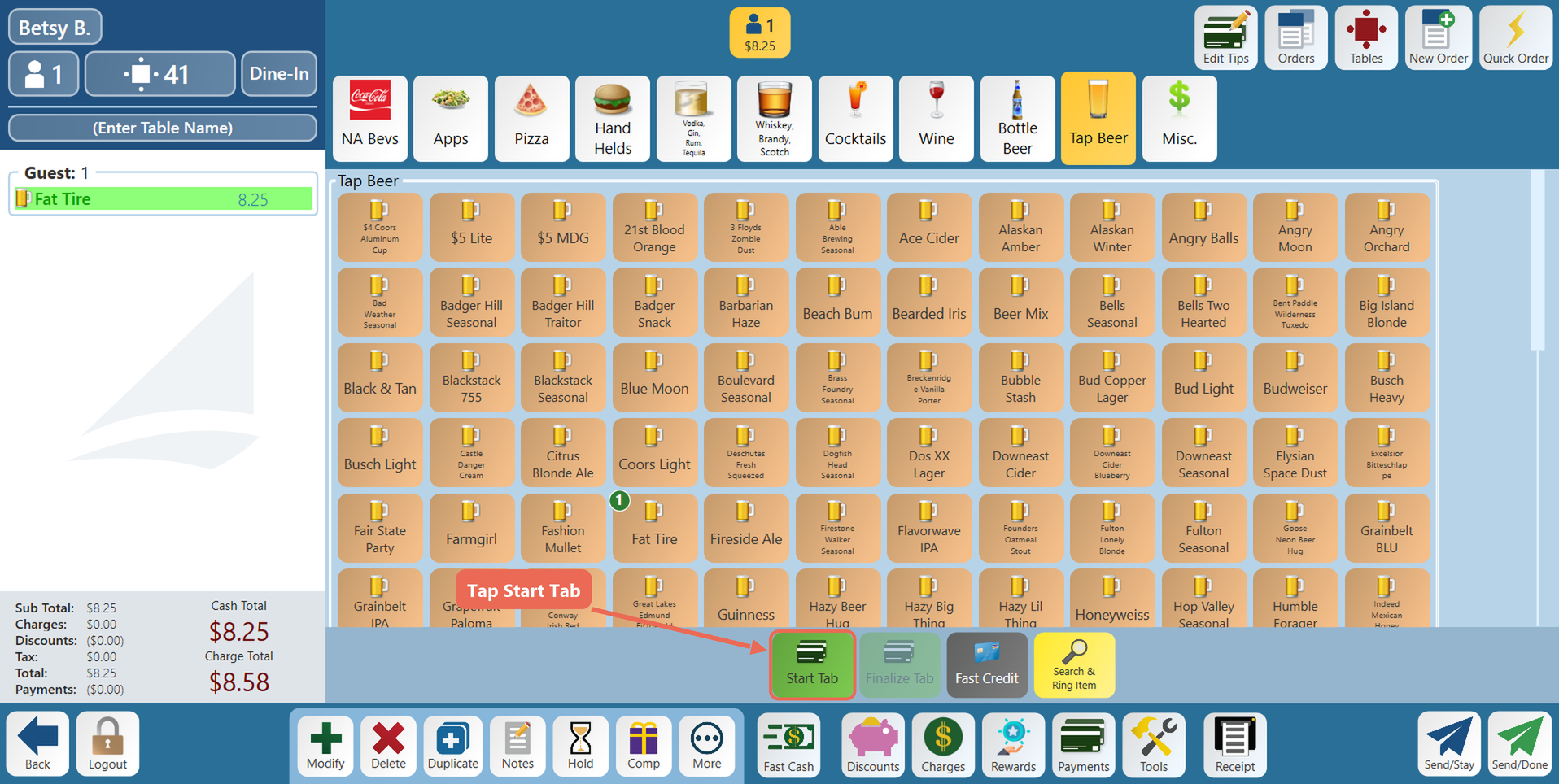
2. To pay out the tab, open the order and tap Finalize Tab. The card is charged and the order closes.
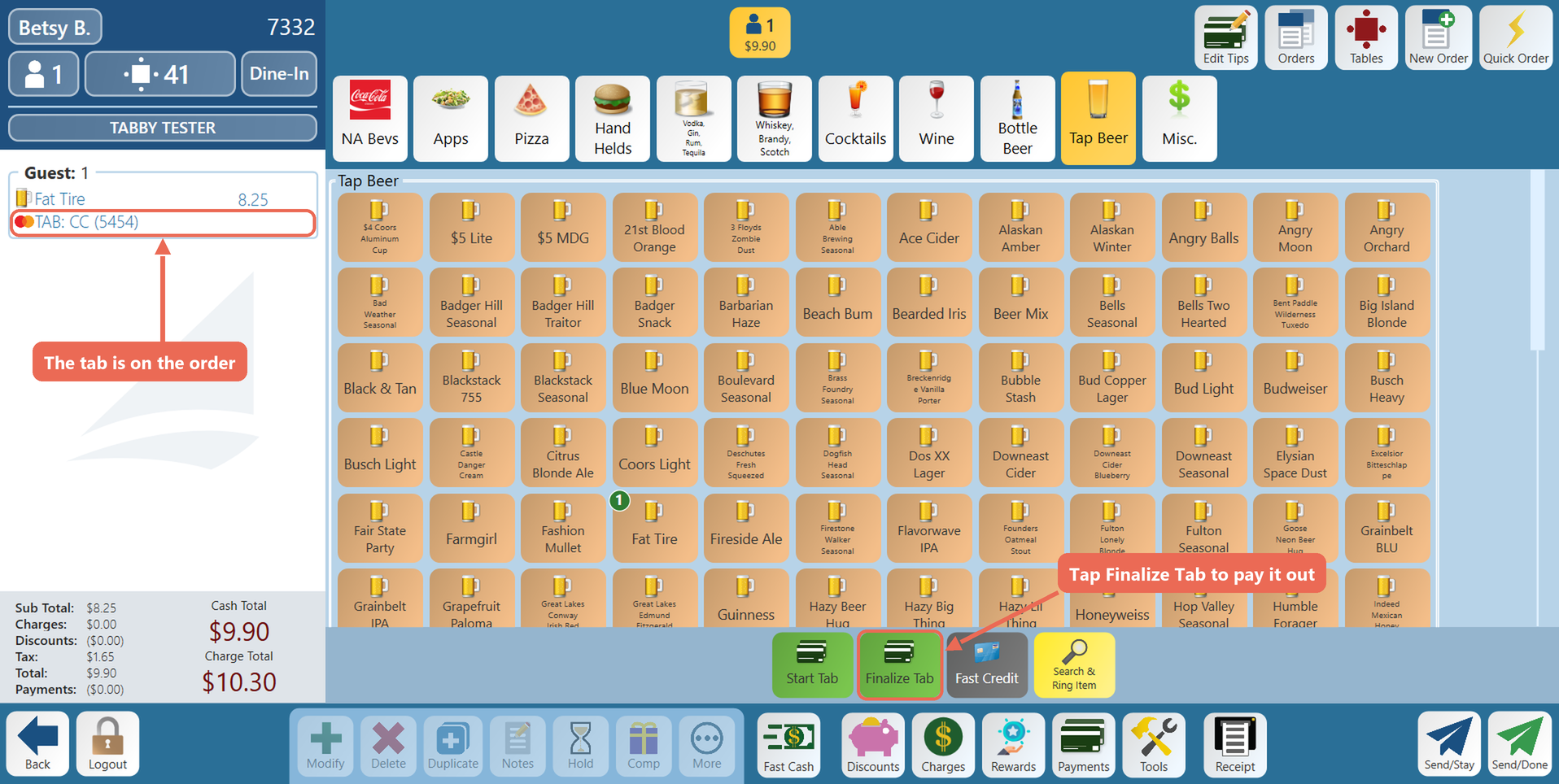
To add these buttons to your order screen, click here to learn more about editing a terminal order screen layout.
Paying out with Fast Credit
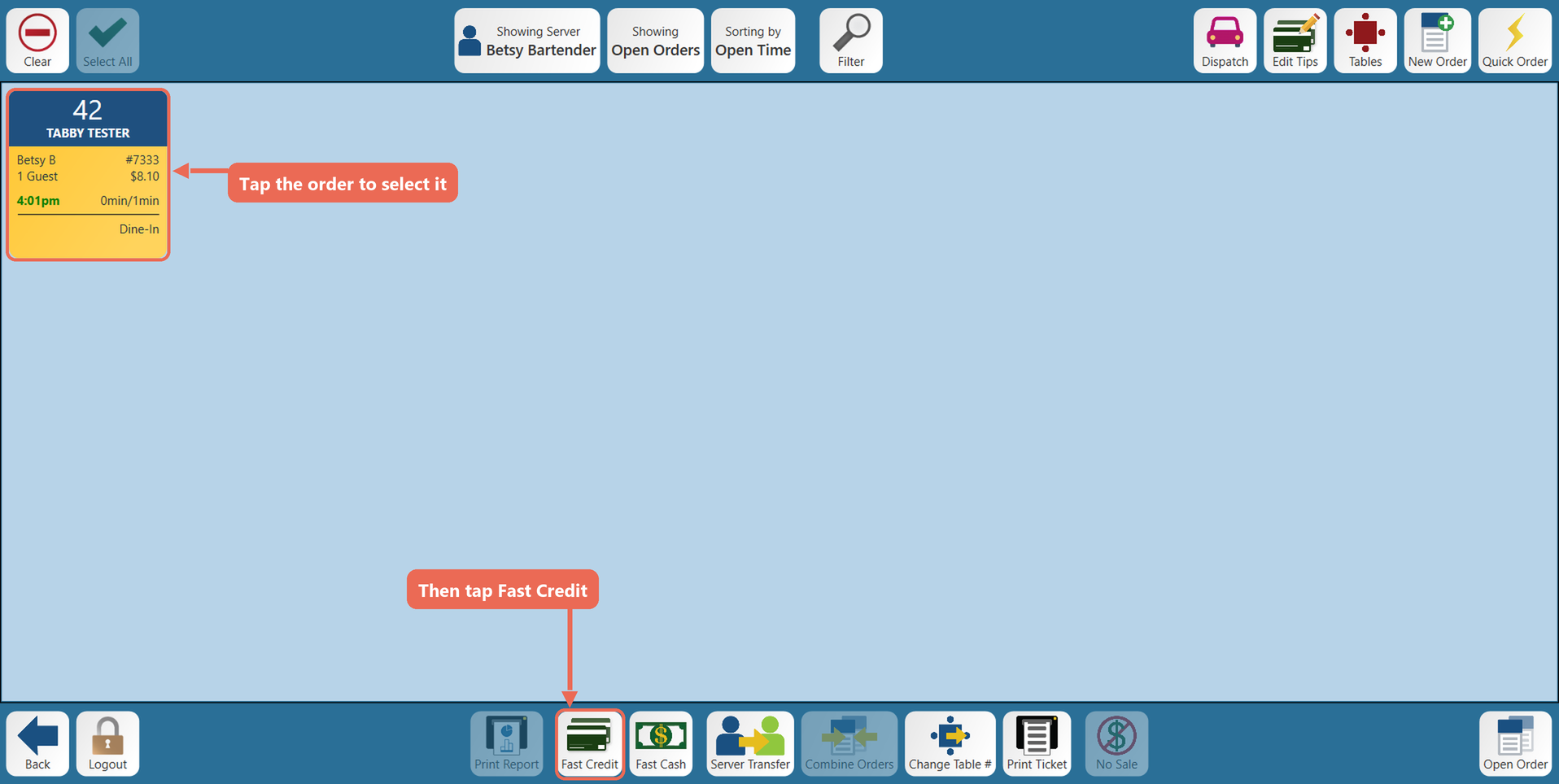
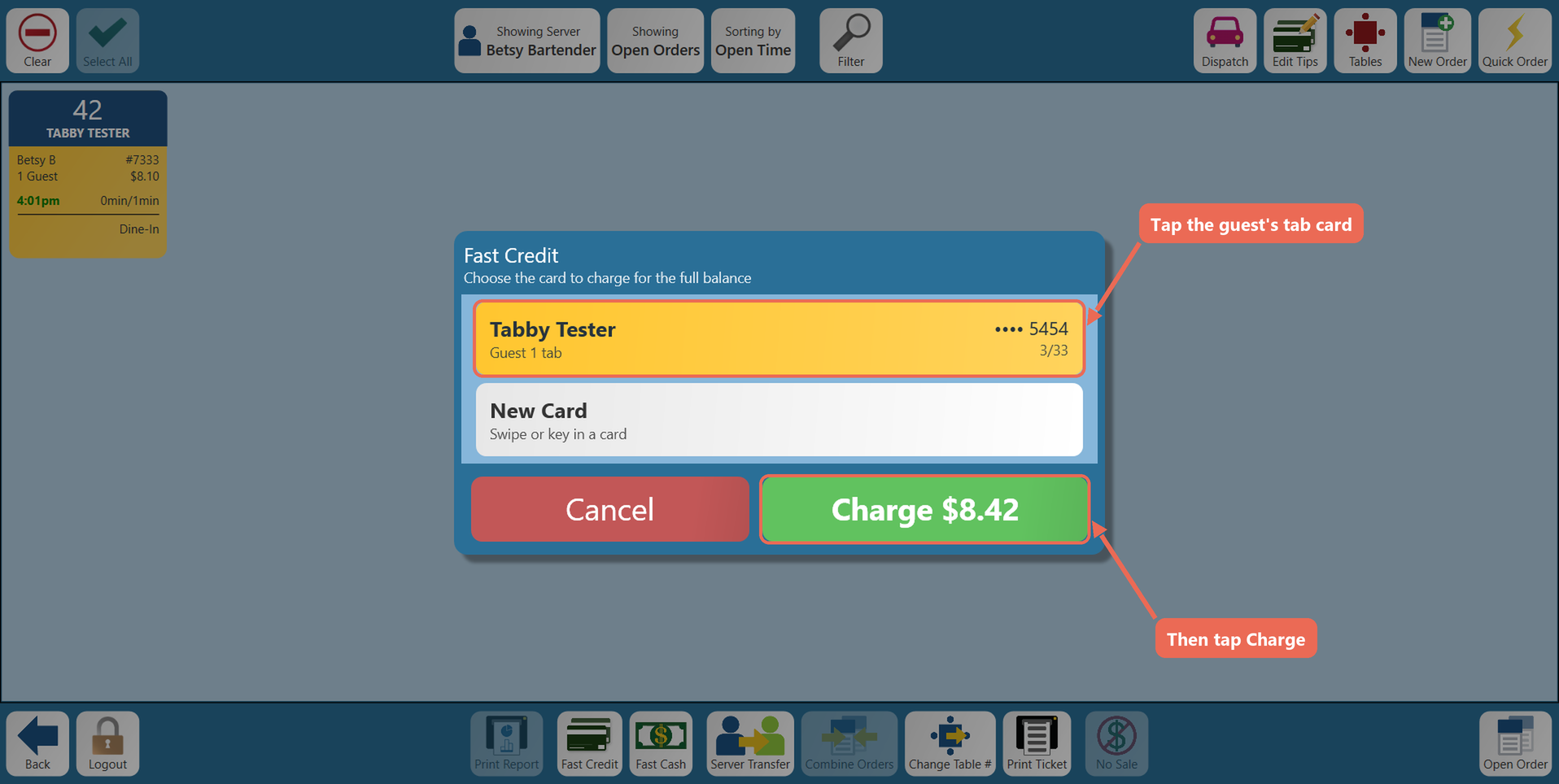
Fast Credit pays out a tab from the Orders screen without opening the order.
1. Tap Orders, tap the guest's order to select it and tap Fast Credit.
2. Tap the guest's tab card, then tap Charge. If your job role isn't allowed to use Fast Credit, a manager enters their code first.
When the guest pays another way
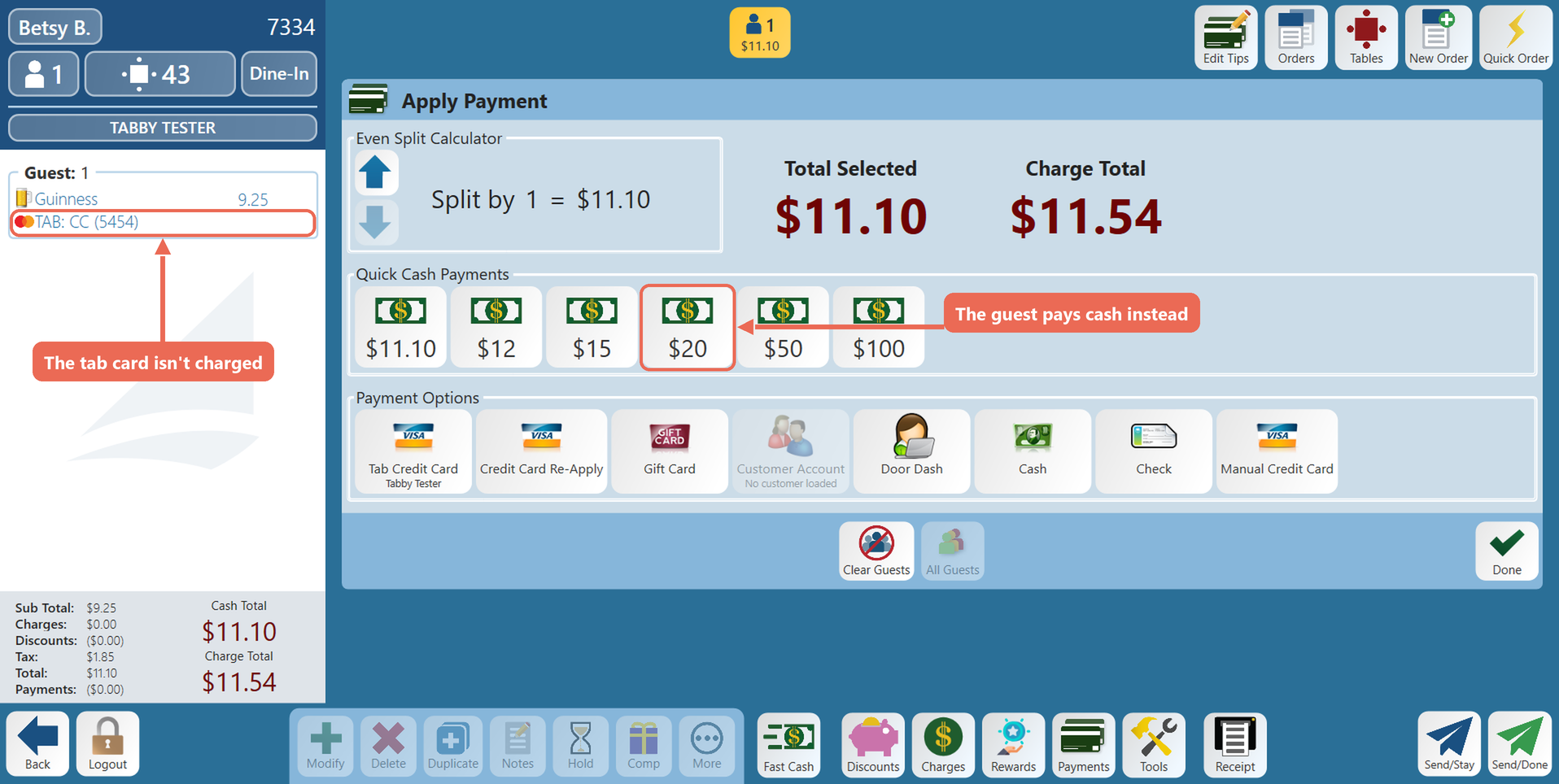
If the guest wants to pay with cash or a different card instead of the tab, take that payment as usual.
1. Open the order and tap Payments.
2. Tap a quick cash amount, Cash, or the payment type the guest is using instead of Tab Credit Card. The order closes and the tab card isn't charged.
Click here to learn more about closing a table/order.
No Comments