
How to register a reward member
This will walk through registering a customer as a Rewards member on the terminal, from their order.
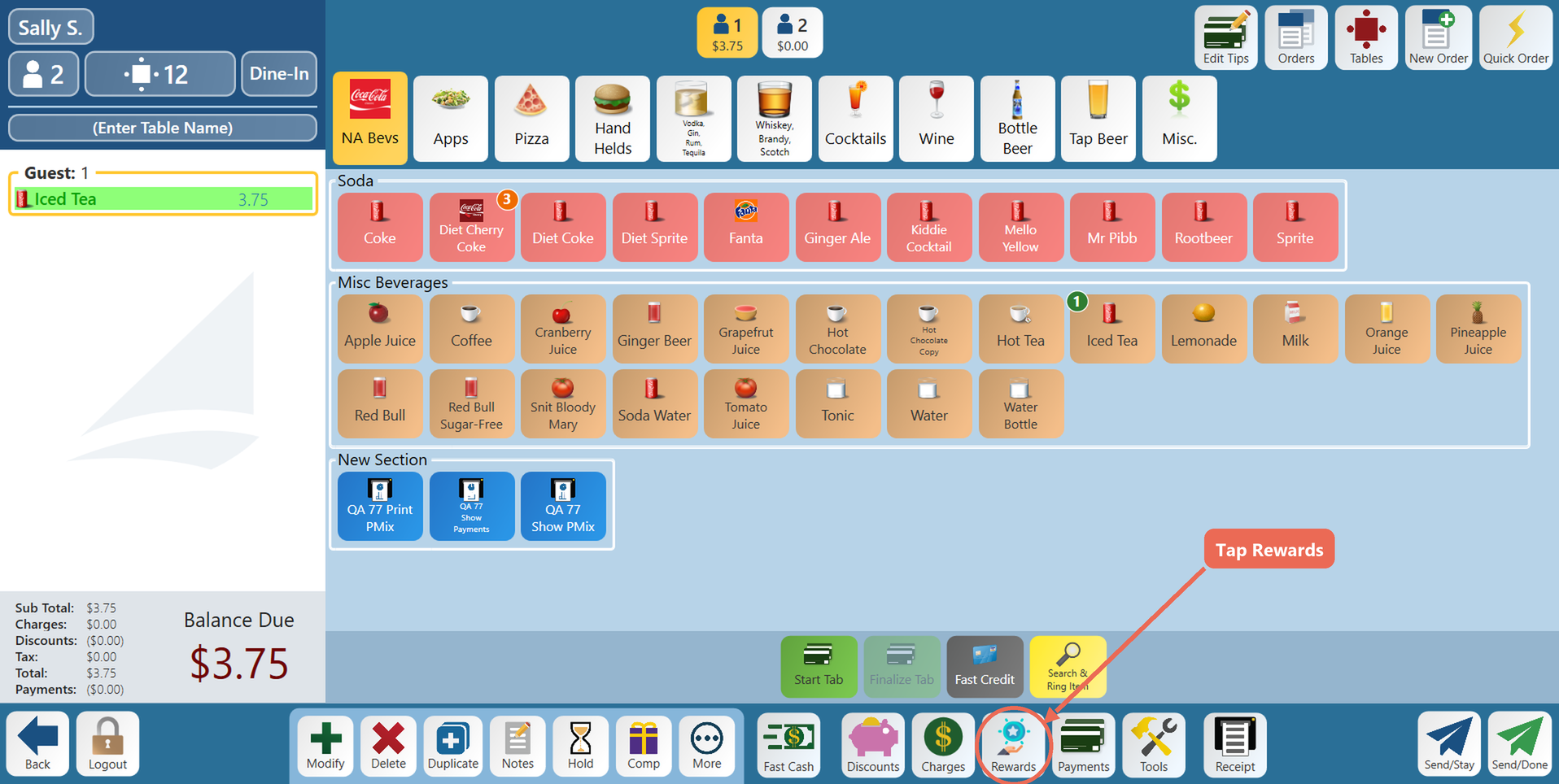
Click the Rewards button
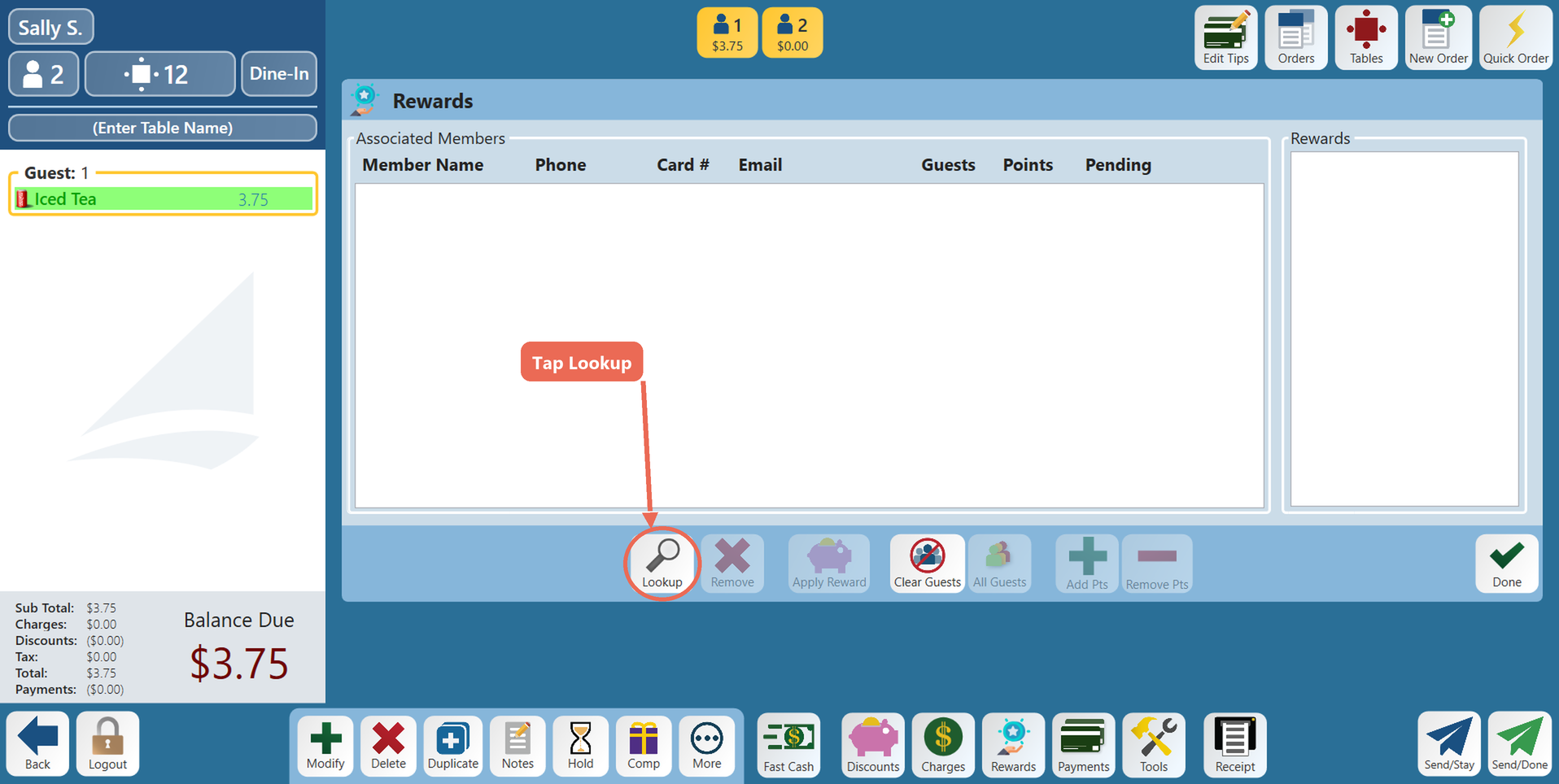
Click the Lookup button
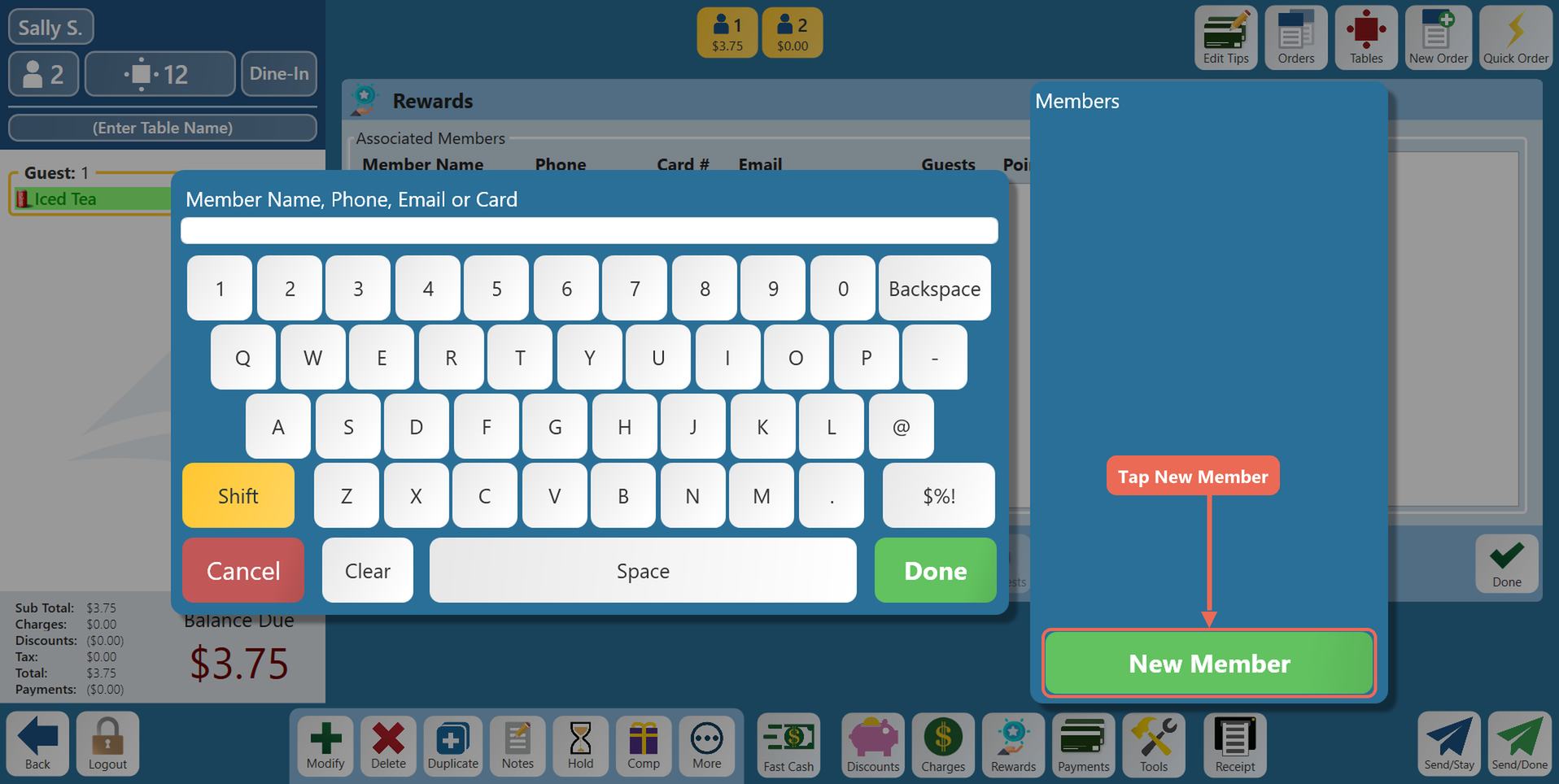
Click the New Member button
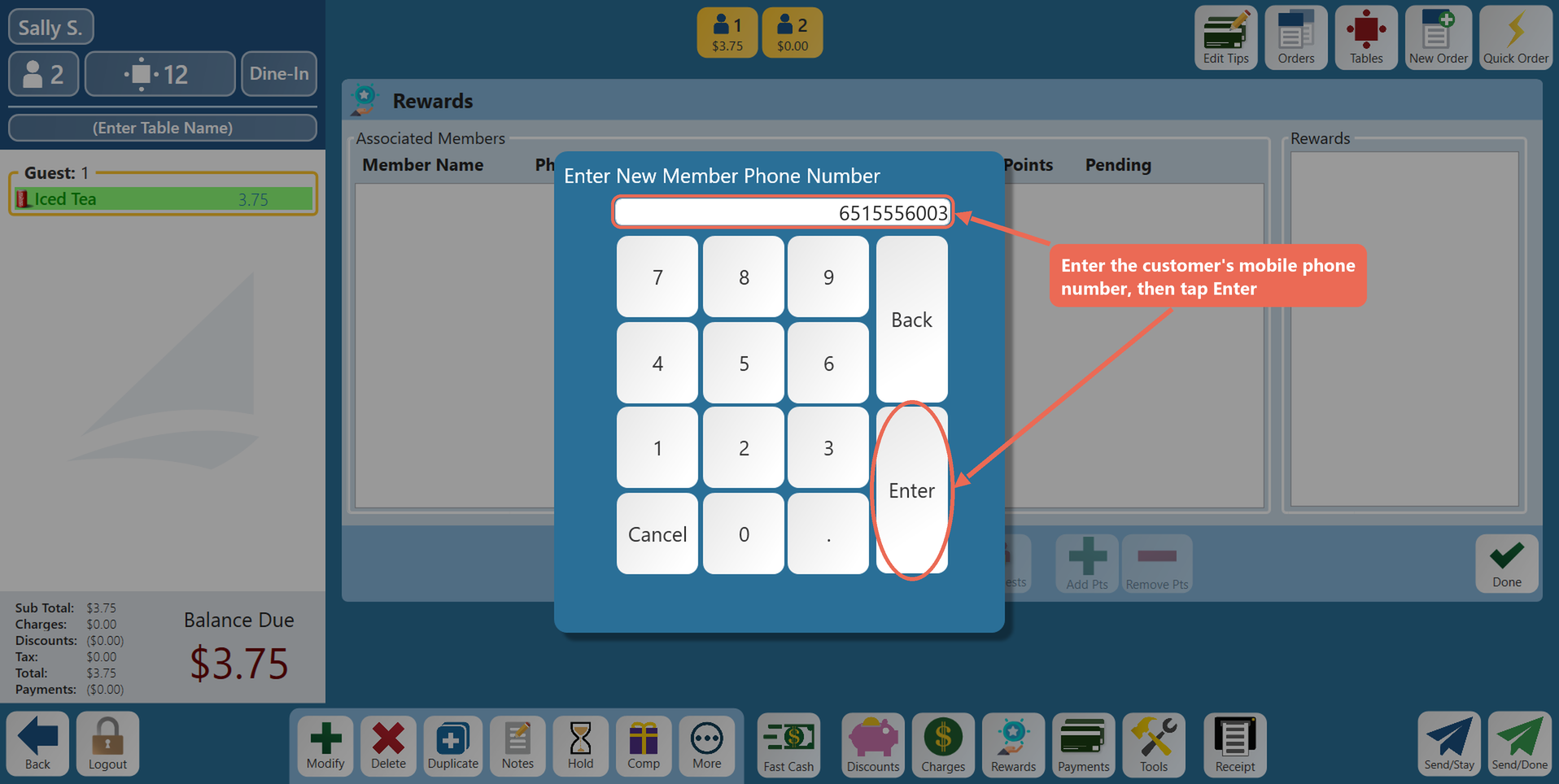
Enter the customer's mobile phone number and click Enter
NOTE: You must have a mobile phone number to register
If your store uses member cards, swipe or enter the member card next, or click Cancel to skip it. The new member is added to the order
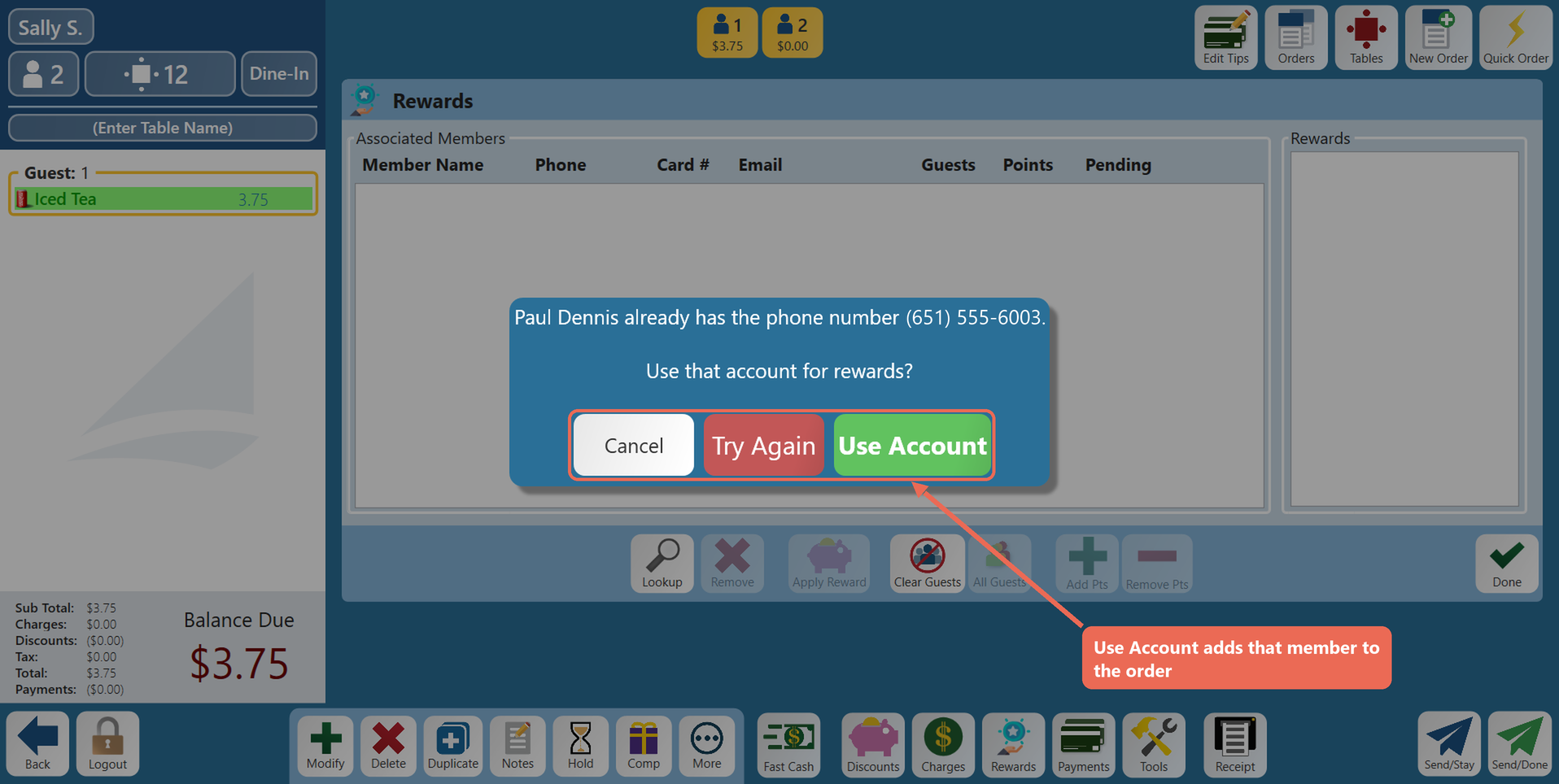
If a member already has that phone number, a message asks whether to use that account. Click Use Account to add that member to the order, Try Again to enter a different number, or Cancel
Register from a search
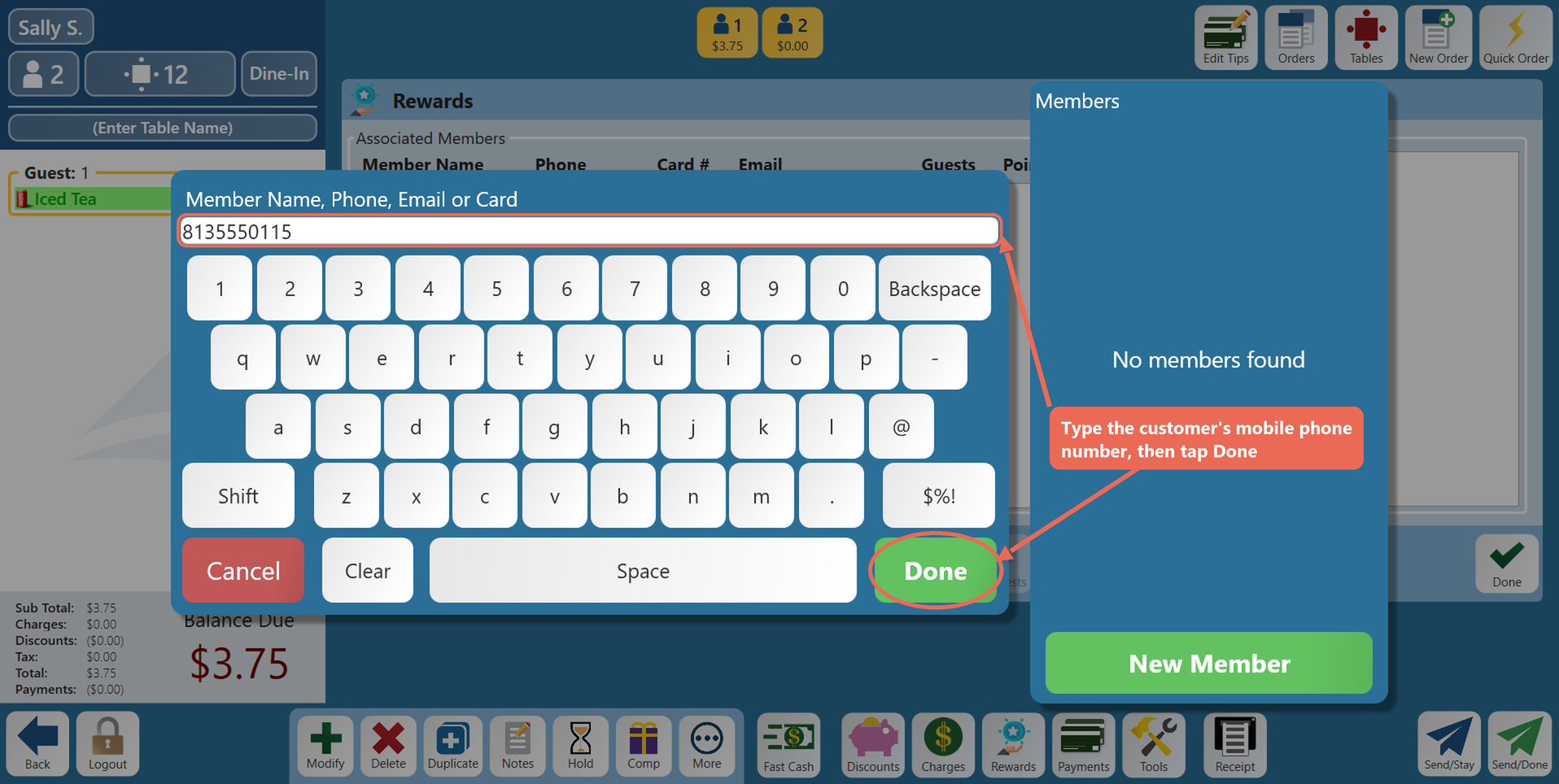
You can also type the customer's mobile phone number (or member card number) in the Lookup window and click Done. If no member has it:
Click Yes – Member Not Found - Would you like to register the phone number?
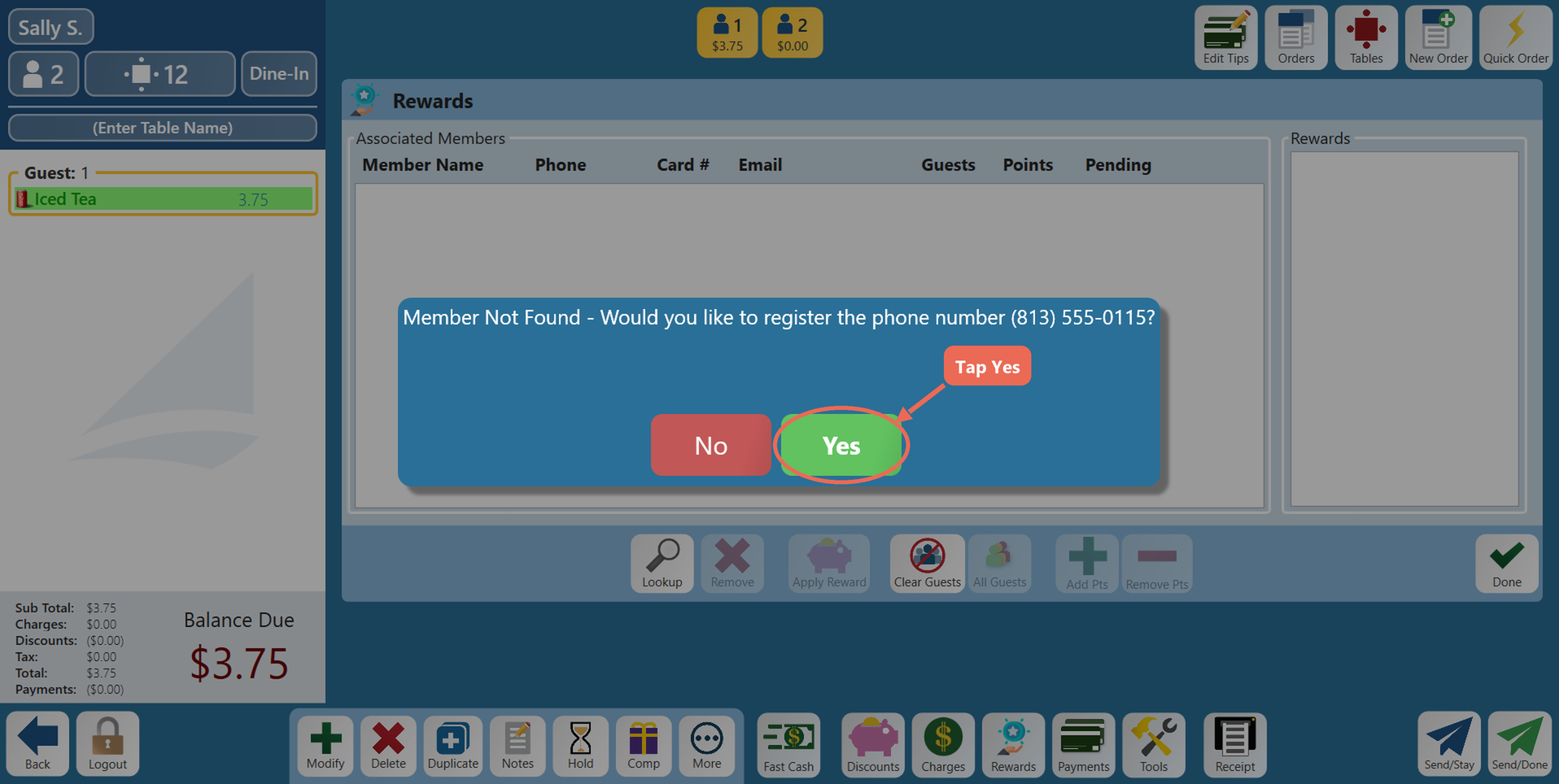
The Enter New Member Phone Number window opens, with the number filled in if you typed a phone number. Click Enter, and the new member is added to the order as above
NOTE: Within a few mins a SMS text message will be sent to their mobile phone with a link where they can register themselves as a member.
No Comments