
How to run a terminal report
This document will show how to run a terminal report. The terminal report shows the sales and payments rung on the terminal you're on since the last Daily Close, and how much cash should be in its drawer. Run it at the end of a shift or the day, before you count the drawer, and you can print it.
Before you start
The terminal report starts from the drawer bank, the cash you put in the drawer at the start of the day. Set the drawer bank first (Functions --> Set Drawer Bank), so the report can tell you how much cash the drawer should have.
How to run the terminal report
-
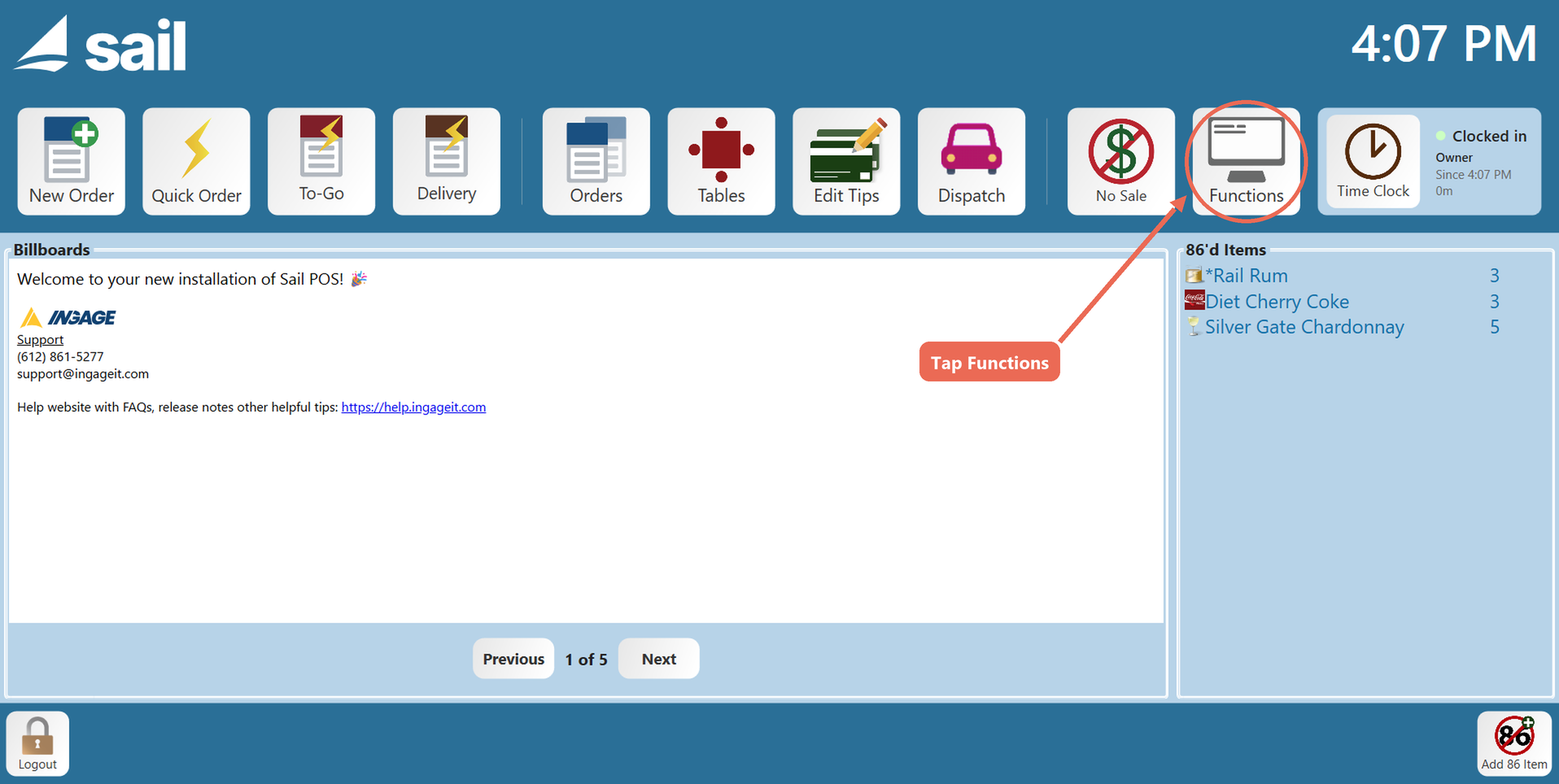
Log onto the terminal and tap Functions on the launch screen.
-
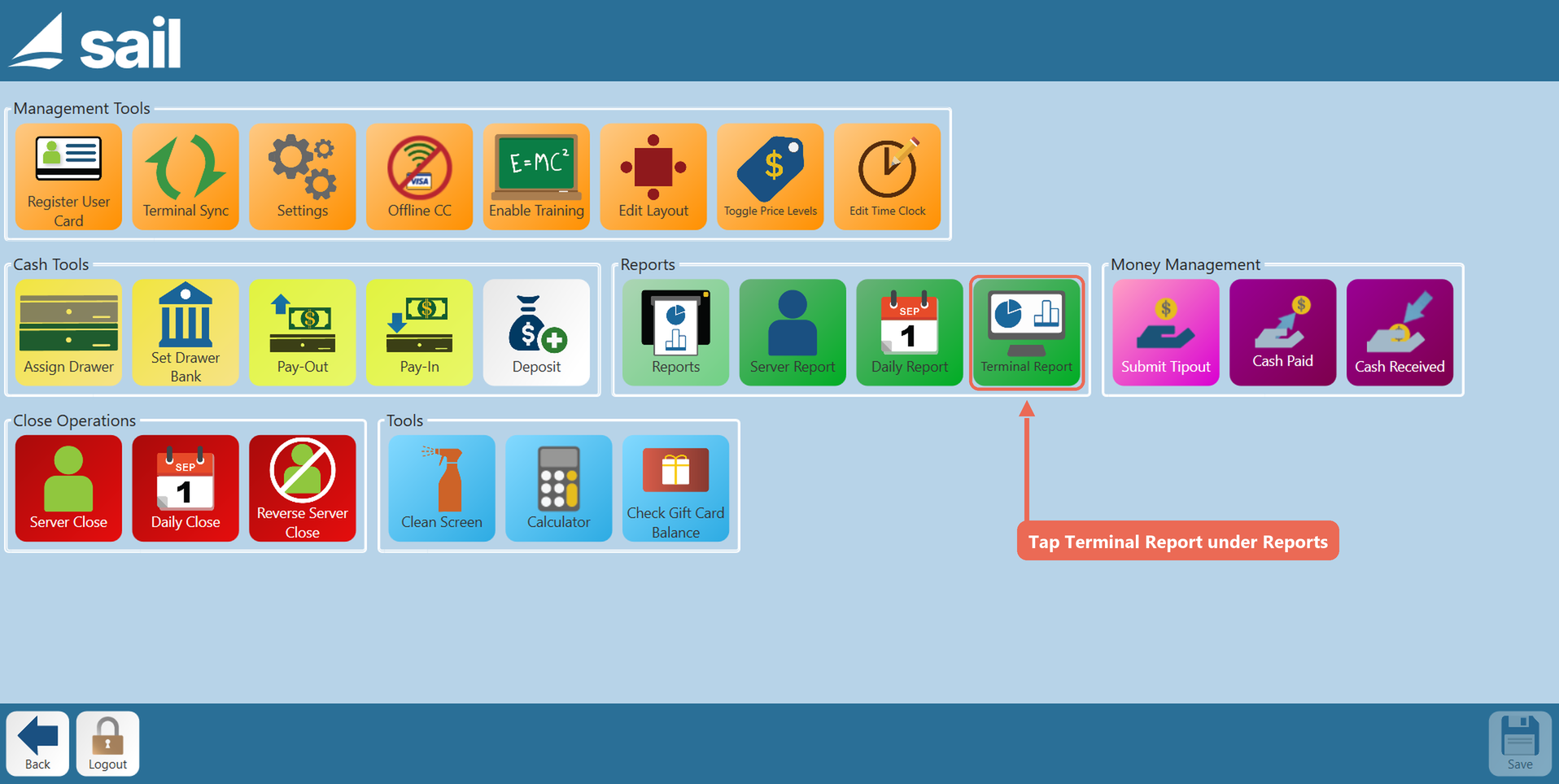
Tap Terminal Report under Reports.
-
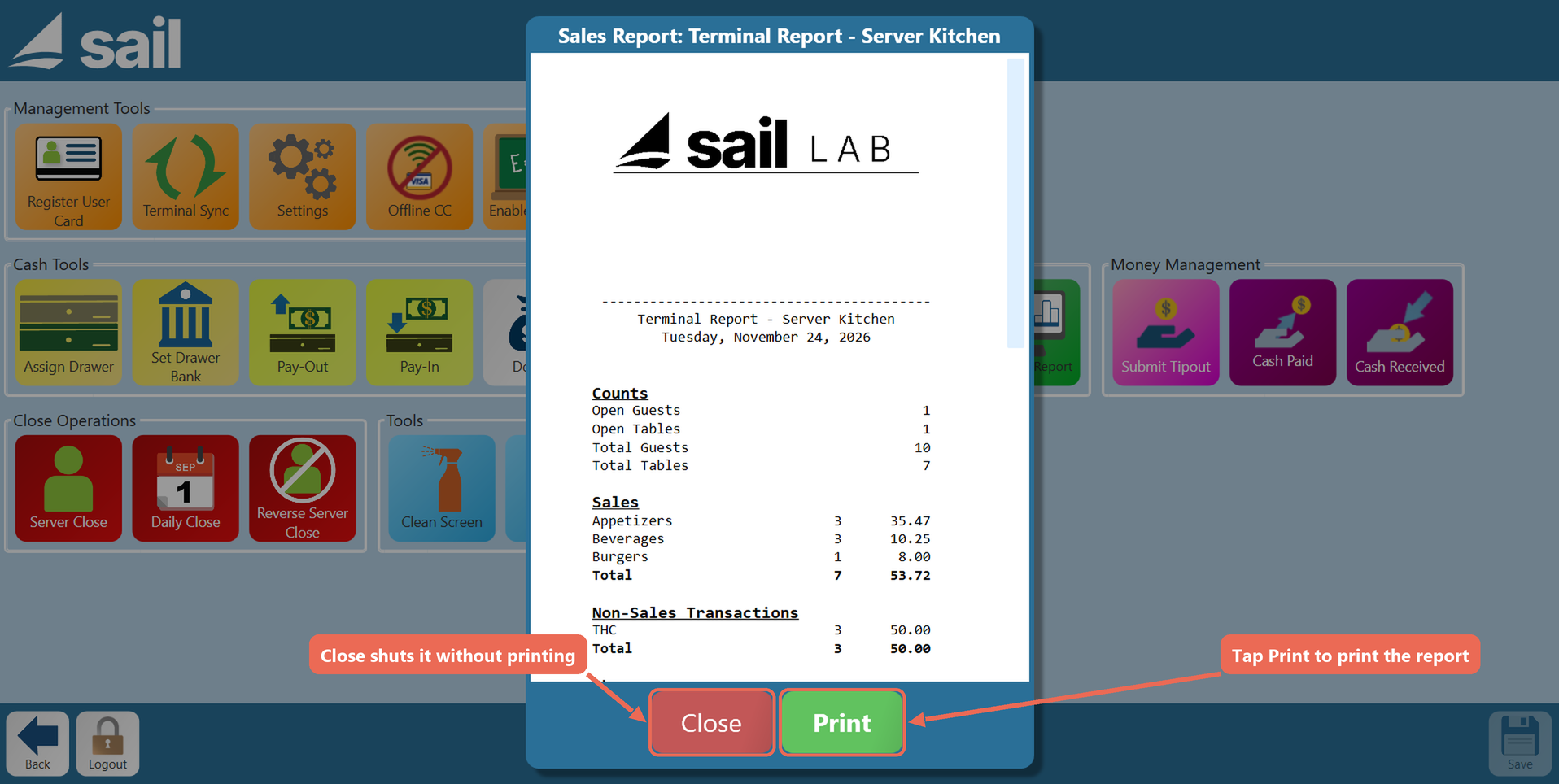
The terminal report opens on the screen, with the terminal's name at the top. Tap Print to print it, or Close to close it without printing.
What's on the terminal report
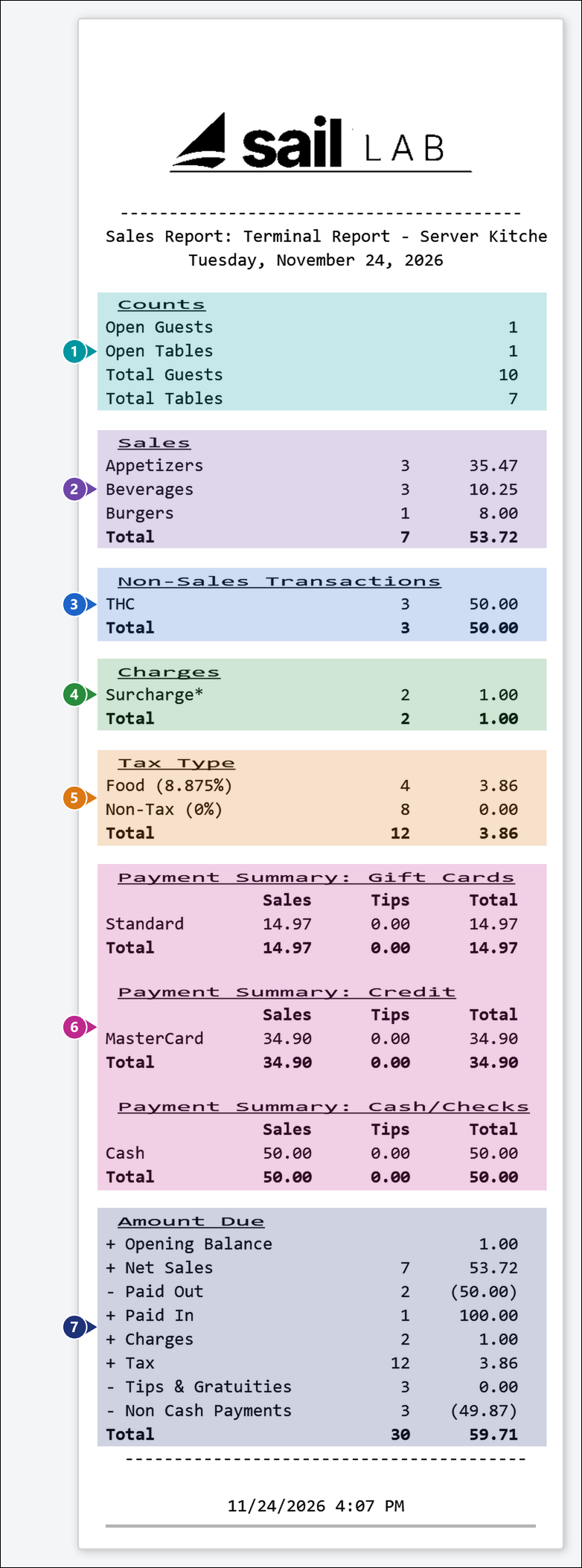
- Counts: How many guests and tables are still open, and how many there were in all.
- Sales: What was sold, by category, with how many and how much.
- Non-Sales Transactions: Money in or out that isn't a sale, like gift cards sold, pay-ins and pay-outs, and payments on customer accounts.
- Charges: Charges added to orders, like a surcharge or a delivery charge.
- Tax Type: The tax collected, by tax rate.
- Payment Summaries: The payments taken, by tender (gift cards, credit cards, cash and checks), with their sales, tips and totals.
- Amount Due: How much cash should be in the drawer. It starts with the Opening Balance (the drawer bank), adds the sales, pay-ins, charges and tax, and takes off the pay-outs, the tips and the payments that weren't cash. The Total is what the drawer should hold when you count it.
Note: If two terminals share one cash drawer, the terminal report includes both of them, so it matches what's in the drawer.
Note: Don't see Terminal Report on the Functions screen? Your job role doesn't have permission to run the terminal report - ask your manager.
Click here to learn more about the Functions screen, how to run a server report, or how to do the Daily Close.
No Comments