
How to view other tender types on the edit tips screen
This document will show how to see payments made with other tender types on the Edit Tips screen, like gift card, cash, customer account or Door Dash payments. When you open Edit Tips, it shows credit card payments.
How to view another tender type
-
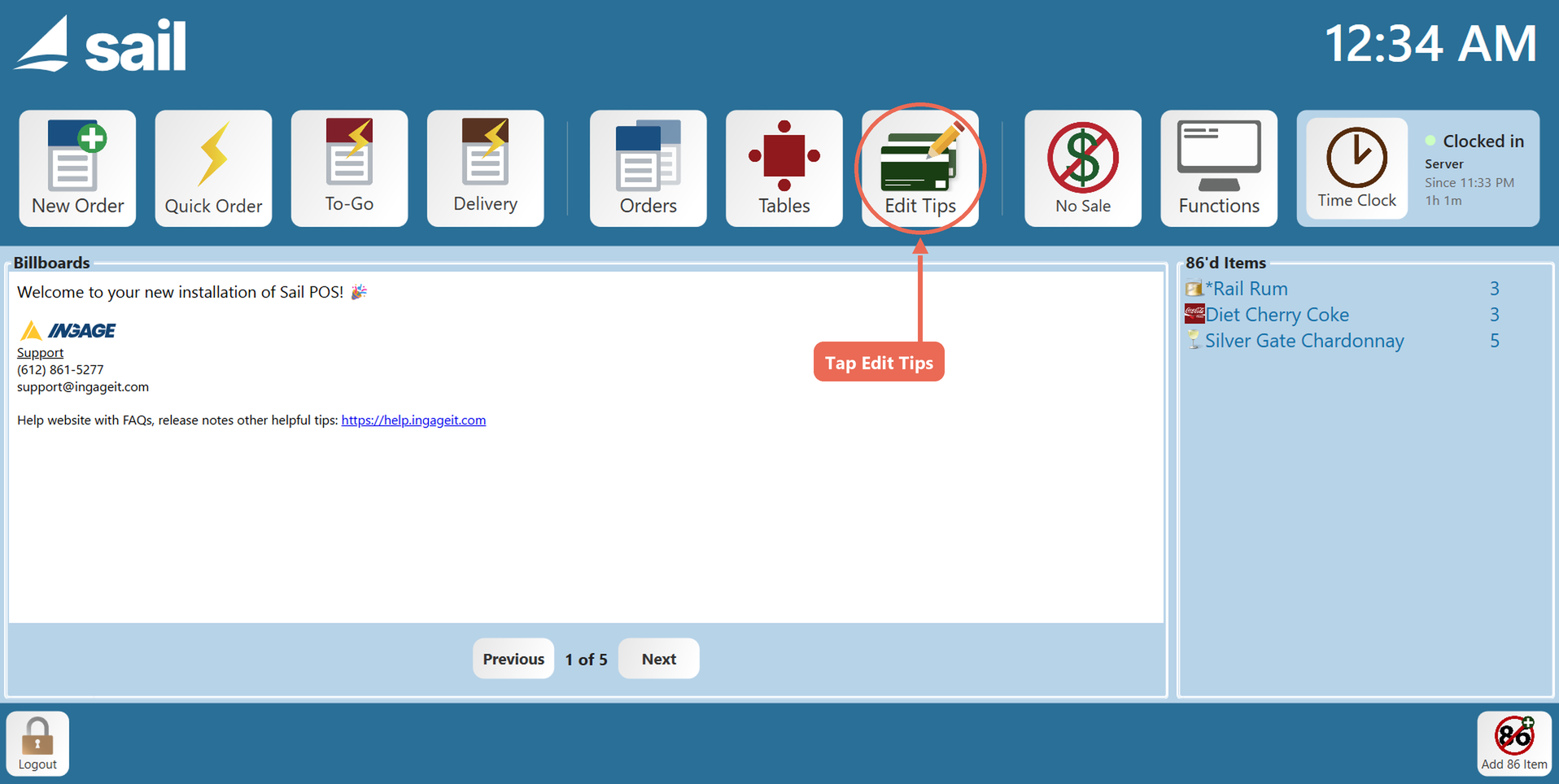
On the home screen, tap Edit Tips.
-
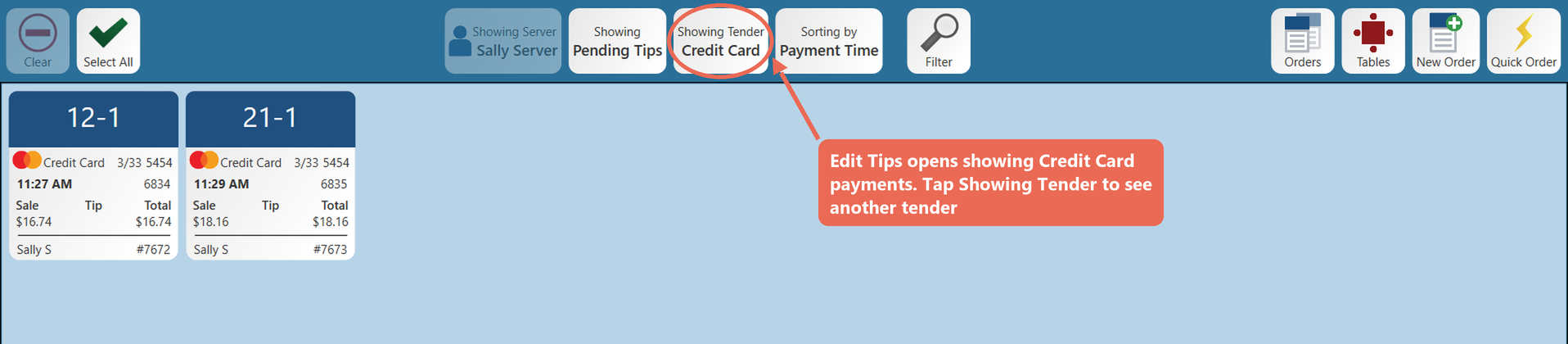
The Edit Tips screen opens showing your Credit Card payments. Tap the Showing Tender button at the top middle of the screen. It shows which tender you are looking at now.
-
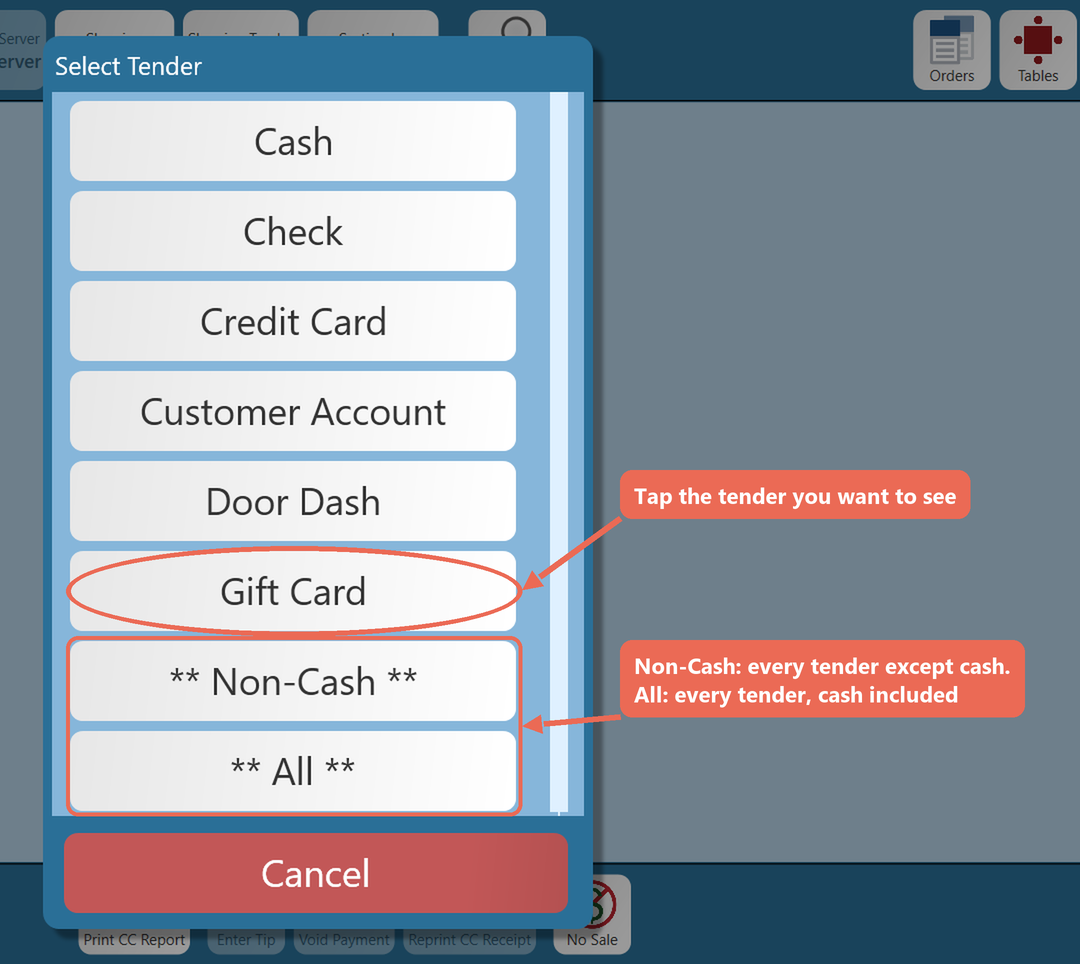
A list of your tender types will appear. Tap the tender you want to see.
-
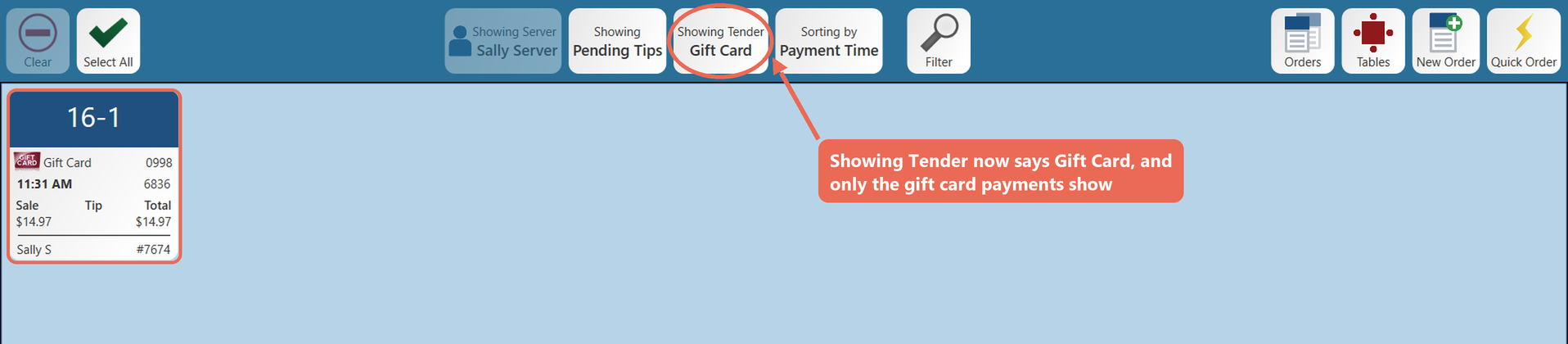
Only the payments made with that tender will show, and the Showing Tender button will show its name.
Non-Cash and All
At the bottom of the list there are two choices that show more than one tender at a time:
-
** Non-Cash ** will show you every tender type except for cash. This allows you to easily see all of the payments that you can enter tips on.
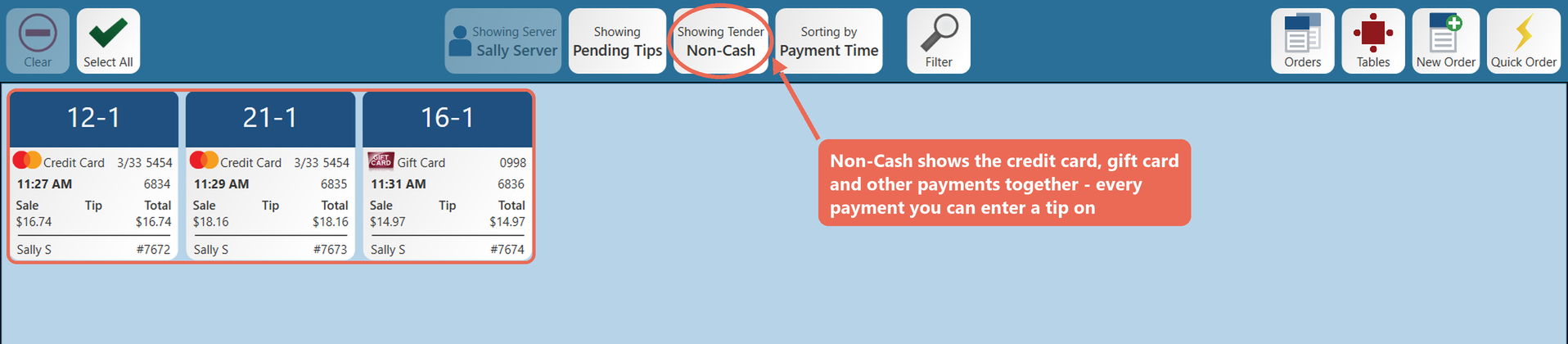
-
** All ** will show you all payments with cash included. The button will say All Tenders.
Going back to credit card payments
The terminal remembers the tender you picked, even after you log out, so the next person to open Edit Tips on that terminal will see the same tender. To see credit card payments again, tap Showing Tender and select Credit Card.
Click here to learn more about the Edit Tips Screen, how to sort payments on the edit tips screen and how to enter tips.
No Comments