
How to filter payments on the edit tips screen
This document will show you how to filter the Edit Tips screen, so you only see the payment you are looking for. Type part of its amount, table, card, server or order number, and only the payments that match stay on the screen.
If you want more information on all the functions of the Edit Tips screen, see the Edit Tips Screen article.
Find a payment with Filter
-
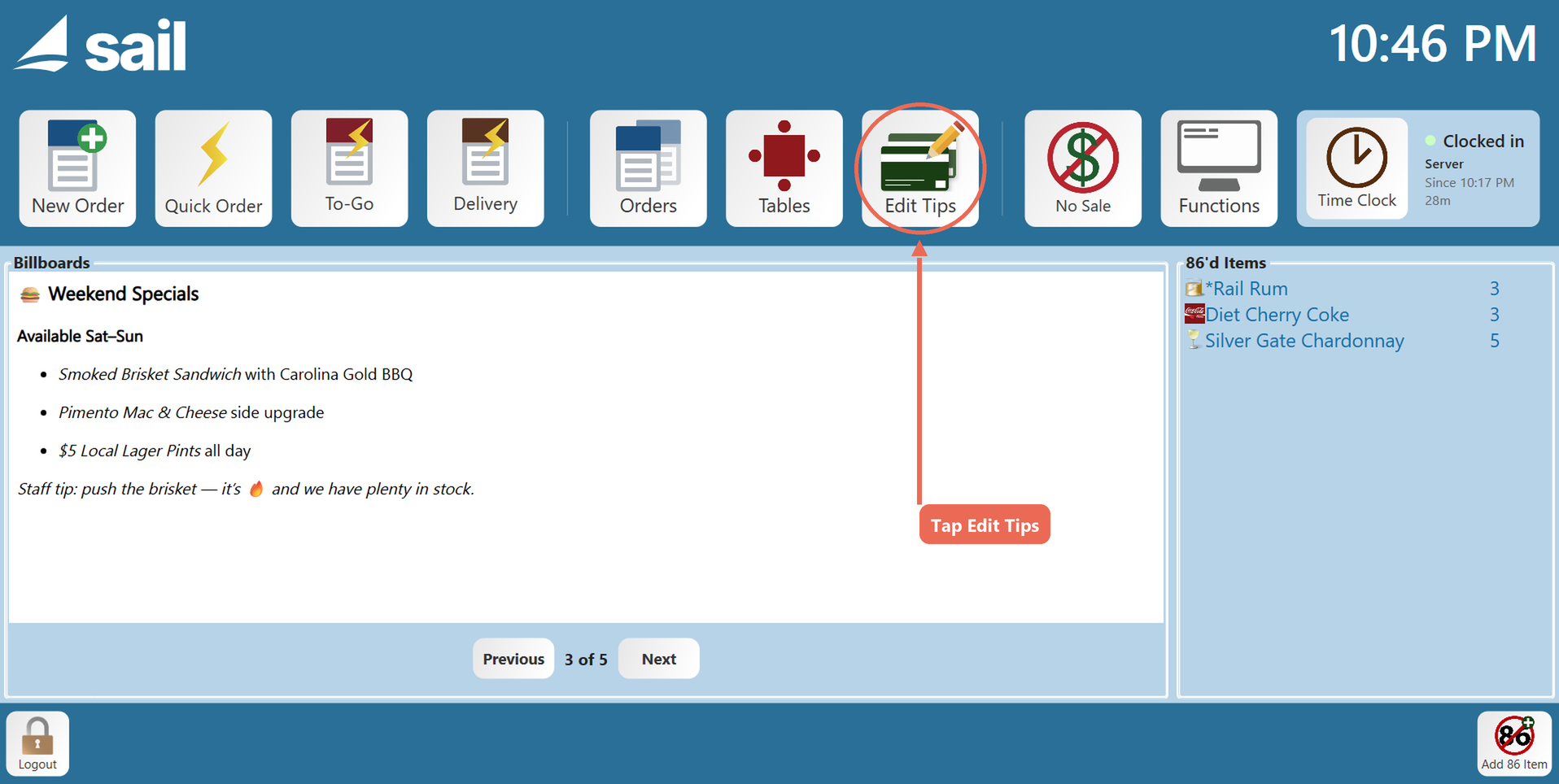
On the home screen, tap Edit Tips.
-
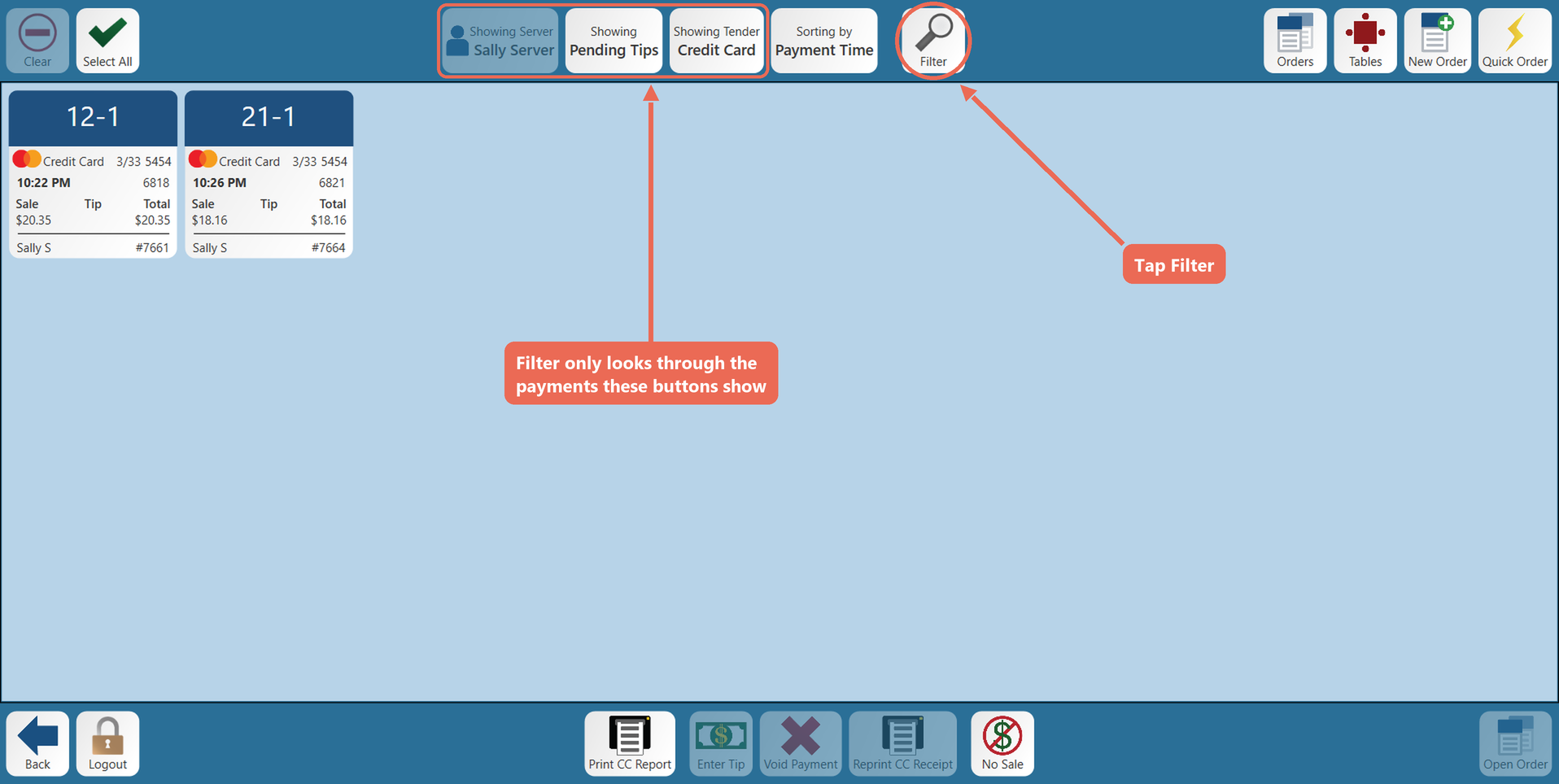
On the Edit Tips screen, tap Filter.
-
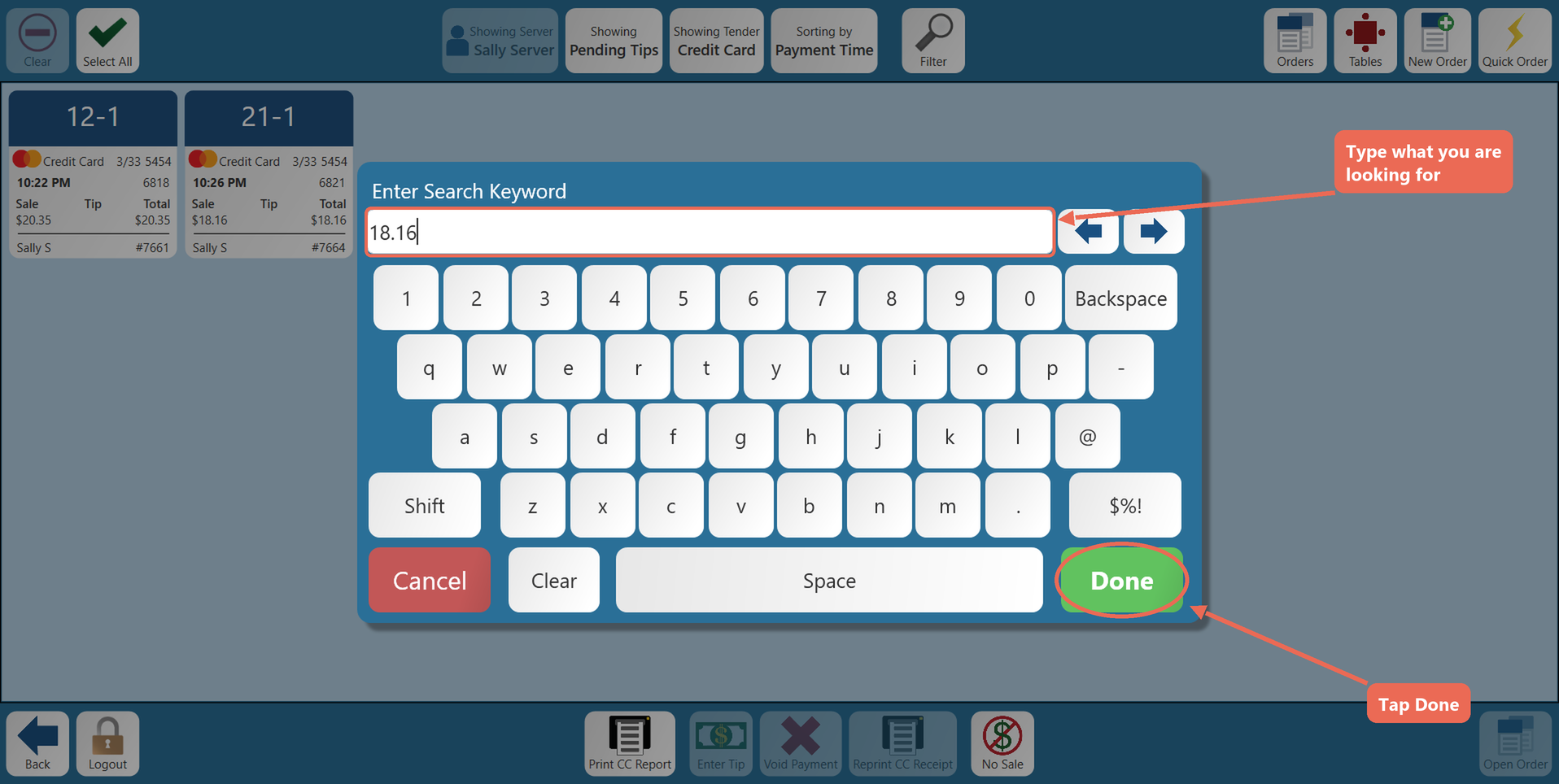
Type what you are looking for and tap Done. Part of a word or number is enough. You can type:
- an amount (the sale, the tip or the total)
- a table number or table name
- the last 4 digits of the card, or its expiration date
- a server's name
- the payment number or the order number
- a tender (such as Gift Card)
-
Only the payments that match stay on the screen, and the Filter button turns yellow and says Clear. Tap Clear to see all the payments again.
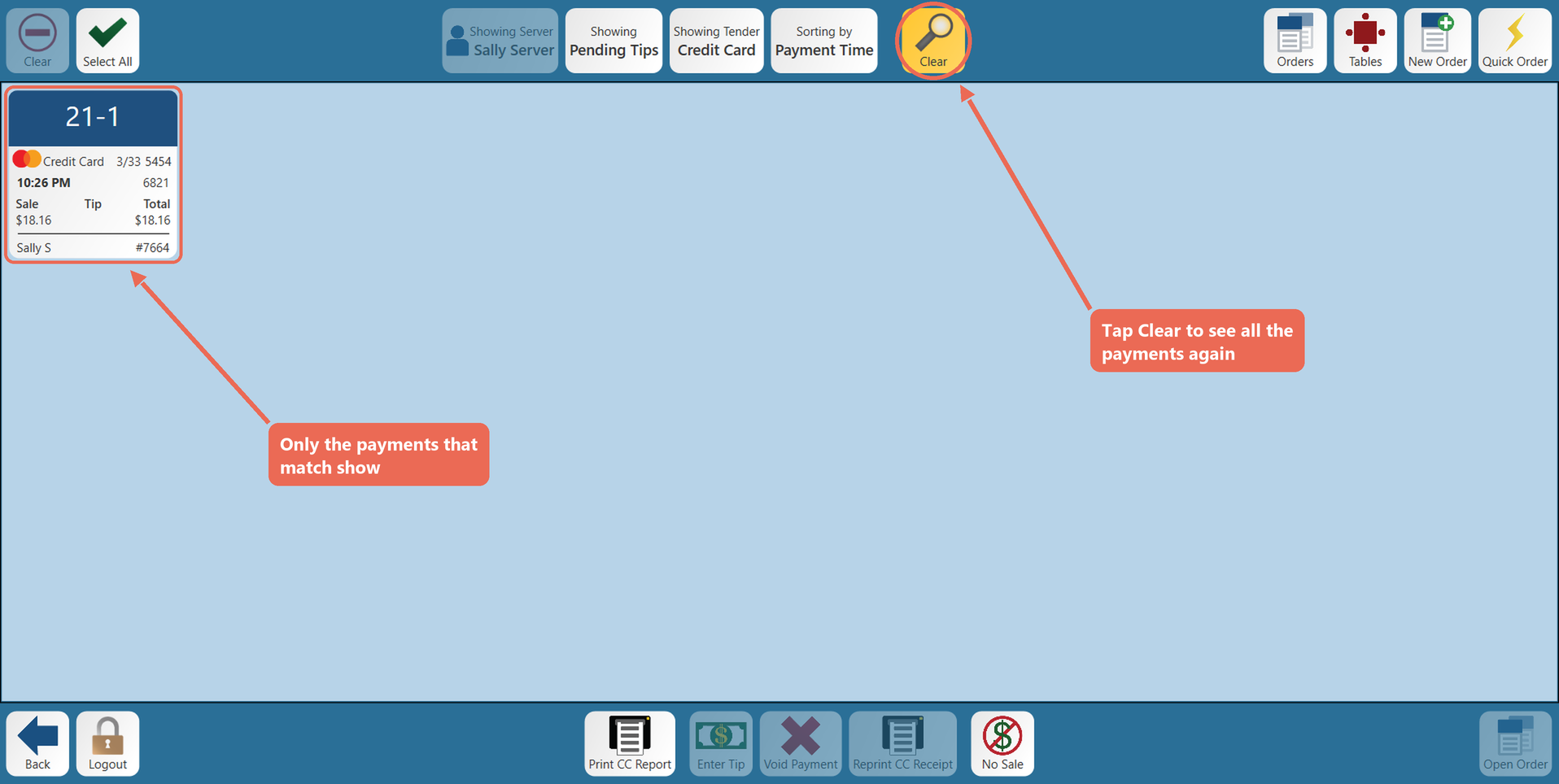
Note: The filter goes away when you leave the Edit Tips screen.
Can't find the payment?
Filter only looks through the payments on the screen. If the payment you want isn't there, check the buttons next to it:
- Showing: Pending Tips shows only the payments that still need a tip. Tap it so it says All to see the payments that already have a tip too.
- Showing Tender: shows one tender at a time, usually Credit Card. Click here to learn more about viewing other tender types.
- Showing Server: shows your own payments. If your job role has the View All Payments permission, you can pick another server or ** All **. Click here to learn more about viewing someone else's payments.
Using them together
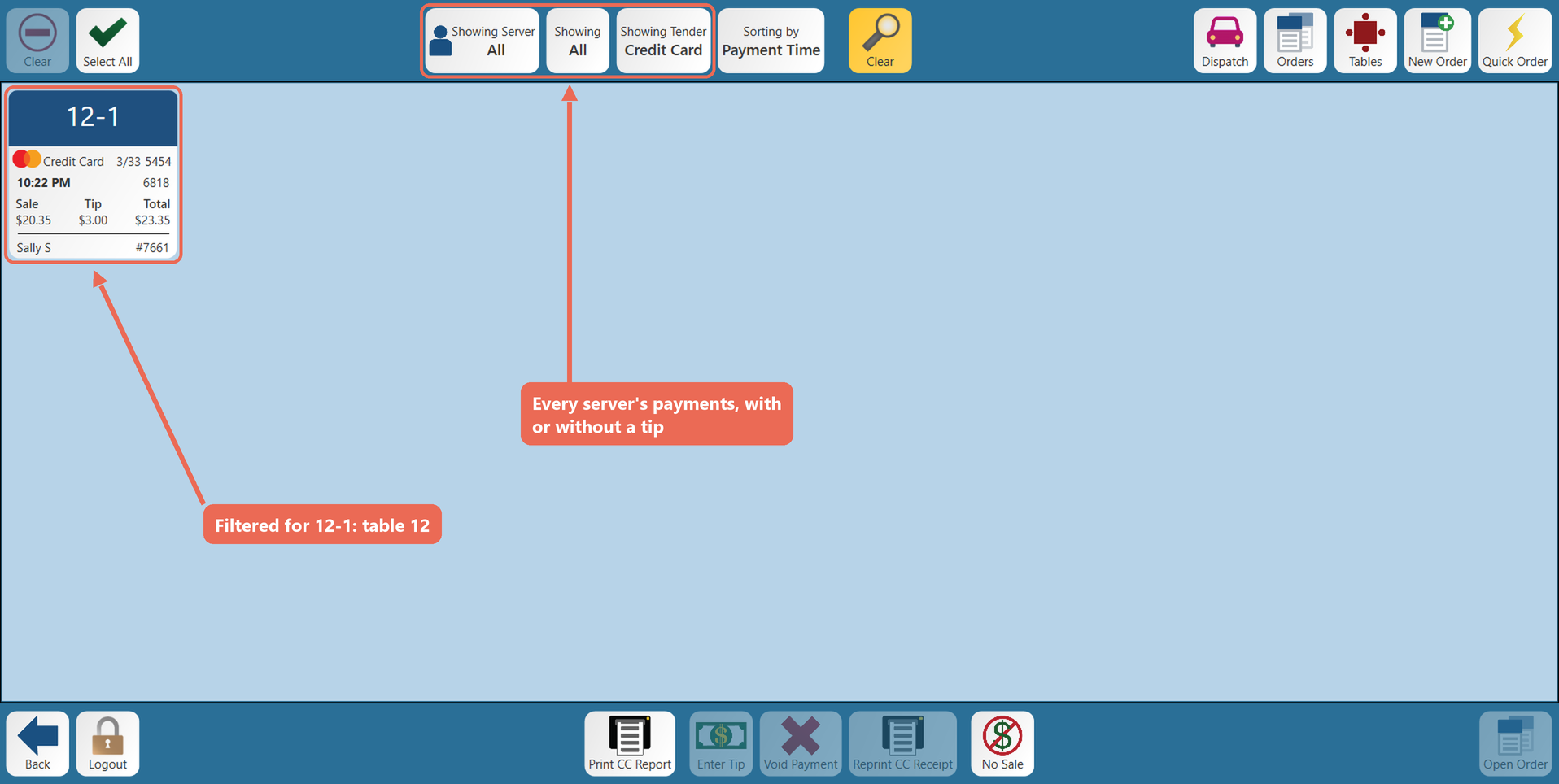
Filter works together with these buttons. For example, a manager checking the tip on table 12, which another server already entered, can:
- Tap Showing Server, then tap ** All **.
- Tap Showing so it says All.
- Tap Filter, type 12-1 and tap Done.
To put the payments in a different order, see How to sort payments on the edit tips screen. To enter a tip once you've found the payment, see How to enter tips.
No Comments