
How to process a payment
This document will walk you through the Payments screen on the terminal: what each part does, how to pay the whole table or one guest at a time, and how to take each kind of payment - cash, credit card, gift card, 3rd party and customer account.
To close an order with Fast Cash without opening it, click here to learn more about closing a table/order.
Opening the Payments screen
1. Open the order and tap Payments at the bottom of the screen.
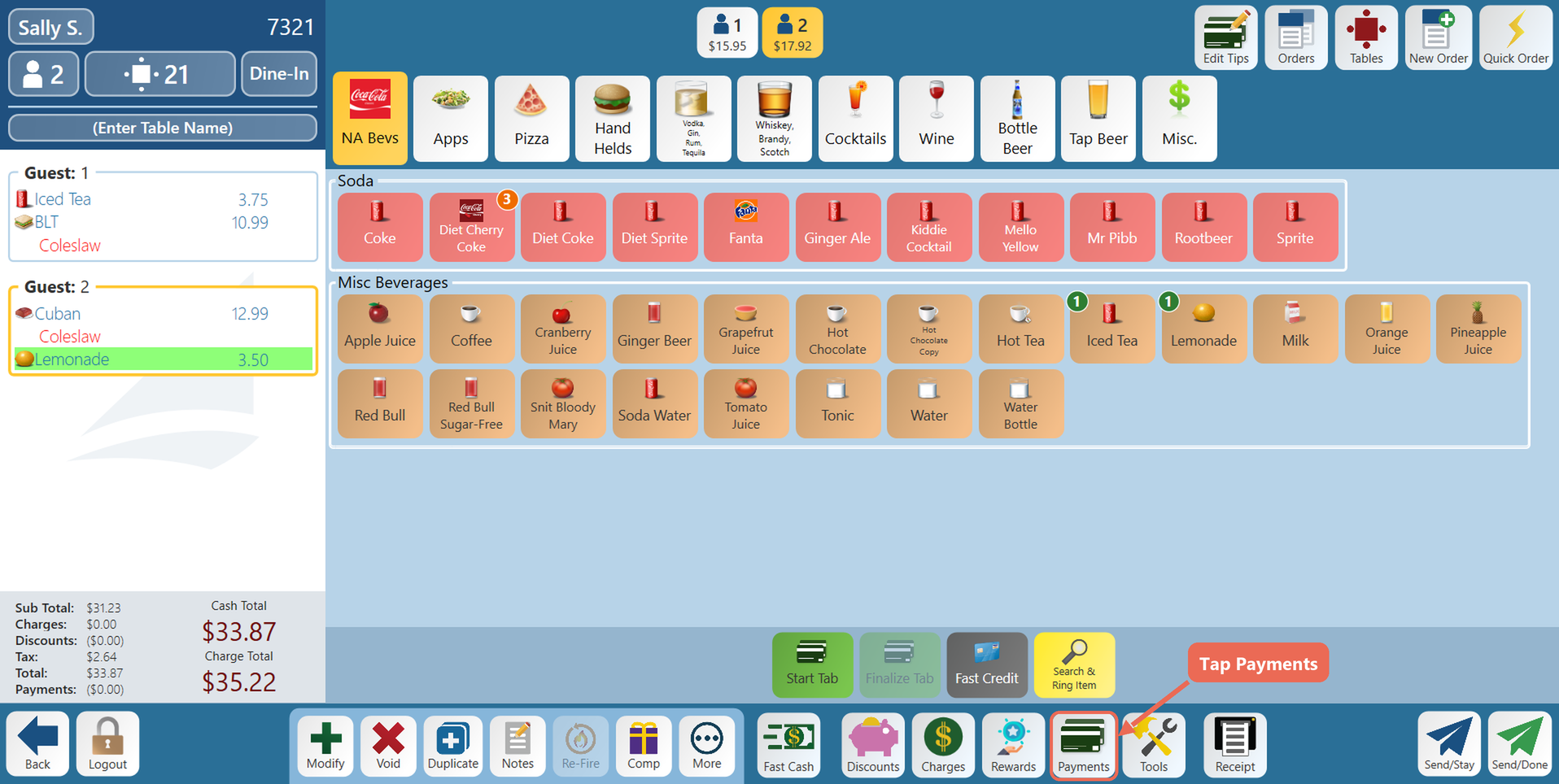
2. The Payments screen opens.
The Payments screen
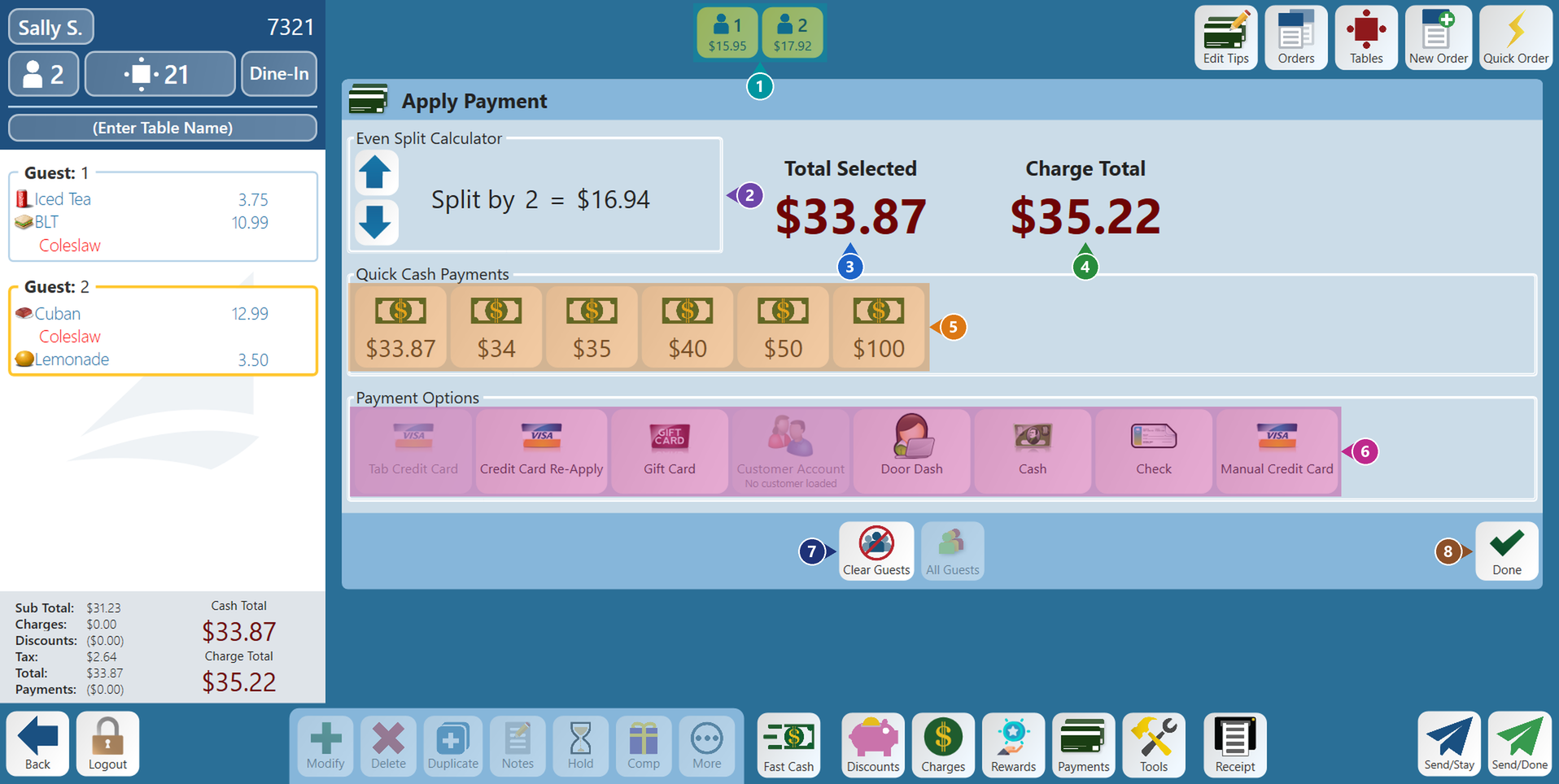
Paying the whole table
1. When the Payments screen opens, every guest is selected and Total Selected shows the whole check. If some guests aren't selected, tap All Guests.
2. Choose how the table is paying: a quick cash amount or a button under Payment Options (see below).
Paying for one guest at a time
1. Tap the guest buttons at the top to select only the guests who are paying now. Tap a guest again to unselect them. Total Selected changes to show what they owe.
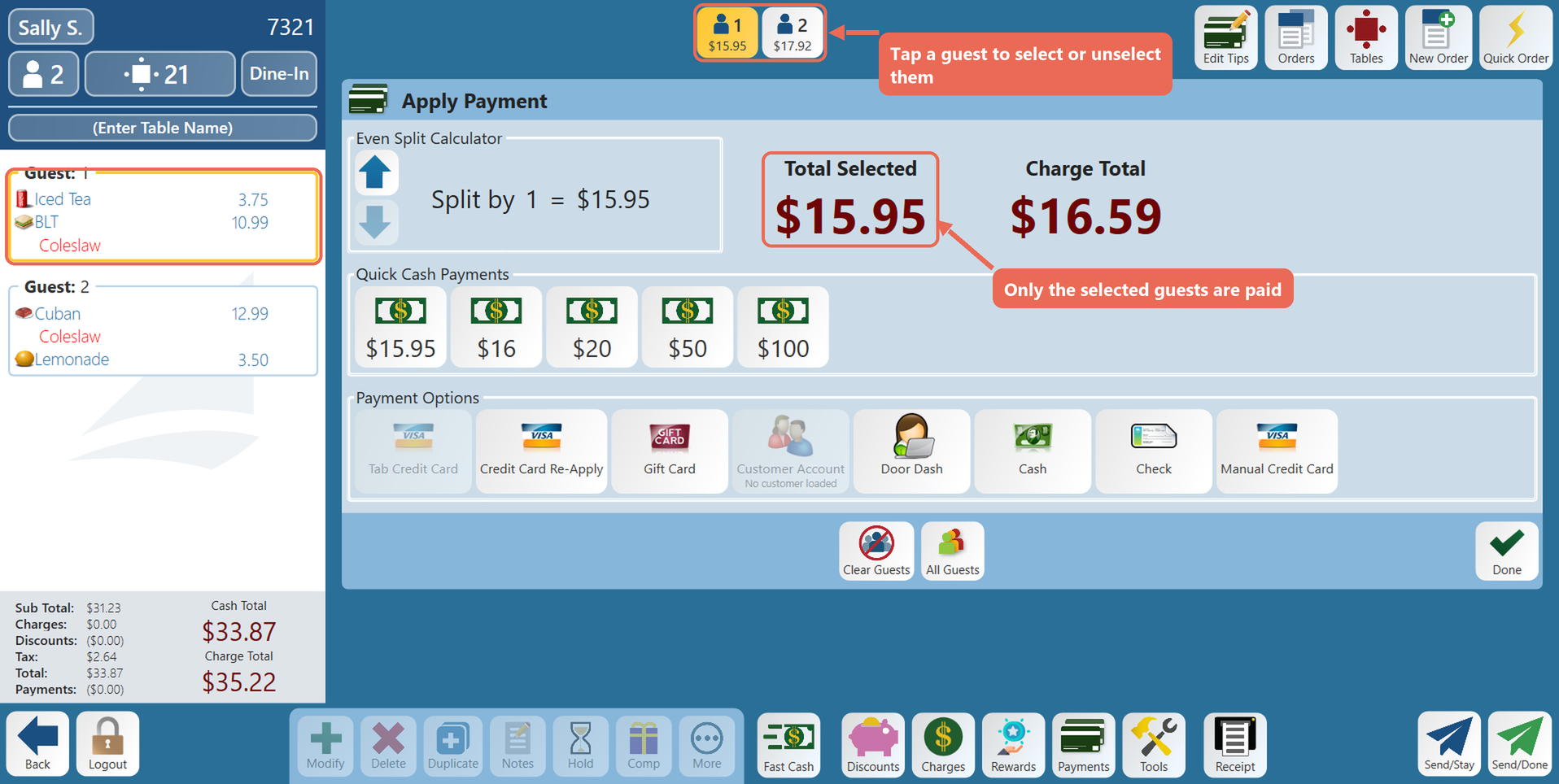
2. Take their payment. Once a guest has paid, their button shows $0.00 and the next guest is selected for you.
Paying with cash
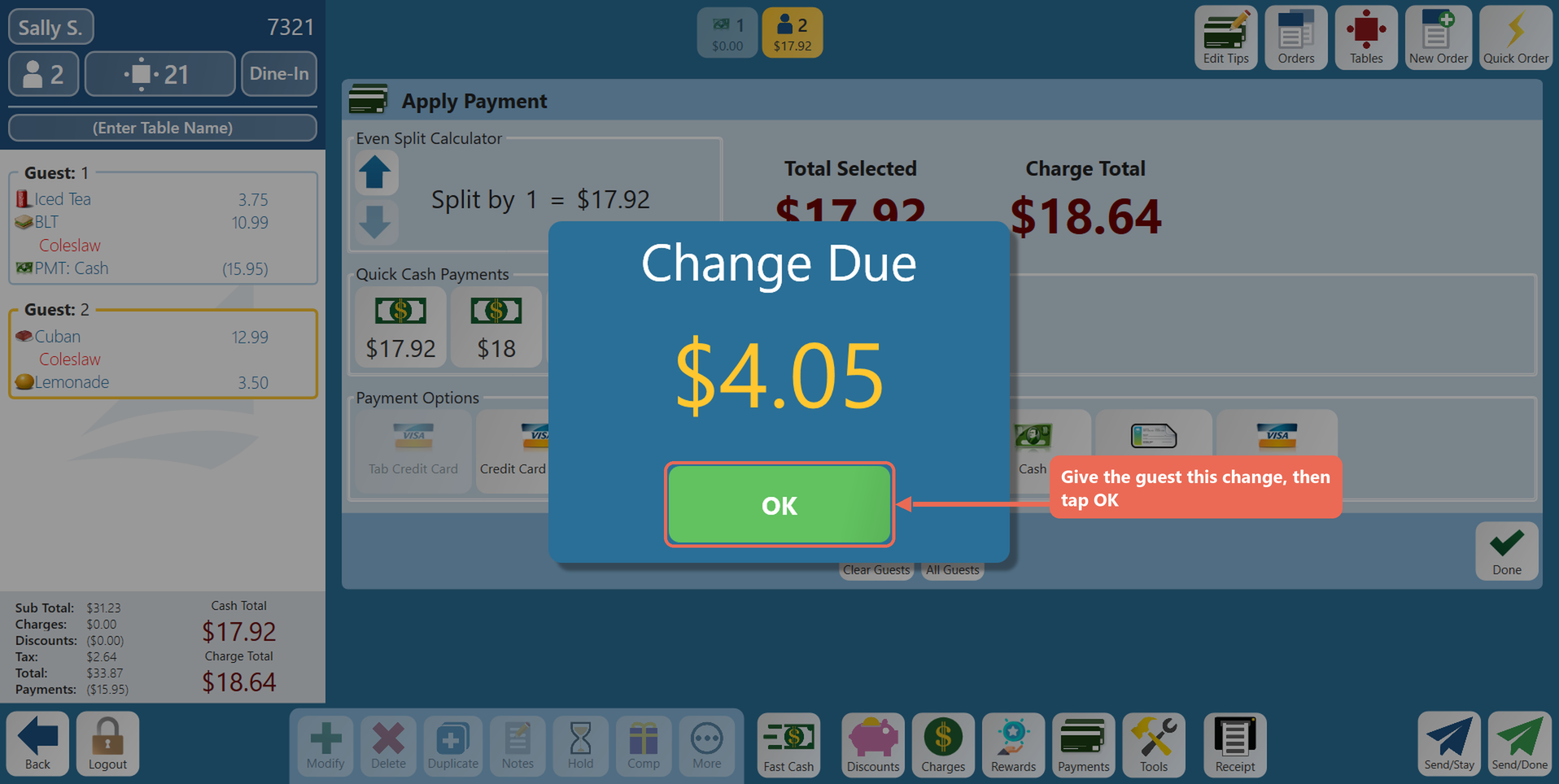
1. Tap the quick cash amount that matches what the guest hands you. In this example the guest owes $15.95 and pays with a $20 bill.
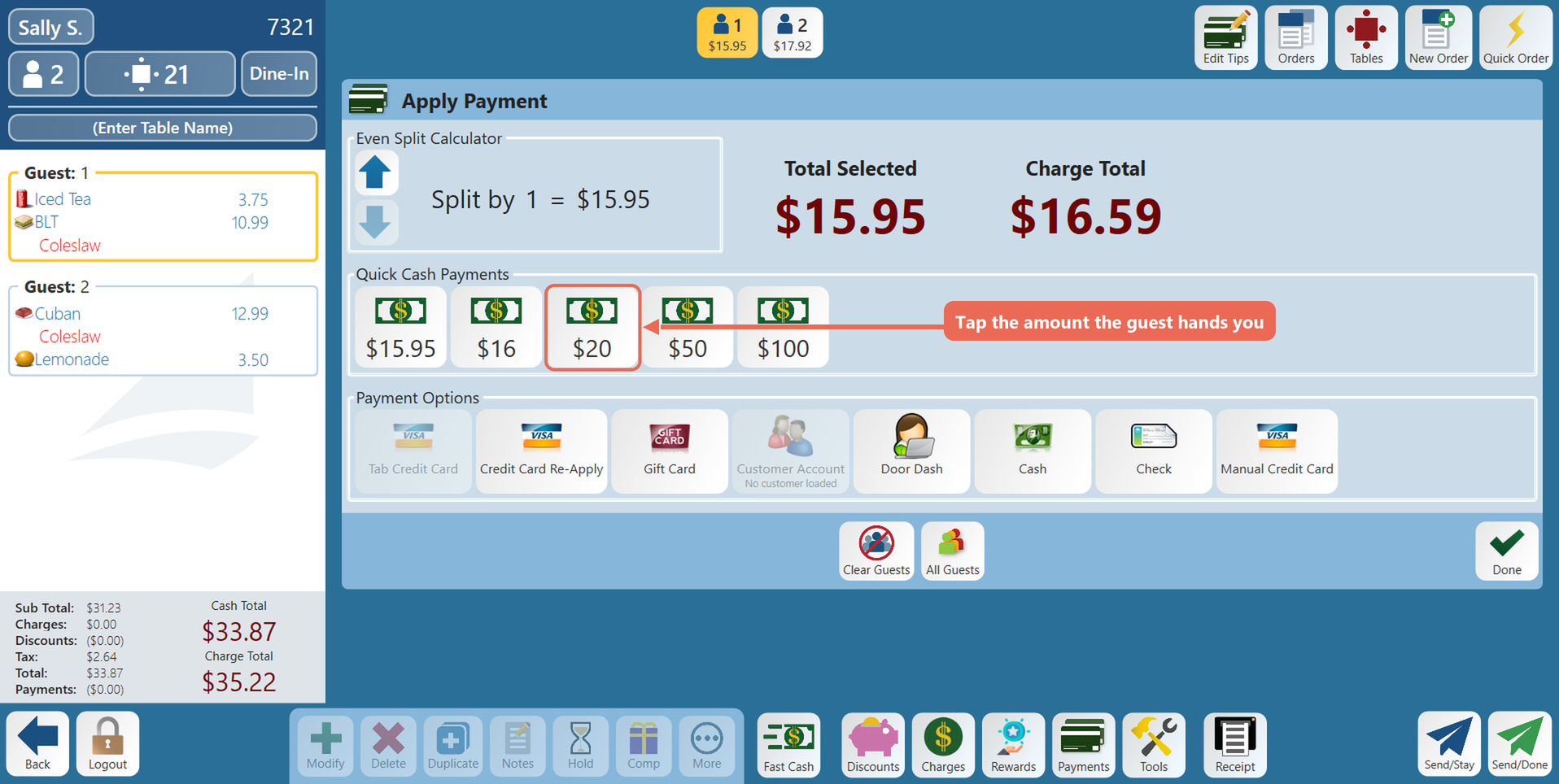
2. The terminal shows the change to give back. Give the guest their change and tap OK.
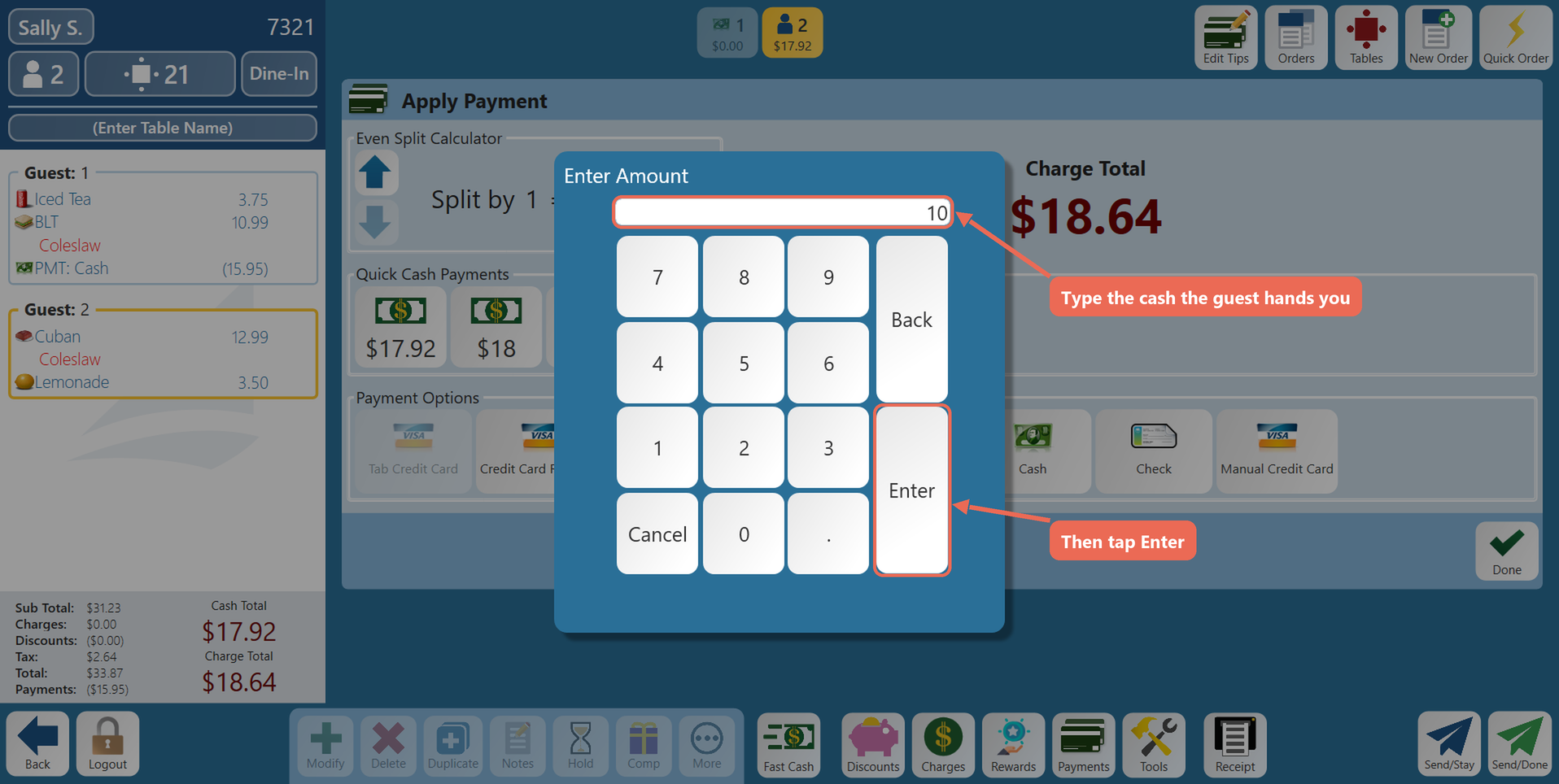
If the amount you need isn't a quick cash button, tap Cash under Payment Options, type the amount the guest hands you and tap Enter.
Paying with a credit card
1. Tap Credit Card under Payment Options.
2. When the Select Amount list opens, tap the amount to charge. Custom Amount charges part of the balance, and Start Tab keeps the card on the order to close out later.
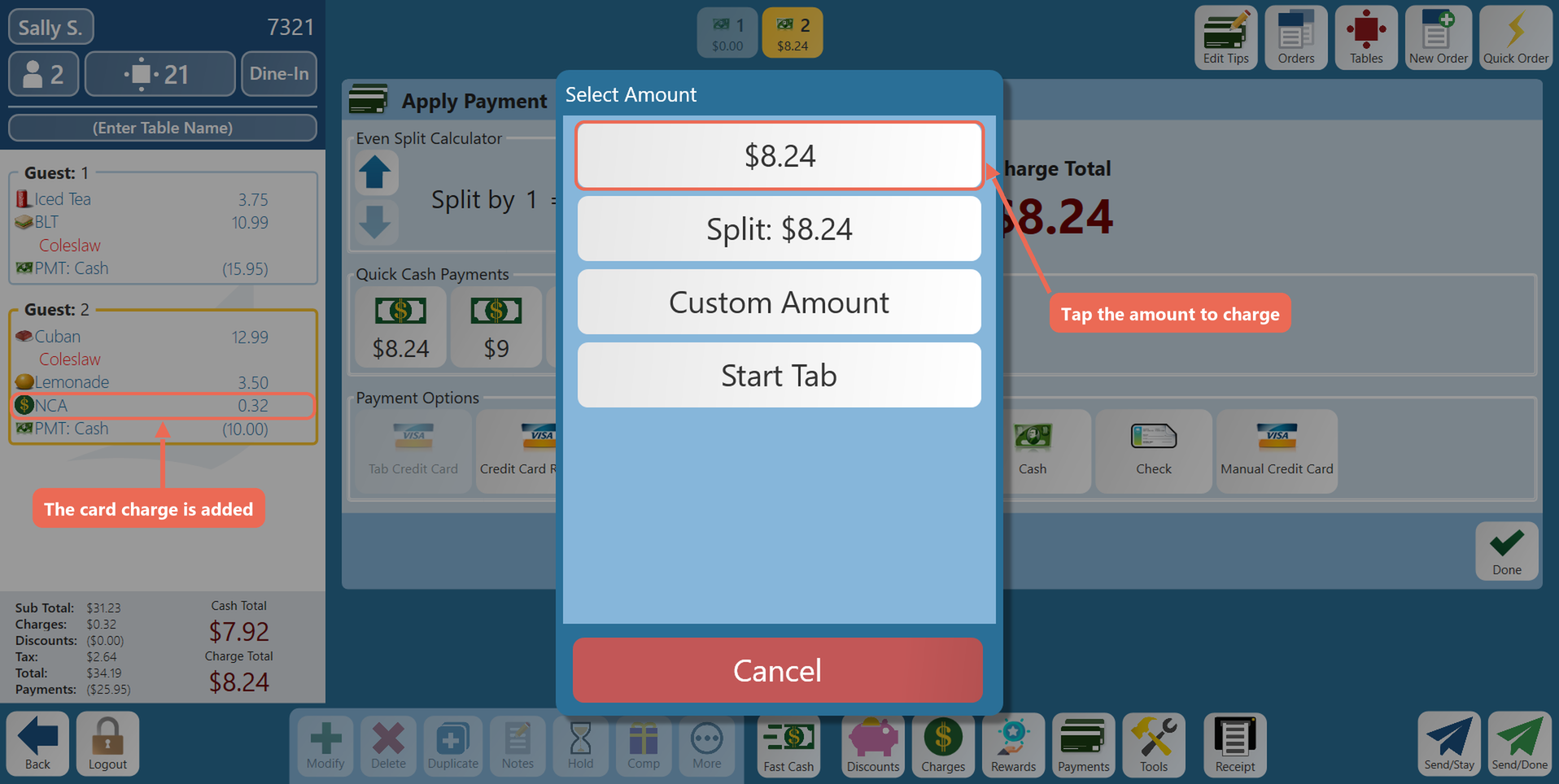
Note: If your store adds a charge for card payments, it shows on the order as soon as you choose a card payment.
3. The guest inserts, taps or swipes their card on the card reader. Once it's approved, the payment shows on the order.
Click here to learn more about Credit Card Re-Apply.
Paying with a gift card
1. Tap Gift Card under Payment Options.
2. Tap the amount to take from the card. Check Balance shows what is left on the card first.
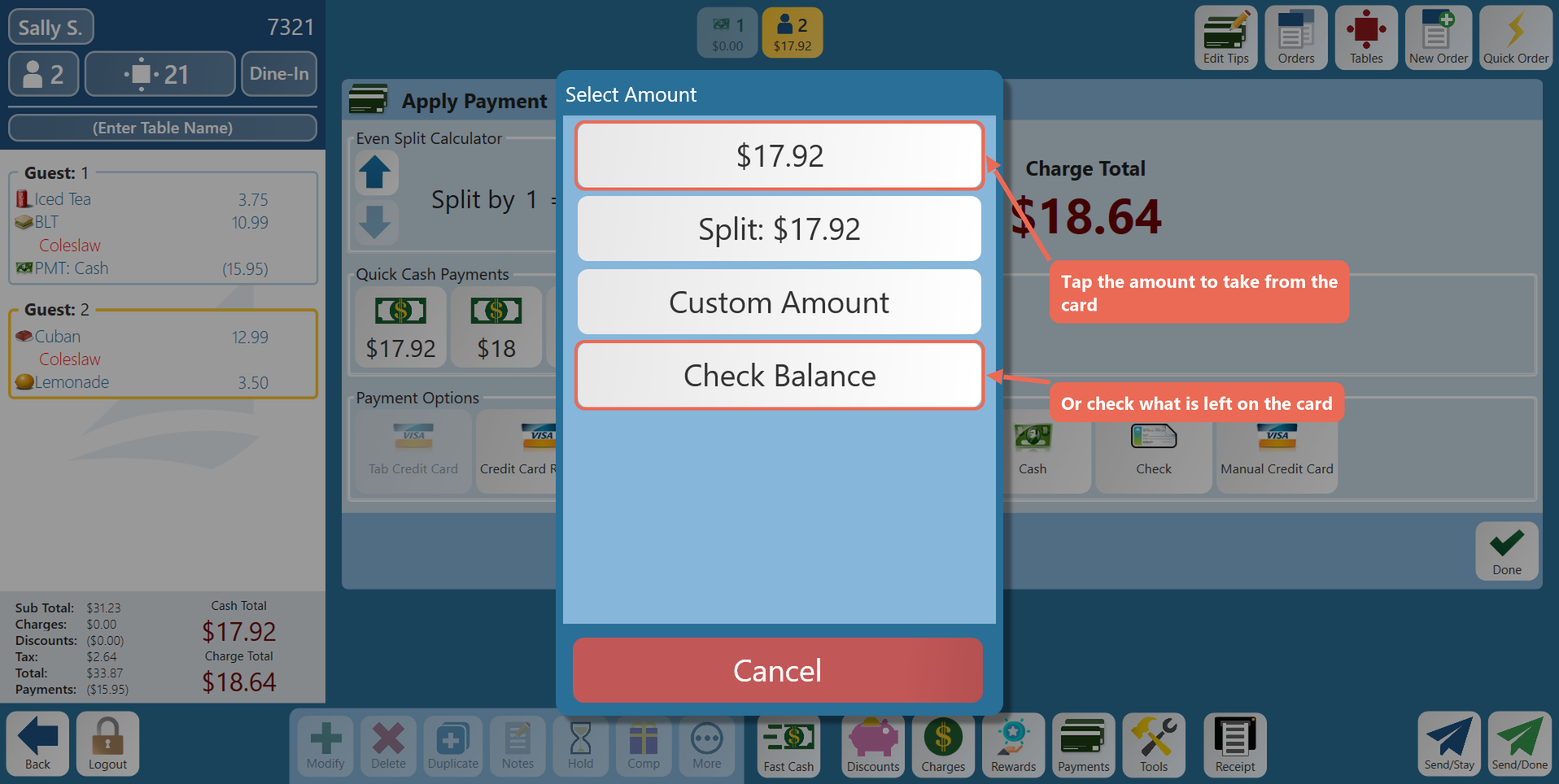
3. Swipe the gift card, or type its number and tap Enter.
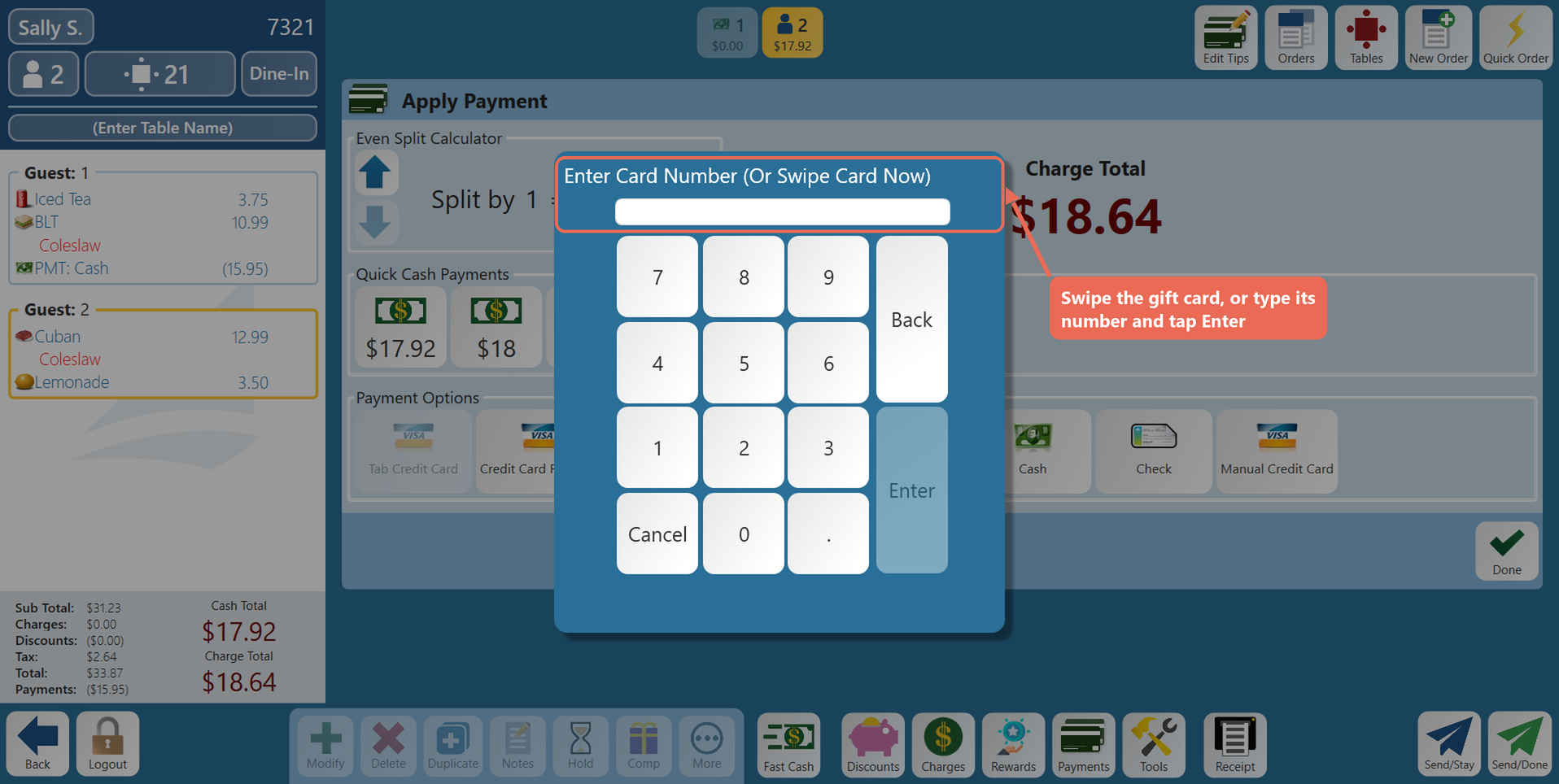
Note: If the card has less on it than the guest owes, pay the rest with another payment type.
Click here to learn more about issuing and redeeming a gift card.
Paying with a 3rd party payment
Use a 3rd party payment when the order was already paid somewhere else, such as a delivery service. Each one your store uses has its own button - here, Door Dash.
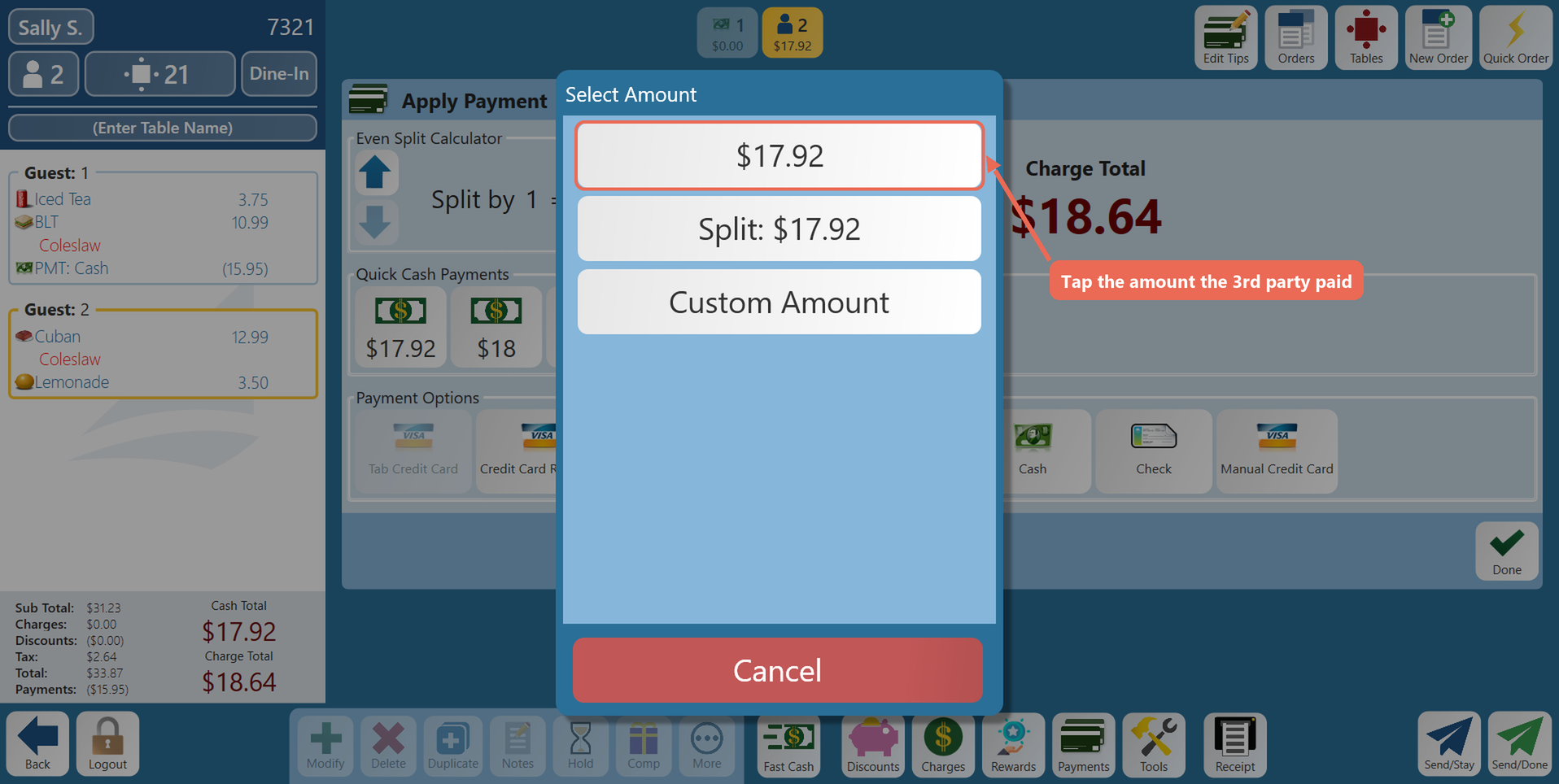
1. Tap the 3rd party's button under Payment Options.
2. Tap the amount the 3rd party paid.
Charging a customer account
A customer account lets a regular customer charge the order to their account and pay later.
1. Add the customer to the order first: tap the order type at the top of the order (for example Dine-In), pick an order type your store links to customers, tap Lookup Customer and choose the customer.
2. On the Payments screen, the Customer Account button now shows the customer's name. Tap it to charge the order to their account.

Paying with more than one payment type
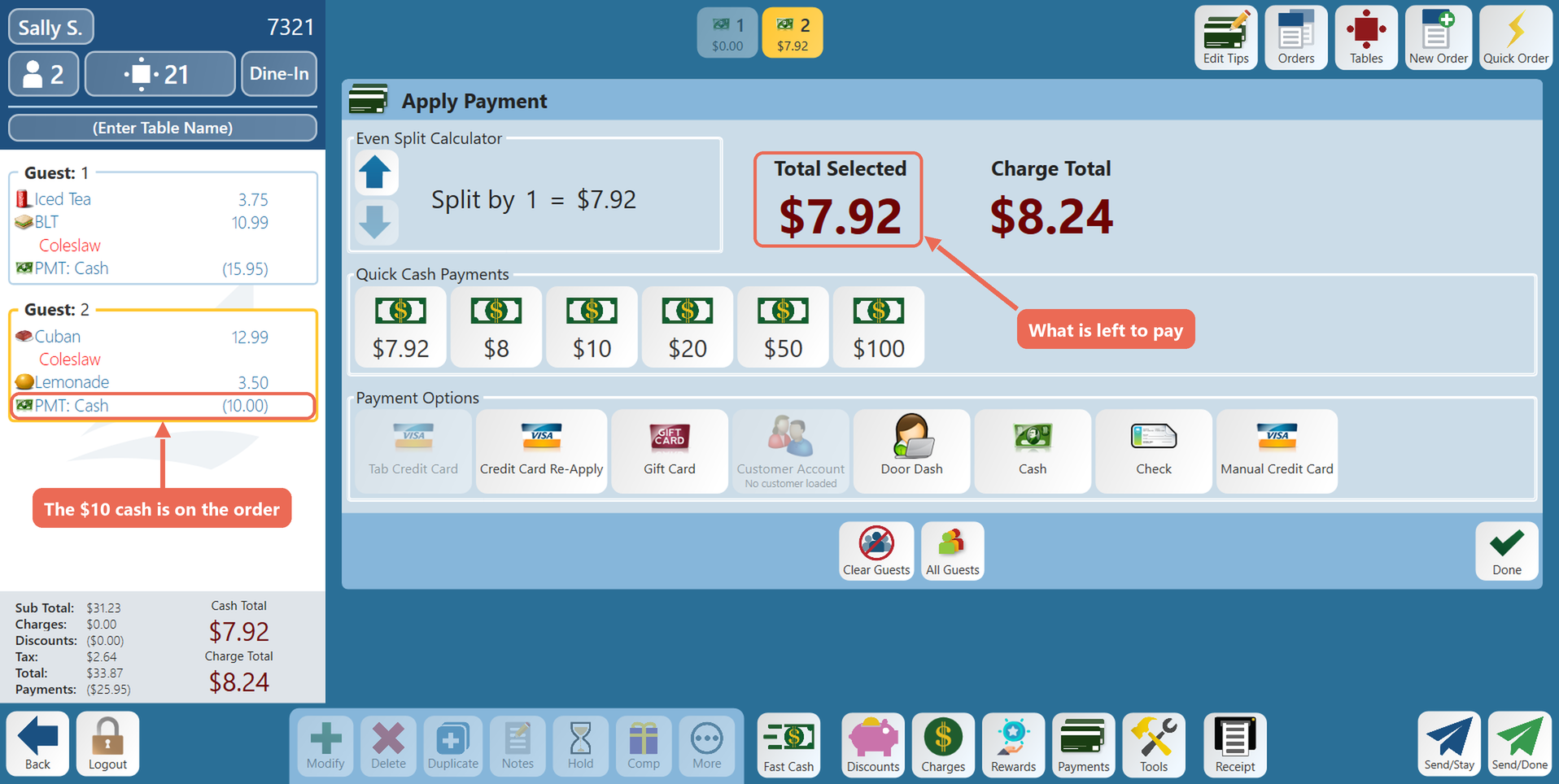
1. Take the first payment for part of the balance - for example, $10 in cash with Cash, or Custom Amount on a card or gift card.
2. The payment shows on the order and Total Selected shows what is left. Pay the rest with the next payment type.
When the order is paid
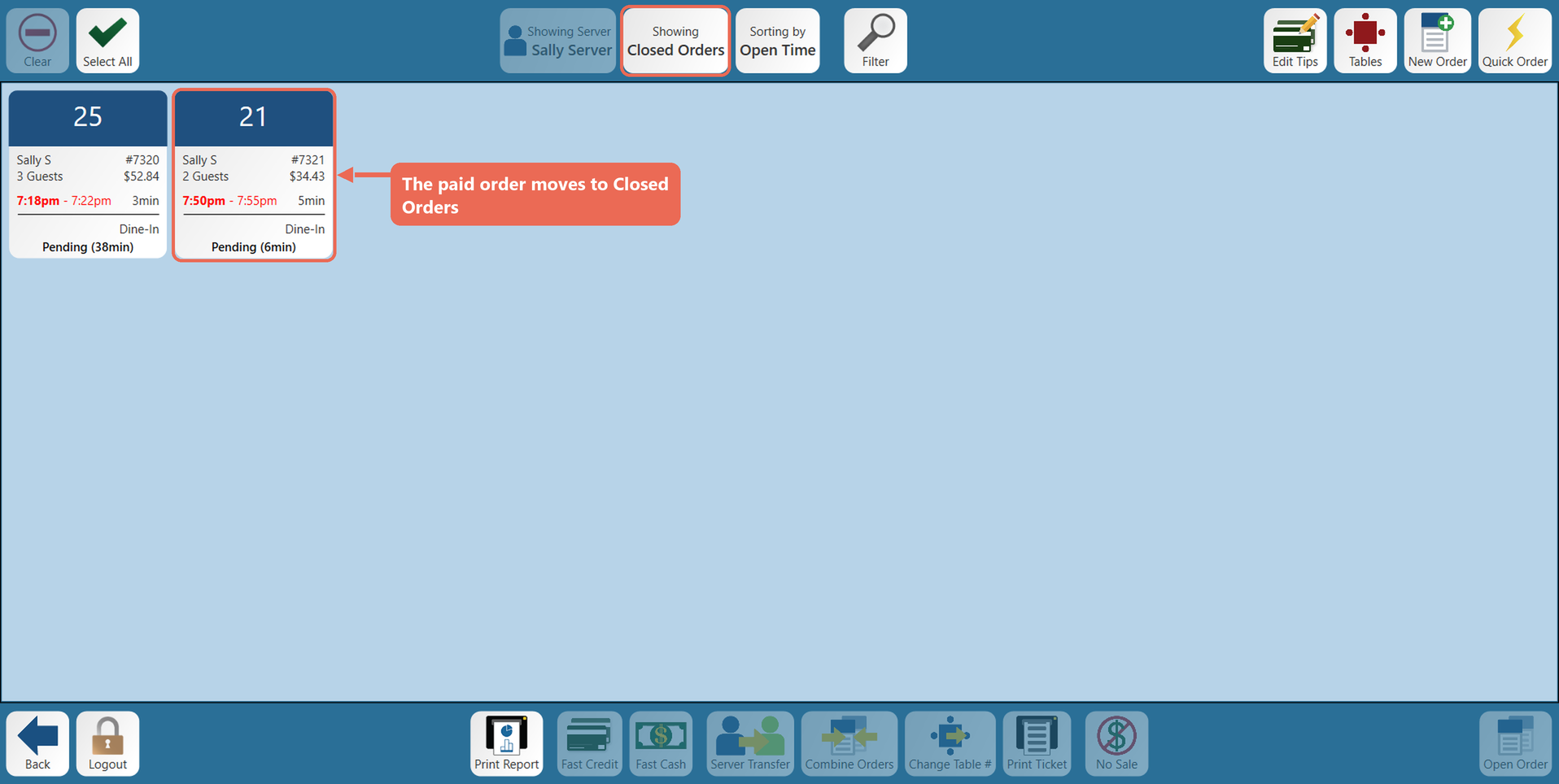
1. Once the whole balance is paid, the order closes by itself and moves to Closed Orders on the Orders screen.
Click here to learn more about printing a receipt or reopening a closed table/order.
No Comments