
How to use the Split Item actions on the terminal
This document will show you how to use the Split Item buttons on the order screen to split an item between guests, take splits away and put the item back together.
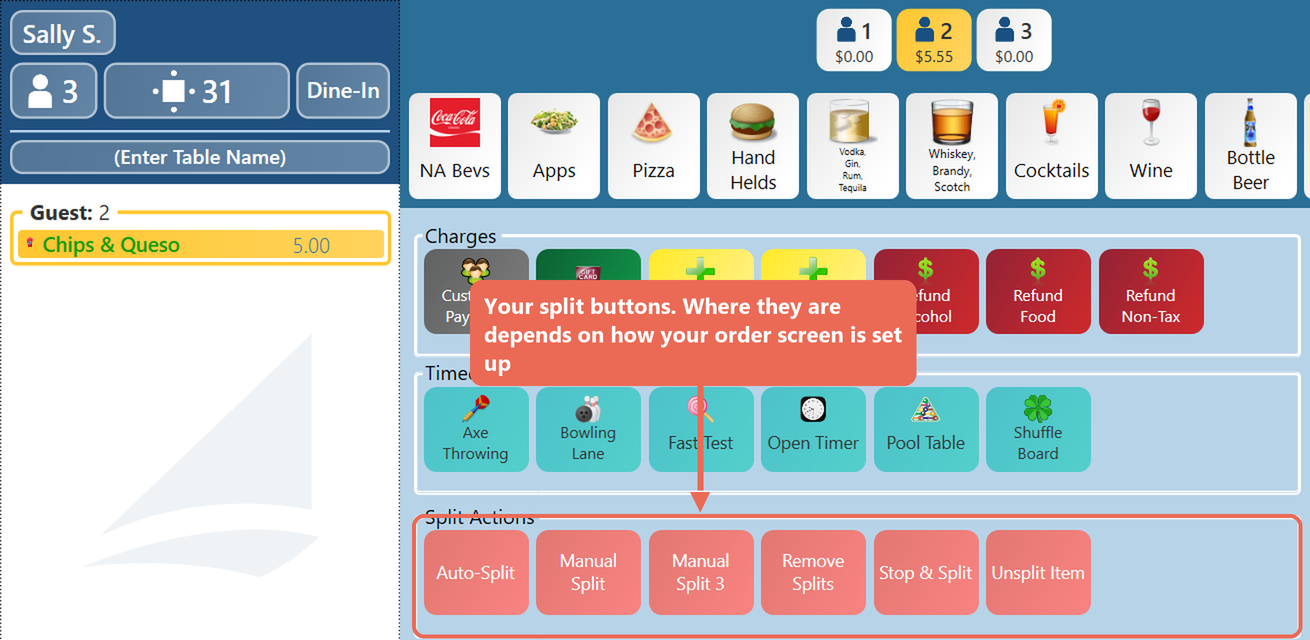
There are four split buttons: Auto-Split, Manual Split, Remove Splits and Unsplit Item. They are actions: each one does a single step. A manager can put an action straight on your order screen as a button of its own, or use it in a shortcut (a button made of one or more actions, so one tap does several steps at once). Where the buttons are depends on how your order screen is set up.
To learn how to use these actions in a shortcut, click here: How to create a Shortcut.
How to split an item between every guest (Auto-Split)
- Log into the table. The order needs at least 2 guests
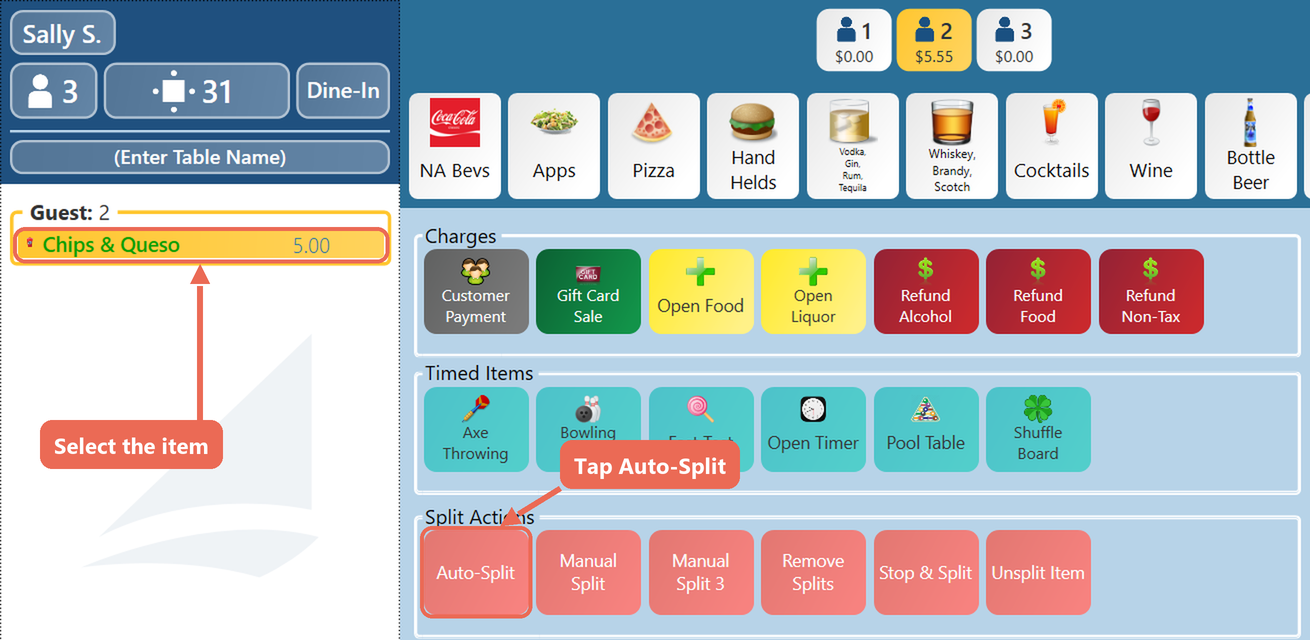
- Select the item you wish to split. If nothing is selected, the last item rung in is split
- Select the "Auto-Split" button
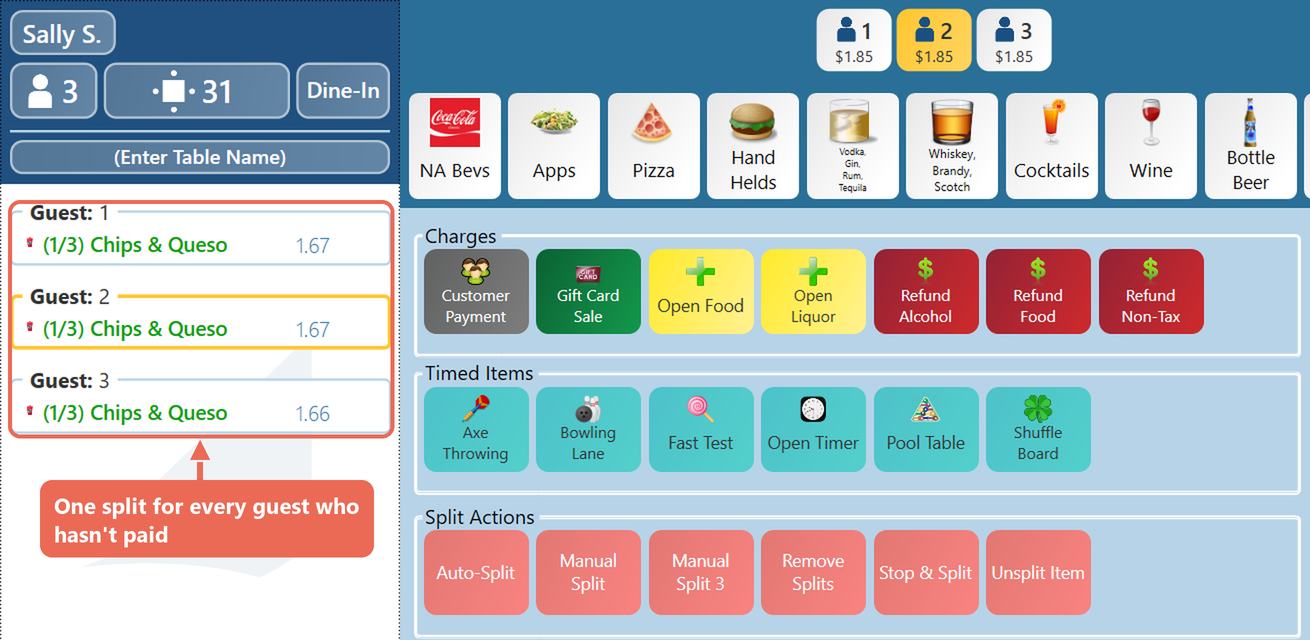
- The item is now split evenly between every guest who hasn't paid
How to split an item into a number of splits (Manual Split)
- Log into the table
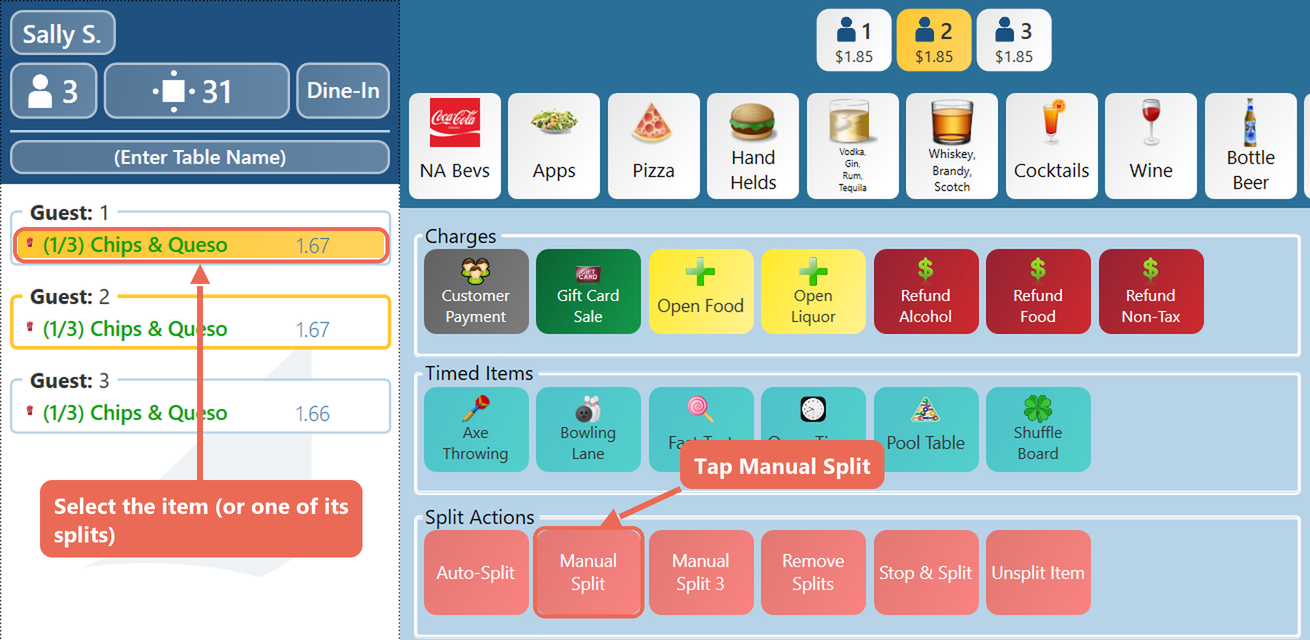
- Select the item you wish to split, or one of its splits
- Select the "Manual Split" button
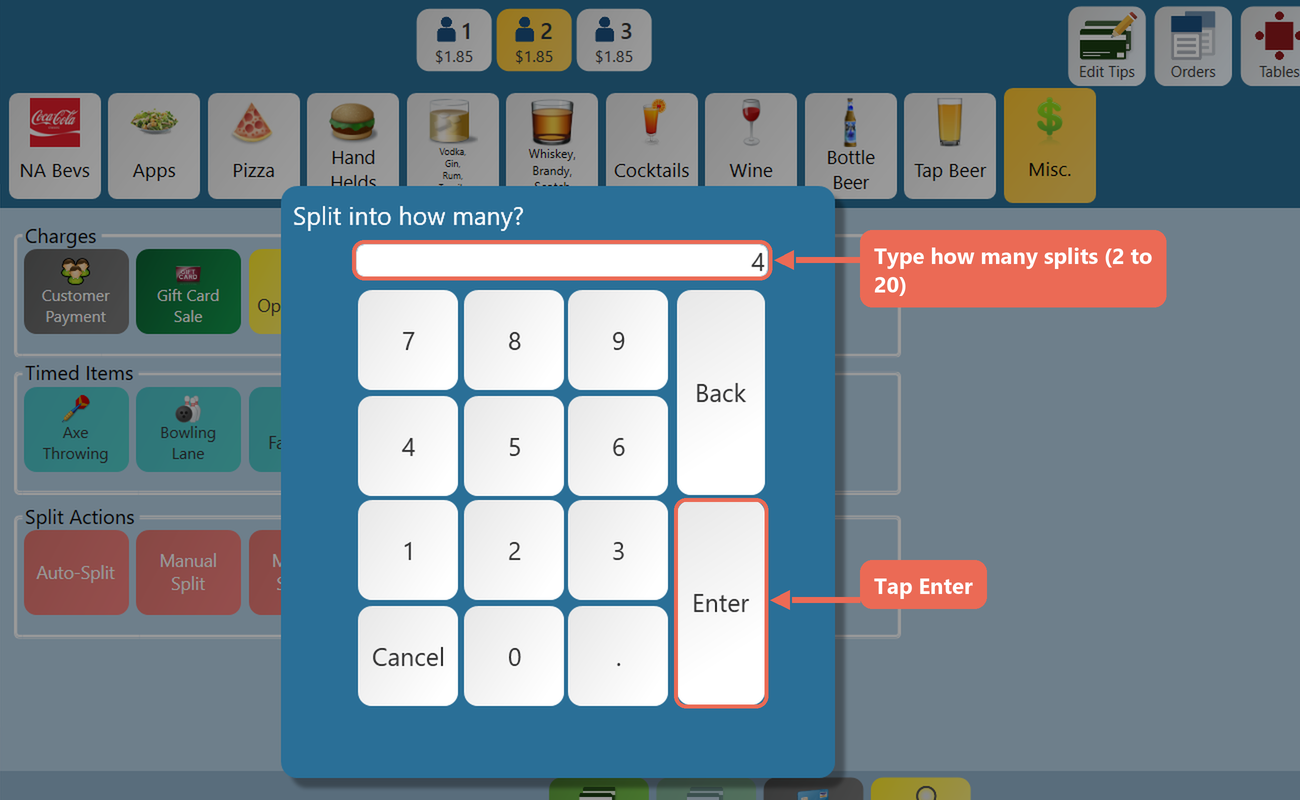
- If the button asks "Split into how many?", type the number of splits (2 to 20) and select "Enter". A button can also be set up to always make the same number of splits, and then it doesn't ask
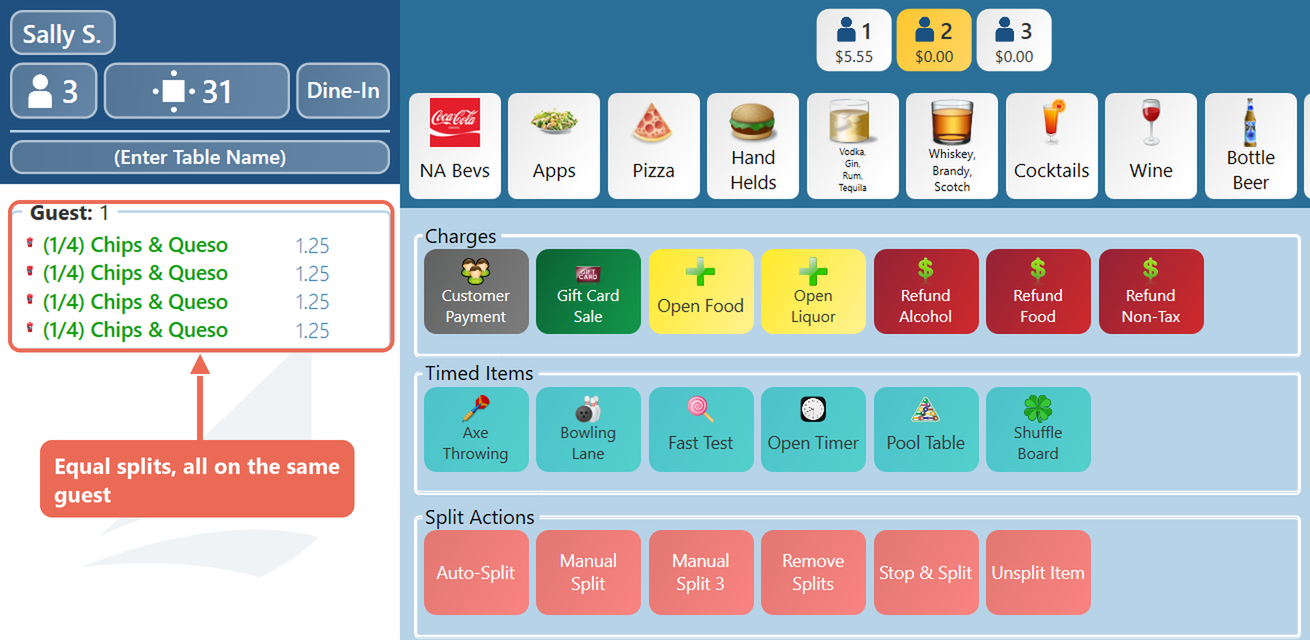
- The item is split into equal splits that all stay on the same guest
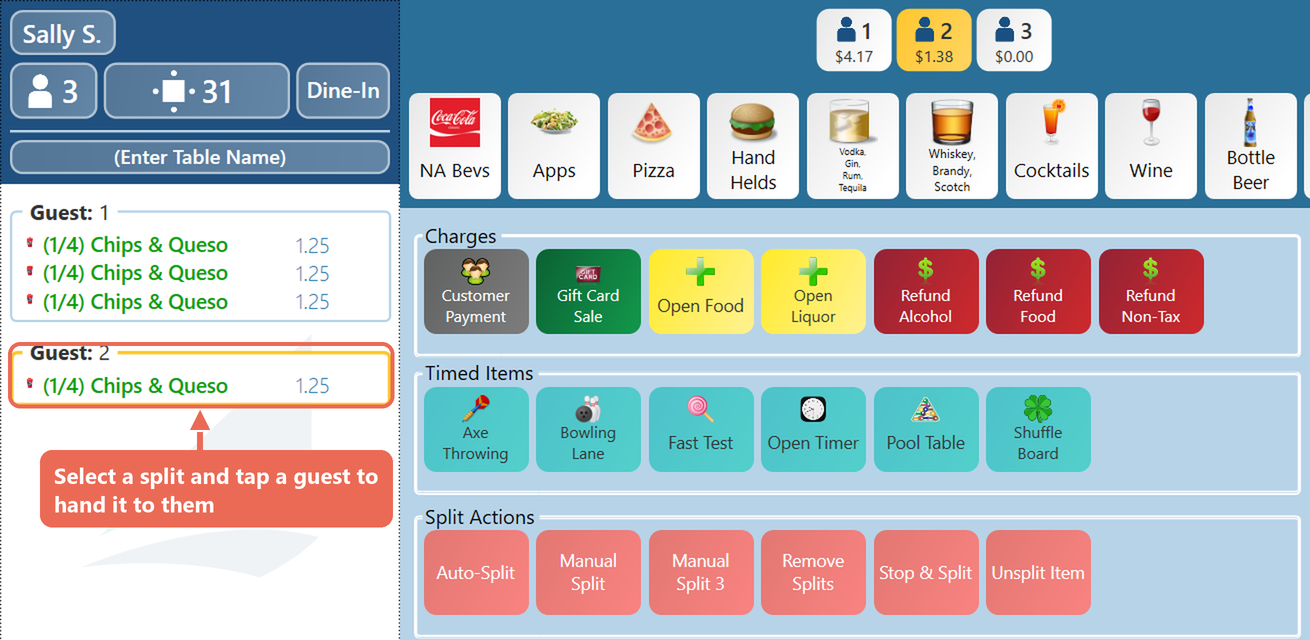
- To hand a split to another guest, select the split and then select the guest along the top
How to remove some of the splits (Remove Splits)
- Log into the table
- Select the splits you wish to remove
- Select the "Remove Splits" button
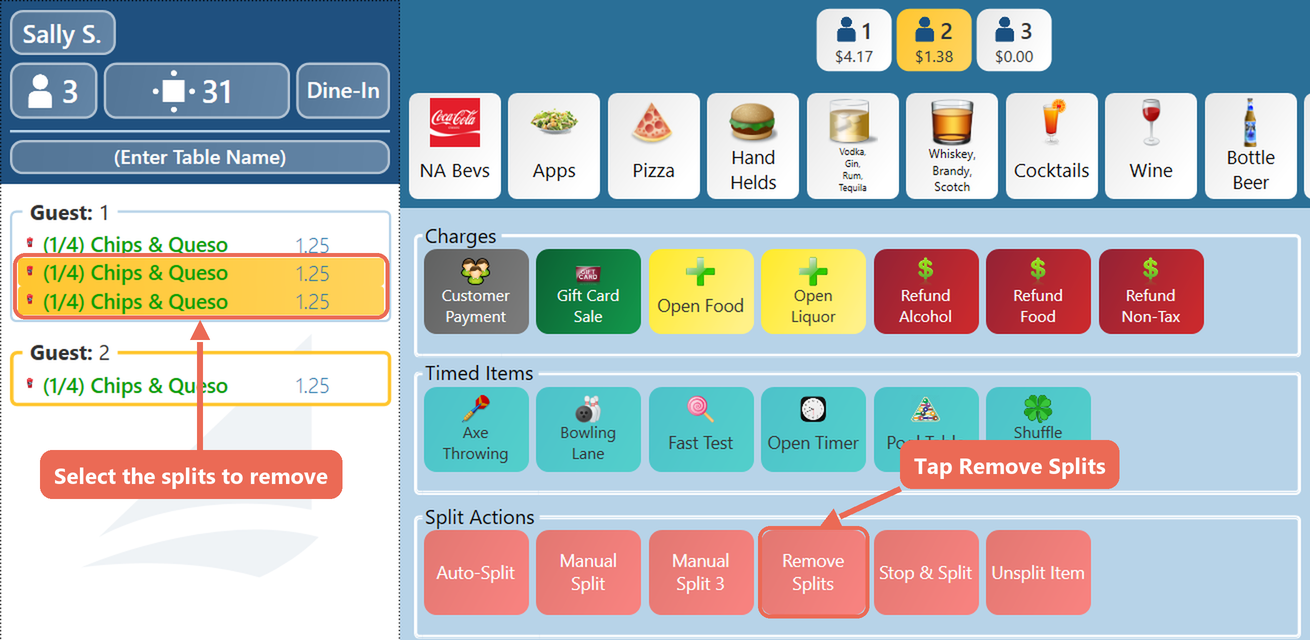
- The selected splits are gone, and the item's price is shared evenly by the splits that are left
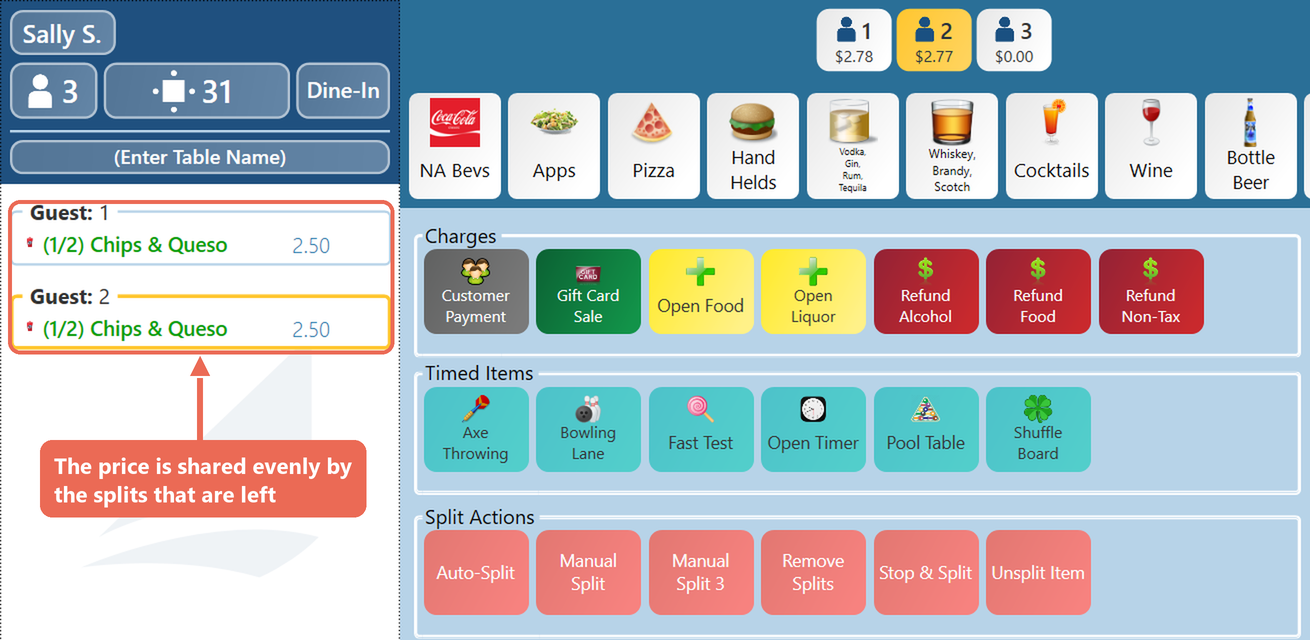
At least one split has to stay. To put the whole item back on one guest, use Unsplit Item.
How to put a split item back together (Unsplit Item)
- Log into the table
- Select one split of the item. If nothing is selected, the last item rung in is used
- Select the "Unsplit Item" button
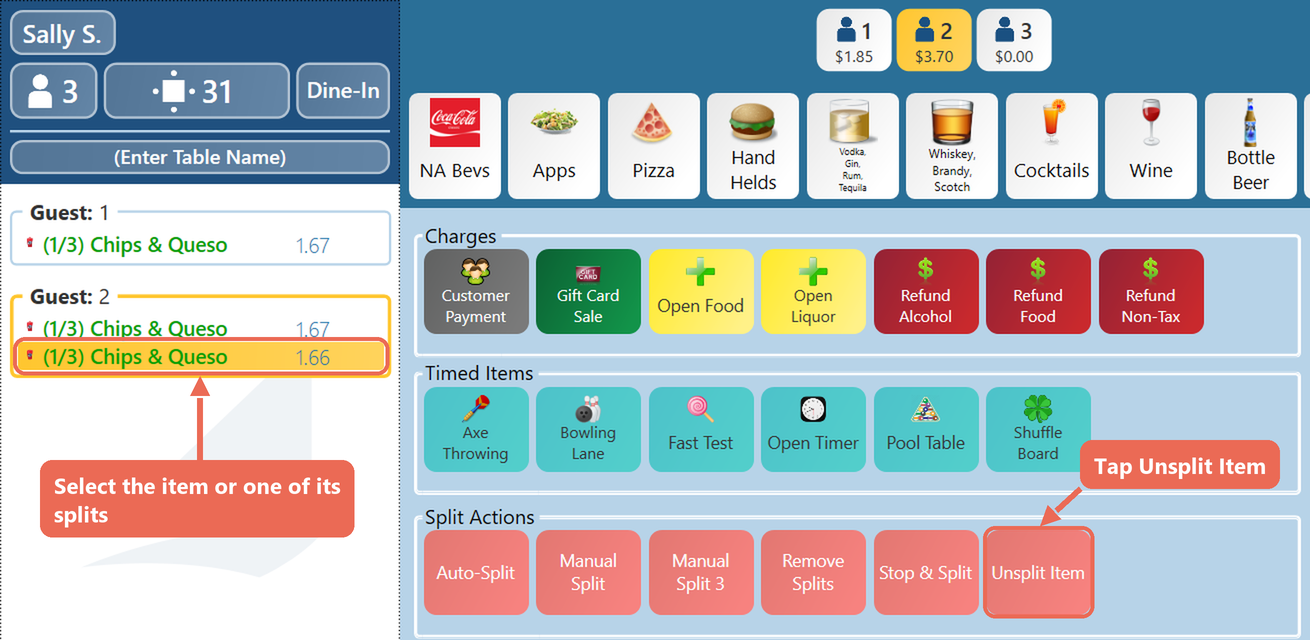
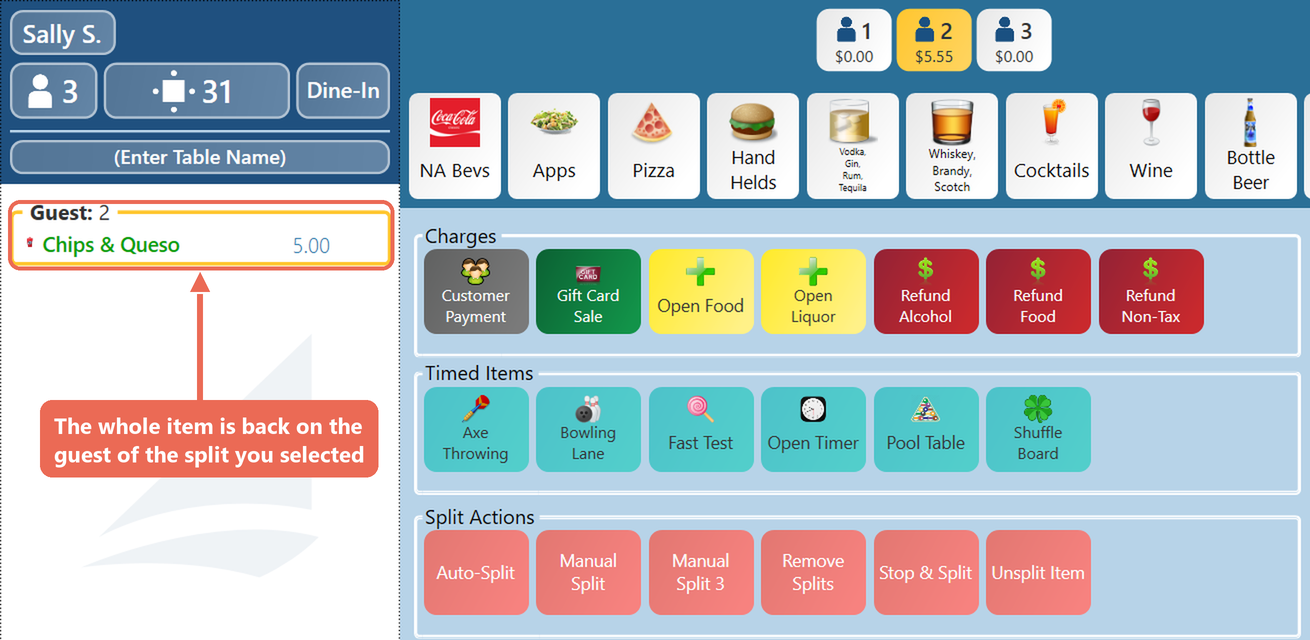
- The whole item is back on one guest: the guest of the split you selected, or the item's first guest if no split was selected
Good to know
- Once a guest has paid for their part of an item, its splits can't change
- You can also split an item from the "More" screen. Click here to learn more about How to Split & Un-split an item on the terminal
No Comments