
How to assign a drawer
This document will walk you through assigning a cash drawer to a person on the terminal, so only they can use it: assigning a drawer to yourself or to someone else, sharing one drawer, giving each person their own drawer on a terminal with two drawers, picking a drawer when you clock in, and unassigning a drawer.
To open a drawer without a sale, click here to learn more about opening the till.
What assigning a drawer does
A drawer assigned to someone opens only for them. When they take a cash payment, the terminal opens their drawer. Everyone else can't open it, except a manager who opens it with No Sale (see Permissions you need below).
The drawer list on the terminal shows who each drawer is assigned to.
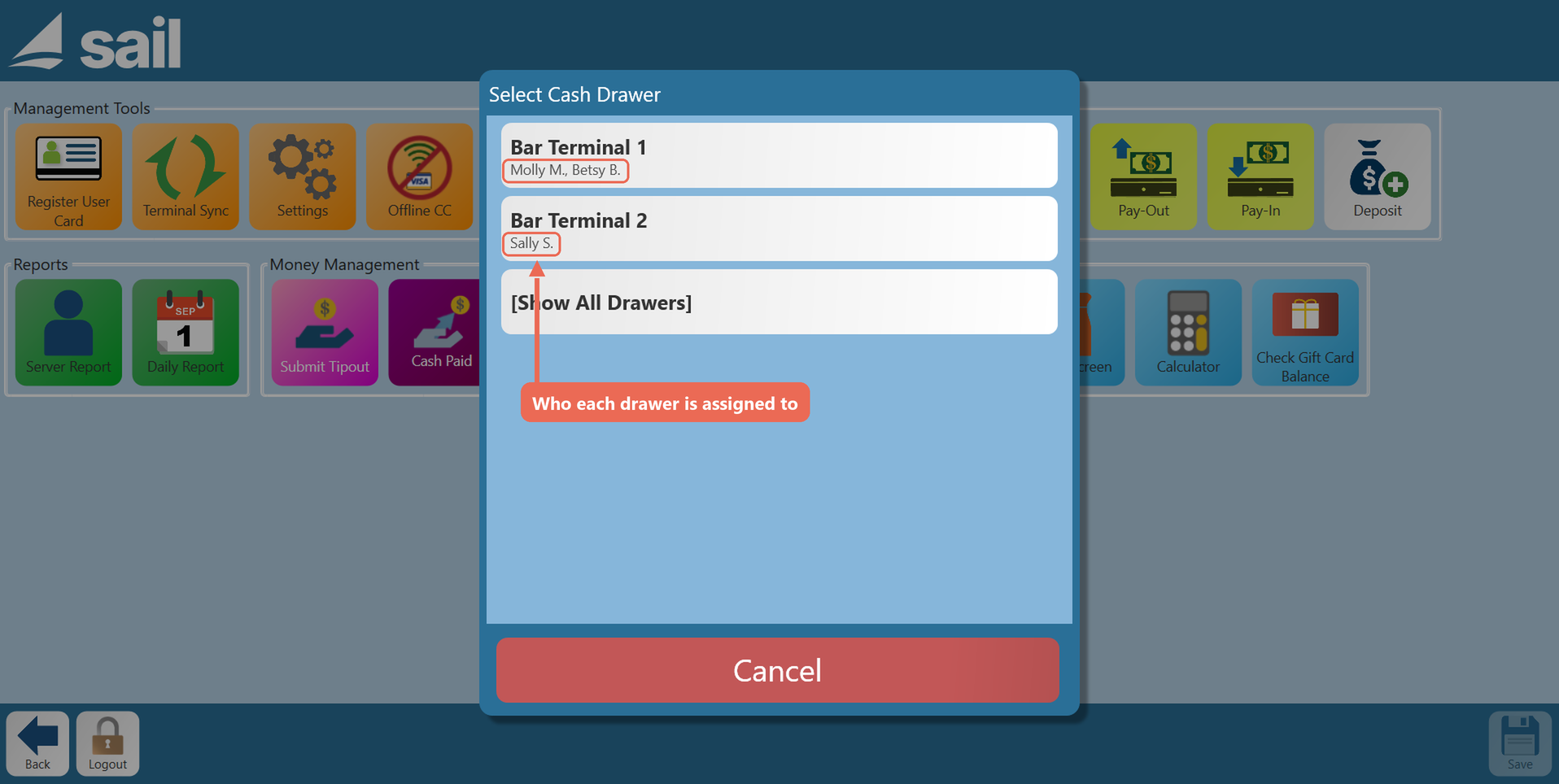
A person comes off their drawer by themselves when they are closed out with Server Close. Click here to learn more about closing a server.
Before you start
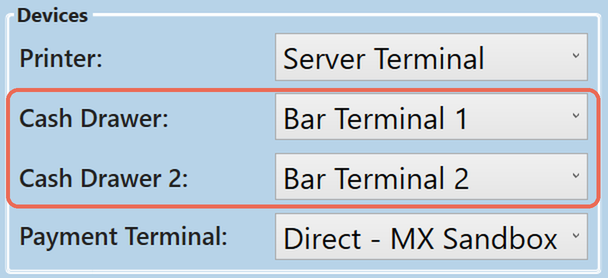
The terminal's drawers: the terminal needs its drawer set up under Functions --> Settings. Cash Drawer is the terminal's drawer, and Cash Drawer 2 is the second drawer, for a terminal with two. Click here to learn more about Terminal Settings.
The drawer's settings: in Backoffice, go to POS --> System Setup --> Devices --> Cash Drawers and click the drawer's name.
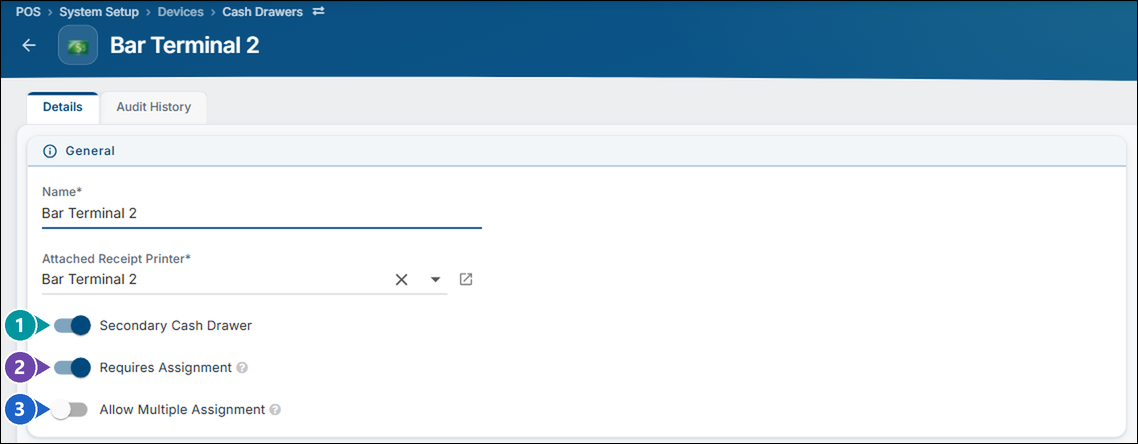
- 1. Secondary Cash Drawer - Turn this on for the second drawer plugged into the same receipt printer.
- 2. Requires Assignment - The drawer won't open until it is assigned to someone; the terminal says the drawer is not currently assigned. When it's off, a drawer nobody is assigned to opens for anyone with the Open Cash Drawer permission.
- 3. Allow Multiple Assignment - More than one person can be assigned to the drawer at the same time.
Click Save after changing a setting.
Permissions you need: in Backoffice, go to Staff --> Job Roles, click the job role and look under Tasks. Typing Drawer in the search box shows them all.
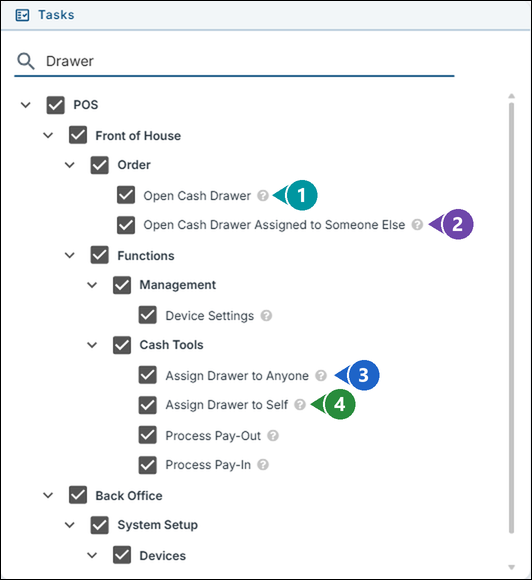
- 1. Open Cash Drawer - Opens a drawer nobody is assigned to, or one assigned to you.
- 2. Open Cash Drawer Assigned to Someone Else - Opens anyone's drawer with No Sale.
- 3. Assign Drawer to Anyone - Assigns a drawer to any employee, and unassigns them. For managers.
- 4. Assign Drawer to Self - Assigns a drawer to yourself, and unassigns it.
Click here to learn more about editing a job role.
Assign a drawer to yourself
1. Tap Functions, then tap Assign Drawer under Cash Tools.
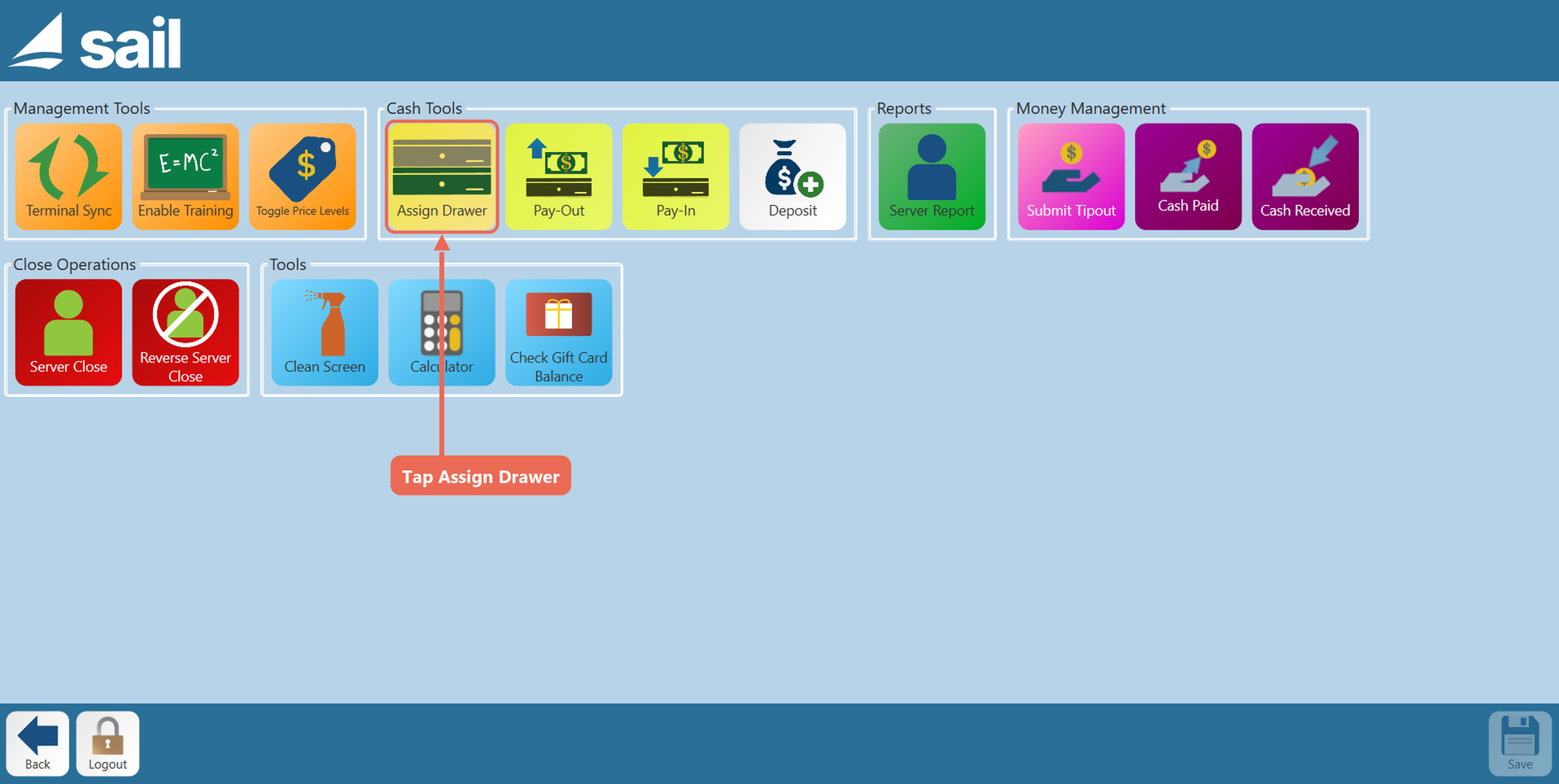
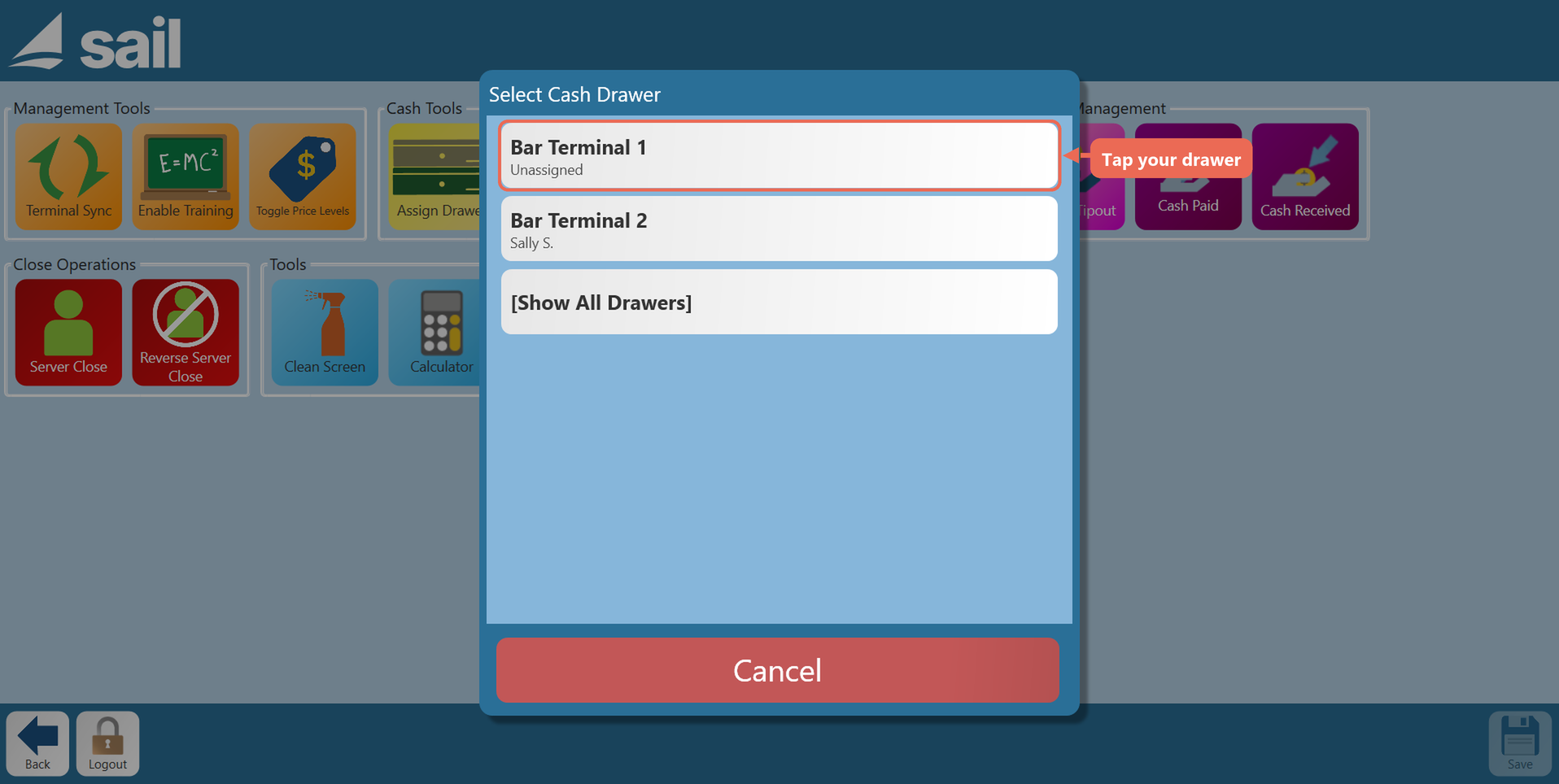
2. Tap your drawer. The list shows this terminal's drawers; Show All Drawers lists every drawer in your location.
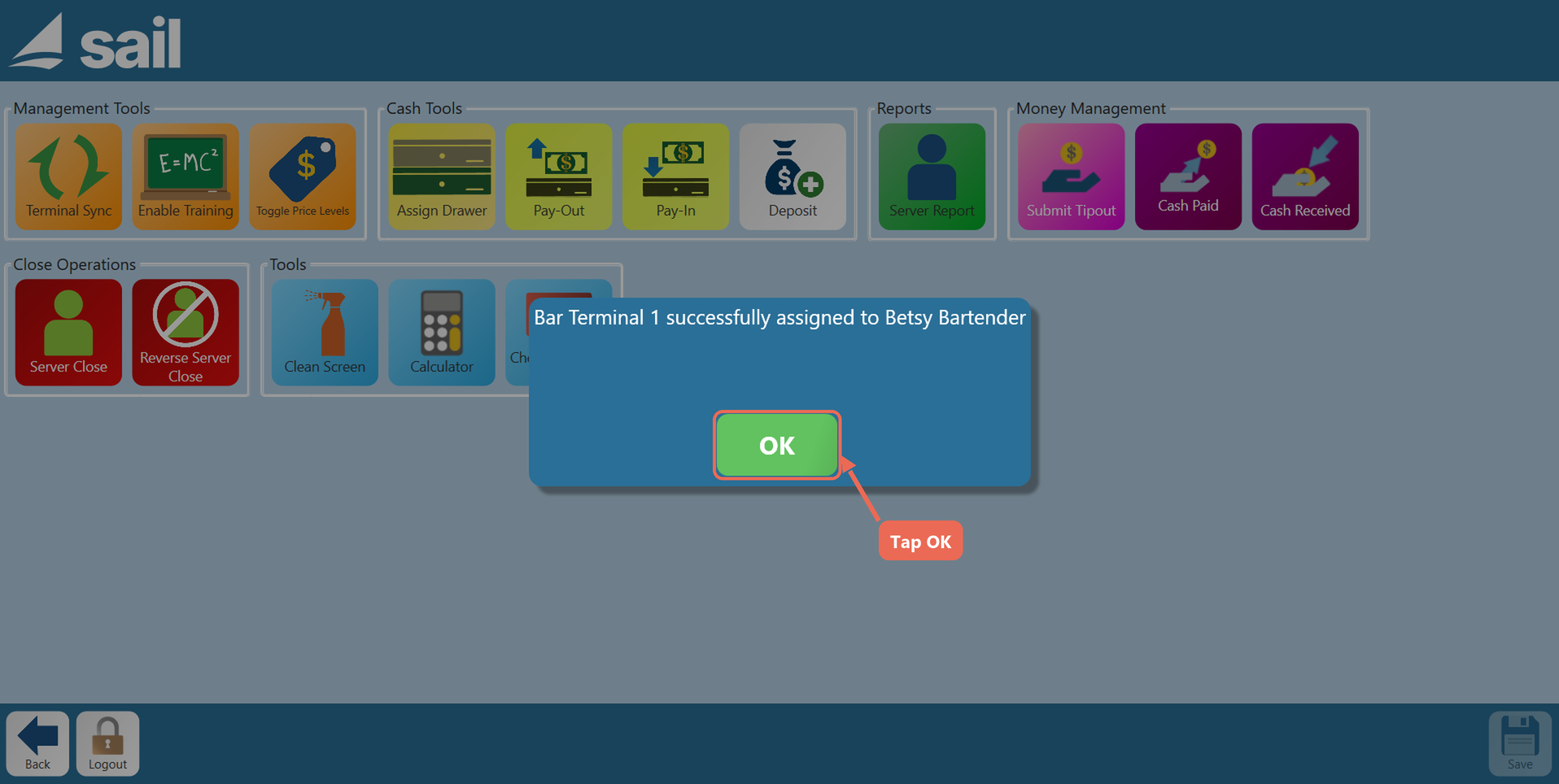
3. The terminal shows the drawer is assigned to you. Tap OK.
Note: You can't take a drawer that is assigned to someone else. The terminal says "You are unable to unassign a drawer from someone else" - ask a manager to unassign it.
Assign a drawer to someone else
1. Tap Functions, then tap Assign Drawer under Cash Tools.
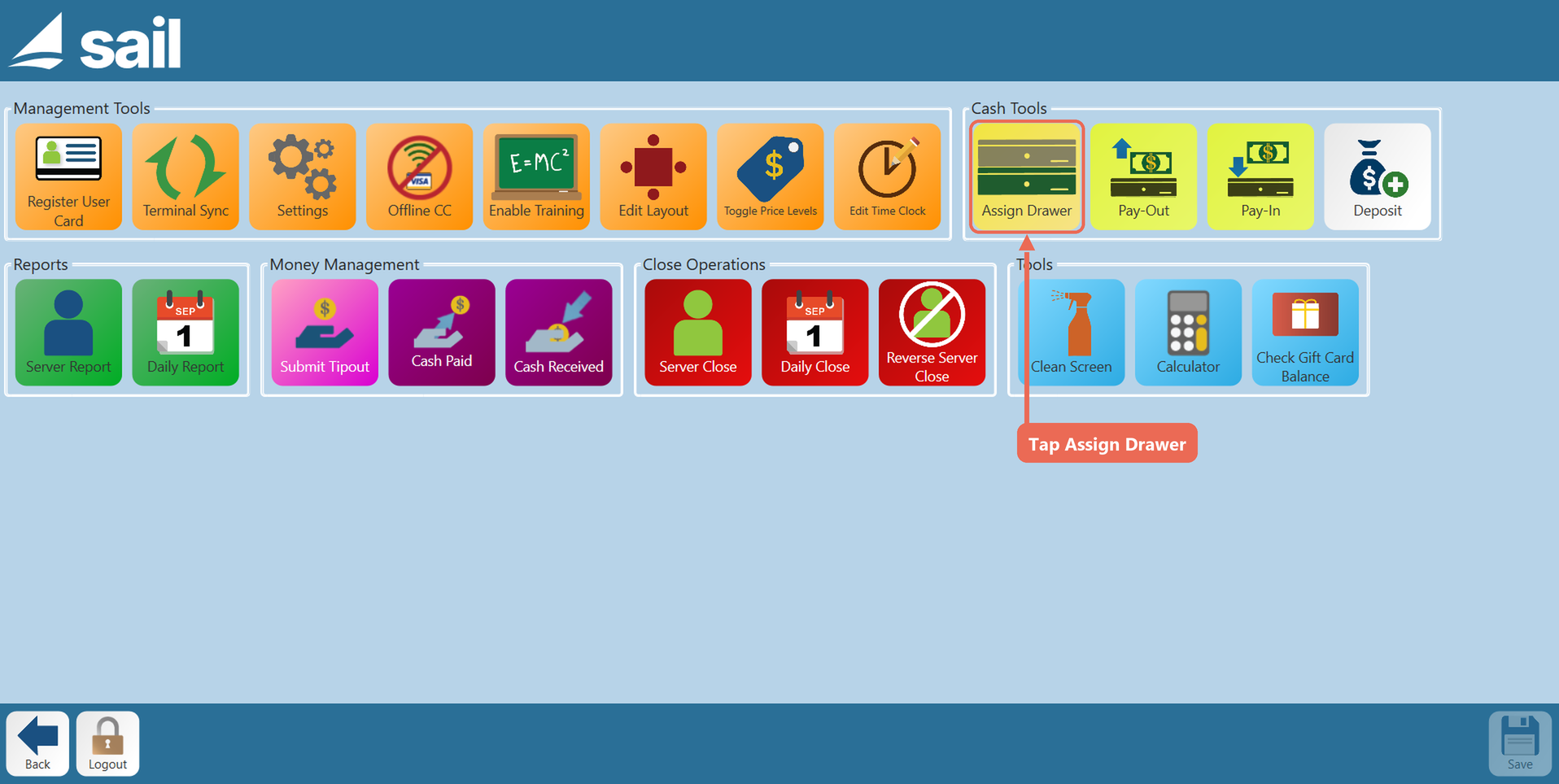
2. Tap the drawer.
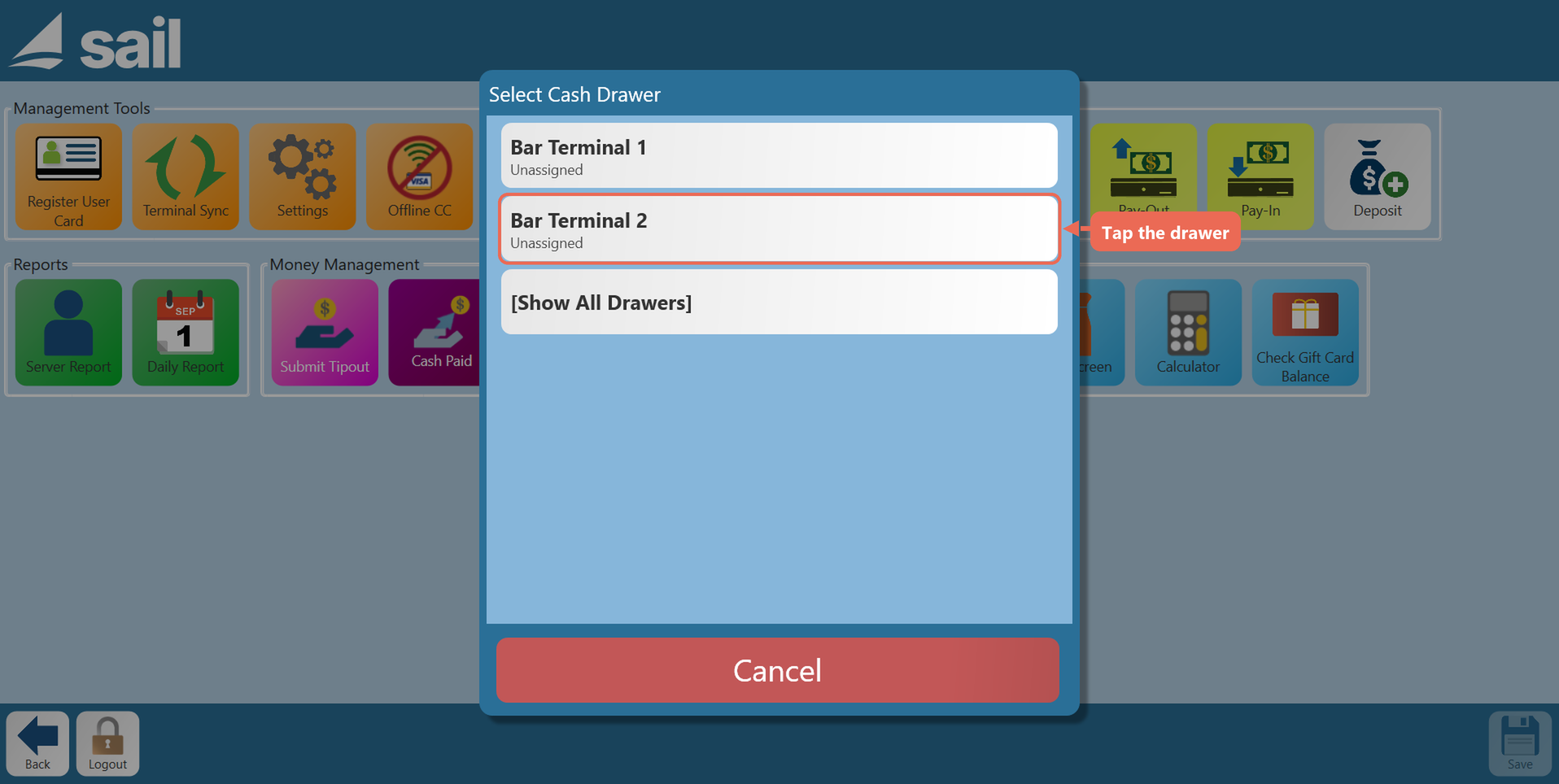
3. Tap the person who gets the drawer. The list shows the employees who are clocked in; tap List All Servers to see everyone.
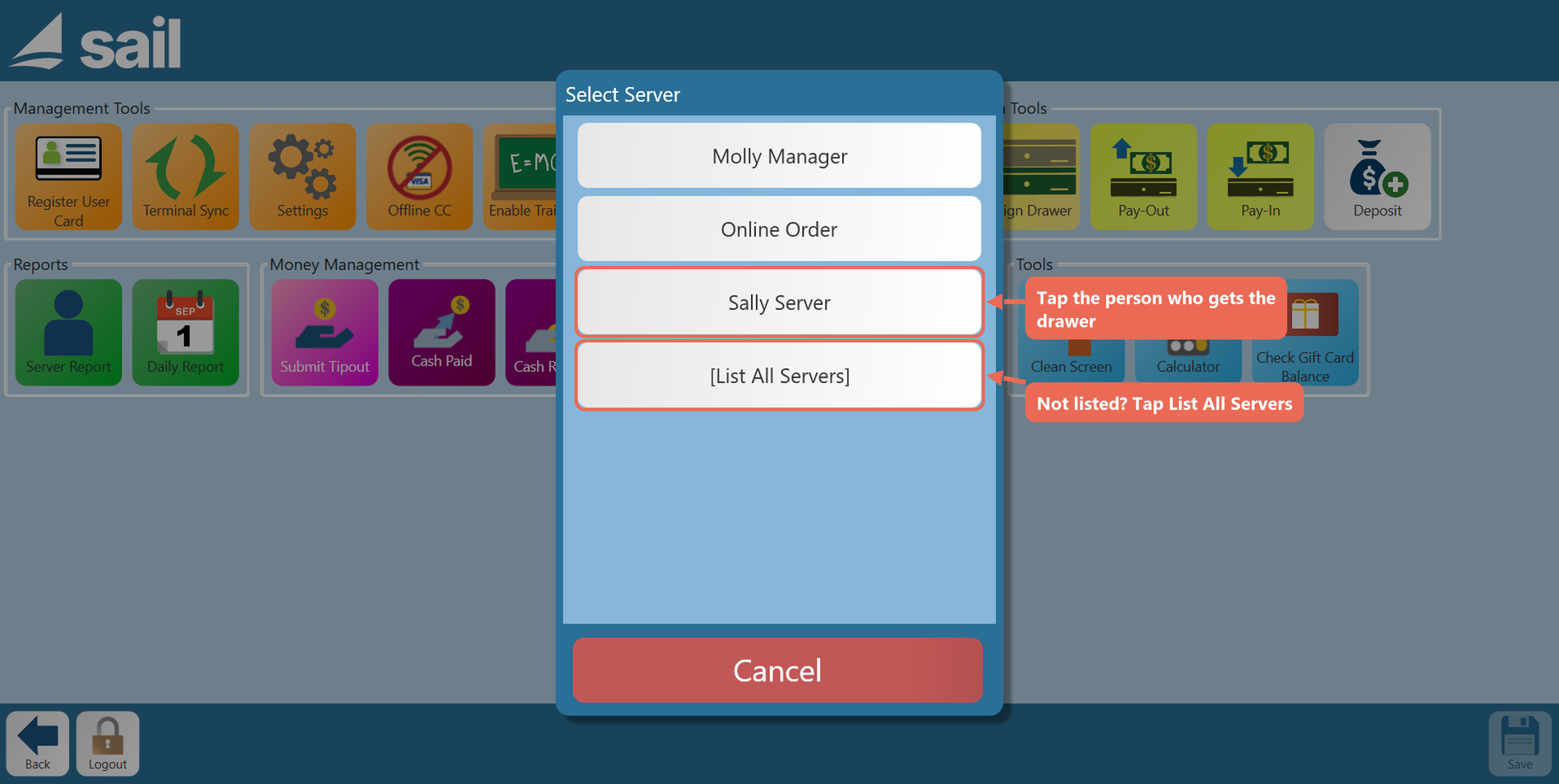
4. The terminal shows who the drawer is assigned to. Tap OK.
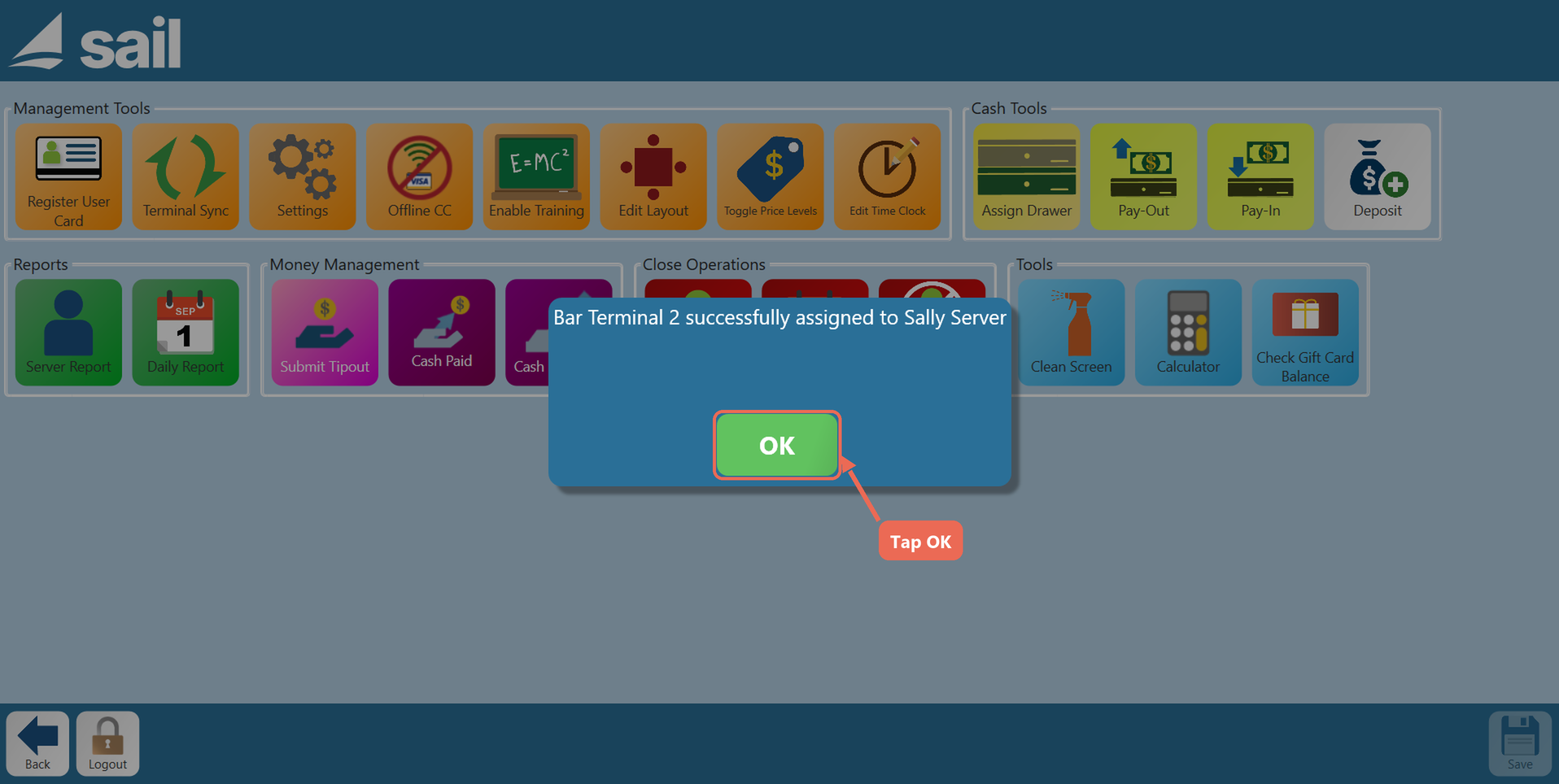
Note: Tapping a drawer that is already assigned to one person unassigns it. To give it to someone else, tap Assign Drawer again and assign it.
Share one drawer between several people
A drawer with Allow Multiple Assignment turned on in Backoffice (see Before you start) can be assigned to more than one person - for example, two bartenders working from the same drawer.
1. Tap Functions, then tap Assign Drawer under Cash Tools.
3. Tap each person who shares the drawer. The people who are already on it are yellow; tap a yellow name to take that person off.
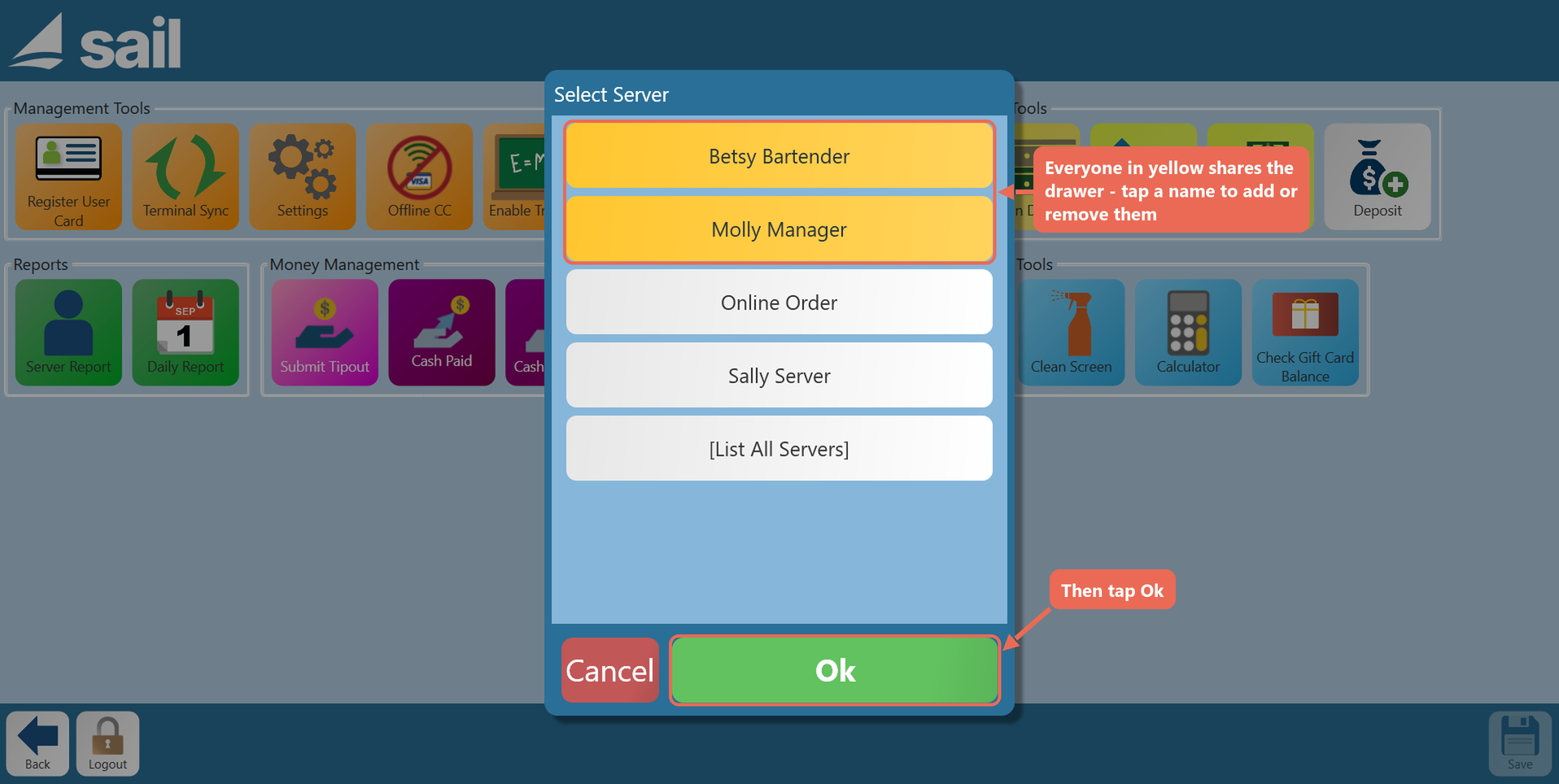
4. Tap Ok, then OK on the message.
Pro tip: Someone who can only assign a drawer to themselves can join a shared drawer the same way as in Assign a drawer to yourself. They are added to the drawer, and the others stay on it.
Two drawers on one terminal
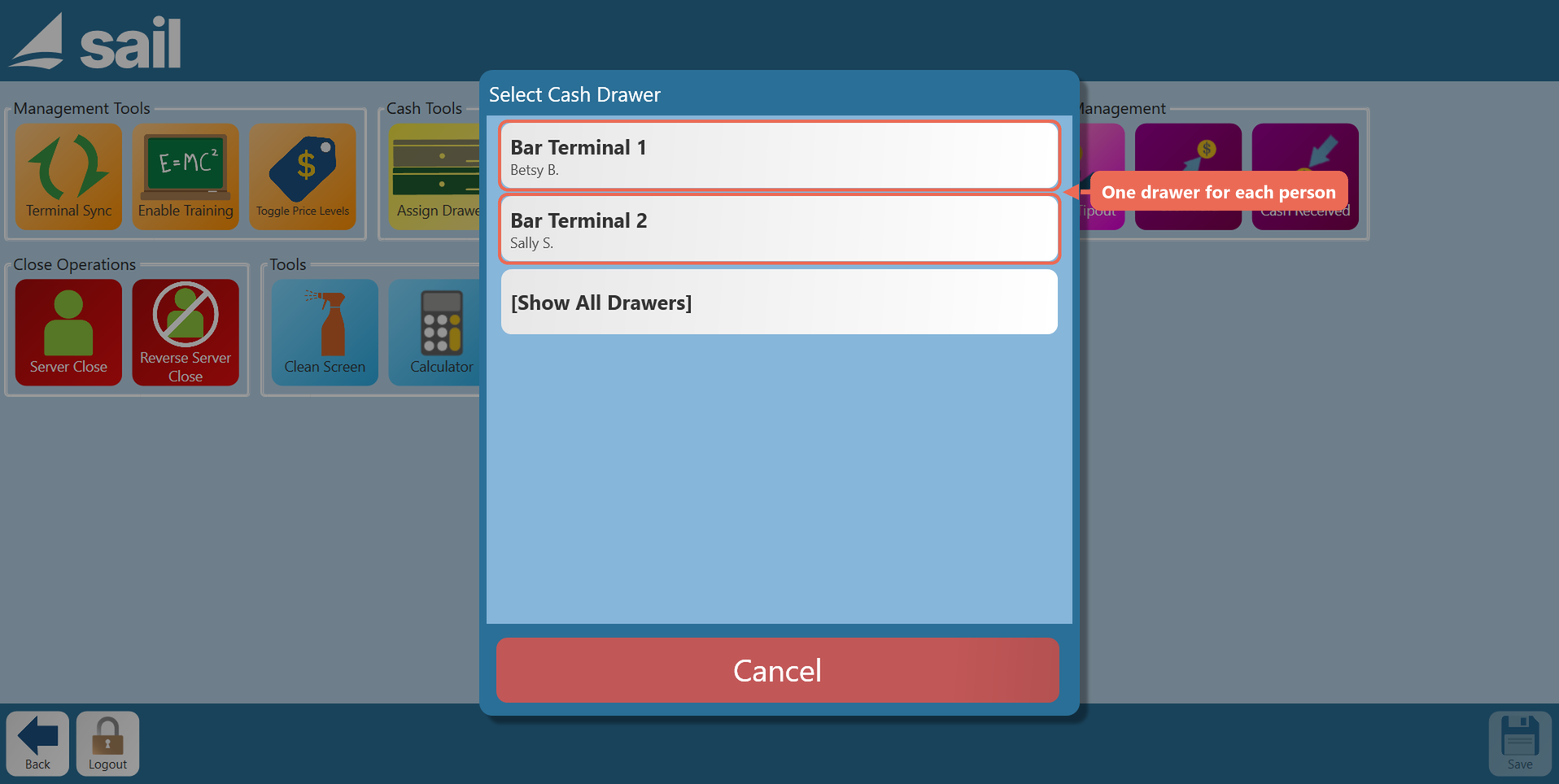
When a terminal has two drawers (Cash Drawer and Cash Drawer 2 in its Settings), each person can have their own drawer. The terminal then opens each person's own drawer when they take cash, and someone assigned to one drawer can't open the other.
1. Assign the first drawer to the first person, as in Assign a drawer to someone else (or they assign it to themselves).
2. Assign the second drawer to the second person the same way.
3. The drawer list shows one person on each drawer.
Pick your drawer when you clock in
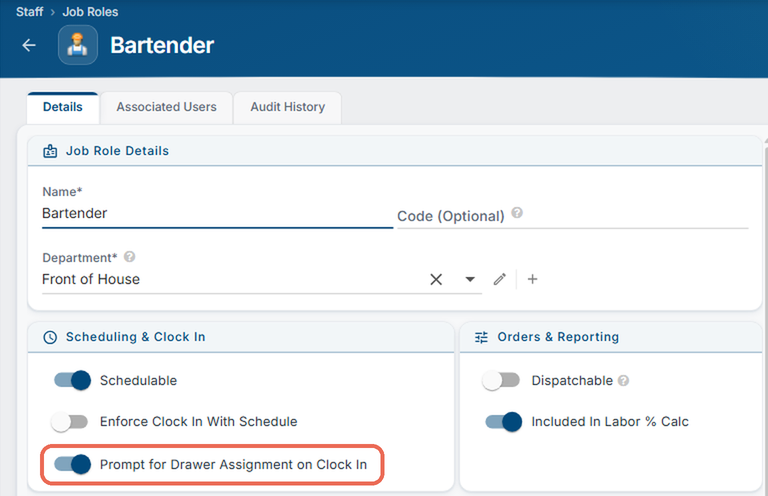
A job role can ask its employees for their drawer each time they clock in.
1. In Backoffice, go to Staff --> Job Roles and click the job role.
2. Turn on Prompt for Drawer Assignment on Clock In under Scheduling & Clock In, and click Save.
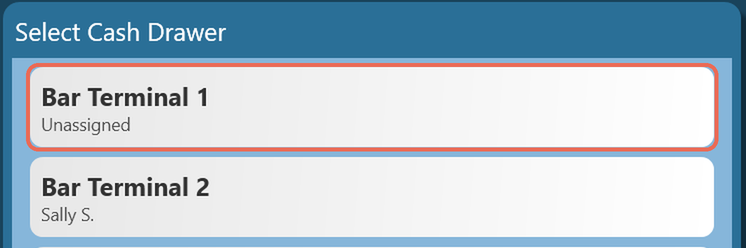
3. On the terminal, right after clocking in, the employee sees the list of drawers in the location. They tap their drawer, then OK on the message. Click here to learn more about clocking in and out.
Note: With this setting on, the employee also comes off their drawer when they clock out. The list appears only for job roles with the Assign Drawer to Self or Assign Drawer to Anyone permission.
Unassign a drawer
1. Tap Functions, then tap Assign Drawer under Cash Tools.
2. Tap the drawer:
- Your own drawer: you come off it.
- A drawer assigned to one person (managers): it is unassigned.
- A shared drawer (managers): tap the yellow names to take those people off, then tap Ok.
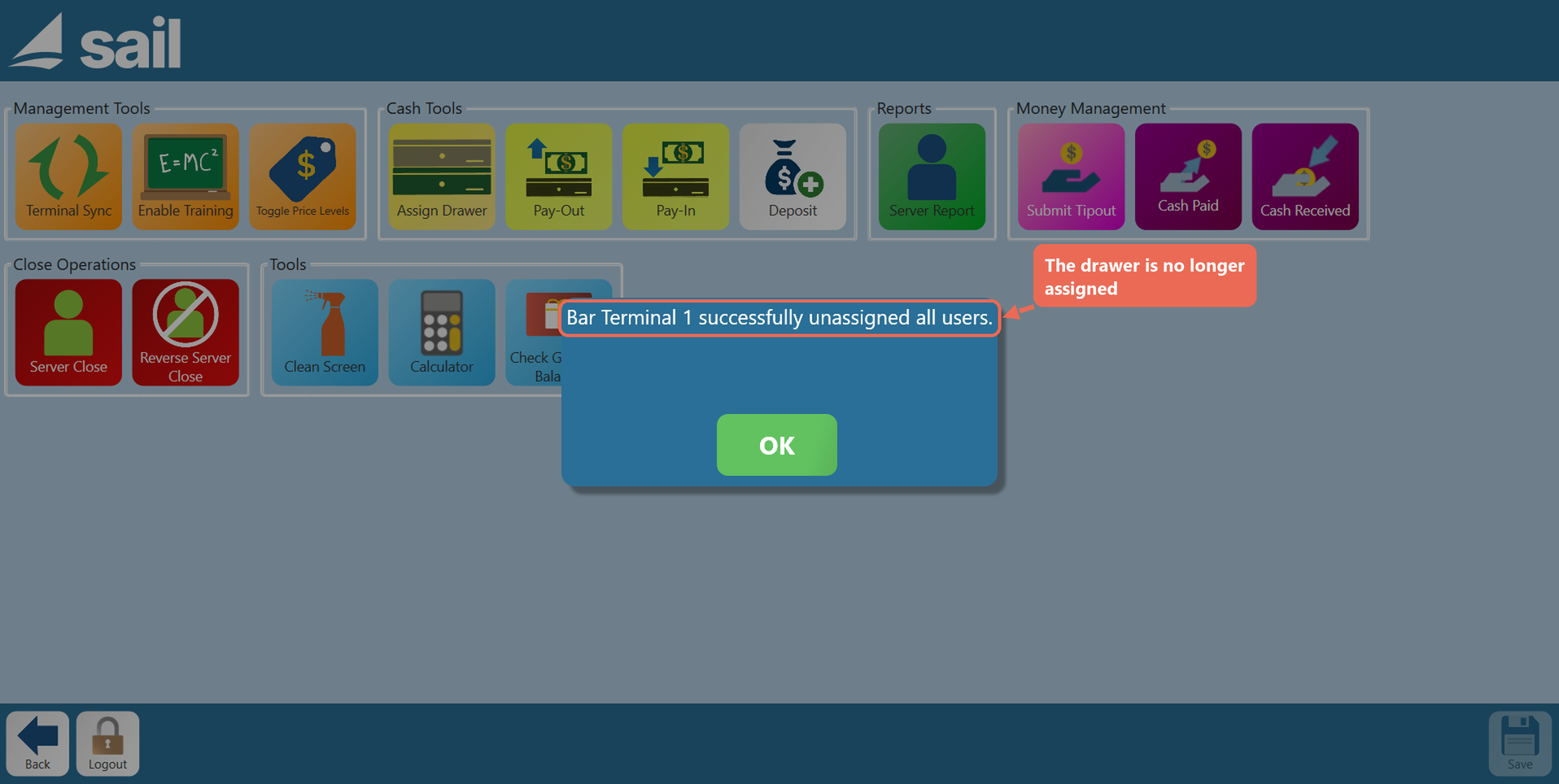
3. The terminal shows the drawer is no longer assigned. Tap OK.
No Comments