
How to filter orders
This document will show you how to filter the Orders screen, so you only see the orders you are looking for. There are three ways to narrow it down, and you can use them together:
- Filter - find one order by its table, name, order number, server, amount and more.
- Showing - choose open, closed or scheduled orders.
- Showing Server - choose whose orders you see.
If you want more information on all the functions of the Orders screen, see the Orders Screen article.
Find an order with Filter
-
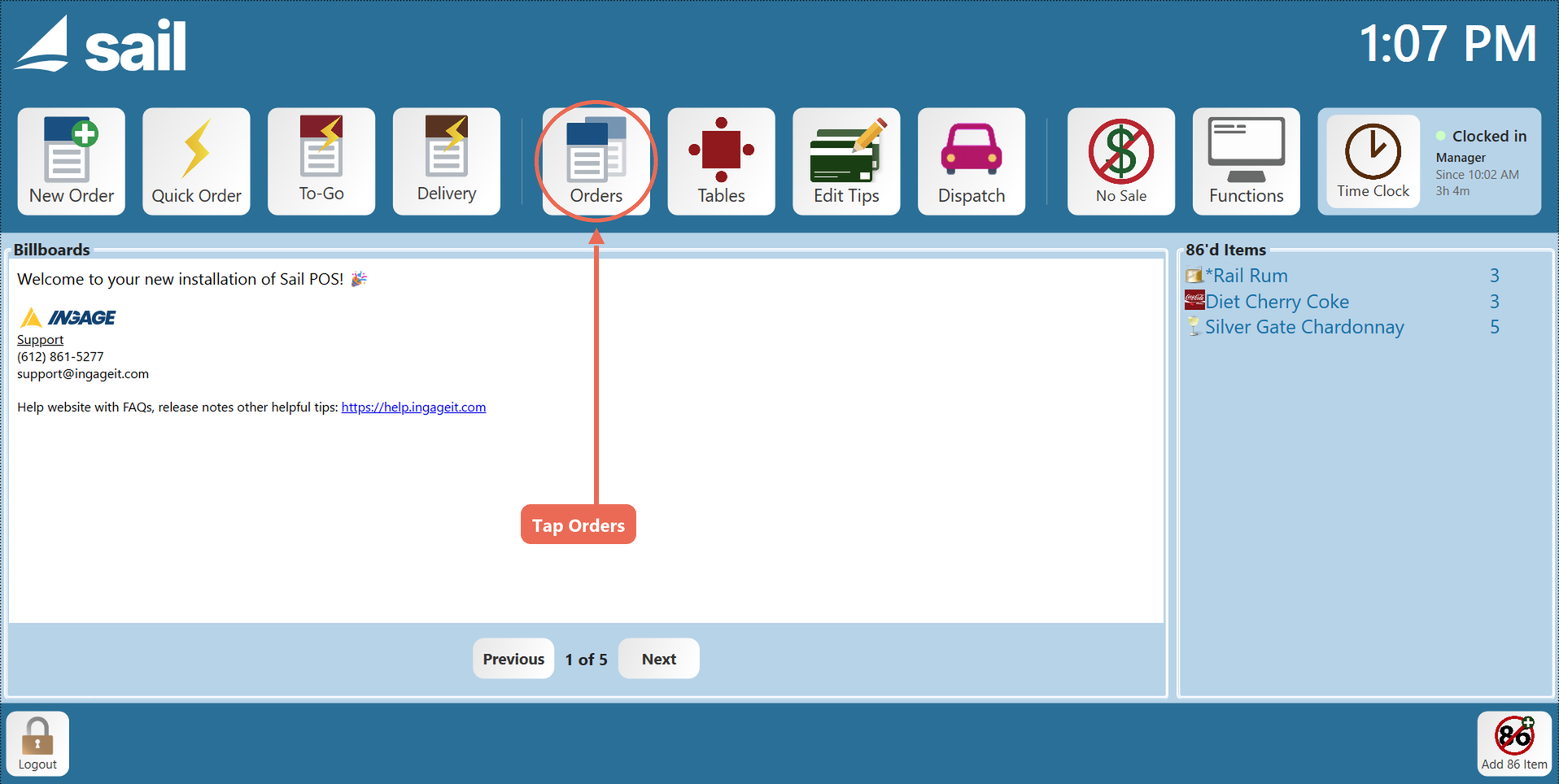
On the home screen, tap Orders.
-
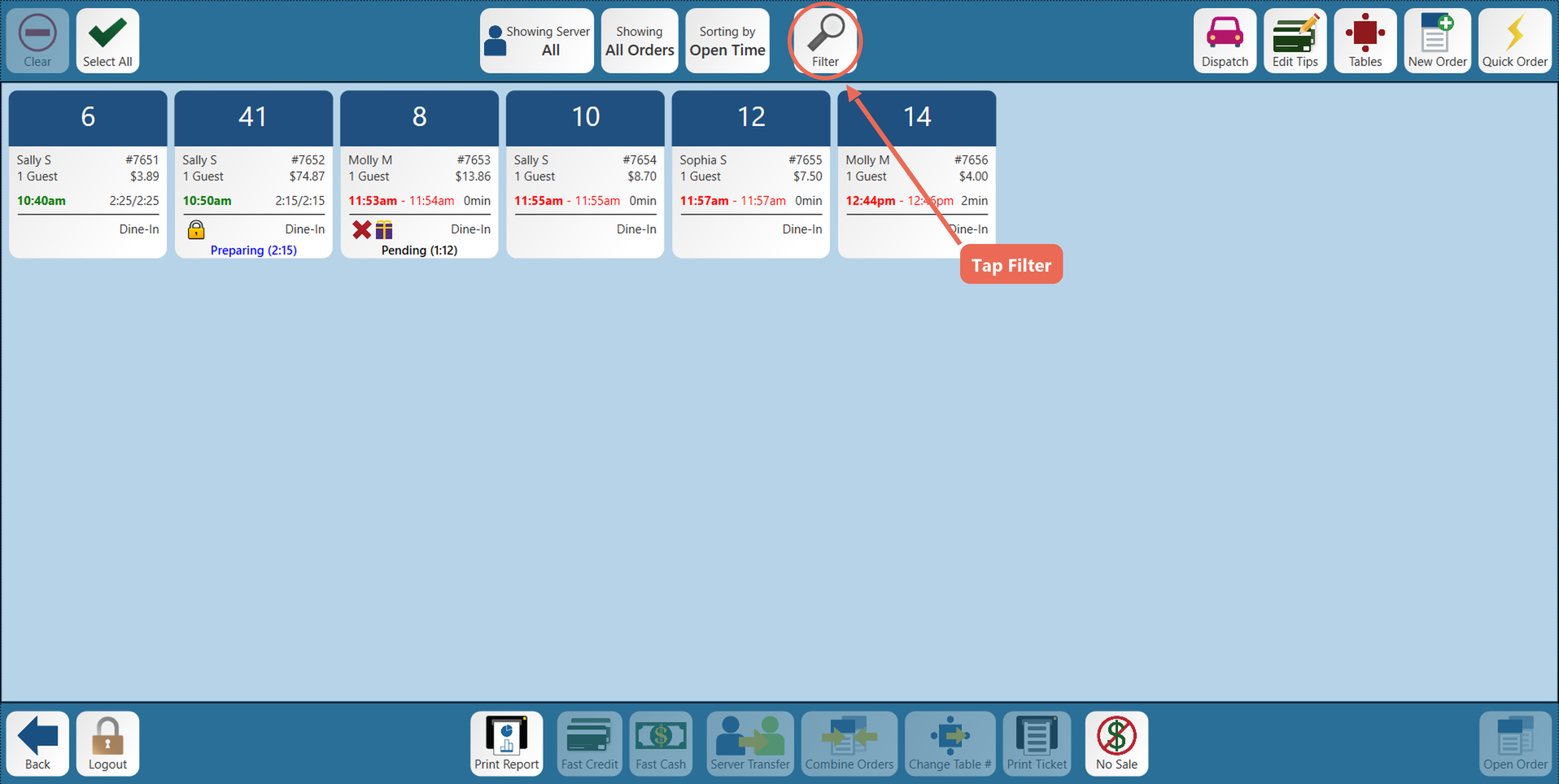
On the Orders screen, tap Filter.
-
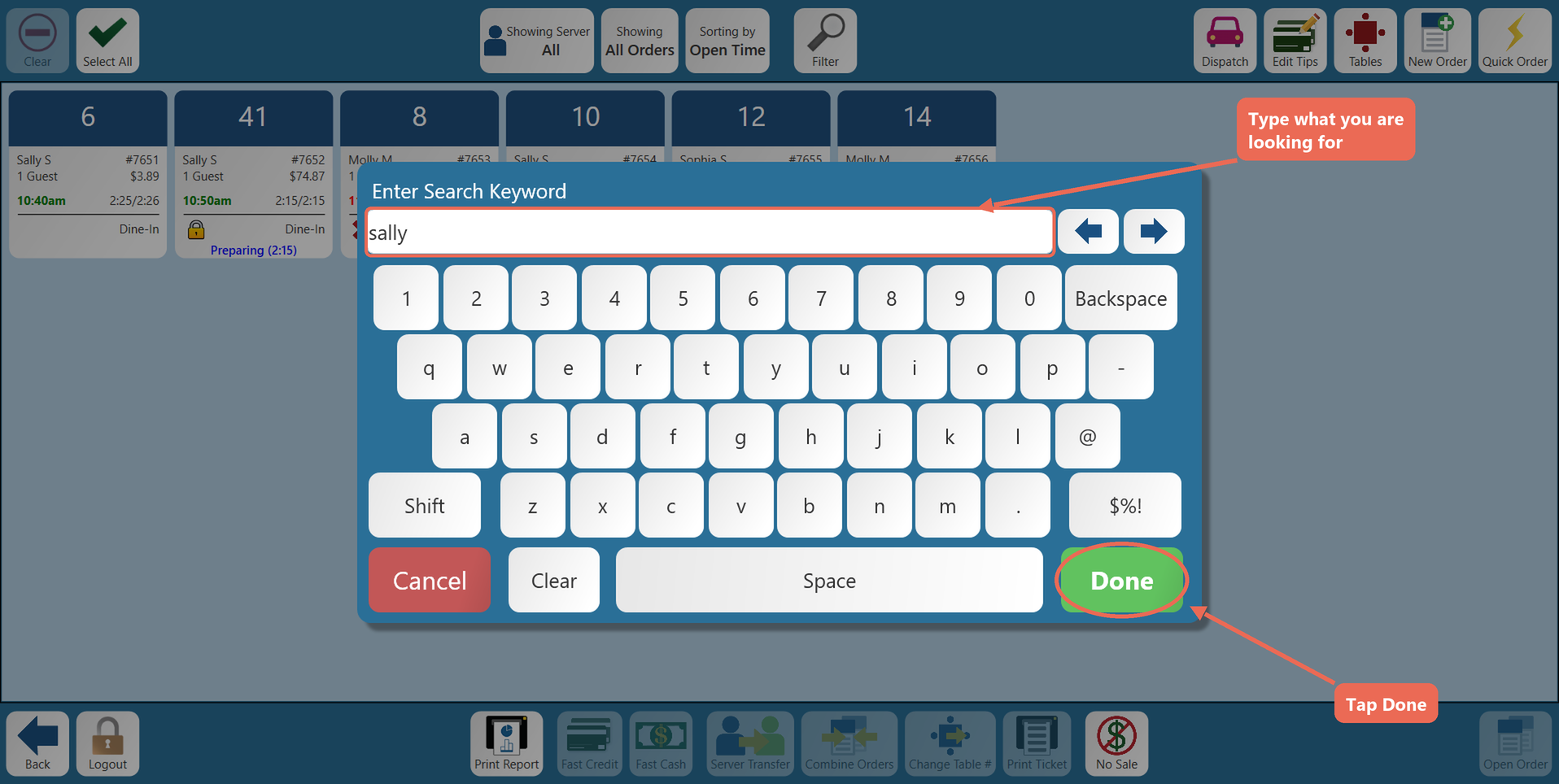
Type what you are looking for and tap Done. Part of a word or number is enough. You can type:
- a table number or table name
- an order number
- an order type (such as To-Go)
- a server's name
- an amount
- a guest count
-
Only the orders that match stay on the screen, and the Filter button turns yellow and says Clear. Tap Clear to see all the orders again.
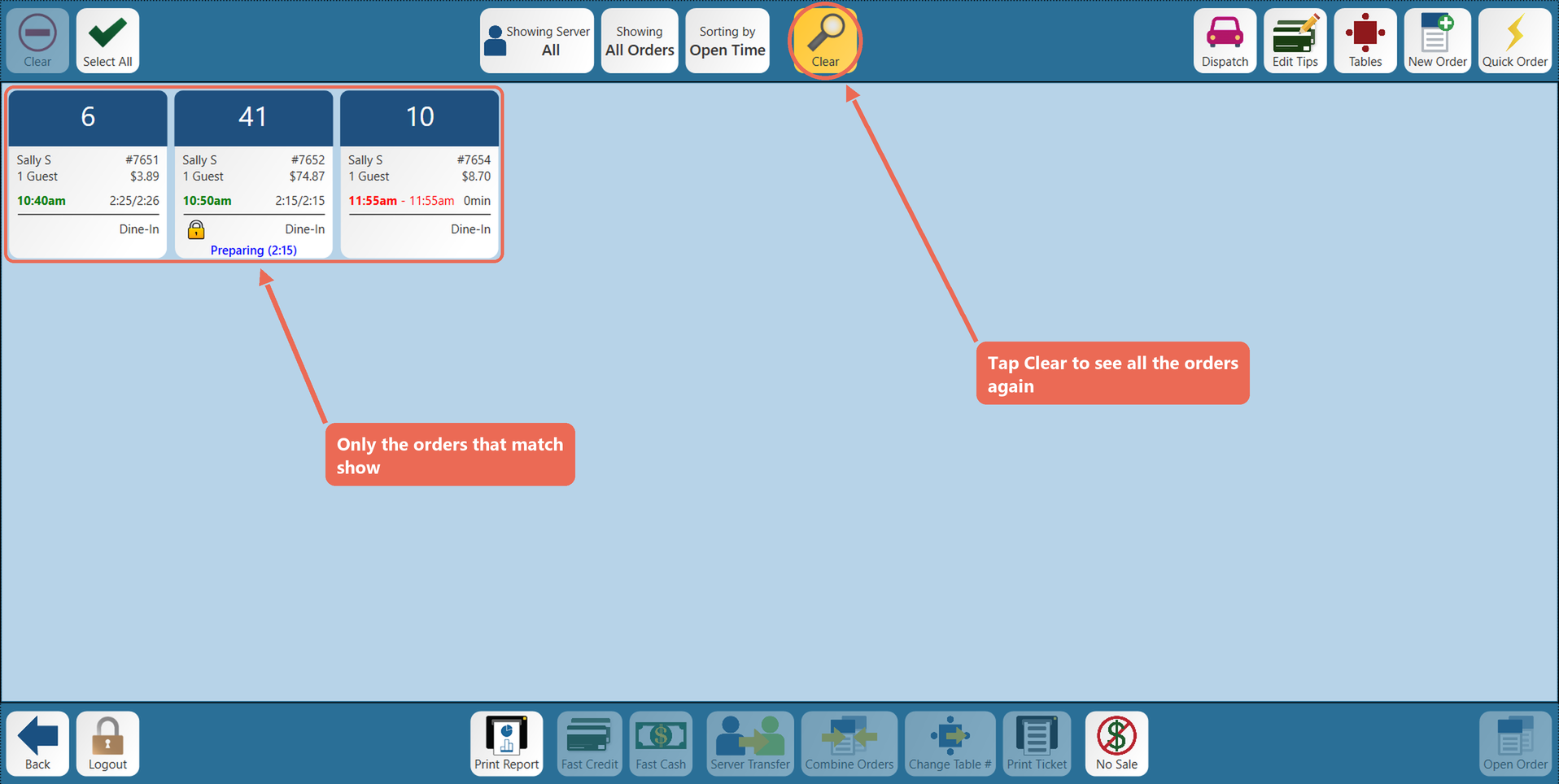
Note: The filter stays on until you tap Clear, even after you open an order and come back.
Note: Filter only looks through the orders on the screen. If the order you want isn't there, check the Showing and Showing Server buttons below.
Show open, closed or scheduled orders
The Orders screen always starts with your open orders. Tap Showing and pick which orders you want to see:
- Open: orders that haven't been paid yet.
- Closed: orders that have been paid. They stay on the screen until the day is closed.
- Open & Closed: both. The button then says All Orders.
- Scheduled: orders scheduled for a later time.
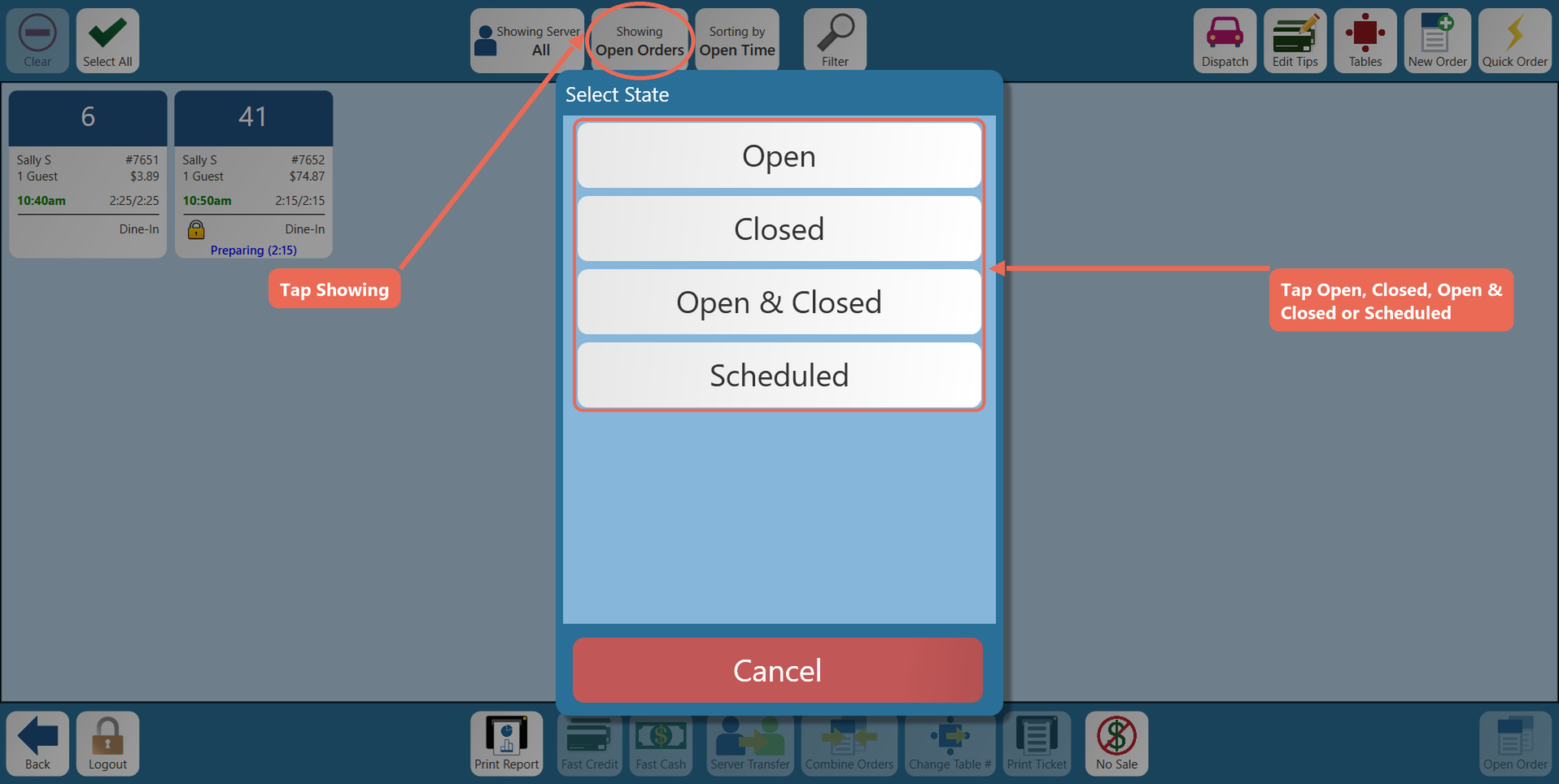
To learn more, see How to view your open orders and How to view a closed order.
Show someone else's orders
You see only your own orders. A manager, or anyone whose job role has the View All Orders permission, can tap Showing Server (the button with your name) and pick whose orders to see. Everyone else sees only their own orders, and the button is grey.
- Tap one or more servers, then tap Ok. The names in yellow are the ones that will show.
- ** All ** shows everyone's orders.
- Online Order shows the orders guests placed online.
- If the server you want isn't in the list, tap [List All Servers] to see them all.
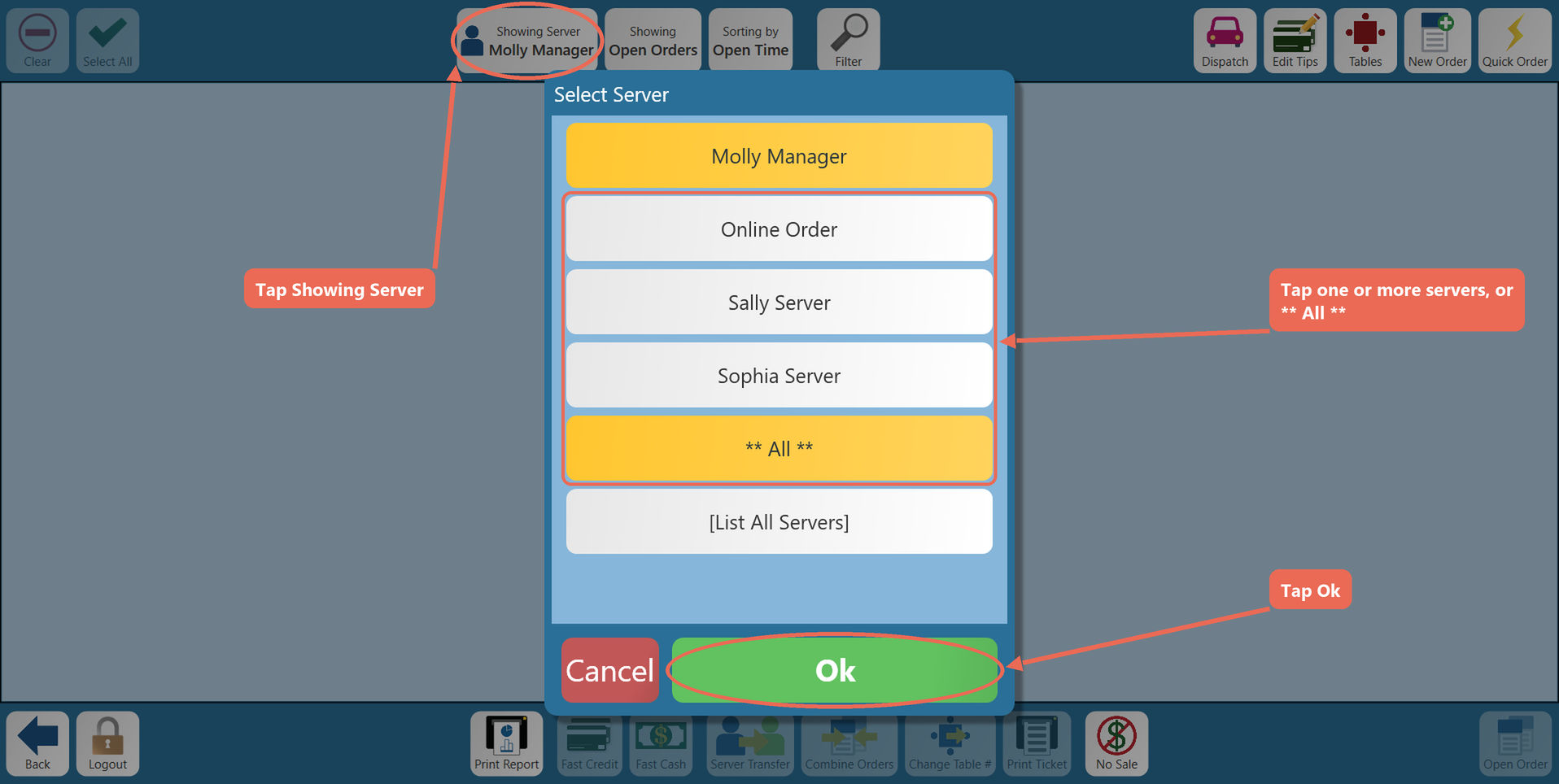
To learn more, see How to view a someone else's orders.
Using them together
- Tap Showing Server, tap ** All **, then tap Ok.
- Tap Showing, then tap Closed.
- Tap Filter, type the table number and tap Done.
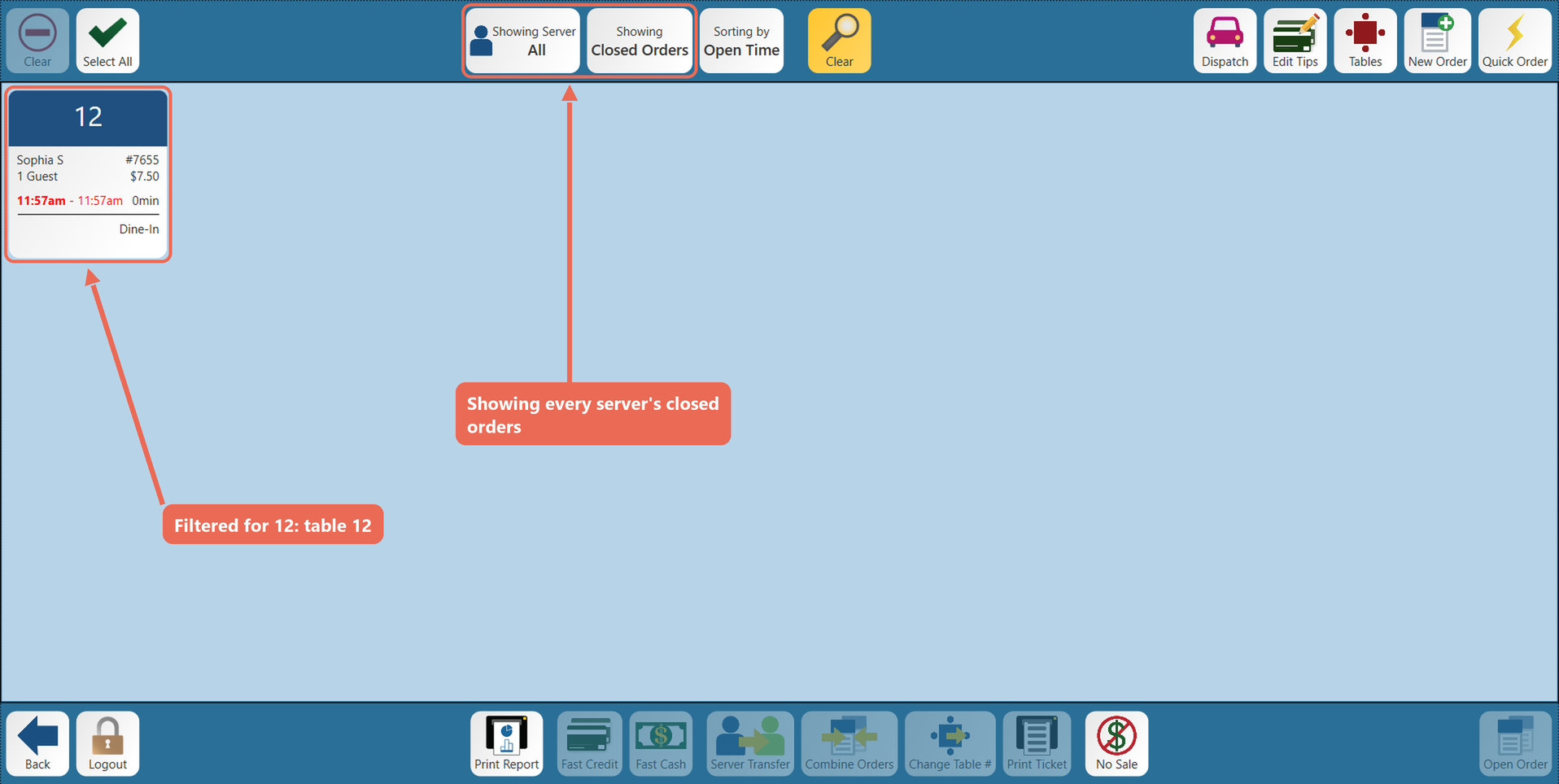
Note: The Dispatch screen for delivery orders has the same Filter button, and it works the same way.
To put the orders in a different order, see How to sort orders on the order view screen.
No Comments