
How to start and end a break on the terminal
This document will show how to start a break on the terminal and how to end it when you come back. While you are on a break you stay clocked in, but you are signed out of the terminal until you return.
Before You Start
You can only take the breaks your manager has set up for your job role in Backoffice. If you don't see a Start Break button on the Time Clock, your job role has no breaks - ask a manager.
Click here to learn more about setting up breaks in Backoffice
Starting a Break
-
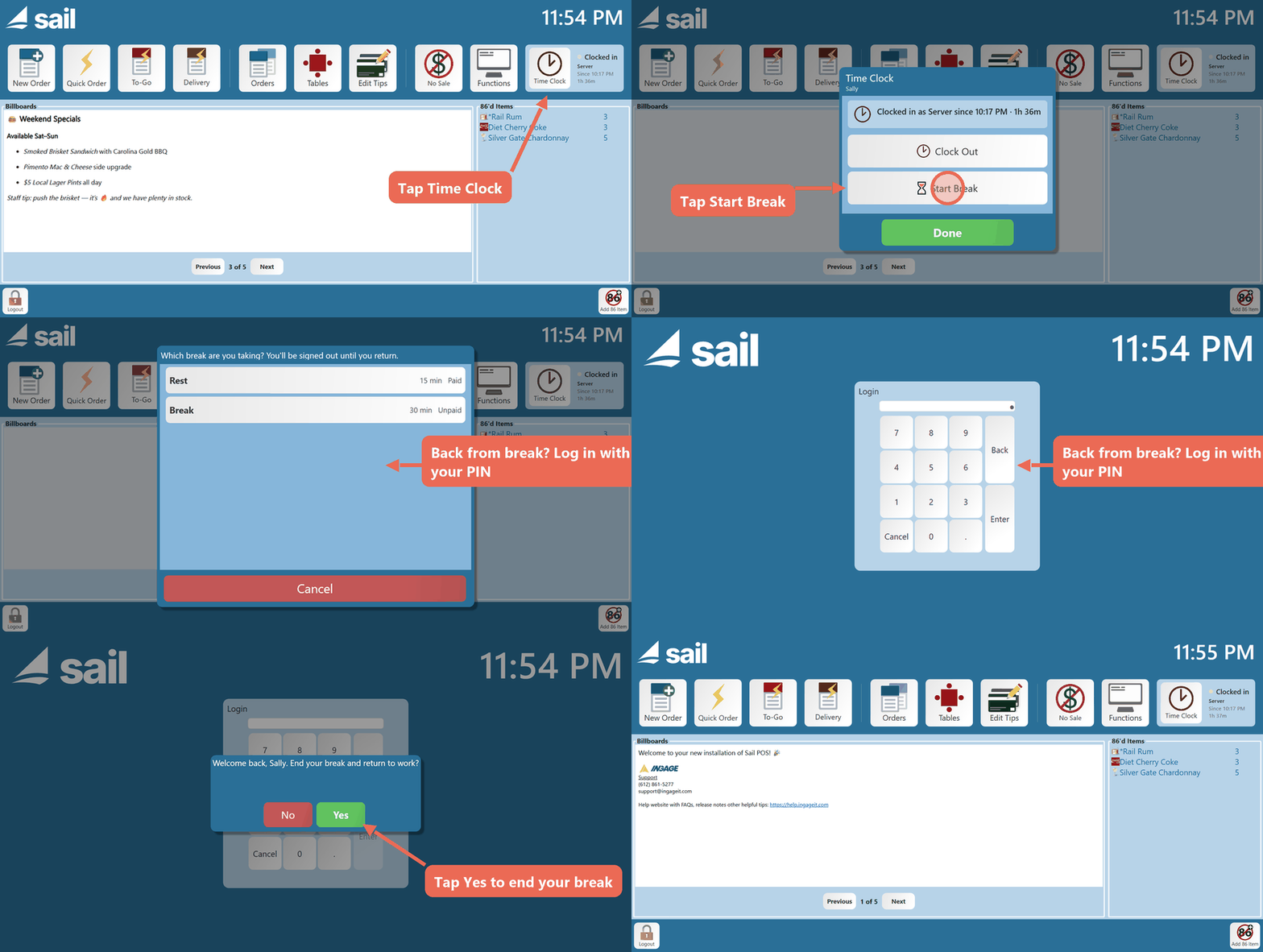
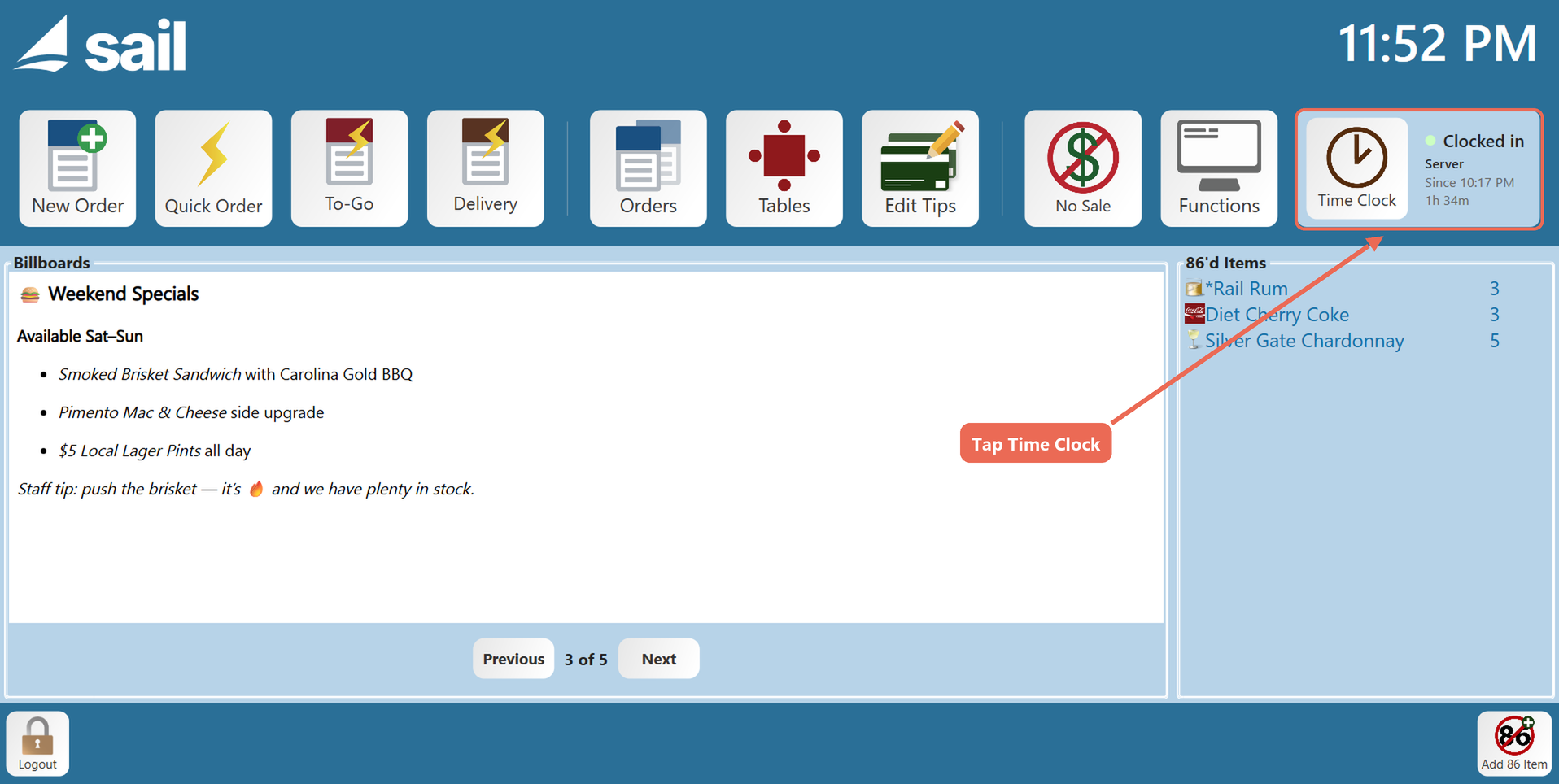
Log into the terminal with your personal PIN and tap the Time Clock button on the home screen. You need to be clocked in.
-
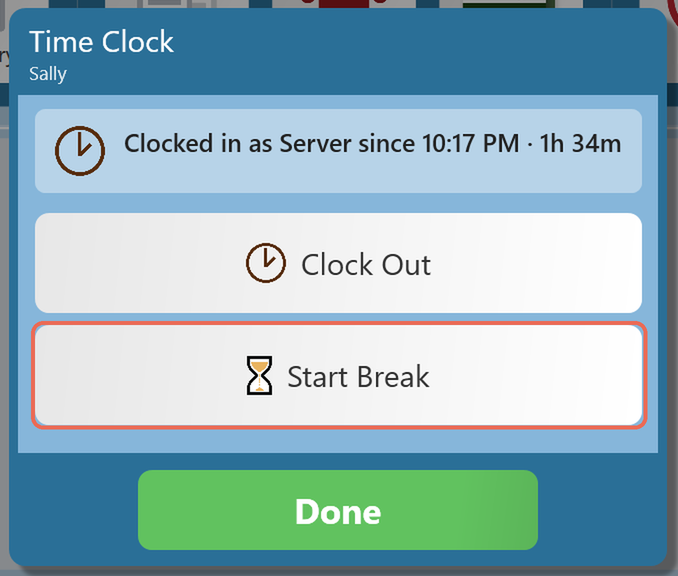
Tap Start Break.
-
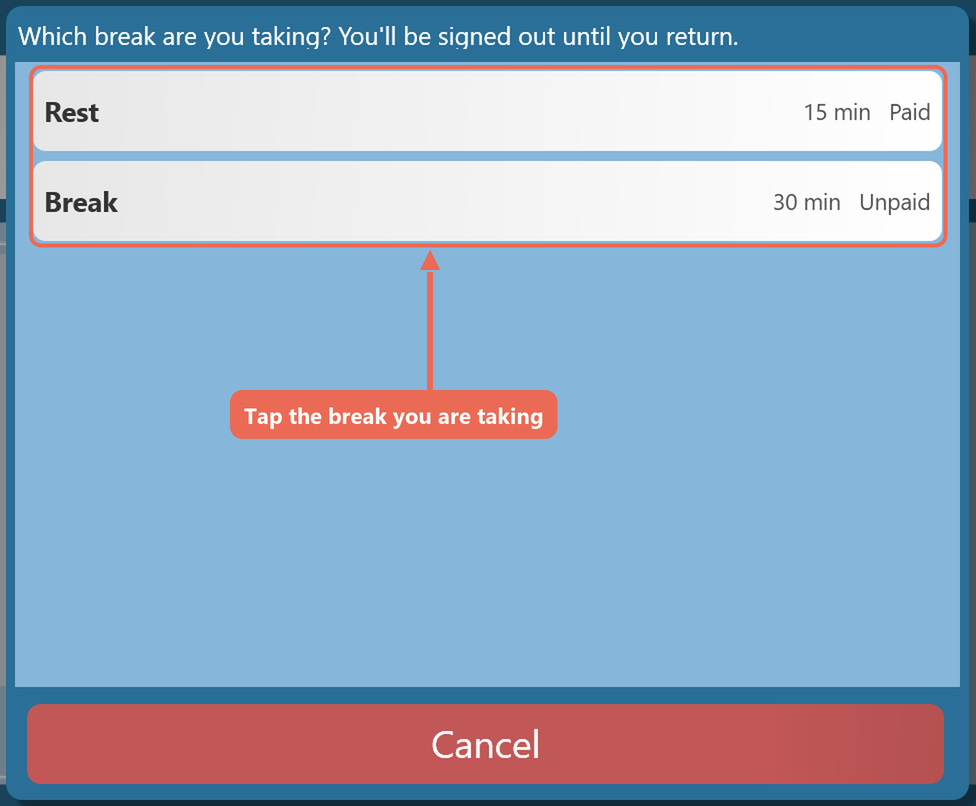
If your job role has more than one break, the terminal asks "Which break are you taking?". Each break shows its length and whether it is paid. Tap the break you are taking - it starts right away.
If your job role has only one break, the terminal names it instead ("Start your Rest break?") with its length and pay. Tap Start Break to start it.
-
The terminal goes back to the log in screen. You are on your break and still clocked in.
Ending Your Break
-
When you are back, log into the terminal with your personal PIN.
-
The terminal asks "Welcome back. End your break and return to work?". Tap Yes to end your break. You are logged in and can start working.
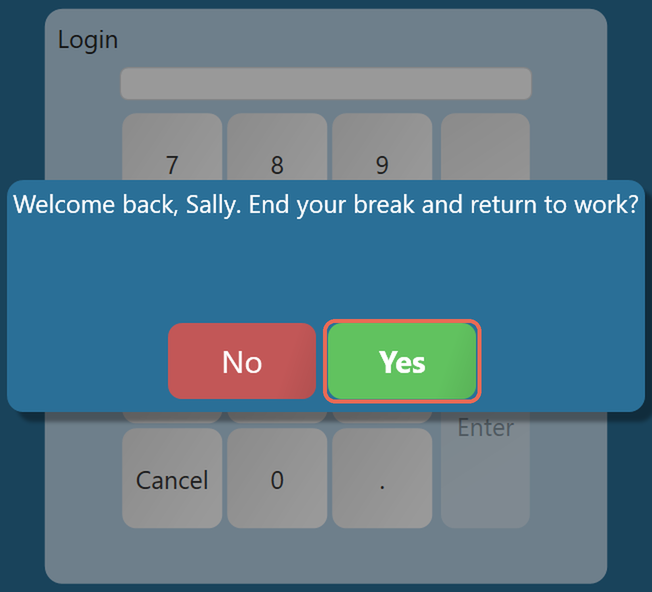
If you tap No, your break keeps going and the terminal stays on the log in screen. You can't use the terminal until you end your break.
Breaks You Didn't Take
When you clock out, the terminal checks the breaks you were due during your shift. If you didn't take one, it asks about it before you finish clocking out. A required break only counts once you have worked long enough for it to be due - for example, a break due after 6 hours isn't asked about on a 5 hour shift.
-
Tap the Time Clock button on the home screen, then Clock Out.
-
The "Before you clock out" window lists each break you were due. What you choose goes on your time card.
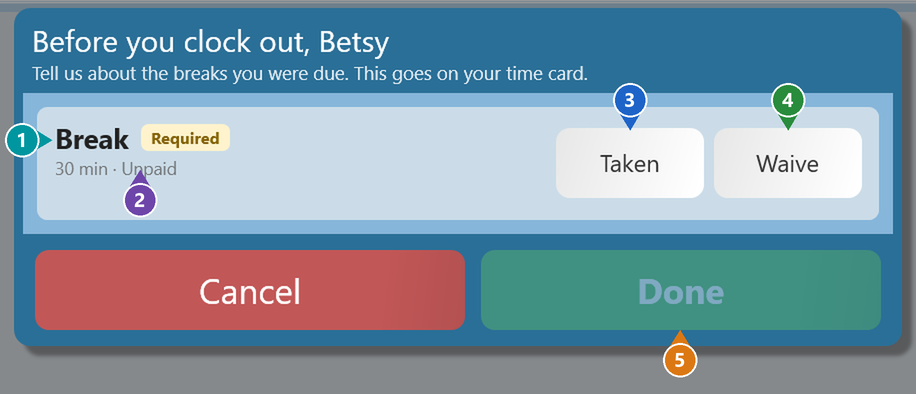
1. Break name - The break you were due. Required shows when your business requires it.
2. Length and pay - How long the break is and whether it is paid or unpaid.
3. Taken - Tap if you did take the break but didn't start it on the terminal.
4. Waive - Tap if you chose not to take the break.
5. Done - Stays grey until you have answered every break in the list.
-
Tap Taken or Waive for each break. When you tap Waive, the line "I chose not to take this break." shows under the break. Then tap Done.
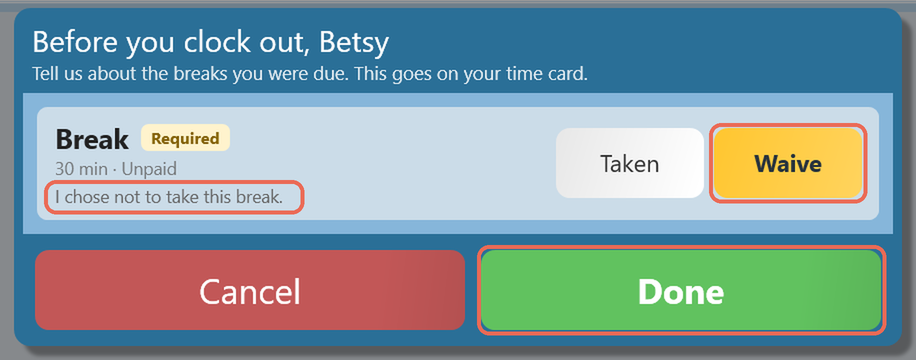
Tapping Cancel stops the clock out - you stay clocked in.
-
Finish clocking out as usual: type your cash tips and tap Enter, then tap OK.
Note: Your business can also set a break to be asked about at every clock out, even if it isn't required. That break shows in the list with an "I took this break" box to tick instead of Taken and Waive.
Click here to learn more about clocking in and out
If a Break Is Wrong
If you forgot to start or end a break, tell a manager. A manager can add or fix a break under Functions --> Edit Time Clock.
If your shift was closed while you were on your break (for example by the automatic clock out), the terminal tells you "Your break has ended, but your shift was closed while you were away, so you are no longer clocked in." Clock in again to keep working, and let a manager know.
Click here to learn more about editing the time clock on a terminal
No Comments