
How to enter a tip by scanning the barcode on the credit card slip
This document will show you how to enter a tip by scanning the barcode on a signed credit card slip. You don't have to look for the payment on the Edit Tips screen: scan the slip and the tip window opens for that payment.
If you want more information on all the functions of the Edit Tips screen, see the Edit Tips Screen article. To find the payment and enter its tip without scanning, see How to enter tips.
Before you start
- Your terminal needs a barcode scanner.
- Your credit card slips need to print a barcode. It is near the bottom of the slip, under the Tip Calculator. If your slips don't have one, contact Sail Support.
- Your job role needs the Enter Tips permission.
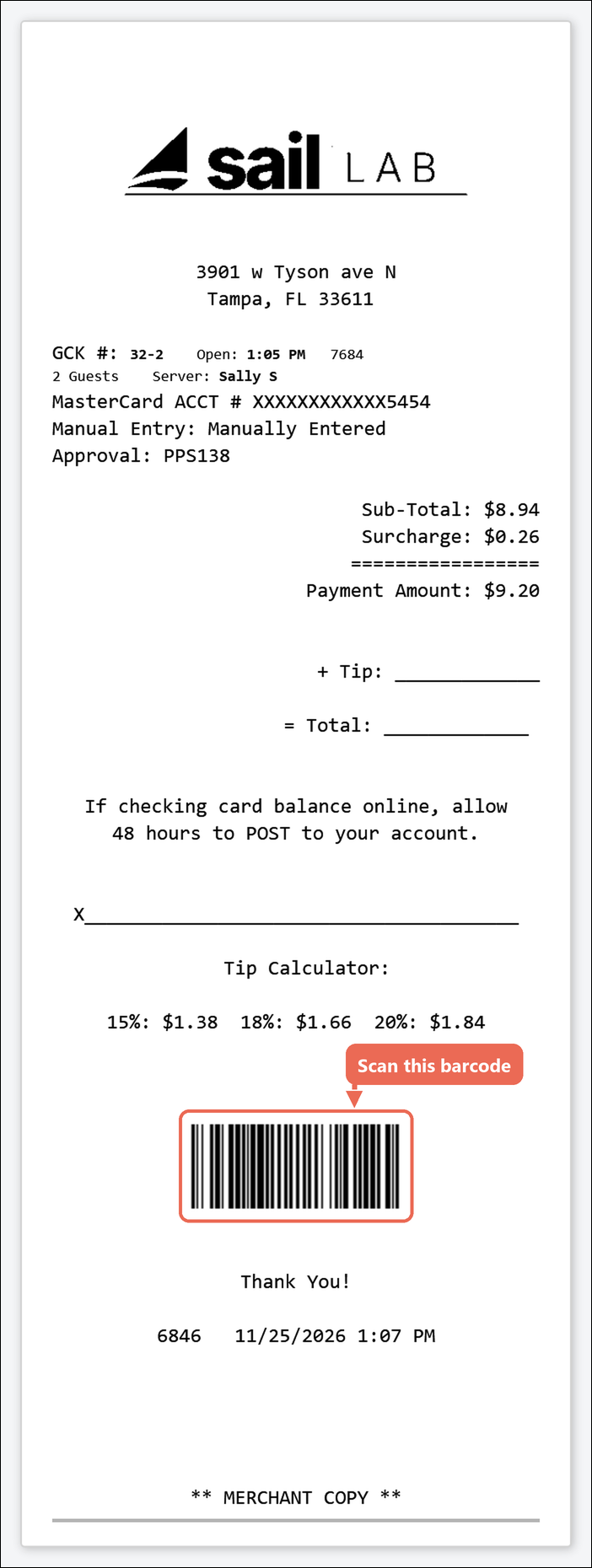
Scan the slip and enter the tip
-
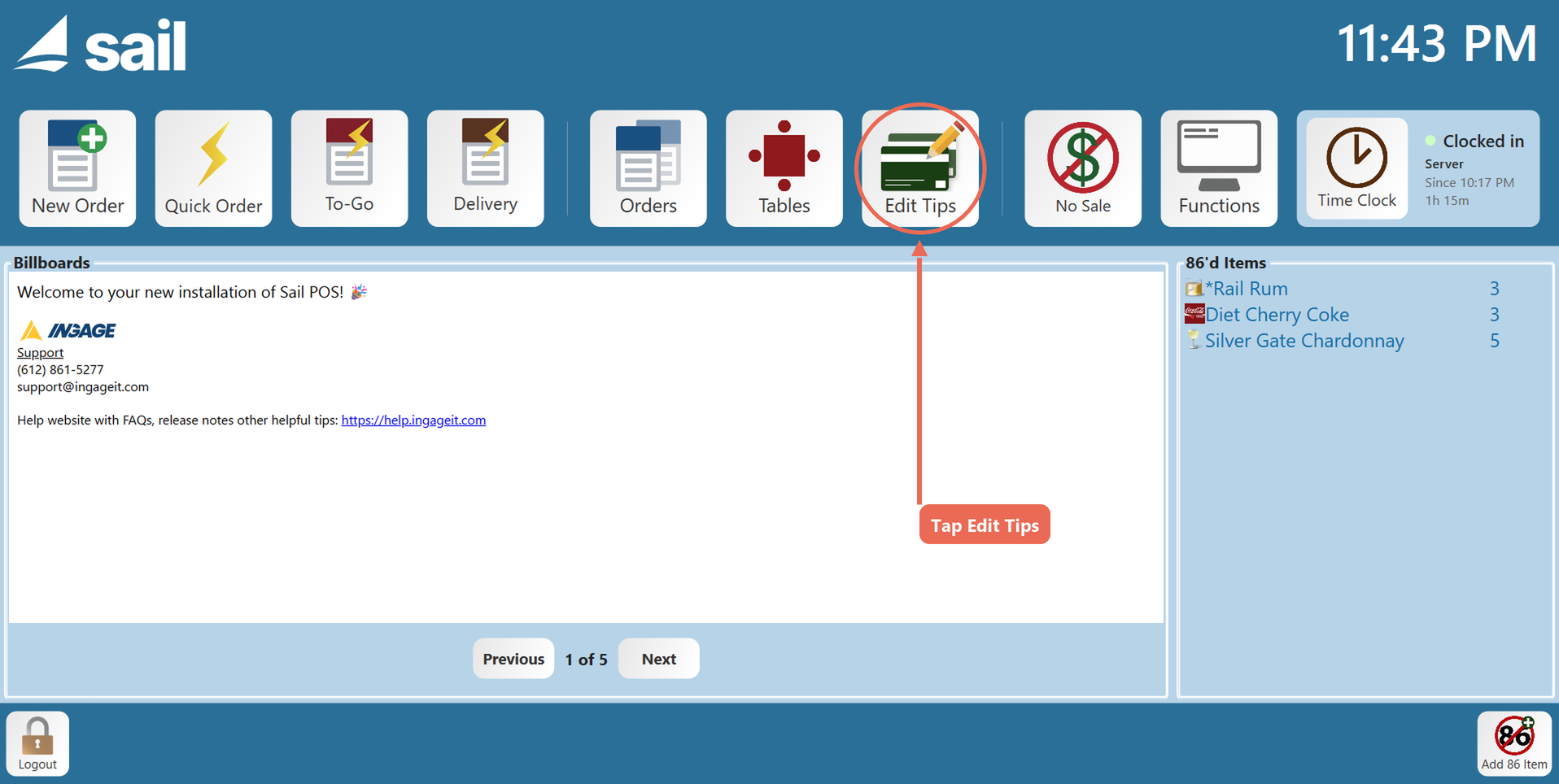
On the home screen, tap Edit Tips.
-
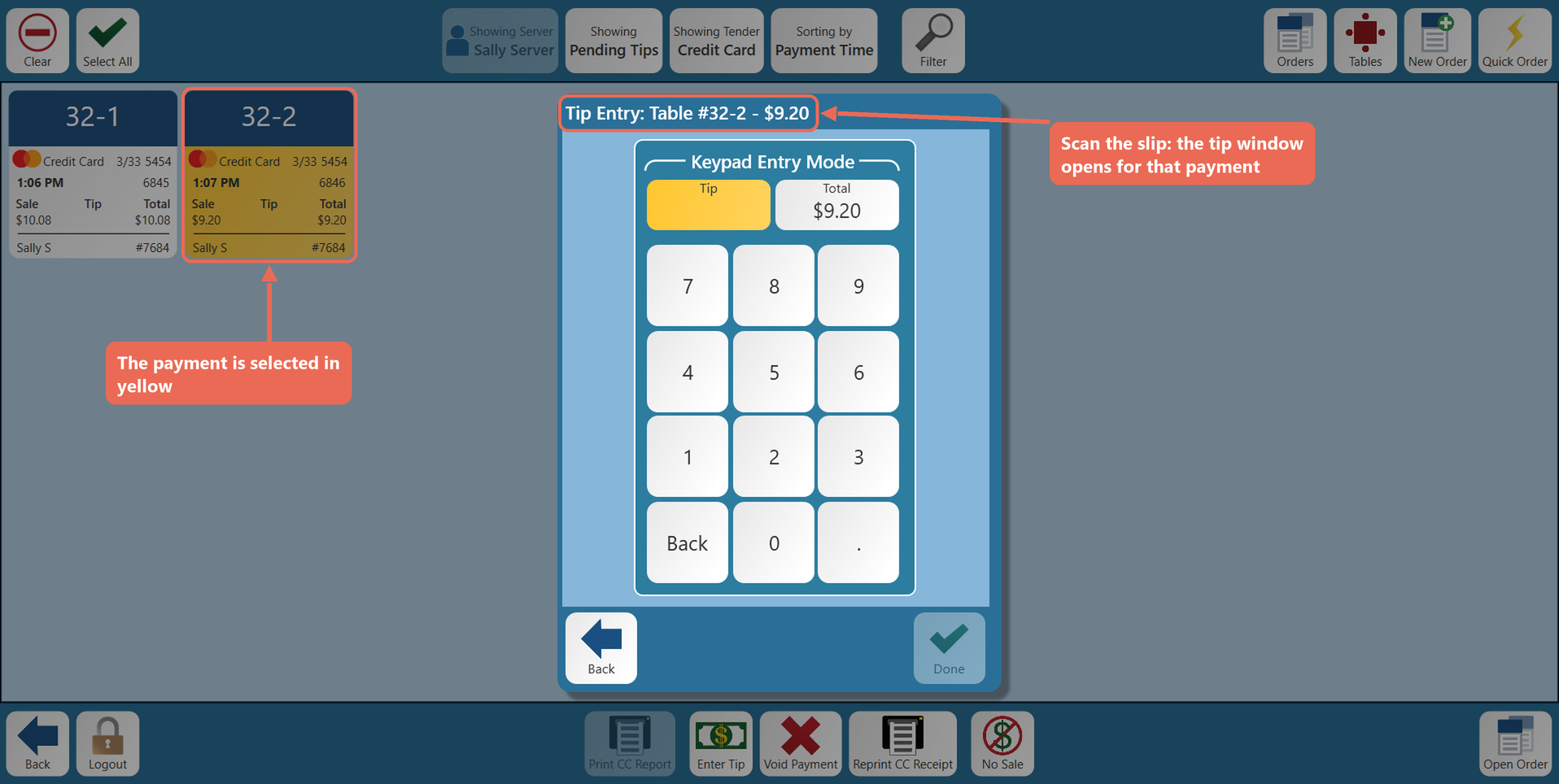
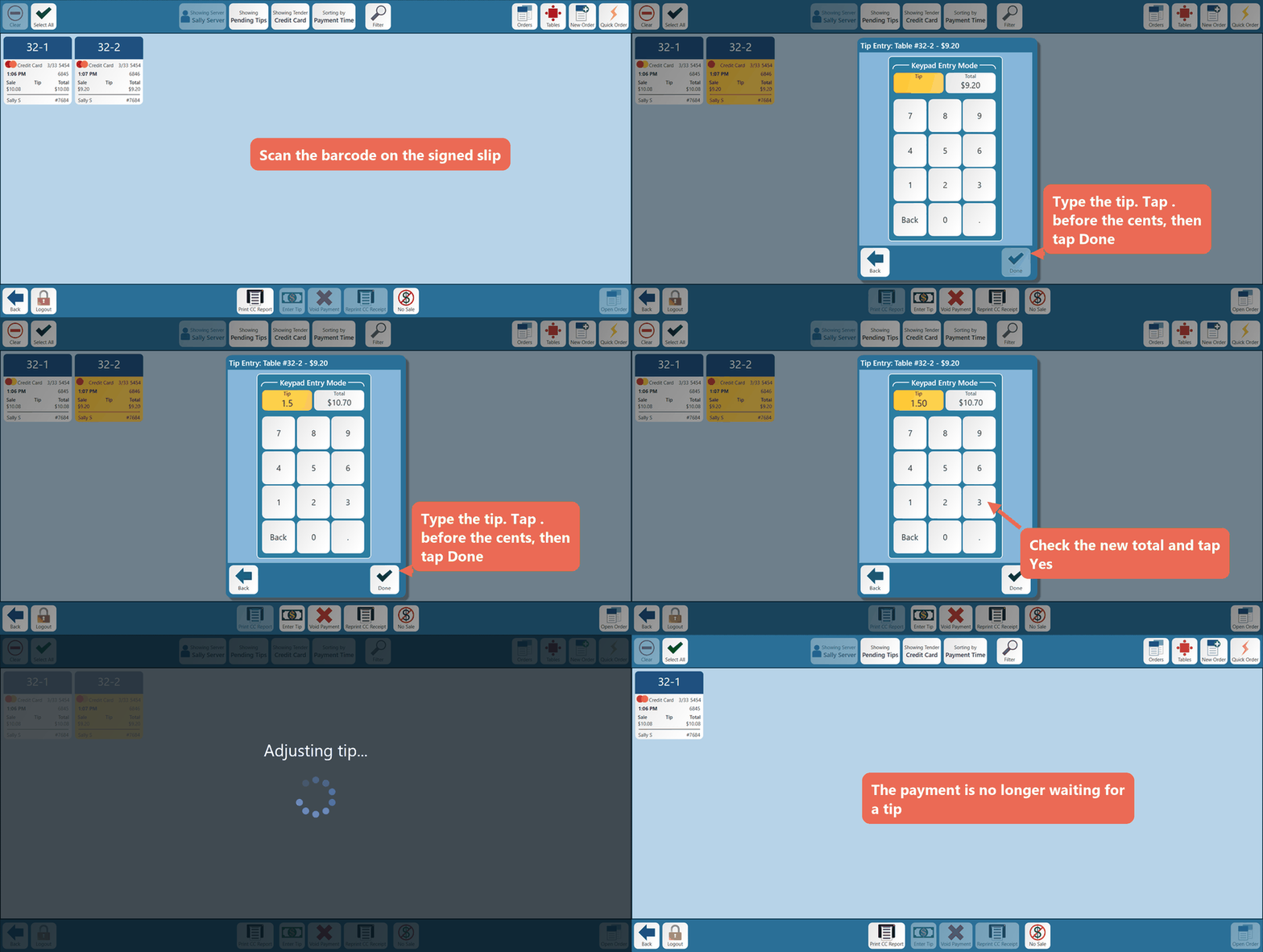
Scan the barcode on the signed slip. The tip window opens for that payment, and the payment is selected in yellow on the screen. This works even when the payment isn't showing on the screen, for example when it already has a tip or the screen is filtered.
-
Type the tip and tap Done. Tap . before the cents. Check the new total and tap Yes.
Note: Scan the slip on the Edit Tips screen. Scanning it on another screen opens the order instead of the tip window.
Note: Finish the tip (or tap Back) before you scan the next slip. If you scan while the tip window is open, the numbers in the barcode go in as the tip. If that happens, tap No when it asks if you are sure.
Scanning a guest receipt instead
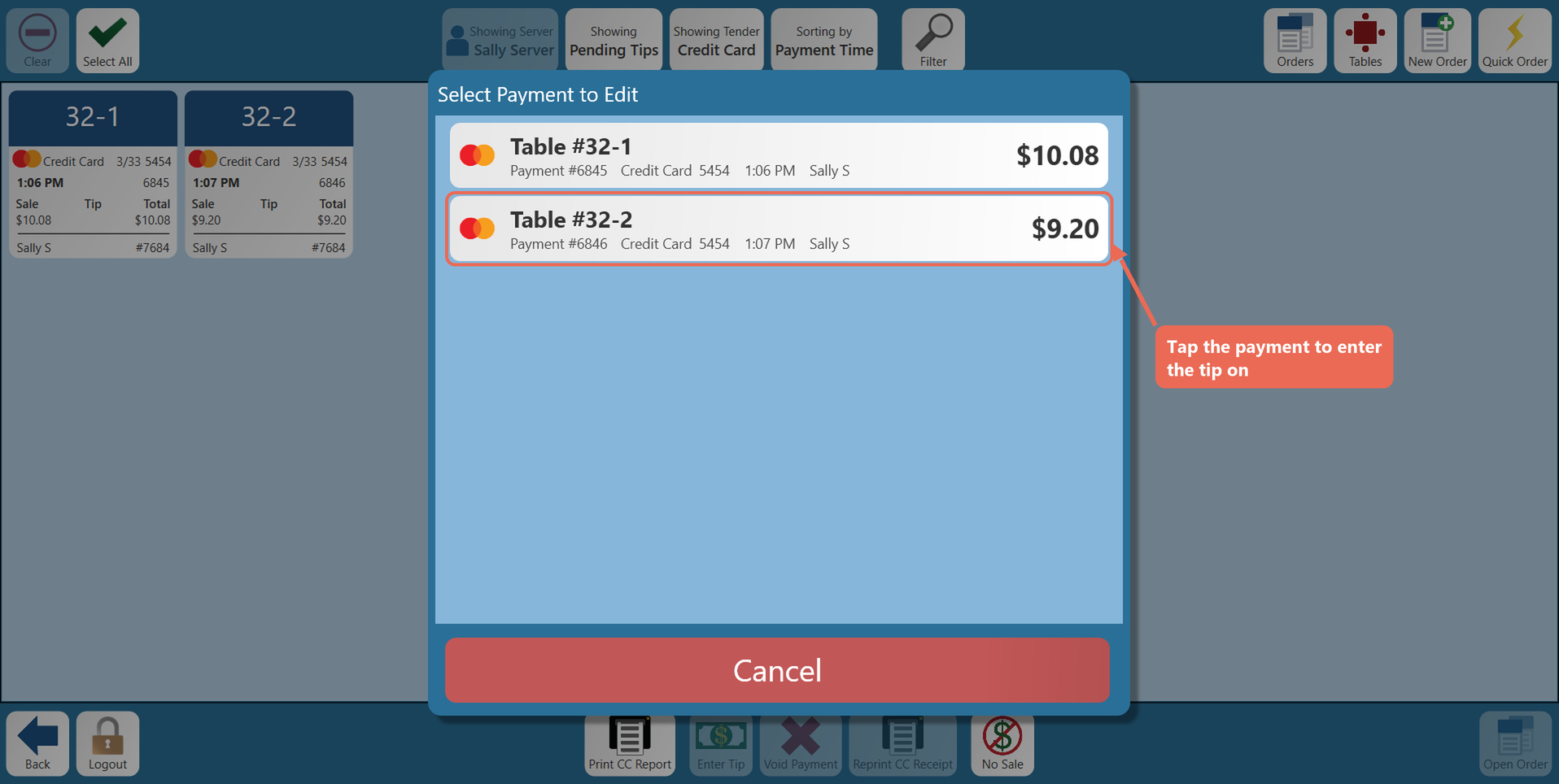
The guest's receipt has a barcode too. If you scan it on the Edit Tips screen, the tip window opens for the order's payment. If the order was paid with more than one payment, a list asks which one: tap the payment you want to enter the tip on.
If the scan doesn't work
- The order opens instead of the tip window: you scanned on another screen. Go back, tap Edit Tips and scan again.
- You do not have rights to enter tips: your job role doesn't have the Enter Tips permission. Ask your manager.
- No payment found for scanned barcode: the payment isn't one you can enter a tip on here. It may be another server's order (you need the View All Payments permission to enter tips on other servers' payments), the day may already be closed, or the slip may be from another location.
- This check is in use at another terminal - the payment cannot be adjusted: the order is open on another terminal or handheld. Close it there and scan again.
- A tip cannot be entered on this payment: the payment has no sale amount, so it can't take a tip.
No Comments