
How to clean the terminal screen
This will walk you through cleaning the terminal screen. Clean Screen clears the screen and counts down, so you can wipe it without pressing any buttons by accident.
Before you start
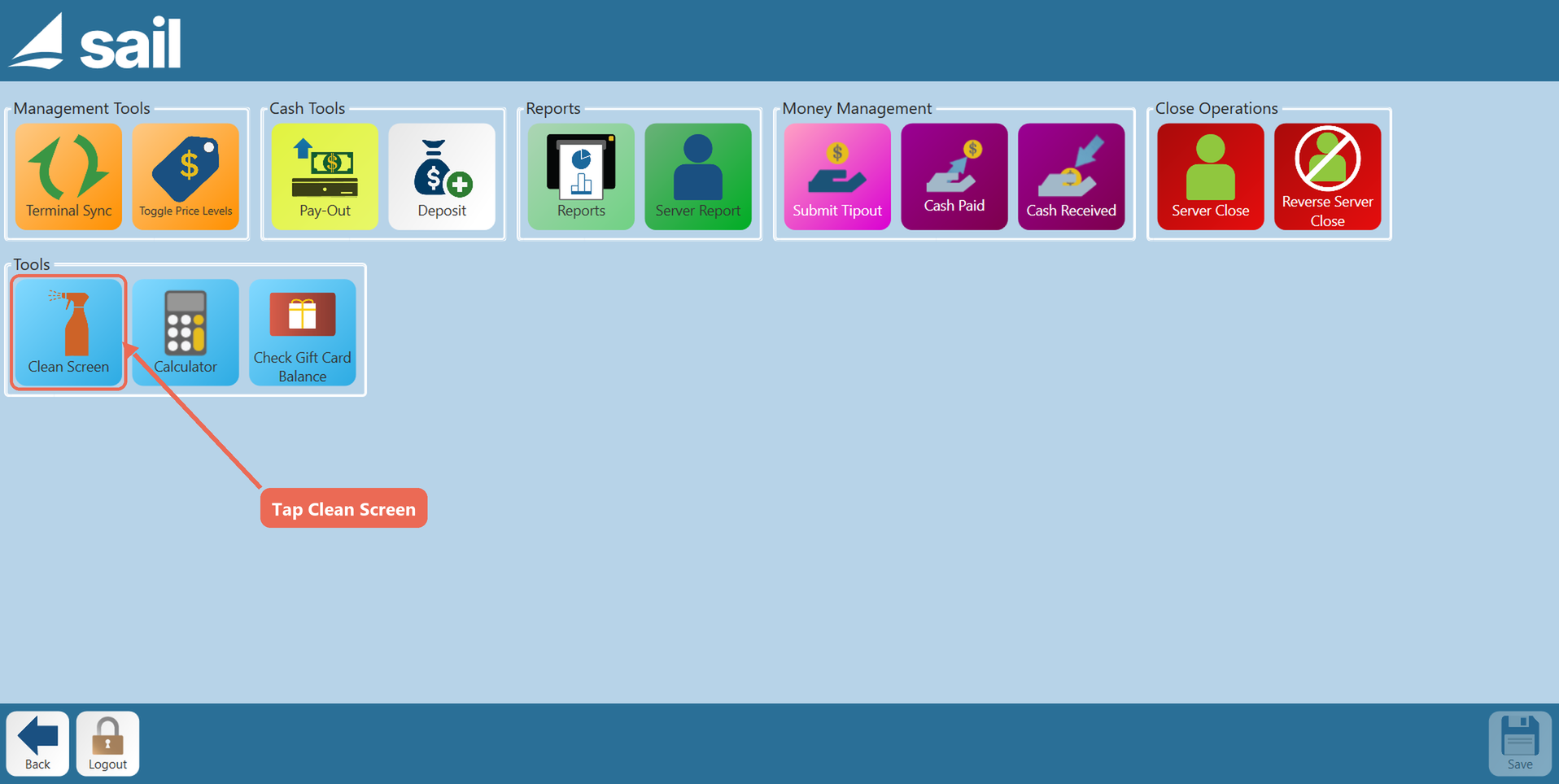
- The Clean Screen button shows on the Functions screen only for employees whose job role has the task Clean Screen (in Backoffice, under POS --> Front of House --> Functions --> General).
How to clean the screen
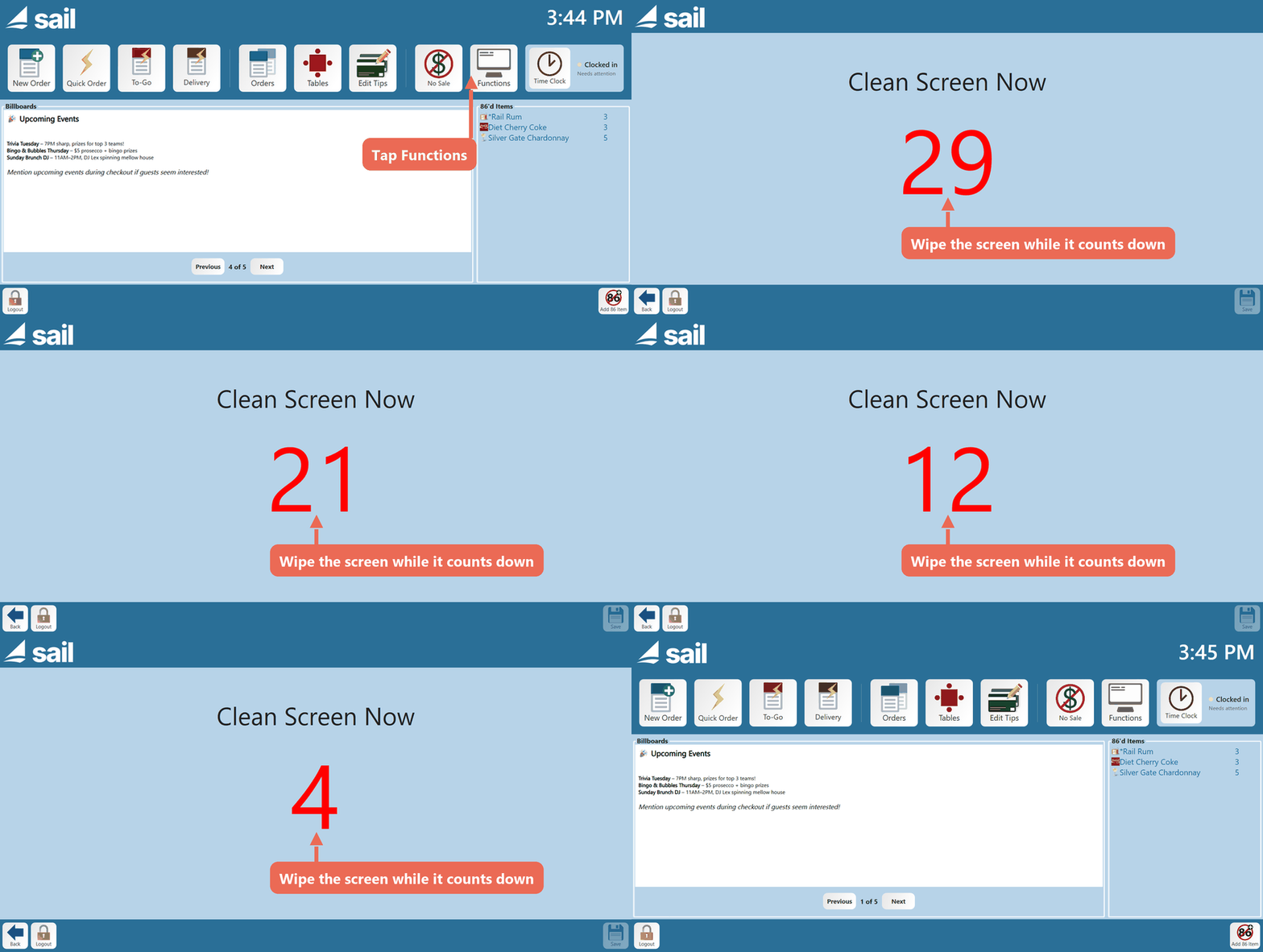
Here is Clean Screen from start to finish:
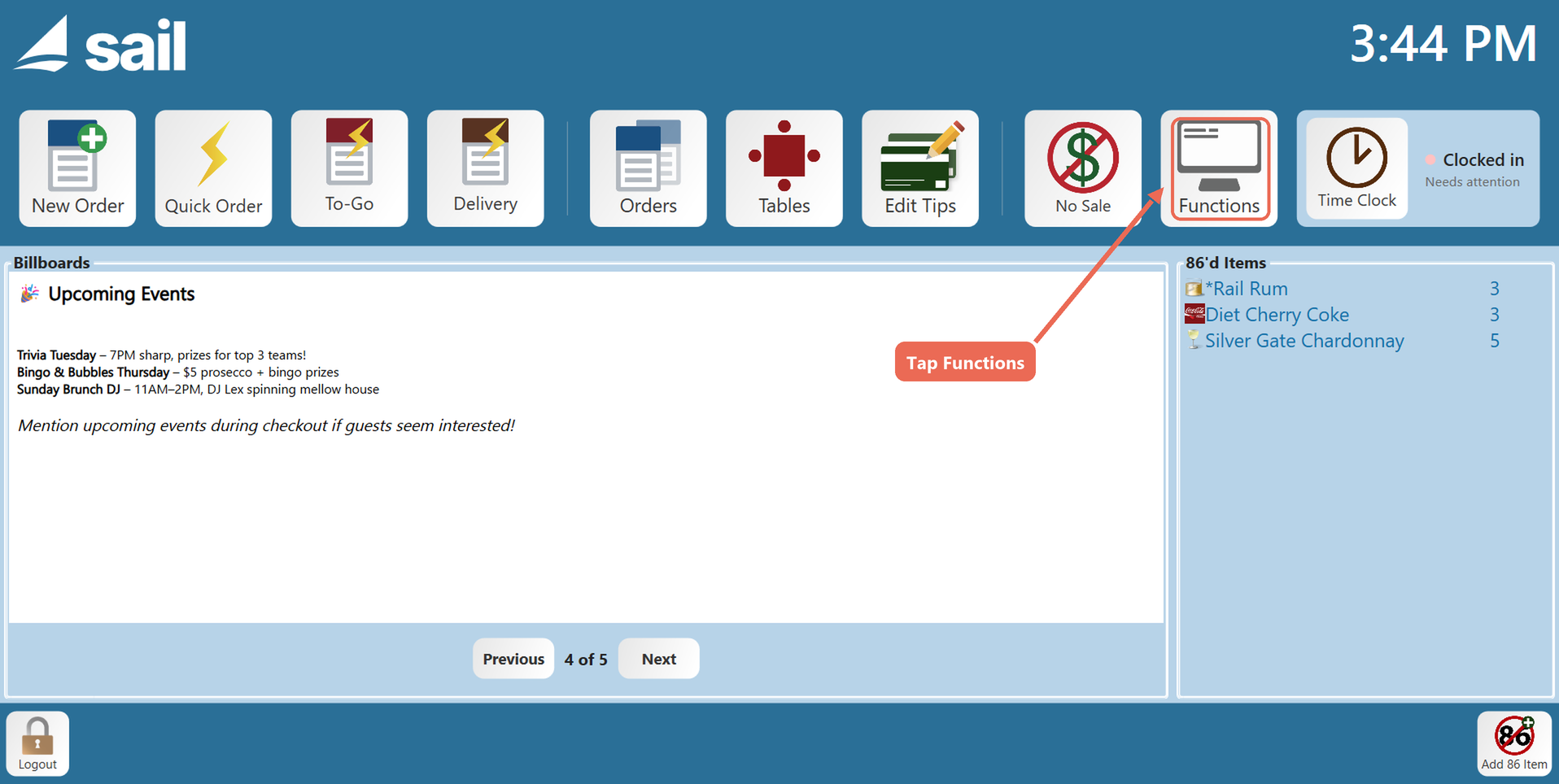
1. From the launch screen, tap Functions.
2. Tap Clean Screen under Tools.
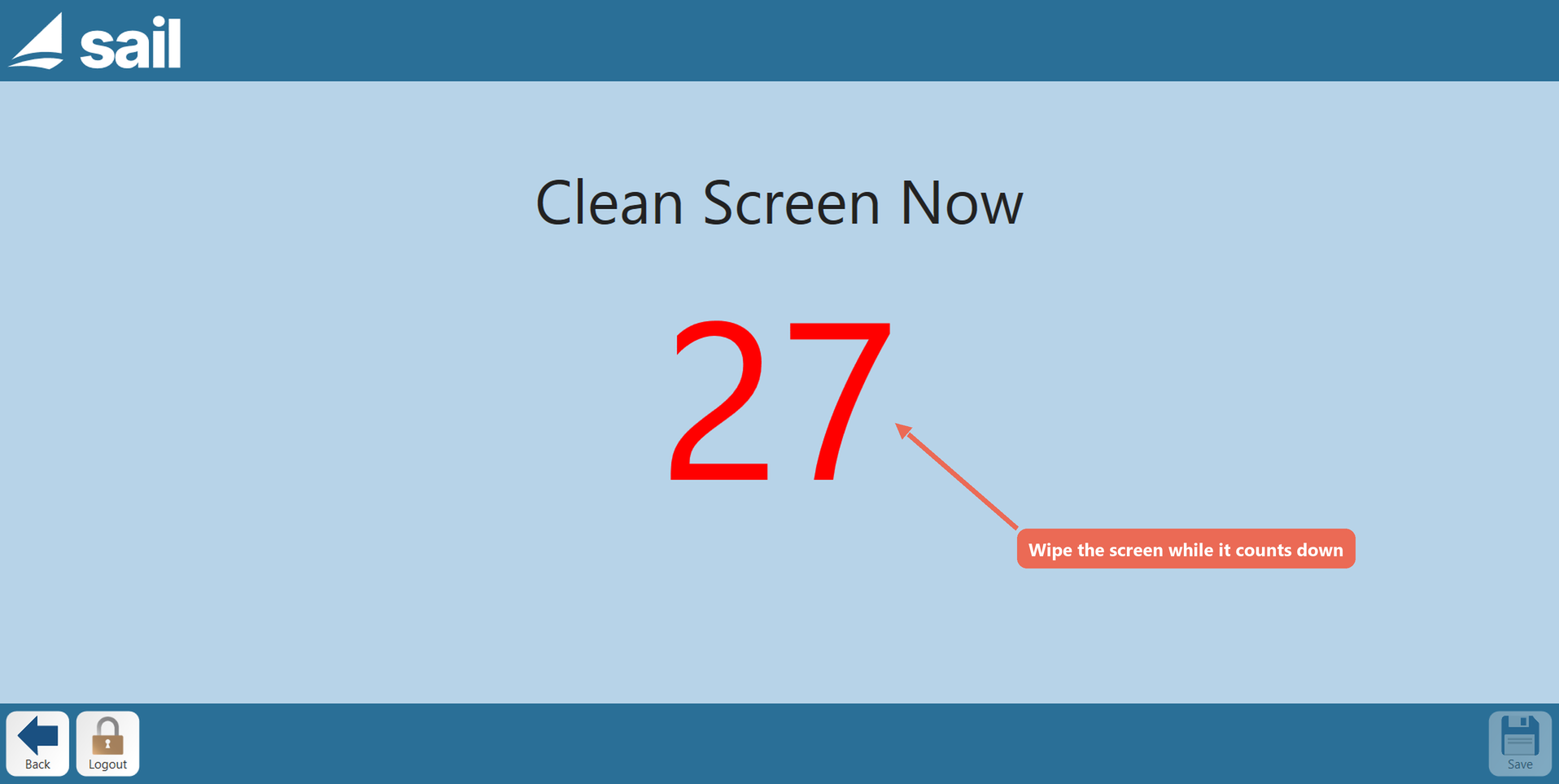
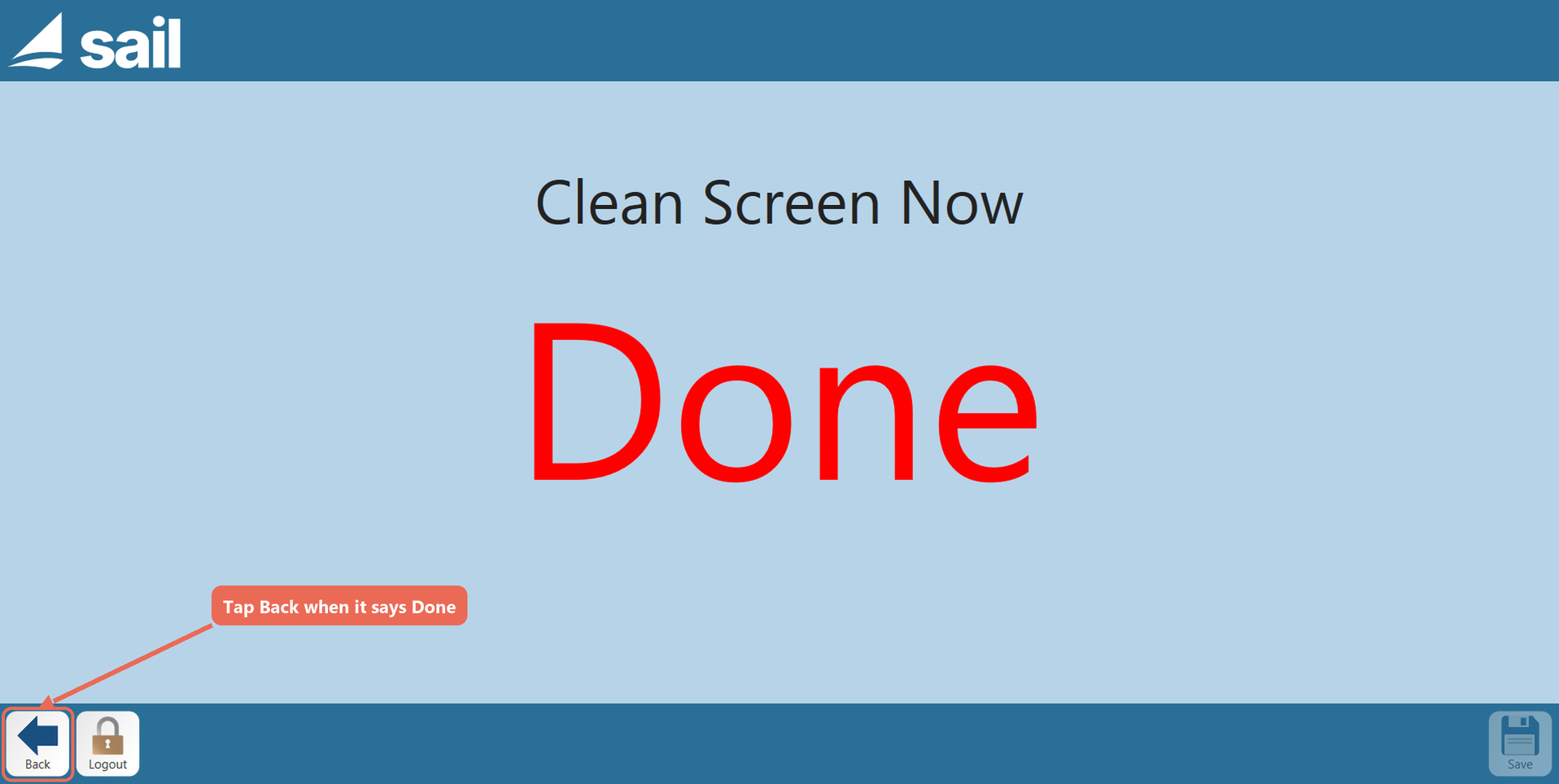
3. The screen says Clean Screen Now and counts down in red from 30. Wipe the screen while it counts down. It takes about 15 seconds.
4. When it says Done, tap Back to go back to the launch screen.
Good to know
- Need more time? Tap Functions and Clean Screen again for another countdown.
- A Clean Screen button can also be put on an order screen. If an order is open, it asks you to save the order first. Click here to learn more about editing a terminal order screen layout.
- Click here to learn more about the Functions Screen.
No Comments