
How to do a pay-out or pay-in
This will walk you through doing a pay-out and a pay-in on the terminal. A pay-out is cash taken out of the drawer to pay for something, such as a delivery or a run to the store. A pay-in is cash put into the drawer that didn't come from a sale, such as extra change.
Before you start
- The Pay-Out and Pay-In buttons show on the Functions screen only for employees whose job role has the tasks Process Pay-Out and Process Pay-In (in Backoffice, under POS --> Front of House --> Functions --> Cash Tools).
- The buttons are set up in Backoffice as items with the Item Type "Payout".
Click here to learn more about creating a pay-out/pay-in button.
How to do a pay-out
Here is a pay-out from start to finish:
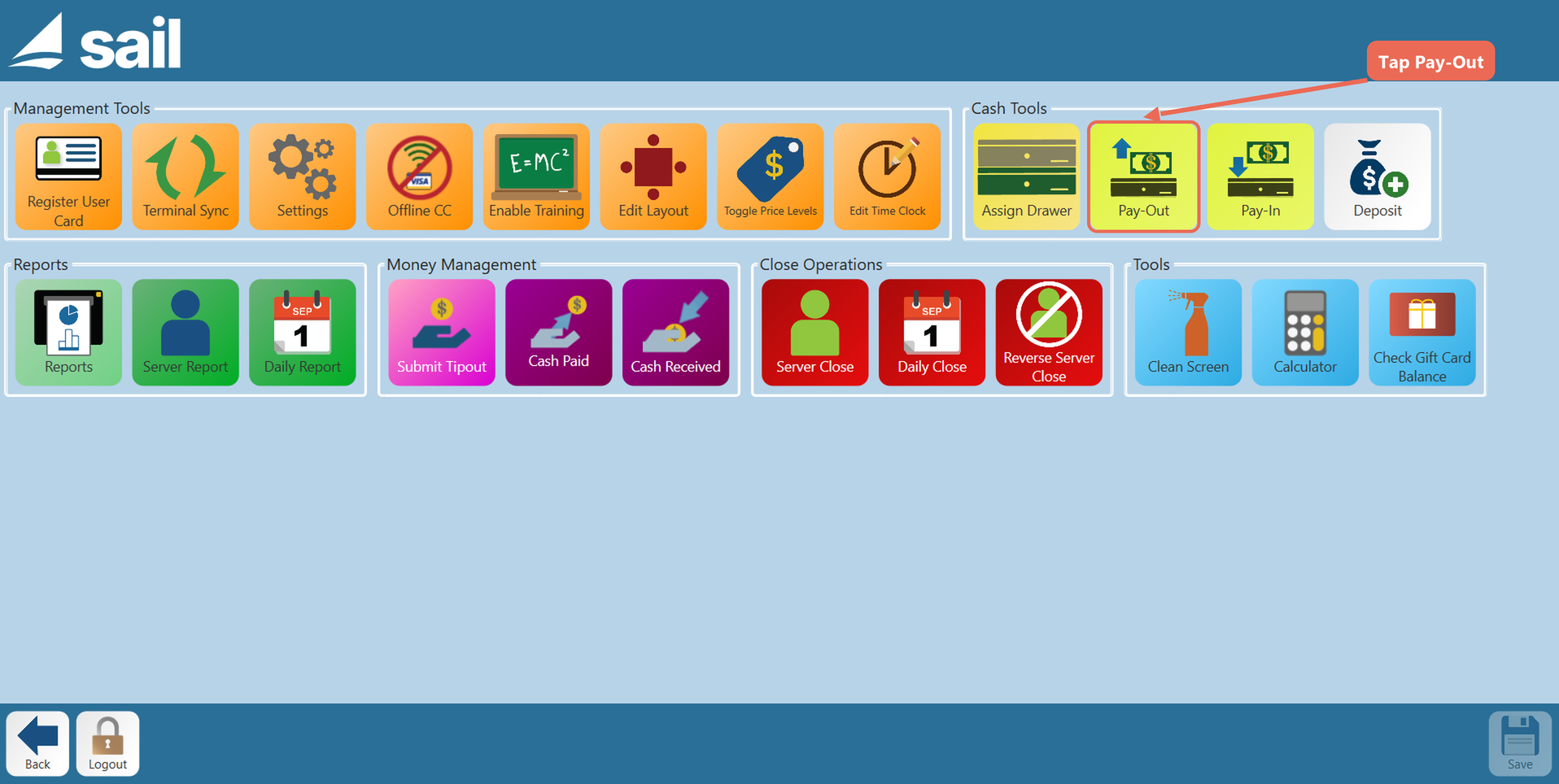
1. Tap Functions, then tap Pay-Out under Cash Tools.
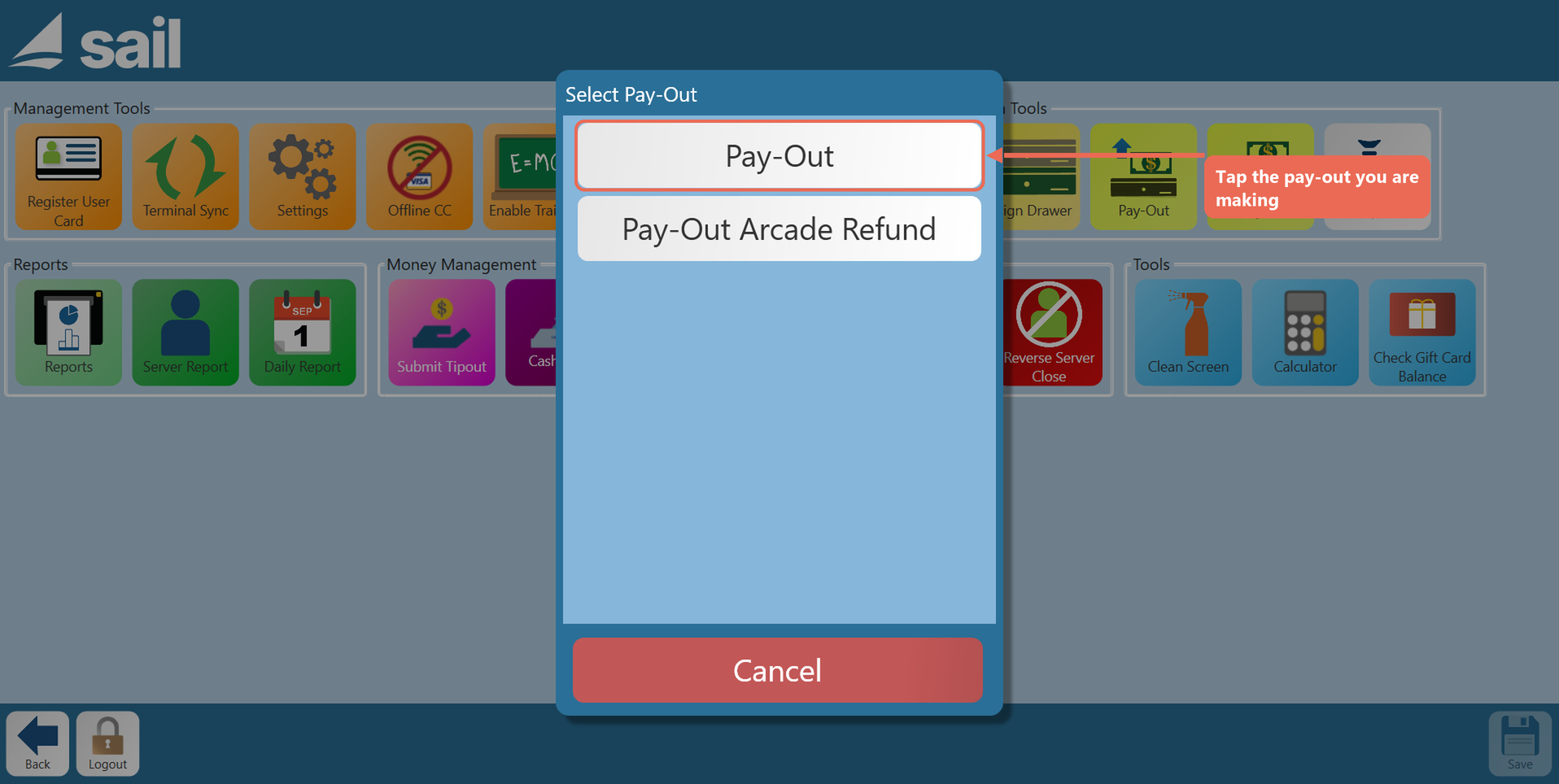
2. If your business has more than one pay-out button, the terminal asks which one. Tap the pay-out you are making.
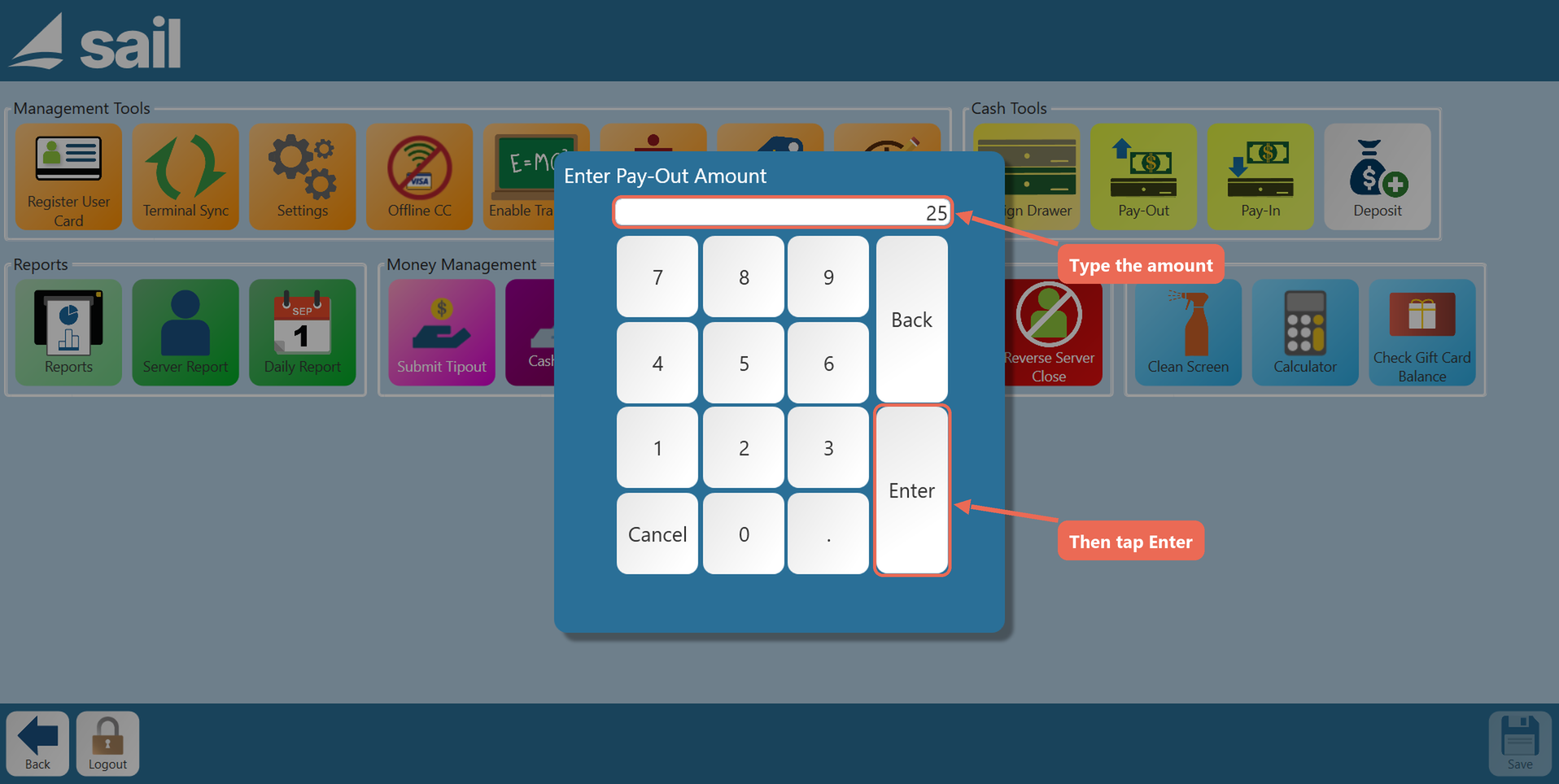
3. Type the amount and tap Enter.
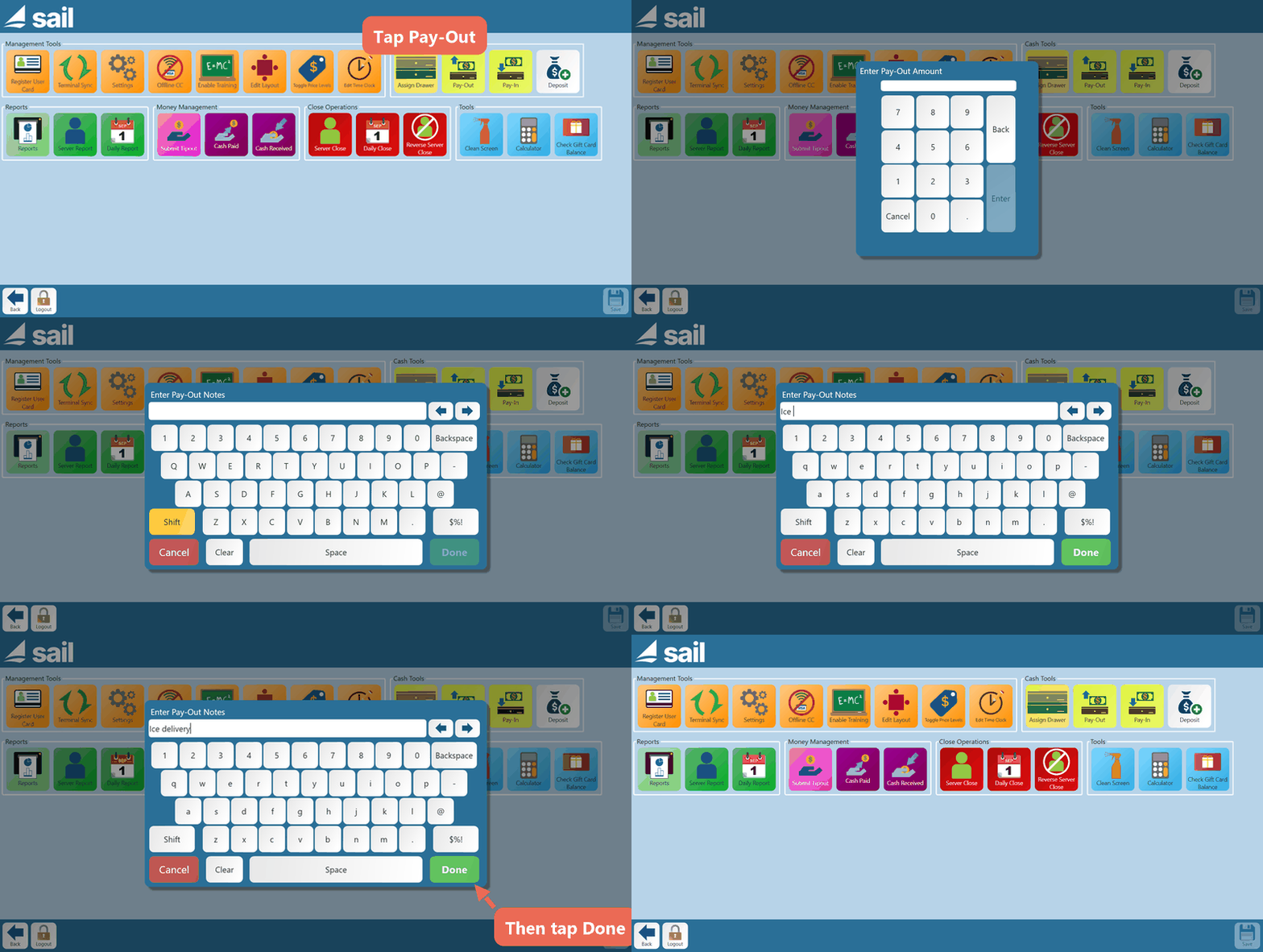
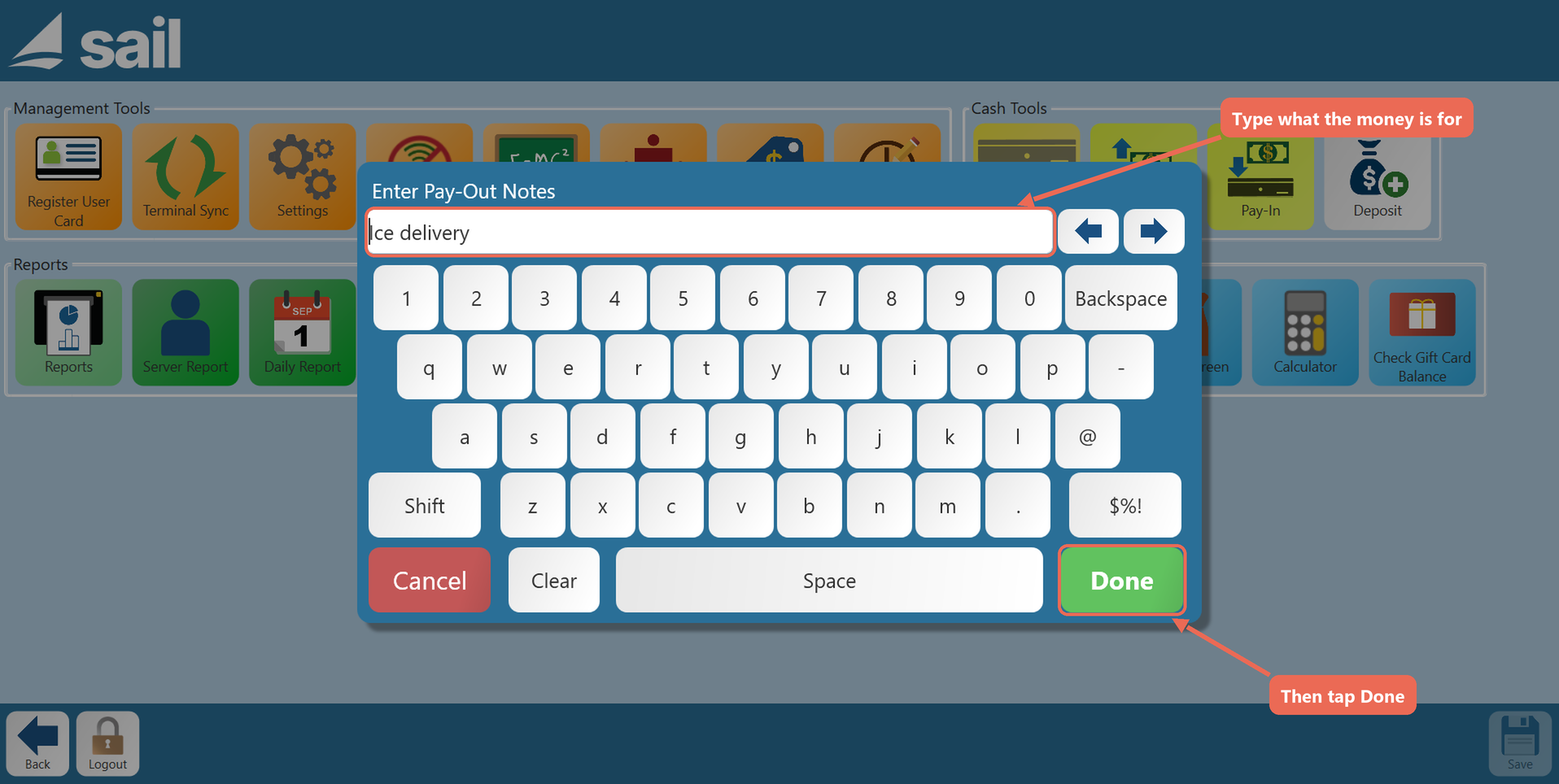
4. Type what the money is for, such as "Ice delivery", and tap Done. The note is required: Done stays grey until you type one.
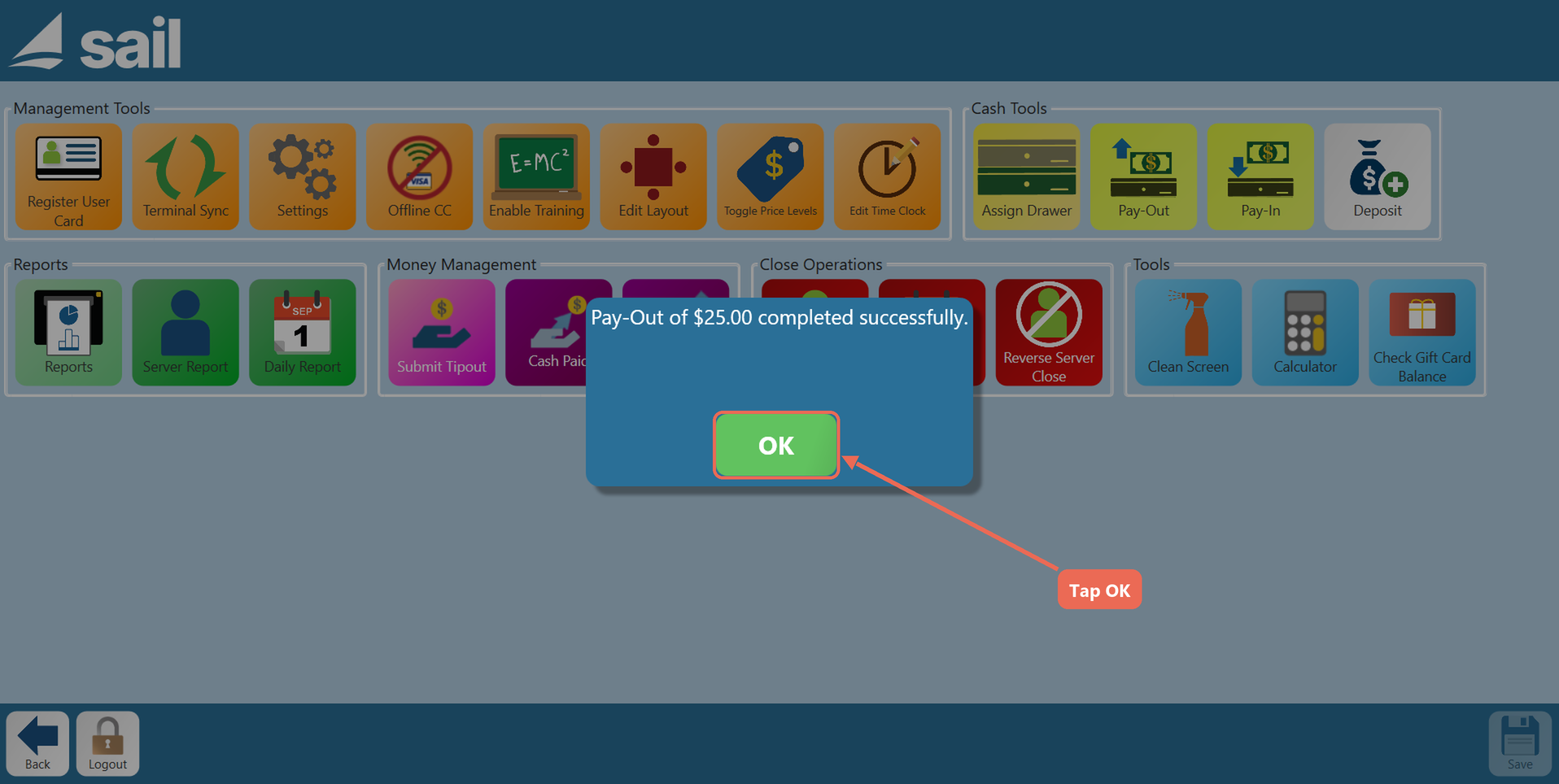
5. The till opens so you can take the cash out, and a pay-out slip prints. The terminal says the pay-out is done. Tap OK.
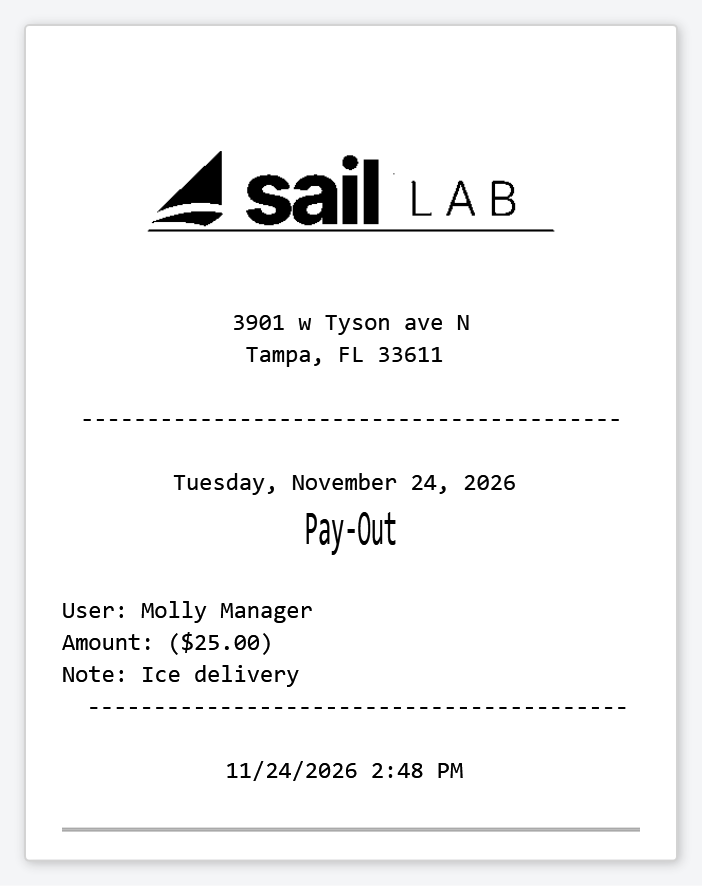
The slip shows who made the pay-out, the amount and the note.
How to do a pay-in
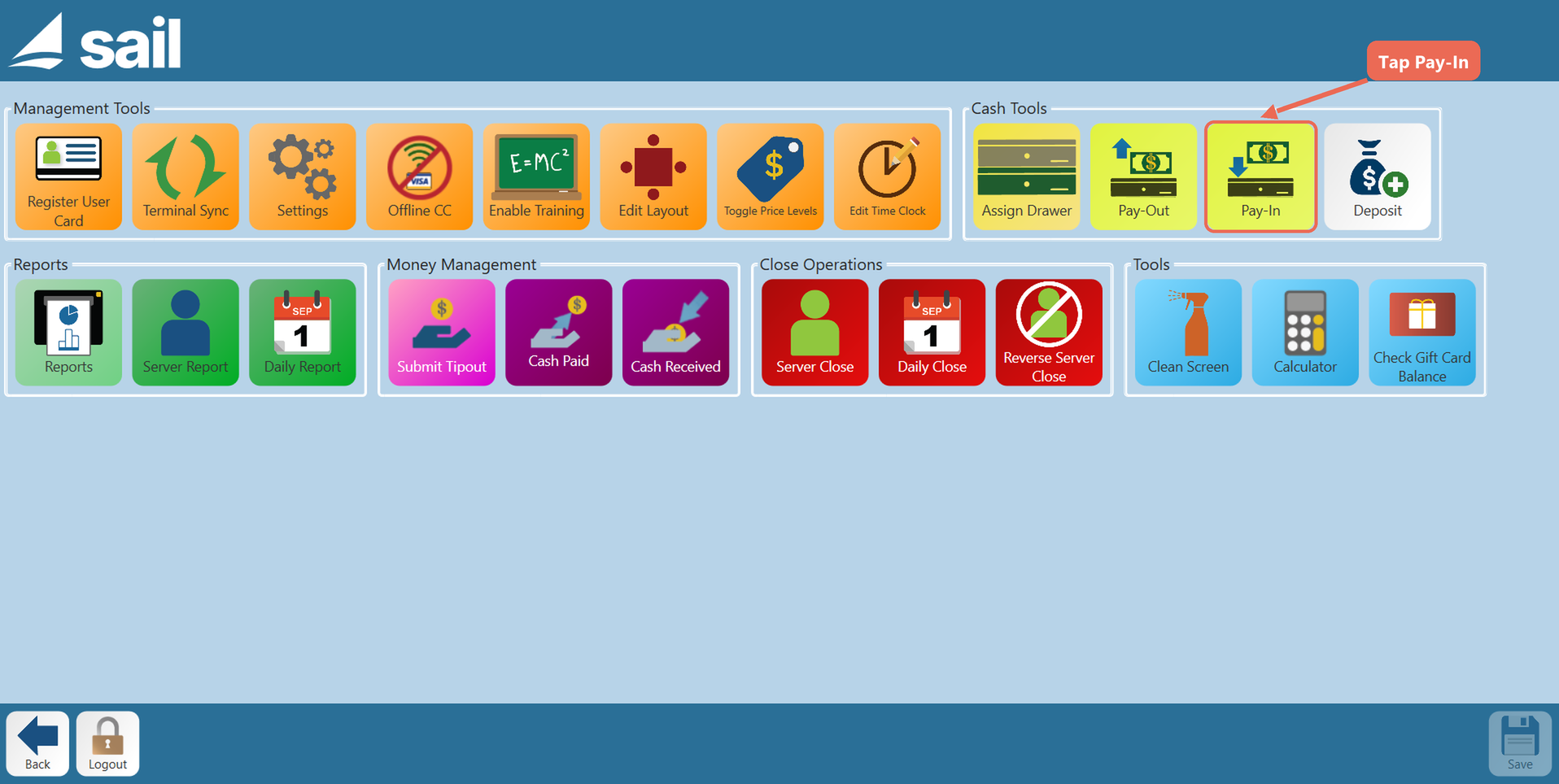
1. Tap Functions, then tap Pay-In under Cash Tools. If your business has more than one pay-in button, tap the one you are making.
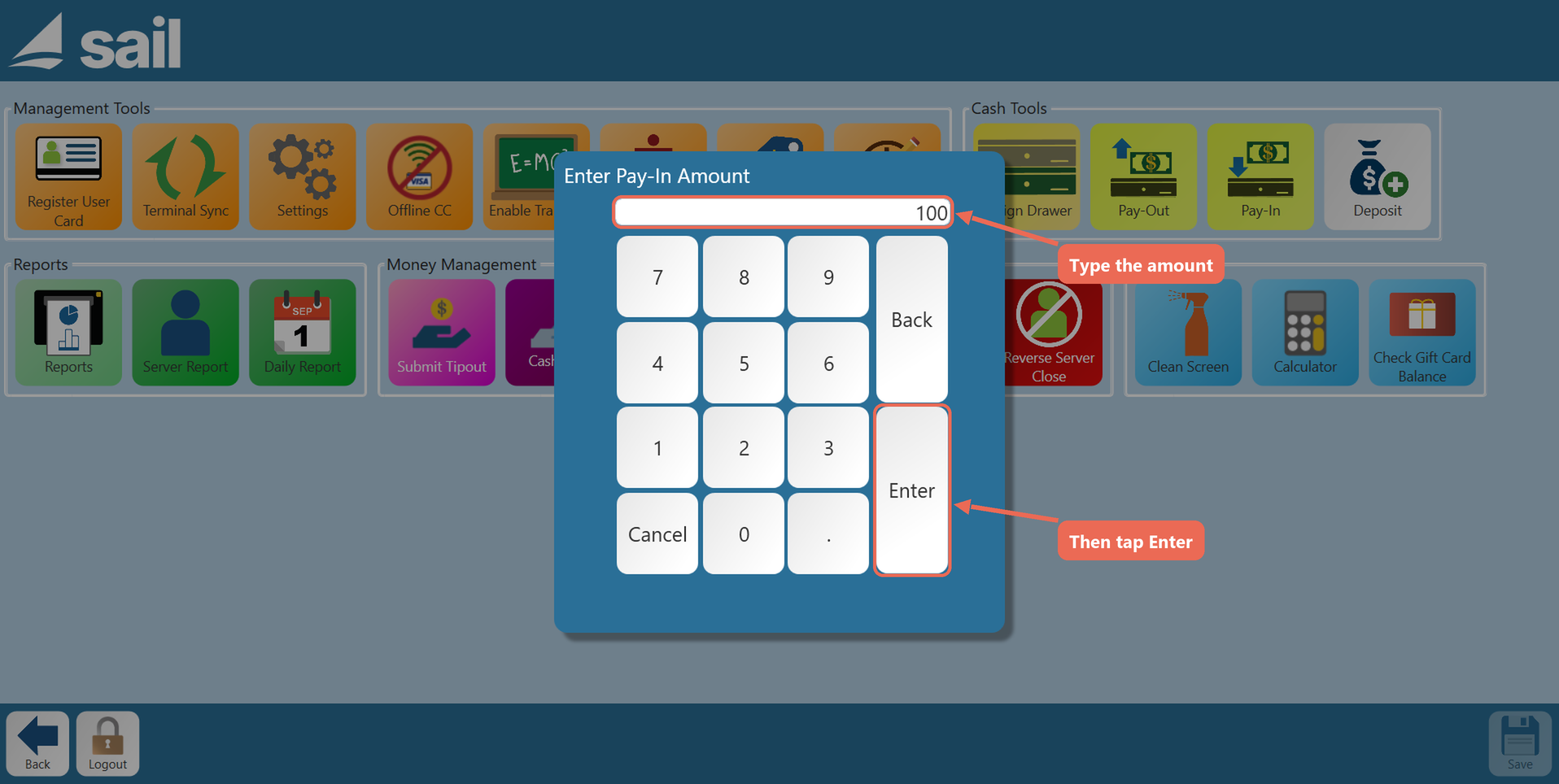
2. Type the amount and tap Enter.
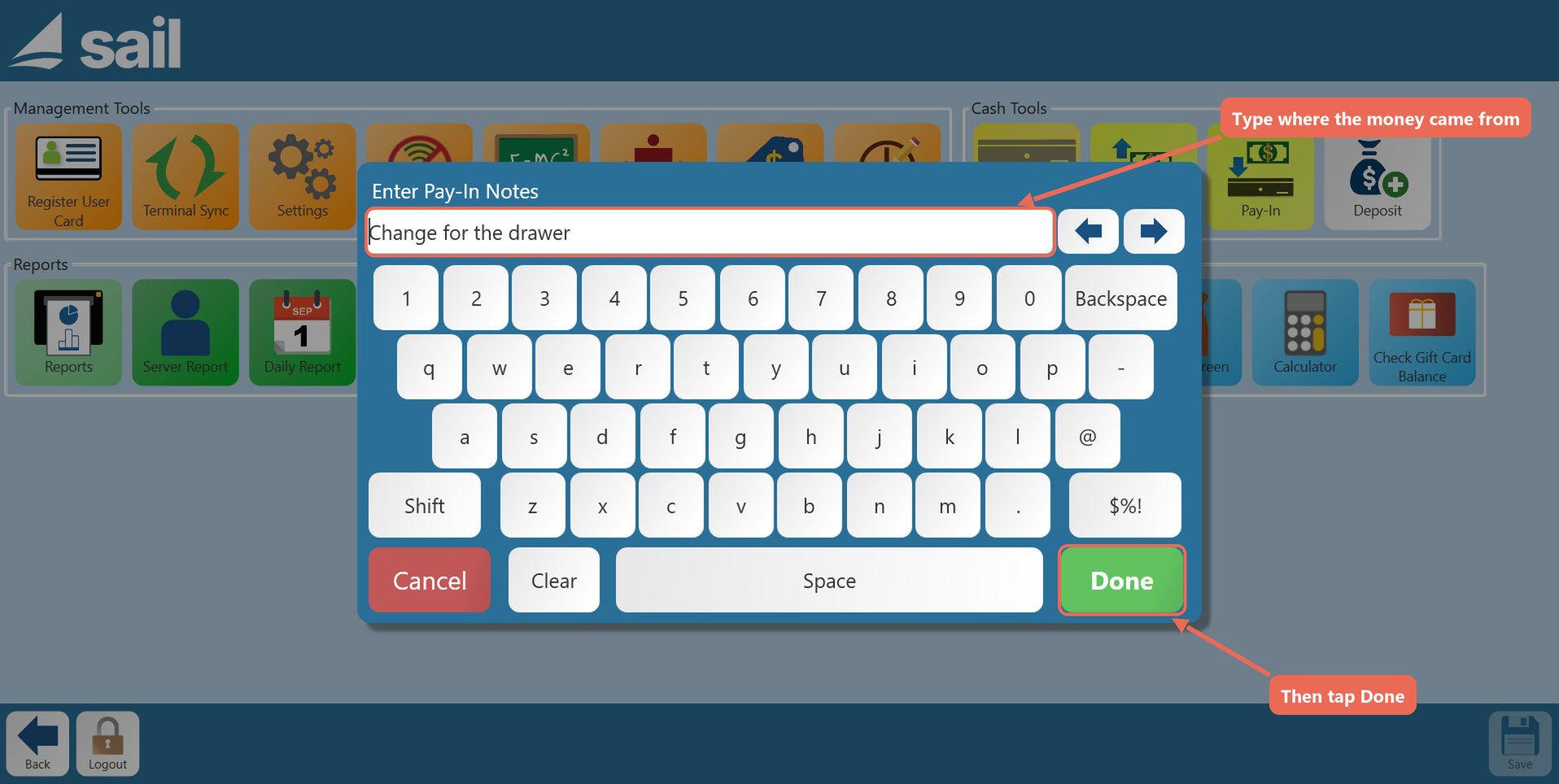
3. Type where the money came from, such as "Change for the drawer", and tap Done.
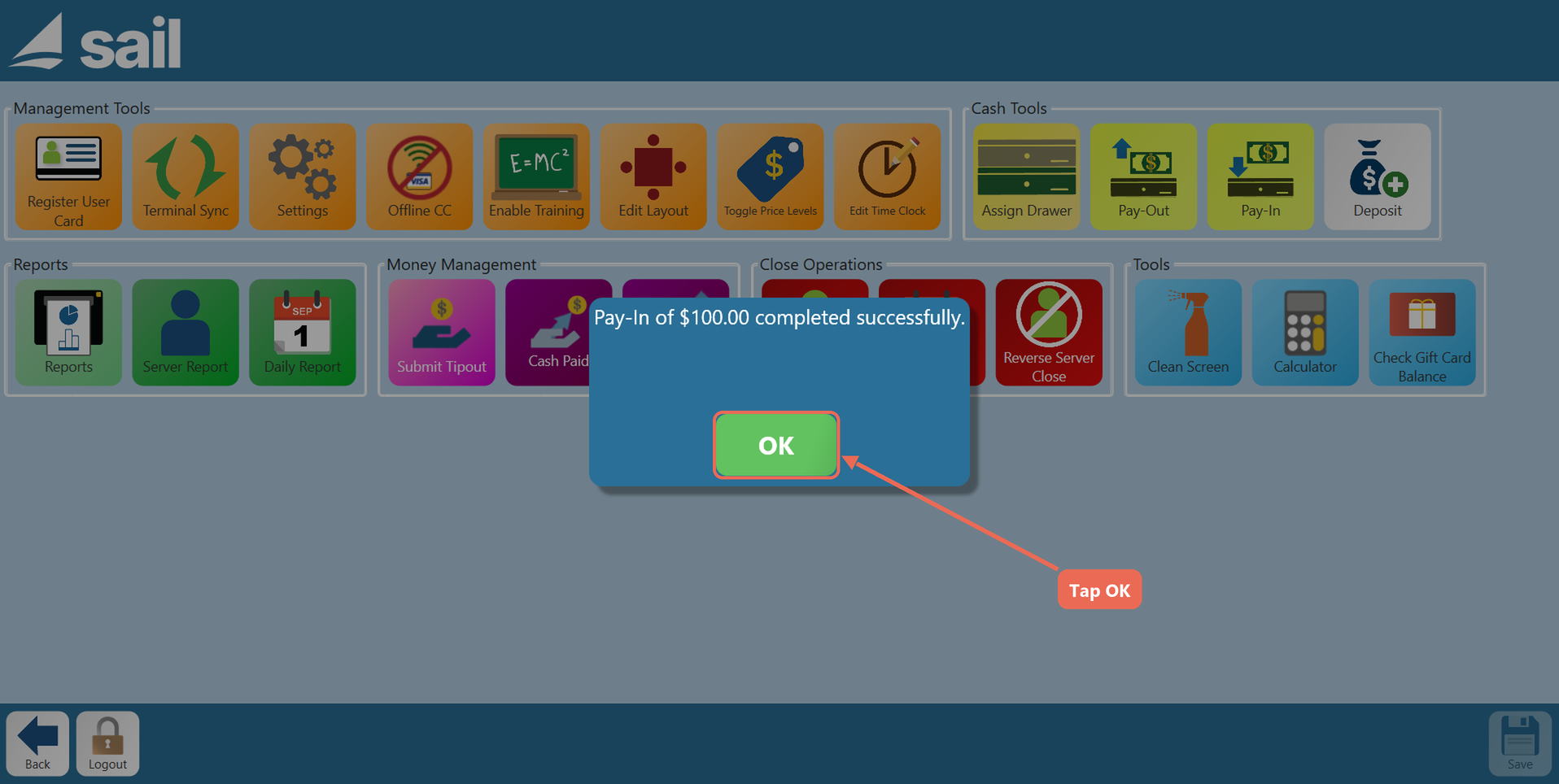
4. The till opens so you can put the cash in, and a pay-in slip prints. Tap OK.
Where to see them later
Every pay-out and pay-in shows in Backoffice on Payout History, with who made it, the amount and the note, once its day has been closed (Daily Close).
Click here to learn more about Payout History.
Good to know
- A pay-out or pay-in is recorded under the employee who is logged in.
- If a pay-out button was set up with a set price, the terminal skips the amount and uses that price.
- Pay-outs and pay-ins are made only from the Functions screen. A Pay-Out button on the order screen just shows a message that pay-outs have moved to Functions.
No Comments