
How to run a daily report
This will walk you through running the daily report on the terminal. The daily report shows your current sales - everything the whole store has sold since the last Daily Close - and you can print it.
Permissions you need
The Daily Report button shows on the Functions screen only for employees whose job role has the task Daily Report (in Backoffice, under POS --> Front of House --> Functions --> Reports). If you don't see it, ask your manager.
Click here to learn more about editing a job role.
How to run the daily report
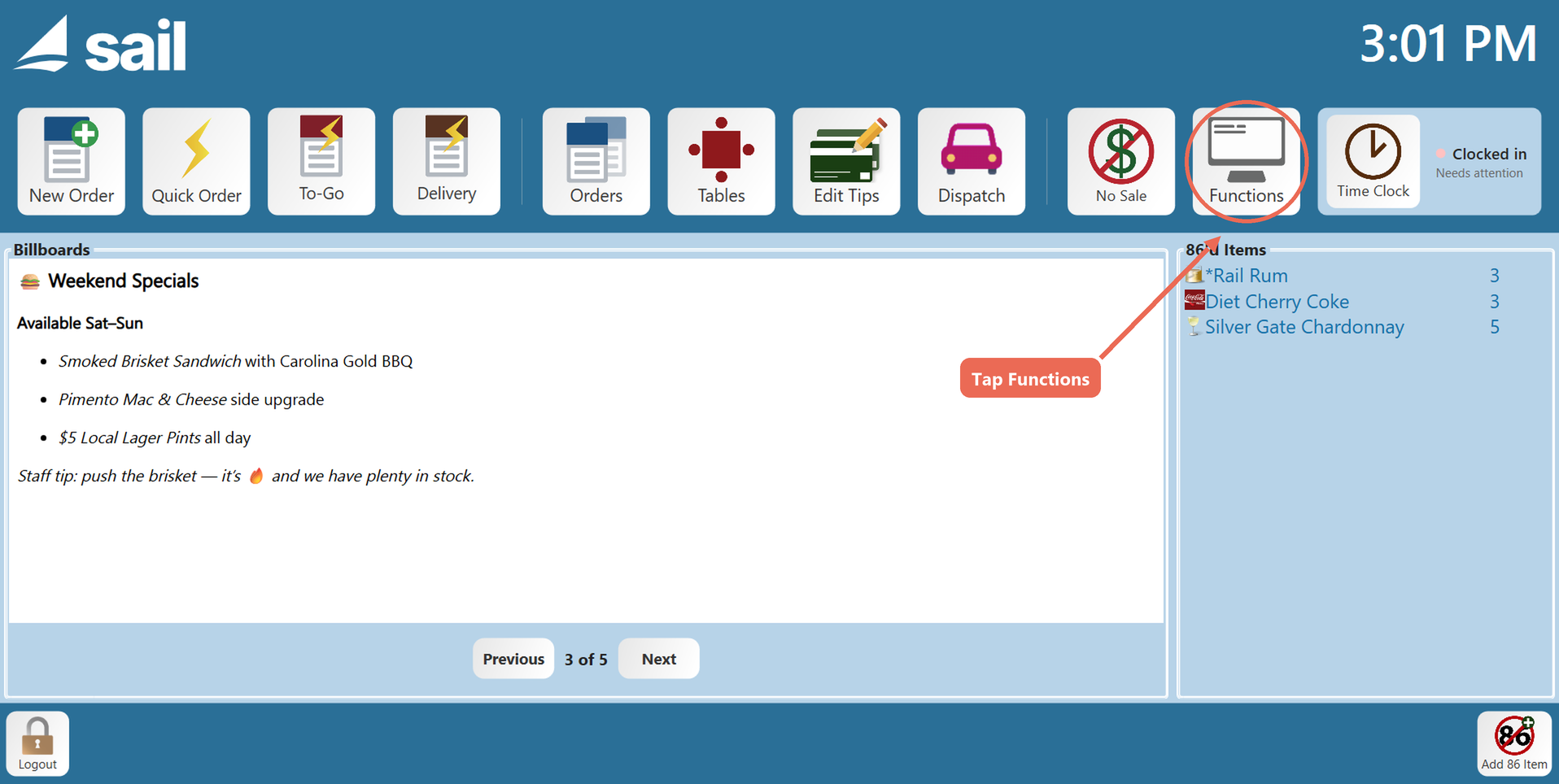
1. Log onto the terminal and tap Functions on the launch screen.
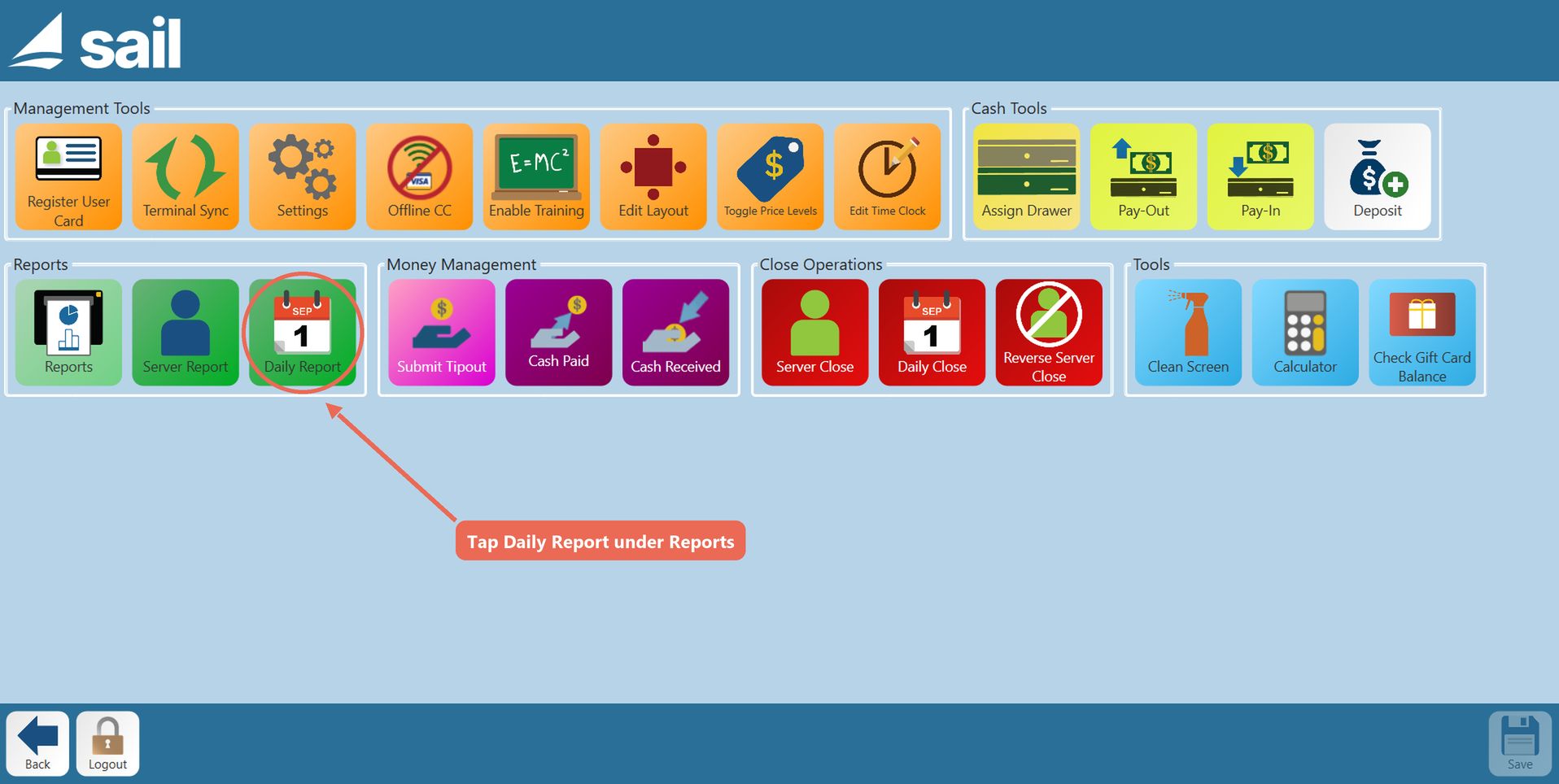
2. Tap Daily Report under Reports.
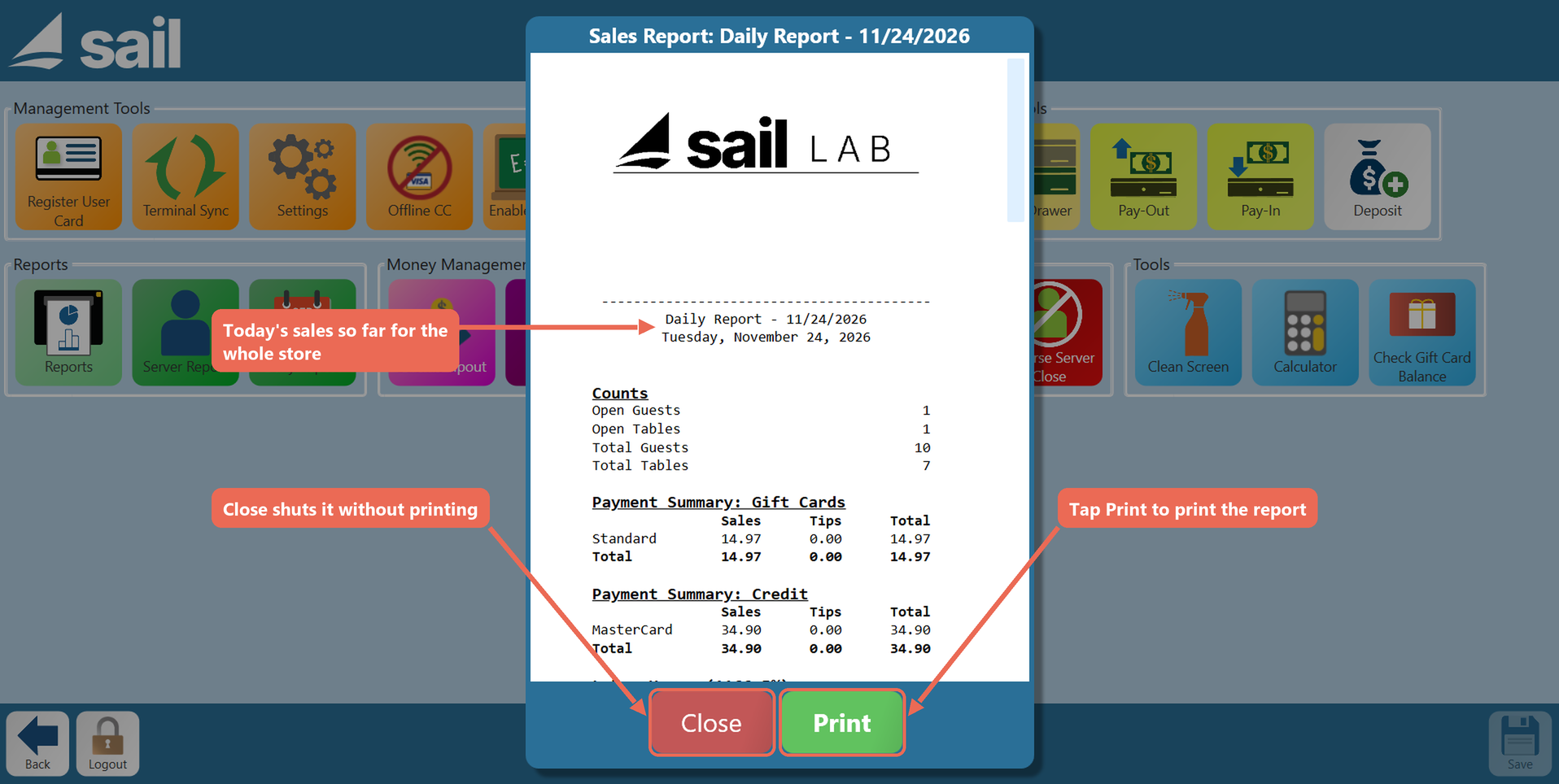
3. The daily report opens on the screen with today's date. Tap Print to print it on the receipt printer, or Close to close it without printing.
What's on the report
Its main parts are:
- Counts - guests and tables, open and total.
- Sales - what was sold, by reporting group.
- Payment summaries - cash, credit cards and gift cards.
- Sales By Server - each server's sales.
- Amount Due - the cash that should be in the till.
- Over / Short - shows only when tonight's cash deposit has been recorded.
Click here to learn more about each part of the Daily Sales Report.
Good to know
- Running the daily report doesn't close the day - run it as often as you like. Only the Daily Close closes the day.
- The report shows the sales as they are when you run it. Run it again later for the latest numbers.
- To see one server's sales, run the server report.
- If your business records its cash deposits in Sail, the report shows whether tonight's deposit is over or short. Click here to learn more about recording a cash deposit.
- To see another day's sales, or other reports, use Reports on the Functions screen. Click here to learn more about running a report on the terminal.
No Comments