
How to do Cash Paid and Cash Received
BeingThis written.document will walk you through Cash Paid and Cash Received on the terminal. They move cash between two employees' drawers at the end of a shift, so each employee's server close comes out right. The bartender is usually the one who does it, from their own login:
- Cash Paid: the bartender pays a server what they're owed, out of the bartender's drawer.
- Cash Received: a server hands their cash to the bartender, and it goes into the bartender's drawer.
Either way, a new server close slip prints for the server showing they owe $0.00, and that's the slip they turn in with their nightly paperwork.
Before you start
Permissions you need: in Backoffice, go to Staff --> Job Roles, click the bartender's job role and look under Tasks. Typing Cash Paid in the search box shows it, under POS --> Front of House --> Functions --> Money Management; Cash Received is in the same place.
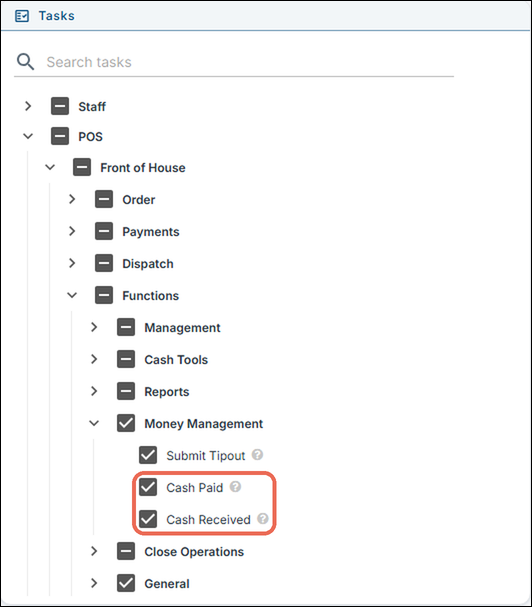
Click here to learn more about editing a job role.
On the server list: the bartender needs Show In Server List turned on in Backoffice (Staff --> Employees, click the employee).
How to pay a server what they're owed (Cash Paid)
This is the most common use. At the end of a server's shift, their server close says the house owes them money - usually their credit card tips. The manager may not have the cash to pay them yet, because no one else has closed out for the day, so the bartender pays them out of the bartender's drawer.
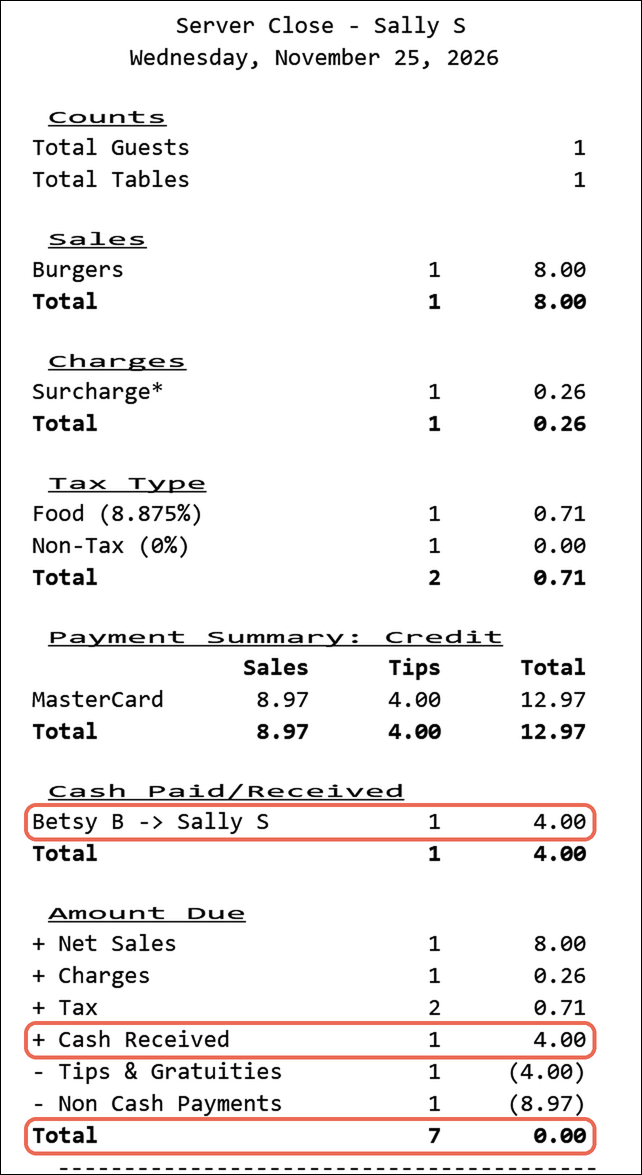
1. The server does their Server Close. The slip shows how much they're owed: the Total under Amount Due is in brackets, for example (4.00) - here, the $4.00 tip from her credit card sale.
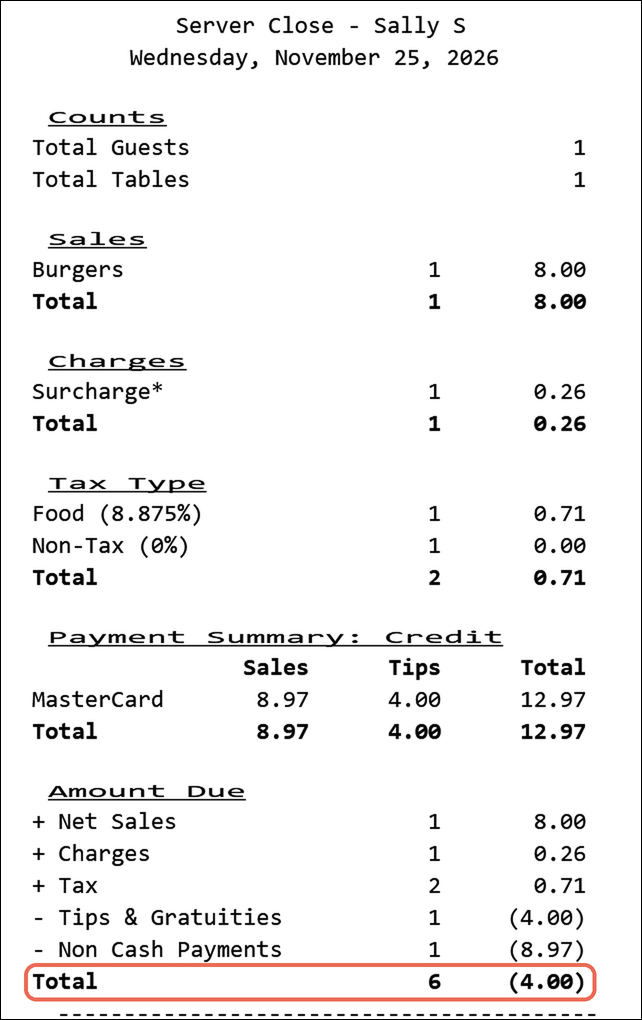
Click here to learn more about closing a server.
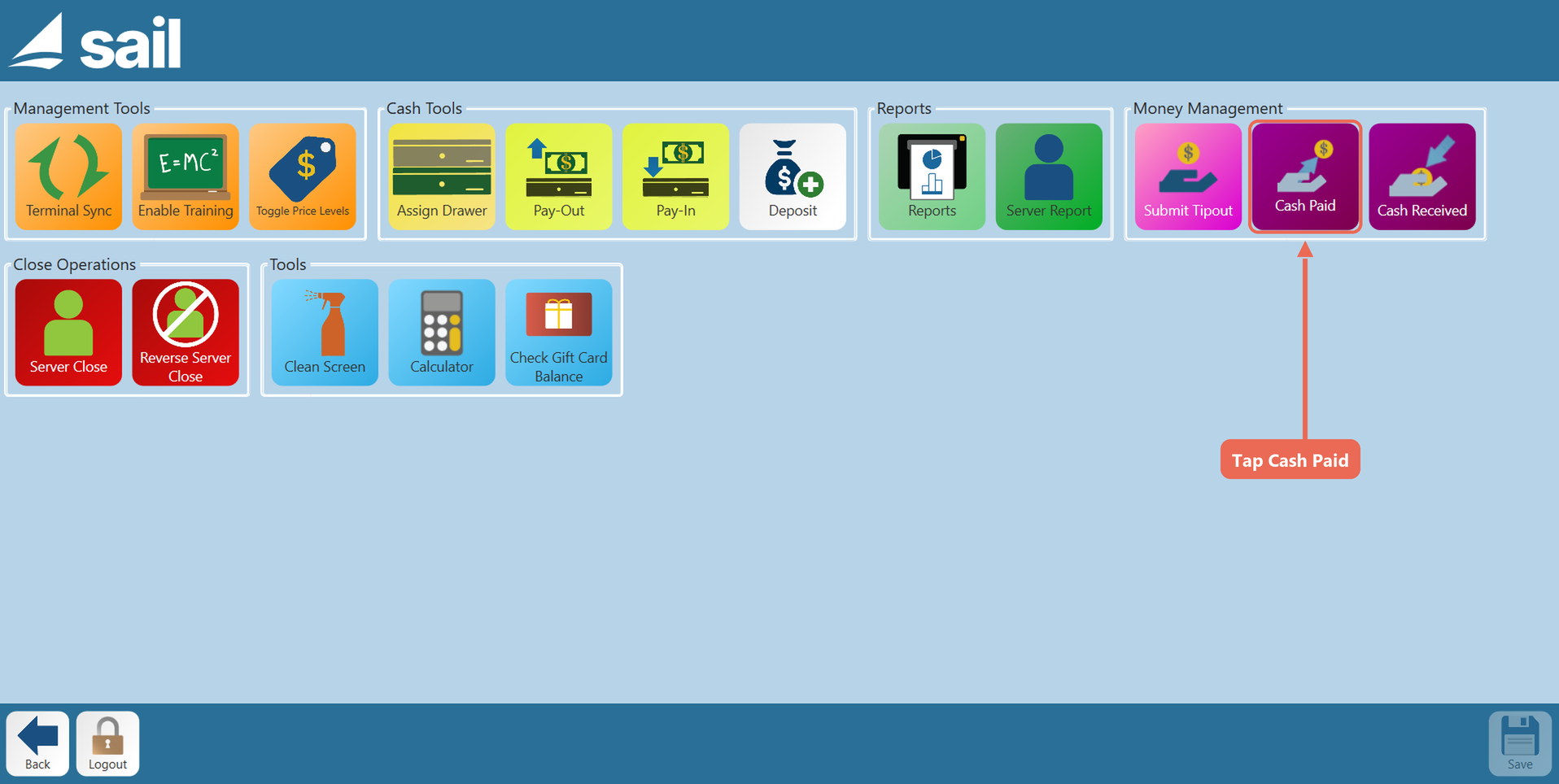
2. The bartender logs in, taps Functions, then taps Cash Paid under Money Management.
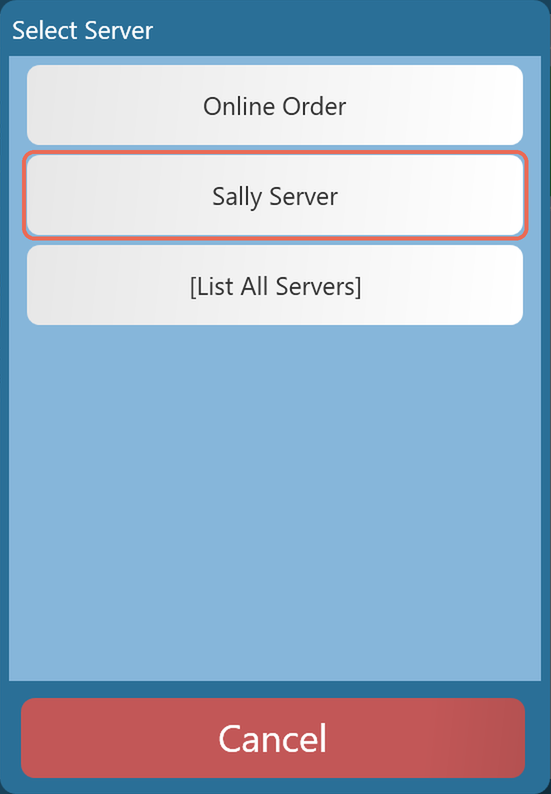
3. Tap the server you're paying. If they aren't on the list, tap [List All Servers].
4. Tap the server close they just did - it shows Closed at and the amount they're owed. (Current/Open is for a server who hasn't closed out yet.)
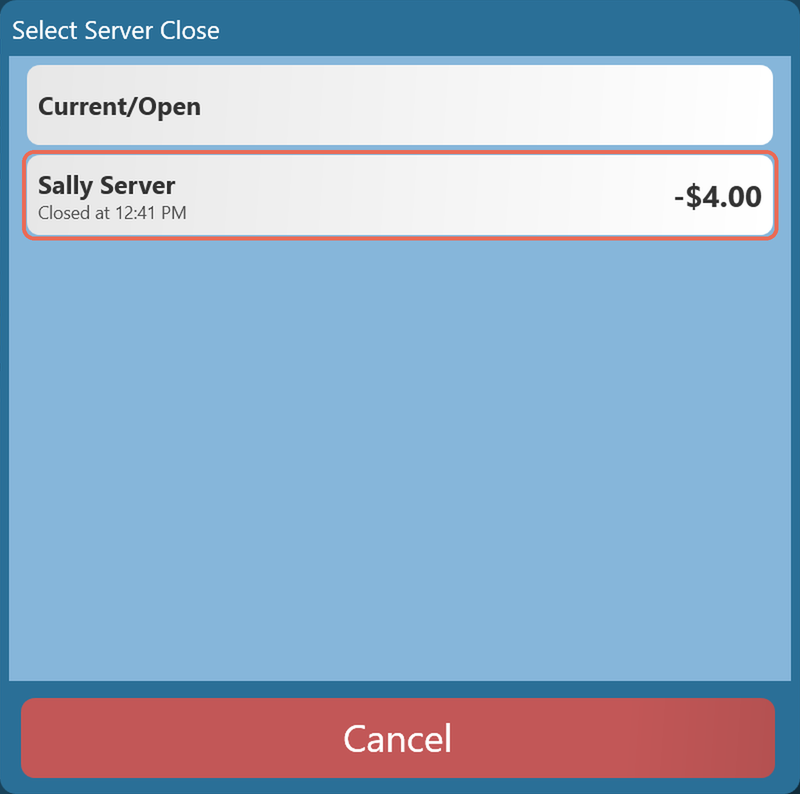
5. The amount they're owed is already filled in. Count it out of your drawer and tap Enter.
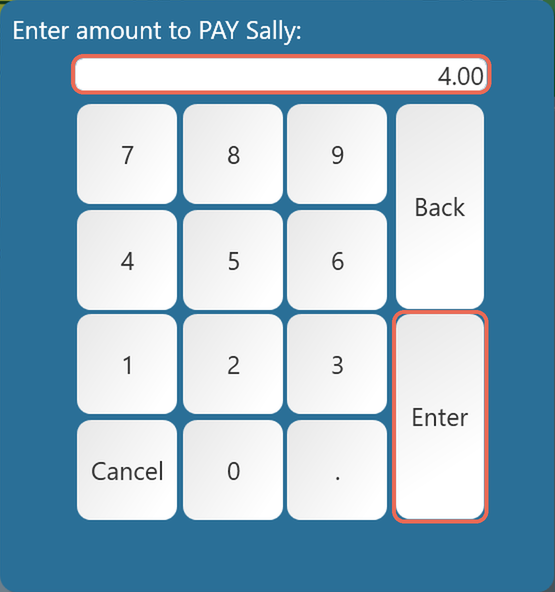
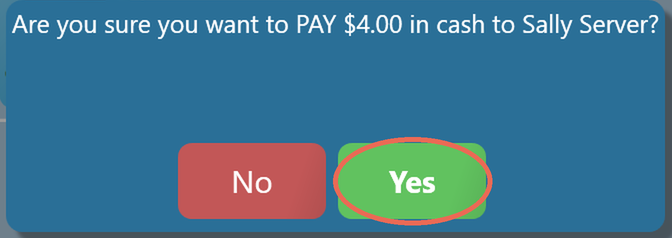
6. Check the amount and the name, and tap Yes, then OK.
7. A new server close slip prints for the server by itself. It shows the cash you paid them (Betsy B -> Sally S and + Cash Received), and the Total under Amount Due is now 0.00. The server turns in this slip with their nightly paperwork.
When the bartender is the closer (Cash Received)
Some businesses have every employee settle up with the bartender at the end of their shift, whether they owe money or are owed. All the money goes into or comes out of the bartender's drawer, every server's slip shows they owe $0.00, and all the cash is in the bartender's drawer at the end of the night.
- A server who is owed money: the bartender pays them with Cash Paid, as above.
- A server who owes money hands their cash to the bartender, and the bartender records it with Cash Received:
1. The server does their Server Close. The slip's Total under Amount Due is what they owe.
2. The bartender taps Functions, then Cash Received under Money Management.
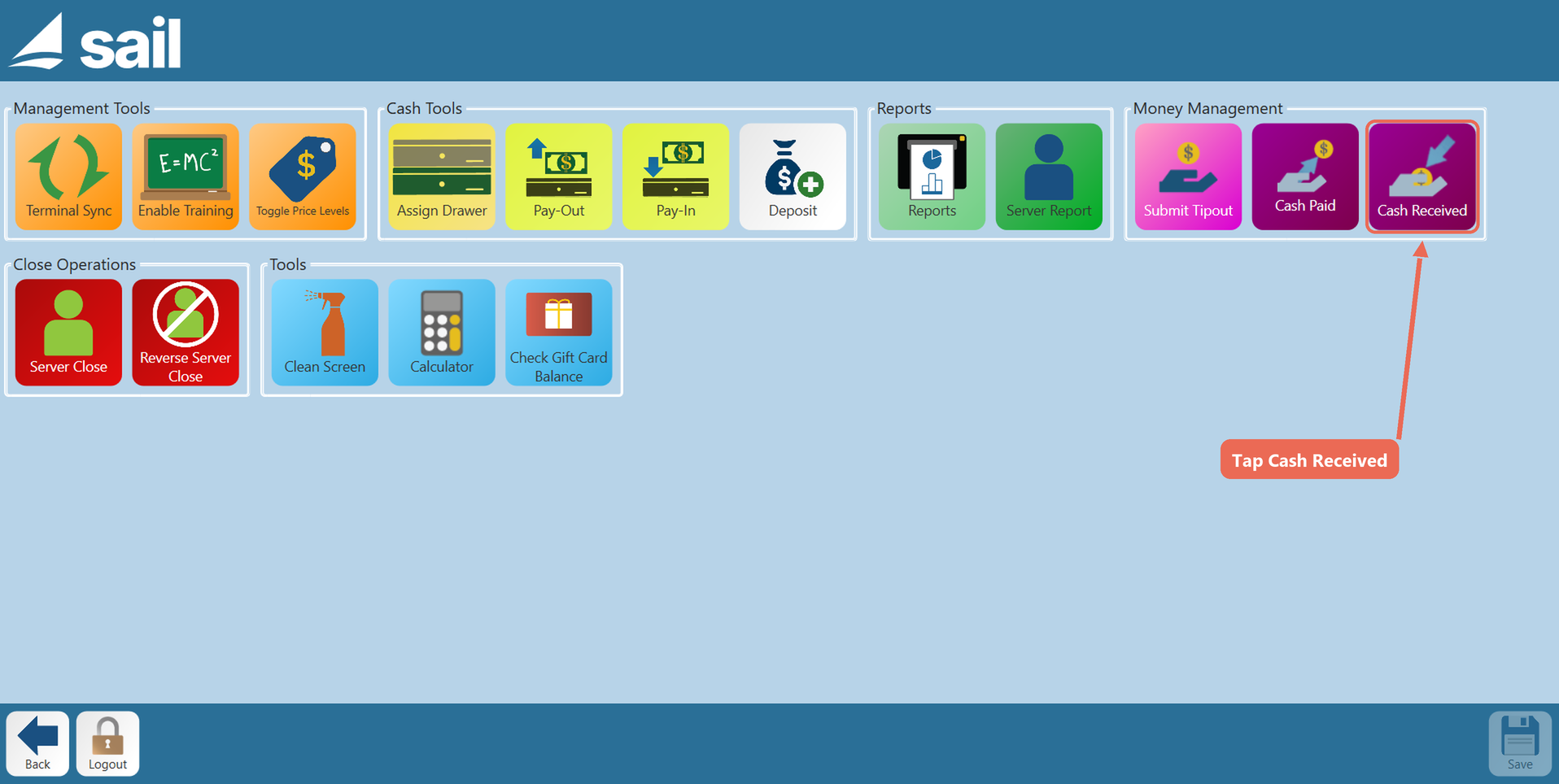
3. Tap the server, then tap the server close they just did.
4. The amount they owe is already filled in. Take the cash, put it in your drawer and tap Enter.
5. Tap Yes, then OK. A new server close slip prints for the server showing they owe 0.00.
Where it shows up
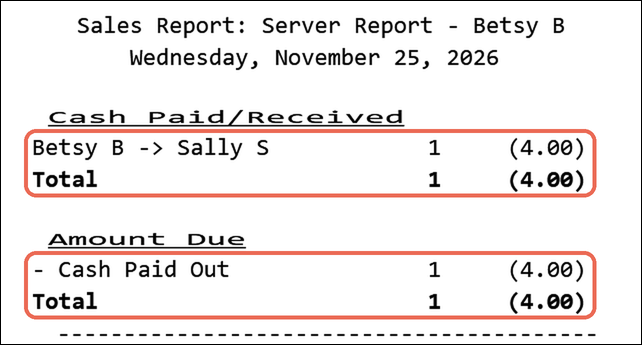
The bartender's own report shows every hand-off. Tap Functions, then Server Report:
- Cash Paid/Received: each hand-off, with who gave the cash to whom (Betsy B -> Sally S) and the amount.
- Amount Due: - Cash Paid Out takes off the cash you paid out of your drawer; + Cash Received adds the cash you took in.
Click here to learn more about running a server report, and the Cash Paid/Received Log in Report Parts.
Fixing a mistake
There's no undo. If the amount or the employee was wrong, record the opposite for the same amount - for example, if you did Cash Paid of $4.00 to the wrong server, do Cash Received of $4.00 from that server - then record it again correctly.
Click here to learn more about the Functions Screen.