
How to edit a customer's information
BeingThis written.document will show you how to change a customer's name, phone number, address or email on the terminal - from the Dispatch screen, or from the customer's delivery order.
To learn how to set up delivery and dispatch in Backoffice, click here to learn more about Delivery & Dispatch.
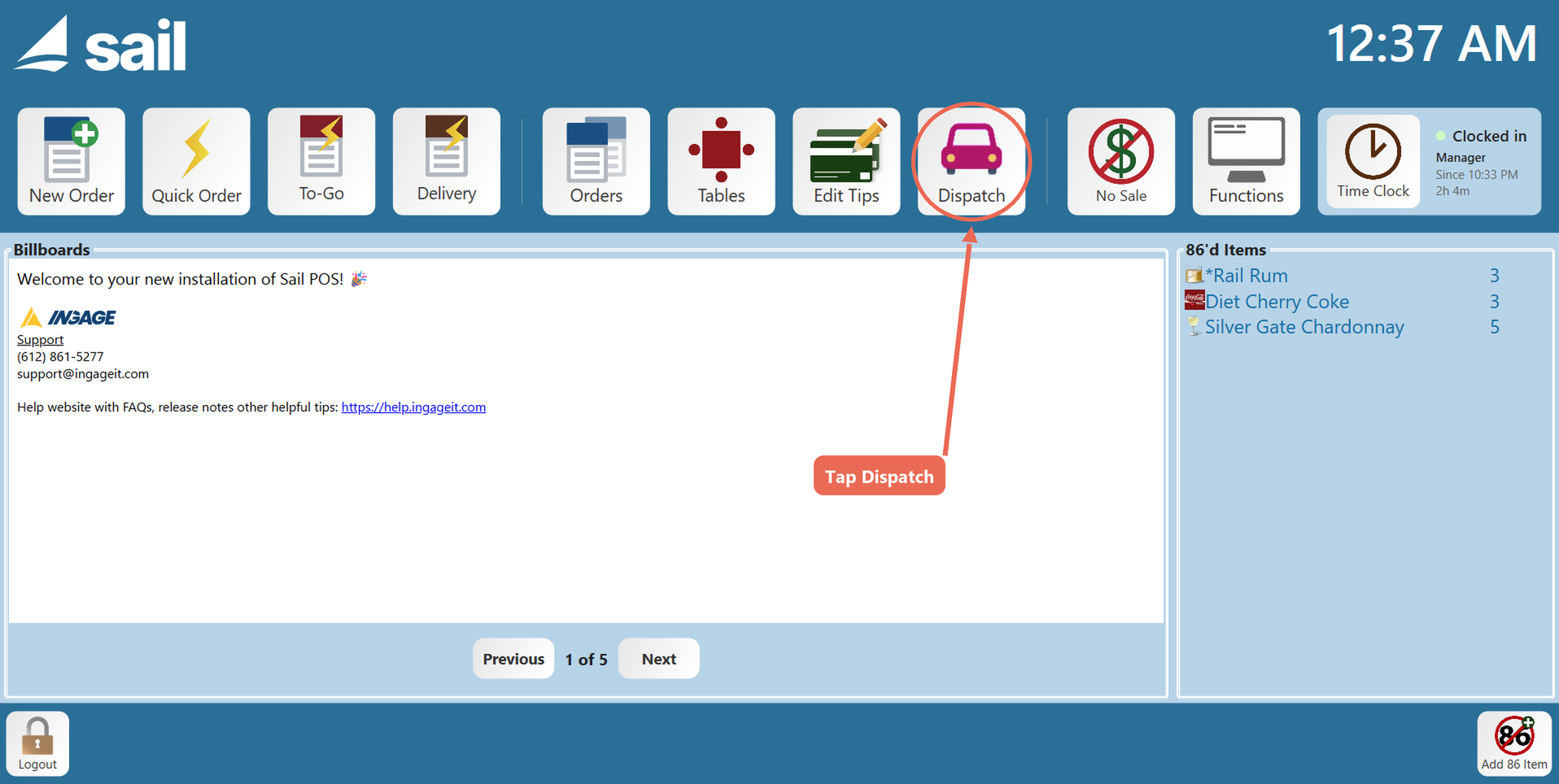
Opening the Dispatch screen
On the home screen, tap Dispatch.
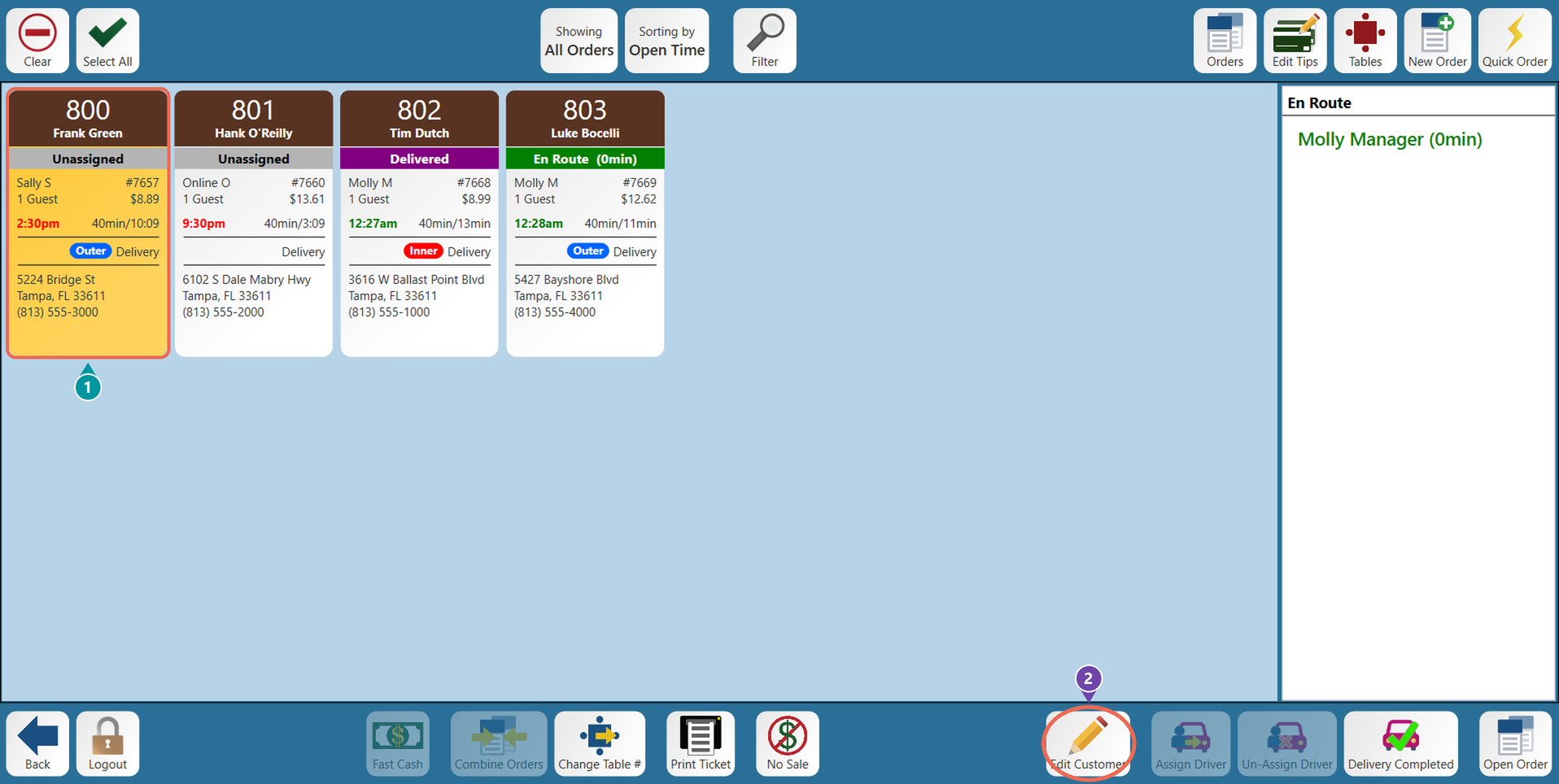
How to edit a customer from the Dispatch screen
1. Tap the customer's order. It turns yellow.
2. Tap Edit Customer.
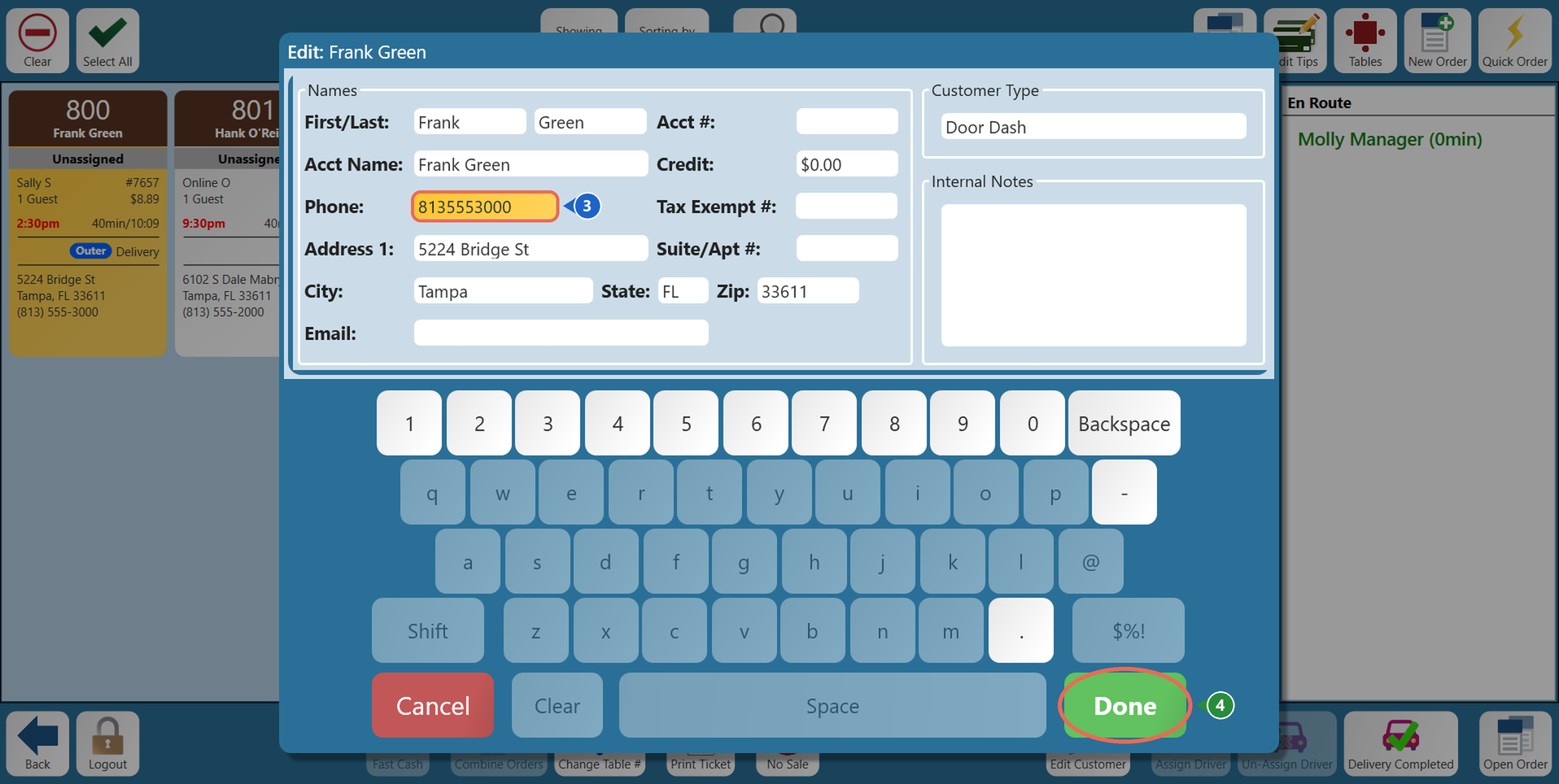
3. The customer's information opens. Tap the box you want to change.
4. Type the new information on the keyboard and tap Done.
5. Tap Save.
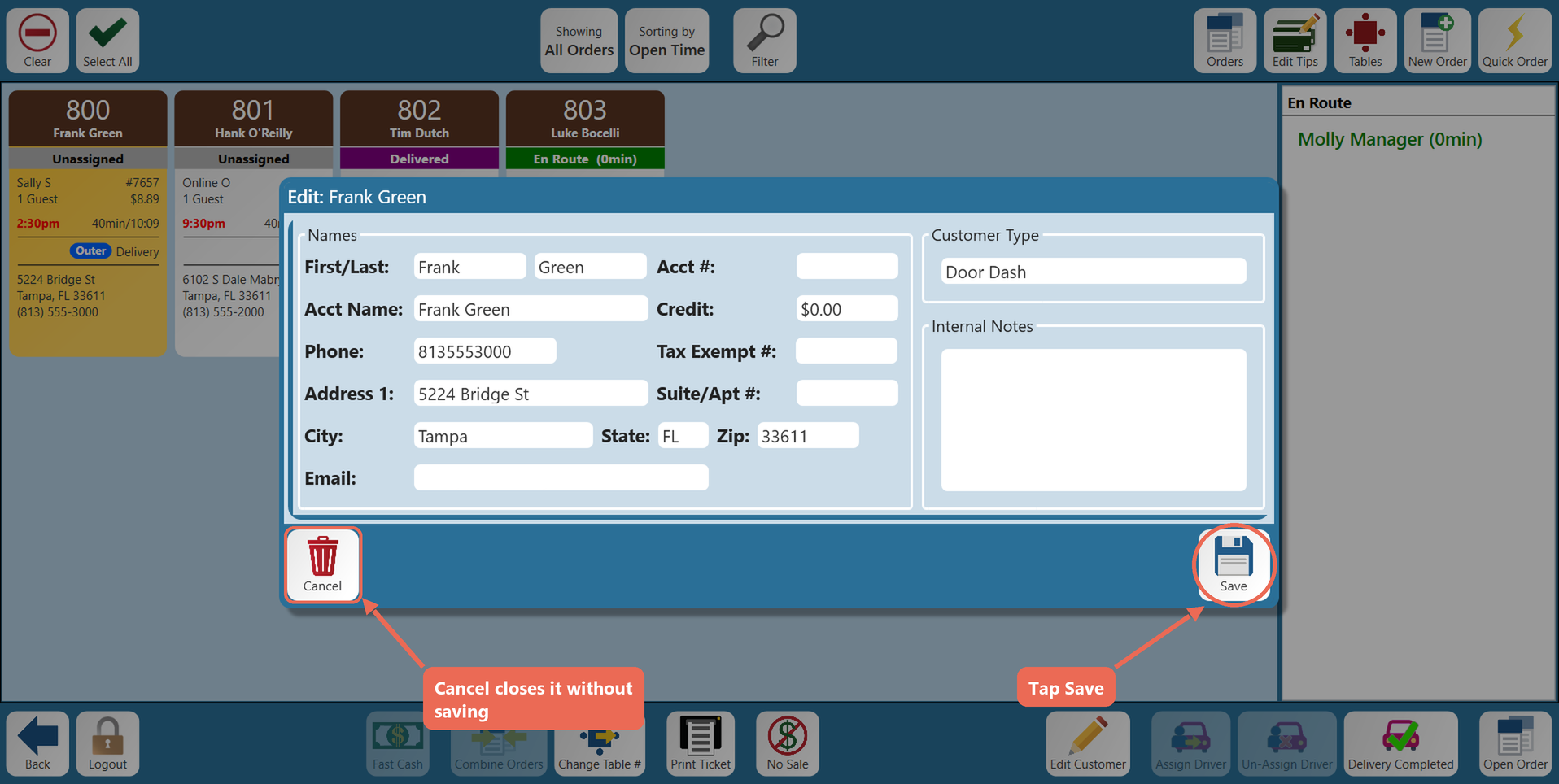
The Dispatch screen shows the order again with the customer's new information.
What you can change
- First/Last: the customer's first and last name.
- Acct #: the customer's account number.
- Acct Name: the name the customer is listed under. If you leave it empty, it is filled in with the first and last name.
- Credit: how much the customer can charge to their customer account.
- Phone: the phone number you look the customer up by.
- Tax Exempt #: the customer's tax exempt number, if they have one.
- Address 1, Suite/Apt #, City, State and Zip: where the order is delivered.
- Email: the customer's email address.
- Customer Type: the kind of customer they are.
- Internal Notes: notes for your staff. The customer doesn't see them.
How to edit a customer from their delivery order
When you start a delivery order and pick the customer, the order opens on the customer's information page. On an order that's already open, you get back to that page from the order type button at the top left.
1. Tap the order type button (Delivery).
2. Tap the pencil next to the customer's name.
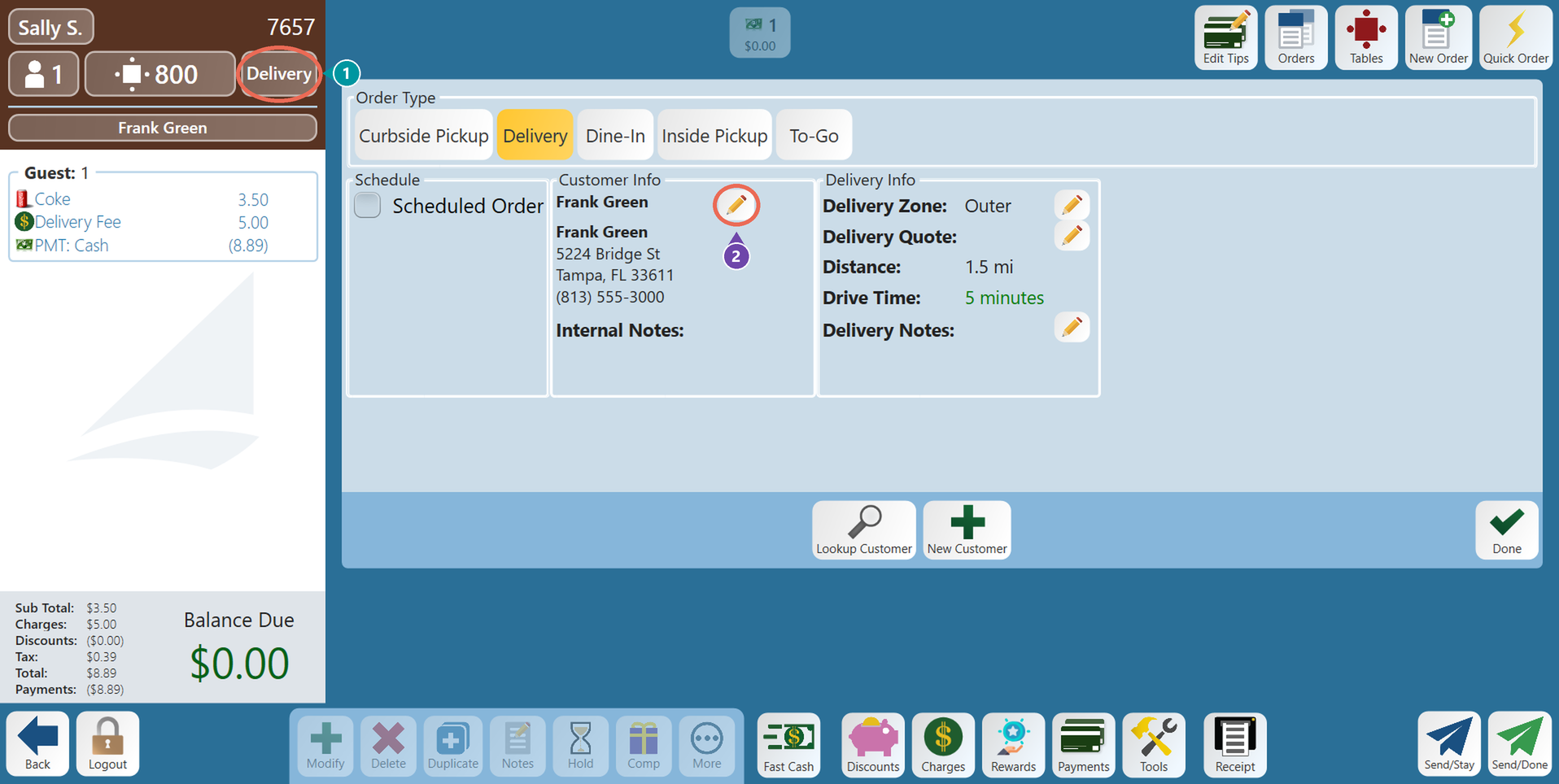
3. The customer's information opens. Change it the same way and tap Save.
Click here to learn more about taking a delivery order on the terminal.
Good to know
- Select only one order. With no order or more than one order selected, Edit Customer stays greyed out.
- An order with no customer on it can't be edited from the Dispatch screen.
- The change is saved on the customer, not just on this order: their next order uses the new information too.
- Tap Cancel to close the customer's information without saving.