
How to print a report of your open orders
BeingThis written.will walk you through printing a list of your open orders from the Orders screen: each order's table, guests, amount, order number and the time it was opened, with the total at the bottom. It's a quick way to check which orders are still open, for example before you do your server close.
If you want more information on everything else the Orders screen does, see the Orders Screen article. This report is not your server report - to see your sales, see How to run a server report.
Open your open orders
-
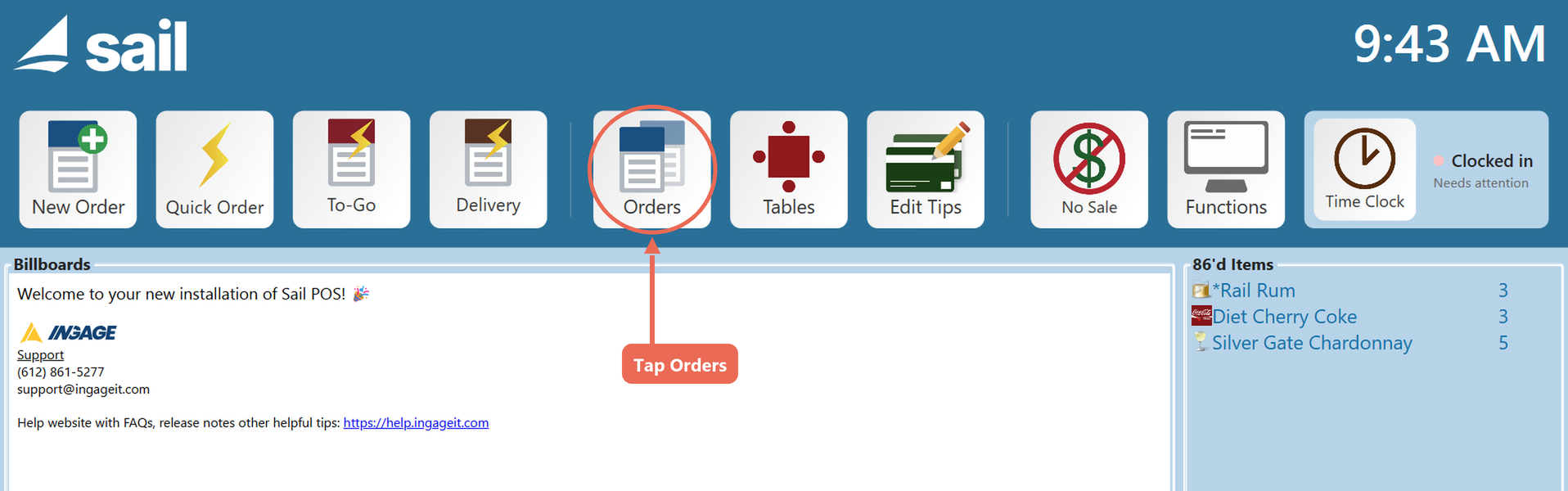
On the home screen, tap Orders.
-
Check that the Showing Server button shows your name and the Showing button says Open Orders. The report lists the orders of the server shown there.
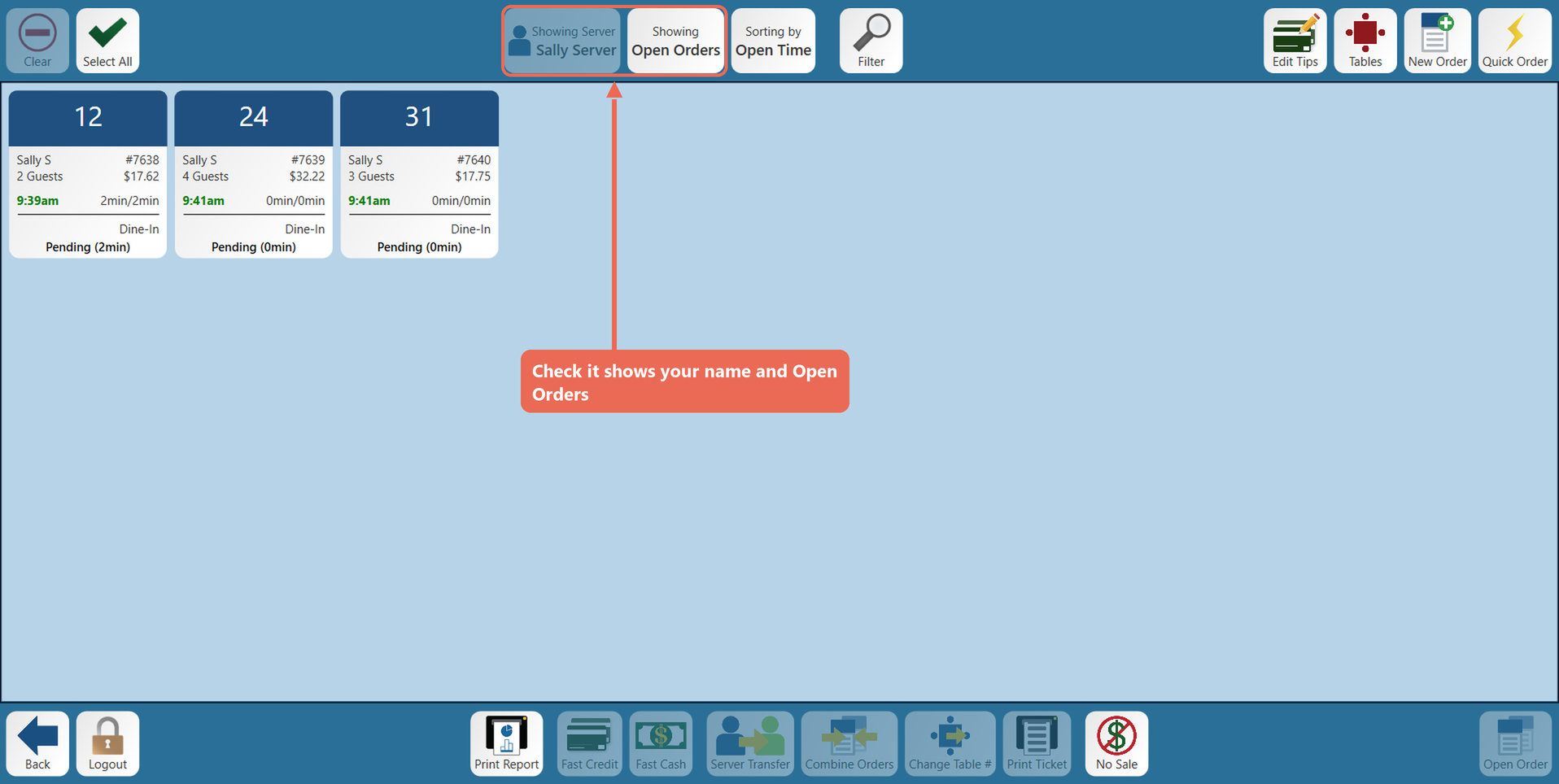
Note: If the Showing button says something else, see How to view your open orders. A manager, or anyone whose job role has the View All Orders permission, can print the report for another server, or for all servers, by choosing them in Showing Server first - see How to view someone else's orders. When more than one server is chosen, each server's report prints on its own.
Print the report
-
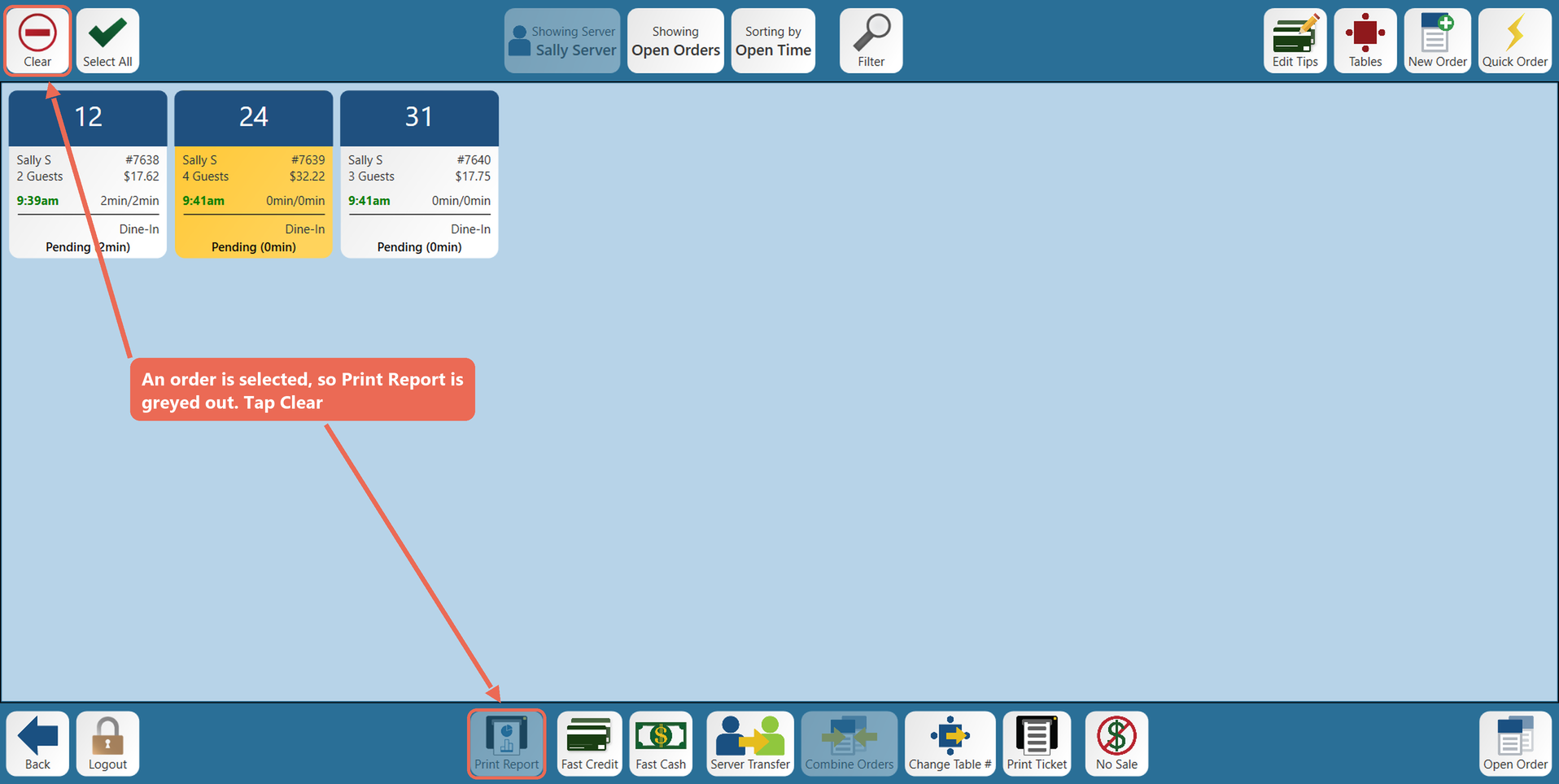
Make sure no order is selected. If an order is yellow, Print Report is greyed out: tap Clear at the top left.
-
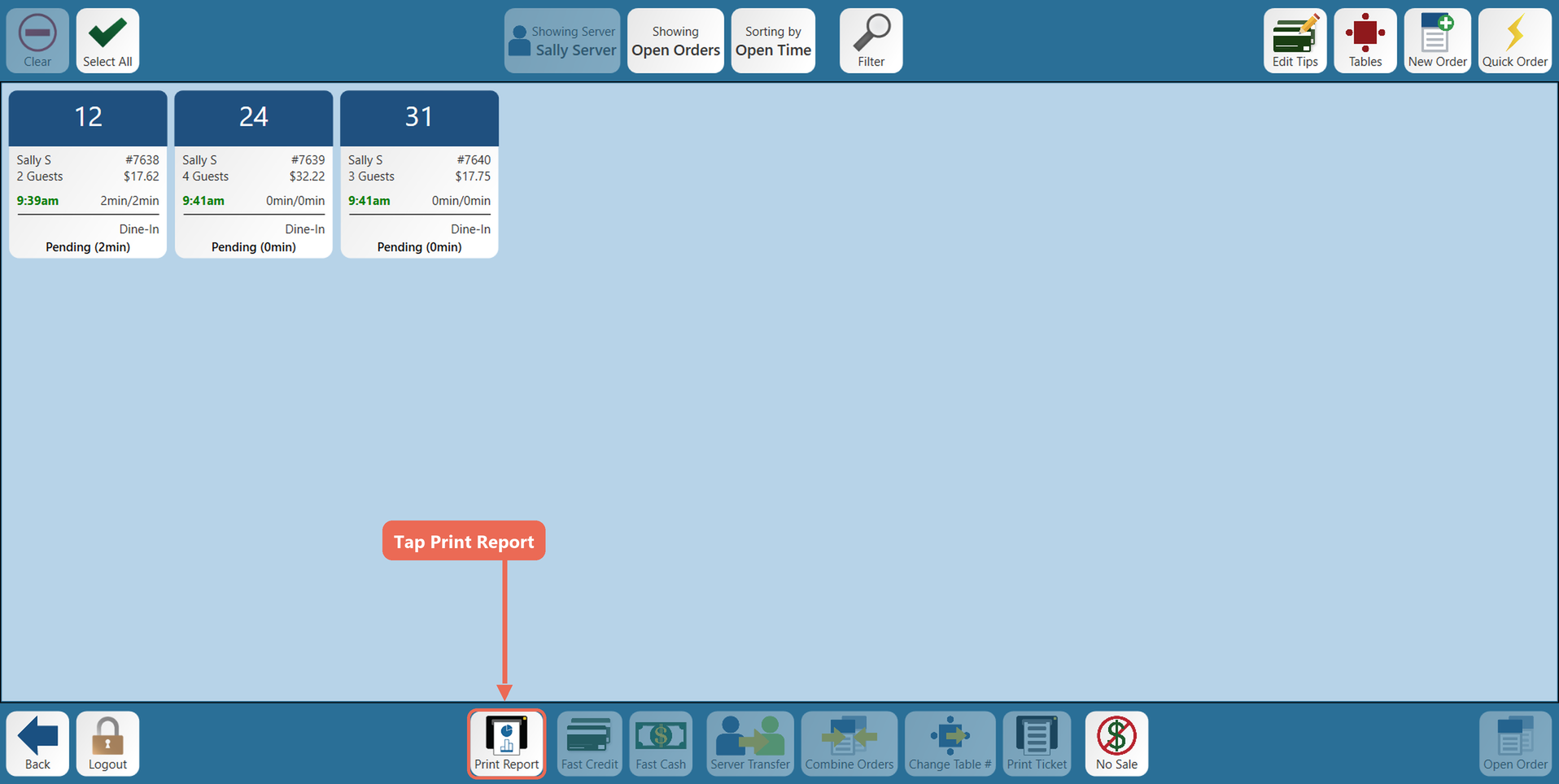
Tap Print Report at the bottom of the screen.
-
The report shows on the screen first. Tap Print to print it, or Close if you only wanted to look at it.
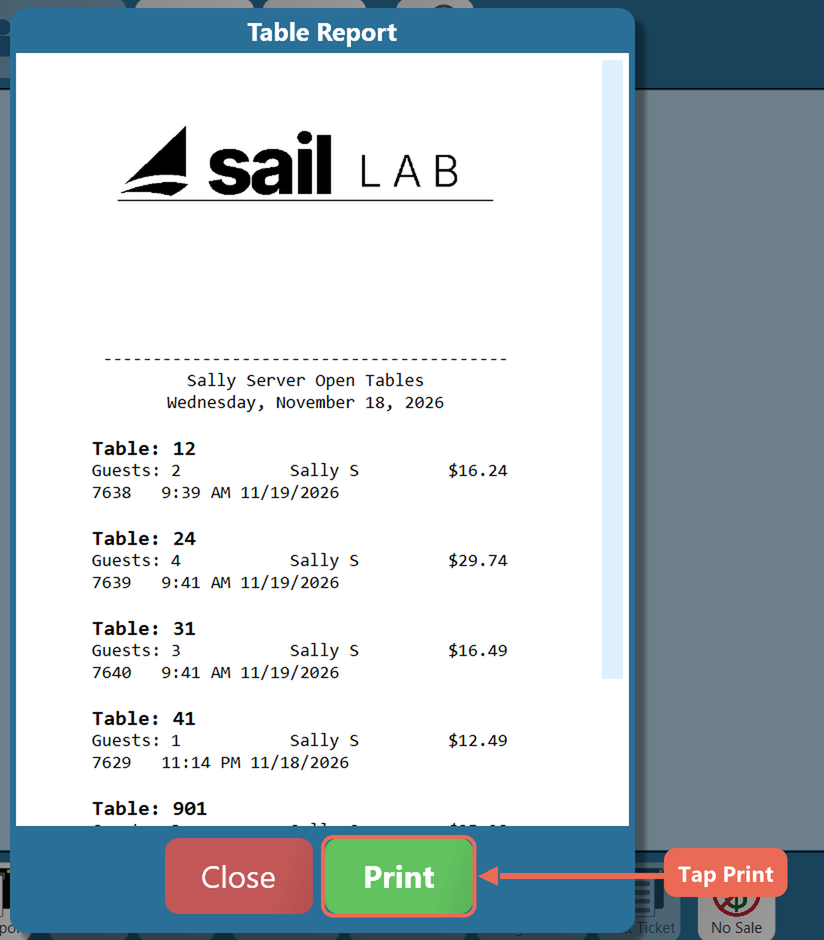
What the report looks like
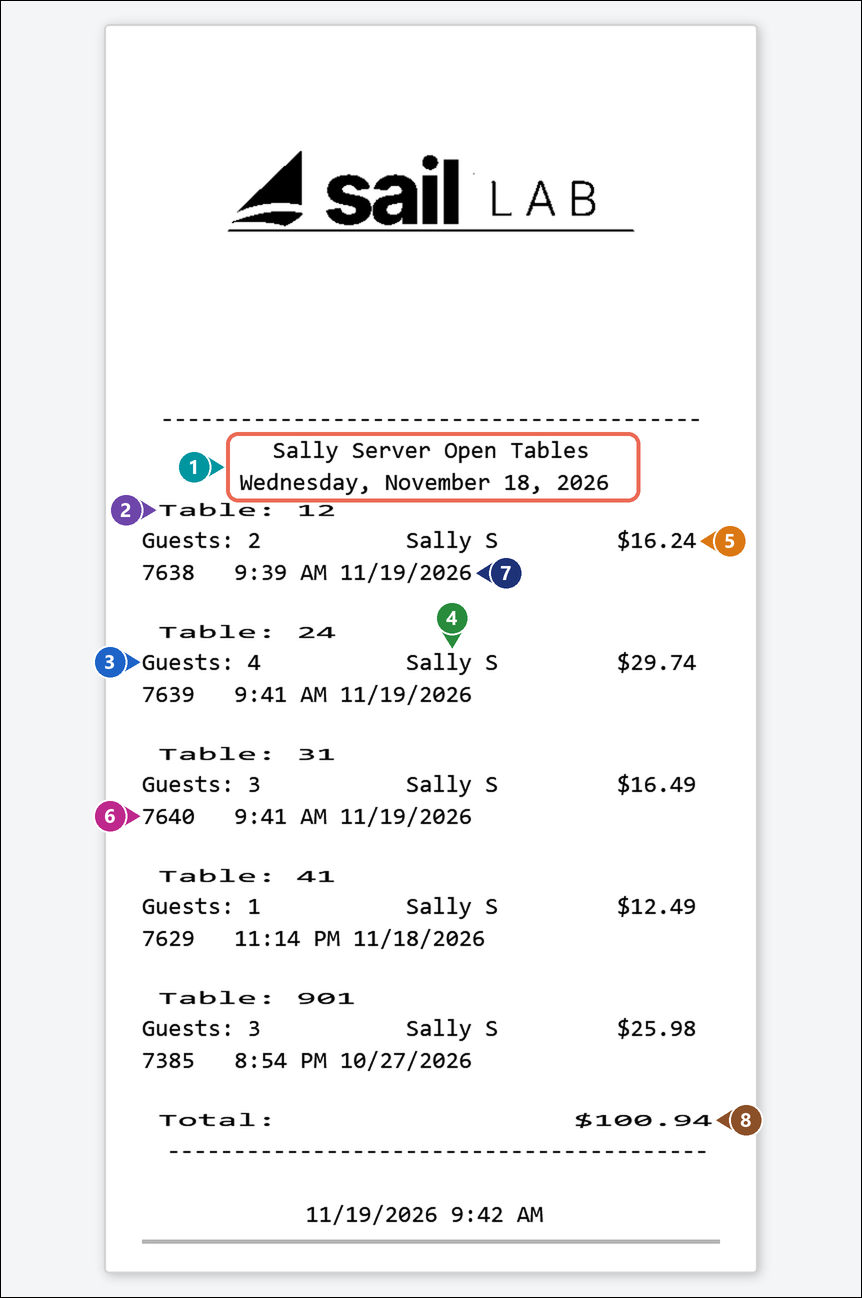
1. Title - Whose orders they are (a server's name, or All) and whether they are open or closed, and the date.
2. Table - The order's table number.
3. Guests - The guest count.
4. Server - The server the order belongs to.
5. Amount - The order's subtotal, before tax. It can be lower than the amount on the Orders screen, which includes tax.
6. Order number - The order's number, the one shown with a # on the Orders screen.
7. Opened - The time and date the order was started.
8. Total - All the amounts added up.
Note: The report also lists your scheduled orders that aren't closed yet, even though they don't show with your open orders on the Orders screen. In the picture above, tables 41 and 901 are scheduled orders.
Pro tip: To print a list of the orders you have already closed, set the Showing button to Closed Orders first, then tap Print Report the same way.