
How to print your credit card report
BeingThis written.document will show how to print your credit card report on the terminal. The report lists your credit card payments and their tips, so you can check them before you close out.
How to print your credit card report
-
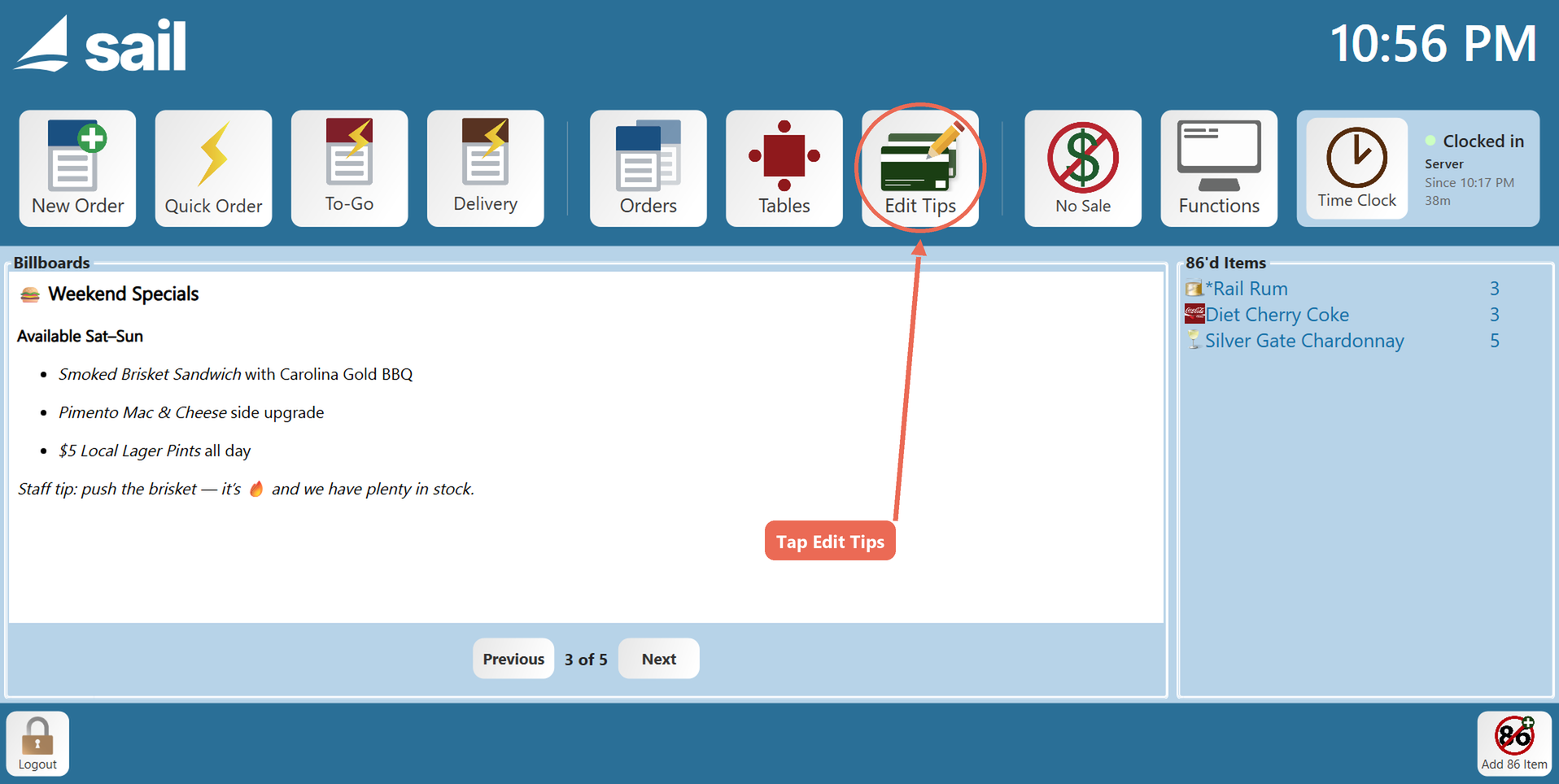
On the home screen, tap Edit Tips.
-
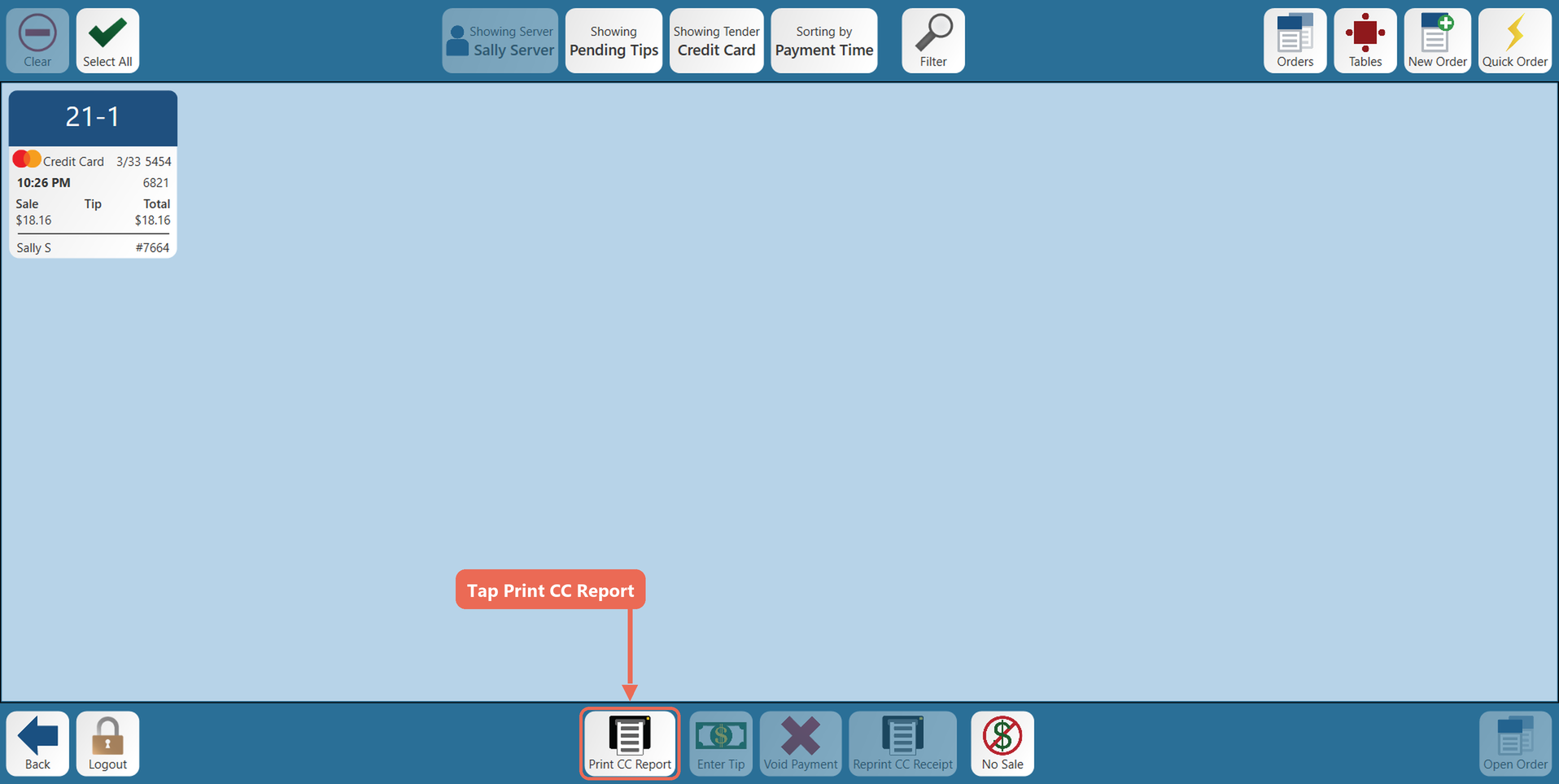
Tap Print CC Report at the bottom. It only works when no payment is selected: if a payment is yellow, tap Clear first.
-
The Credit Card Report opens on the screen. Scroll down to look it over, then tap Print. Tap Close to close it without printing.
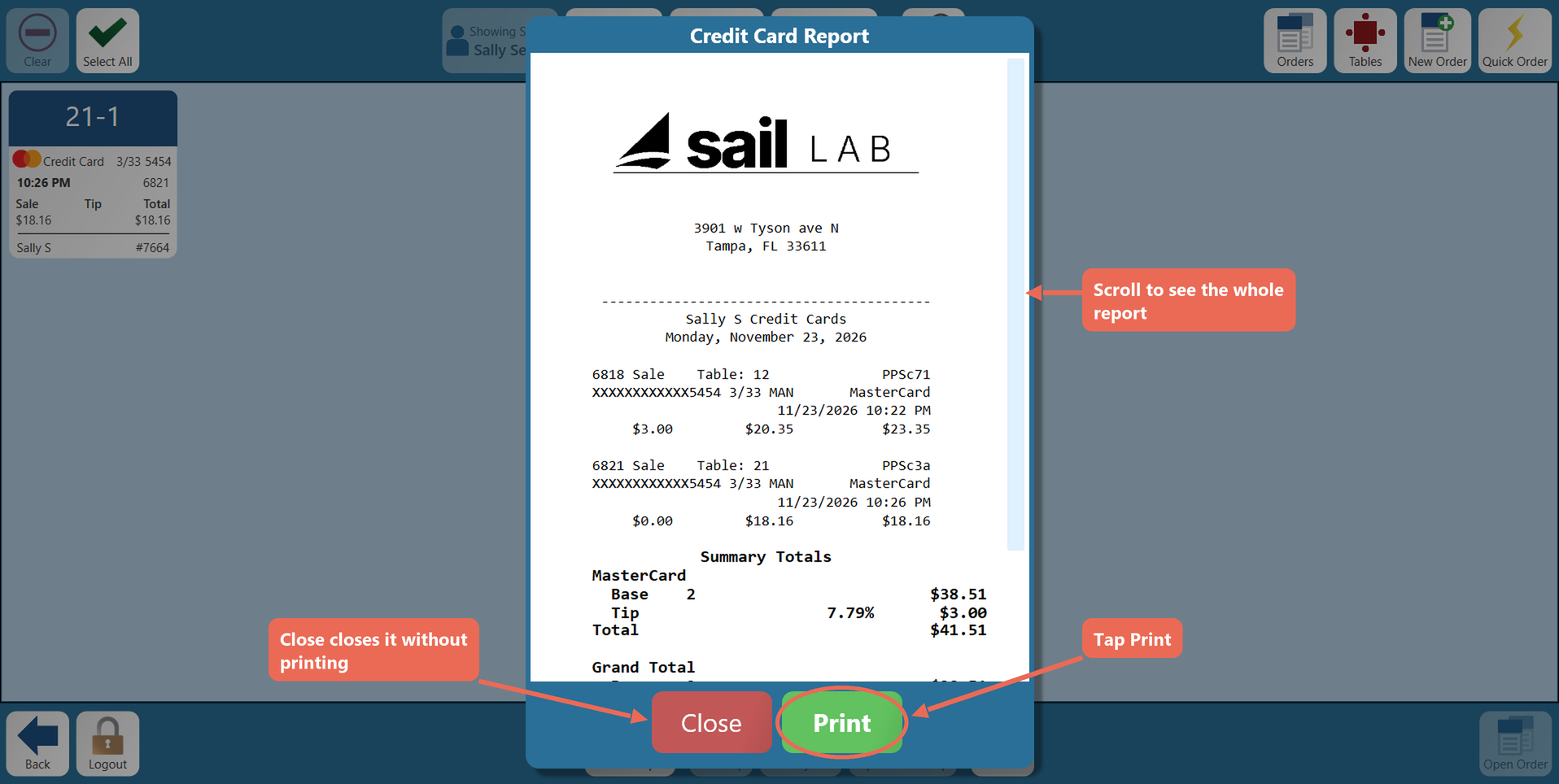
The report prints on the terminal's receipt printer.
What's on the report
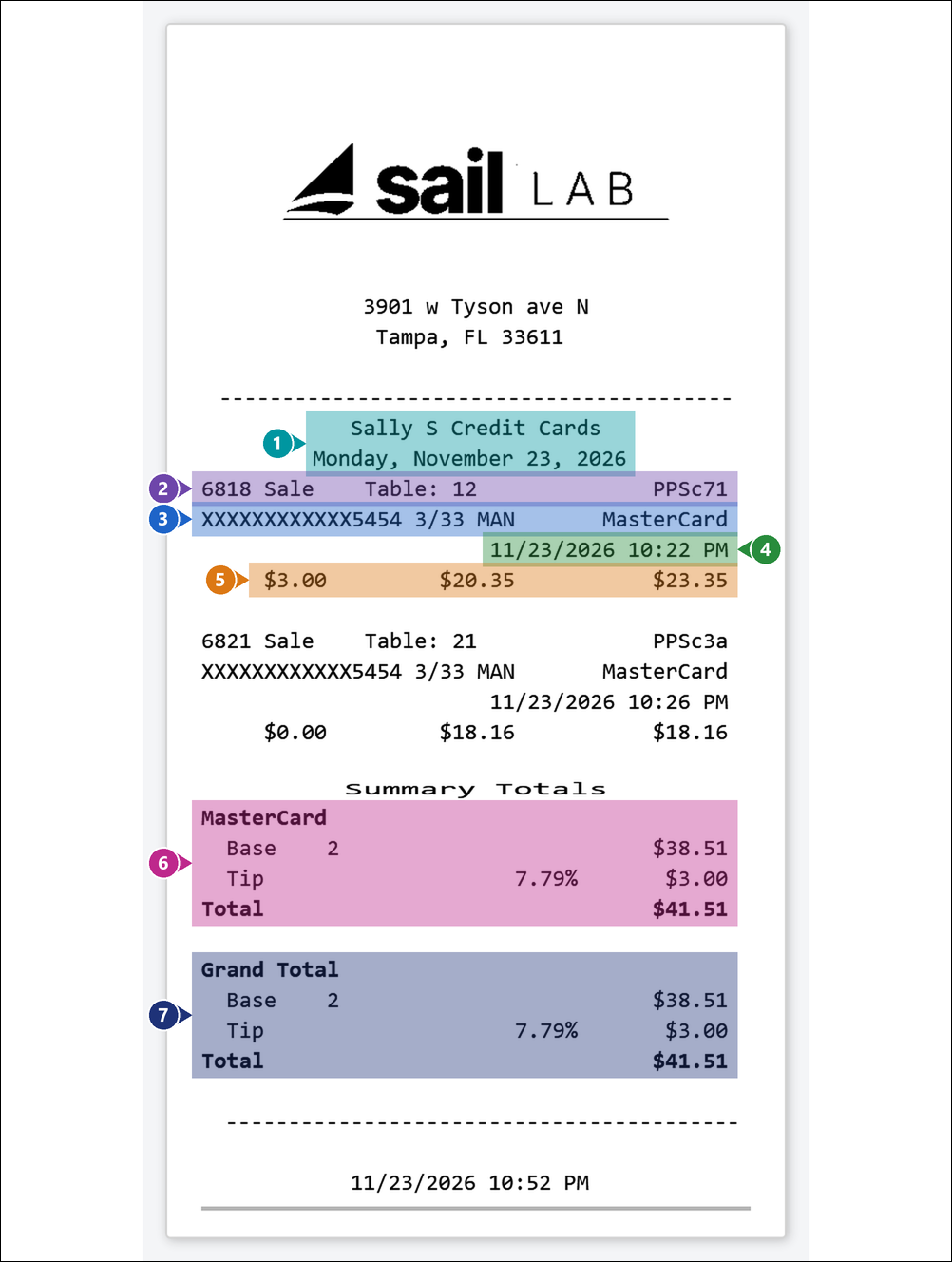
- Whose report - the server's first name and last initial, and today's date.
- Payment - the payment number, Sale (or Void for a voided payment), the table number and the card's approval code.
- Card - the last 4 digits of the card, its expiration date and the card type (Visa, MasterCard...).
- Time - the date and time of the payment.
- Amounts - the tip, the sale amount and the total (sale plus tip). A payment still waiting for a tip shows a $0.00 tip.
- Totals for each card type - Base: how many payments and their sale amounts added up; Tip: the tips as a percentage of the sales, and the tips added up; Total: sales plus tips.
- Grand Total - the same totals for every card type together.
Example: Sally Server's report shows two payments. Table 12 paid $20.35 and left a $3.00 tip, so its total is $23.35. Table 21 paid $18.16 and its tip isn't entered yet ($0.00). Her Grand Total is 2 payments, $38.51 in sales and $3.00 in tips (7.79%), $41.51 in all.
What the report includes
- The credit card payments that haven't been batched yet. Once the cards are batched, those payments come off the report.
- Payments on an open tab show once the tab is paid out.
- Declined cards are left out.
- A voided payment is listed, but isn't added to the totals.
How to print another server's credit card report
If your job role has the View All Payments permission (managers usually have it), you can print the report for another server.
-
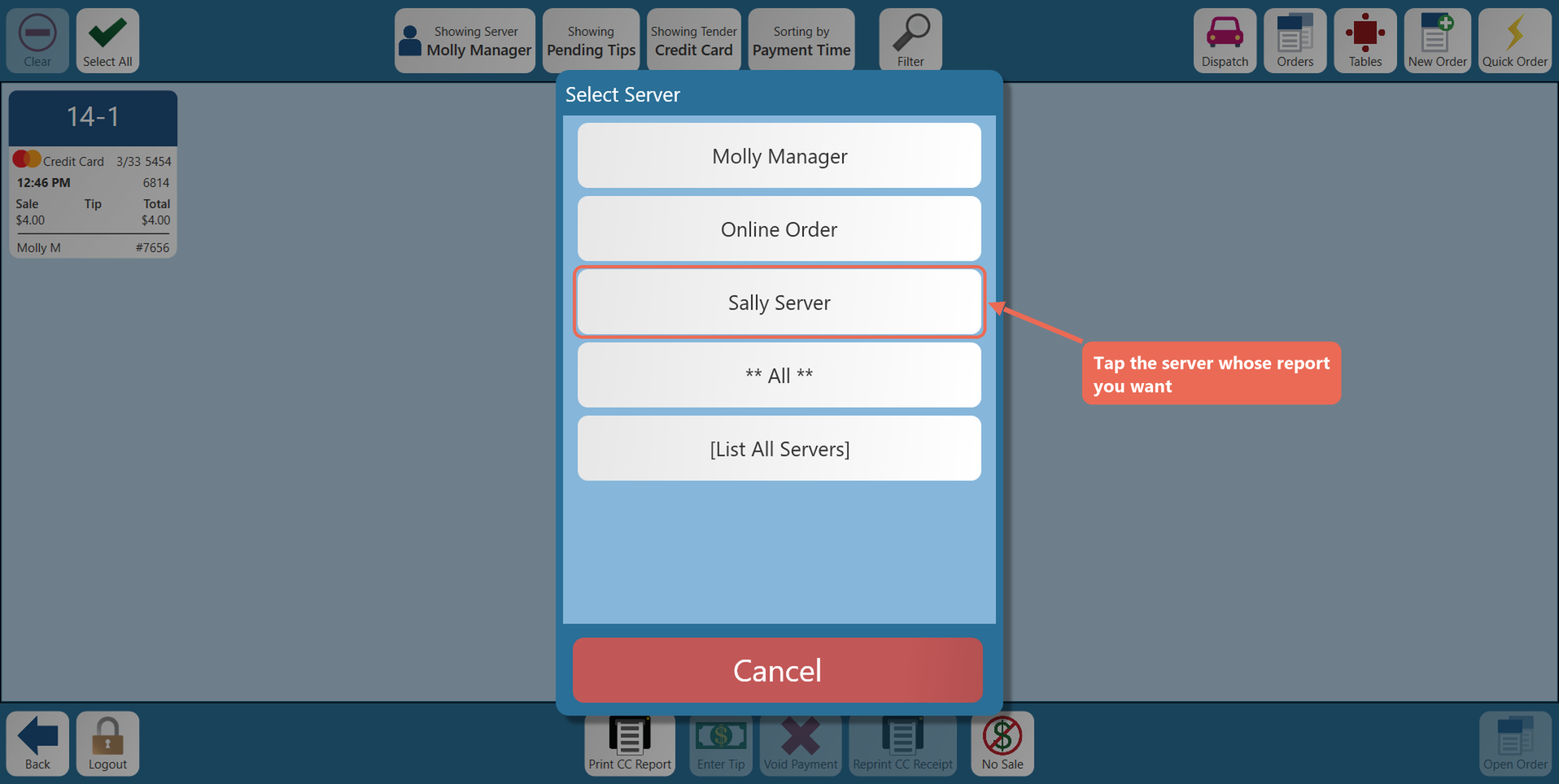
On the Edit Tips screen, tap the button at the top that shows your name (Showing Server).
-
Tap the server whose report you want. Online Order is the report for orders guests paid online.
-
Tap Print CC Report, then Print. The report has that server's name at the top.
Click here to learn more about the Edit Tips Screen, how to enter tips and how to view someone else's payments.