
How to reverse a server close
BeingThis written.document will show how to reverse a server close. Reversing a server close reopens a server who has already been closed out, so you can fix something and close them out again. Maybe they found a lost credit card slip, a tip was entered wrong, or they forgot to discount a table.
Before you start
- Reversing a server close needs the Reverse Server Close permission, usually given to managers. If you don't see Reverse Server Close on the Functions screen, ask your manager.
- You can only reverse a server close from today, before the Daily Close. Once the Daily Close is done, that day's server closes can't be reversed.
How to reverse a server close
-
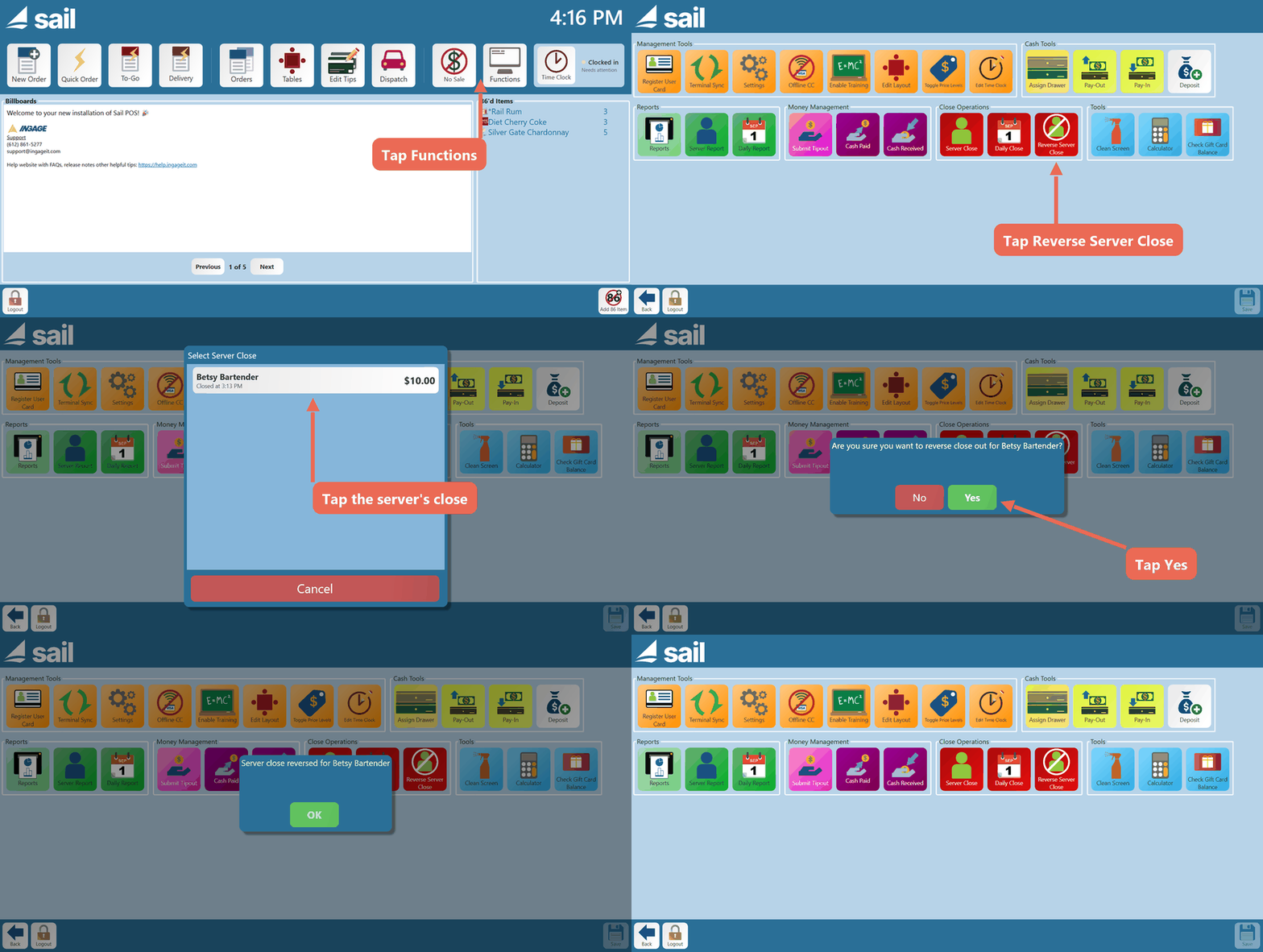
Log onto the terminal and tap Functions on the launch screen.
-
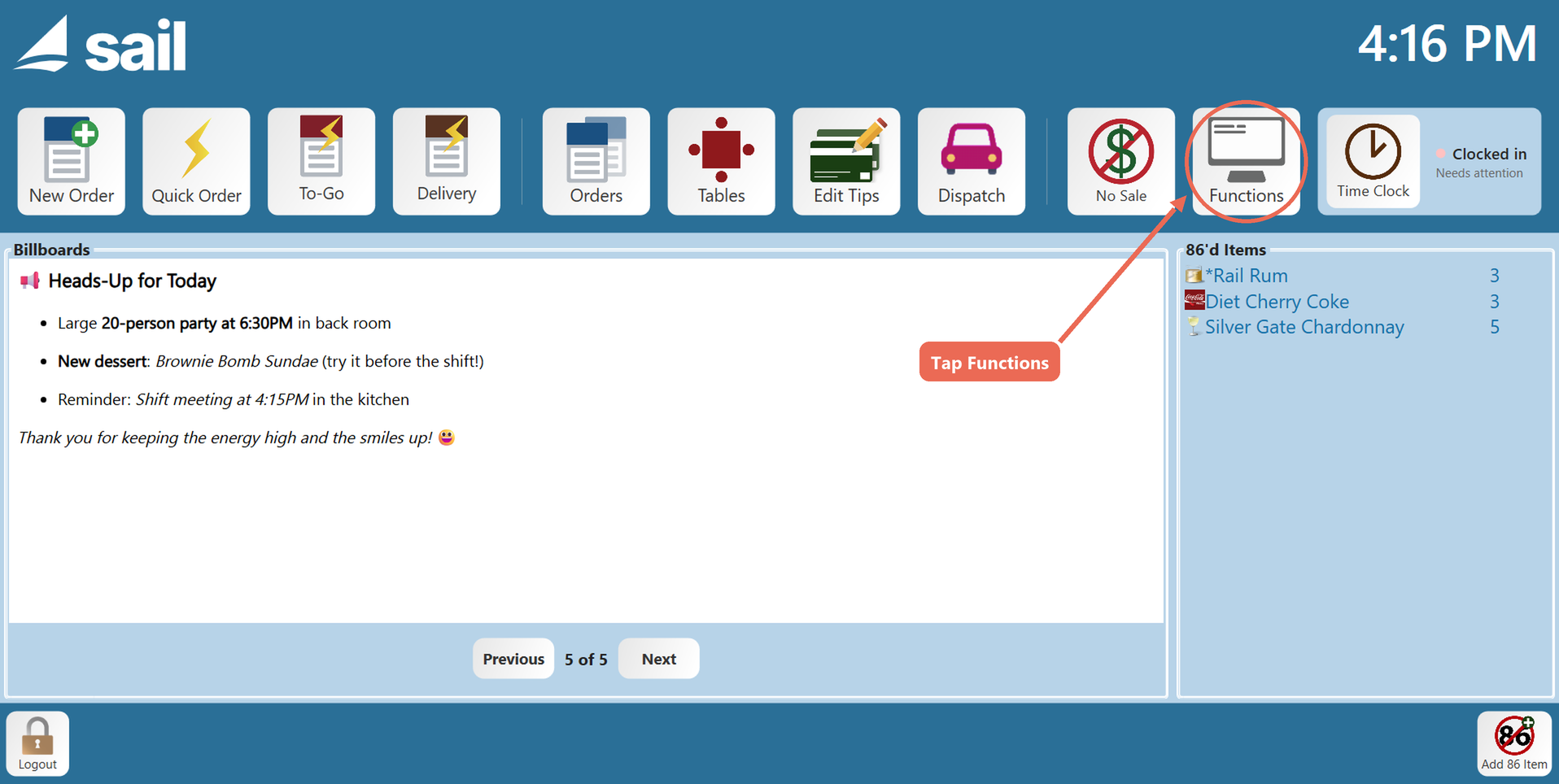
Tap Reverse Server Close under Close Operations.
-
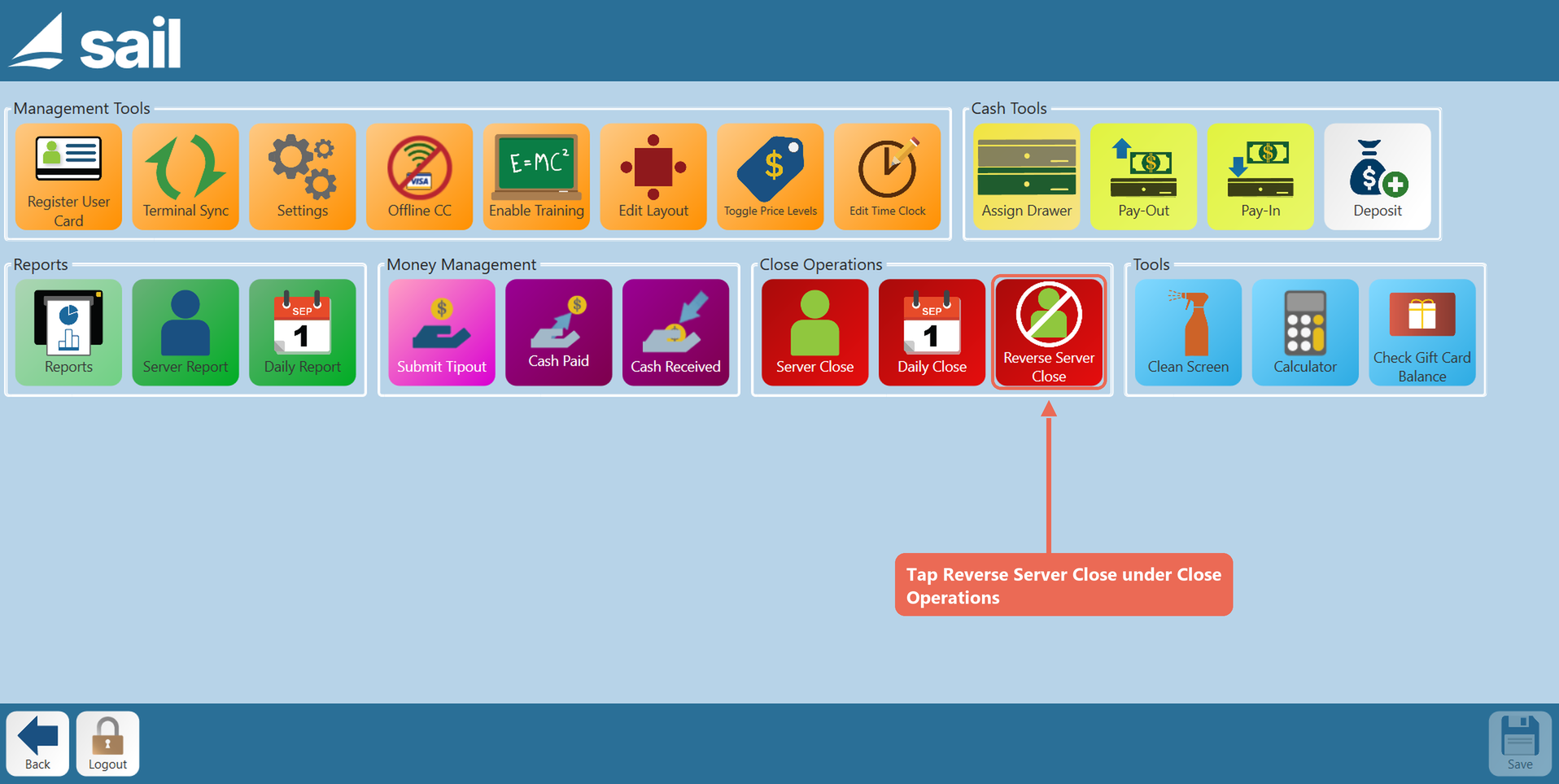
The Select Server Close window lists the servers closed out today, with the time they were closed and the amount due. Tap the server close you want to reverse.
-
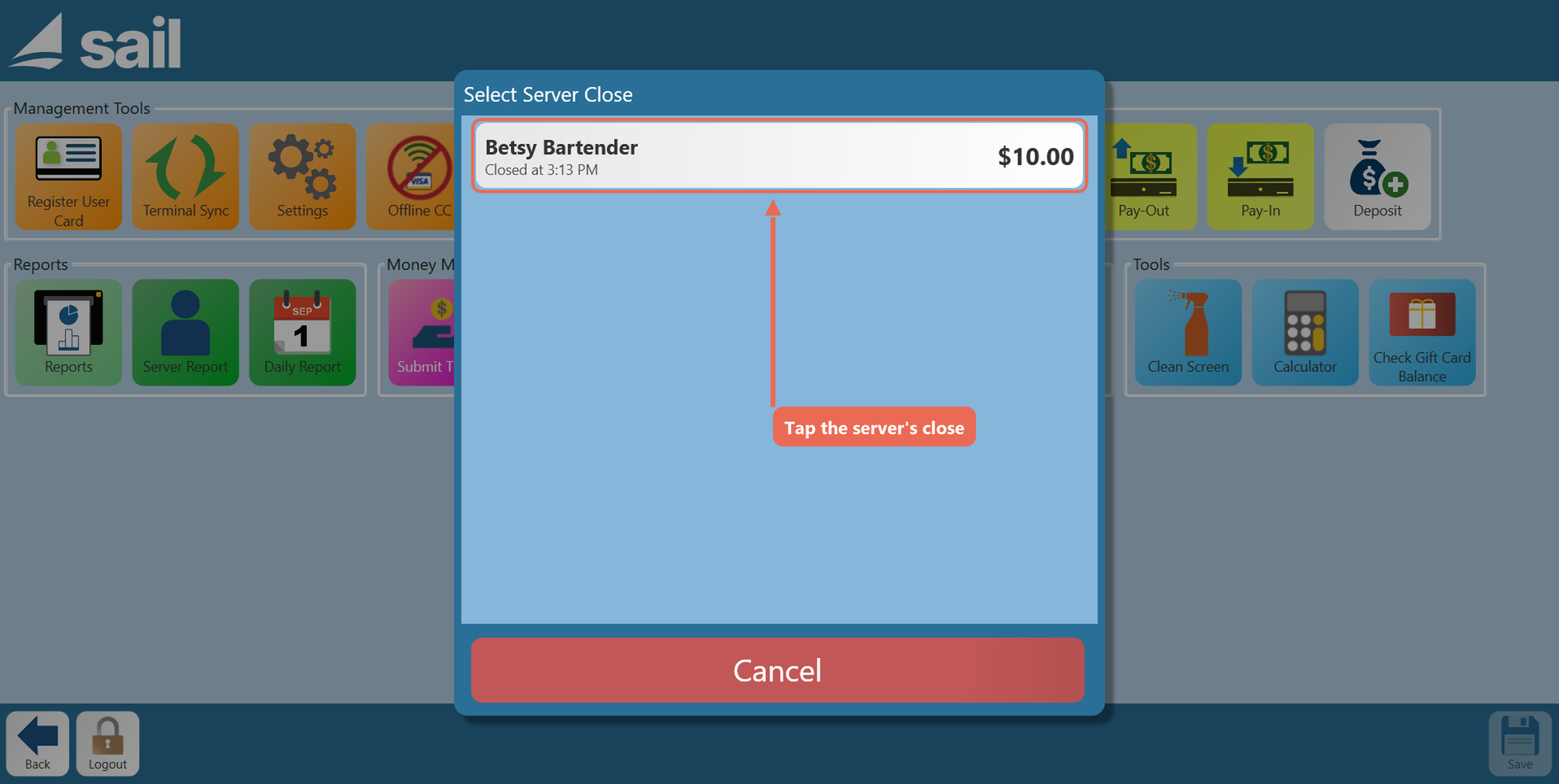
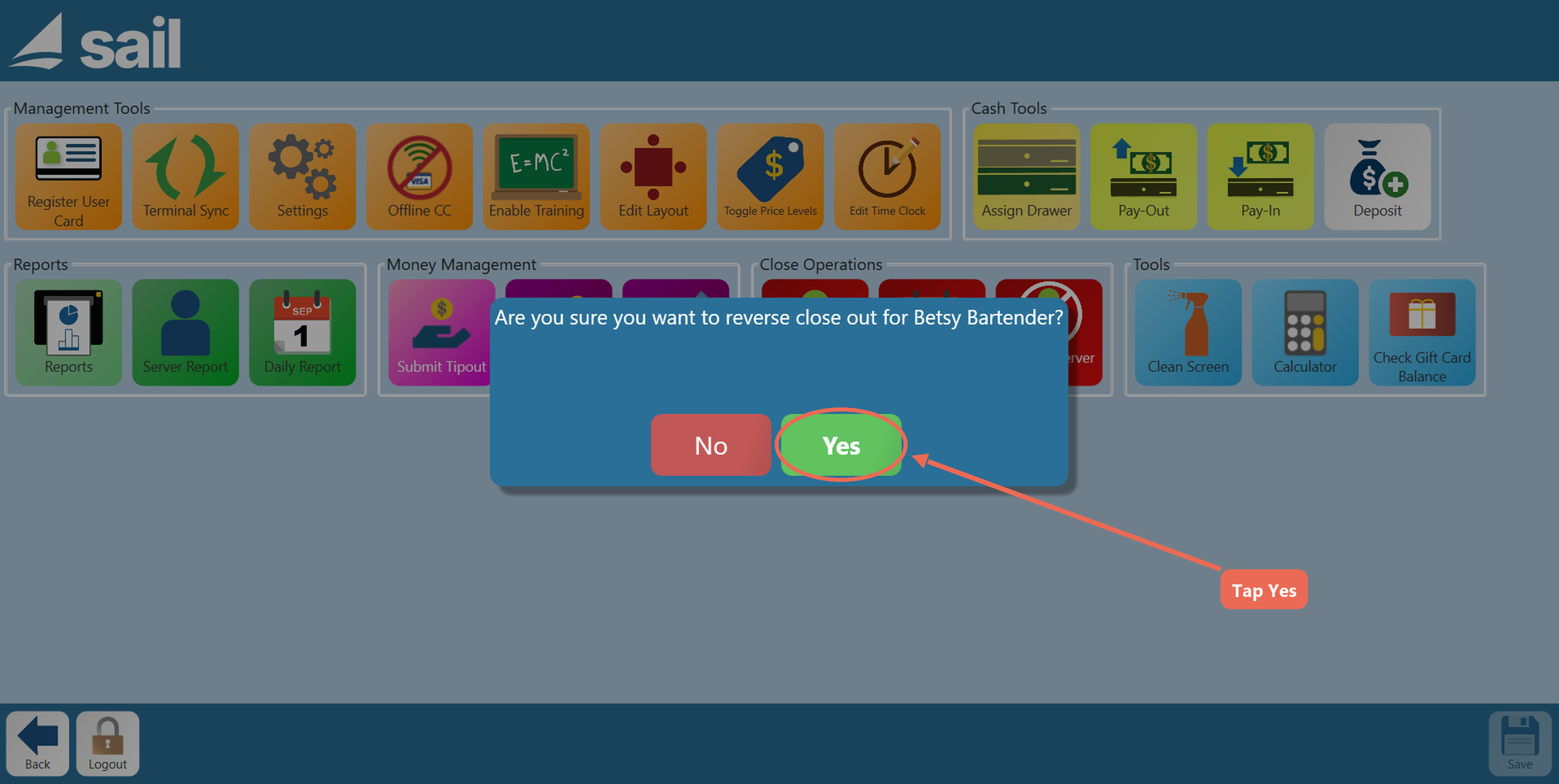
You will be asked to make sure you want to reverse it. Tap Yes.
-
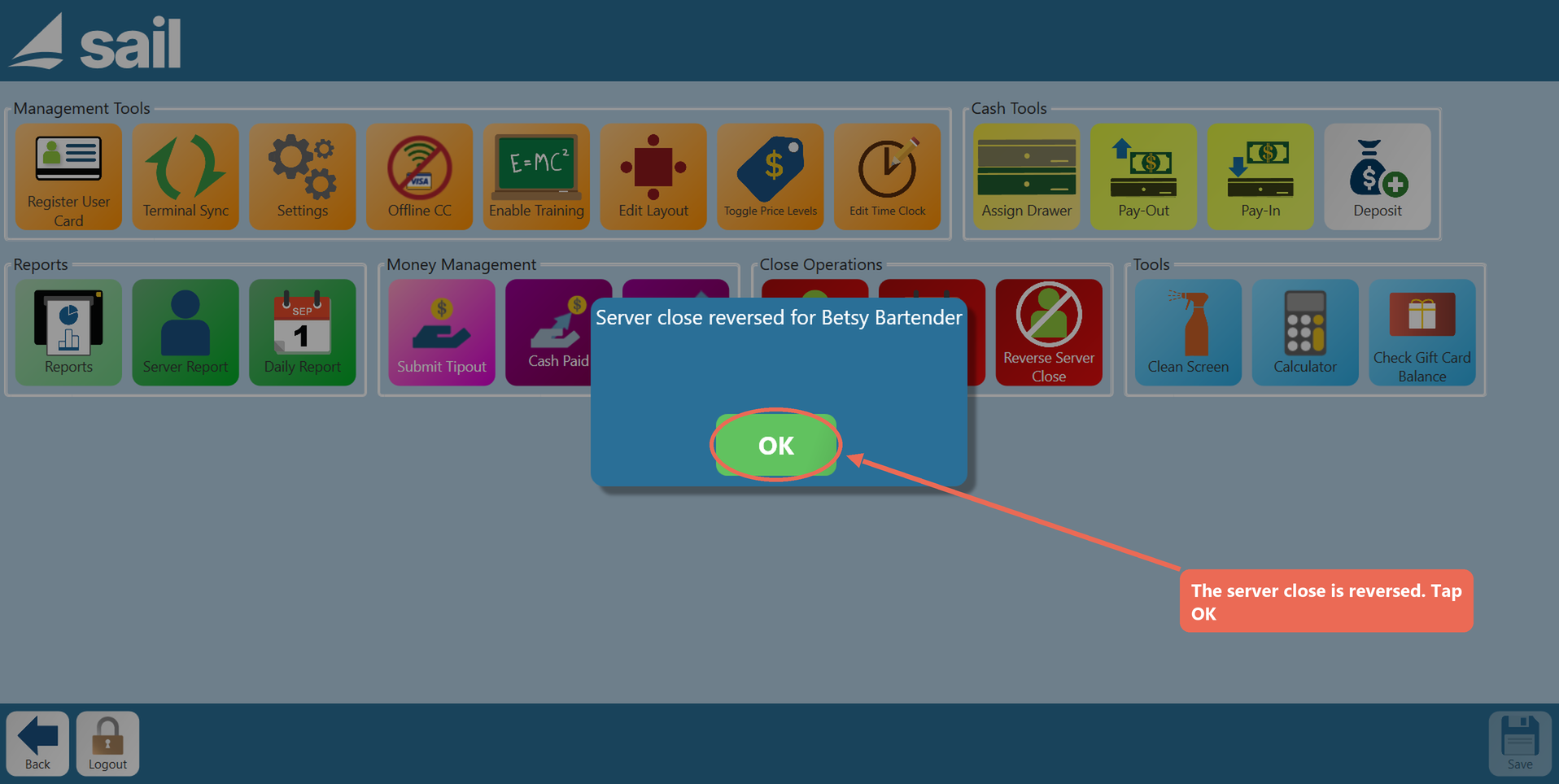
The terminal says the server close was reversed. Tap OK.
After you reverse it
The server is open again, just as before their server close: their orders, payments and tip outs are back with them for today.
- Fix what was wrong, like entering the lost credit card tip or adding the discount. To change an order that was already paid, reopen it.
- Run a new server report to check the numbers, since the amount due may have changed.
- Close the server again.
Note: Cash tips the server already declared stay entered, so they don't need to enter them again.
If it doesn't work
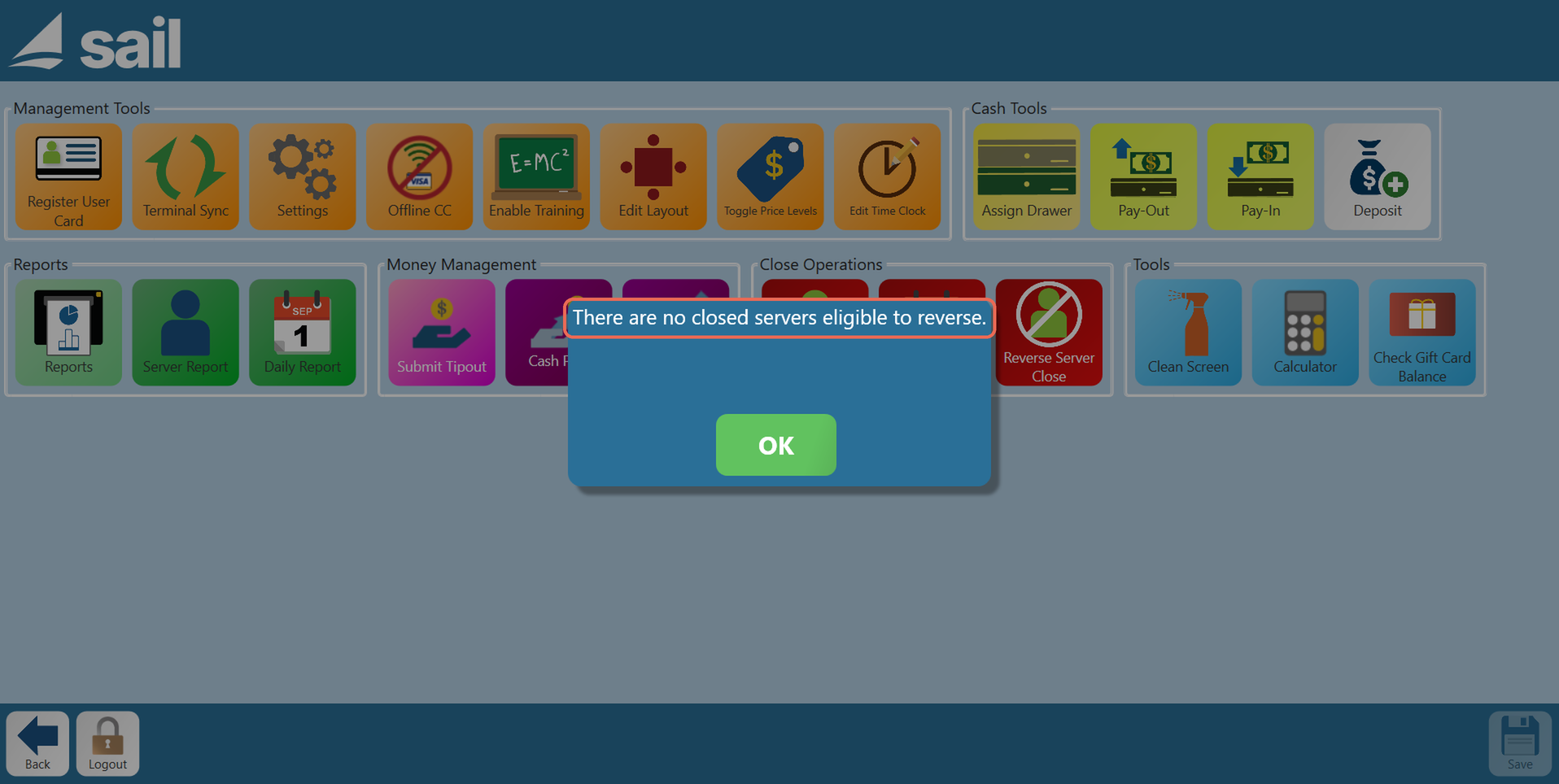
- There are no closed servers eligible to reverse. - No one has been closed out today, or the Daily Close has already been done.
- Order ... is from a closed server. A reverse server close is required before it can be opened. - You tried to open an order of a server who has been closed out. Reverse their server close first, then open the order.
Click here to learn more about how to close a server, how to do the Daily Close, or the Functions screen.