
How to Submit a Tip Out
This document will walk you thru the two ways to submit a tip out to another employee.
The Submitted Tipout feature allows team members to transfer a portion of their tips to another employee, ensuring accurate tip reporting and fair payroll distribution. Here are a few common scenarios where it’it's useful:
Note:Note: This will NOT transfer any funds from an employee to another employee, and it will not effectaffect the amount due on their server closes. This is strictly for payroll reporting purposes only.
From the Terminal

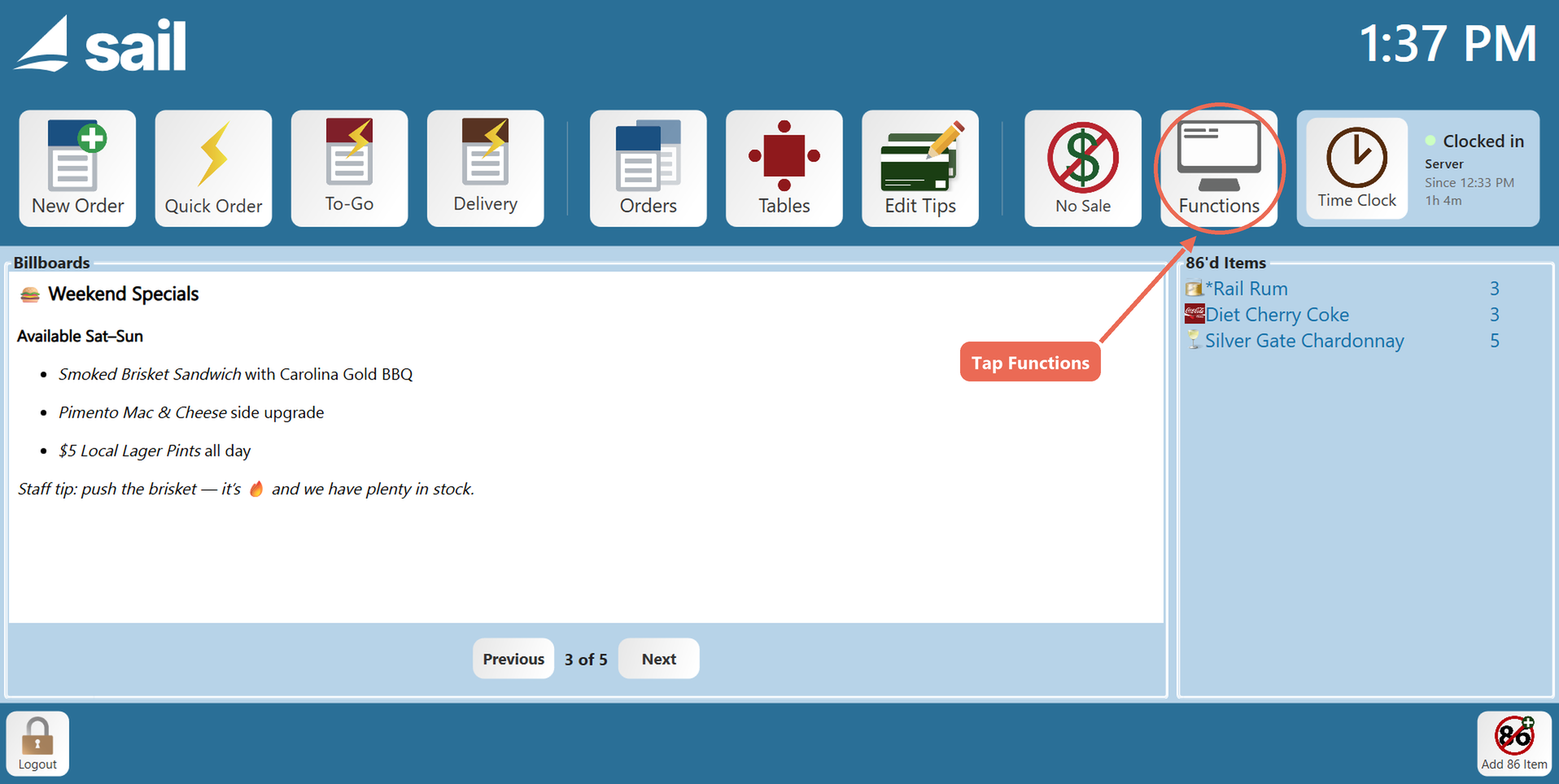
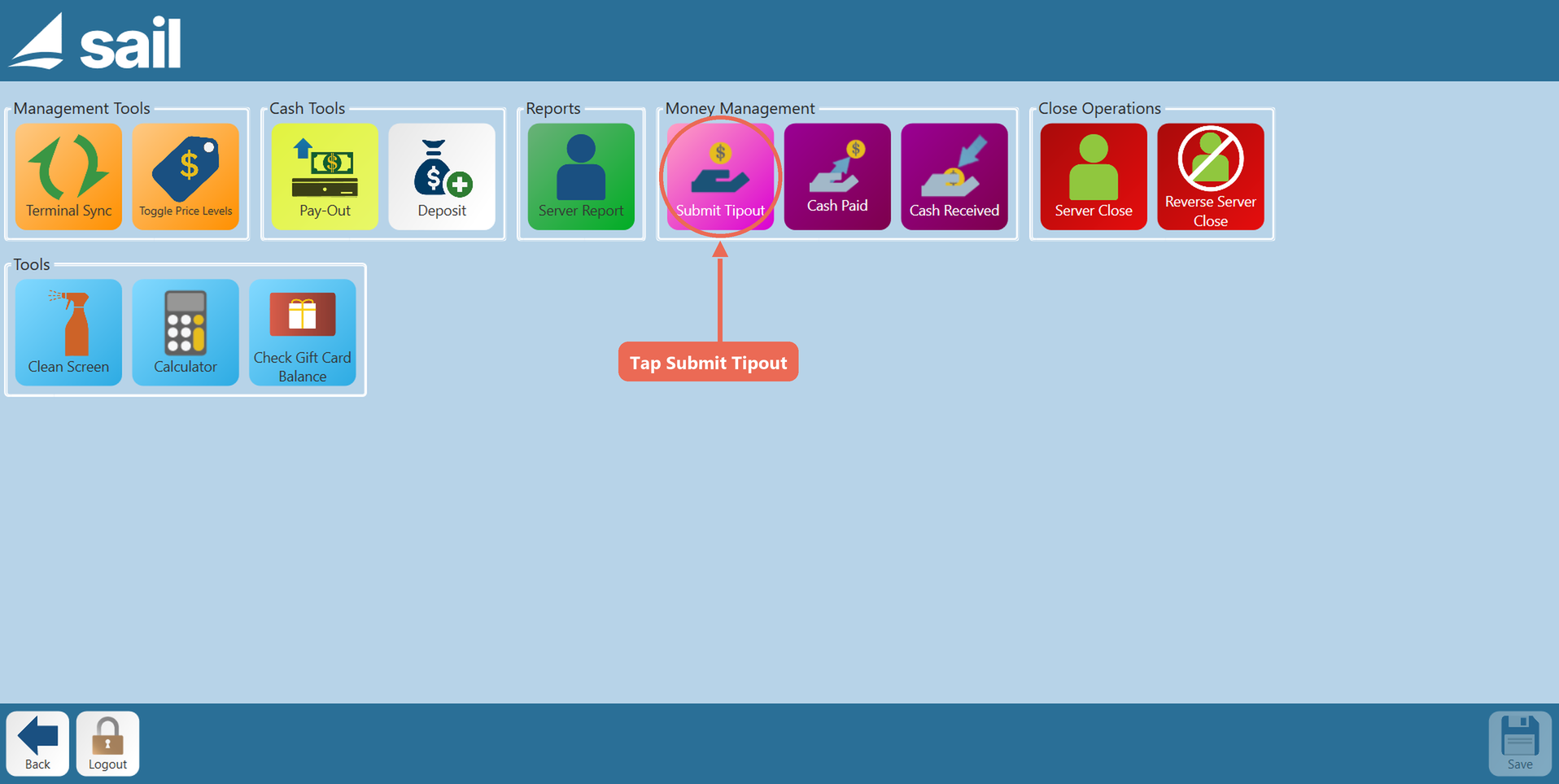
2. Select the "Submit Tipout" button
- The button only works for employees who can receive tips and whose job role has the Submit Tipout task.

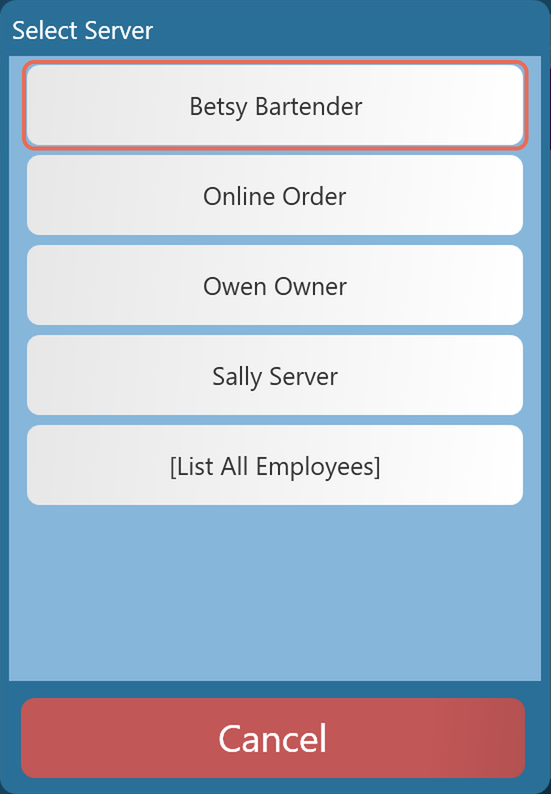
3. Next it will prompt you to select the employee that you wish to submit the tipout to.
- This list will only show you employees who are currently on the
clock.clock and can receive tips. If you do not see the person you are looking for you can click the [ListallAllServers]Employees] button to view everyone.

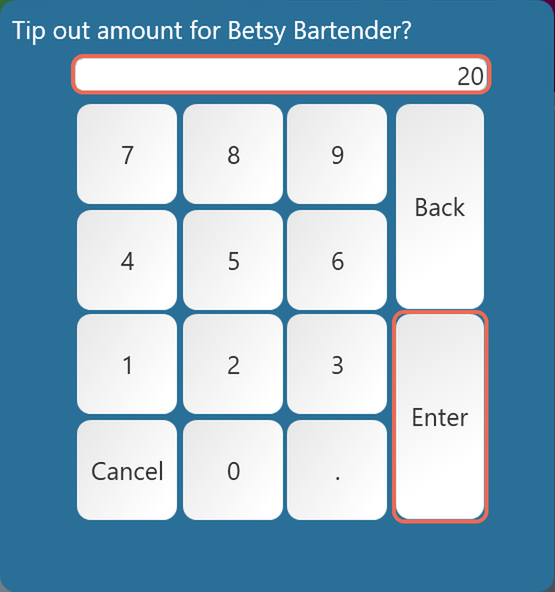
4. Use the keypad to type in the amount you'd like to tipout.tipout, then tap Enter.

5. And finally It will prompt you to confirm the amountamount. Tap Yes.

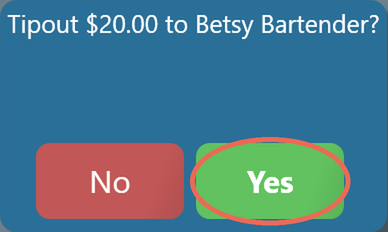
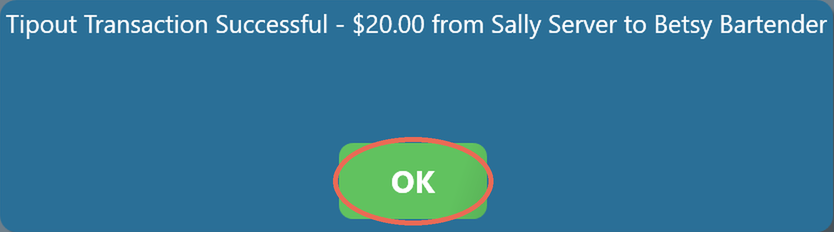
6. And finally a message confirms the tip out. Tap OK.
See below to see what it looks like on the server close report and the payroll report
From Backoffice
Permissions you need: Manage Tip Management (Staff) on your job role.
1. Click Staff at the top, then Tip Management on the left, and click New Tipout on the Tipouts tab.
- The Tipouts tab lists every tip out in the dates you pick, including the ones submitted on a terminal. Origin shows where it was entered: the terminal's name, or BackOffice.
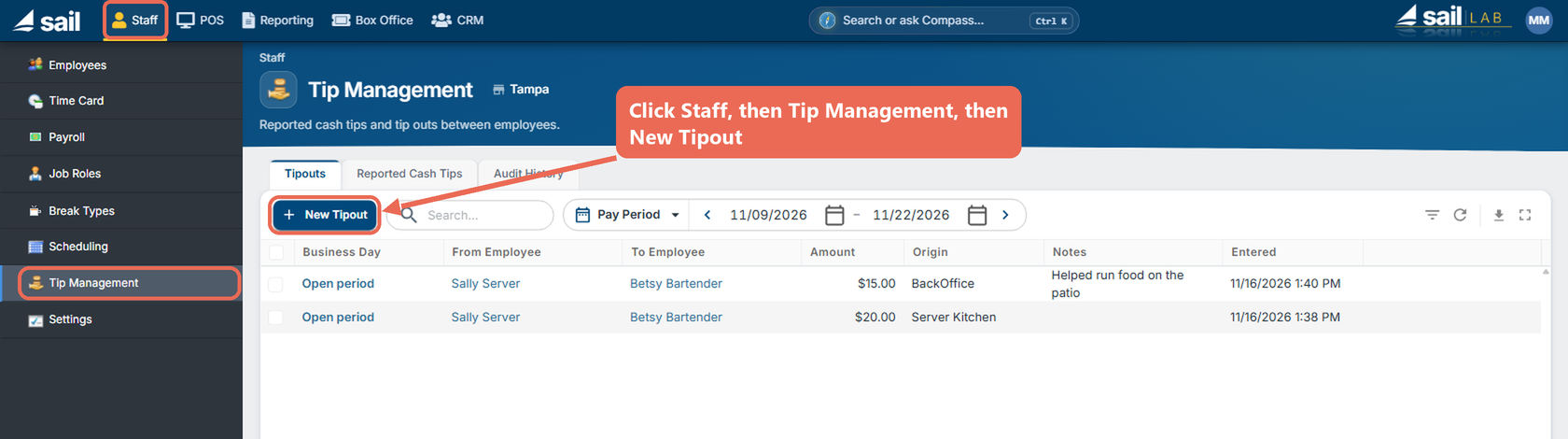
From2. Backoffice
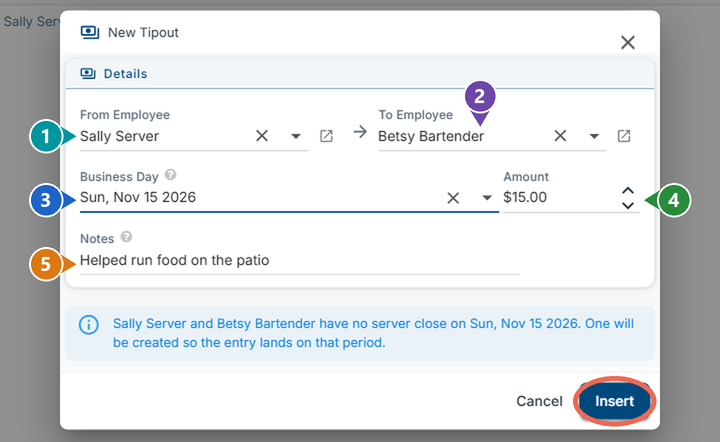
Fill out the window:
LogFrominEmployee: the employee the tips are coming from (required).- To Employee: the employee the tips are going to
Backoffice(required).-->BothStafflists-->showTiponlyManagementemployees-->whoTipoutscantabreceive--> Add new recordtips. SelectBusiness Day: thetime and date atday thetop.tip out belongs to. It is important to select the correcttime and dateday toinsureensure that the tipout gets accounted for on the correct payrollreportreport. Pick Current open period for today's shift (before the daily close), or the closed day it belongs to. If either employee has no server close on that day, Backoffice tells you one will be created so the tip out lands on that day.UseAmount: thedropamountdowns to selectof theemployetip out (required).- Notes: why the
fundstipareoutcomingwasfrommadeand(optional).theItemployee the tips are going to Typeshows in theamountNotes Clickcolumninserton the Tipouts tab.

Pro tip: To change a tip out, click its Business Day on the Tipouts tab. Once that day has closed, only the amount and notes can change - to move it to another employee or day, delete it and enter it again.
How it looks in reporting
There is a section at the bottom of the server close reportedreport to show the tipout log
- This will only appear on the report if you do it before you
clockrunoutyour server close - In this scenario, if
SteveBetsy had alreadyclockedrunout,her server close, the tipout would appear onhisher next server close soheshe can see what tipoutheshe received


On the payrollPayroll reports,Details report (Backoffice --> Reporting --> Reports --> Payroll --> Payroll Details), it will appear on theeach tipemployee's sourceAdditional boxTip Info line
- Sally gave the
tipouttipouts toSteveBetsy ($20.00 on the terminal and $15.00 in Backoffice), so her reportwillshowssaythem"Tipoutsundergiven"1. T/O Given (-35.00) andSteve'Betsy'spayrollshowsreportthemwillundersay2."TipoutsT/OReceived"Rec. (35.00)

