
How to unlock an order
BeingAn written.order can only be worked on in one place at a time. While it is open on a terminal or handheld, it is locked everywhere else. This will walk through what to do when an order is stuck open on another device, and how to unlock it.
How you know an order is locked
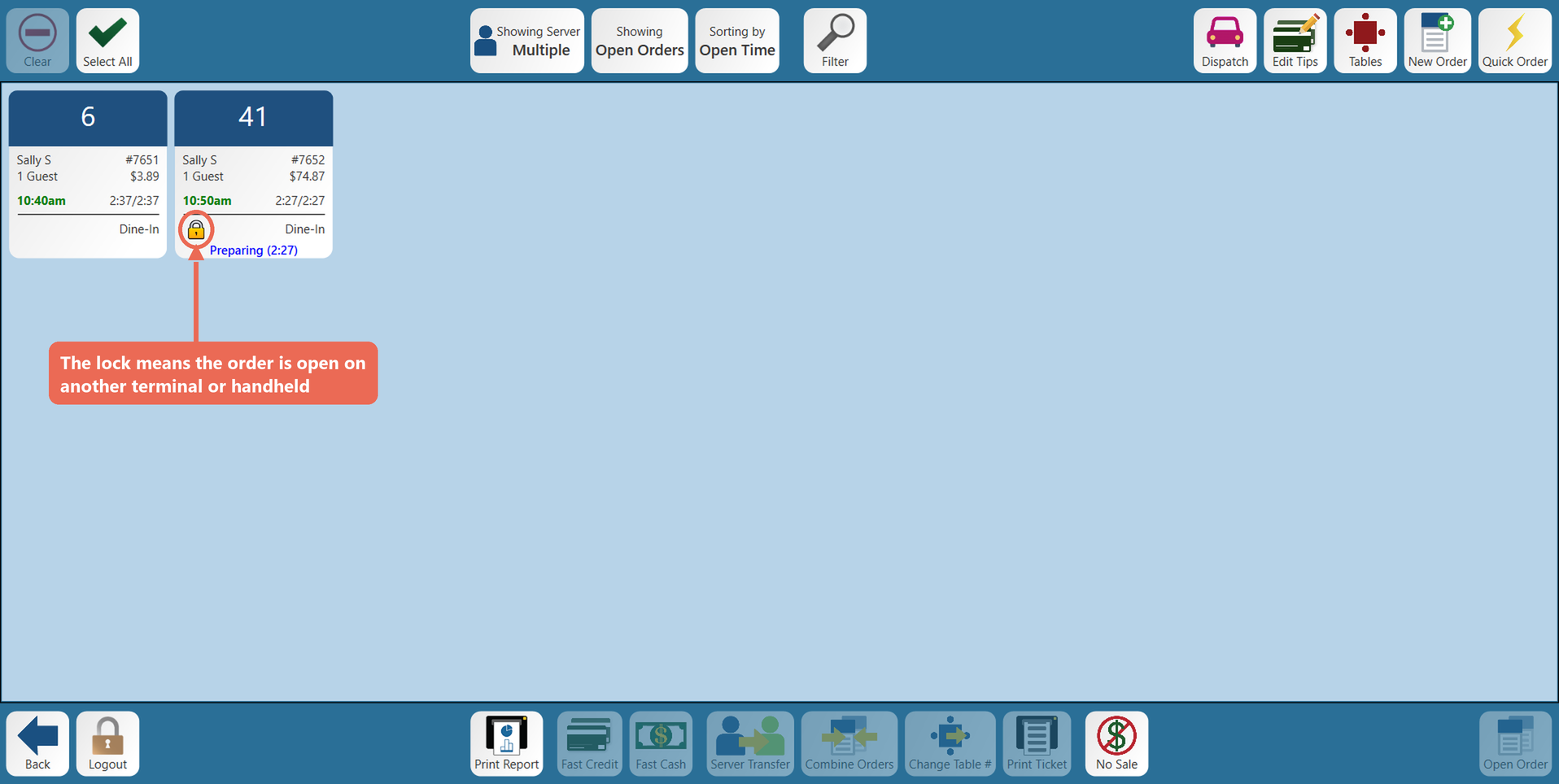
On the Orders screen, an order that is open on another terminal or handheld shows a lock on its button.
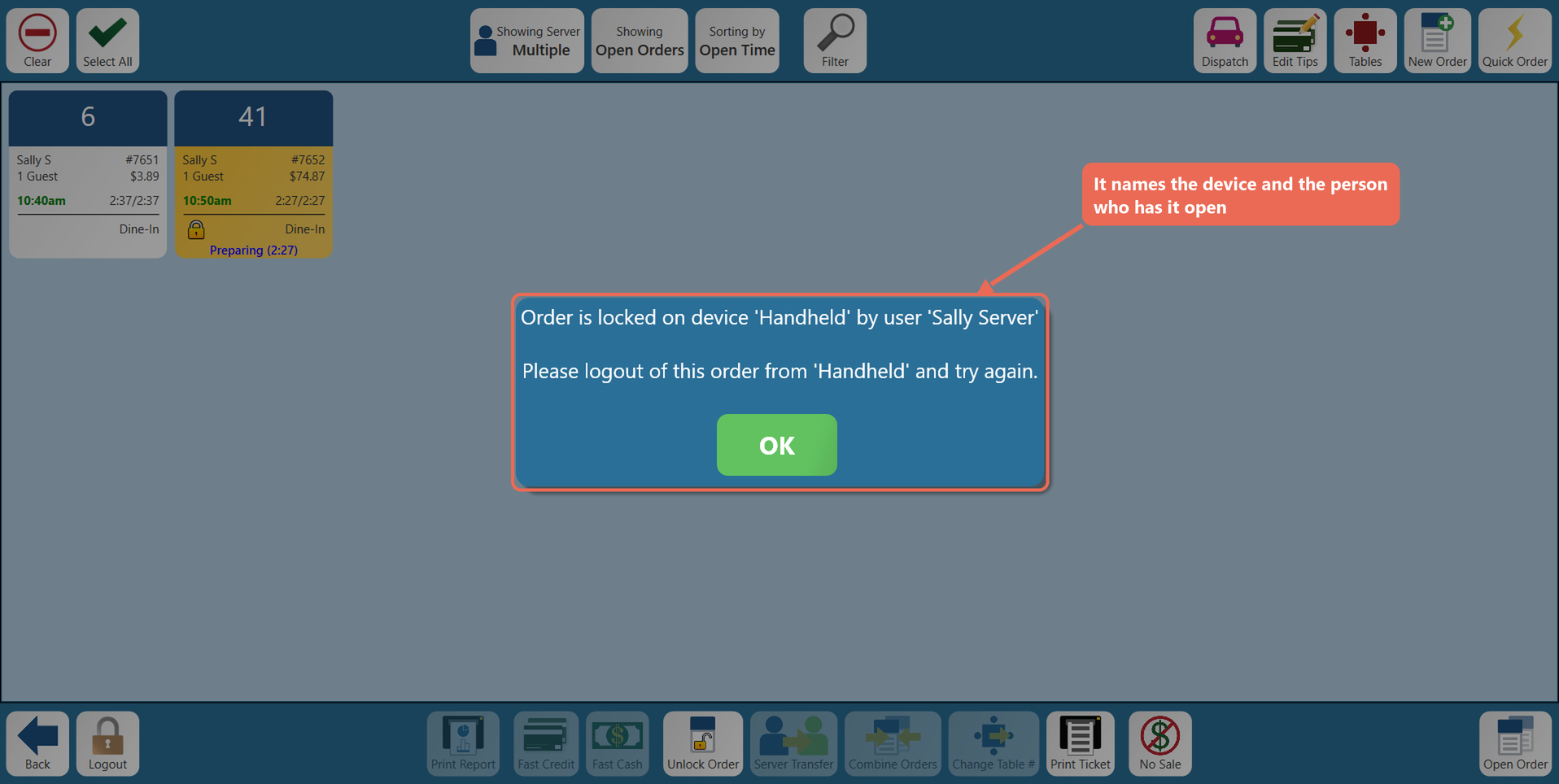
If you try to open it, the terminal tells you which device it is open on and who has it open. In this example, Sally Server has table 41 open on the handheld.
First, close it on the other device
Most of the time the order was just left open. Go to the device the message names and back out of the order there (tap Send/Done or Back on a terminal, Done on a handheld). The lock goes away and the order can be opened anywhere.
When to unlock it instead
Unlock the order only when that device can't be used - for example, it was turned off, its battery died, or it lost its connection with the order open.
Once an order is unlocked, it can no longer be changed on the device it was open on. Anything rung in on that device and not sent yet is not saved. If someone is still working on the order there, ask them to close it instead.
Permissions you need
Unlock Order only shows for people whose job role has the Override Order Lock task. In Backoffice it is under Staff --> Job Roles --> the job role --> Tasks --> POS --> Front of House --> Order.
Click here to learn more about the job role tasks tree.
How to unlock the order
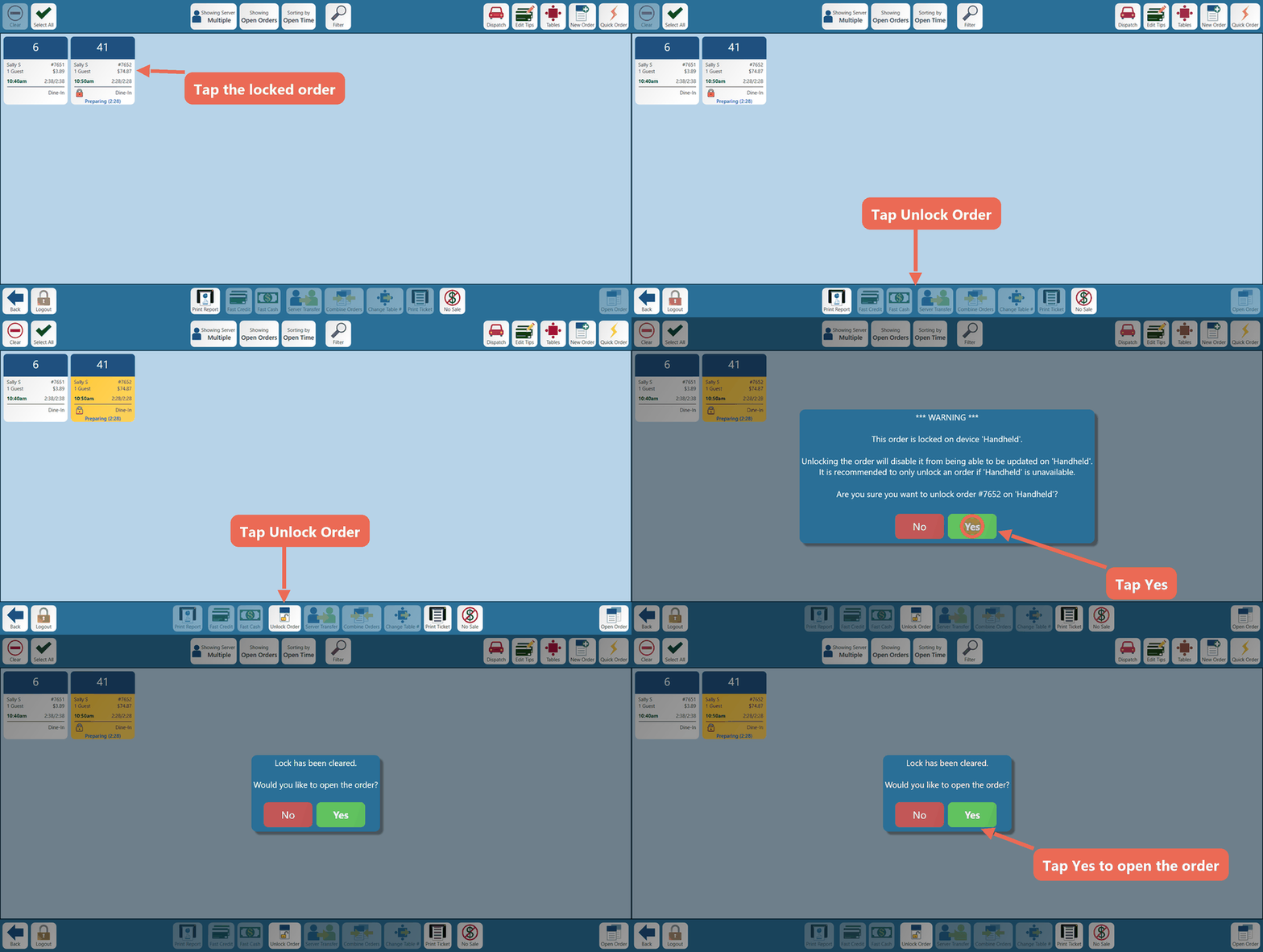
1. Tap Orders and find the order with the lock. If it isn't yours, tap Showing Server and pick the server whose order it is.
Click here to learn more about viewing someone else's orders.
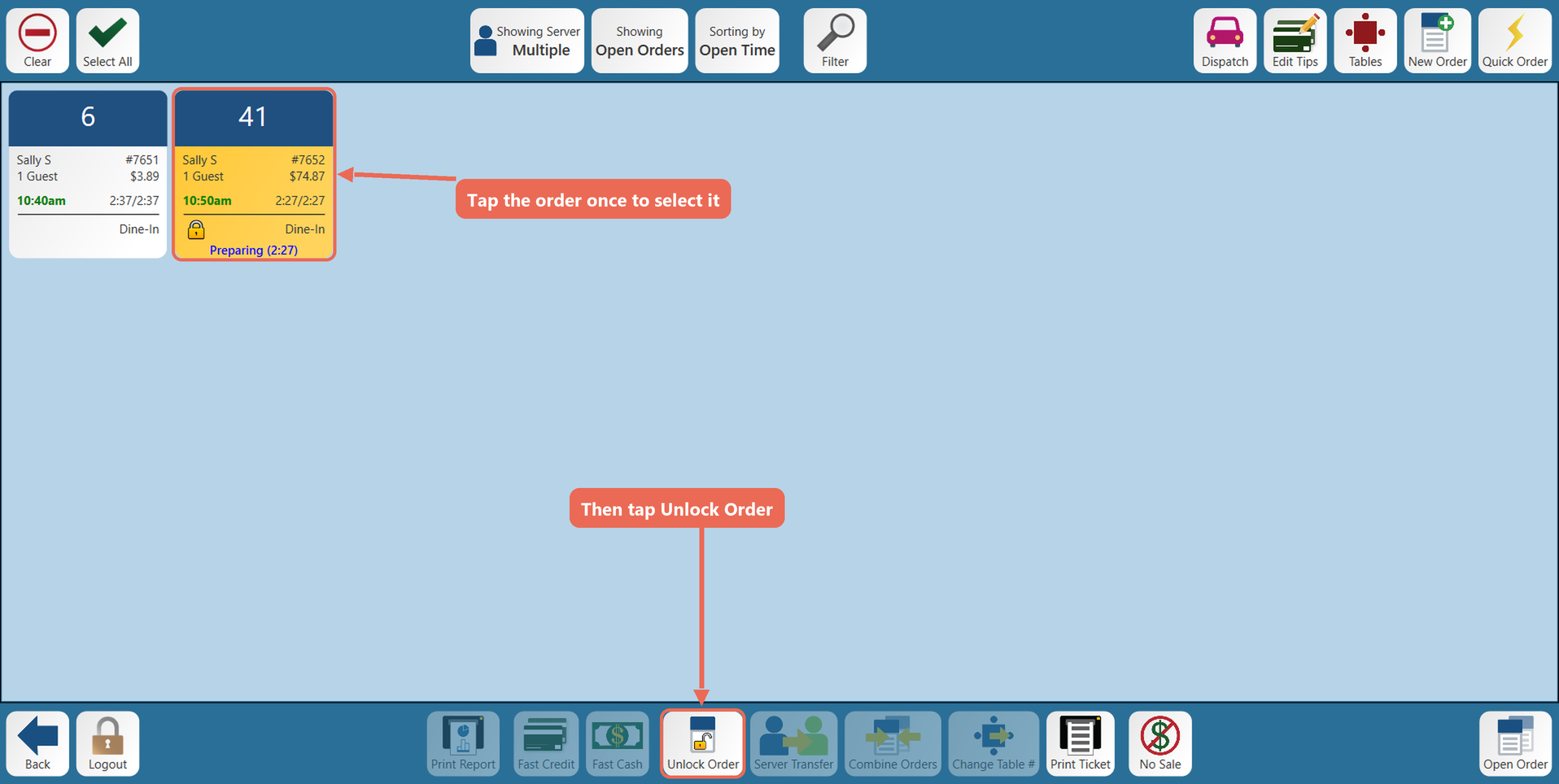
2. Tap the order once to select it, then tap Unlock Order on the bottom toolbar.
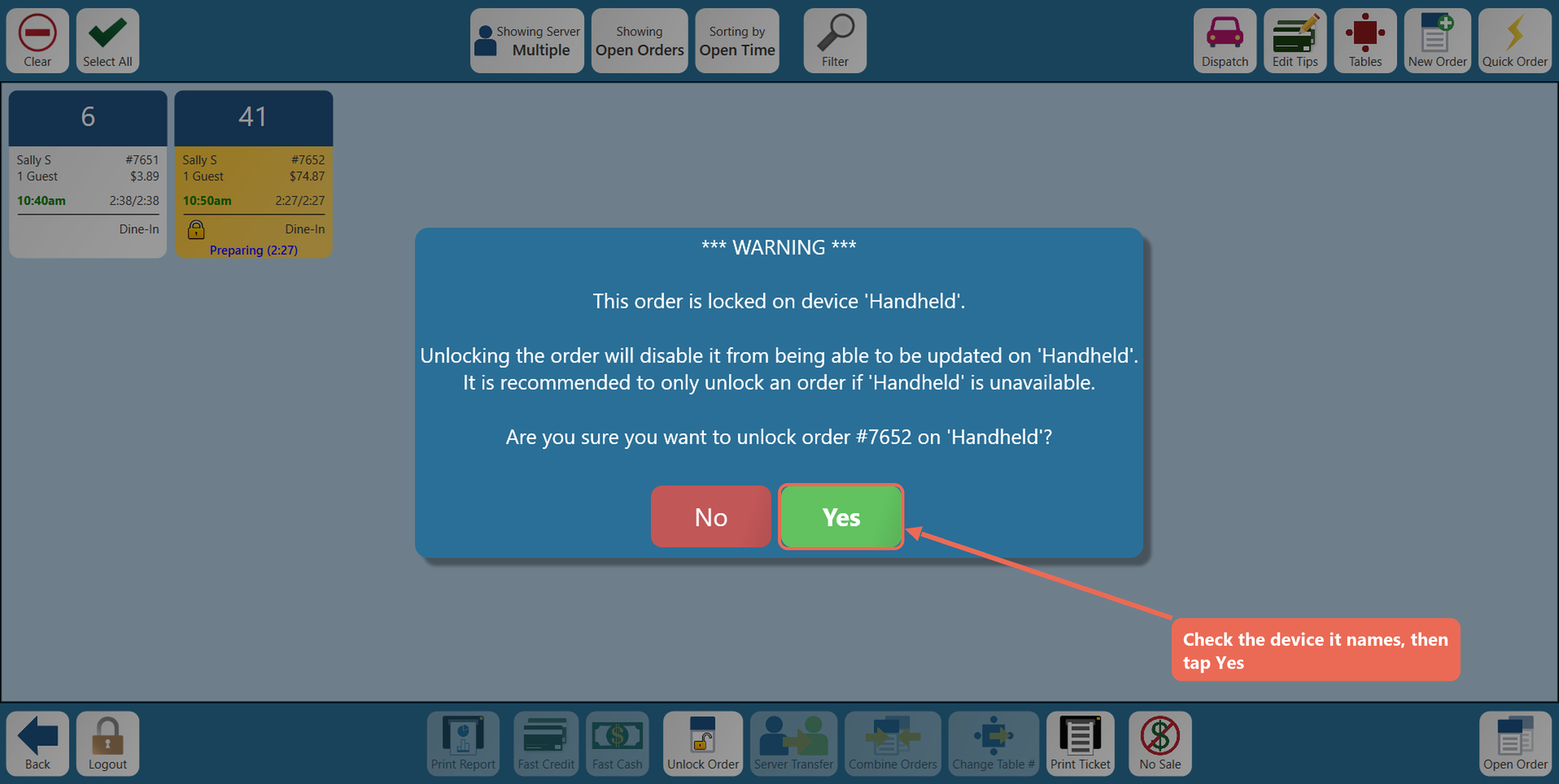
3. A warning names the device the order is locked on. Check it is the device that can't be used, then tap Yes.
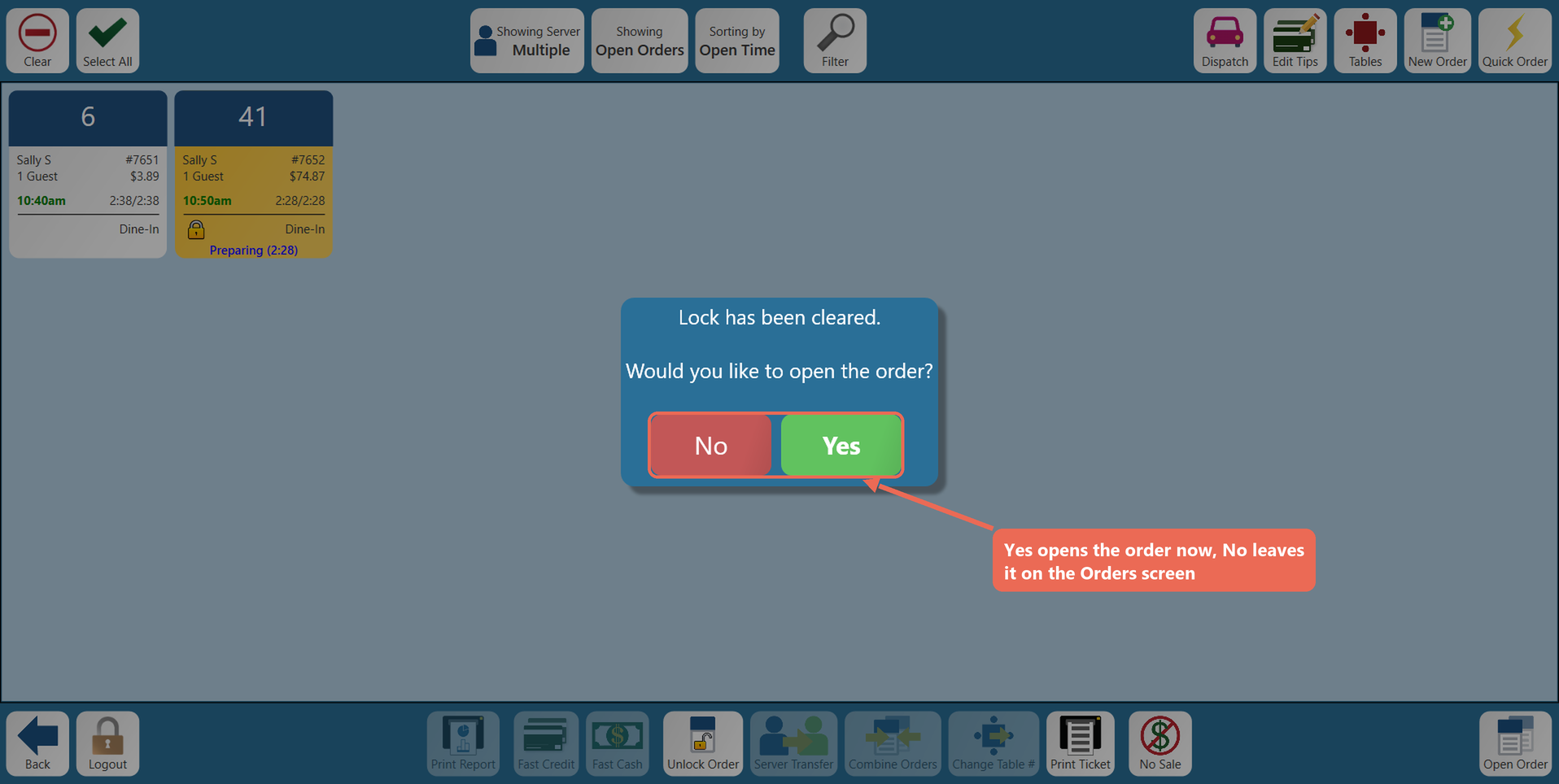
4. The terminal says "Lock has been cleared." Tap Yes to open the order now, or No to leave it on the Orders screen and open it later.
See it in action
Good to know
- Unlock Order only shows when one locked order is selected.
- Orders can only be unlocked from a terminal, not from a handheld.
- An order that is part of a server close from a previous day also shows a lock. That lock isn't from another device, so Unlock Order doesn't show for it.