
What barcode scanner works with the terminal, and how to set it up
BeingThis written.document will show you what kind of barcode scanner works with a Sail terminal, how to set it up, and what you can scan once it's connected.
With a scanner, your staff can:
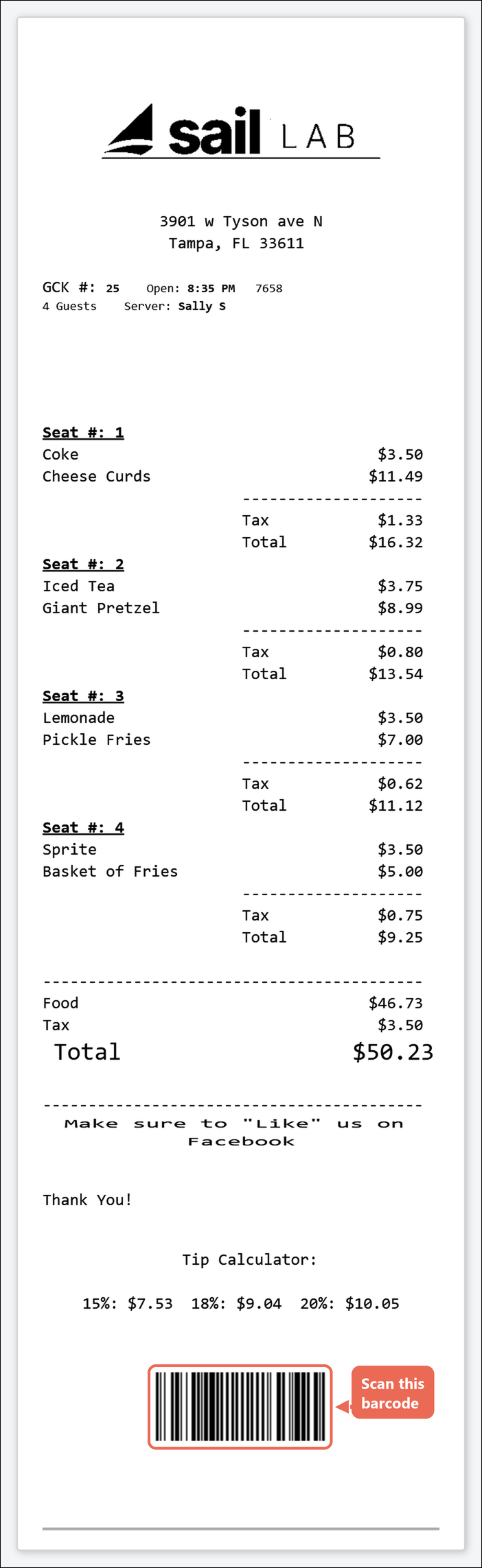
- Open an order by scanning the barcode on its receipt.
- Open the tip window for a payment by scanning the credit card slip on the Edit Tips screen.
- Add an item to an order by scanning its UPC (the barcode on the package).
What kind of scanner to get
Most store barcode scanners work. Look for one that is:
- USB: it plugs into one of the terminal's USB ports. A cordless scanner works too, as long as its base plugs in with USB.
- Keyboard mode (the box may say "USB HID", "keyboard emulation" or "plug and play"): the scanner types what it reads, like a keyboard. Sail doesn't need any software or drivers for it.
- Able to read regular line barcodes (1D barcodes such as UPC and Code 128): these are the barcodes on Sail receipts and on packaged items. A scanner that also reads 2D barcodes (QR codes) is fine.
How to set it up
- Plug the scanner (or its base) into a USB port on the terminal.
- Most scanners work as soon as they are plugged in. If yours doesn't, set it up with the setup barcodes in the scanner's own manual (you scan them to change its settings):
- Interface: USB keyboard (HID).
- Keyboard language: US English.
- Suffix: Enter (also called carriage return or CR) after each scan. Sail knows a scan is finished when the Enter comes.
- Prefix: none. Nothing should be added before the barcode.
- UPC: send the whole 12-digit number, with its first and last digits (short UPC-E codes sent as the full 12-digit UPC-A).
How to check it works
- Log in to the terminal.
-
Scan the barcode near the bottom of a guest receipt.
-
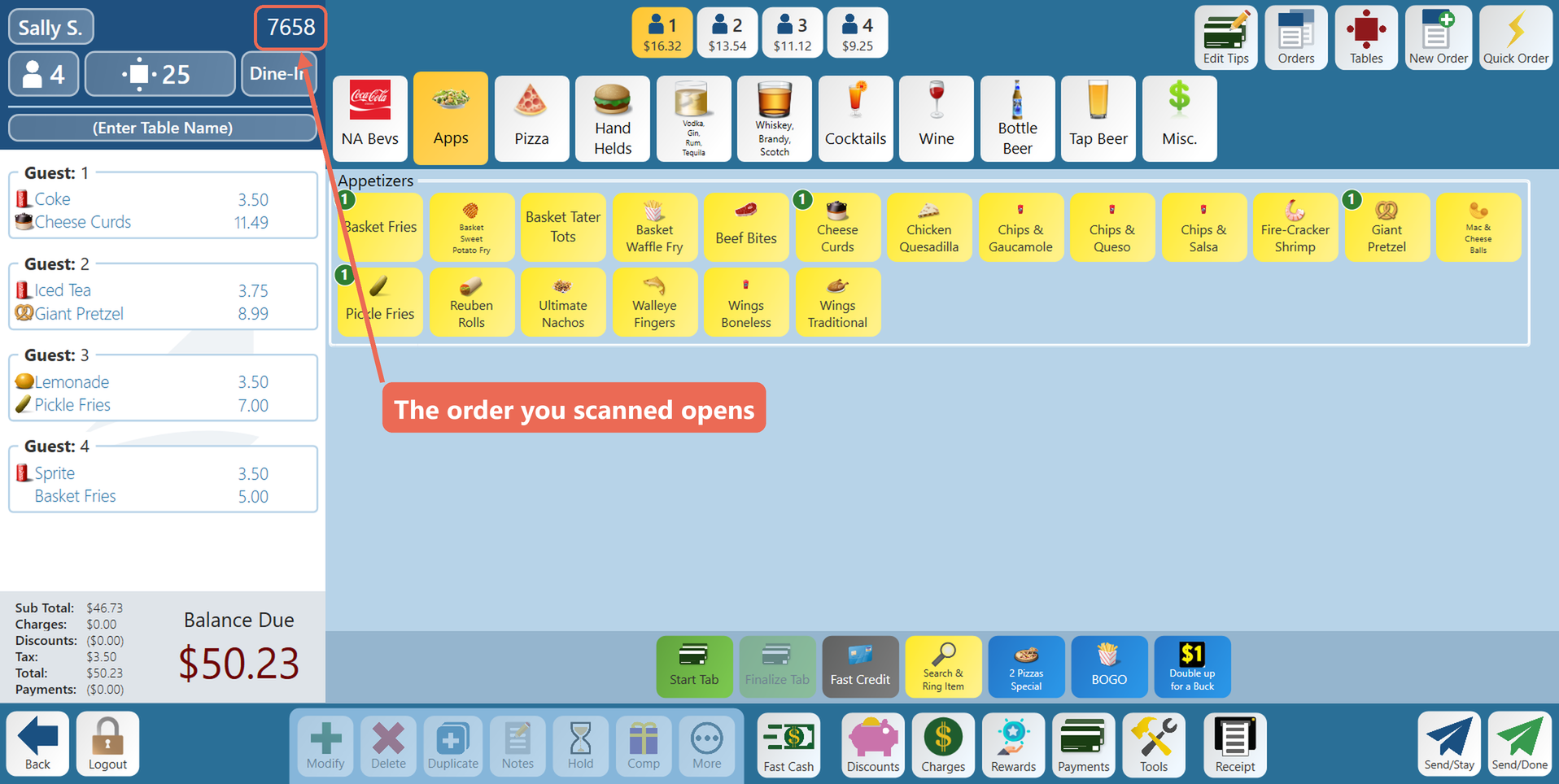
The order on the receipt opens. If it does, the scanner is set up.
Where you can scan
Someone has to be logged in to the terminal, and no window can be open on the screen.
- Any screen (home, Orders, Tables or inside an order): scan a guest receipt or credit card slip to open its order.
- Edit Tips screen: scan a credit card slip to open the tip window for that payment. To learn more about entering tips, see How to enter tips.
- Inside an order: scan an item's UPC to add one of that item to the order. The item needs its UPC in Backoffice first (below).
Adding a UPC to an item in Backoffice
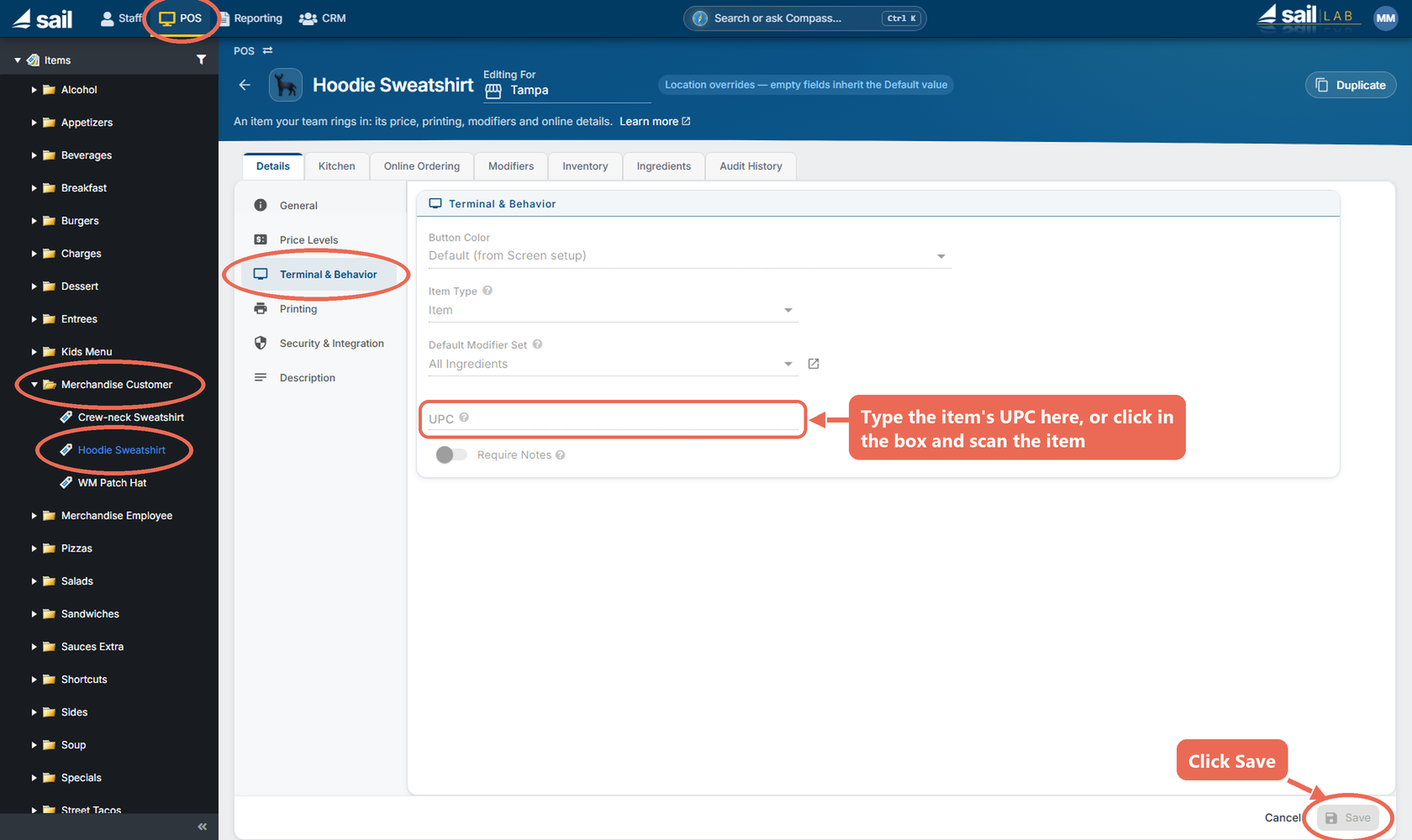
Click POS at the top, then the arrow next to Items, then the item's category, and click the item. On the Details tab, click Terminal & Behavior, type the UPC in the UPC box (or click in the box and scan the item - the scanner types the number for you) and click Save.
Note: Each UPC can be on only one item. If two items have the same UPC, the terminal can't tell which one to add.
To learn more about the other boxes on this tab, see Items: Details Tab.
If a scan does nothing
- Nothing happens: make sure someone is logged in and no window is open on the terminal (close it first), then scan again.
- The scanner beeps but nothing happens: the scanner may not be adding Enter after each scan. Set the suffix to Enter (see How to set it up).
- Card is invalid, please try swiping again (inside an order): the terminal didn't recognize what was scanned. Check the scanner's settings above - a prefix, or a missing first or last digit, changes the number.
- No item found matching UPC: no item has that UPC. Add it to the item in Backoffice.
- More than one item found matching UPC: two items have the same UPC. Take it off the one that shouldn't have it.
- The receipt has no barcode: your receipts need to print one. Contact Sail Support.