
How to enter tips
This document will detail how to enter tips on a Terminal
To see how to enter tips on a handheld please click the link
Credit card tips
Note: Cash tips do not need to be added to each transaction manually, There is a prompt during clock out of all tippable employees that will ask to enter the total cash tips received that day.
-
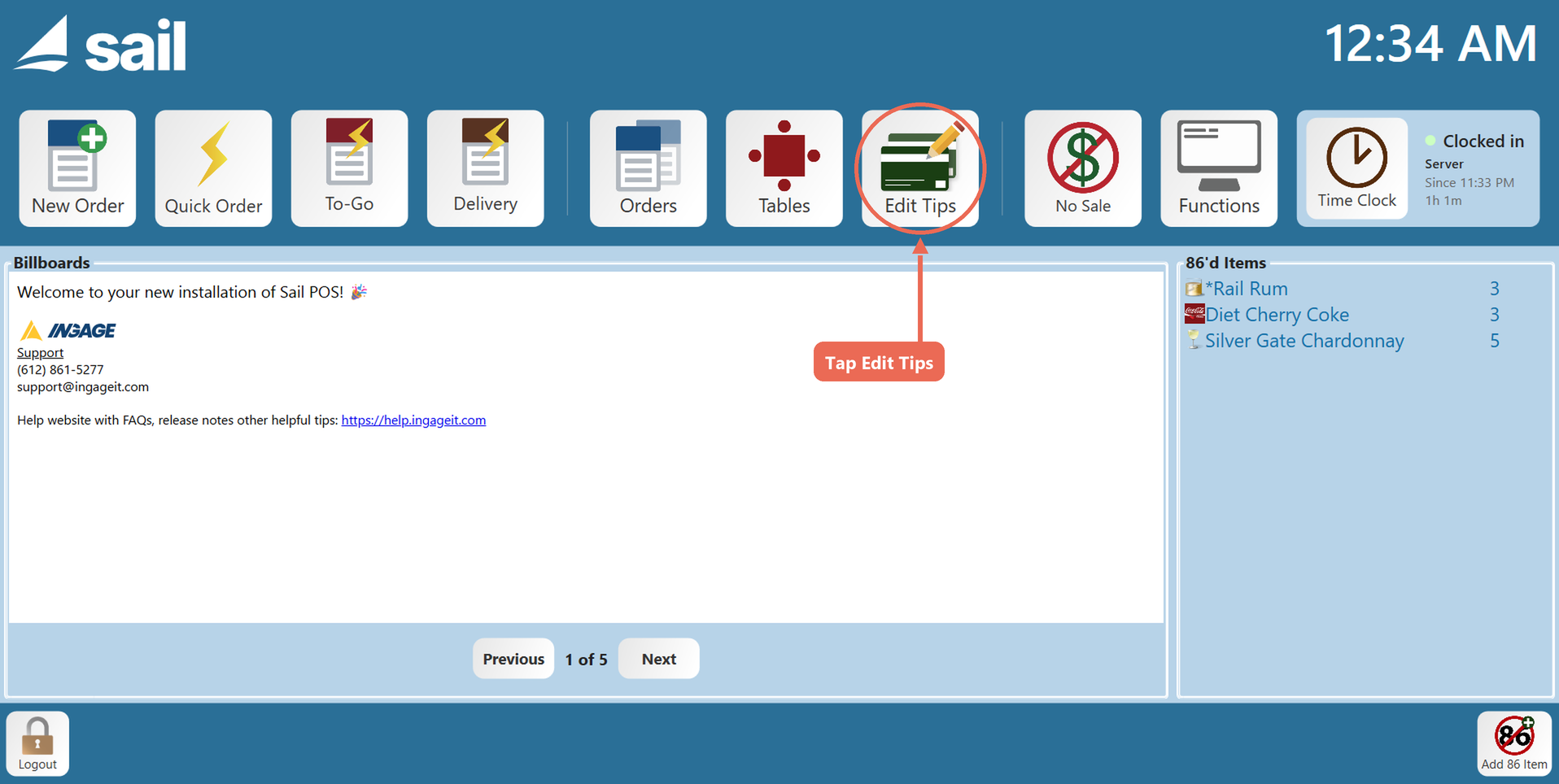
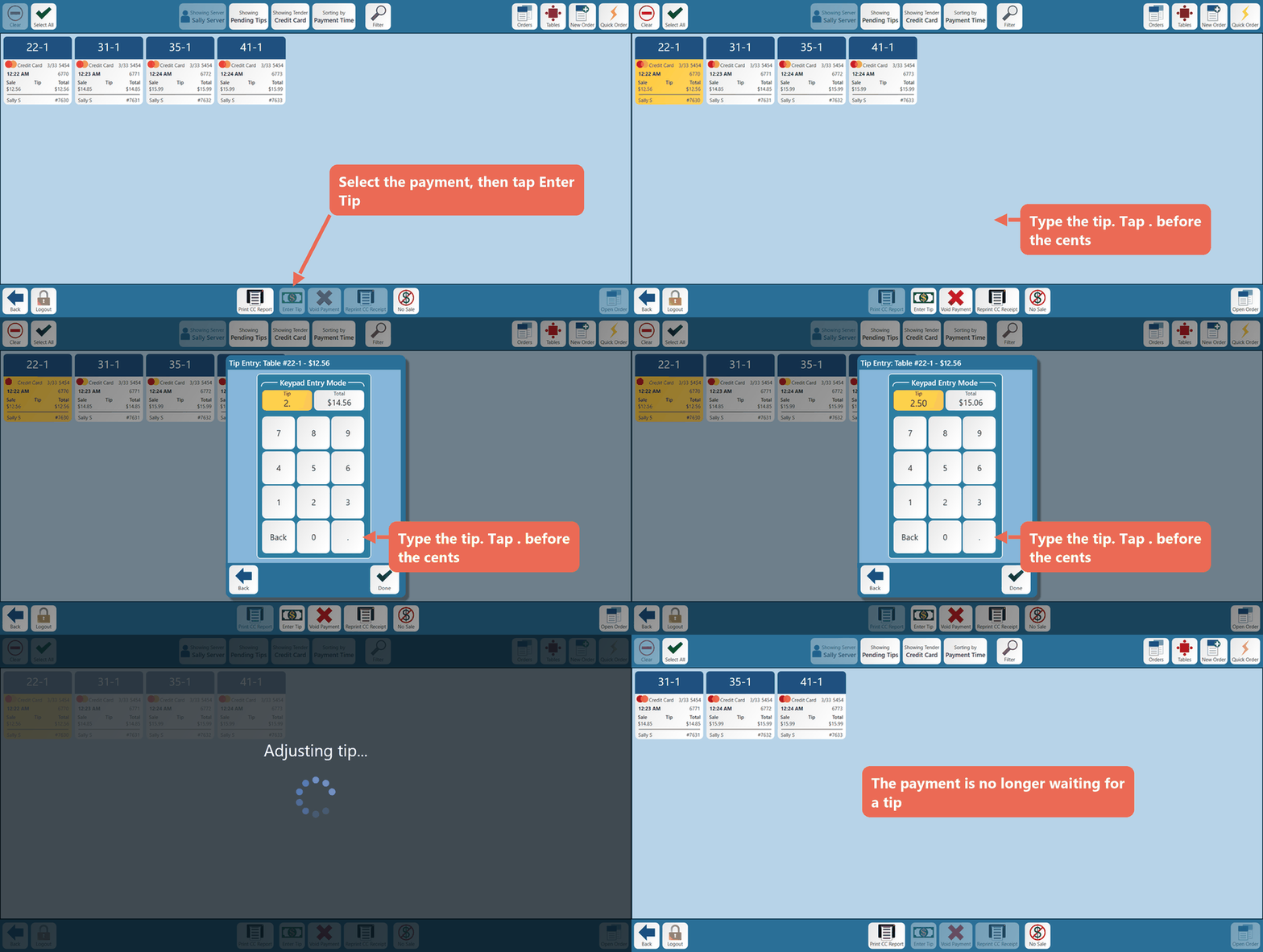
Tap Edit Tips on the home screen. You can also tap Edit Tips at the top of the Orders screen or of an order.
-
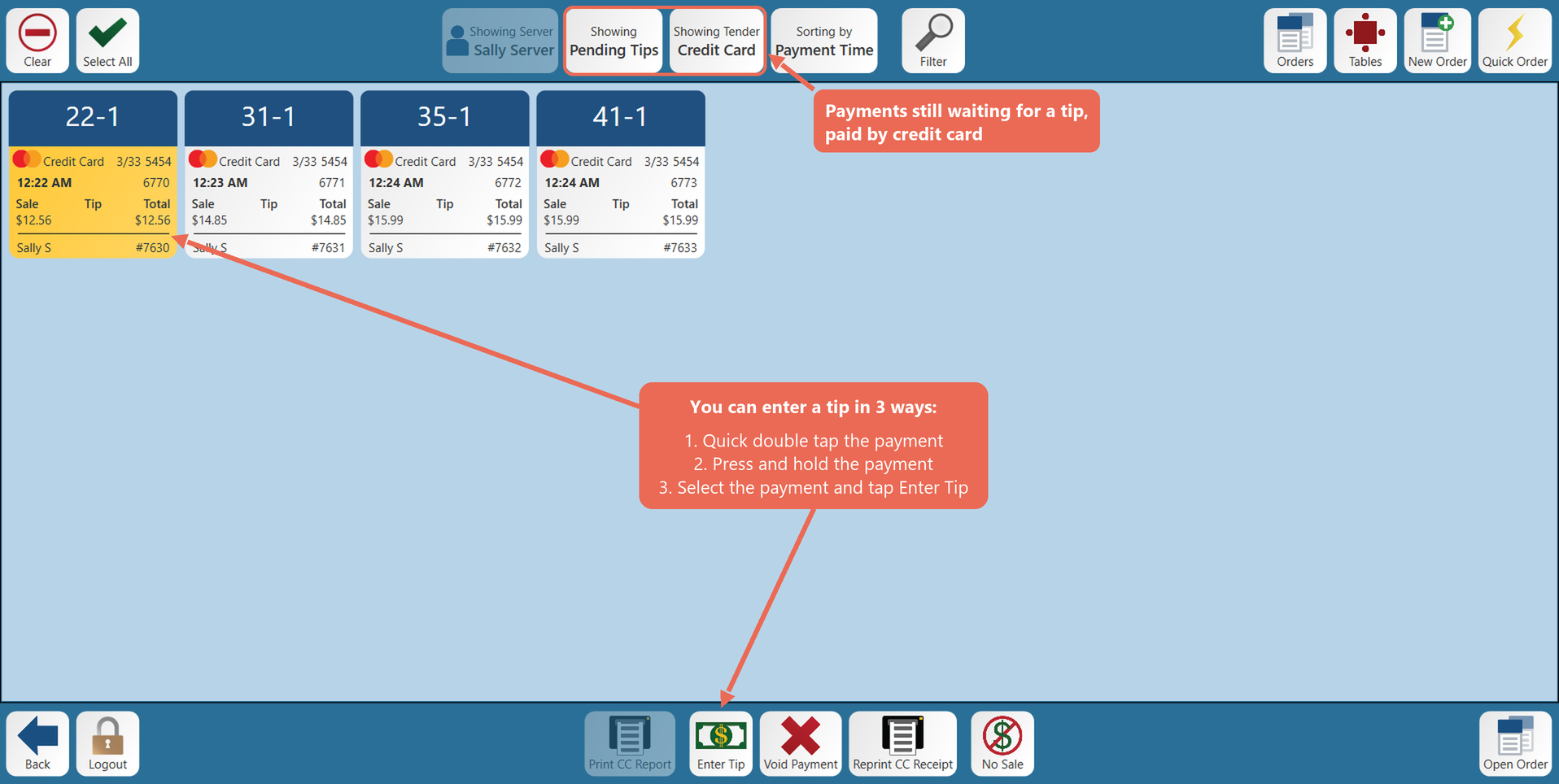
Locate the payment that you would like to enter a tip on.
-
When you open the Edit Tips screen it will default to credit card transactions that are still pending a tip (Showing Pending Tips and Showing Tender Credit Card).
-
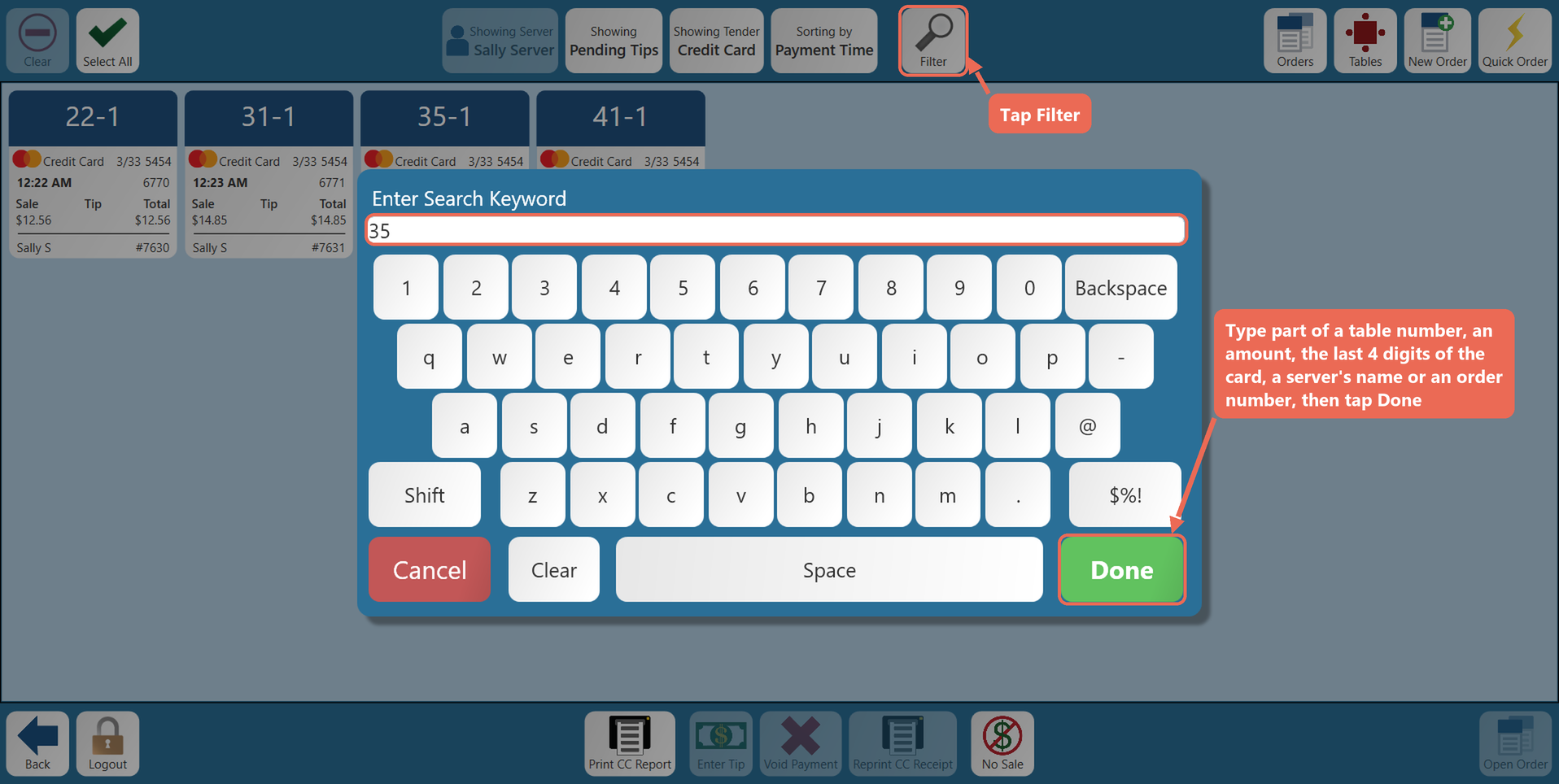
Can’t find the payment? Tap Filter at the top of the screen and type part of the table number, the amount, the last 4 digits of the card, the server’s name or the order number, then tap Done.
-
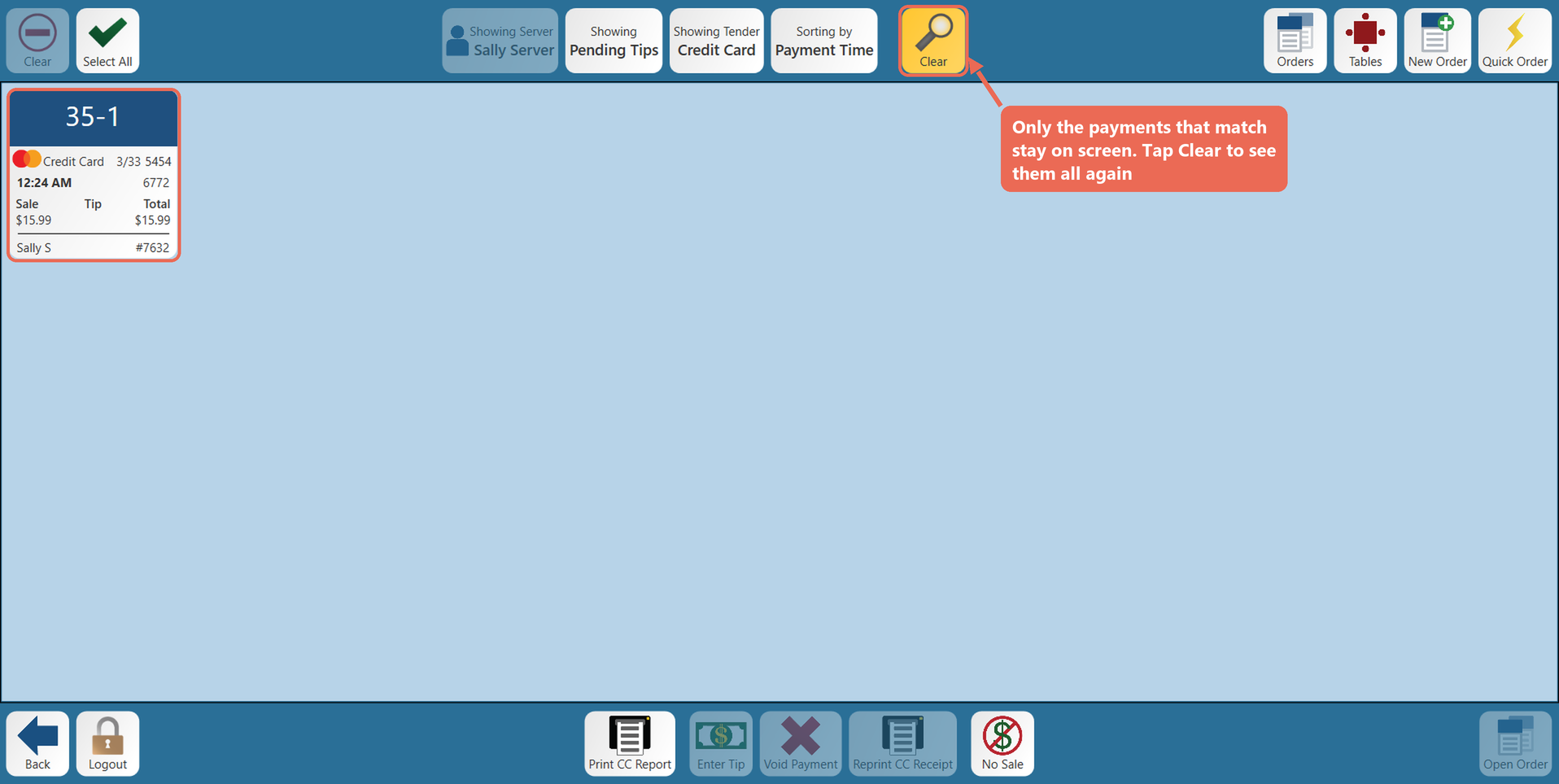
Only the payments that match stay on the screen, and the Filter button turns yellow and says Clear. Tap Clear to see all of the payments again.
-
-
A prompt will appear asking for the tip amount.
-
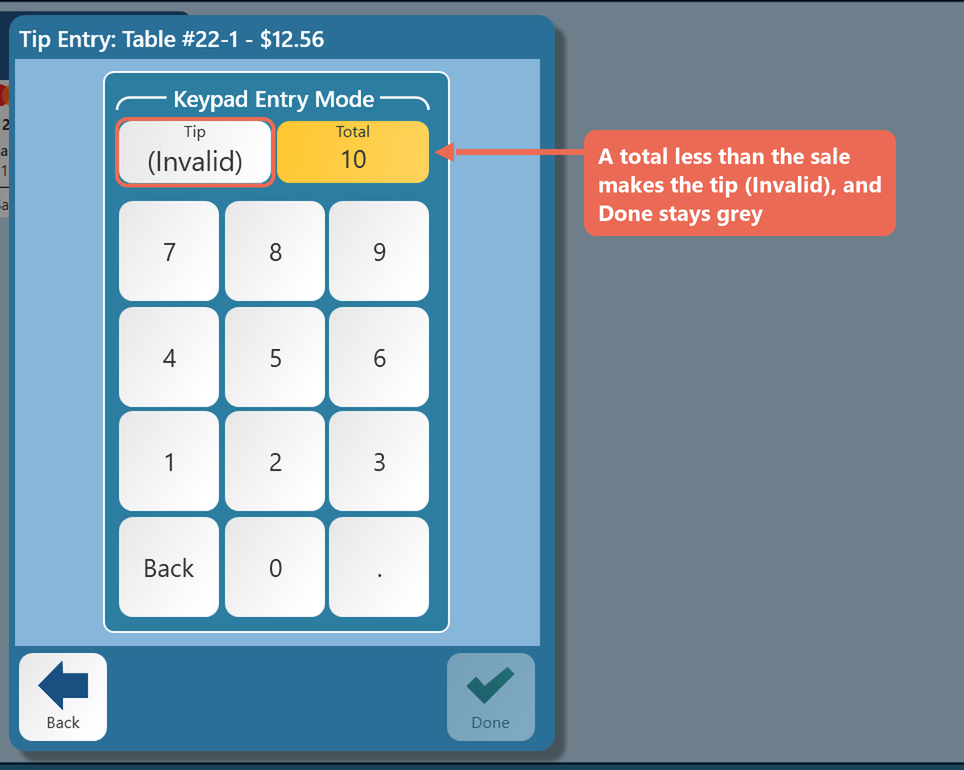
You will now see a keypad with 2 options.
-
When the “Tip” is highlighted in yellow you can enter the tip amount. The total amount will reflect the correct total as the tip is entered.
-
When the “Total” is highlighted in yellow you can enter the total amount. The tip amount will update based on the total amount. The next time you enter a tip, the keypad starts on the one you used last.
-
If you have a total amount that is less than the sale amount, the tip button will say “(Invalid)” and Done stays grey.
- The system will default to a dollar value. If the tip has a cent value you will need to add the decimal point to separate dollars and cents or the system will interpret the entire tip in dollars.
- If the tip is more than $10 and more than 35% of the payment, the system will ask if you are sure. Tap Yes to keep it, or No to change it.
- Tap Done. The system will ask for confirmation of the new total with the tip added; tap Yes.
-
-
Once the tip has been entered the payment will no longer be a pending transaction. To see it with its tip, tap Showing Pending Tips to switch to All.
-
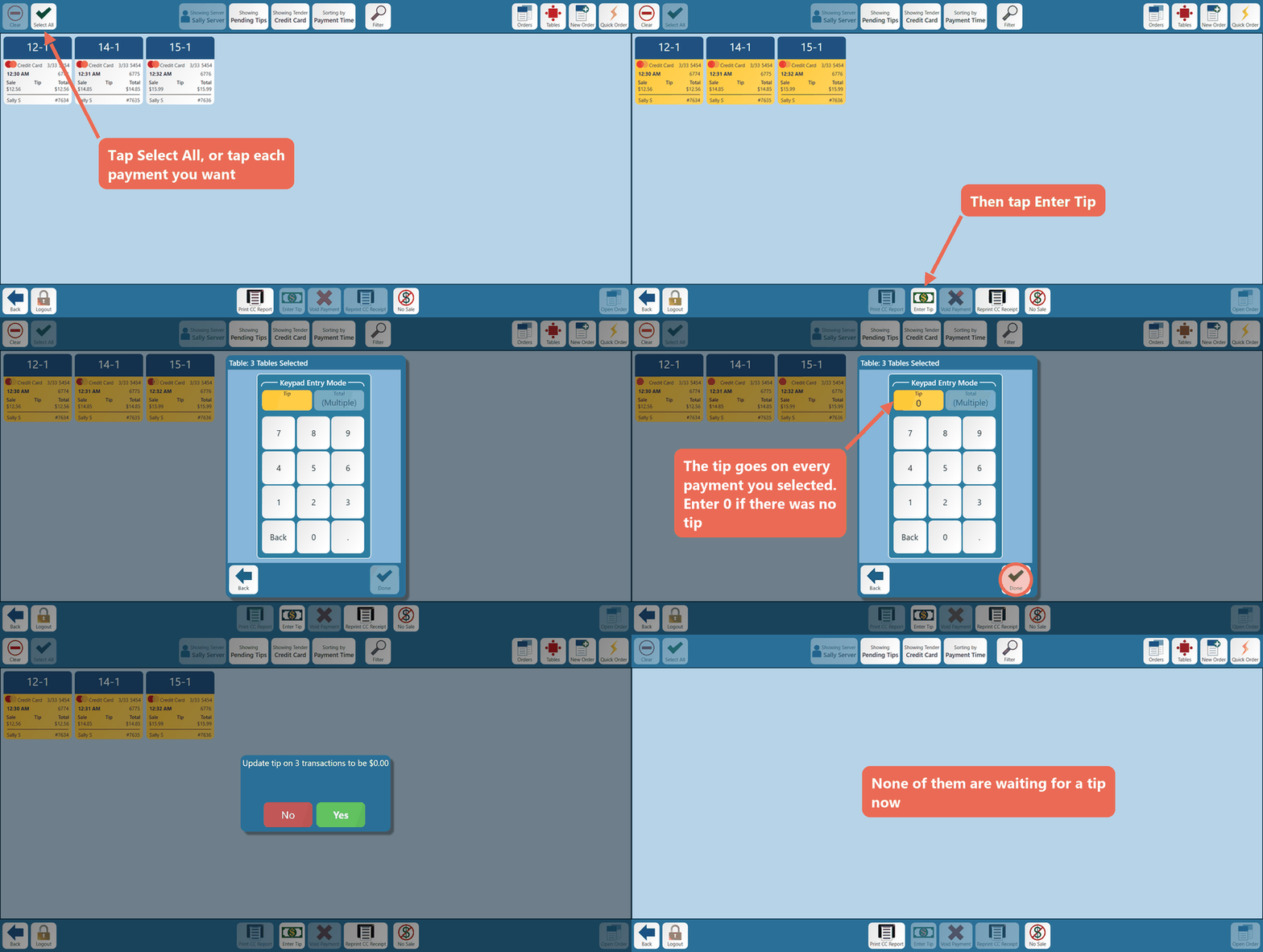
You can select multiple payments (or tap Select All) to enter a tip on more than one transaction at a time.
-
The tip will be the same for all selected transactions. The Total option isn’t available when more than one payment is selected.
-
Zero dollar tips need to be entered or you will not be able to complete a server close at the end of the day - it will say the server still has unentered credit card tips.
-
No Comments