
Reviewing time off requests
ManagingEmployees ask for time off in the app or on the website. Time Offoff Requestsreview allowsis managerswhere toyou review, approve,approve or deny employeethose requestsrequests, sochange theytheir aredates, visibleand whenbook buildingtime theoff schedule.for someone yourself.
You see Time off review if one of your job roles at the selected location grants time off rights. Managers and Administrators usually have them. A request belongs to the employee's home location, so you review requests from the people whose home is the location picked at the top right. Requests from people who also work here but call another location home are intendedlisted too, for you to informsee scheduling decisions,but not automaticallydecide: preventsee employeesTime off from beingother scheduled.locations.
Find what needs your attention
When a request is waiting, the Time Off menu at the top shows a red badge with the count. Click it to open Time off review.
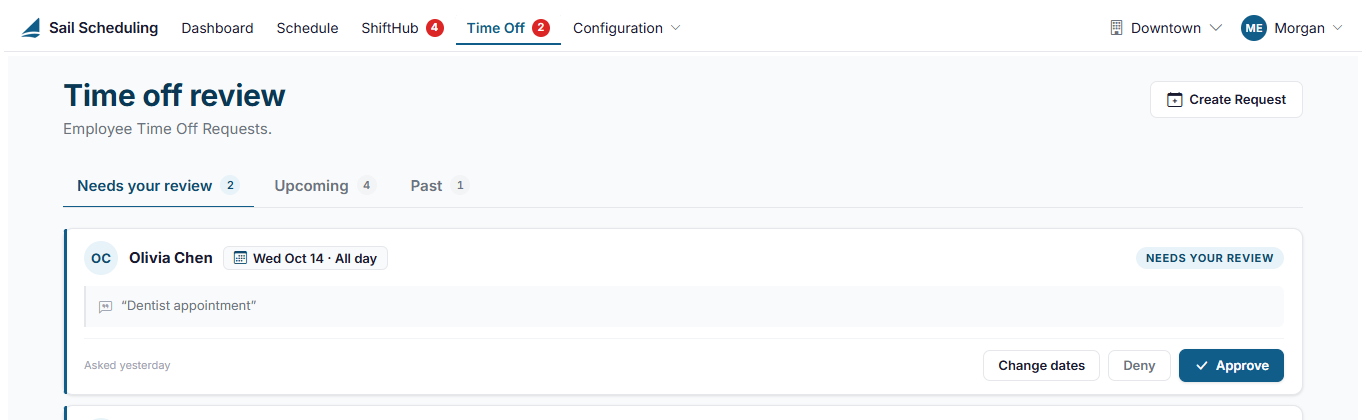
Requests are sorted into tabs:
- Needs your review: every request still waiting for a decision, however far off or long ago its dates are.
- Upcoming: every request for time off still to come, whatever its status. Use All, Waiting, Approved and Denied to narrow the list.
- Past: requests whose dates have gone by.
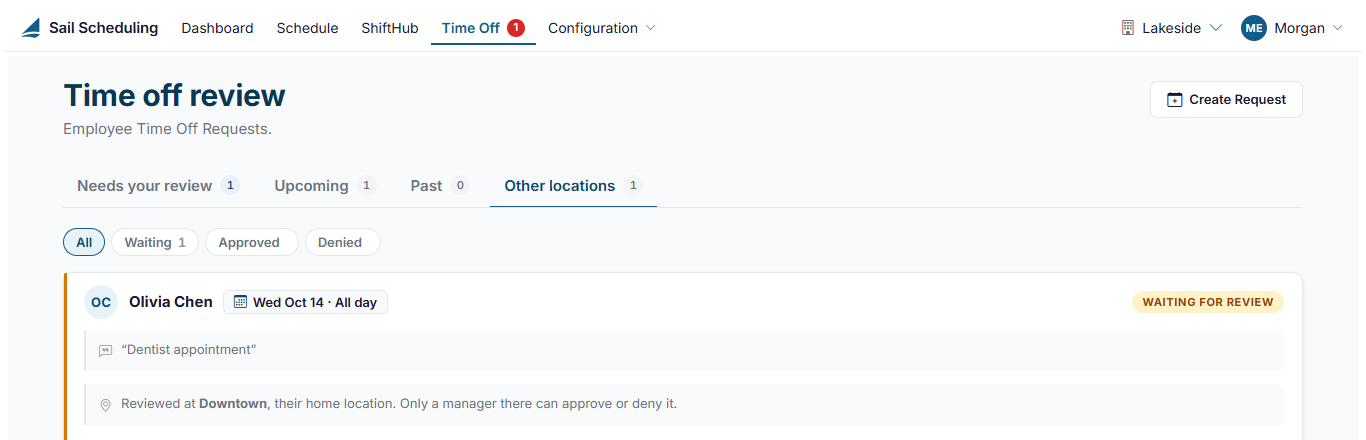
- Other locations: time off still to come for people who work here but call another location home. This tab only appears when there's something on it.
Each card shows who is asking, the dates (or the hours, for part of a day), the reason they gave, and when they asked.
Approve or deny a request
- On the request's card, click Approve or Deny.
- If you like, write a message under Say something back. The employee reads it with their request.
- Click Approve or Deny to confirm.
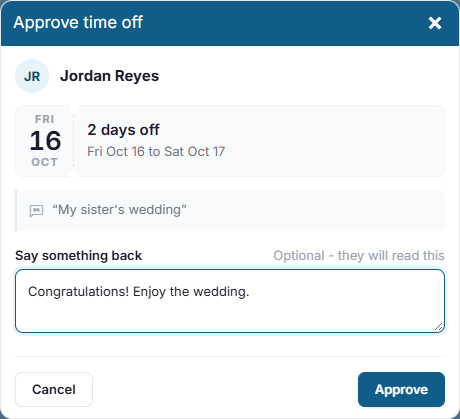
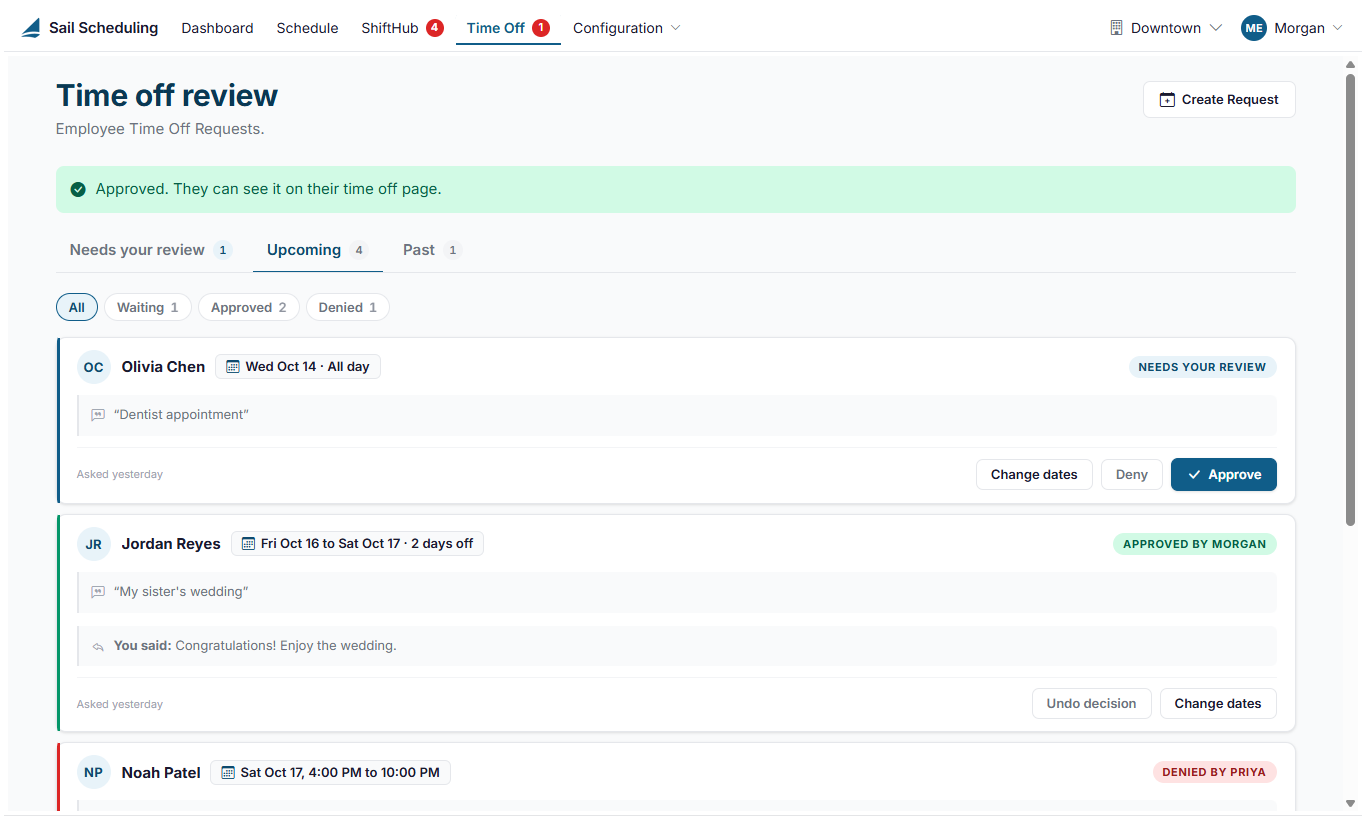
The decision shows on the employee's own Time off page and in the app straight away, with your name and message.
The employee is told about your decision by email or text message, depending on their notification settings, and with a notification in the app. Your name and your message are included. When you book time off for someone, they're told it was booked for them. Undoing a decision doesn't send anything.
Approved time off appears on the schedule as a visualred indicator,Time helpingoff managersall avoidday conflictsbar, whileor stillan allowingorange flexibilitybar whenwith adjustmentsthe arehours needed.for Managerspart of a day, so you can alsoplan enteraround it.

Approving time off ondoesn't behalftake of employees.
Where to View Time Off Requests
Managers can view and manage allthe employee time-off requestsshifts fromthey already have. If they're scheduled on those days, change or remove those shifts on the Timeschedule, Offor area.unpublish them first if they're published.
To
Change accessyour time-offmind, requests:or the dates
- Undo
ClickdecisionTime Off inputs thetoprequesttoolbar
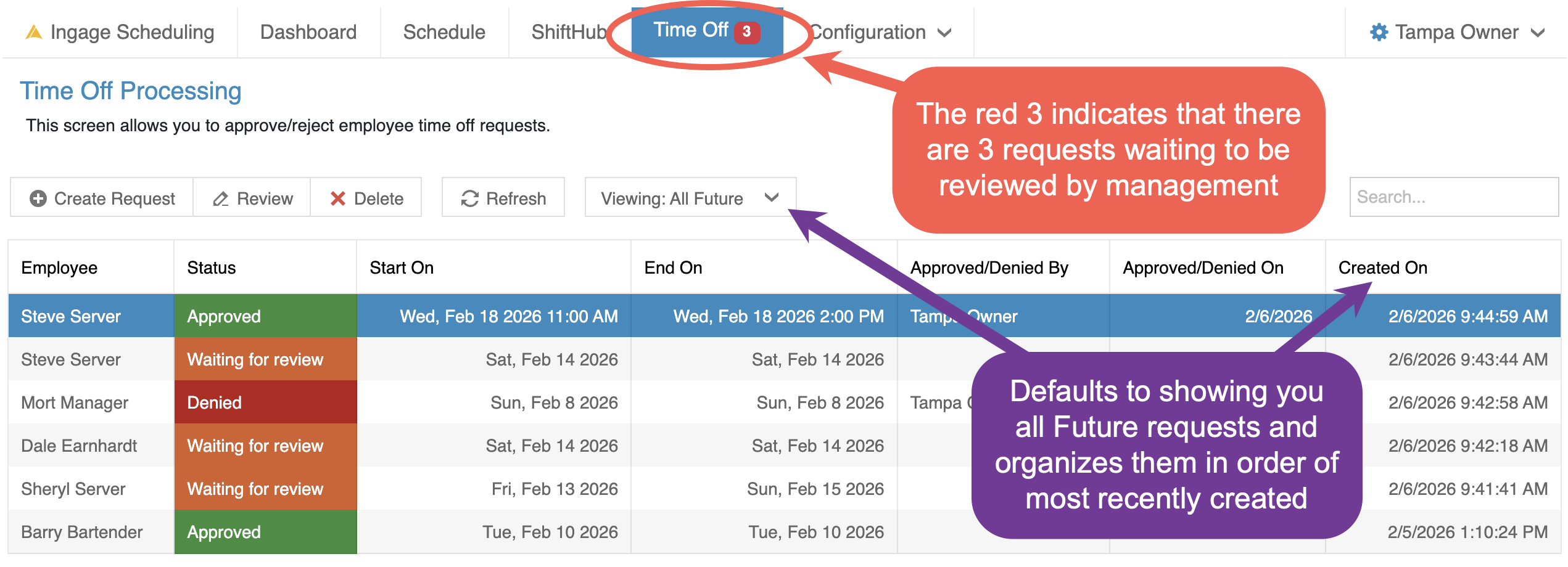
When you first open this screen, it will defaultback to showing current and future time-off requests. This makes it easy to focus on requests that may impact upcoming schedules.
If there are any requests waiting for review, aand redclears notificationwho badgedecided willit appearand nextyour tomessage. You can then decide it again.
A request that is still waiting has Change dates too.
Time Offoff from other locations
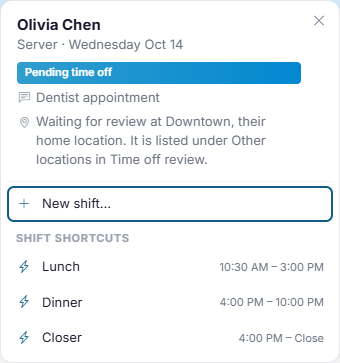
Some employees work at more than one location. Their time off shows on the schedule at every location they work at, so you can plan around it, but only their home location approves or denies it. That way each request has one set of managers deciding it.
When you pick one of their other locations at the top right, their requests are on the Other locations tab. Each card says which location reviews it. There are no buttons: you can see the request and its status, but not decide it or change it. These requests aren't counted in the toolbar,red indicating that action is needed.
From this area, managers can review request details, approve or deny requests, and track request status all in one place.
Filtering, Sorting & Viewing Time Off Requests
The Time Off screen includes tools to help you quickly find and review requests.
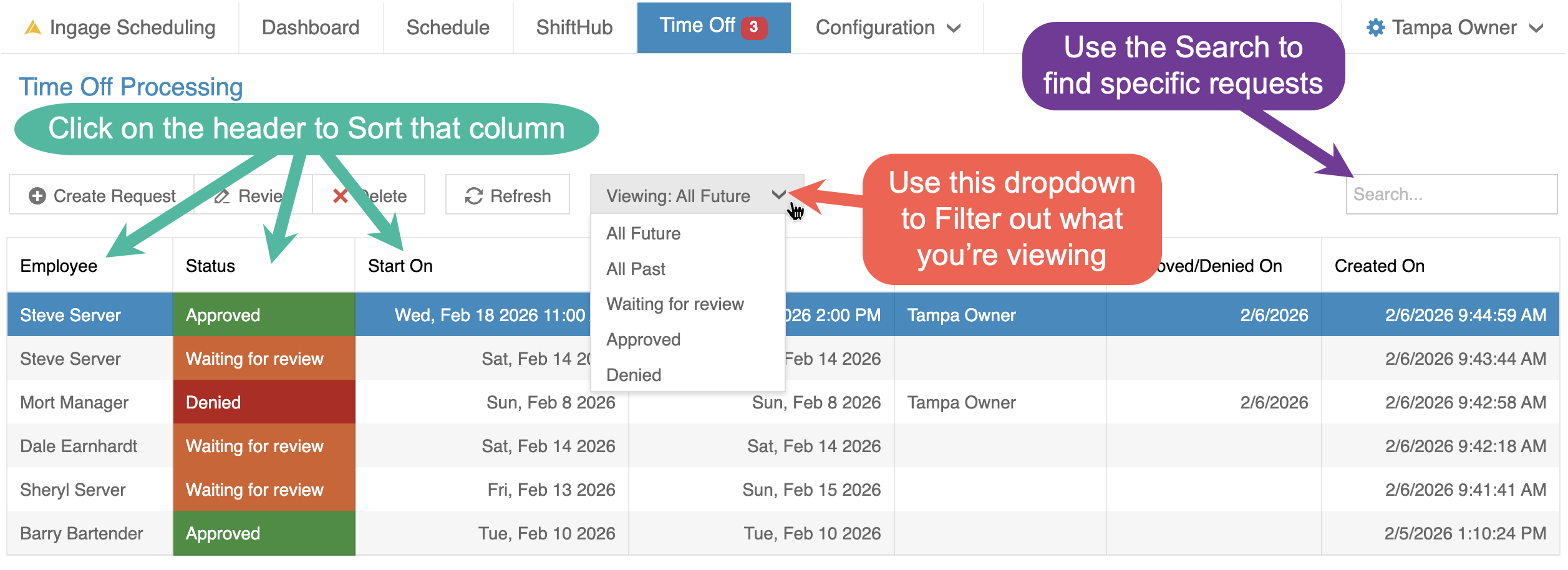
Sorting Requests
You can sort the list by clicking on any column header, including:
EmployeeDateStatus
Click a column header again to reverse the sort order.
Filtering Requests
Filtering options are:
ALL Future (Current) requestsALL Past requestsCurrent Request status (Pending, Approved, or Denied)
These filters help narrow the list to the most relevant requests for scheduling.
Searching Requests
You can also use the Search field to quickly find specific requests.Typing in the search box will filter the list to only show results that match what you entered, such as:
An employee’s nameA date
Using sorting, filtering, and search together makes it easier to focusbadge on the requestsTime thatOff needmenu, attentionbecause beforethey buildingaren't yours to review.
On the schedule, their request still shows as a blue Pending time off bar until it's decided. Click the day, or adjustingpoint at the schedule.bar, to see which location is reviewing it.
ApproveNeeds oryour Denyreview is empty but a Timerequest Offis Request
waiting Toat approvesomeone's orhome deny a time-off request, managers must first openlocation, the requestempty tab says so and points you to reviewOther its details.locations.
There
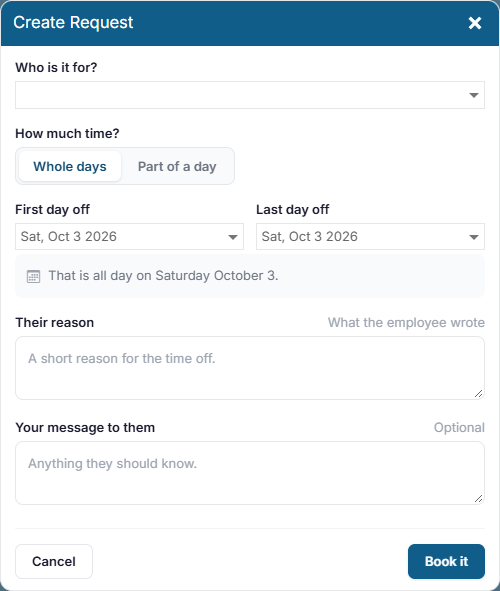
Book aretime twooff waysfor to open a request:
- someone
Double-clickIf onan employee asks you in person, you can put the request in thefor listthem. It's saved as already approved, with your name on it.
- Click
SelectCreatethe request and click ReviewRequest at the top right of thescreen - Choose Who
is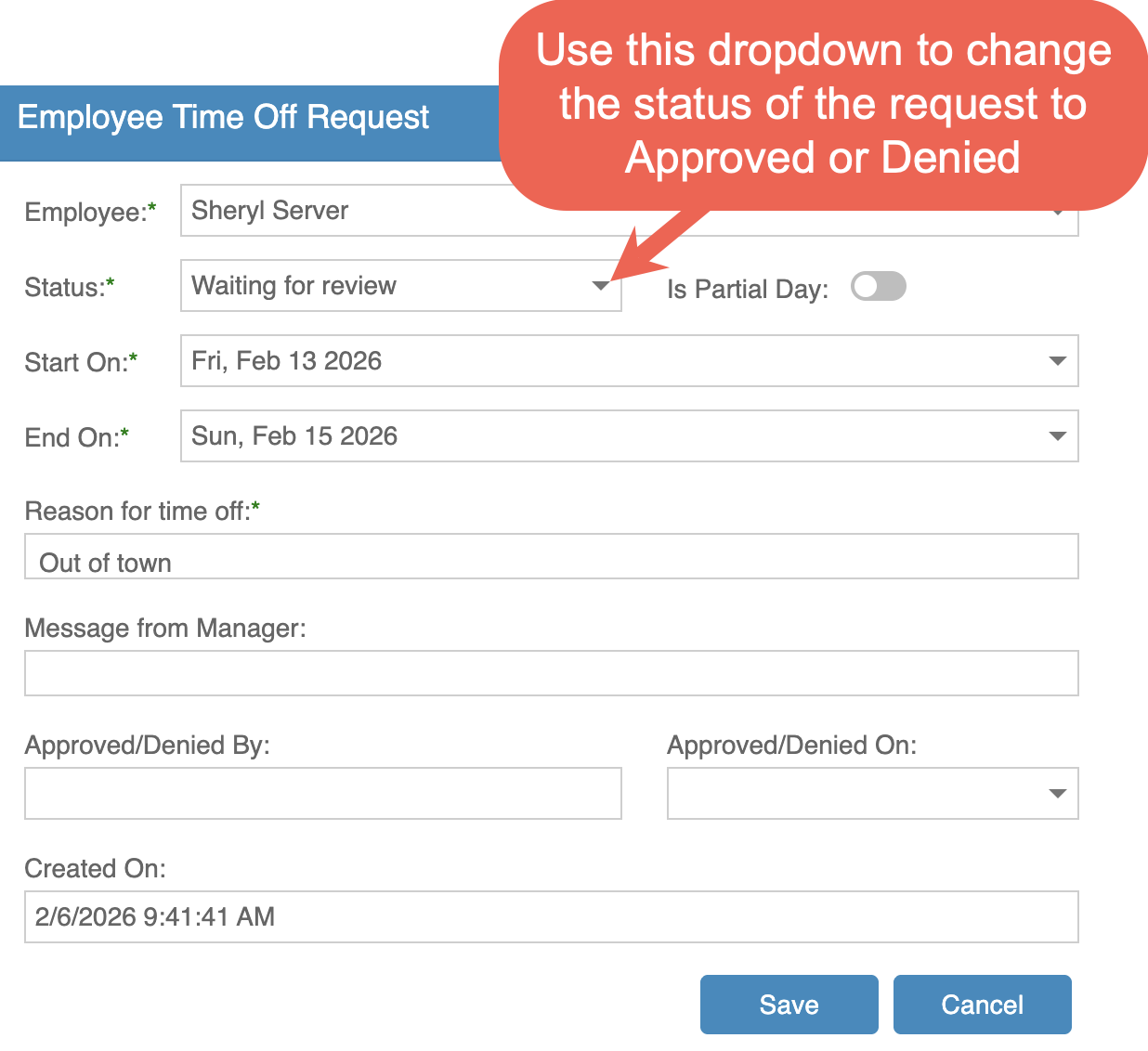
Openingit for? - Choose Whole days and pick the
requestfirstwillanddisplaylast day off, or Part of adetaileddayviewandshowing:pick the day and the hours. The line under the dates says exactly what that comes to. - Fill in Their reason, and a message to them if you want one.
- Click Book it.
Good to know
- Each
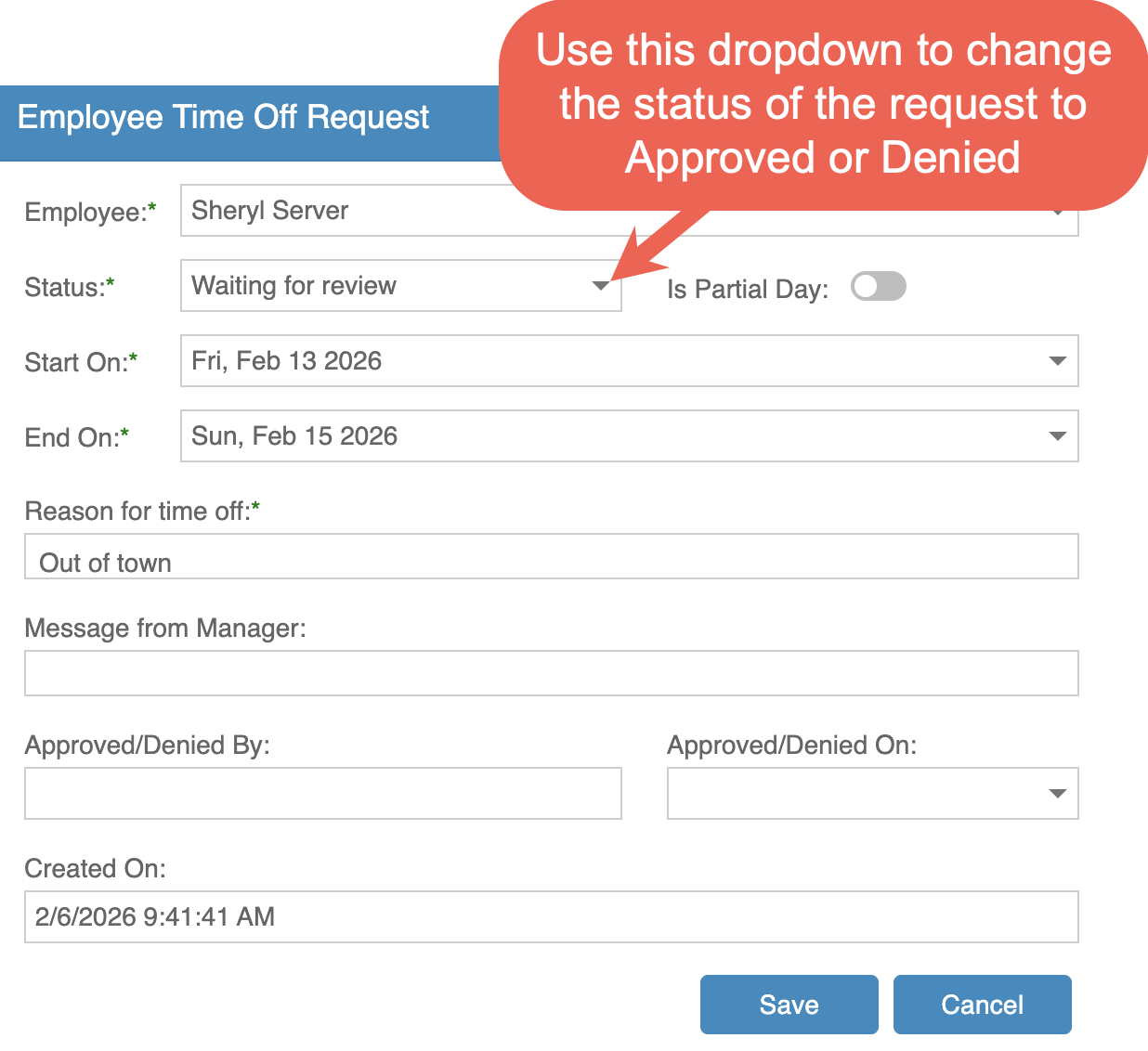
require time off to be asked for a number of days ahead. That's set on the Locations page, and it applies to the employee's home location. It limits what employees can ask for; managers booking time off aren't limited.Thelocationemployeecanname The requested start and end datesWhether theA request isaeitherfullwhole days, orpartial dayThe reason for the request
To take action on the request:
Use the Status dropdown to change the request fromWaiting for reviewto Approved or Denied(Optional) Enter a message for the employeeClick Save
Once saved:
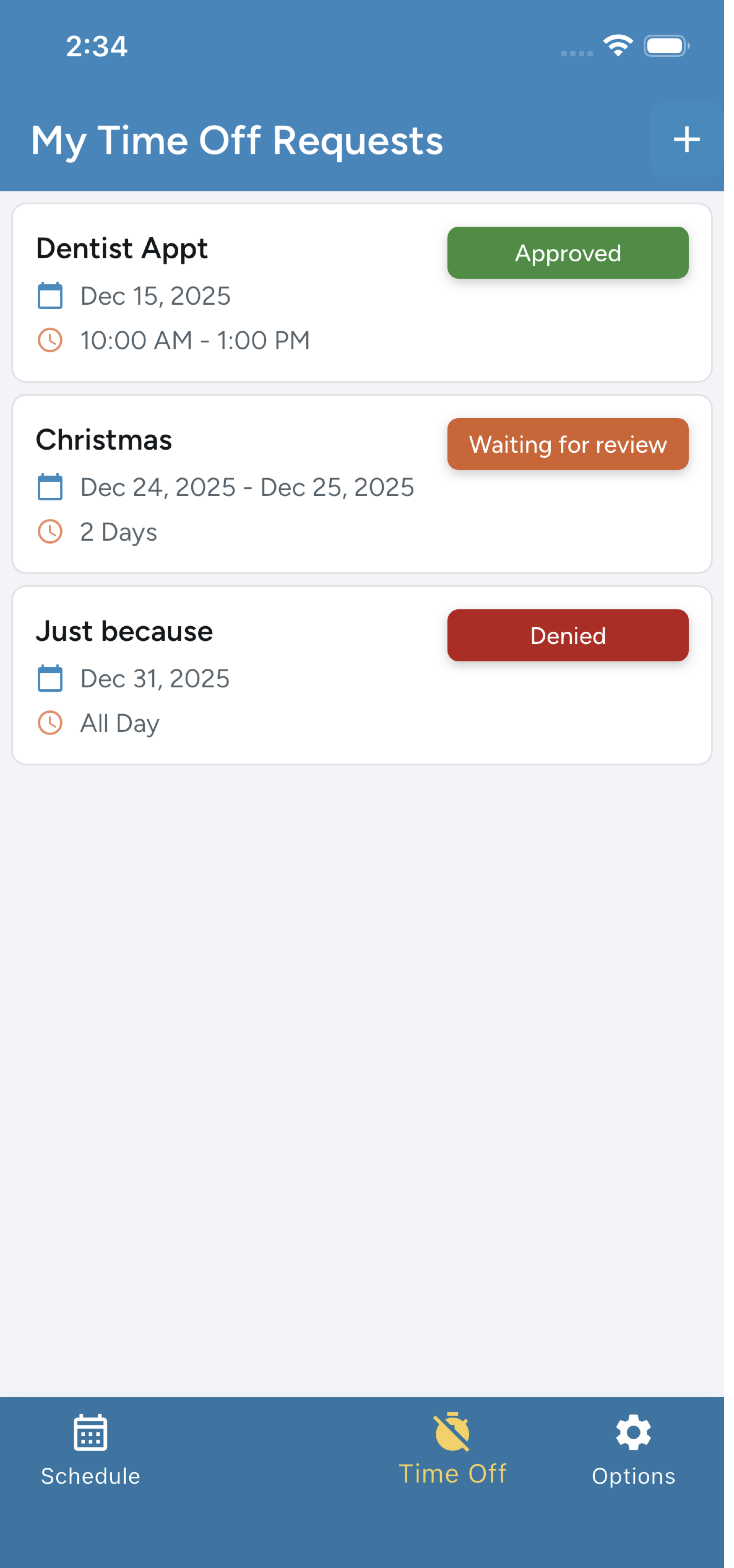
The request status updates immediatelyApproved time off appears on the schedule as a visual indicatorThe employee sees the updated status in their app (See example below of the statuses in the app)
Enter Time Off on Behalf of an Employee
Managers can enter time off requests on behalf of an employee when needed. This is helpful if an employee communicates their request verbally, is unable to submit it themselves, or if a manager needs to record time off for scheduling purposes.
To enter time off for an employee:
Go to the Time Off sectionClick Create RequestSelect the EmployeeChoose the Start and End dates for the time offIndicate whether the request is a full day or partial day, if applicableEnter a reason for time offSet the Status to Approved or Waiting for review, depending on how you want it handledClick Save
Entering time off on behalf of employees ensures availability is accurately reflected when building schedules and helps avoid miscommunication.
How Time Off Appears on the Schedule
Approved time-off requests are displayed directly on the schedule to help managers make informed scheduling decisions.
Time off is displayed on the schedule using color-coded indicators. These colors help you quickly understand if an employee may be unavailable or partially unavailable on a given day.
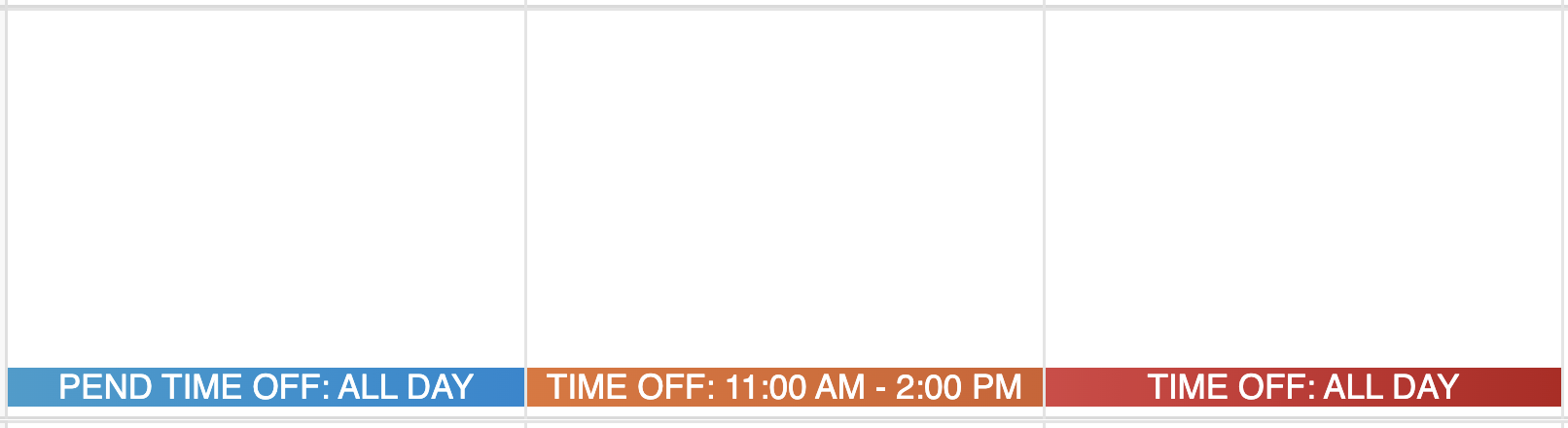
BLUE - Still has a pending request off that needs to be reviewed by a managerORANGE - Request off forpart oftheadaysinglewas approvedday.REDAn-employeeRequestcanoffchange or cancel a request only while it's still waiting forthe full day was approved
review.
These visual indicators are meant to inform scheduling decisions, not restrict them. Managers can still schedule employees if needed, but the colors help prevent accidental conflicts.
Time Off Visibility in the Shift Editor
When building a schedule, if you open the Shift Editor for an employee who has a time off request (pending or approved), the same color indicator will appear at the top of the Shift Editor.

This makes it easy to:
See time off status without returning to the main schedule viewUnderstand availability while entering or adjusting shift timesMake informed decisions before saving a shift