
Schedule templates
ScheduleIf Templatesmost helpweeks look about the same, you don't have to build scheduleseach fasterone from scratch. Save a good week as a schedule template, and morelay accuratelyit byonto reusingany shifts that stay consistent fromfuture week toin week.a Insteadcouple of recreatingclicks. theYou same shifts every time, you can apply a template andthen only adjust what’for that week's changed—saving time and reducing mistakes.changes.
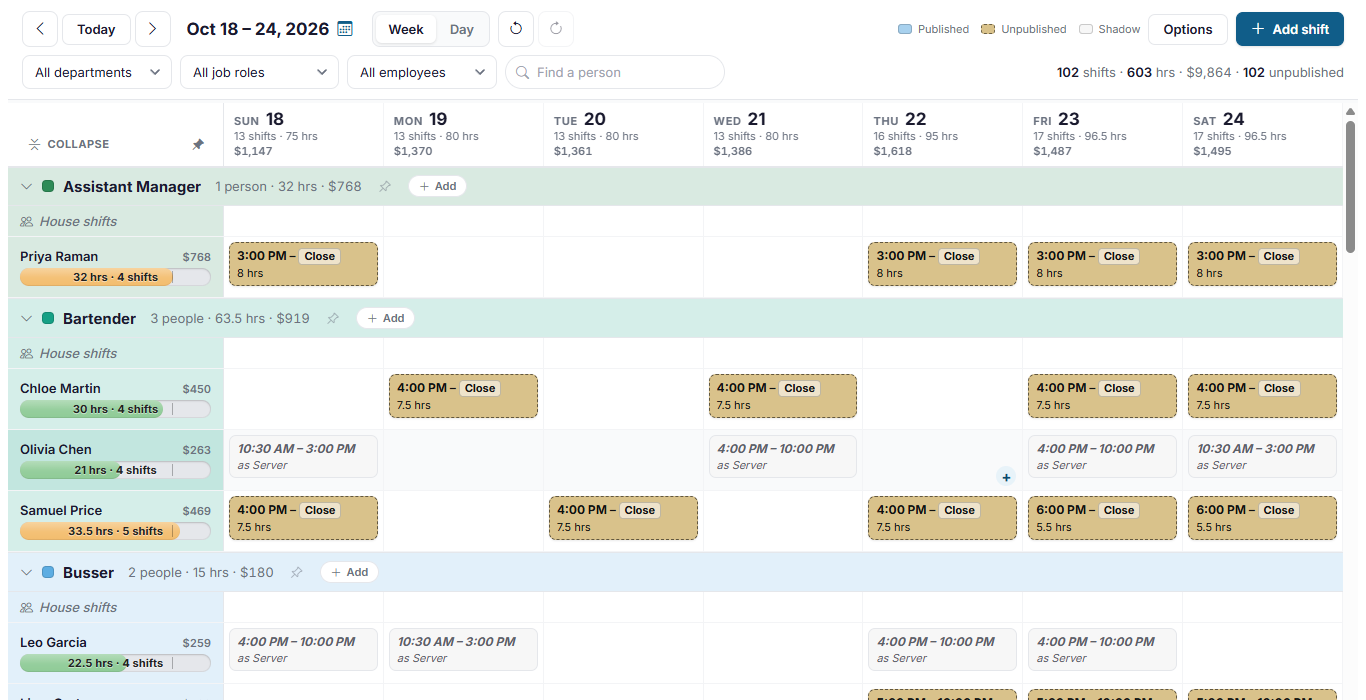
Templates belong to a location. The templates you see are flexiblethe andones cansaved at the location picked at the top right. You need to be useda for full schedules, specific job roles,Manager or justAdministrator partthere to use them.
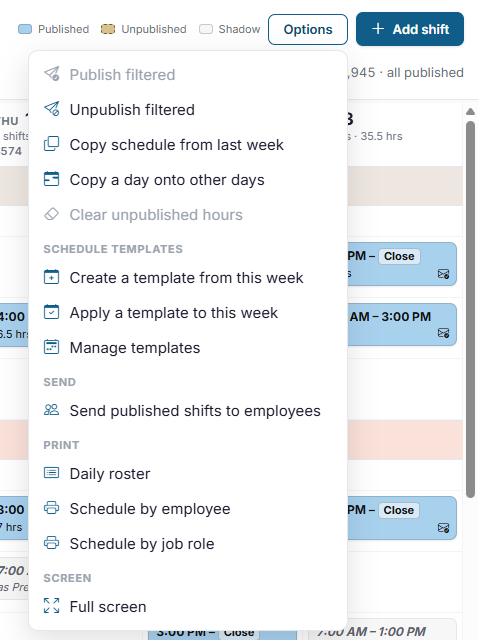
All three template actions are in the Schedule templates section of the week.schedule's Options menu.
When to Use Schedule Templates
Schedule Templates are especially helpful in situations like these:
Your schedule is mostly the same every week - Create one full schedule template and apply it each week. Then, only adjust shifts for time-off requests or exceptions.Certain job roles rarely change - If roles like Cooks or Bartenders work the same shifts every week, you can create a template for just those job roles. Apply the template to quickly fill in those shifts, then schedule the remaining roles manually.Weekday schedules are consistent, weekends vary -Create a template
for weekday shifts only. Apply it each week and manually build the weekend schedule based on business needs.Lunch vs. Dinner staffing patterns - If your lunch shifts are predictable but dinner coverage varies, create a template just for lunch shifts and build dinner manually.Skeleton or minimum-coverage schedules - Create a baseline template that covers only required positions. Apply it first, then add extra shifts ifOpen the weekis expected to be busier.
How to Create a Schedule Template
Before creating a template, start by building the schedule exactly how you want it to appearsave inon the template.Schedule This can be:
A full scheduleA minimum or skeleton scheduleShifts for specific job roles only (such as just Cooks or Bartenders)Shifts for certain days of the week (like weekdays only)
If you only want certainpart departmentsof orit, use the department and job roles included, applyrole filters first. OnlyFor example, filter to the shiftsKitchen currentlydepartment visibleto save a kitchen-only template. Everything the two filters leave on thescreen schedulegoes will be saved ininto the template.
Options and choose Create thea Template
Once the schedule is set up the way you want:
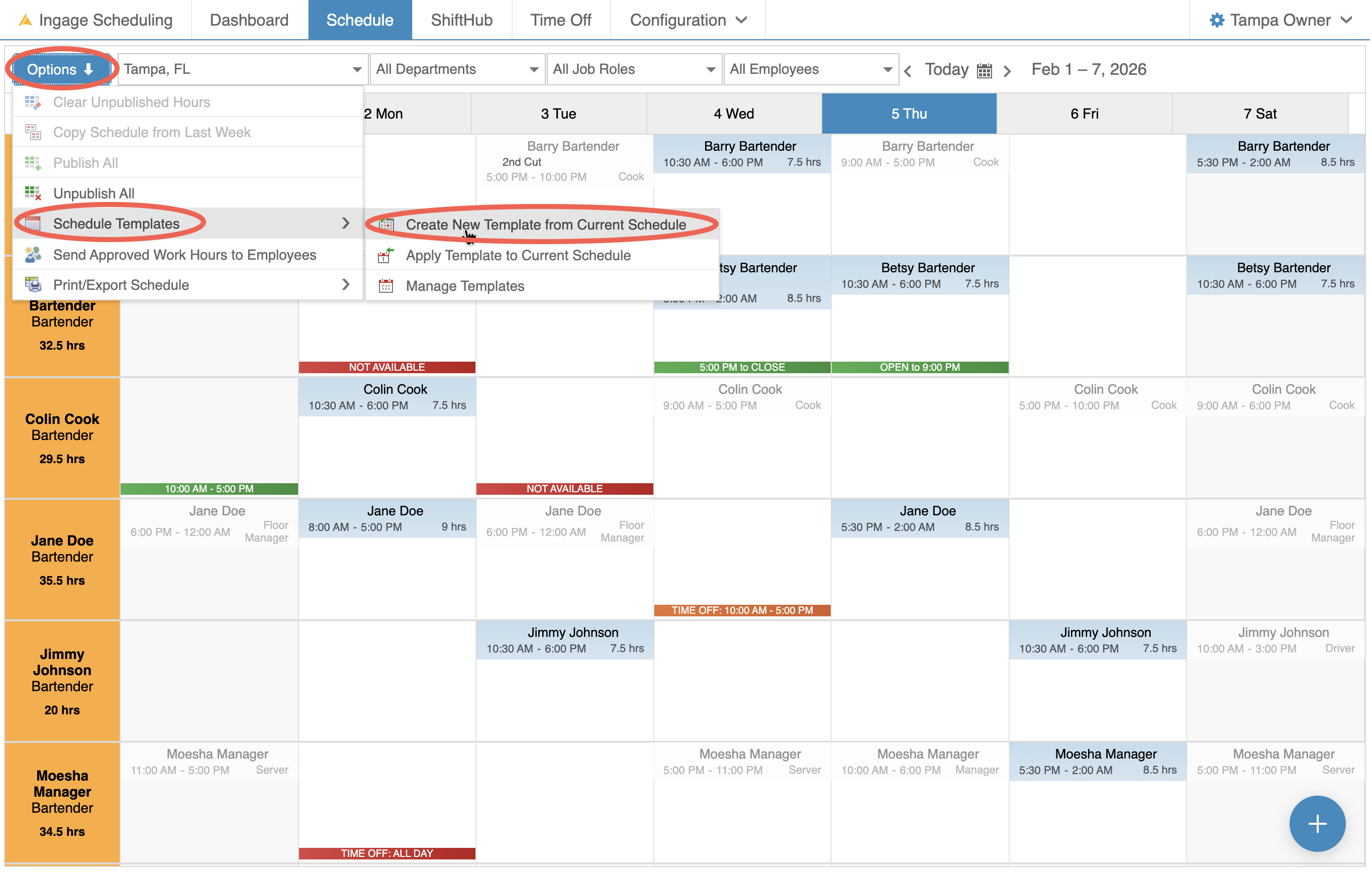
Go to Options → Schedule Templates → Create New Templatetemplate fromCurrentthisSchedule- Give
A pop-up window will appear
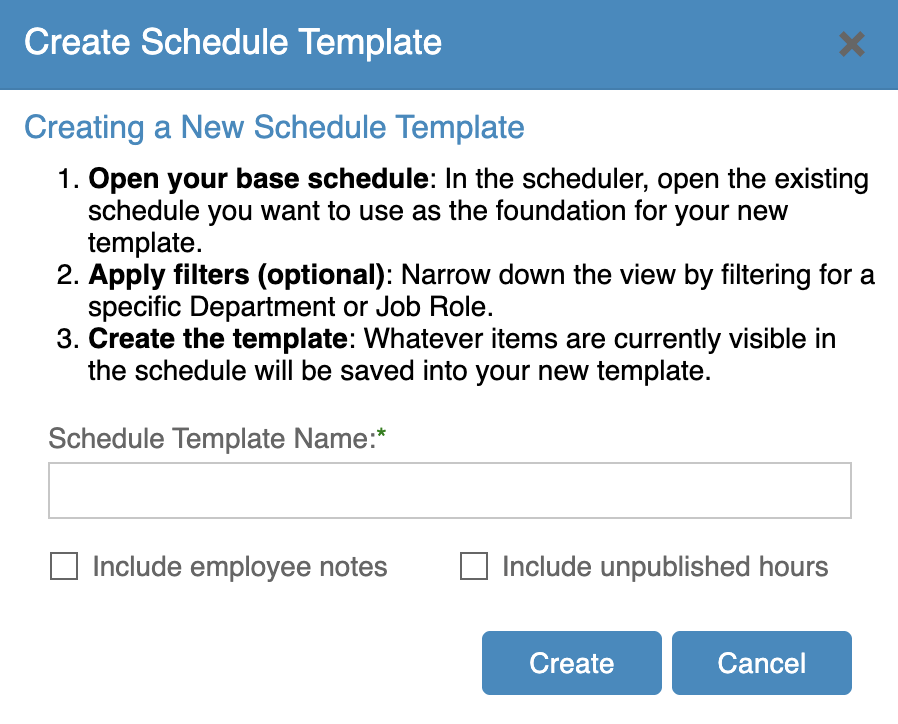
In the pop-up:
Enterit aSchedule Template NameChoose a clear, recognizablenamesothatit’s easy to understandsays whattheit'stemplatefor,includessuch(for example:asWeekdayRegularLunch Shiftsweek orCookHoliday& Bartender Base Scheduleweek).- Choose
include:Selectwhetheranytooptional settings:IncludeEmployeeNotesnotes:–eachsavesshift'sanynotenotesisenteredsaved with it. Off by default.- Unpublished hours: off by default, so only published shifts are saved. Turn it on
shiftsto save - a
IncludeweekUnpublishedyou'reHoursstill–workingincludes shifts that have not been published yet
Click Create
template.
Your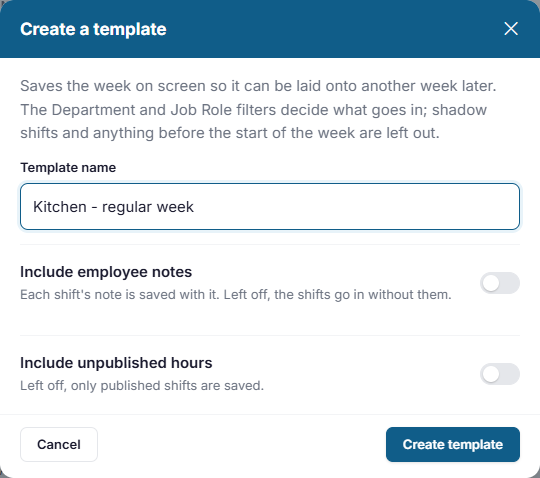
The template iskeeps noweach shift's employee, job role, day of the week, times and End Display. House shifts are saved andtoo, canstill bewith appliednobody toon futurethem. schedules.Shadow shifts are left out, since they are just copies of shifts in another job role.
How to Apply a Scheduletemplate Template
Onceto a Schedule Template has been created, you can apply it to quickly fill in shifts for the current or future week.
To apply a template:
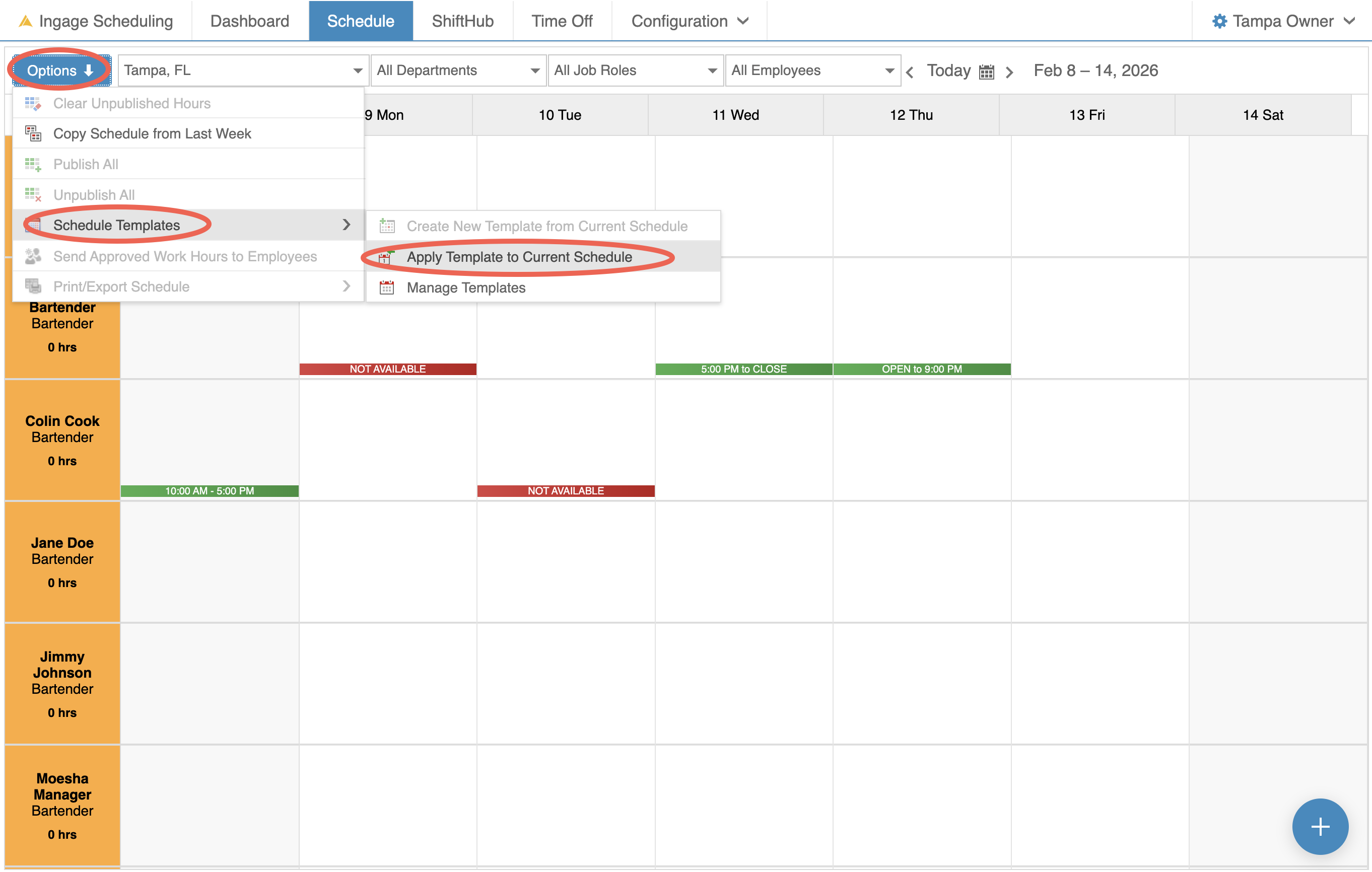
Go
fill. It doesn't have to be empty.to the Schedule view and navigateto the week you want tobuild- Open
ClickOptionsOptionsand→chooseSchedule Templates →ApplyTemplatesa template toCurrentthisSchedule - Pick
Selectthe Template. - Check the two options:
- Skip approved time off (on by default): nobody gets a shift on a day they have approved time off.
- Overwrite existing hours (off by default): if a template shift clashes with something already on the schedule, the template
youshiftwantis skipped. Turn this on toapplyremove
When applying a template, you’ll be prompted with a few options to control how it’what's applied:
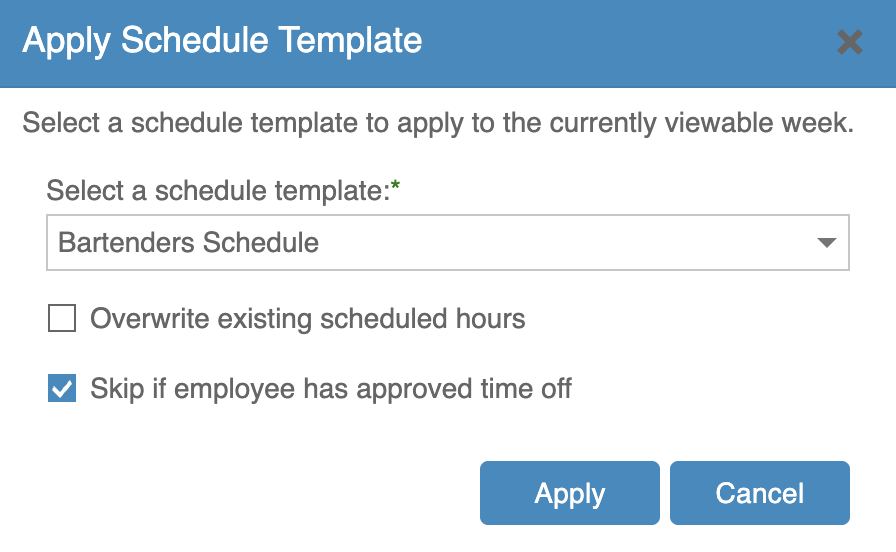
Overwrite Existing HoursWhen checked, any existing shifts on the schedule will be replaced by the template
there instead, published or not.When unchecked, the template will only add shifts where nonealreadyexist
- Click Apply template.
- summary
Whenshowschecked,how many shiftswillwerenotaddedbetoappliedeach day. If any were skipped, it lists them and says why: foremployeesexample,whothealreadyemployeehavehad approved timeoffoff,duringhas left, no longer works at this location or in thatperiodjob role, or was already working at that time.
Skip Employees with Approved Time Off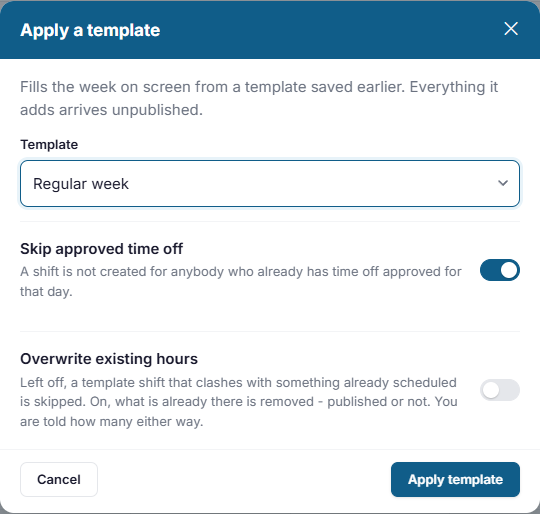
A
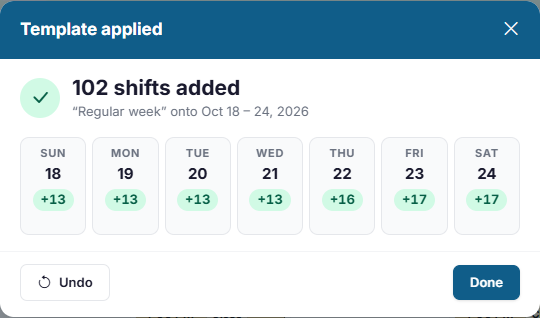
AfterEverything selectinga template adds is unpublished, so check the week, make your options,changes, confirmthen topublish applyit as usual. If you applied the template.wrong template, click Undo in the summary, or use the schedule's undo arrow.
AfterOverwrite Applyingexisting hours removes published shifts too, and removing a Templateshift doesn't notify anyone. If you overwrite a week your team has already seen, send them their schedules again once it's published.
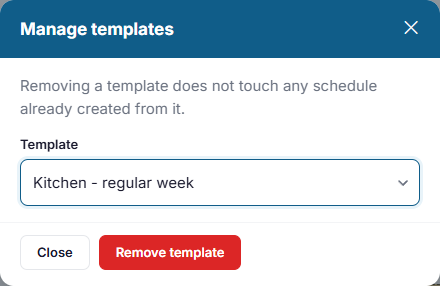
Remove a template
OnceOpen Options, choose Manage templates, pick the template isand applied:click Remove template. Weeks you already filled from it stay exactly as they are.
TheTemplatesselected shifts willcan't beaddededited.toTo change one, build a week thescheduleShifts will follow the same published or unpublished status saved in the template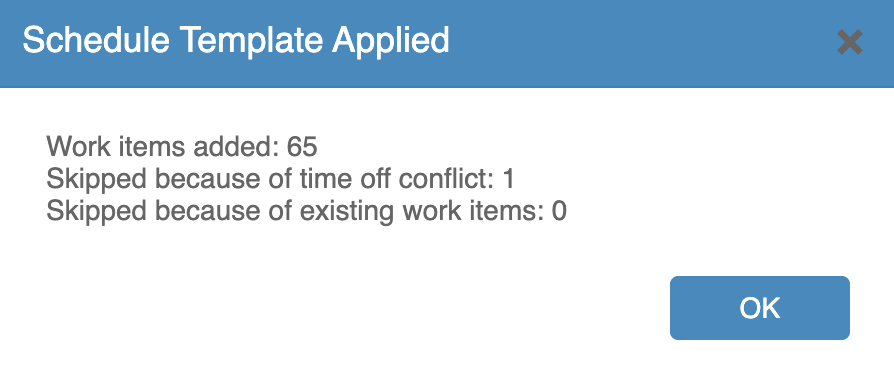
A confirmation window will appear showing:How many work items were addedHow many were skipped due to time-off conflictsHow many were skipped because shifts already existed
This confirmation provides a summary only and does not list which specific shifts were skipped.
After closing the confirmation window, review the schedule to:
Verify coverageIdentify any shifts that may have been skippedMake any needed adjustments before publishing
Applying a template helps speed up schedule creation, but it’s always a good idea to review availability and coverage after applying it.
How to Manage or Delete a Schedule Template
At this time, Schedule Templates cannot be viewed or edited directly once they are created. Templates can only be applied or deleted.
If you need to make changes to an existing template, the recommended approach is to replace it with an updated version.
Delete a Schedule Template
If a template is no longer needed, it can be deleted at any time.
To delete a template:
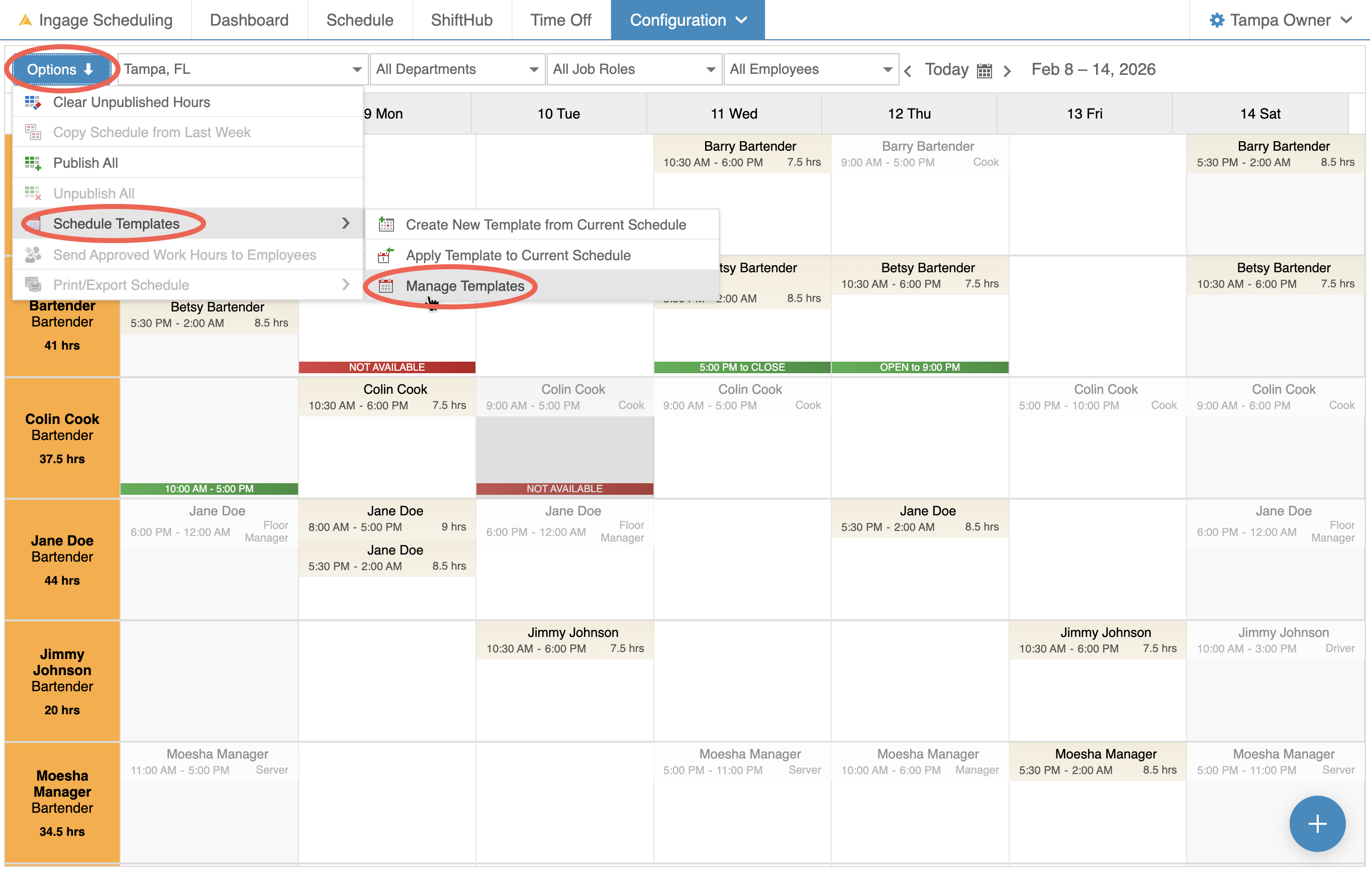
Go to Options → Schedule Templates → Manage TemplatesSelect the templateway you wanttoit,removeClick DeleteConfirm the deletion when prompted
Once deleted, the template will no longer be available to apply to future schedules.
How to Make Changes to an Existing Template
If you need to update a template, follow this workflow:
Apply the existing template to the current weekGo to Options → Schedule Templates → Manage TemplatesDelete the original templateMake the needed changes to the scheduleAdd, remove, or adjust shifts as needed
Createcreate a new template from it, and remove theupdatedoldscheduleone.Templates, or copying last week?
- Copy
(in Options) copies last week's published shifts as they are. It's quickest when this week will look like last week, but it doesn't skip approved time off.Youschedulemayfromreuselast week - A template is better for a week you come back to again and again, such as a regular week, a holiday week or a week with a big event. It can skip approved time off.
- Copy a day onto other days (in Options) copies one day's shifts onto other days of the same
templateweek,name,forifexampledesiredto make every weekday match Monday.
- Copy
This approach ensures the template reflects your most current scheduling needs without leaving outdated versions behind.