
Set up in Sail Scheduling
ThisOnce guideSail walksPOS youhas through the key items that should be set up in Ingage Scheduling before you begin buildingsent your firstemployees, schedule.
Updateroles Locationand Settings
locations Thereacross, there are a few importantthings settingsonly that are managed directly inSail Scheduling (notcan inset. SailDo Backoffice).these Thesebefore controlyou howbuild your schedulefirst displaysschedule. andYou behaves.
How to Access Location Settings
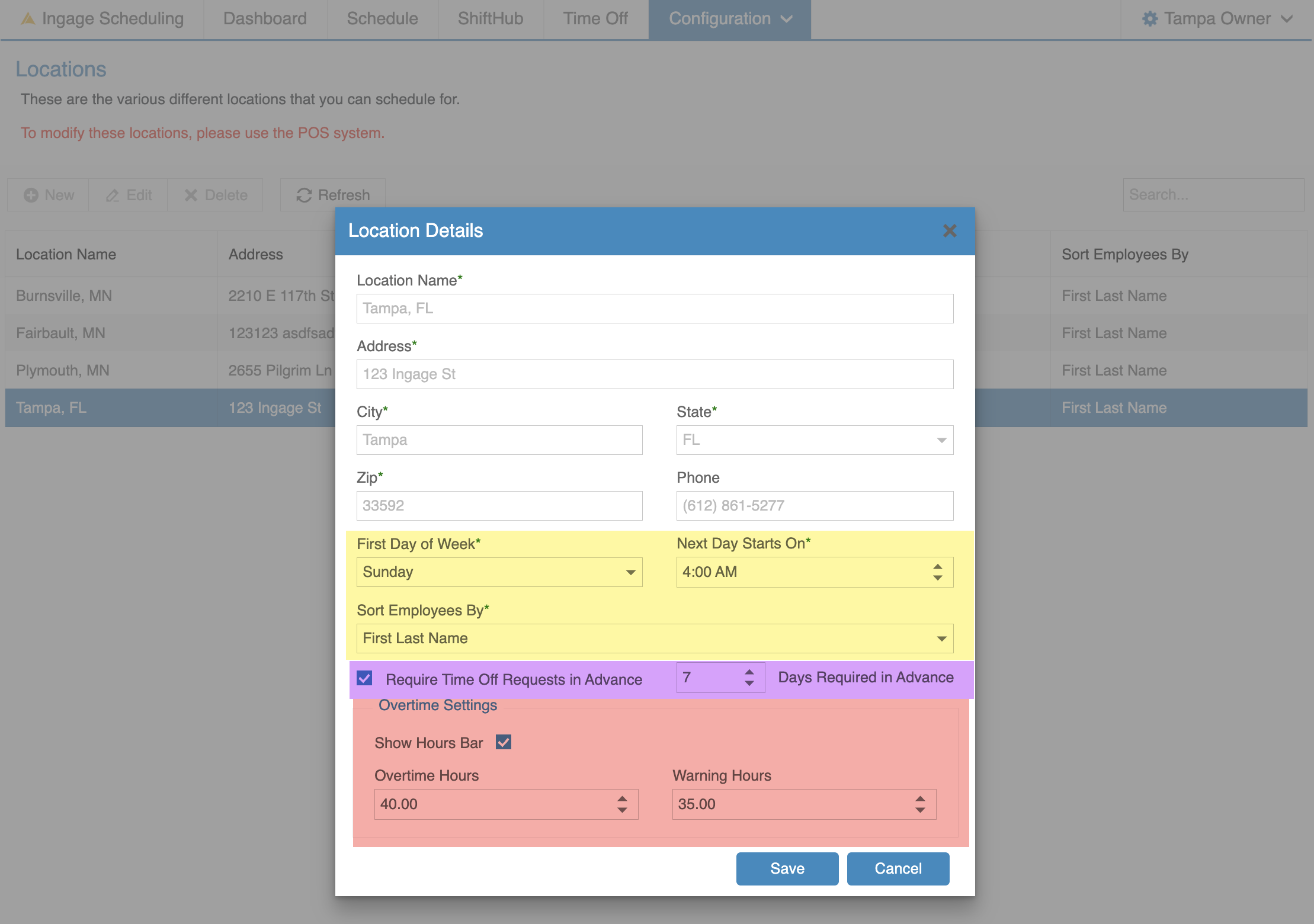
Log into Scheduling → Configuration → LocationsDouble-click the location you’d like to edit (or select it and click Edit).
Location Settings (Highlighted in Yellow) to Review
First Day of WeekChoose which day you want your schedule to start on.Next Day Starts OnSelect the time that defines when the next day begins in Day View.Sort Employees ByChoose how employees are ordered within each job role on the schedule:First Last Name(Sally Server)Last, First Name(Server, Sally)
Required Time Off Setting (Highlighted in Purple)
Enable this setting if employees must submit time off requests a certain number of days before the requested date.This setting is enabled by default and requires requestsneed to besubmitted 7 days in advance. You can adjust the number of days to fit your business needs.
Overtime Settings (Highlighted in Red)
When disabled, each employee's weekly scheduled hours are displayed asanumber beneath their name and job role.When enabled, the weekly scheduled hours are displayed as a color-coded bar, making it easier to identify employees who are approaching or exceeding overtime.Warning Hours: Enter the number of hours at which the Hours Bar should change toorange.Overtime Hours: Enter the number of hours at which the Hours Bar should change to red.
Hours Bar Colors:
Update Job Role colors
When the initial sync occurs, each job role is automatically assigned a color. You can change these colors at any time.
Job role colors appear:On the schedule viewIn the employee app next to their assigned role
How to Edit Job Role Colors
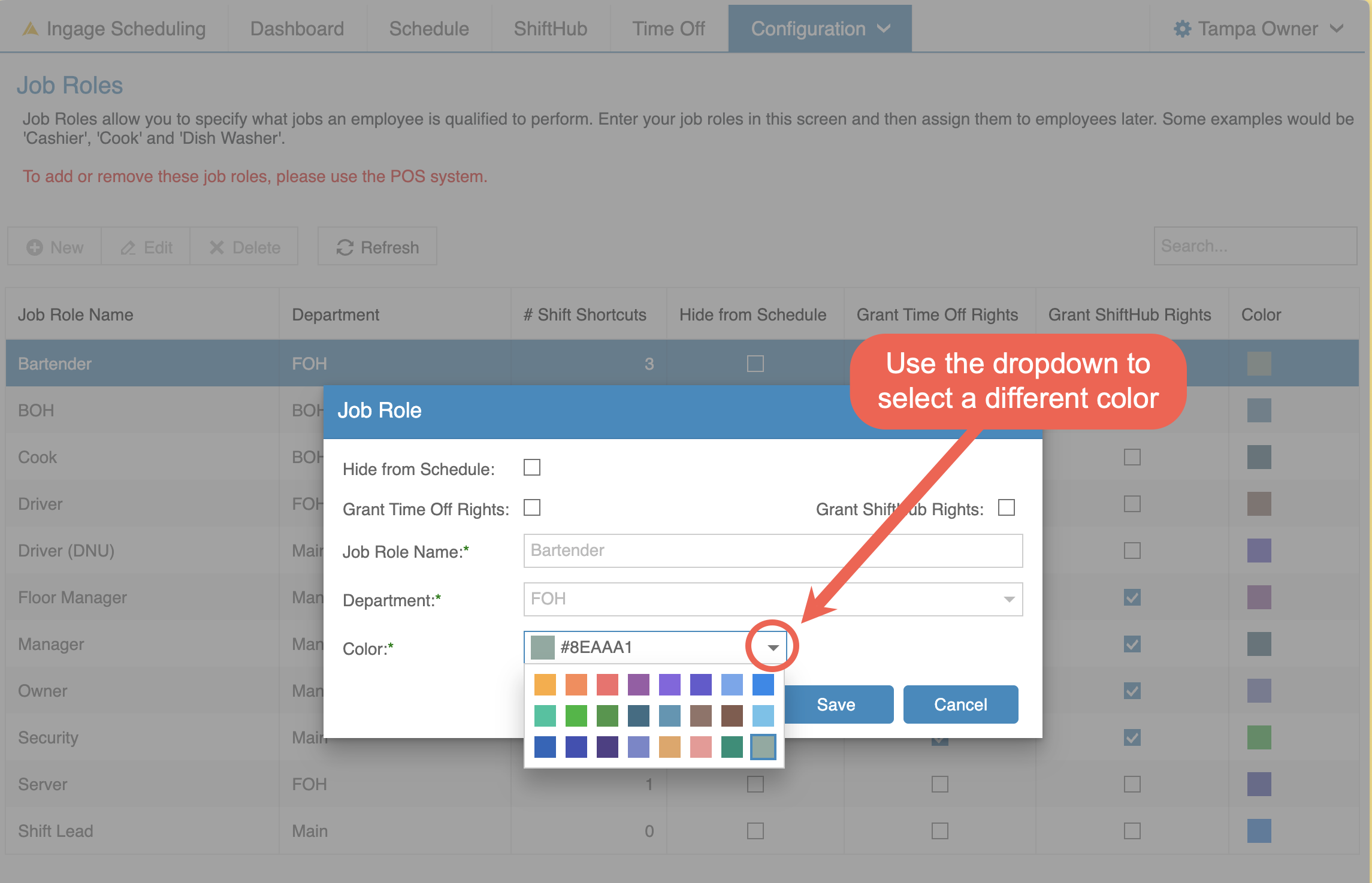
Log into Scheduling → Configuration → Job RolesDouble-click the job role you want to edit (or select it and click Edit).
Use the Color dropdown to select your preferred color.Click Save.
*ReminderAdministrator: All other job role settings (permissions, schedulable roles, etc.) are managed in Sail Backoffice.
Updatesigns Employee'sin Availability
to Currently,Sail onlyScheduling, managerson the website and administratorsin canthe editapp, employeewith availability.the Employeesemail cannotaddress updateand password of their ownBackoffice availability.login.
This
1. helpsEach ensurelocation's availabilityschedule changes are reviewed and approved before affecting the schedule.settings
How to Edit Employee AvailabilityLocations
Log into Scheduling → Configuration → EmployeesDouble-click the employee you’d like to edit (or select them, and click View)Edit on each location. The name, address and phone number come from Sail POS, but the scheduling settings are set here:
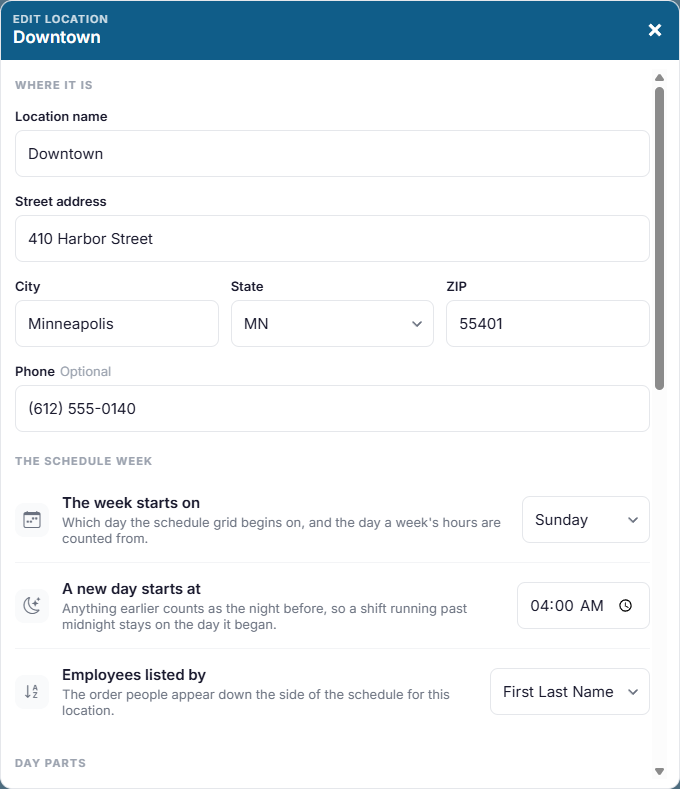
- The week starts on: the first day of your schedule week.
- A new day starts at: usually 4:00 AM, so a shift running past midnight stays on the day it started.
- Employees listed by: first name first, or last name first.
- Day parts, such as Lunch and Dinner, for the printable daily roster.
- Time off has to be asked for in advance, and how many days ahead.
- The hours bar, and the weekly hours where it turns orange (Warn from) and red (Overtime after).
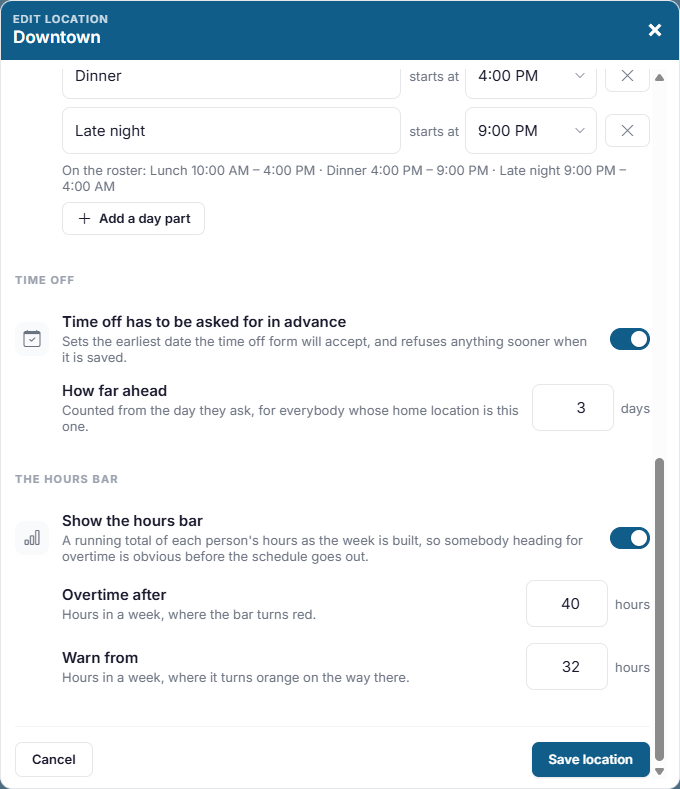
See Locations and The daily roster for the details.
2. Job role colors
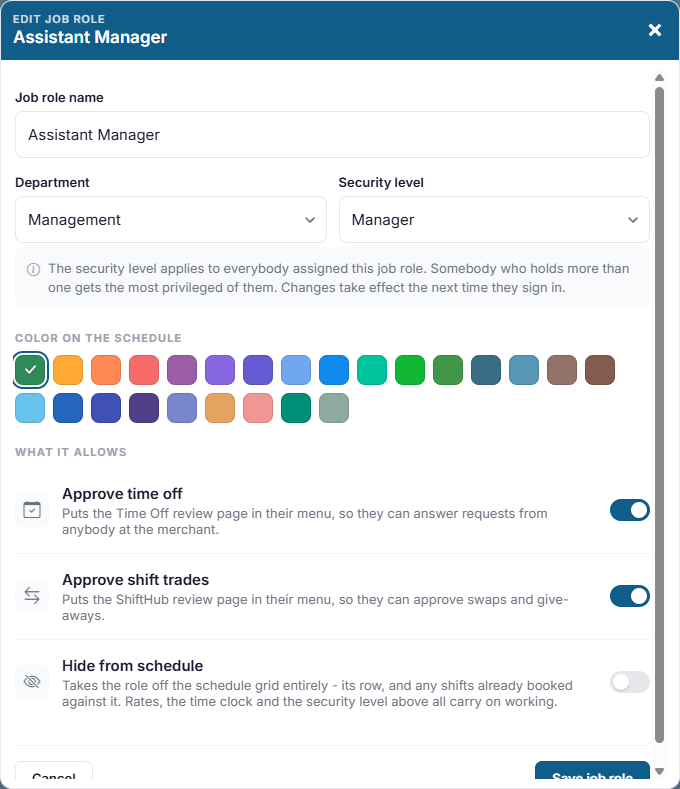
Each job role is given a color when it first arrives from Sail POS. The color is how it's recognized on the schedule and in the app. To change one, open Configuration, Job Roles, click Edit and pick a color. Everything else about a job role, including what it allows people to do, is set in Sail Backoffice.
3. Everyone's availability
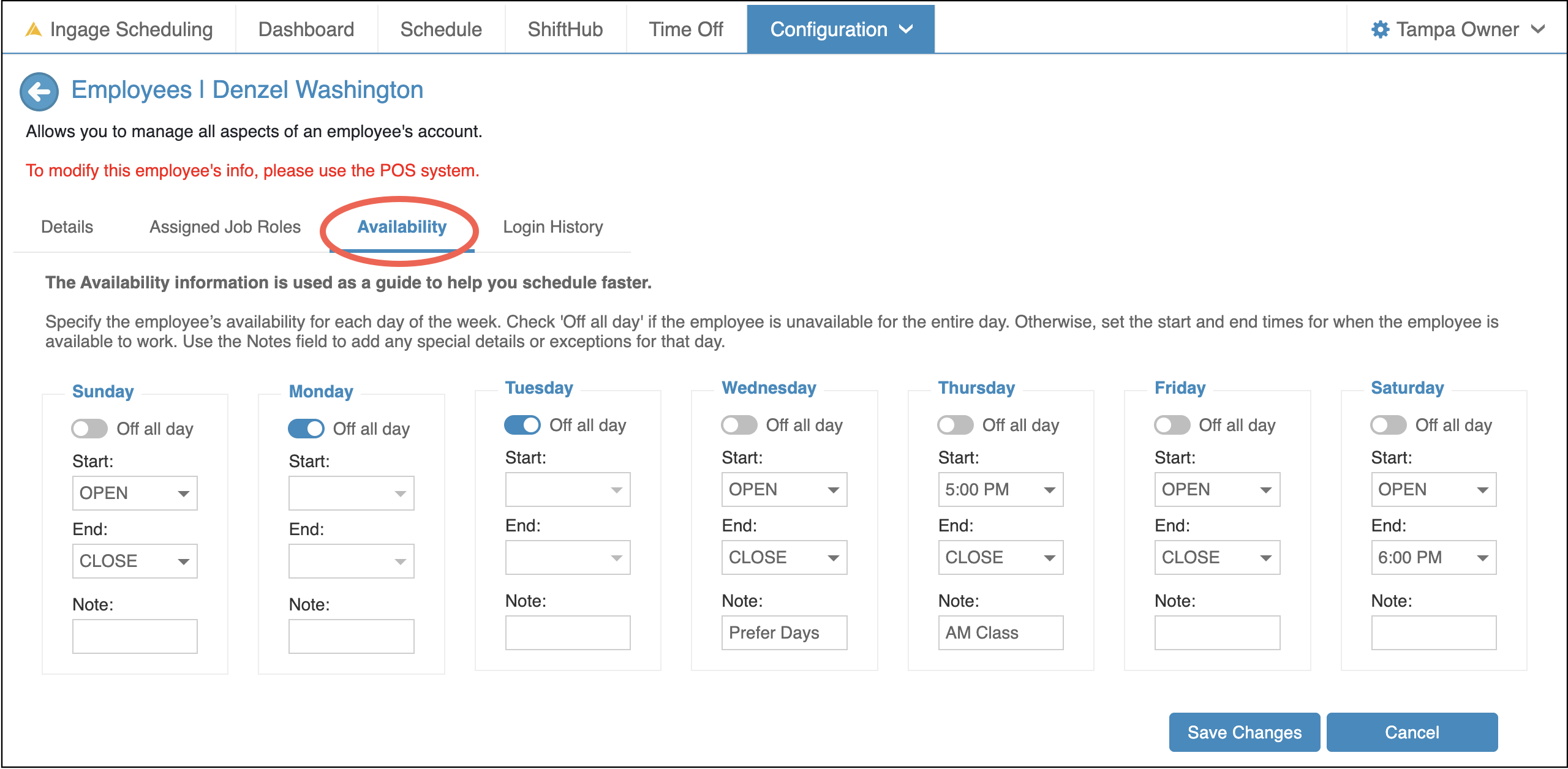
Availability isn't sent from Sail POS, so set it here. Open Configuration, Employees, open each person, and go to the Availability tab.
SettingFor Availability
- day,
- mark
Bythemdefault, employees are available from open to close. CheckOff all day or pick the hours they're free, and add a note ifthethey need one. Everyone starts available at any time. See Editing an employee.isEmployees
keepunavailablecan't change their own availability, so ask them fortheitentireandday.it Otherwise, set start and/or end times for when the employee is available.Use the Notes fieldup toadddatespecialasrequestsitor details.changes.
In the Example Above, Denzel is available:
Sunday: Available all dayMonday & Tuesday: Off all dayWednesday: Available all day, prefers morningsThursday: Available after 5:00 PM (class during the day)Friday: Available all daySaturday: Available during the day, needs to be done by 6:00 PM
Create4. Shift Shortcuts
shortcuts
Shift Shortcuts make scheduling faster and more consistent—especially ifIf your shifts follow the same patterns each week.
- set
- them
up as shift shortcuts so they can be added to the schedule in one click. Open Configuration, Shift Shortcuts.
defineSeestandardShiftstartshortcuts.5. Company settings
Open Configuration, Settings, to choose whether employees can trade shifts in ShiftHub and
endusetimestheforapp,specificwhetherjobshadowroles.shifts are shown, and whether open shift pickups need a manager's approval. See Company settings. - build your first schedule
schedule.CreatingYou'reshortcutsreadyfortoeachbuildjobyourrolefirstcanschedule.saveSeesignificantBuildingtimeandwhenpublishingbuildingtheschedules.
Then,
IfPoint your team regularlyto worksWelcome to Sail Scheduling in the sameFor shifts,Staff settingchapter, theseso upthey aheadknow of time is strongly recommended.
Click here to learn more about how to createsee shifttheir shortcuts.shifts, ask for time off and trade shifts.
Time off requests and availability aren't part of the Sail POS sync. They're kept only in Sail Scheduling.