
Shift shortcuts
ShiftA Shortcuts are preconfigured shift timesshortcut thatis makea building schedules faster and more consistent. Instead of manually entering start and end times for eachready-made shift, managerssuch canas selectLunch, 10:30 AM to 3:00 PM. On the schedule, clicking a shortcut andadds quickly apply commonthat shift patterns.in one click, instead of typing the times each time.
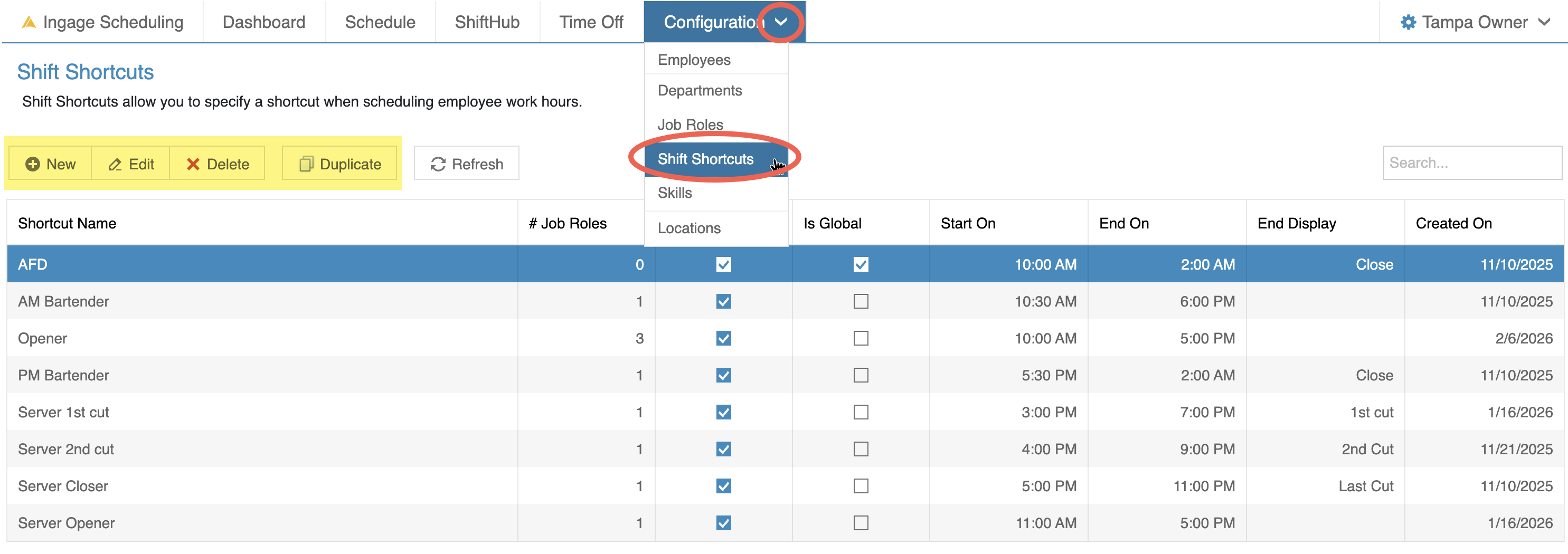
Managers and Administrators can manage shift shortcuts. Open them from Configuration, Shift Shortcuts.
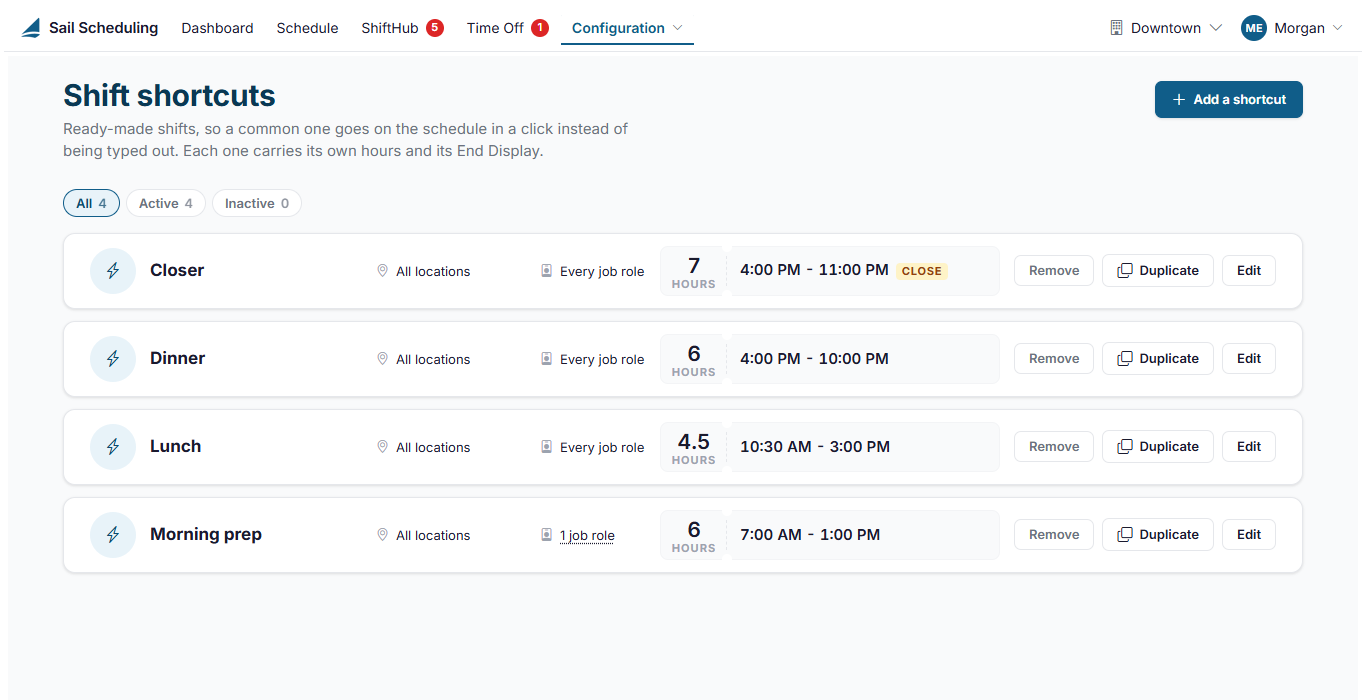
Each helpfulshortcut forshows where it's offered (one location or all of them), which job roles it's for, its length and its times, with consistentany hours,End Display. Use All, Active and Inactive to narrow the list.
Add or edit a shortcut
Click Add a shortcut, or Edit on one, or double-click it.
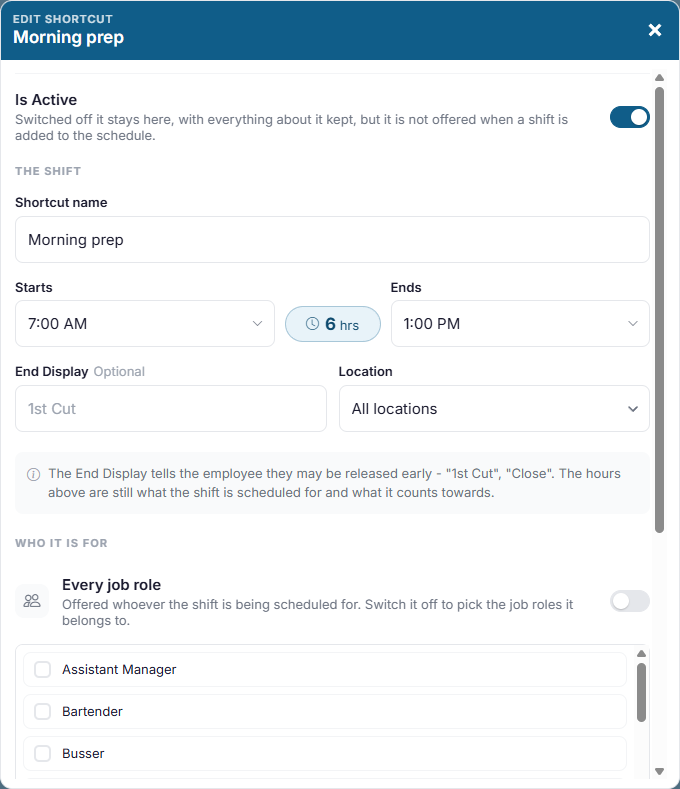
- Is Active: switched off, the shortcut is kept but isn't offered on the schedule.
- Shortcut name: what managers see on the schedule, such as
opening, closing, or standard lunch and dinner shifts.Where to Find Shift ShortcutsShift Shortcuts are managed from the Configuration area in Scheduling.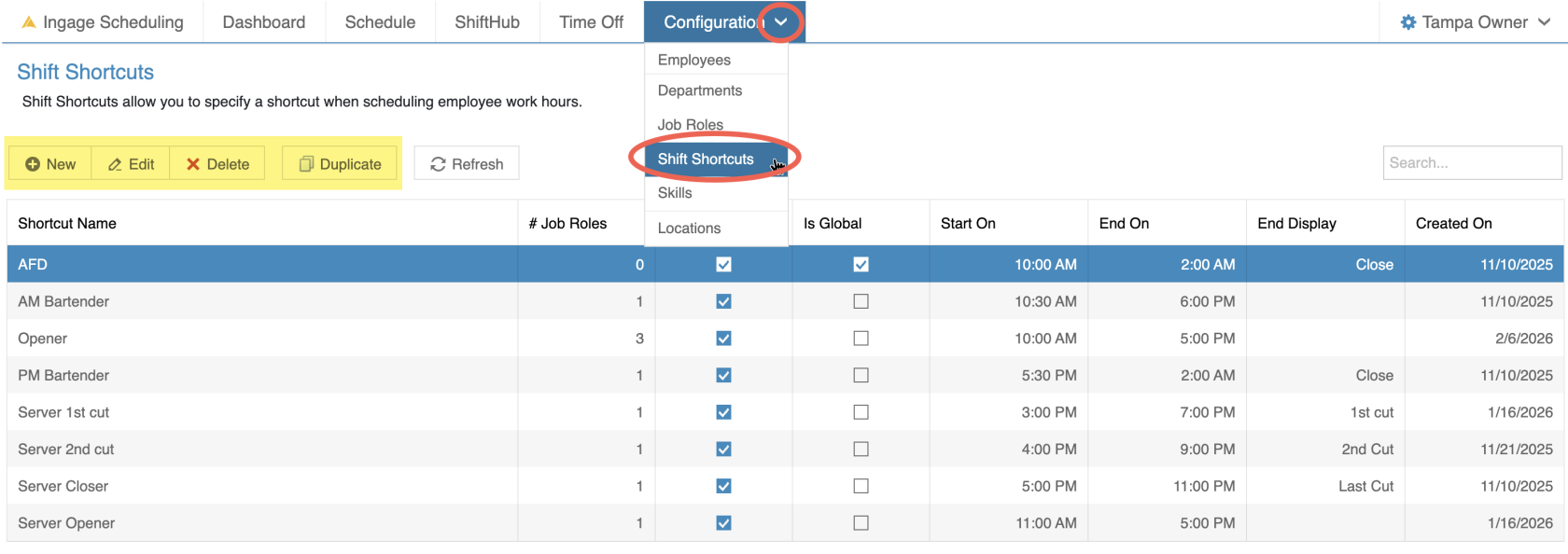
To access Shift Shortcuts:Go to Configuration → Shift Shortcuts
From this screen, managers can:Create new shift shortcutsEdit existing shortcutsDuplicate shortcuts to quickly create variationsDelete shortcuts that are no longer needed
How to Create a Shift ShortcutShift Shortcuts are used to predefine common shift times so you don’t have to manually enter start and end times every time you build a schedule.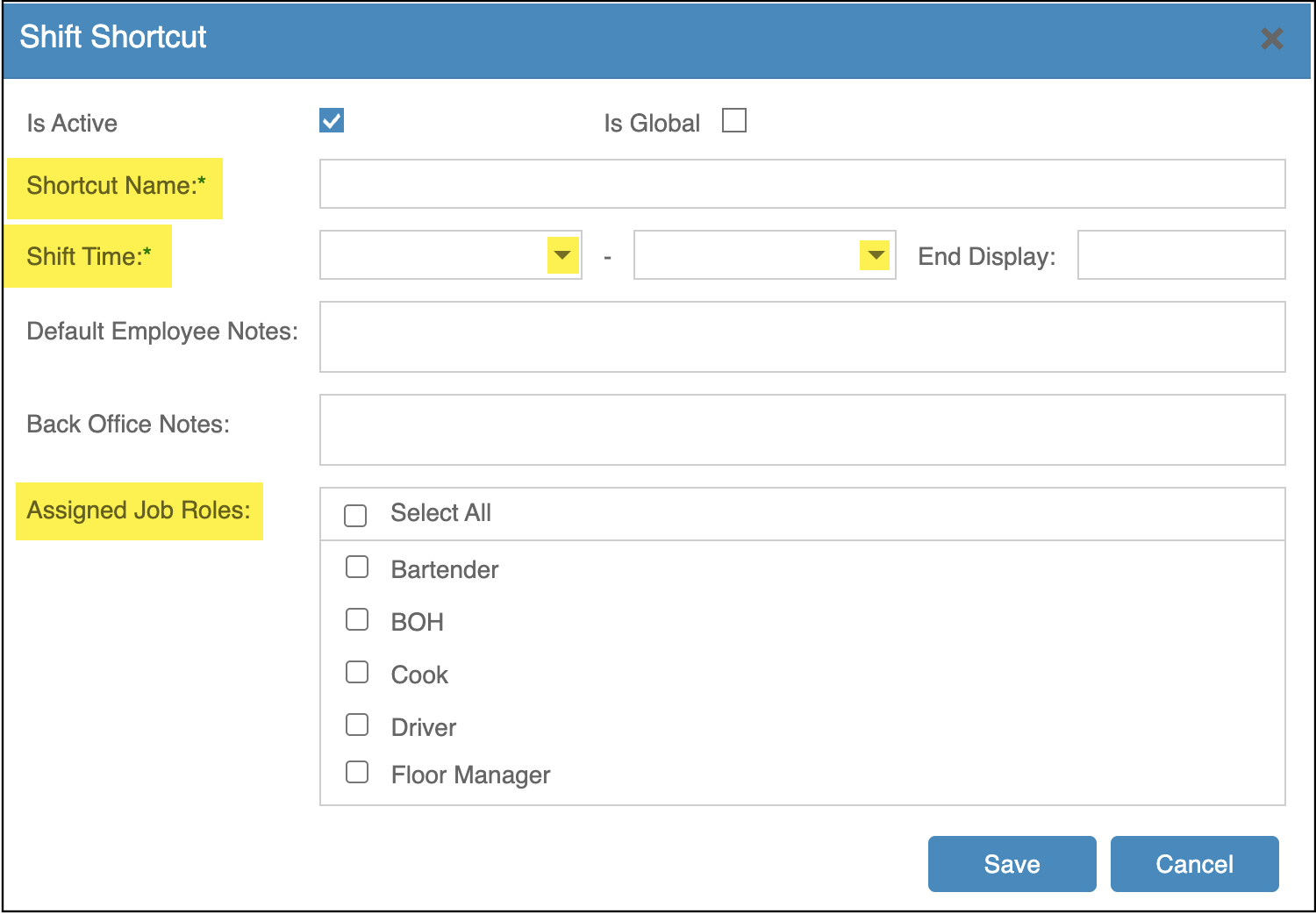
To create a new Shift Shortcut:Go to Configuration → Shift ShortcutsClick NewEnter a Shortcut NameUse a clear, recognizable name (for example:AM BartenderLunch,Server Closer,orAll DayCloser)
- Starts
next day.Selectand Ends: type or pick theStarttimes.andTheEndlengthtimesisforshown between them. If it ends before it starts, it runs past midnight into theshift (Optional) enter anEnd Displaylabel(optional):This label will appear onwhat thescheduleemployeeas the end timesees instead of theactualend time, such as Close or 1st cut, for a shift whose endtimeis flexible. The shift is still scheduled, and counted, to its end time.ExamplesLocation:includeAllCloserlocations, or1stjustCut
- Who it is for: leave Every job role on to offer it whoever is being scheduled, or switch it off and tick the job roles it belongs to. A shortcut with no job roles ticked is never offered.
- Notes that come with it: a note for the employee, which they see on the shift, and a back office note only managers see.

(Optional)Click EnterSave Defaultshortcut.
Duplicate Notesor remove a shortcut
- Duplicate makes a copy and opens it, which is the quickest way to make a similar shortcut, such as a later version of the same shift.
- Remove deletes it. Shifts already added from it stay on the schedule.
Using shortcuts on the schedule
TheseClick notesan willempty automaticallyday populateon whenthe schedule: the shortcuts for that job role and location are listed under New shift…. They're also under Start from a shortcut in the shift form, where the one you pick stays highlighted, and editing a shift highlights the shortcut isit used
Examples includeSee Patio,Building Event,and or Section A
Selectpublishing the Job Roles this shortcut should apply to
You can assign the shortcut to one job role or multiple job roles
Click Save
Global Shift Shortcutsschedule.
If you wantmanage aonly shiftsome shortcut to be available for every job role,locations, you can usechange the "Is Global" checkboxshortcuts at theyour top
Whenlocations. Is Global is selected:
The shortcut is marked as Global on the table
butIt will appearShortcuts foreveryalljoblocationsroleopenwhenread-only,schedulingyou - can
ThisDuplicateisoneusefulto make your own copy forshiftsyourlikeAll Day,Open to Close, or other role-agnostic shiftslocation.
How to Use Shift Shortcuts When Scheduling
Shift Shortcuts are used while building the schedule in the Shift Editor.
When scheduling an employee:
The list of available shift shortcuts is filtered based on the job roleYou will only see:Shortcuts assigned to that job role, andAny Global shortcuts
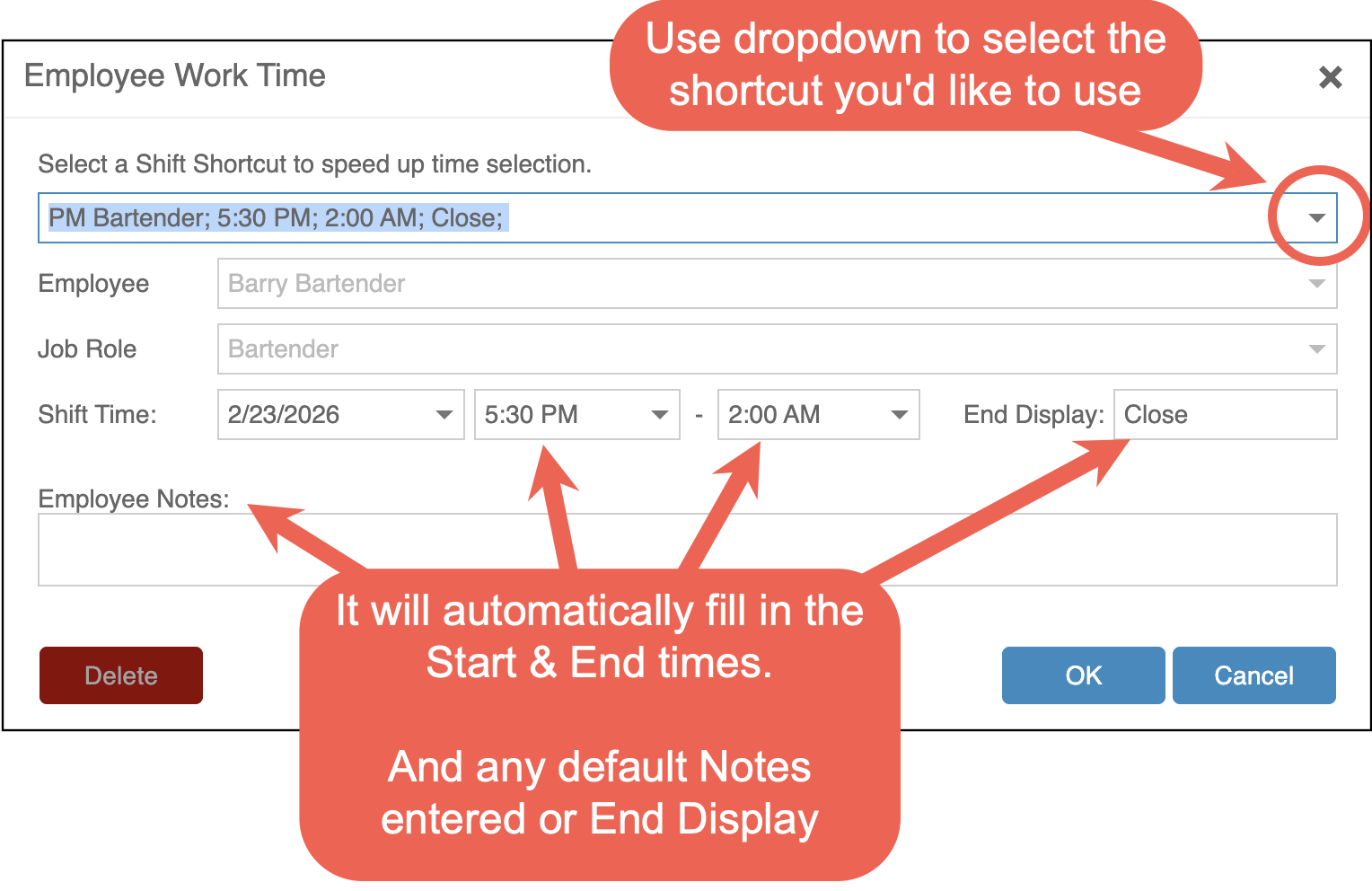
Selecting a Shift Shortcut will:
Automatically fill in the start and end timesApply any End Display labelsApply any default employee notes tied to that shortcut
You can still adjust times or notes after applying a shortcut if needed.