Trading shifts and picking up open shifts
ThisCan't documentmake explainsa howshift? Want more hours? ShiftHub lets you sort it out with your co-workers: swap a shift with someone, give a shift away to usewhoever ShiftHubwants to request shift swapsit, or givepick awayup shiftsan withopen othershift. employees.Your manager approves each trade before the schedule changes.
Click your name at the top right and choose My ShiftHub. You can do all of this in the app too.
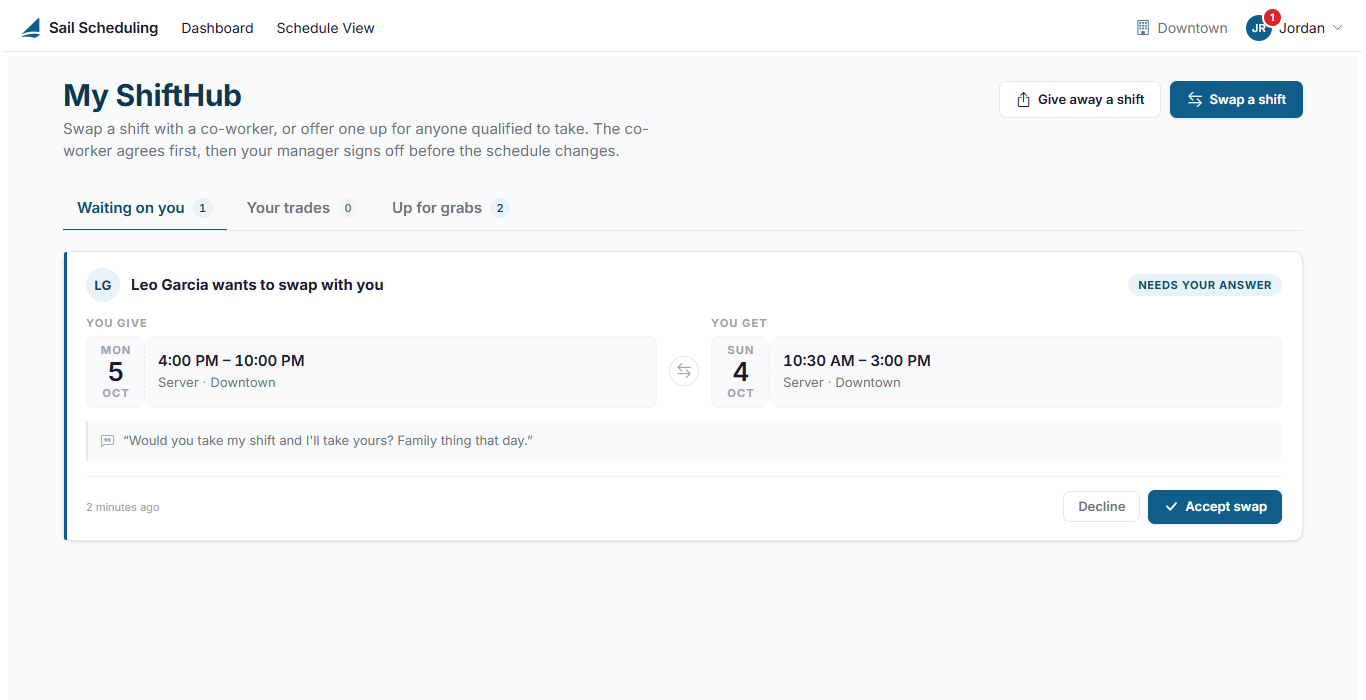
My ShiftHub allowshas employeesthree tabs:
- Waiting on you: swaps co-workers have asked you for, waiting for your answer.
- Your trades: every trade you've started, accepted or claimed, and where it is.
- Up for grabs: shifts co-workers are giving away, and open shifts, that you can pick up.
You don't have to requestkeep shiftchecking. swaps or give away shifts with other co-workers. OnceWhen a co-worker acceptsasks a request, it is sentyou to swap, or a manager fordecides final approval.
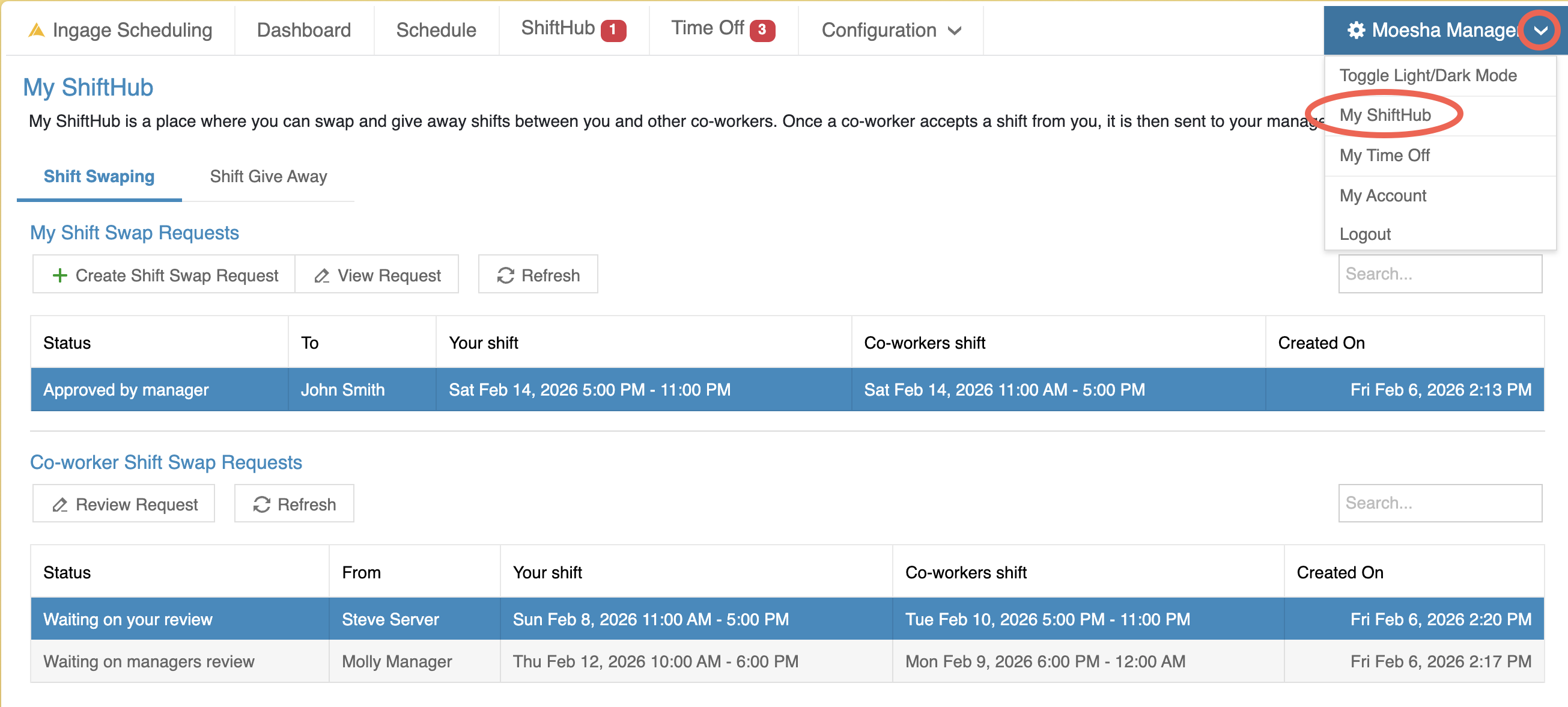
To get to Your ShiftHub
Log into SchedulingClick the dropdown next to your name in the top-right cornerSelect My ShiftHub
Shift Swaps
A Shift Swap allows you to tradeon one of your scheduledtrades or open shift pickups, a red number shows on your initials at the top right and beside My ShiftHub in the menu. A swap waiting for your answer is counted until you answer it. Everything else is counted until you open My ShiftHub.
Swap a shift
In a swap, you and a co-worker trade shifts: you take theirs, and they take yours.
- Click Swap a shift.
- Under Pick the shift you need covered, choose one of your shifts.
- Under Pick the shift you will work instead, choose a co-worker's shift. Only shifts in the same job role at the same location, that don't clash with
anotheryouremployee.otherBothshifts,employeesaremustlisted. - Add
toa note if you like, such as why you need the swap, andaclick Send request.
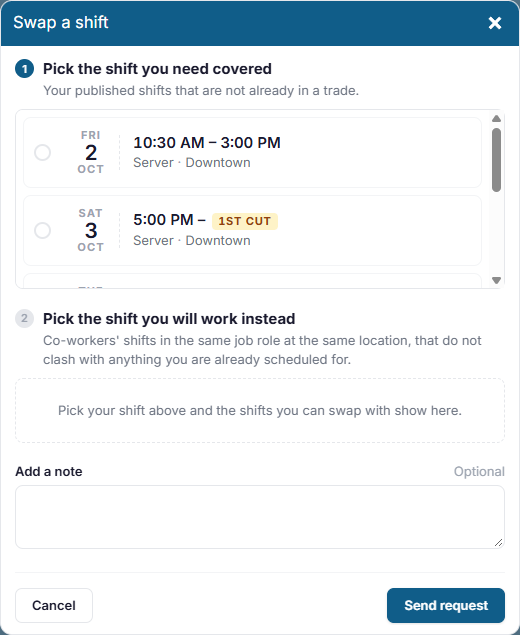
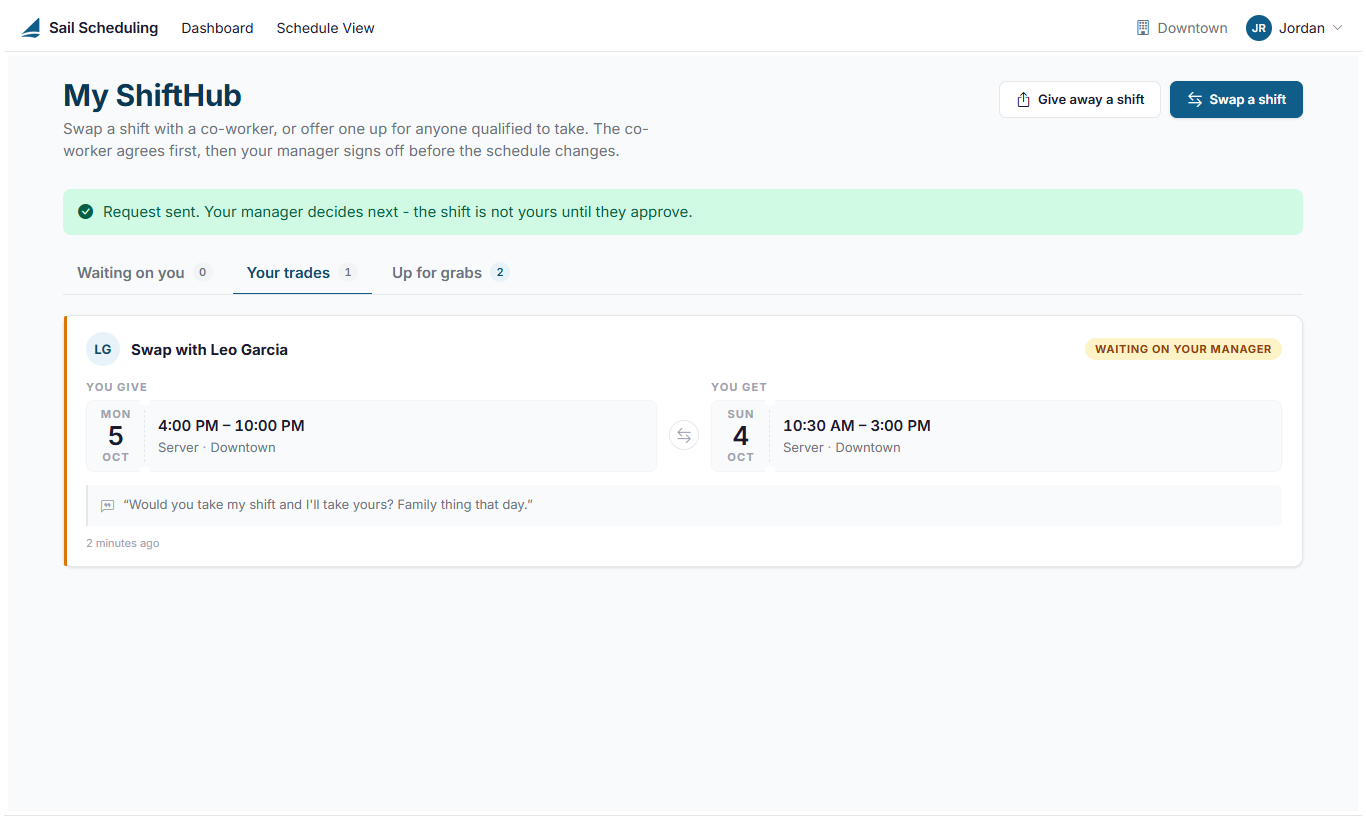
Your co-worker is asked. If they accept, your manager mustreviews approveit. itNothing beforechanges on the schedule isuntil updated.
How Shift Swaps Work
Shift swaps follow a two-step approval process:
Co-worker approval - The employee you select must accept the swap.Manager approval - Once accepted, the request is sent to ayour managerfor final approval.approves.
When
The schedule will only update after both steps are completed. The shift will remain unchanged until both the co-worker and a manager approve the request.
Viewing Shift Swap Requests
This page is divided into two main sections:
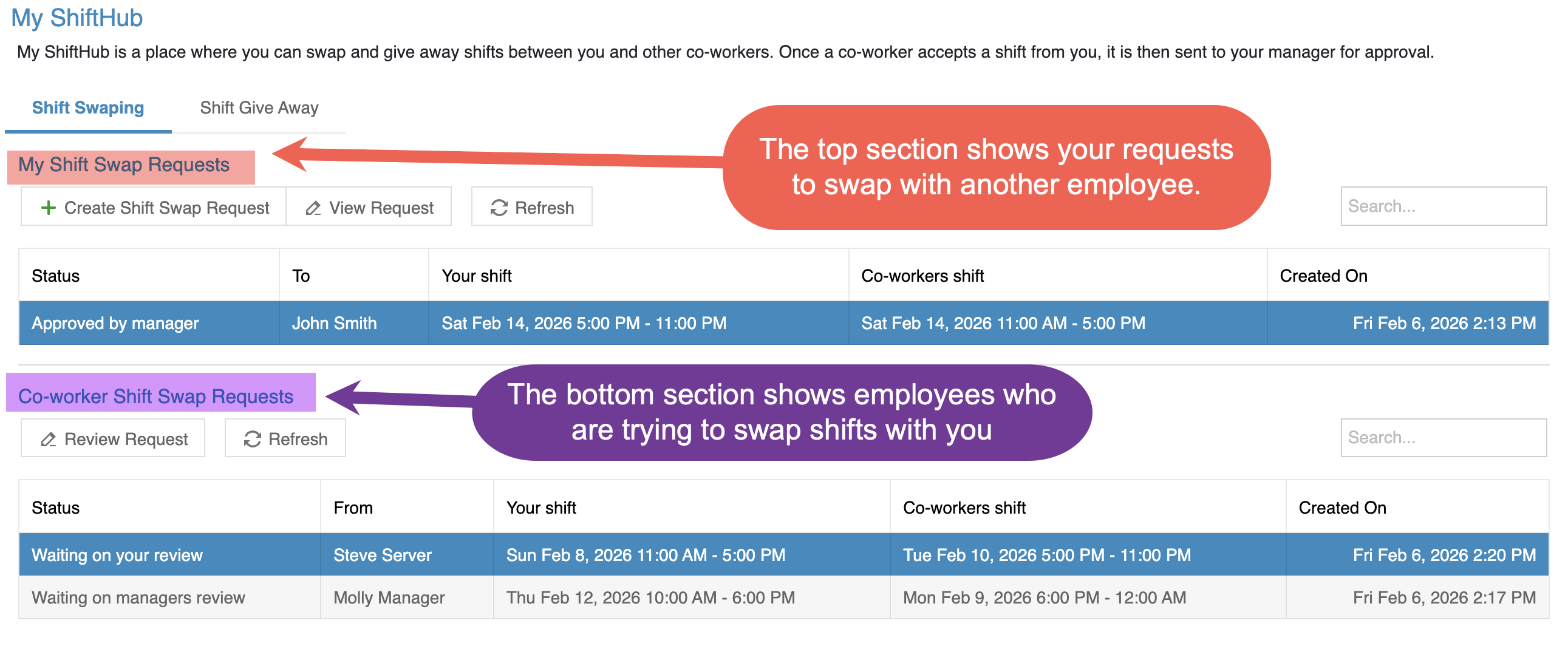
My Shift Swap Requests
The top section shows shift swap requestsasks you have created.These are requests where you are asking another employee to swap shifts with you.
FromA thisswap section,request appears under Waiting on you, can:
Seeshowing thestatusshiftofyou'deach request (Waiting for co-worker to accept, Waiting for manager approval, or Approved)View which employee you sent the request toReview both your shiftgive and theco-worker’soneshiftyou'dinvolvedget.in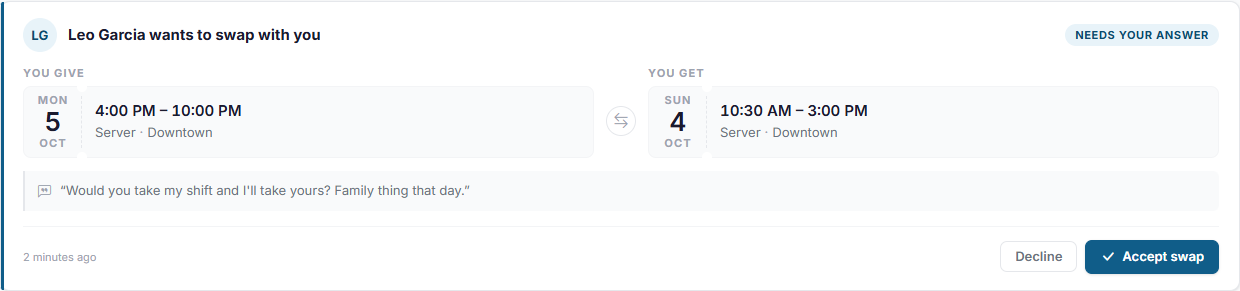
theClick Accept swap
to
Thisor sectionDecline. helpsOnce you trackaccept, requestsit you’vegoes initiatedto your manager, and seeit wheremoves theyto areYour intrades theas approvalWaiting process.on your manager.
Co-workerGive
Shiftaway Swap Requests
The bottom section showsa shift swap requests other employees have sent to you.
From this section, you can:
Review incoming swap requestsSee which shift you would be giving up and which shift you would receiveAccept or decline the request
If you acceptjust need a swapshift request,covered, offer it isup automaticallyfor sentanyone to take.
- Click Give away a shift.
- Choose the shift you're offering, and add a note if you like.
- Click Offer shift.
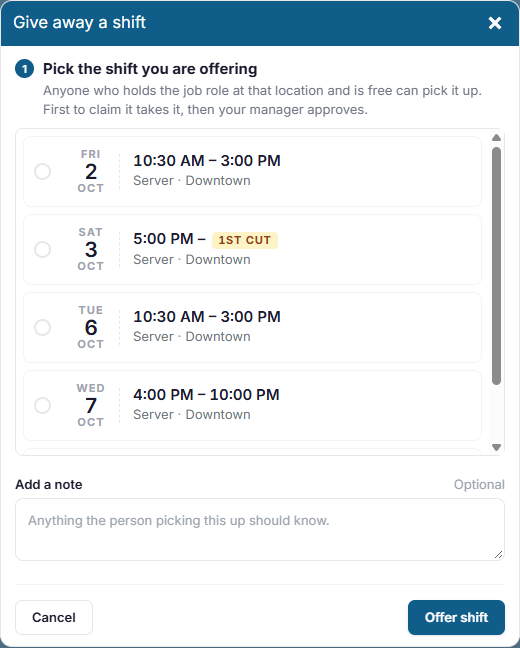
Everyone who works that job role at that location, and is free at that time, sees it under Up for grabs. The first to claim it takes it, then your manager approves. It's still your shift until they do, so plan to work it until you hear otherwise. If your manager changes the shift on the schedule in the meantime, it comes off Up for final approval.grabs.
Pick Creatingup a Shift Swap Request
shift
WhenUp youfor clickgrabs Create Shift Swap Request, a pop-up will open where you can chooselists the shifts you wantcan pick up: shifts co-workers are giving away, and open shifts your manager has posted with nobody on them yet.
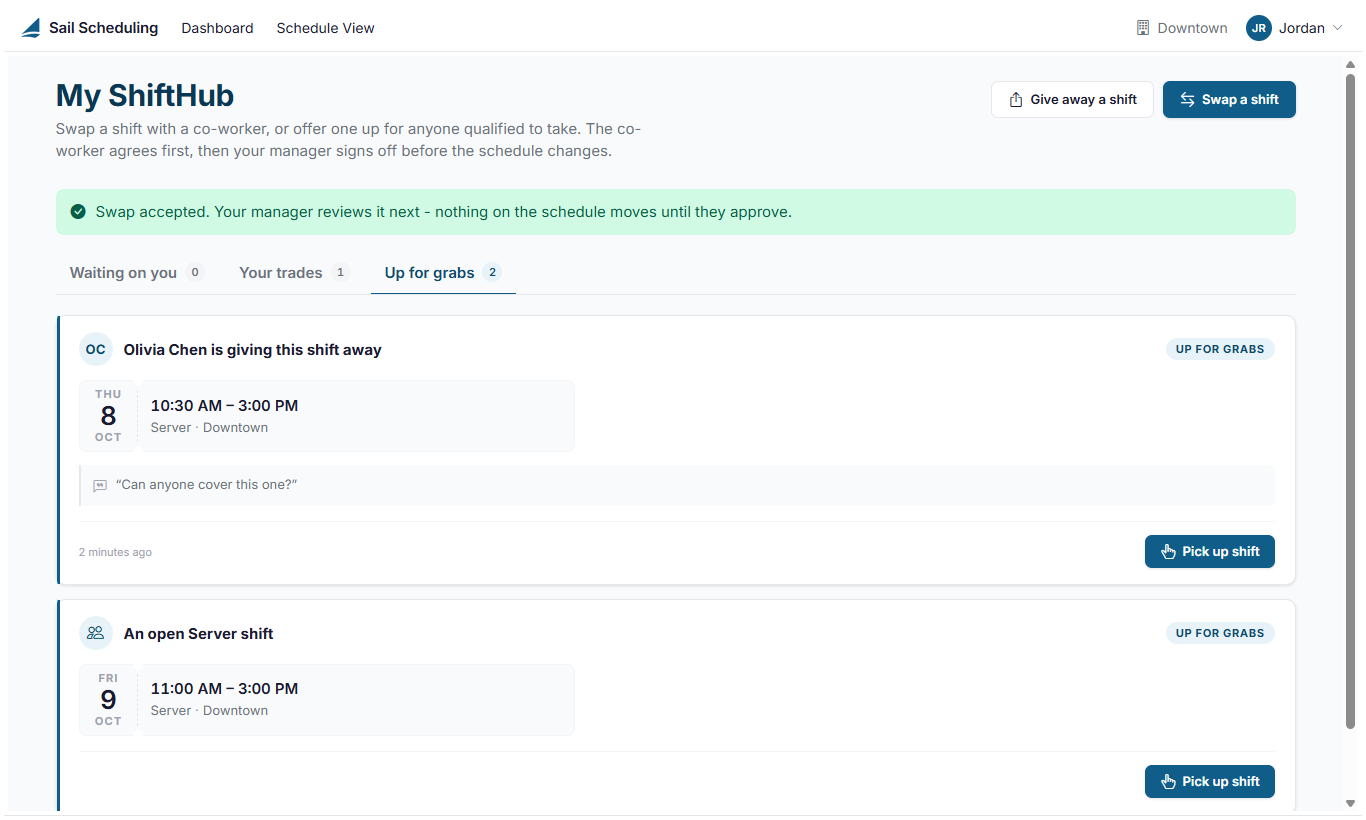
Click Pick up shift and confirm. For an open shift, your manager is asked to swap.approve it: it isn't yours until they do.
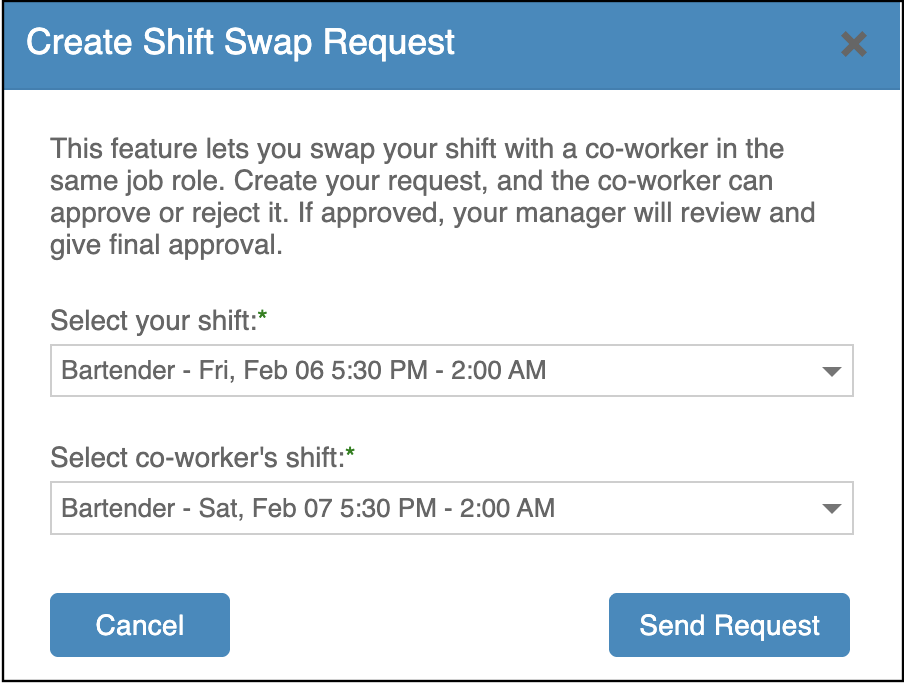
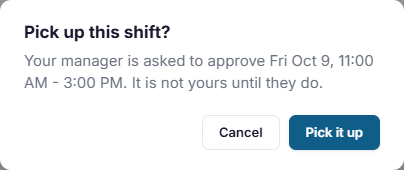
InWhile theyou're Select your shift dropdown, you will see all of your upcoming scheduled shifts. Choosewaiting, the shift says Waiting for manager. Click Withdraw request if you wantchange your mind.

Several people can ask for the same open shift, and your manager picks one. If it goes to givesomeone up.
Once you selector your shift,manager takes it off the Selectschedule, co-worker'you're told it's shiftno dropdownlonger willavailable, automaticallyby updateemail, text message or a notification in the app, depending on your settings. Some restaurants give open shifts to showwhoever picks them up first, without waiting for a manager.
Good to know
- You can only
shiftstradethatpublishedare eligible to be swapped with your selected shift.The system automatically evaluates all shift swap rulesshifts, and onlydisplaysupshiftstothatanmeethourthebeforerequirements,theyincluding:Future shifts onlystart.Shifts assigned to other employeesShifts that do not create scheduling conflictsShifts where both employees are qualified to work each other's job roles
For example, if you are assigned to both the Bartender and Server job roles, you may see both Bartender and Server shifts available to swap with. However, the system will only display shifts where the other employee is also eligible to work the shift you are giving up.After selecting both shifts, click Send Request.The co-worker will be notified of the request and can either accept or decline it. If they accept, the request is then sent to a manager for final approval.Important Rules for Shift SwapsA shift can only be
involvedin oneactive swap or giveaway requesttrade at atime.time:Onceif it's offered in ashiftswap,hasyoubeencan'tselected for a request,give itwill not appearaway asan option for additional requests until the original request is completed or canceled.Because the system only displays eligible shifts, any shift shown in the Select co-worker's shift dropdown can be successfully requested. Invalid or conflicting shifts will not be displayed.A shift swap request can be canceled at any time by the employee who created it, as long as it has not been approved or rejected.Once a shift swap request has been approved or rejected, it becomes final and can no longer be changed or canceled. If a change is still needed after that point, the employee should speak with a manager.These rules help prevent scheduling conflicts and ensure proper coverage.What Happens After You Submit a SwapIf the other employee accepts the swap, it is sent to a manager for approval.- You're
If the other employee declines, the request is closed and no changes are made. Once a manager approves the swap:The schedule is automatically updatedBoth employees are notified via email or text of the approval
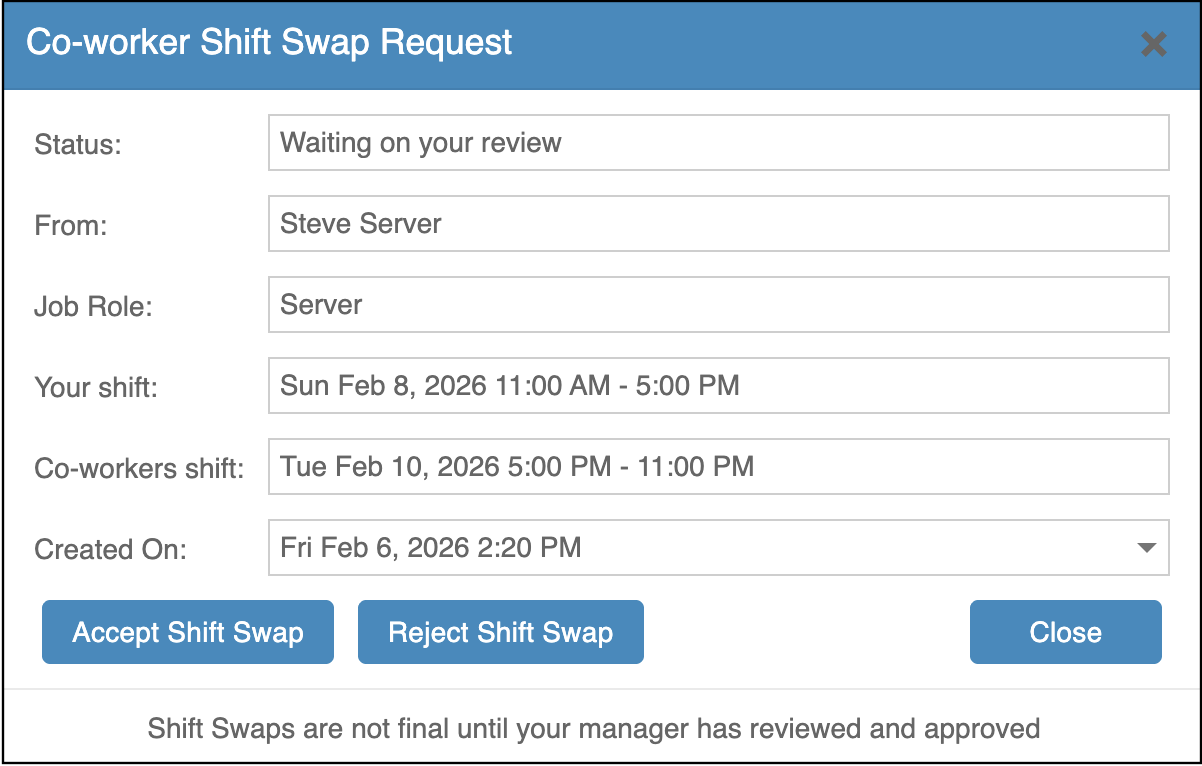
Responding to a Co-Worker’s Shift Swap RequestWhen a co-worker requests to swap shifts with you, the request will appear in the Co-worker Shift Swap Requests section of ShiftHub.To review the request, you can open it in either of the following ways:Double-click the request, orSelect the request and click Review Request at the top of the page
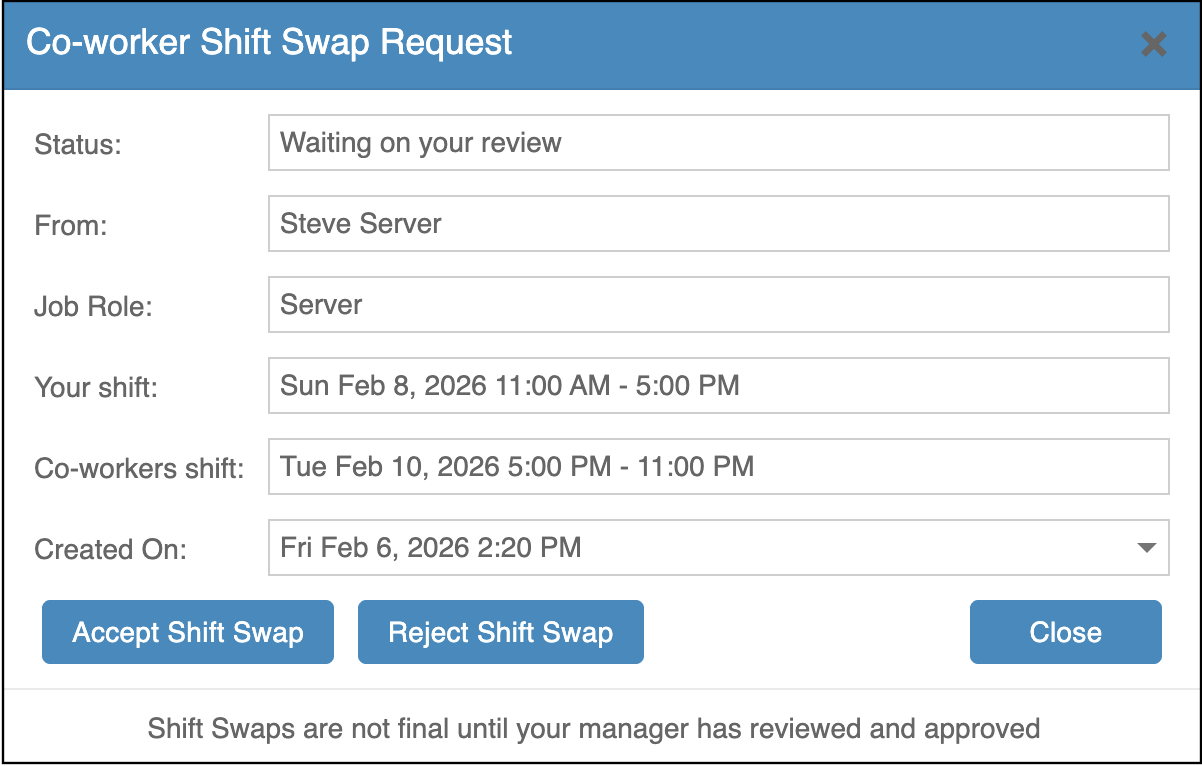
This will open a pop-up showing the full details of the shift swap, including:Who sent the requestThe job roleYour shiftThe co-worker’s shiftWhen the request was created
From this screen, choose one of the following options:Accept Shift Swap – agrees to the swap and sends it to the manager for final approvalReject Shift Swap – declines the request and no further action is taken
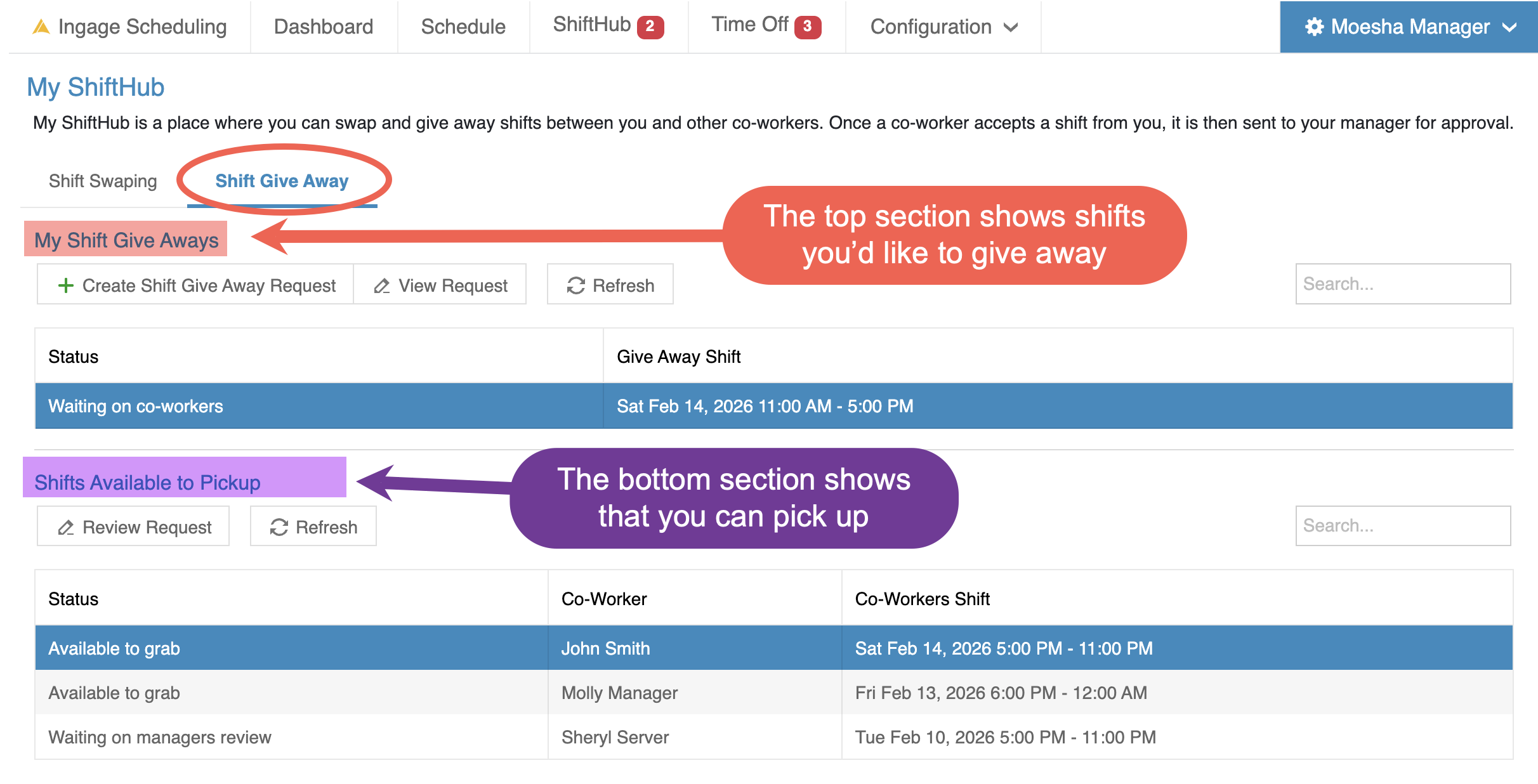
Once you accept a shift swap, it is not final until a manager reviews and approves it. You will be notified once the manager makes a decision.Please note:The shift remains your responsibility until both the co-worker and the manager approve the swap.If either the co-worker or the manager declines the request, you are still responsible for working your shift or finding coverage.Shift Give AwayShift Give Away allows you to offer one of your upcoming shifts to other employees who work the same job role. If another employee chooses to pick up your shift, the request is sent to your manager for final approval before the schedule is updated.Viewing Shift Give Away RequestsWhen you click My ShiftHub → Shift Give Away, you will see two sections: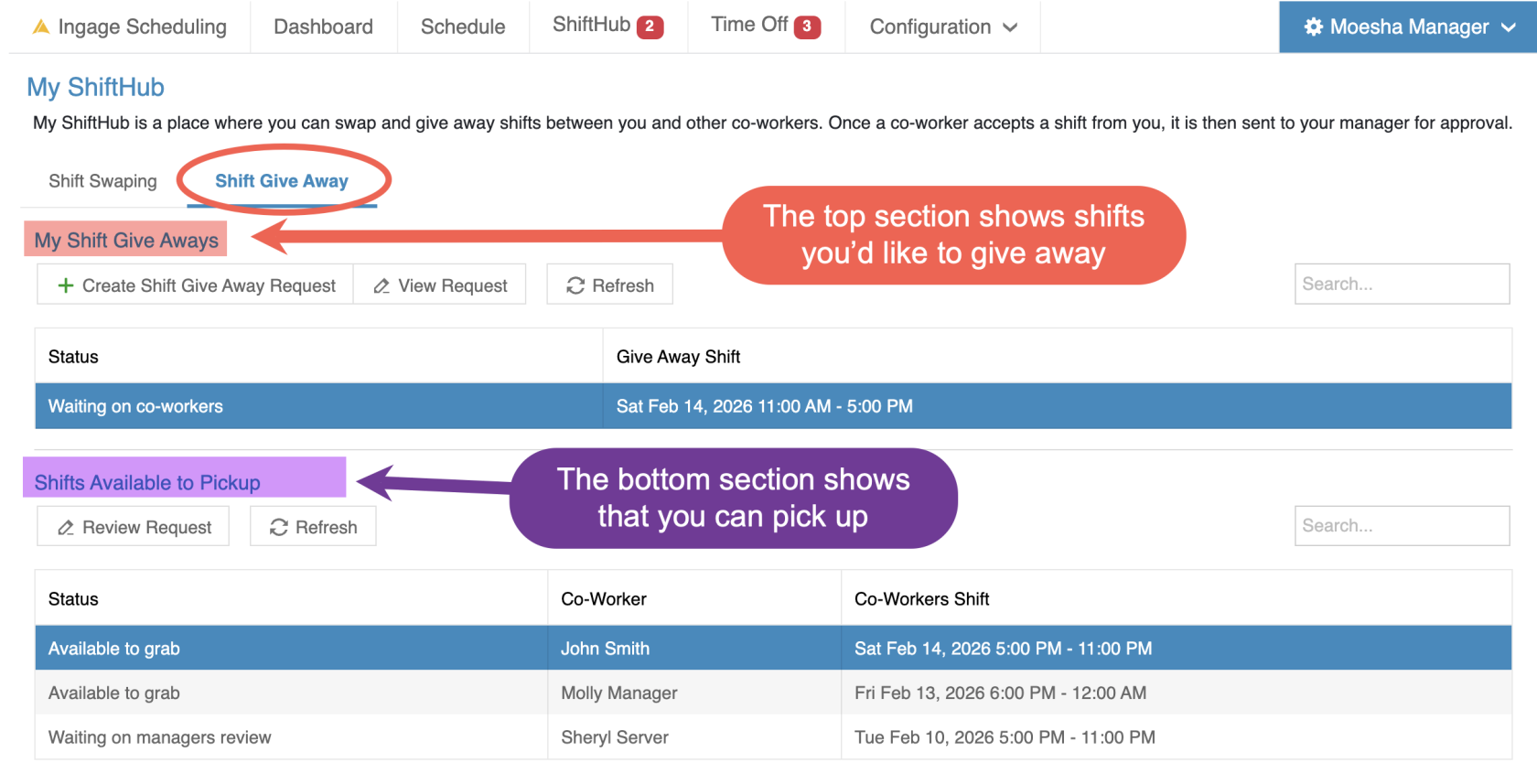
My Shift Give Aways (top section)This section shows shifts you have offered to other employees.You will see the following statuses:Waiting on co-workers - Your shift has been offered and is available for eligible co-workers to pick up.Waiting on manager review - A co-worker has picked up the shift, and it is now pending manager approval.Approved by manager - The manager has approved the give-away.You (the employee who gave away the shift) will receive a notification confirming the approval.The shift is officially reassigned on the schedule.
Once a shift has been approved, it will remain visible in your My Shift Give Aways list until the day of the shift has passed. After the shift date is over, it will automatically drop off the list.
Shifts Available to Pick Up (bottom section)This section shows shifts that other employees have offered and are available for you to pick up.
Statuses in this section may include:Available to grab – the shift is open and has not been claimed yetWaiting on manager review – someone has claimed the shift and it is pending manager approval
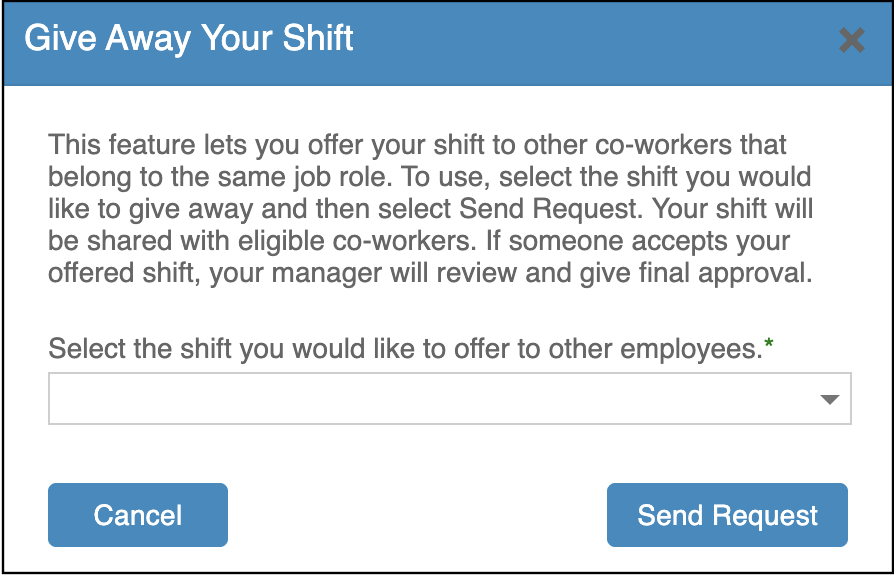
Once a manager approves a give-away request, the shift is removed from the available list and added to the approved employee’s schedule.Creating a Shift Give Away RequestTo give away one of your shifts: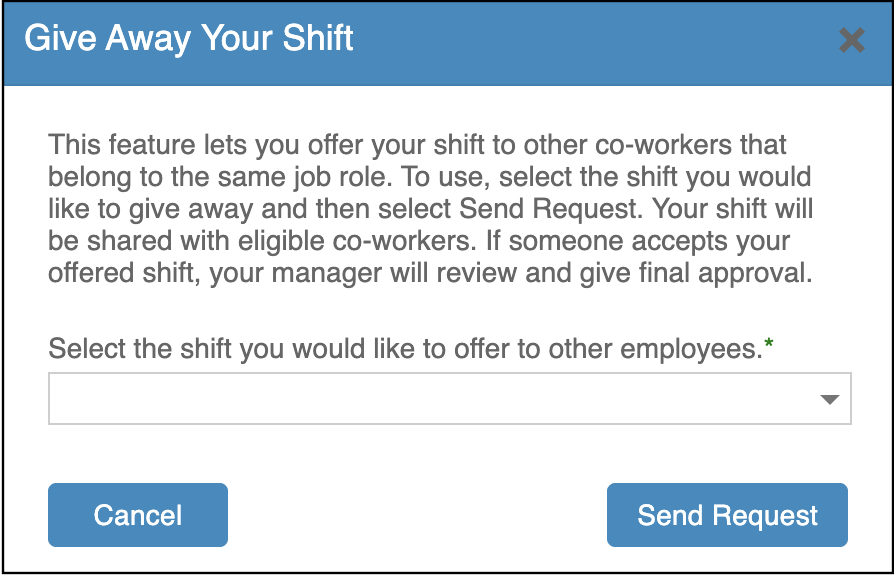
Go to ShiftHub → Shift Give Away tabClick Create Shift Give Away RequestSelect the shift you would like to give away from the dropdownThis list only shows future shifts that are eligible to be given away
Click Send Request
Your shift will then be shared with eligible co-workers who have the same job role.Important note:Only shifts that are eligible to be given away will appear in this list.A notification will be sent out to employeestold whena shift is given away.
Picking Up a Shift from a Co-WorkerTo pick up a shift someone else has offered: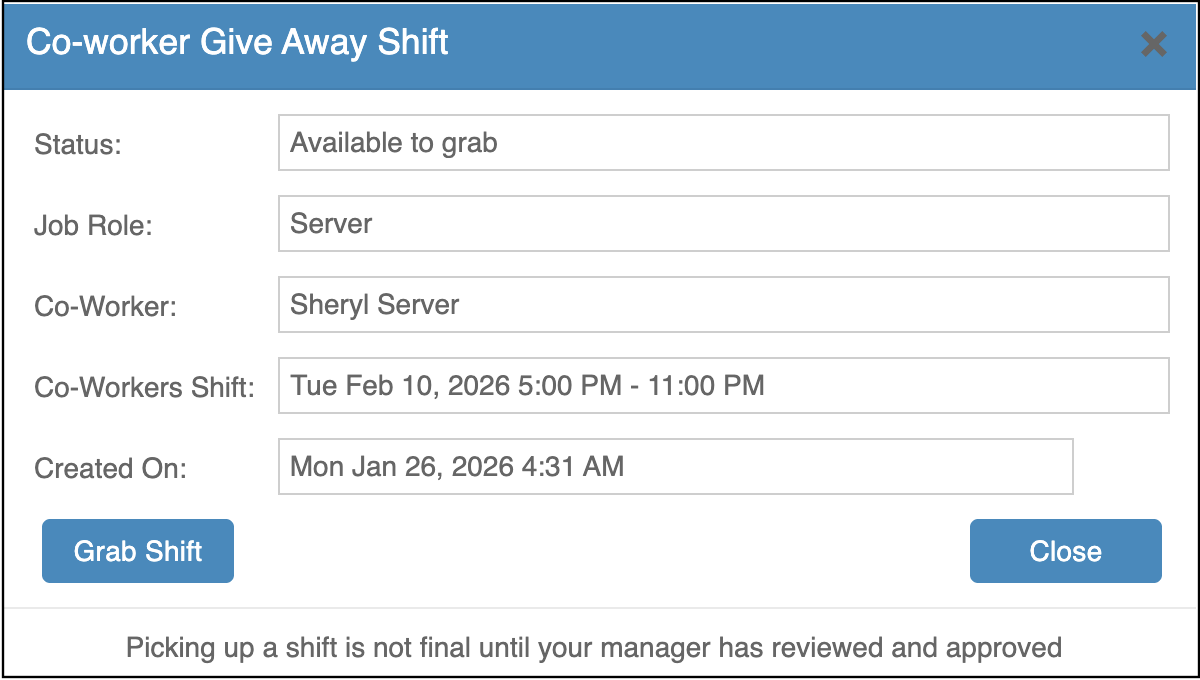
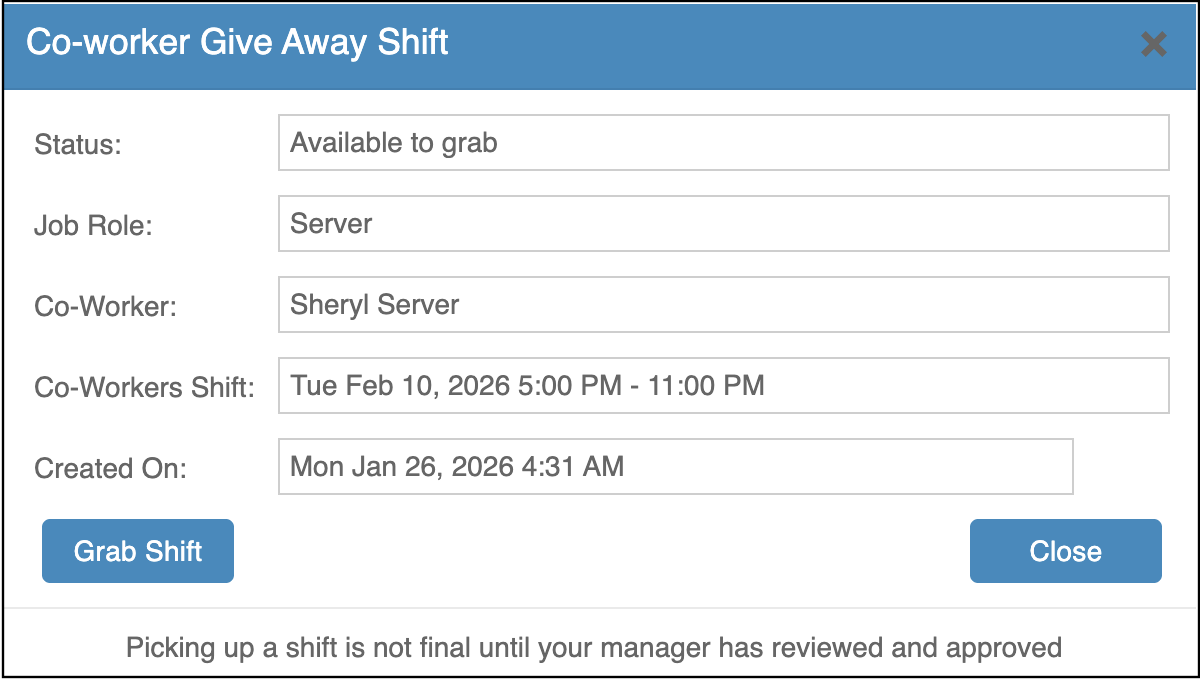
Go to ShiftHub → Shift Give AwayLook under Shifts Available to Pick UpDouble-click the shift, or select it and click Review RequestReview the shift details, including the job roleClick Grab Shift
Once you grab a shift, the request is sent to your manager for approval.Important notes:You will only see shifts for job roles you are assigned to(For example, if you are not assigned as a Cook, you will not see Cook shifts.)
orPicking up a shift is not final untilyour manager approvesit.rejects - a
settings.Youtrade,willbyreceiveemail, text message or a notificationonly afterin themanagerapp,hasdependingapprovedontheyourrequest. - If you don't see My ShiftHub in your menu, your restaurant doesn't use shift trading.
Please note:The shift remains your responsibility until both the co-worker and the manager approve the give away.If no co-workers grab it or the manager rejects the request, you are still responsible for working your shift or finding coverage.