
Ingage Scheduling App - Staff Guide
The Ingage Scheduling app lets you view your schedule, request time off, swap or give away shifts, and manage your account settings — all from your phone. This guide walks through each section of the app so you know exactly where to go and what to do.
Download the app: Search for Ingage Scheduling in the Apple App Store or Google Play Store, or click one of these links
Schedule
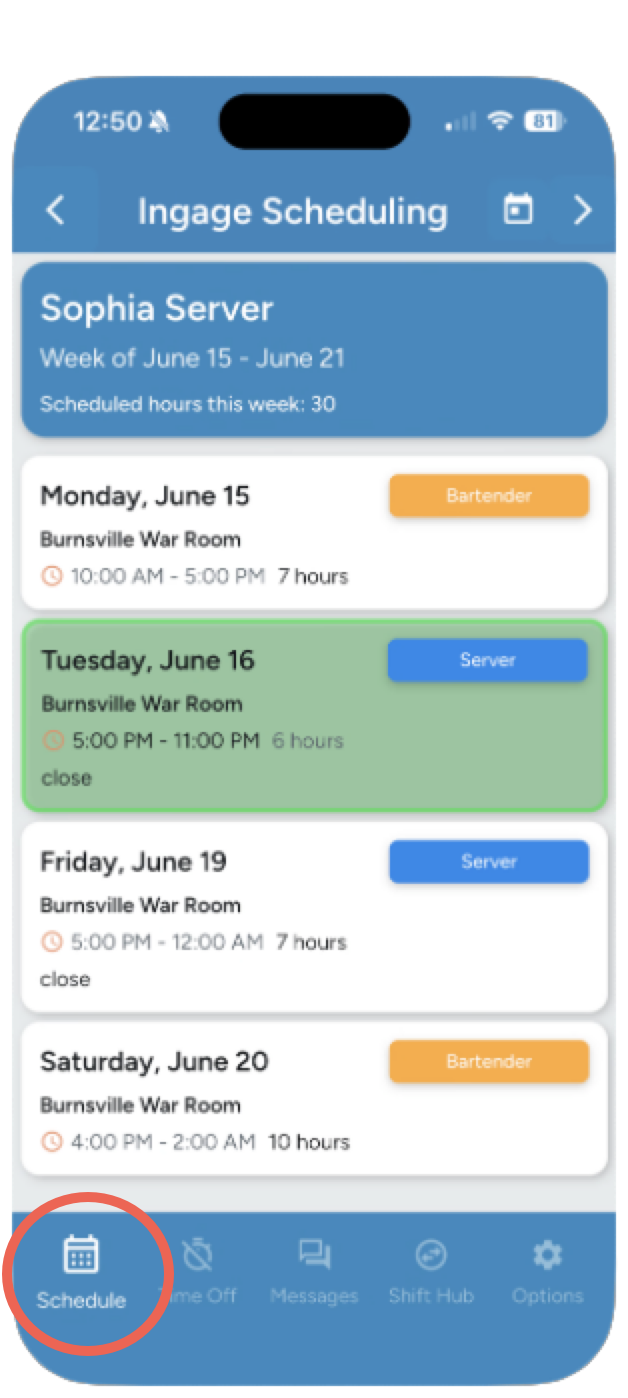
The Schedule tab is the first thing you see when you open the app. It shows all of your upcoming shifts for the week.
What You Can See
- Your name and the current week at the top of the screen
- Your total scheduled hours for the week
- Each shift listed by day, showing:
- The location you are working
- Your start and end times
- Total hours for that shift
- Your job role (shown as a blue badge)
- Any shift notes from your manager (such as “close,” “3rd,” or a section assignment)
Navigating Between Weeks
Note: Your schedule will only appear after your manager has published it. If you don’t see a shift you were expecting, check with your manager to confirm the schedule has been published.
Time Off
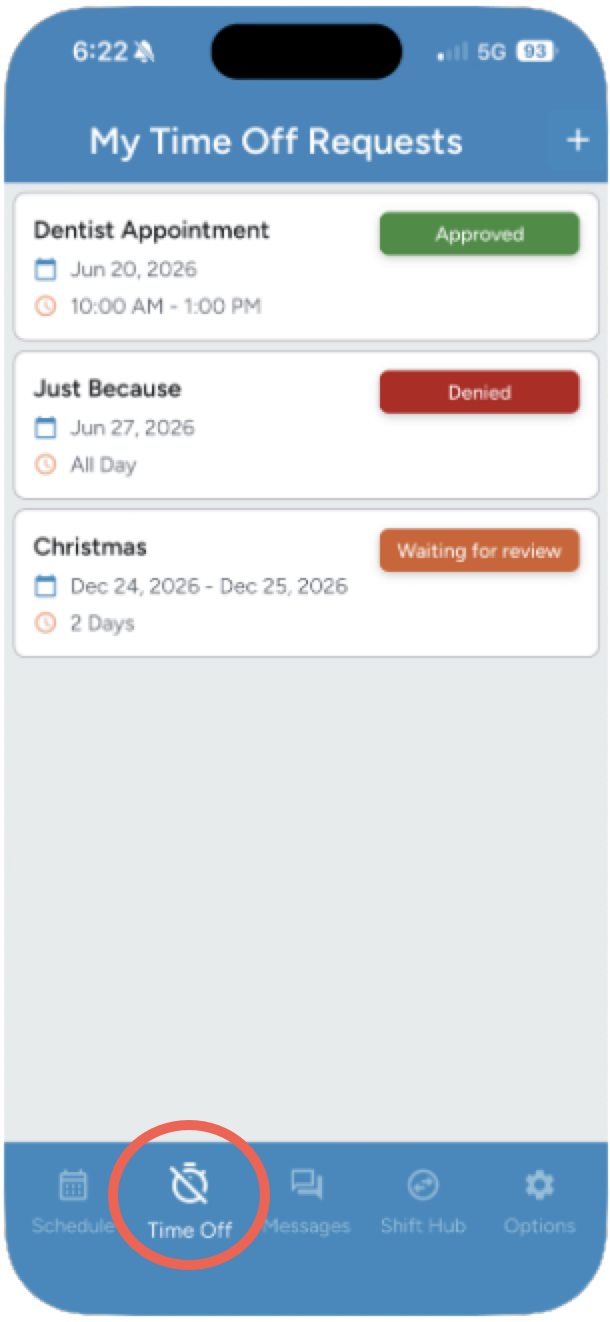
The Time Off tab is where you submit requests for time off and check the status of any requests you’ve already submitted.
Viewing Your Requests
When you open the Time Off tab, you will see a list of your upcoming time-off requests. The most recent upcoming request is shown at the top. Once a date has passed, it will automatically drop off the list. Each request will show one of the following statuses:
- Waiting for review – Your manager has not yet reviewed the request
- Approved – Your request has been approved
- Denied – Your request was not approved
How to Submit a Time-Off Request
Tap the + icon in the top-right corner of the Time Off screen to create a new request.
To request a full day off:
- Set the Start Date
- Set the End Date
- Enter a reason for your request
- Tap Submit
To request part of a day off:
- Set the Start Date and choose a Start Time
- Set the End Date and choose an End Time
- Enter a reason for your request
- Tap Submit
Important: All time-off requests must be reviewed and approved by a manager before they are official. Submitting a request does not automatically guarantee approval. Your manager will also need enough advance notice, so submit requests as early as possible.
Click here to learn more about How to Create a Time Off Request
Messages
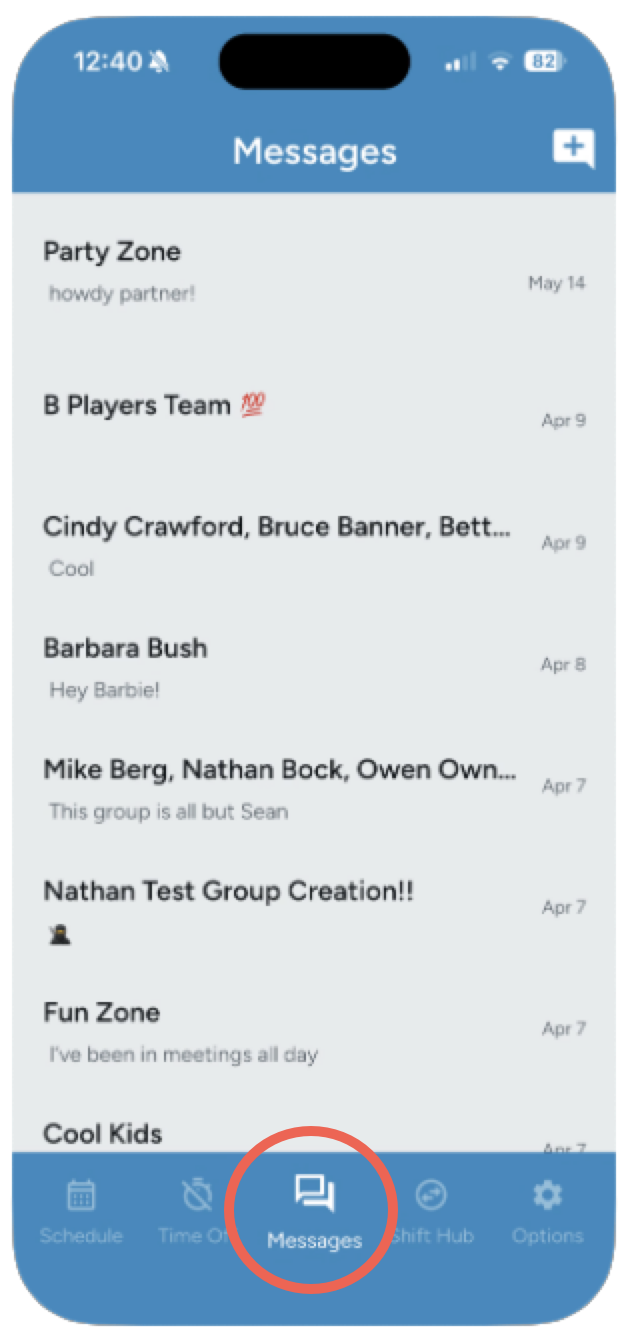
Messages works similarly to text messaging. It is a place for managers and co-workers to send you direct messages or group messages. You will not receive automatic schedule notifications here — it is purely for person-to-person communication.
Individual & Group Messages
Messages can be sent one-on-one or to a group. Groups may have a name (such as “Servers”) or may simply show the names of everyone in the conversation — this is decided by whoever created the group.
Note: Messages are not automatic. You will only see something here if a manager or co-worker has specifically sent you a message.
Shift Hub
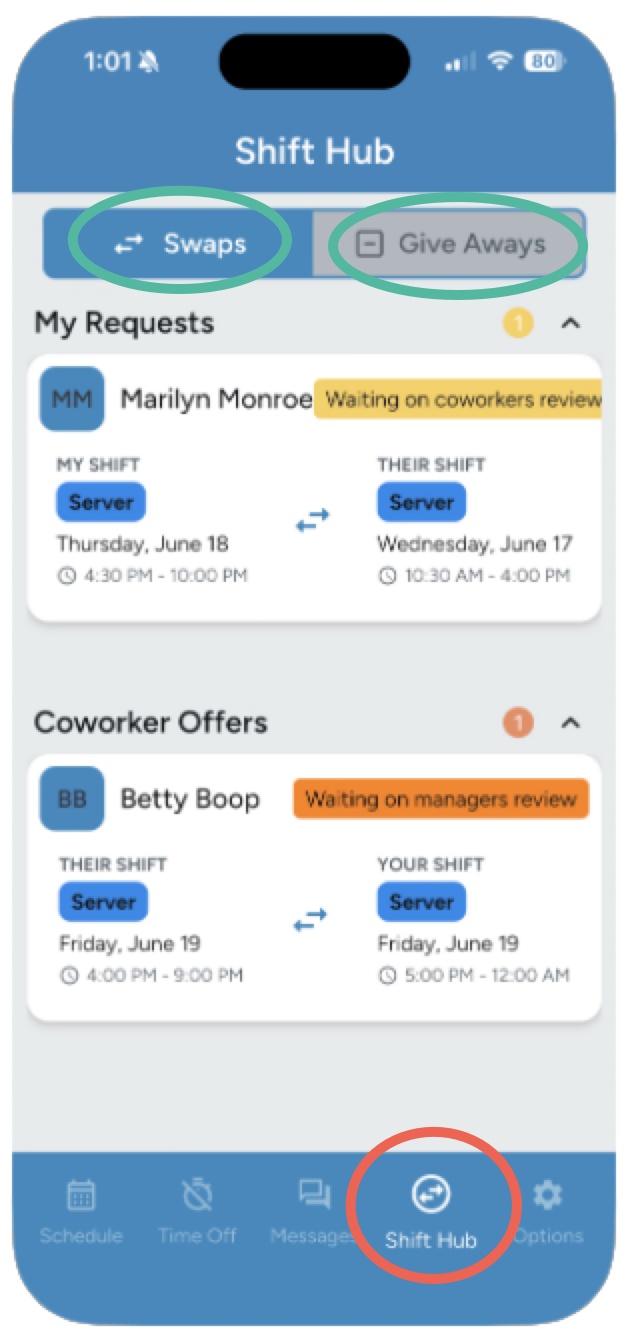
Shift Hub is where you manage shift swaps and shift give-aways with your co-workers. All requests require manager approval before the schedule is officially updated.
Shift Swaps
A shift swap lets you trade one of your shifts with a co-worker. Both of you need to agree, and a manager must approve it before anything changes.
How to request a shift swap:
- Go to the Schedule tab and tap the shift you want to swap
- A panel will slide up showing your shift details — tap Swap
- A list of eligible co-workers’ shifts will appear (same job role, in the future)
- Select the shift you want to trade for
- Review the Shift Releasing and Shift Getting details, then tap Confirm
After submitting, your shift will show a Pending status and your co-worker will be notified. Once they accept, it goes to your manager for final approval.
Responding to a Swap Request from a Co-Worker
If a co-worker requests a swap with you, you’ll see it in Shift Hub under the Swap tab in the Co-worker Offers section. Look for the yellow “Waiting on your review” badge.
- Tap the request to open it
- Review the shift details
- Tap Confirm to accept, or Reject to decline
Remember: Until both you and your manager approve the swap, your original shift is still your responsibility.
Shift Give-Aways
A shift give-away lets you offer one of your shifts to an eligible co-worker. You don’t choose who takes it — any co-worker with the same job role can pick it up.
How to give away a shift:
- Go to the Schedule tab and tap the shift you want to give away
- Tap Give Away in the panel that slides up
- Review the details and tap Confirm
Your shift will be posted to eligible co-workers. Once someone picks it up, it goes to a manager for final approval. Until then, the shift is still your responsibility.
Picking Up a Shift from a Co-Worker
If you want to pick up an available shift, go to Shift Hub, tap the Give Away tab, and look in the Available Giveaways section.
- Browse the available shifts and tap the one you want
- Review the details and tap Confirm
The request goes to your manager for approval. You’ll be notified once it’s approved.
Status Reference - Every swap and give-away shows a status badge so you always know where things stand:
| Status | What it means |
|---|---|
| Pending | Waiting on your co-worker to respond |
| Accepted | Your co-worker agreed; waiting for manager approval |
| Approved | Manager approved; the schedule has been updated |
| Rejected | Declined by your co-worker or manager; no change to the schedule |
Click here to learn more about How to create a ShiftHub Request
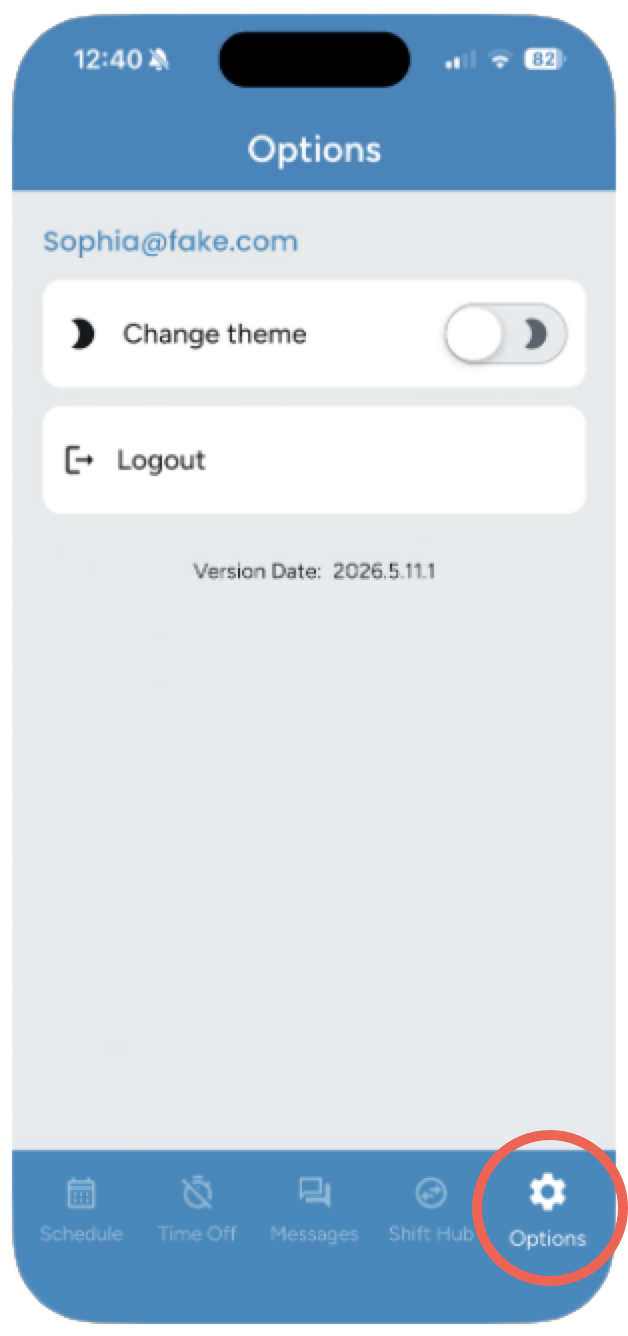
Options
The Options tab has two settings:
- Change Theme – Toggles the app between Light mode and Dark mode. Tap it to switch to whichever display style you prefer.
- Logout – Logs you out of the app.