
How to use Shift Hub on the App
This document explains how to use ShiftHub to request shift swaps or give away shifts with other employees.
ShiftHub allows employees to request shift swaps or give away shifts with other co-workers. Once a co-worker accepts a request, it is sent to a manager for final approval.
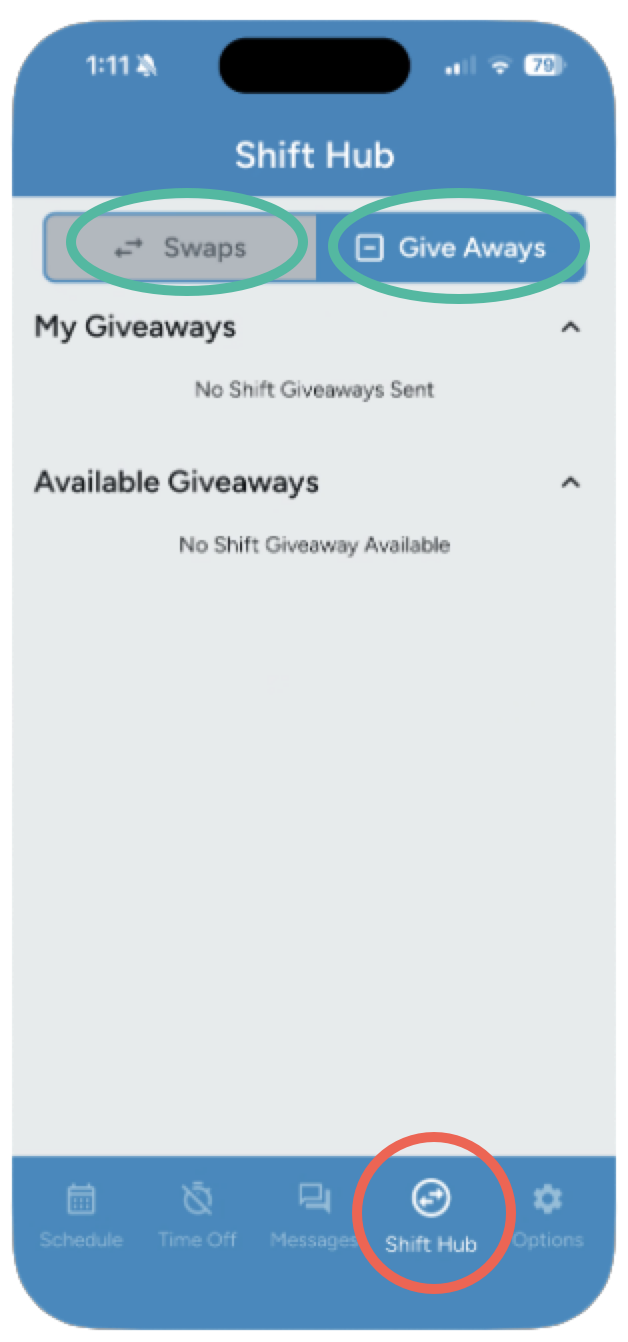
To get to ShiftHub
-
Log into the scheduling app
-
Click the ShiftHub icon in the bottom navigation bar
Important: Swaps and giveaways are created from the Employee Schedule page by tapping a shift. ShiftsHub is where you monitory and manage requests after they have been created.
Shift Swaps
A Shift Swap allows you to trade one of your scheduled shifts with another employee. Both employees must agree to the swap, and a manager must approve it before the schedule is updated.
How Shift Swaps Work
Shift swaps follow a two-step approval process:
-
Co-worker approval - The employee you select must accept the swap.
-
Manager approval - Once accepted, the request is sent to a manager for final approval.
The schedule will only update after both steps are completed. The shift will remain unchanged until both the co-worker and a manager approve the request.
Viewing Shift Swap Requests
This page is divided into two main sections:
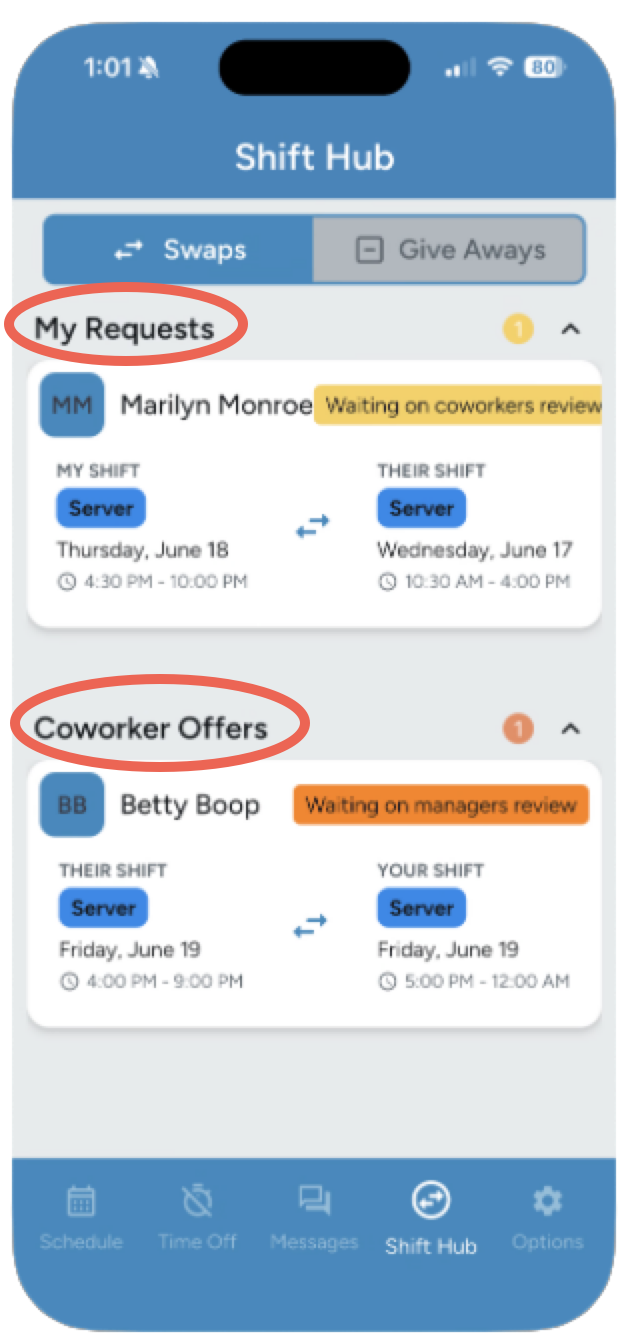
My Shift Swap Requests
The top section shows shift swap requests you have created.
These are requests where you are asking another employee to swap shifts with you.
From this section, you can:
-
See the status of each request (Pending, Accepted, Approved, or Rejected)
-
View which employee you sent the request to
-
Review both your shift and the co-worker’s shift involved in the swap
This section helps you track requests you’ve initiated and see where they are in the approval process.
Co-worker Shift Swap Requests
The bottom section shows shift swap requests other employees have sent to you.
From this section, you can:
-
Review incoming swap requests
-
See which shift you would be giving up and which shift you would receive
-
Accept or decline the request
If you accept a swap request, it is automatically sent to a manager for final approval.
Expanding and collapsing section
Both section are collapsible. Tap the section header to expand or collapse the list. The header also displays small count bubbles showing how many requests are in each status, so you can see the summary at a glance without expanding
Creating a Shift Swap Request
Swaps are created from the Employee Schedule page, not from inside ShiftHub
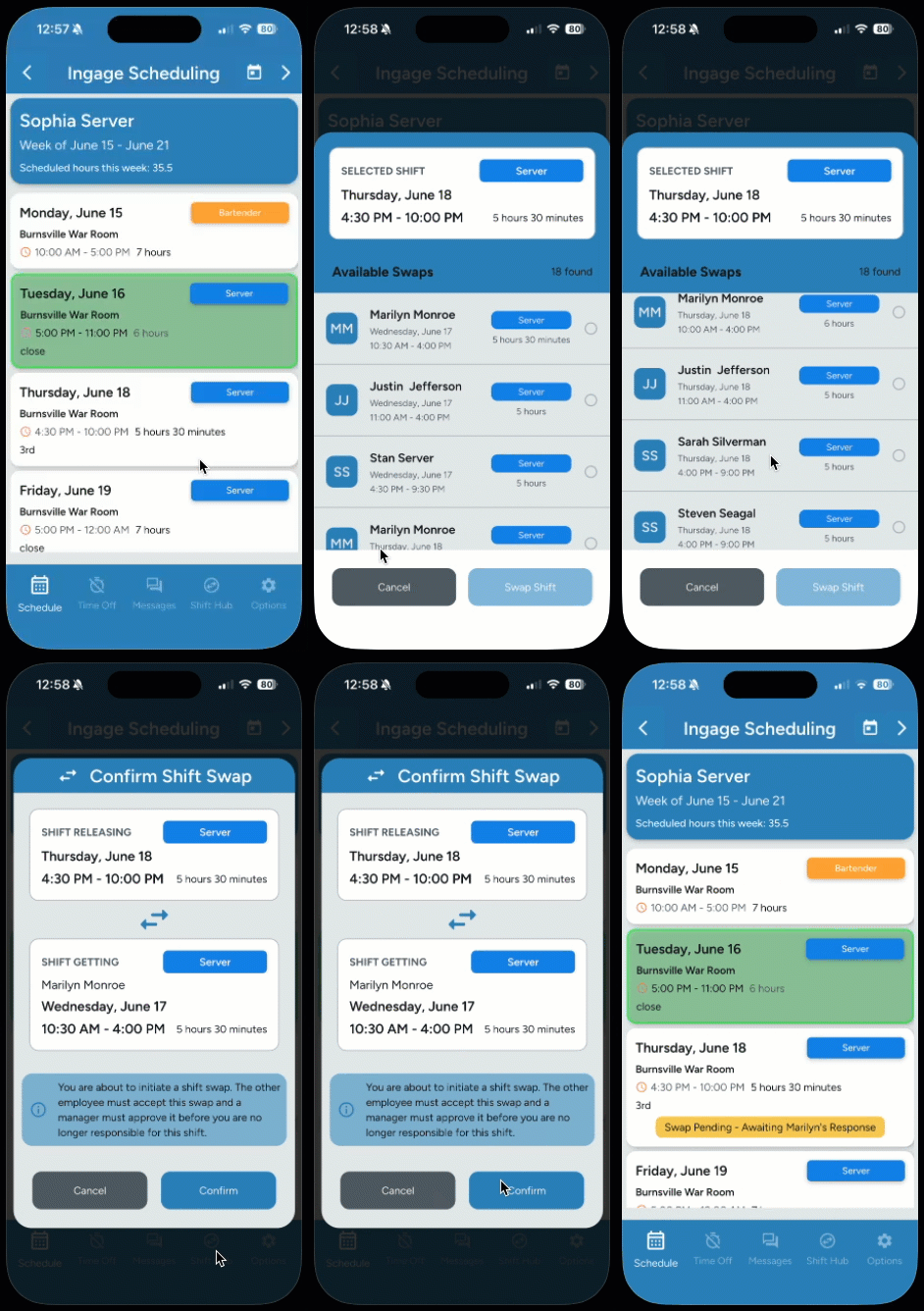
- Go to the Employee Schedule page and tap the shift you want to swap.
- A panel slides up from the bottom of the screen showing the shift details.
- Tap Swap.
- A list of co-workers with shifts that are eligible to swap will load. Only shifts that match the required criteria are shown — future shifts, other employees, same job role.
- Select the co-worker's shift you want to trade with.
- Tap Swap Shift. A confirmation screen will appear showing:
- Shift Releasing — the shift you are giving up
- Shift Getting — the shift you would receive
- Tap Confirm to submit the request, or Cancel to go back.
After confirming, the shift will have a Status bar on it letting you know that’s its pending, and the request will also appear in Shift Hub under the Swap tab > My Requests with a Pending status.
The co-worker will be notified and can accept or decline the swap.
Important Rules for Shift Swaps
- A shift can only be involved in one active swap or giveaway request at a time. Once a shift has been selected for a request, it will not appear as an option for additional requests until the original request is completed or canceled.
- Because the system only displays eligible shifts, any shift shown in the Select co-worker's shift dropdown can be successfully requested. Invalid or conflicting shifts will not be displayed.
- You cannot request a swap if you are already scheduled to work during the time of the other shift.
- A swap request can be canceled at any time by the employee who created it, as long as it has not already been approved or rejected.
- Once a swap has been approved or rejected, it is final and can no longer be changed. If a change is still needed, speak with a manager.
These rules help prevent scheduling conflicts and ensure proper coverage.
What Happens After You Submit a Swap
-
If the other employee accepts the swap, it is sent to a manager for approval.
-
If the other employee declines, the request is closed and no changes are made.
-
Once a manager approves the swap:
-
The schedule is automatically updated
-
Both employees are notified via email or text of the approval
-
Responding to a Co-Worker’s Shift Swap Request
When a co-worker requests to swap shifts with you, the request will appear in the Co-worker Offers section of the swap tab in ShiftHub.
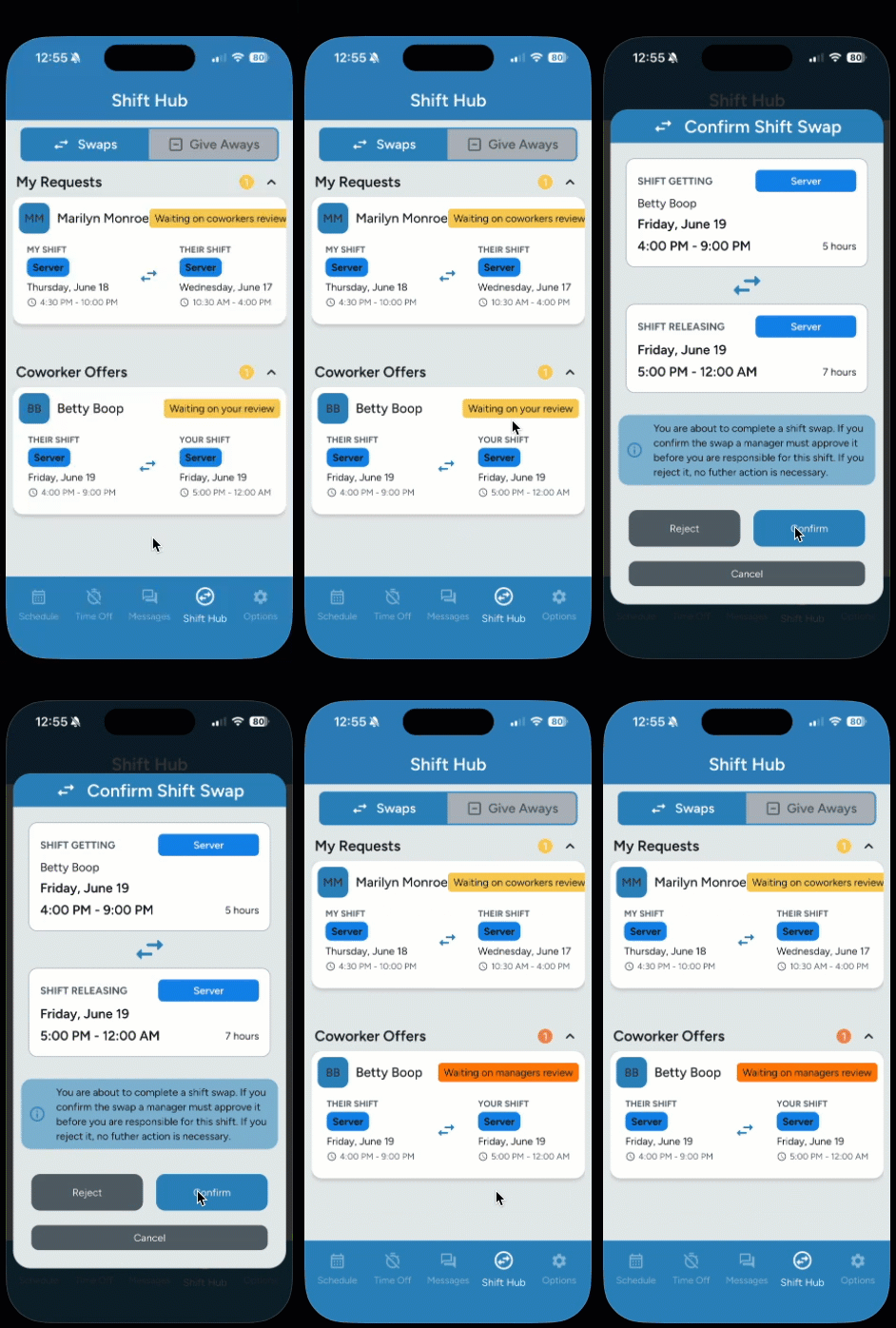
- Open Shift Hub and go to the Swap tab.
- Expand the Coworker Offers section.
- Tap the swap request card you want to respond to. Look for shifts with the yellow bubble that says “Waiting on your review”
- A confirmation screen opens showing the full details of the swap, including both shifts and a notice that manager approval is still required.
- Shift Getting — the shift you would receive and the Employee who’s giving it up
- Shift Releasing — the shift the employee is requesting
- Choose one of the following:
- Confirm — you accept the swap. It moves to Accepted status and is sent to a manager for approval.
- Reject — you decline the request. No further action is needed and the request is closed. The employee who initiated the swap will get notified that you rejected it.
- Cancel — closes the dialog without taking any action.
Please note: The shift remains your responsibility until both the co-worker and the manager approve the swap.
If either the co-worker or the manager declines the request, you are still responsible for working your shift or finding coverage.
Shift Give Away
Shift Give Away allows you to offer one of your upcoming shifts to other employees who work the same job role. If another employee chooses to pick up your shift, the request is sent to your manager for final approval before the schedule is updated.
Viewing Shift Give Away Requests
The Give Away tab in ShiftHub is divided into two sections:
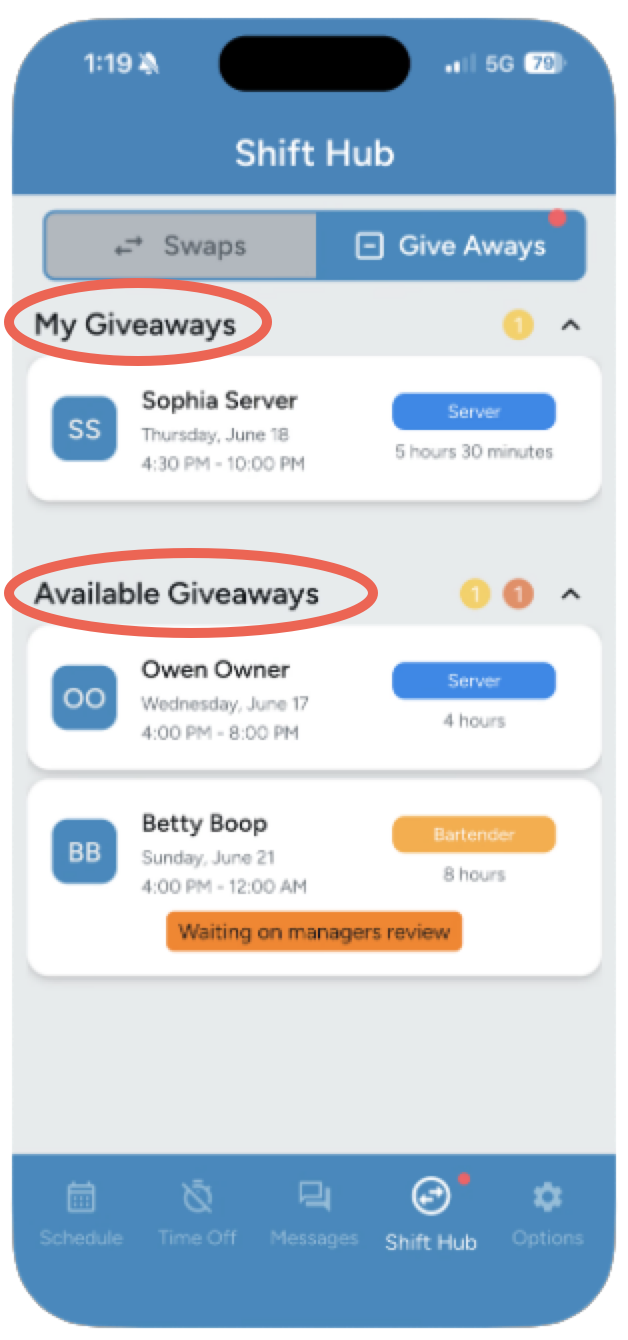
My Giveaways (top section)
This section shows shifts you have offered up to other employees.
- You will see the following statuses:
- No Status - Waiting for someone to grab the shift
- Waiting on manager review - A co-worker has picked up the shift, and it is now pending manager approval.
-
Approved - The manager has approved the give-away.
Once a shift has been approved, it will remain visible in your My Giveaways list until the day of the shift has passed. After the shift date is over, it will automatically drop off the list.
Available Giveaways (bottom section)
This section shows shifts that other employees have offered and are available for you to pick up.
Statuses in this section may include:
-
No Status – the shift is available to grab
-
Waiting on manager review – You have claimed the shift and it is pending manager approval
Once a manager approves a giveaway, the shift is removed from the available list and added to the approved employee’s schedule.
You can pull down on both lists to refresh them and get the latest data
Expanding and collapsing section
Both section are collapsible. Tap the section header to expand or collapse the list. The header also displays small count bubbles showing how many requests are in each status, so you can see the summary at a glance without expanding
Creating a Shift Give Away Request
Give away requests are created from the Employee Schedule page, not from inside ShiftHub:
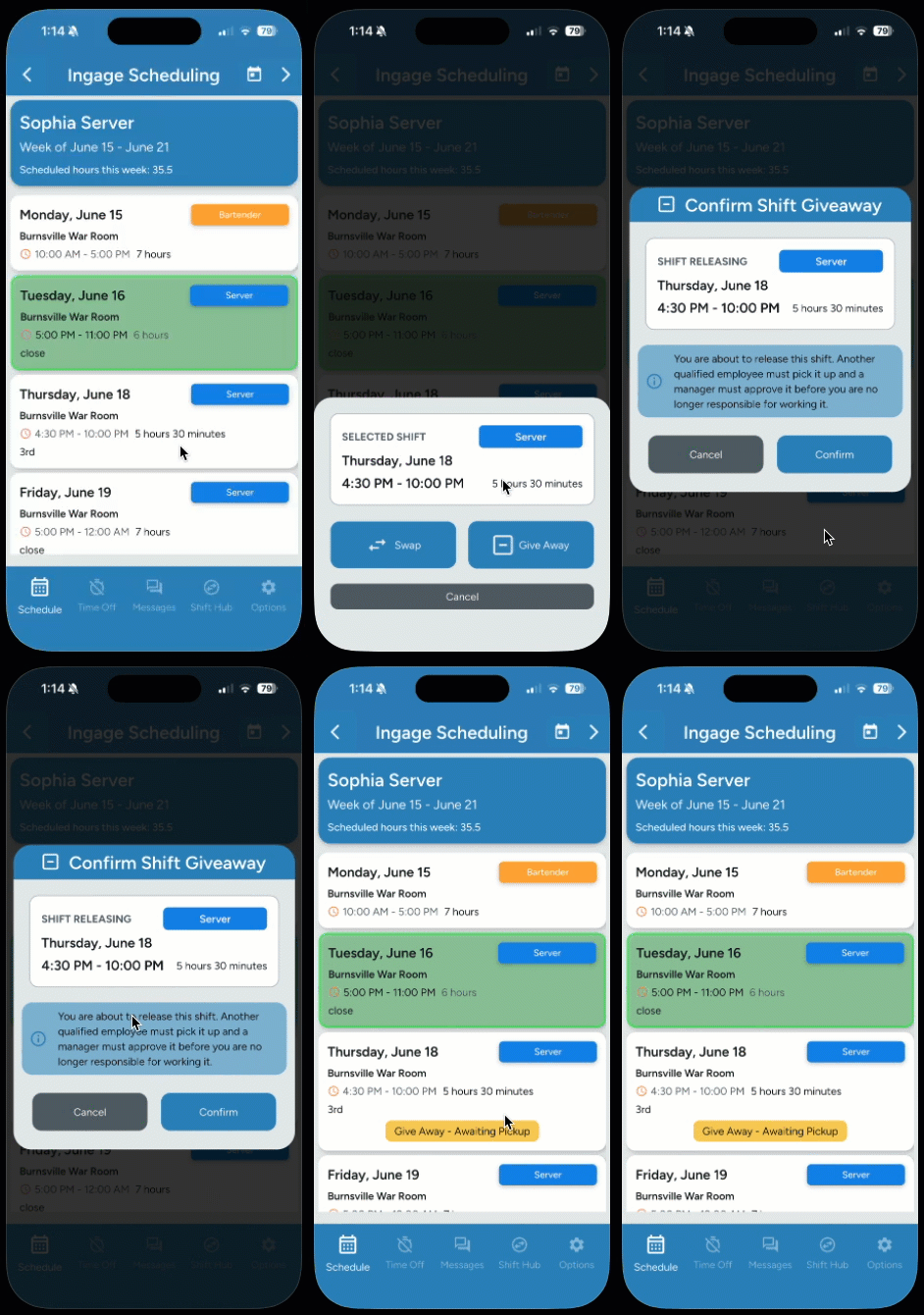
- Go to the Employee Schedule page and tap the shift you want to give away.
- A panel slides up from the bottom of the screen showing the shift details.
- Tap Give Away.
- A confirmation screen appears showing the shift marked as Shift Releasing and a notice explaining that another employee must pick it up and a manager must approve it before you are off the hook.
- Tap Confirm to post the giveaway, or Cancel to go back.
After confirming, the shift will have a Status bar on it letting you know that’s its pending, and the request will also appear in Shift Hub under Give Away > My Giveaways
Your shift will be shared with eligible co-workers who have the same job role.
A notification is sent to co-workers when a shift is given away.
Important Notes
- A give away request can be canceled at any time, as long as no one has picked it up and it has not been approved.
Picking Up a Shift from a Co-Worker
To pick up a shift someone else has offered:
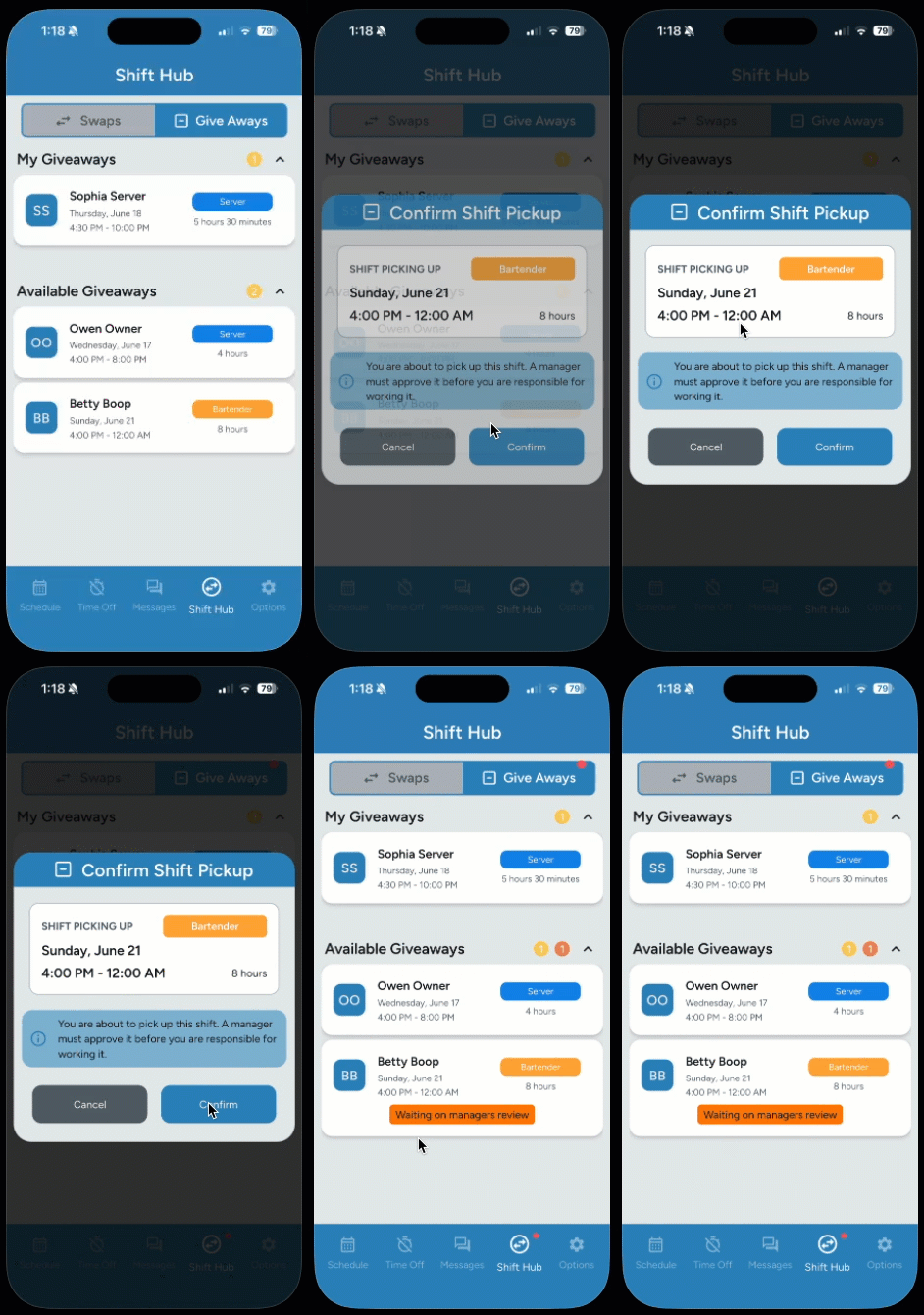
- Open Shift Hub and go to the Give Away tab.
- Expand the Available Giveaways section.
- Browse the listed shifts. Each card shows the co-worker's name, shift date, time, job role, and shift length.
- Tap the shift you want to pick up.
- A "Confirm Shift Pickup" screen appears showing the shift details and a notice that manager approval is required before you are responsible for the shift.
- Tap Confirm to submit your request, or Cancel to go back.
Once you pick up a shift, the request is sent to your manager for approval. In will stay in the Give away section with a “Waiting for manager approval” status until it was approved. Once its approved it will disappear from this section and show up on your schedule
If a shift was already claimed by someone else before you confirmed, you will see a "Shift Unavailable" message. Refresh the list and try again.
Important Notes
- You will only see shifts for job roles you are assigned to. For example, if you are not assigned as a Cook, you will not see Cook shifts.
- Picking up a shift is not final until your manager approves it.
- You will receive a notification only after the manager has approved the request.
Please note: The shift remains your responsibility until both the co-worker and the manager approve the give away.
If no co-workers grab it or the manager rejects the request, you are still responsible for working your shift or finding coverage.
Status Reference
Every swap and give away record displays a colored status badge. The sections below summarize what each status means.
Shift Swap Statuses
|
Status |
What it means |
|
Pending |
The swap request has been sent. Waiting for the co-worker to accept or reject. |
|
Accepted |
The co-worker accepted. Waiting for a manager to approve. |
|
Approved |
A manager has approved the swap. The schedule has been updated. |
|
Rejected |
The request was declined (by the co-worker or a manager). No schedule change. |
Shift Give Away Statuses
|
Status |
What it means |
|
Pending |
The shift has been posted and is waiting for a co-worker to pick it up. |
|
Waiting |
A co-worker has picked up the shift and it is pending manager approval. |
|
Approved |
A manager has approved the pickup. The shift has been reassigned. |
No Comments