How to add a new employee
This article will walk you through adding a new employee.
-
Log into
back office.
Backoffice. -
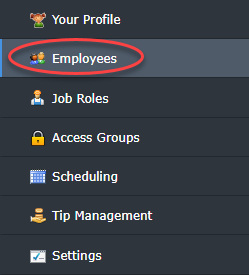
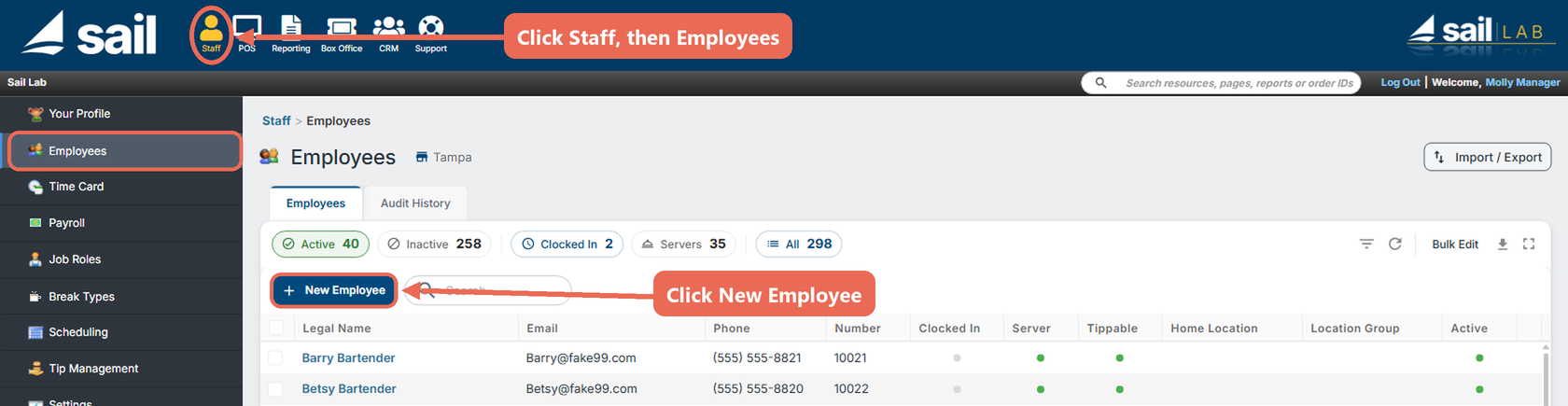
Click Staff at the top, then Employees in the menu on
theStaff.
-
Click
onNewemployees.Employee.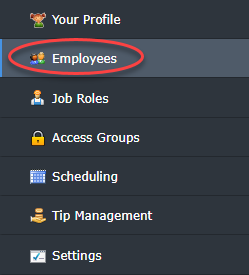
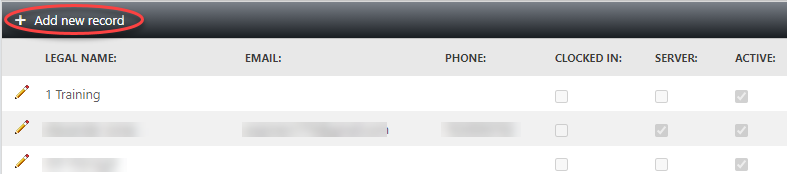
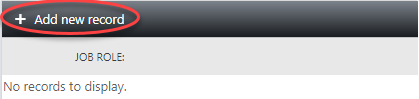
Click on “Add new record.”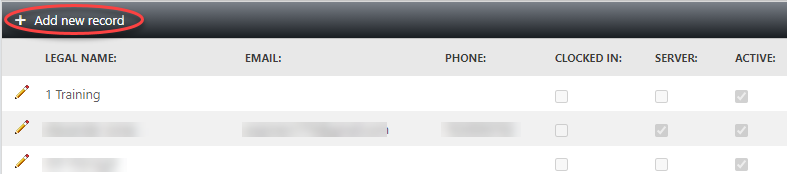
-
This will open a record for you to fill out your new employees information in order to add them to the system.
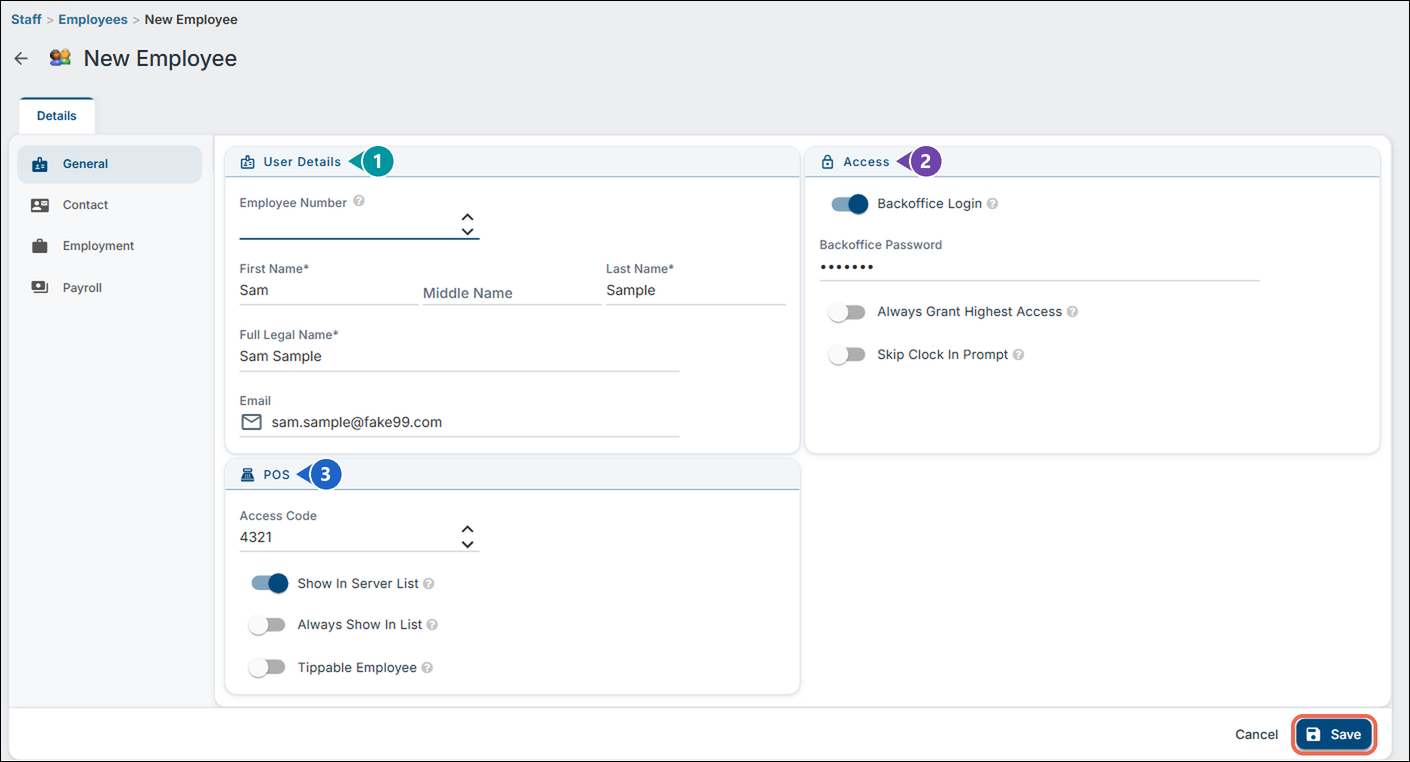
The record has four tabs on the left: General, Contact, Employment and Payroll.-
General
-
User
DetailDetails
(1):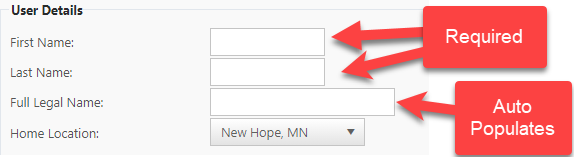
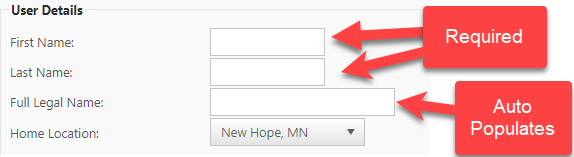
This section is not optional and must be completed in order to create the new employee. Only the fields marked with an * are required (if you turn on Backoffice Login, the Email is required too).
Enter the preferred first name and last name as these will be displayed throughout the system.
The
“Full LegalName”Namefieldfills in from the first and last name. It can be modified if it is different than the preferred name. The full legal name will only be shown on Payroll reports.- The Employee Number is used for payroll exports. If you use a payroll export, enter the employee's number from your payroll system. If you don't, leave it empty and the system gives the employee the next available number.
- The Email is required if the employee will log into Backoffice.
-
Access (2): This section is optional when creating a new employee.
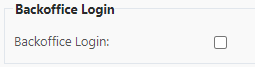
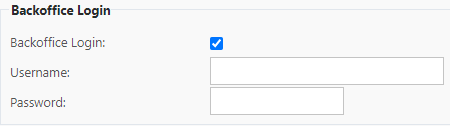
- Turn on Backoffice Login to create a Backoffice login for the employee. (You will need to turn this on for anyone who will need to use Backoffice, and for everyone if you use Sail Scheduling, because it uses the same login)
- Once turned on, a Backoffice Password field opens right below it. The employee logs into Backoffice with their email address from User Details and this password.
- The password is not visible to anyone (including management or owners).
- Please keep in mind that the password is case sensitive.
- Always Grant Highest Access gives the employee the access of all their job roles, no matter which job role they are clocked in as.
- Skip Clock In Prompt: the system will not ask the employee to clock in when they log in.
-
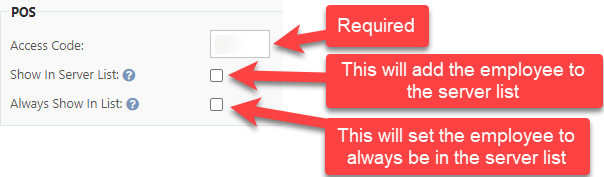
POS (3): Fill this section in for anyone who will use the terminals or handheld devices.
- The employee “Access Code” is their personal log in number for the terminals and handheld devices. (It can be any number of digits long)
- “Show In Server List” (on by default): this employee will be visible in any of the server selection screens throughout the system. This will need to be turned on for any employee who plans on ringing in any orders.
- “Always Show In List” will force this employee to always be shown in the server list whether they are clocked in or not. This is generally used for generic “Bartender” users that don't clock in and out.
- “Tippable Employee”: the employee will be asked to report cash tips when they clock out, and will be eligible to give and receive submitted tipouts.
-
-
Contact
information.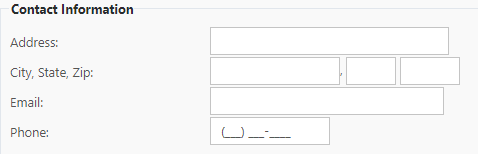
-
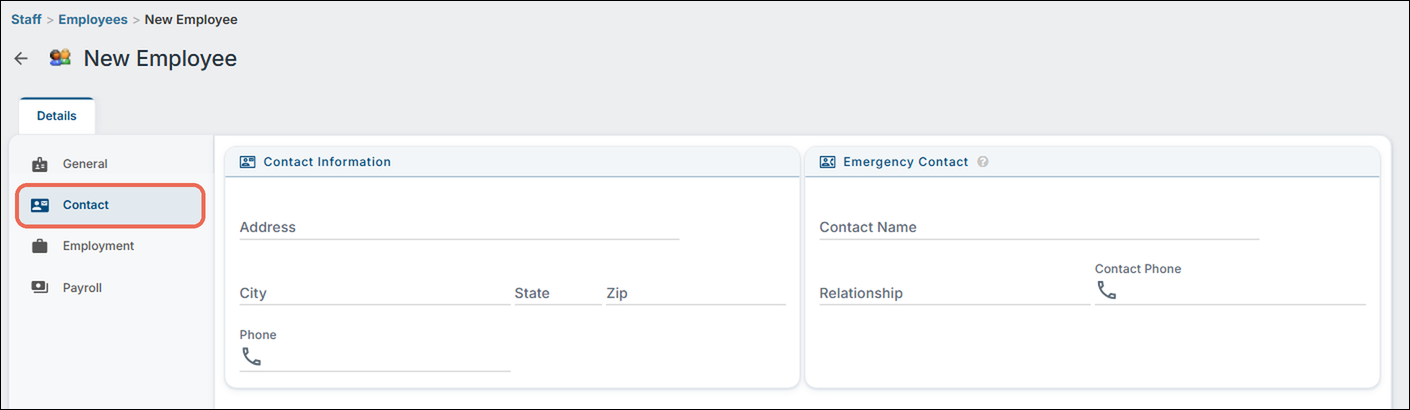
This section is optional when creating a new employee.
-
This section is where you can store the employees contact information and
address.address, and an emergency contact. -
The Phone number will show up on the employee schedule.
-
-
Employment
information.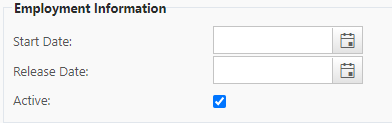
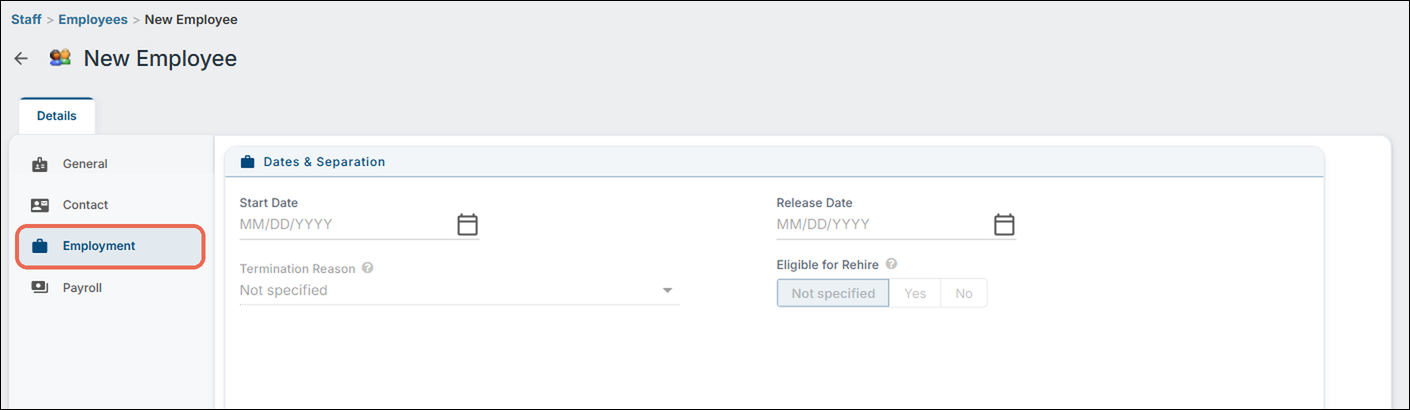
-
This section is optional when creating a new employee.
-
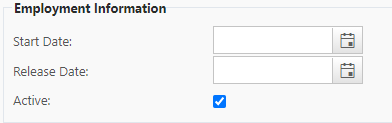
This is where you can place the employees start and
endrelease dates. Termination Reason and Eligible for Rehire are for when an employee leaves. -
MakingAannew employee is activeallowsasthemsoontoas you save them. Active employees can log into and out of the terminals and devices.
-
-
Back office log in.Payroll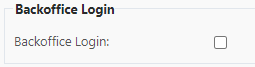
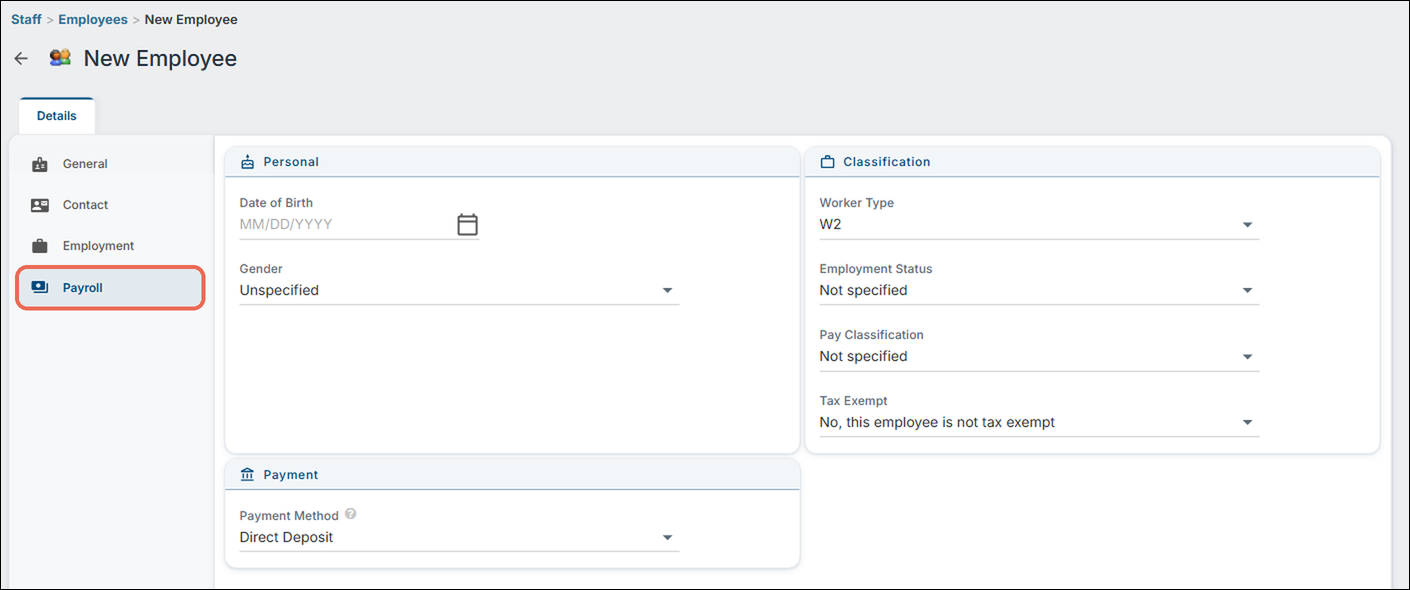
-
This section is optional when creating a new
employee.employee, unless you use Sail's integrated payroll system - then it must be filled out. -
This
creates a Back Office login for the employee. (You will need to check this box for anyone who will need to use Back Office) Once selected it will open fields right below the box that you checked. Thisis where youcreatecanastoreusernamethe employees date of birth, worker type, employment status, pay classification, tax exemption andpasswordpayment method forthe employee to log into back office.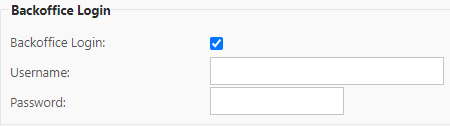
It will auto populate their email address if you entered that in above. You can use that, or erase it and change it to whatever they prefer.The employee will need to enter a password. This is not be visible to anyone (including management or owners).Please keep in mind that the username and password are case sensitive
-
The POS section.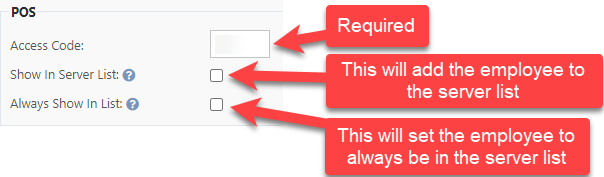
This section isnotoptional and must be completed in order to create the new employee.The employee “Access Code” is their personal log in number for the terminals and handheld devices. (It can be any number of digits long)“Show in Server List” if selected this employee will be visible in any of the server selection screens throughout the system. This box will need to be checked for any employee who plans on ringing in any orders.“Always Show in List” will force this employee to always be shown in the server list whether they are clocked in or not. This is generally used for generic ‘Bartender’ users that don't clock in and out.
payroll.
-
-
Once you have filled out the new employees information click
record:saveSave at the bottom right to add the new record. Once the record is saved additionaloptionstabs will become available on the new employeesrecord.
Job
Roles, Time Clock and Audit History.
-
Details: This
sectiontab stays the same after you create the new employee profile.
-
You would use this to edit the profile as discussed above after it has been created.
-
-
Job Roles: this
sectiontab is where you can assign job roles to your staff. Adding a job role is required: every employee needs at least one. (There are no limits on the number of job roles an employee can have.)
-
firstFirstselectclicktheAssignnewJobrecord plus signRole tocreateadd a Job Role for the employee.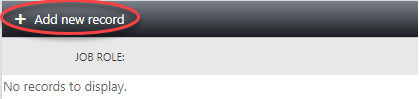

-
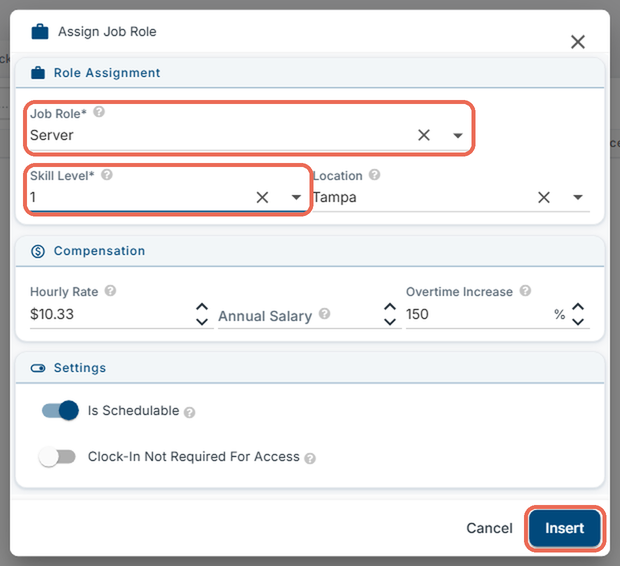
This opens a window to
insertadd a job roleintoto the employees profile.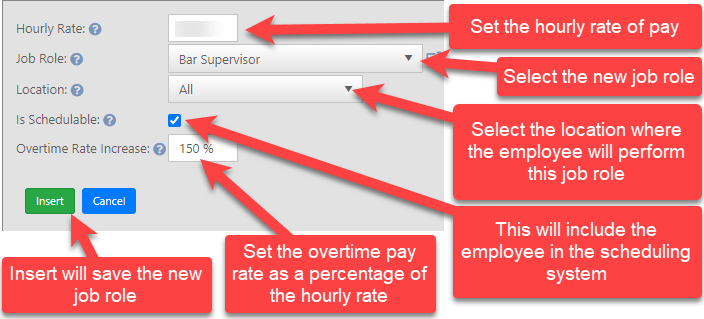
-
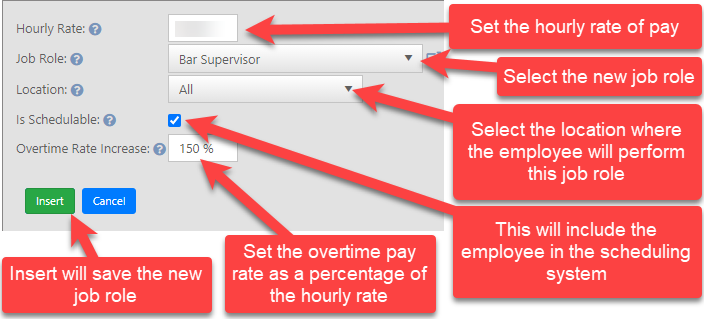
TheFilljobout the window:- Job Role
will(required):beselectselectedit fromathe drop down list of pre existingjobJob Roles. Job Roles can be created and edited intheJob Rolestabinback office.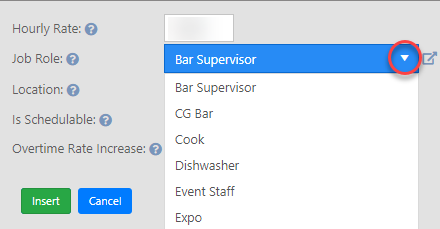
- Skill
(required): pick the employee's skill level in this job role.SettingLevel - Location: leave it empty for the job role to apply at all locations, or pick one location.
- Hourly Rate: what the employee is paid per hour in this job role.
- Annual Salary: use this instead of an Hourly Rate for a salaried employee.
- Overtime Increase: the percentage of the hourly rate paid for overtime hours (150% is time and a half).
- Is Schedulable: setting a Job
rolerole to be schedulable for the employee will only work if the job role itself is also set up to be schedulable. (This only needs to becheckedturned on if you are using our scheduling system.) - Clock-In Not Required For Access: the employee can use this job role's access without clocking in first.
- Job Role
-
Click Insert to add the job role.
-
-