
How to create a context filter
This document will show you how to create a context filter. A context filter decides when something applies - for example, a modifier set that only prompts on Dine-In orders, or a comp that only shows at one location.
How to Build a context filter
- Backoffice --> POS --> Settings --> Context Filters --> Click
AddNewnewContextrecordFilter

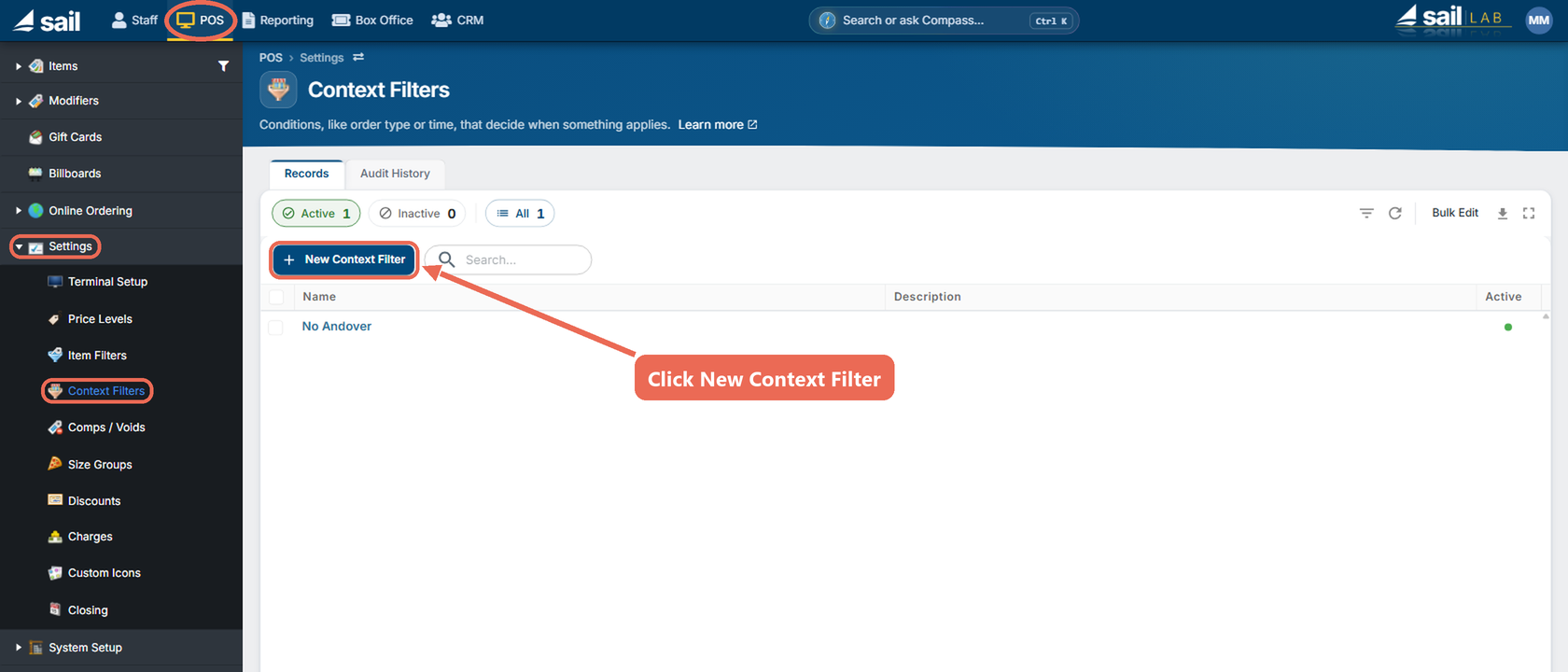
- Fill out the context filter. The numbers match the picture:
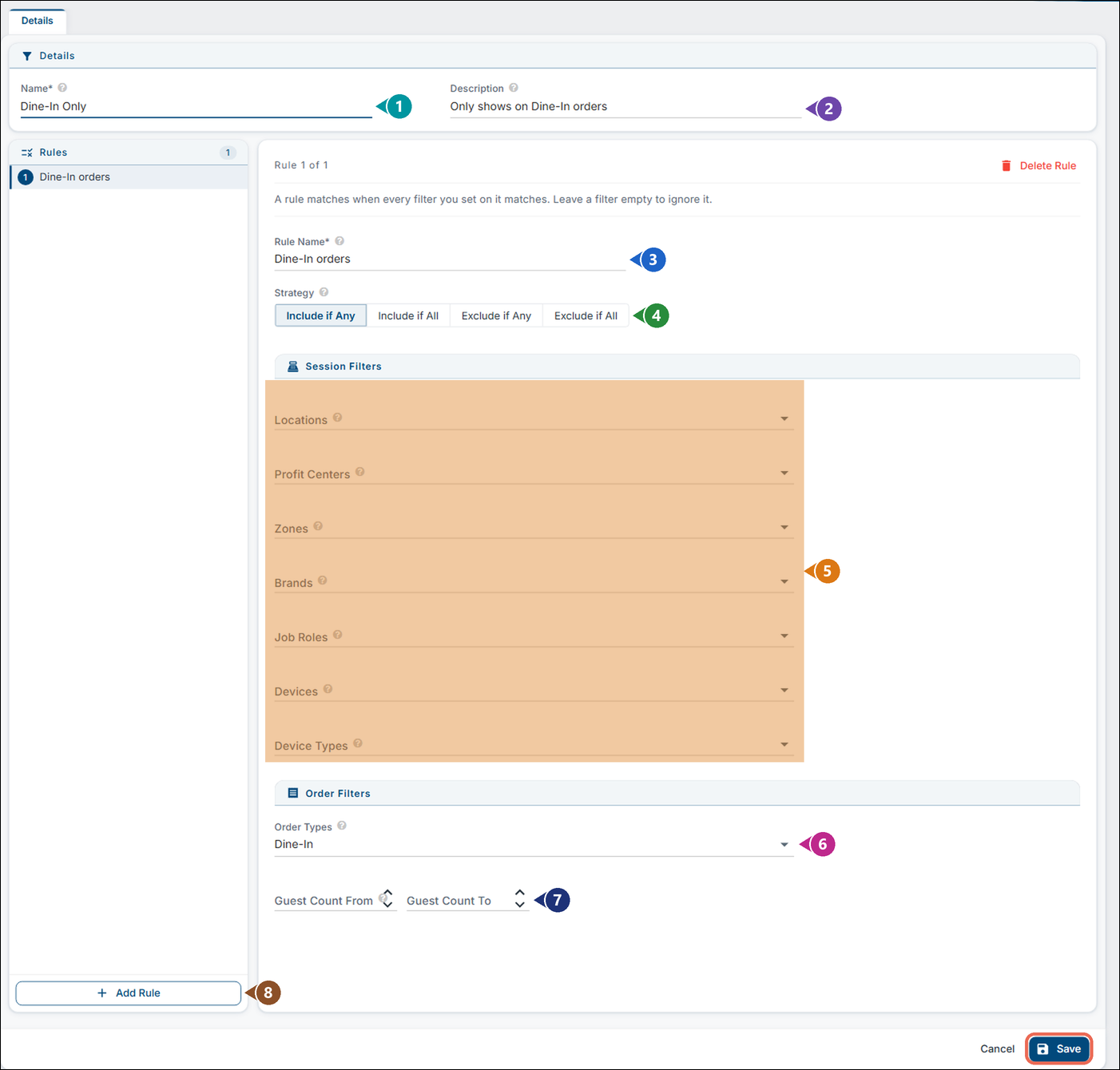
- Name (required): Name it something short and recognizable
- Description: Use the description
sectionto add more details about what this filter will do NamingRuletheNamerule(required):isEveryoptionalfilter- has
Ifat least one rule, named "Default" to start. Give itrecommendeda name that says what it checks, especially if you plan on having more than 1 rule in this filter
- Strategy:
- Use the strategy
sectiontodeterminedecide if the filter is going to include or excludethewhatfilters
you select below- Include if
anyAny - At least one selection below will need to be true for this filter to be valid - Include if
allAll - ALLitems selectedselections below will need to be true for this filter to be valid - Exclude if
anyAny - This filter will be valid unless one of thethe items selectedselections belowareis true - Exclude if
allAll - This filter will be valid unless ALL of theitems selectedselections below are true
- Include if
UseSession Filters: Where thefiltersorder is being taken and by whom. You can pick more than one in each list- Locations: The stores this filter checks
- Profit Centers: The profit centers this filter checks
- Zones: The zones this filter checks
- Brands: The brands this filter checks
- Job Roles: The job roles of the employee taking the order
- Devices: The terminals or handhelds this filter checks
- Device Types: A kind of device, for example every Handheld or every Terminal
- Order Types: Pick the order types this filter checks, such as Dine-In or To-Go
- Guest Count From and Guest Count To: Use these to
selecthaveLocations,theDevices,filterand/orcheckOrderhowTypesmany guests are on the order - Add Rule: If you are having more than 1 rule in this
filer,filter, click Add Rule and set up the next rule the same way. The filter is valid when any one of its rules is
Note: Leave a filter empty to ignore it. A rule checks only the filters you willfill usein.
- Click Save
- Test the rule

Where you can use a context filter
Many screens in Backoffice have a Context Filter drop-down. To use your filter, open the record, select the filter in that drop-down and click Save. From then on the record only shows or applies when the filter is valid. Leave the drop-down empty and it works everywhere, as before.
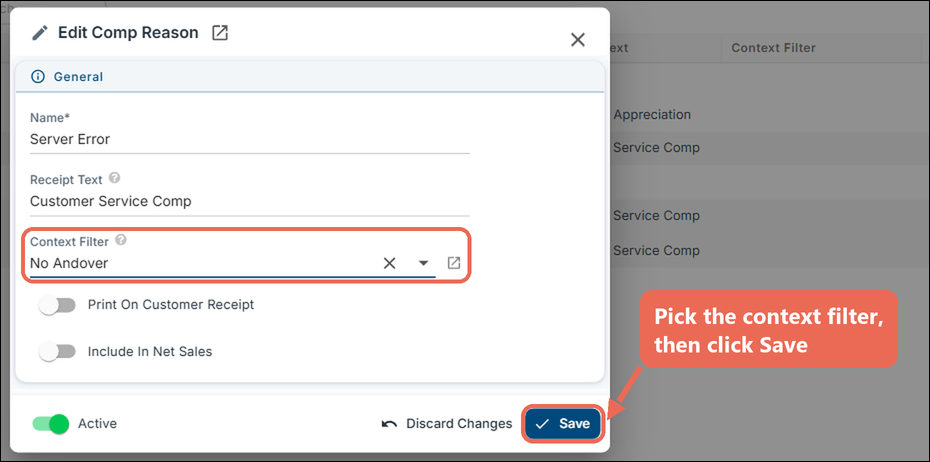
You can use a context filter on:
Items and Modifiers
How
to- Items
Apply(POS them--> toItems, athe item's Details tab): the item only shows on the terminal when the filter is valid
- Item categories (POS --> Items, click the category): the whole category only shows when the filter is valid
- A modifier set on an item (the item's Modifiers tab, When To Prompt): the item only asks for that modifier set when the filter is valid
- Modifier
Set
Sets - (POS --> Modifiers --> Modifier
SetsSets): the field is called Prompted Context Filter - the set is only asked for when the filter is valid - Modifier items in a set (the modifier set's Modifier Items tab): the choice only shows in the set when the filter is valid
- Sizes (POS -->
ClickSettings --> Size Groups): theeditsizepencilisononly offered when themodifierfiltersetisyou'd like to usevalid Use the Prompted Context Filter dropdown to select the Filter you just createdClick Save

Click here to see an example filter be configured so that the alcohol mod set doesn't prompt on a bar device.
Settings
How to apply them to a Comp
- Terminal screens (POS --> Settings -->
Comp/VoidsTerminal Setup): a tab or a button on a terminal screen only shows when the filter is valid - Price Levels (POS -->
ClickSettings --> Price Levels): theeditpricepencillevel only applies when the filter is valid - Comps and Voids (POS --> Settings --> Comps / Voids): the reason can only be picked when the filter is valid
- Discounts (POS --> Settings --> Discounts): the discount can only be used when the filter is valid
- Charges (POS --> Settings --> Charges): a charge or an auto charge only applies when the filter is valid
- Gift card types (POS --> Gift Cards): the gift card type is only available when the filter is valid
- Billboards (POS --> Billboards): the billboard only shows when the filter is valid
- Order Types (POS --> System Setup --> Order Types): the order type is only offered when the filter is valid
- Delivery Zones (POS --> System Setup --> Delivery Zones): the delivery zone only applies when the filter is valid
- Tenders (POS --> System Setup --> Tenders): the payment type is only available when the filter is valid
- Auto Print Rules (POS --> System Setup --> Auto Print Rules): the rule only prints when the filter is valid
- Receipt Setup (POS --> System Setup --> Receipt Setup): a part of the receipt only prints when the filter is valid
- Ticket Routing Rules (POS --> System Setup --> Kitchen Setup --> Ticket Routing Rules): the rule only applies when the filter is valid
- Label Print Rules (POS --> System Setup --> Kitchen Setup --> Label Print Rules): the rule only prints labels when the filter is valid
Use the Prompted Context Filter dropdown to select the Filter you just createdClick Update
Gift Cards and Billboards
System Setup
How to see where a context filter is used
Open the context filter and click the Usage tab. It lists everything that uses this filter - items, modifier sets, comps, terminal screen tabs and more. Click a name to open it.
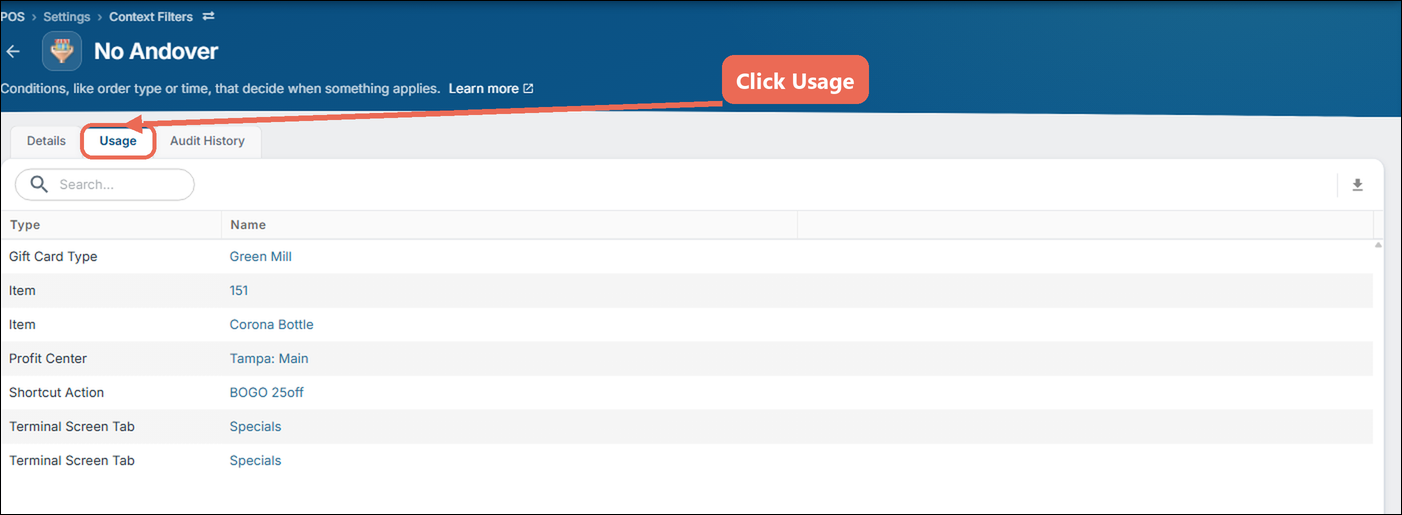
Note: A context filter that is still in use can't be deleted. Take it off everything on the CompUsage you'dtab like to edit
