How to create a pay-out/pay-in button
This document will detailwalk howyou through setting up the Pay-Out and Pay-In buttons. A pay-out is cash taken out of the drawer to makepay for something, such as a payoutdelivery or a run to the store. A pay-in is cash put into the drawer. Each button uses an item in Backoffice with the Item Type "Payout".
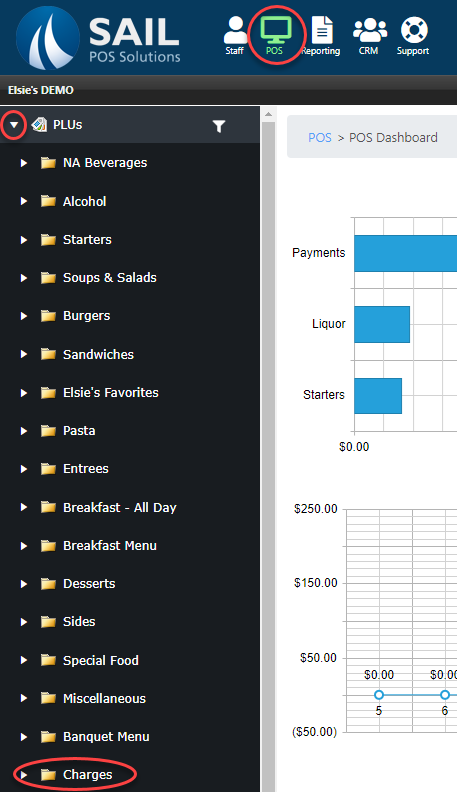
Note: Your Backoffice may already have a Pay-Out item (look in the Charges category). If it does, check that it is set up as shown below.
Create a reporting group for pay-outs
-
YouOpenwillBackoffice.need -
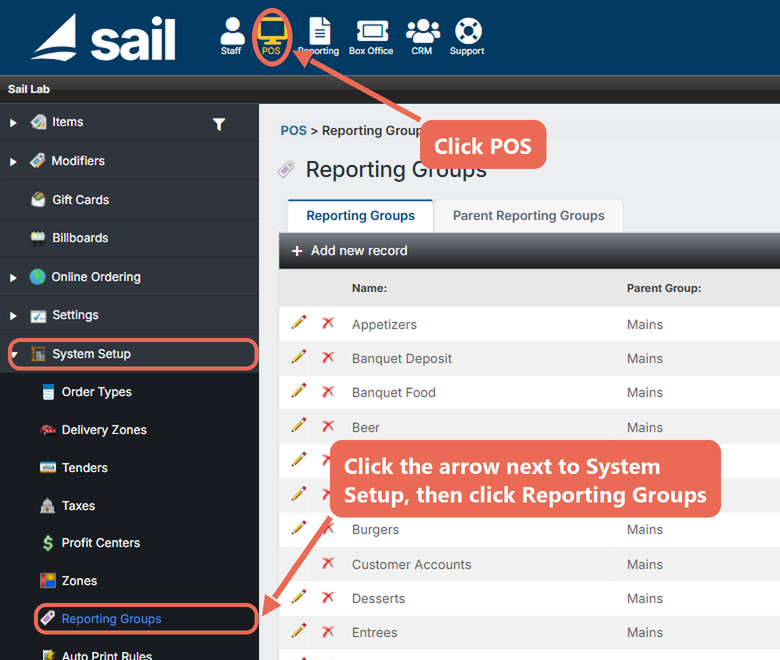
Click POS at the top of the page. Then click the arrow next to
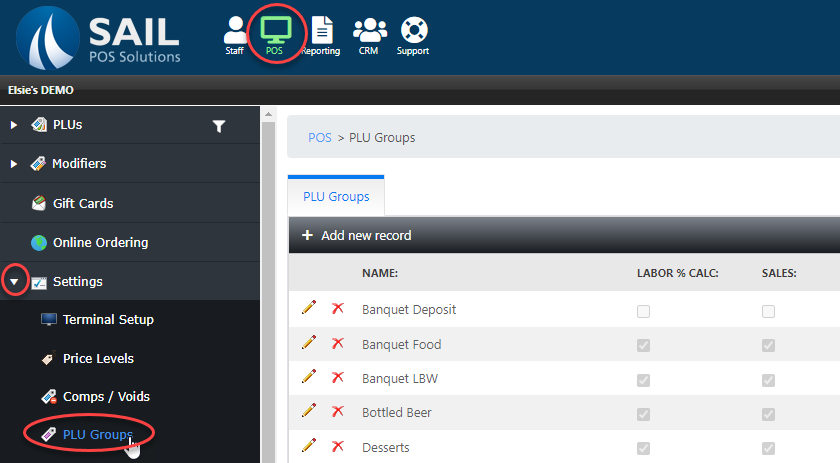
makeSystemaSetupnew PLU but first you will need to make a new PLU group to add to it. Navigate toin thePLU Groups section under settingsmenu on thePOSleftTab.and click Reporting Groups.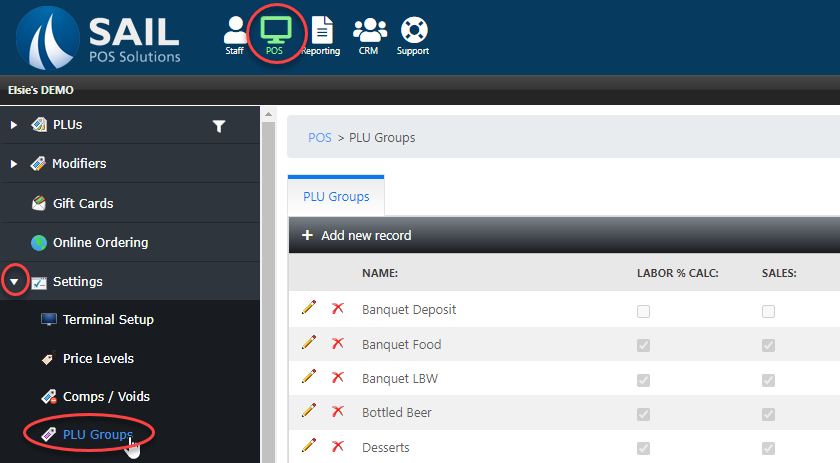
-
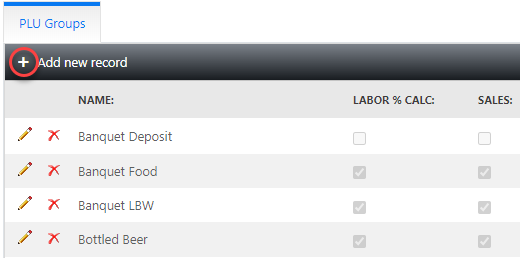
SelectClicktheAddplusnewsign in the upper left corner of the screenrecord to create a new group.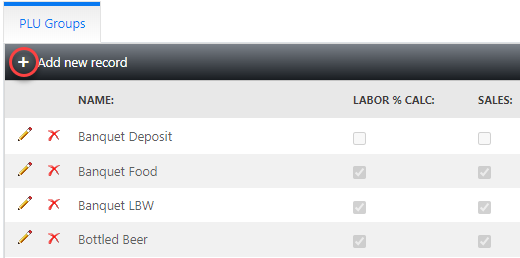
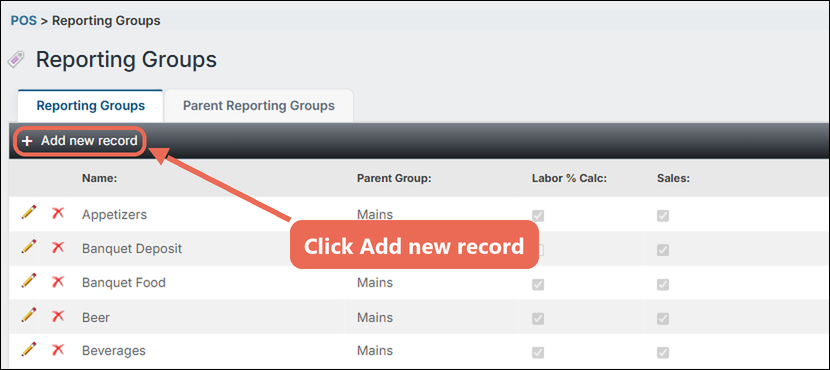
Name the new group Payouts and save.Do not select the boxes for include in labor percentage or sales.
Navigate to the POS section and find the folder that would make the most sense to contain a payout button.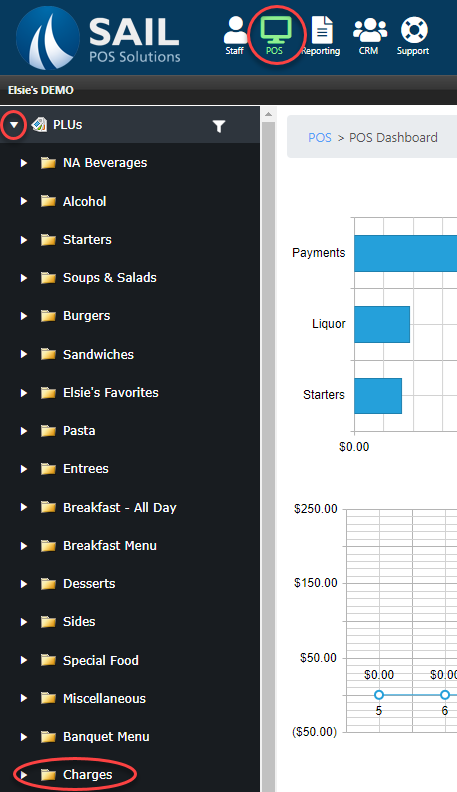
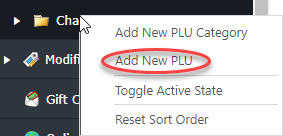
Right click on the folder. Then select “Add New PLU.”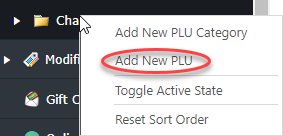
A new PLU will open.
-
Fill in the
PLUnewnamegroup,section.thenForclickpayoutsInsert.we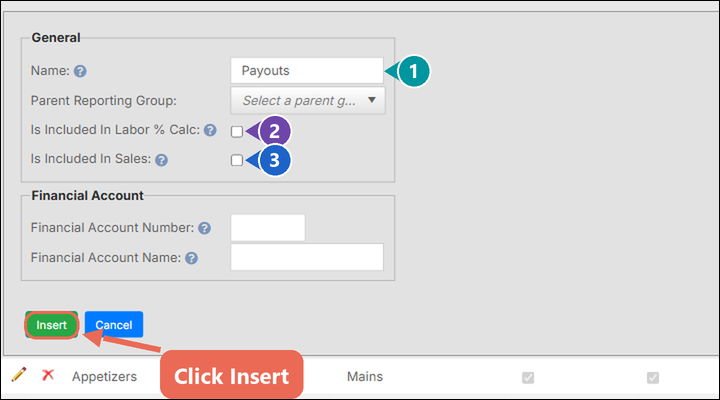
will-
MiscName
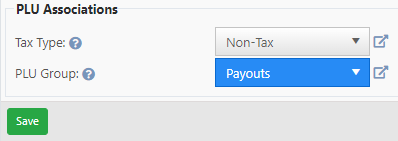
-theDollarnewsigngroup Payouts. -
Do not check "Is Included In Labor % Calc".
-
Do not check "Is Included In Sales", so pay-outs and pay-ins are not counted as sales.
use -


Create the Pay-Out item
-
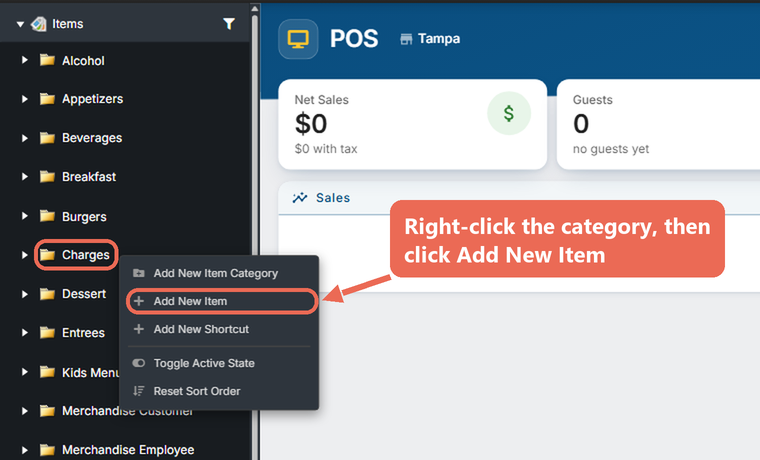
Click the arrow next to Items in the menu on the left. Right-click the category you want the item in (Charges is a good place for
the iconit) andpayoutselectforAddtheNewname.Item.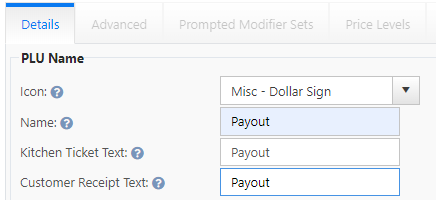
-
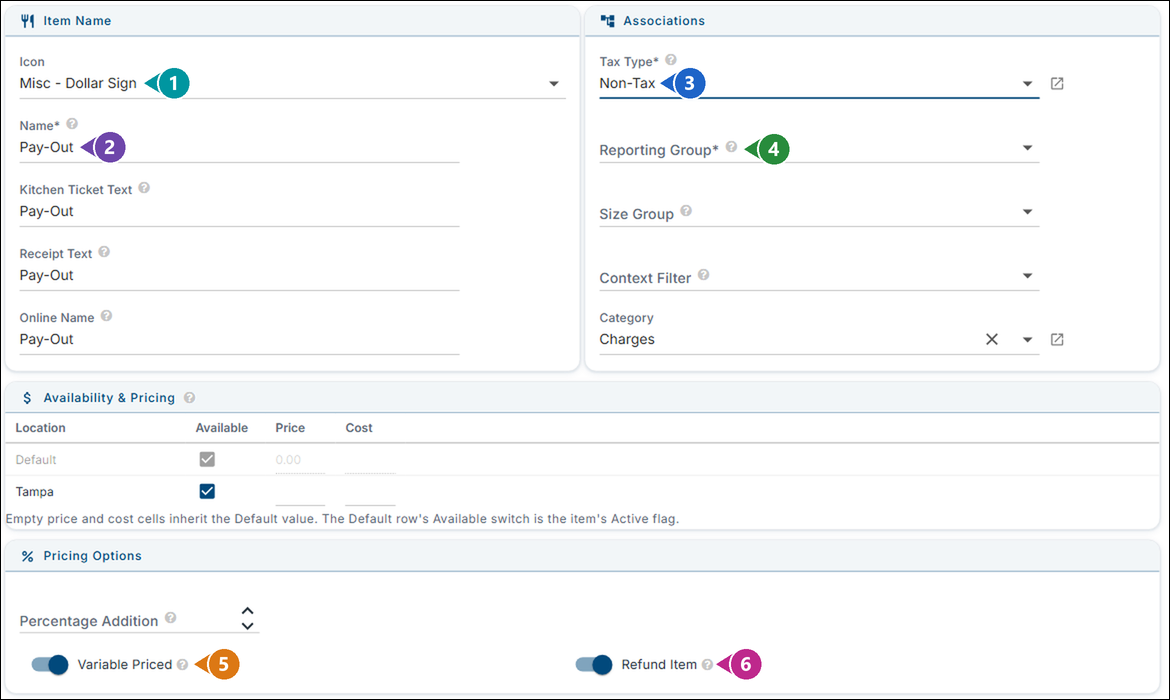
Fill
outin thePricing/AvailabilityGeneralsection.tab.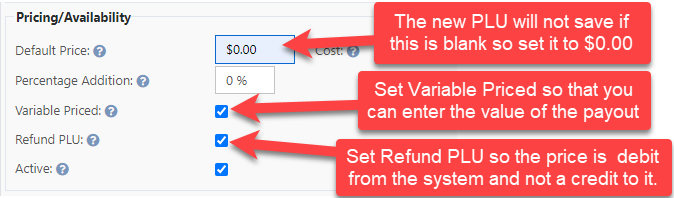
-
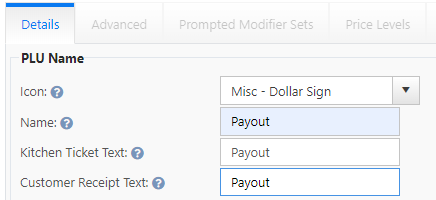
Icon: Misc - Dollar Sign.
-
SetName:thePay-Out.taxThetypeKitchentoTicketnonText,taxReceipt Text andPLUOnlinegroupNametofillPayoutsinthenbysave.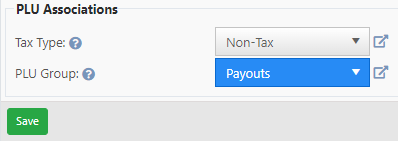
-
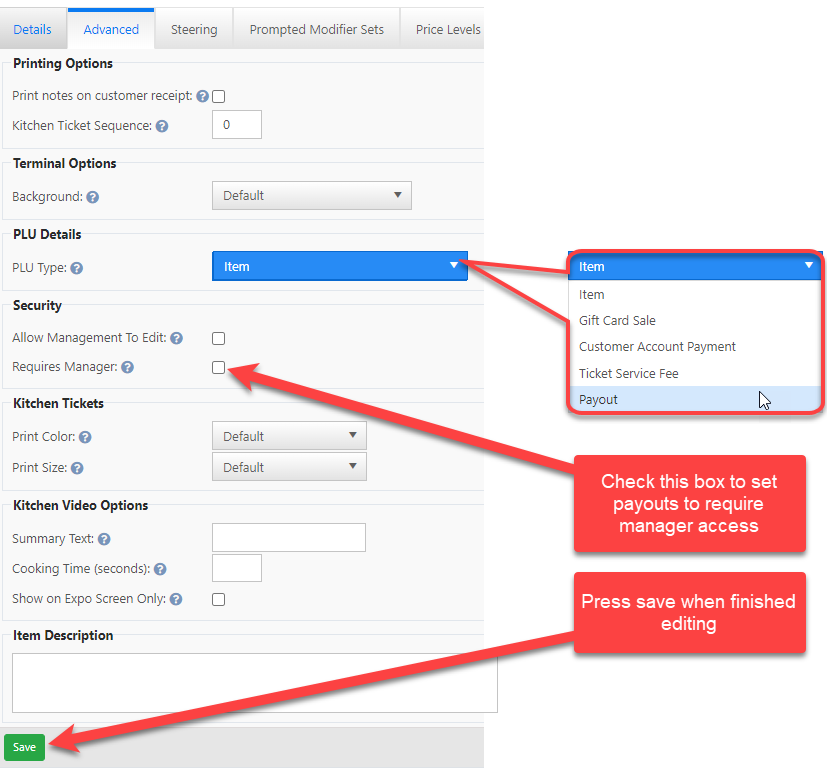
NextTaxgoType:to the advanced tab and set the PLU Type to payments.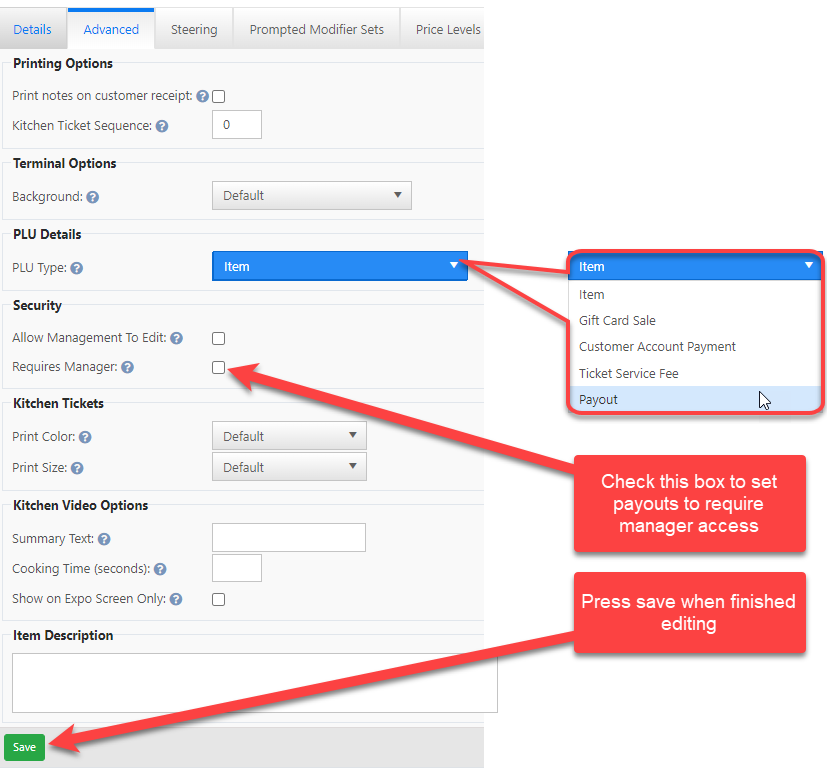
Requires Manager Checkbox is OPTIONAL depending on your needs
If you would like payout details to show on a report next you will want to navigate to the reports screen.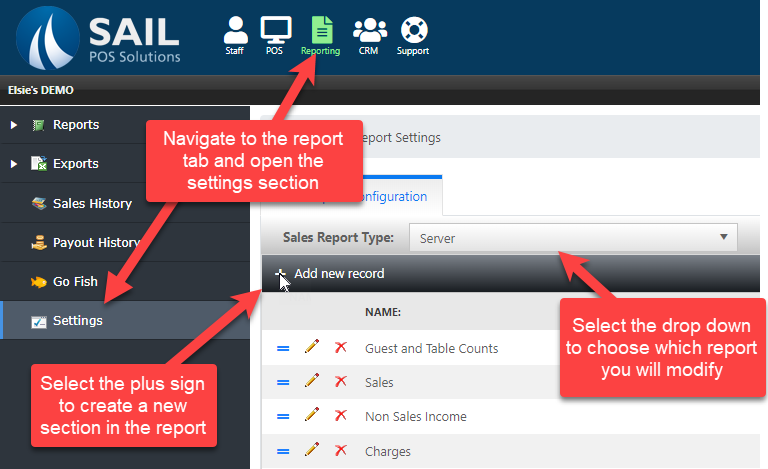
-
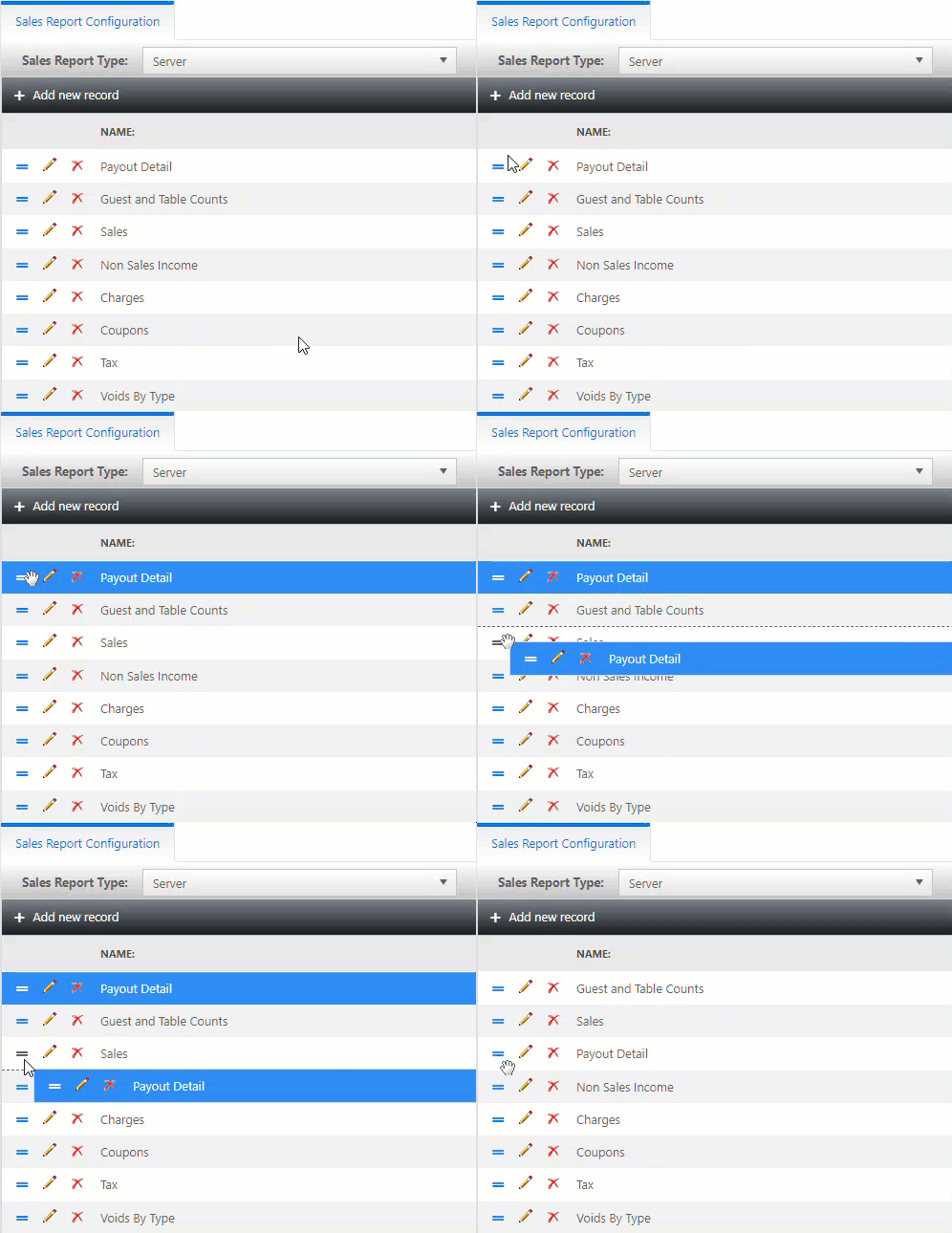
WeReportingareGroup:adding the Payout Detail section to the server report. Click insert to add it to the Report.Payouts. -
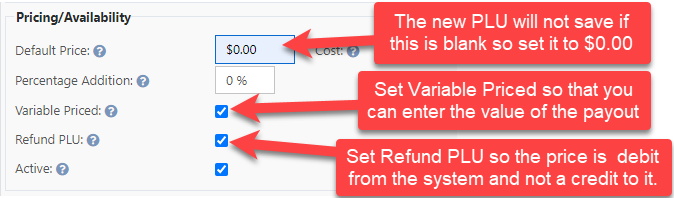
ITurnrecommendonaddingVariableitPriced,toso the“Daily”terminalreportasksasforwellthe amount each time. -
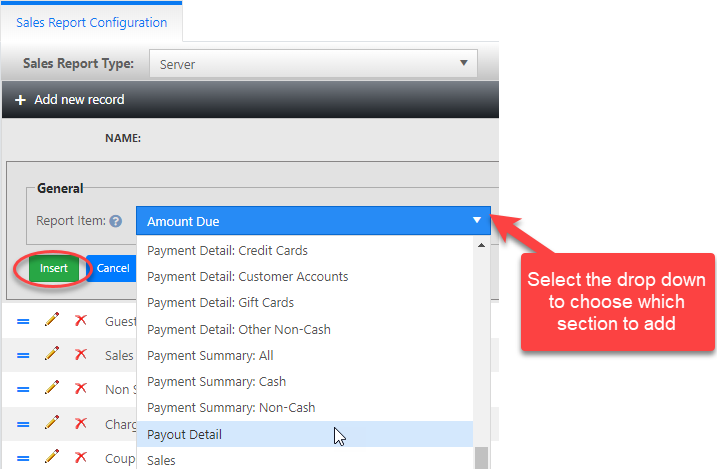
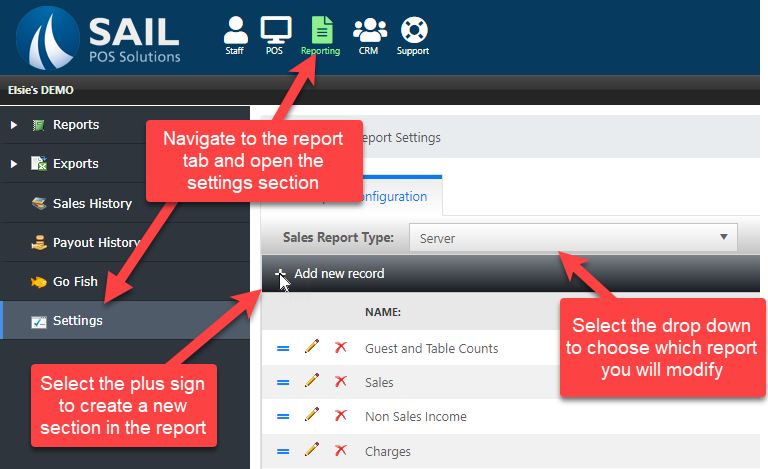

SelectClick Terminal & Behavior and set the hamburgerItem iconType to drag the new section to where you want it in the report.Payout.

TheClick buttonSave will be added toat the systembottom in the section that matches the folder you selected to place it in.right.
First you will put in the dollar amount of the payoutThen you will type in the reason for the payout. This can be an item, or a store, or vendor.When you pay it out (fast cash it) a receipt will print for it to be placed in the till for record keeping.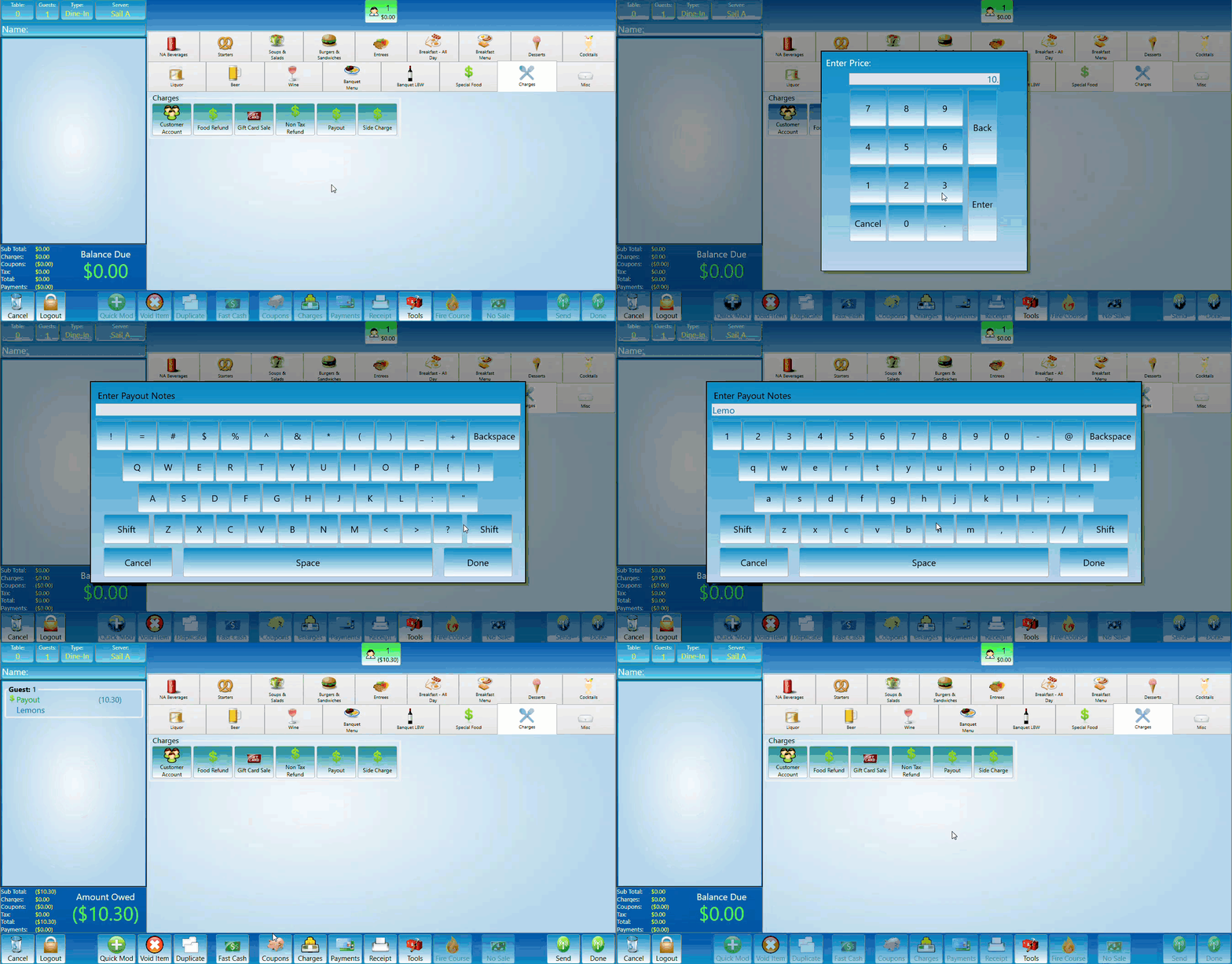
Create the Pay-In item
-
9.Right-click the same category and select Add New Item again. -
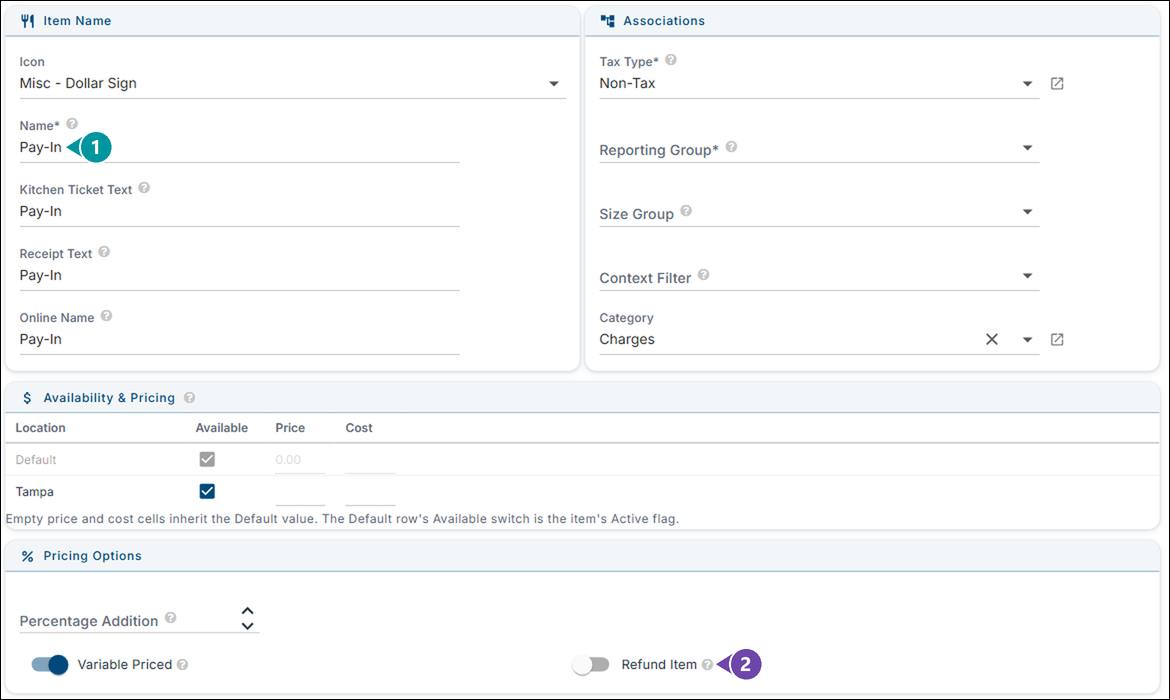
Fill in the General tab the same way as the Pay-Out item, with two differences.
-
Name: Pay-In.
-
Leave Refund Item off. This is what
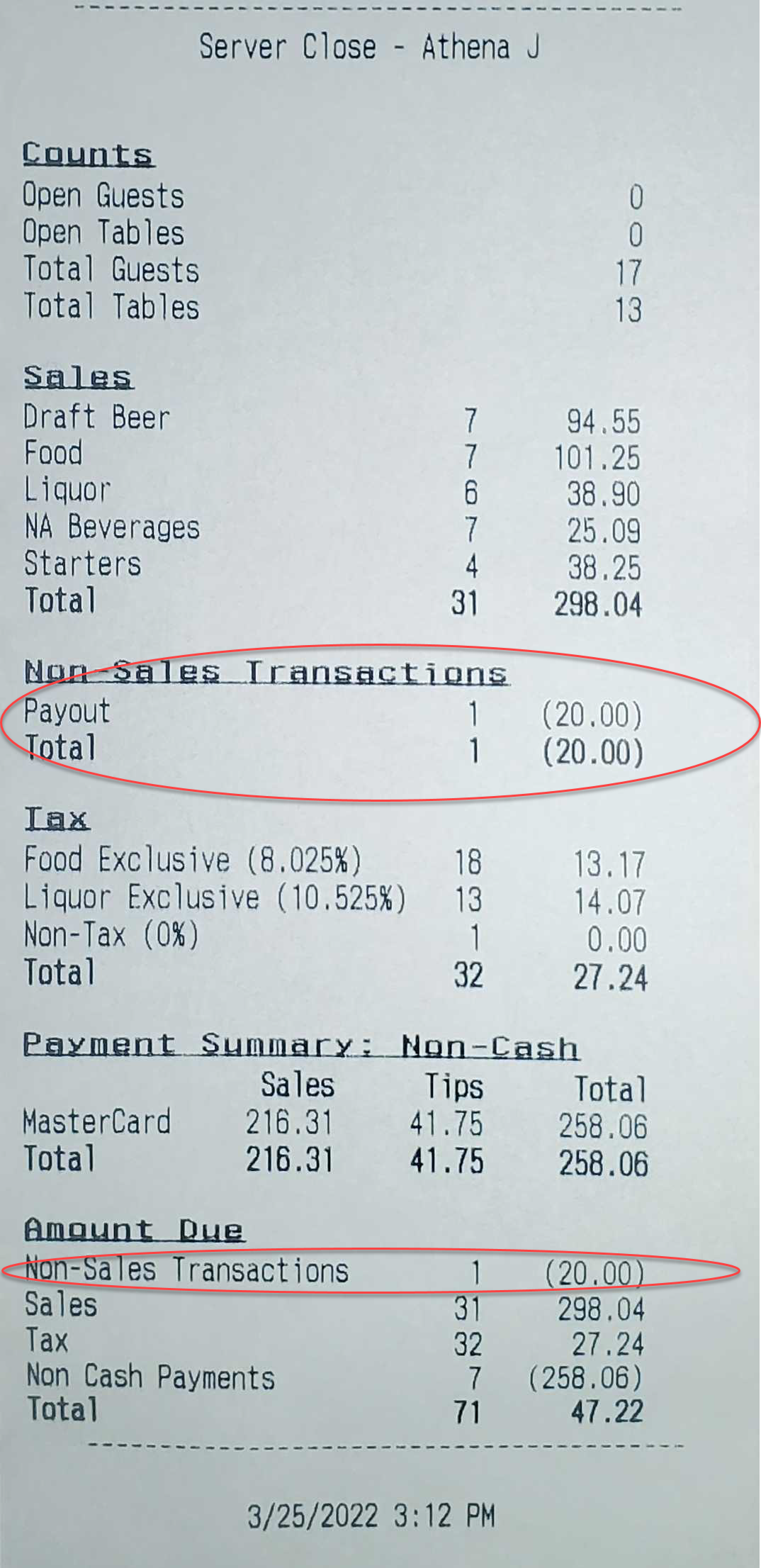
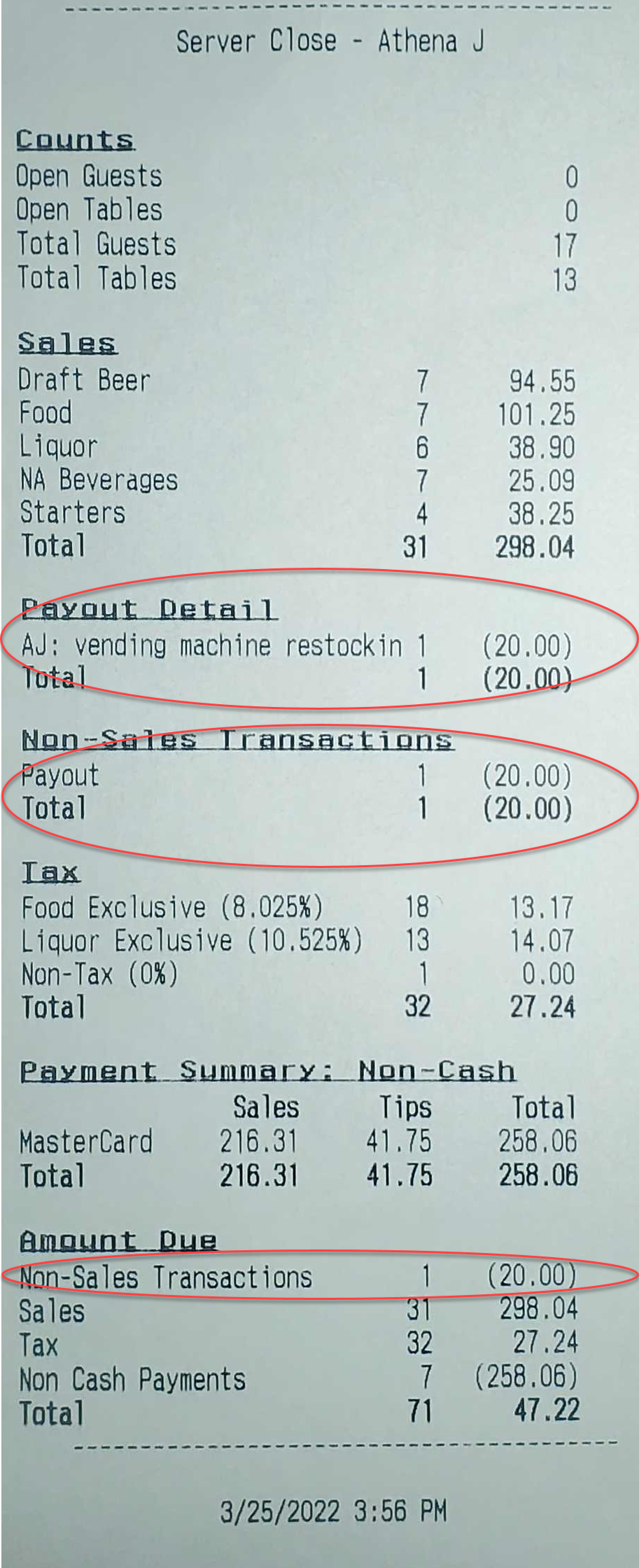
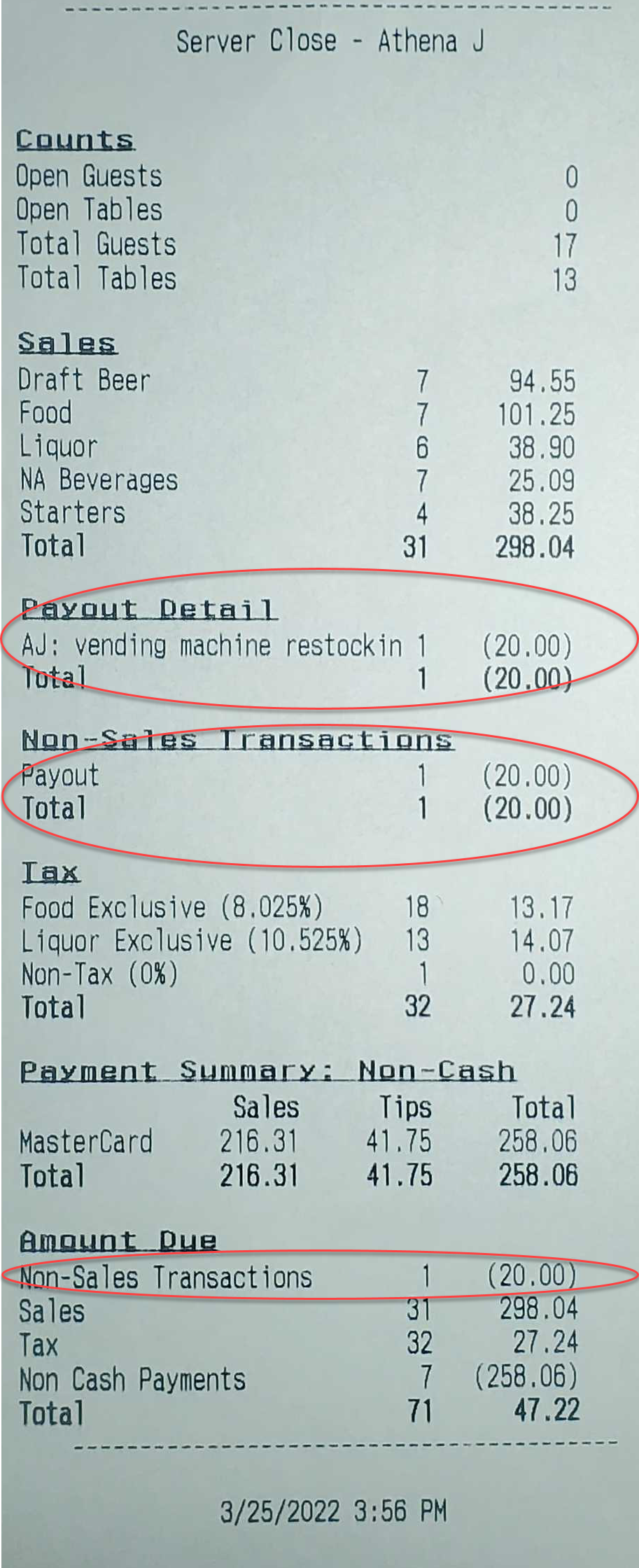
amakesPayoutthewill look like onitem aserver close report.This is without the details section This is with the details section added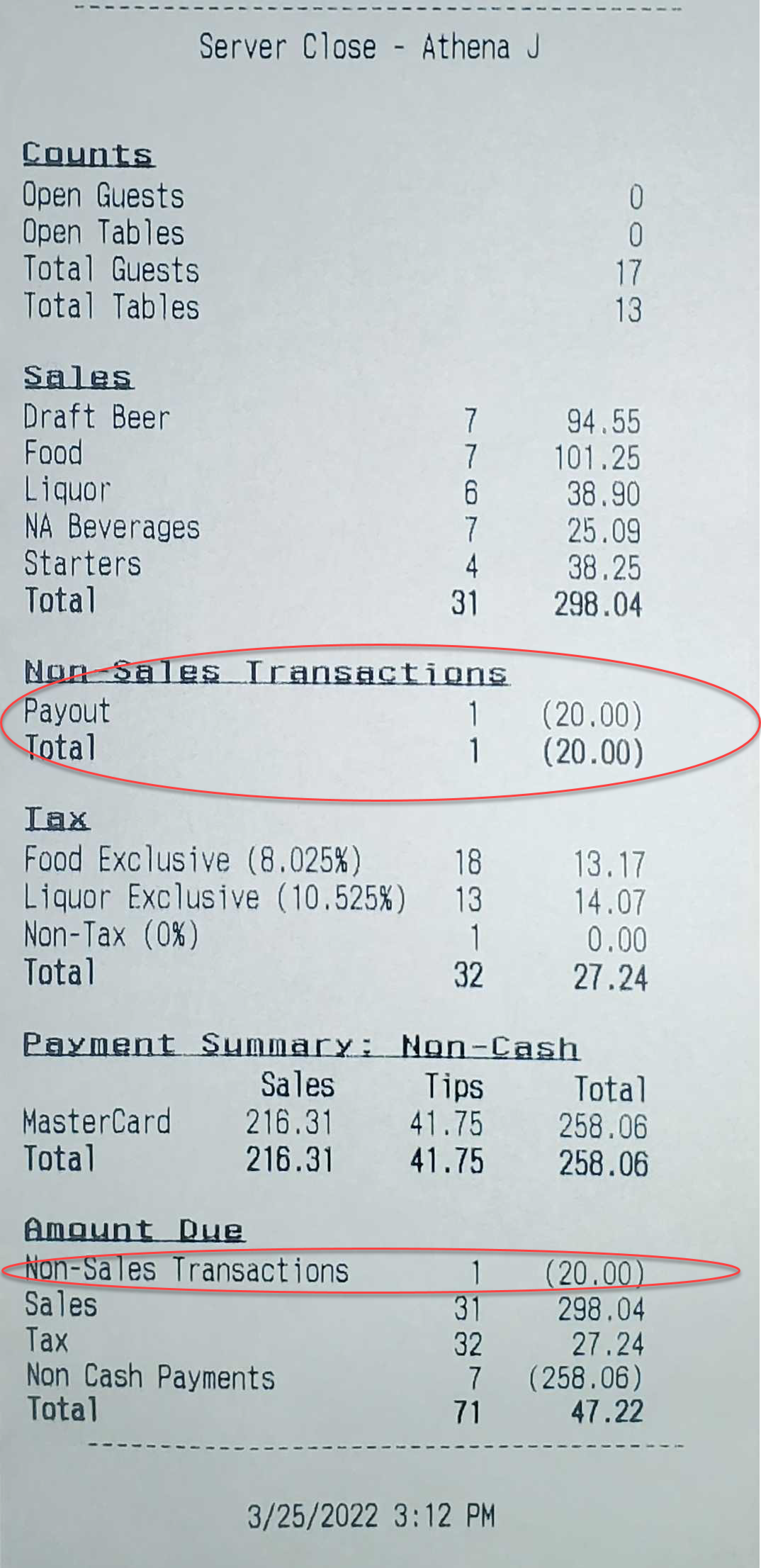
-
Click Terminal & Behavior and set the Item Type to Payout (pay-ins use the Payout type too). Then click Save.role has these tasks see the Pay-Out and Pay-In buttons on the terminal. Go to Staff --> Job Roles and open the job role. Under Tasks, open POS --> Front of House --> Functions --> Cash Tools, check Process Pay-Out and Process Pay-In, and click Save.jobwhoseemployeesChoose
whobuttonscantheuse
Only
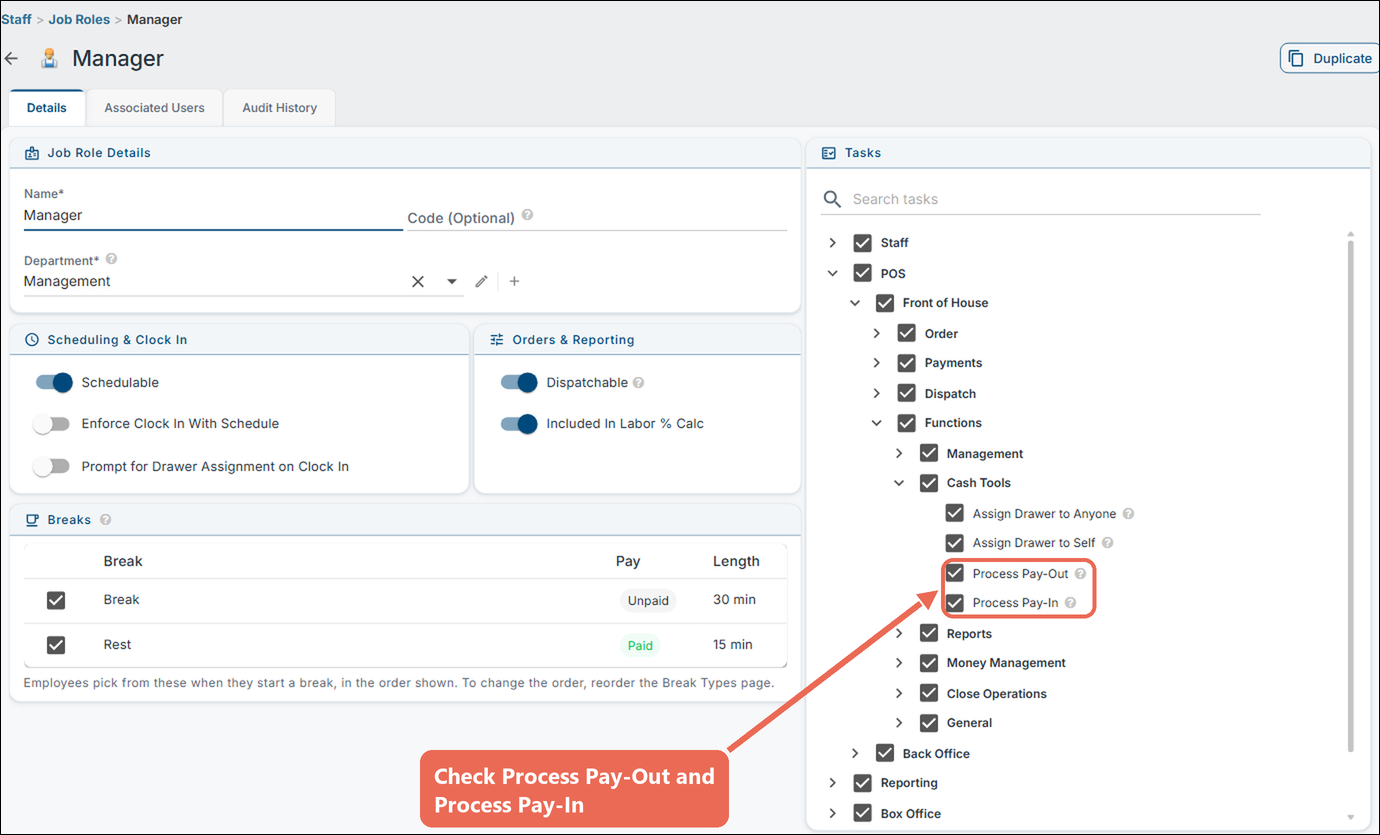
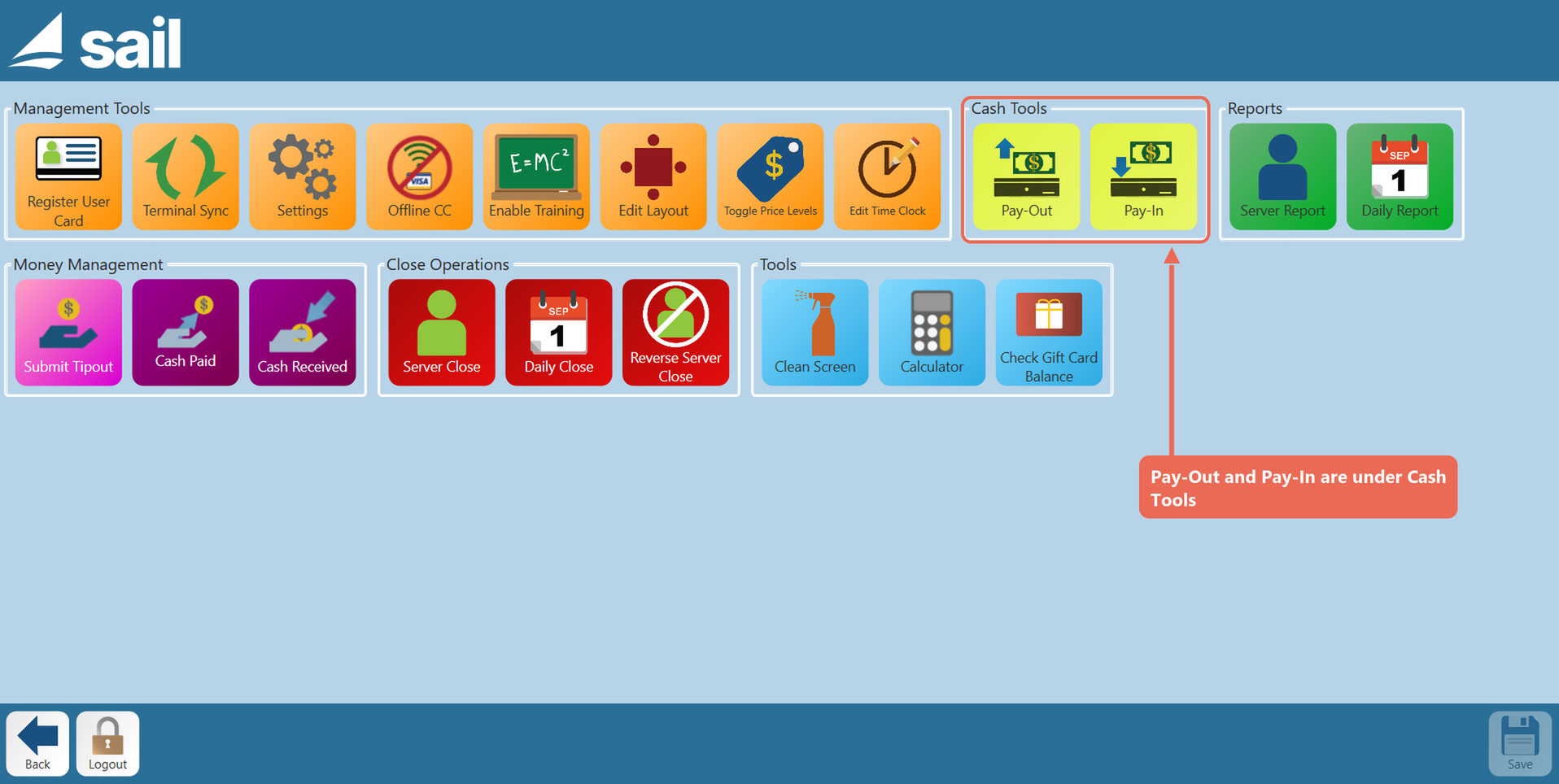
Where the buttons are on the terminal
The Pay-Out and Pay-In buttons are on the Functions screen, under Cash Tools.
Pro tip: You can make more than one pay-out item, for example one for vendors and one for supplies. When there is more than one, the terminal asks which one to use.
-