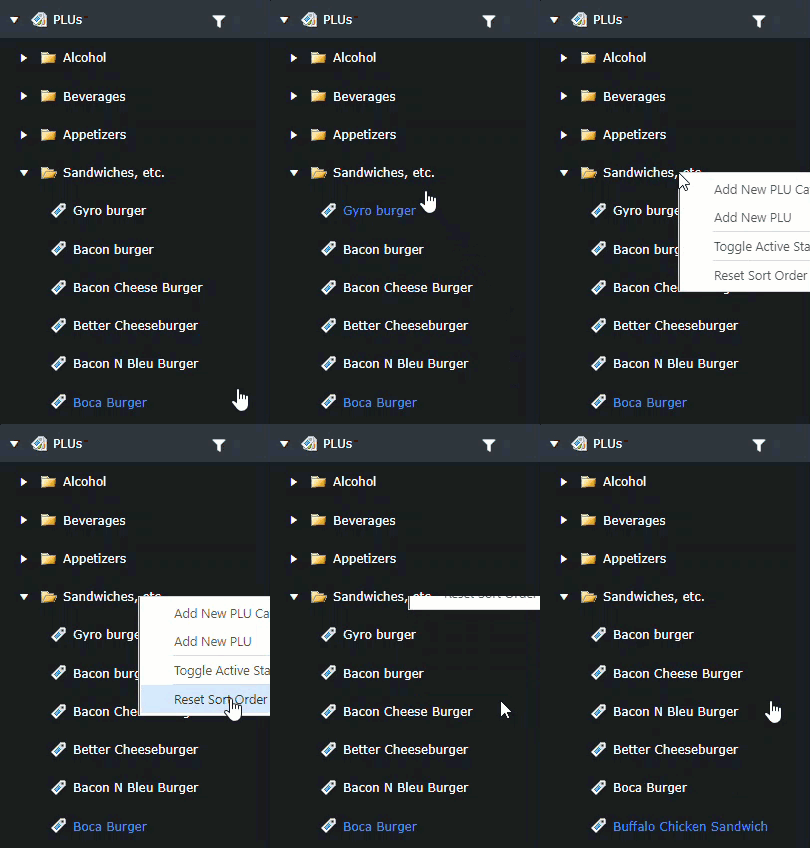
How to rearrange PLUs within a category
This will show you how to rearrange PLUsitems within a category which will change the order they appear in on the terminal and device screens.
-
Open
back office.Backoffice. -
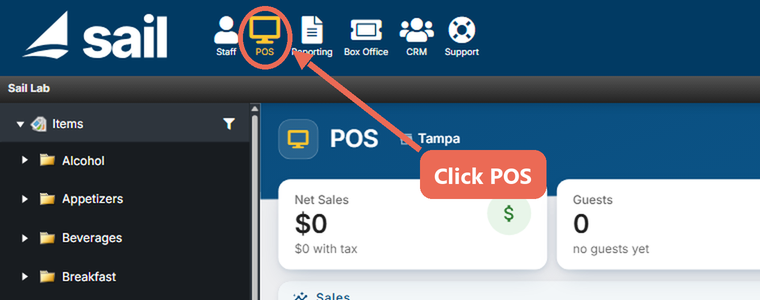
SelectClick POSfrom the tabsat the top of the page.
-
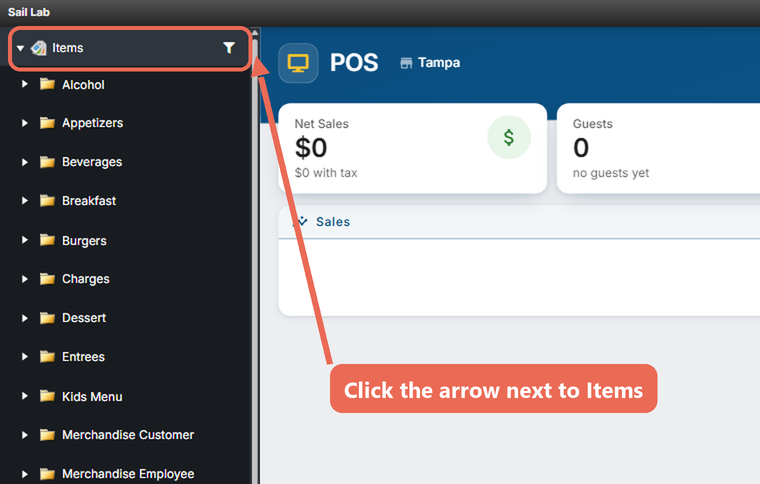
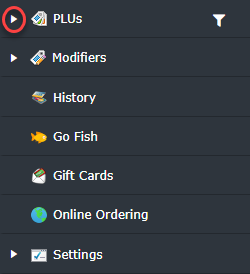
OpenClick thePLUarrowlist.next to Items in the menu on the left to open the list of categories.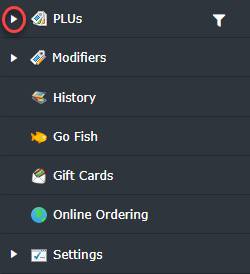
-
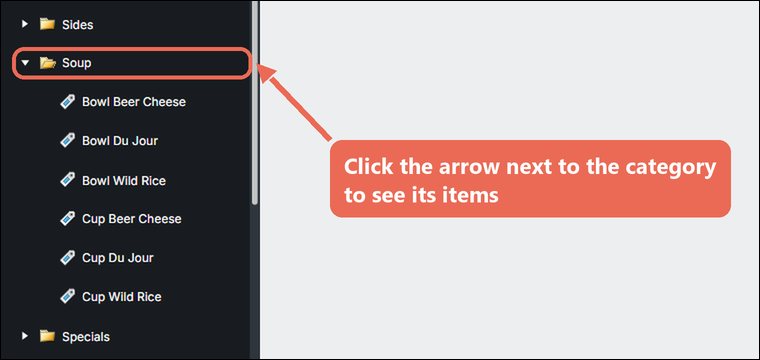
OpenClick the arrow next to the category you wish toedit.edit to see its items.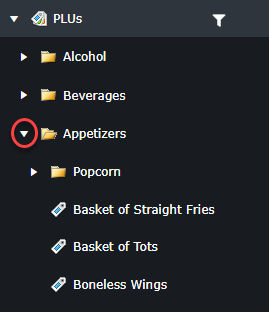
-
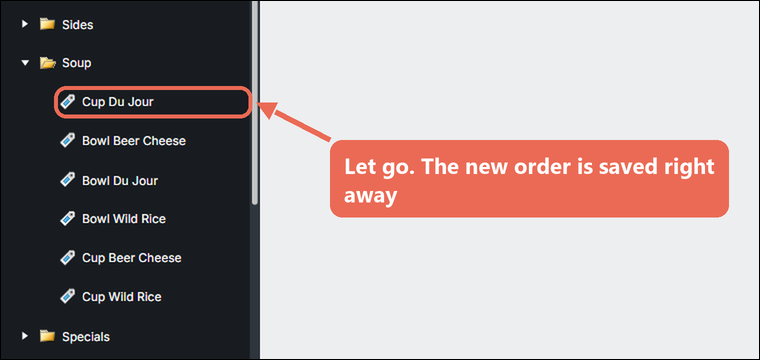
Click and drag the
PLUitem to the desired position in the sort order. A blue line shows where it will go.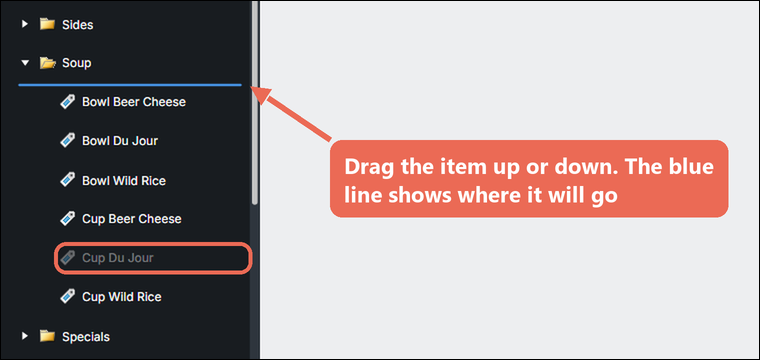
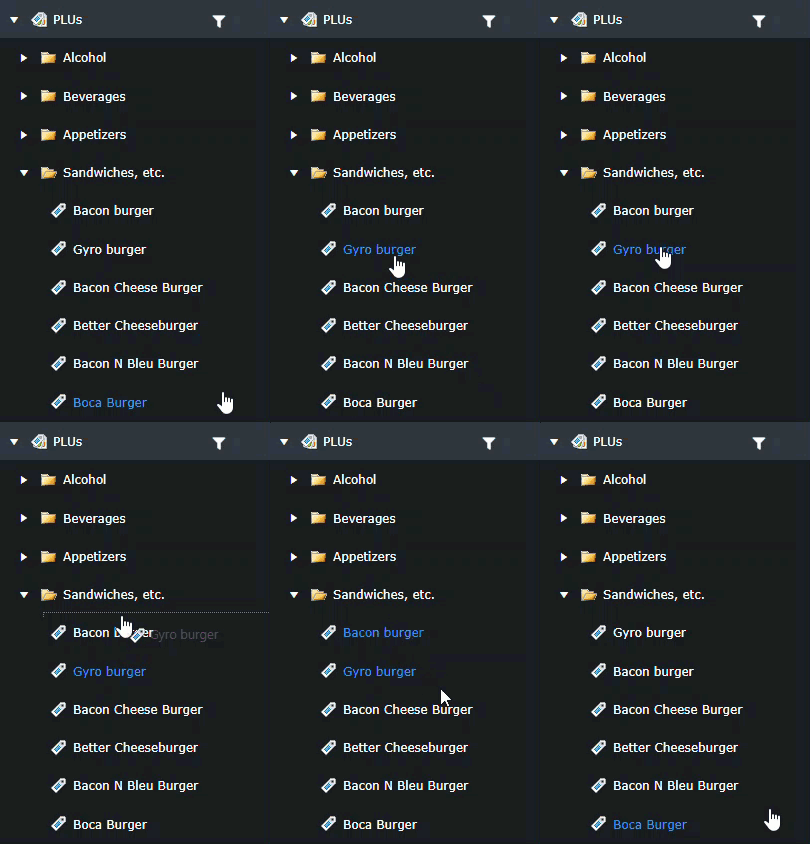


Note: Drop the item between two items. Dropping it on a category folder moves the item into that category.
Note: If an item won't move, click the filter icon next to Items and make sure Search is empty and Management Items Only is not checked. With Online Items Only checked, the order you set is for Online Ordering only.
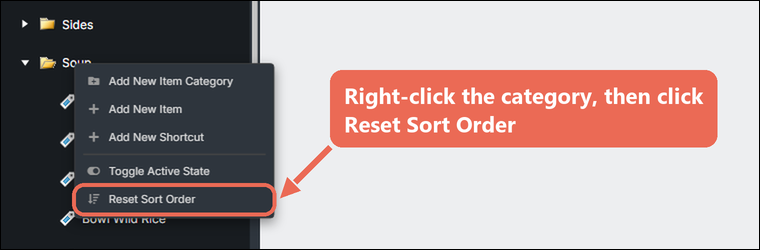
If you would like to have the entire category in alphabetical order.
Leftright-clickonthe category folder and selectrefreshResetsortSortorder.Order.