
How to set up auto clock out
This document will detail how to set up the Auto clock out feature.
Auto Clock out by time
-
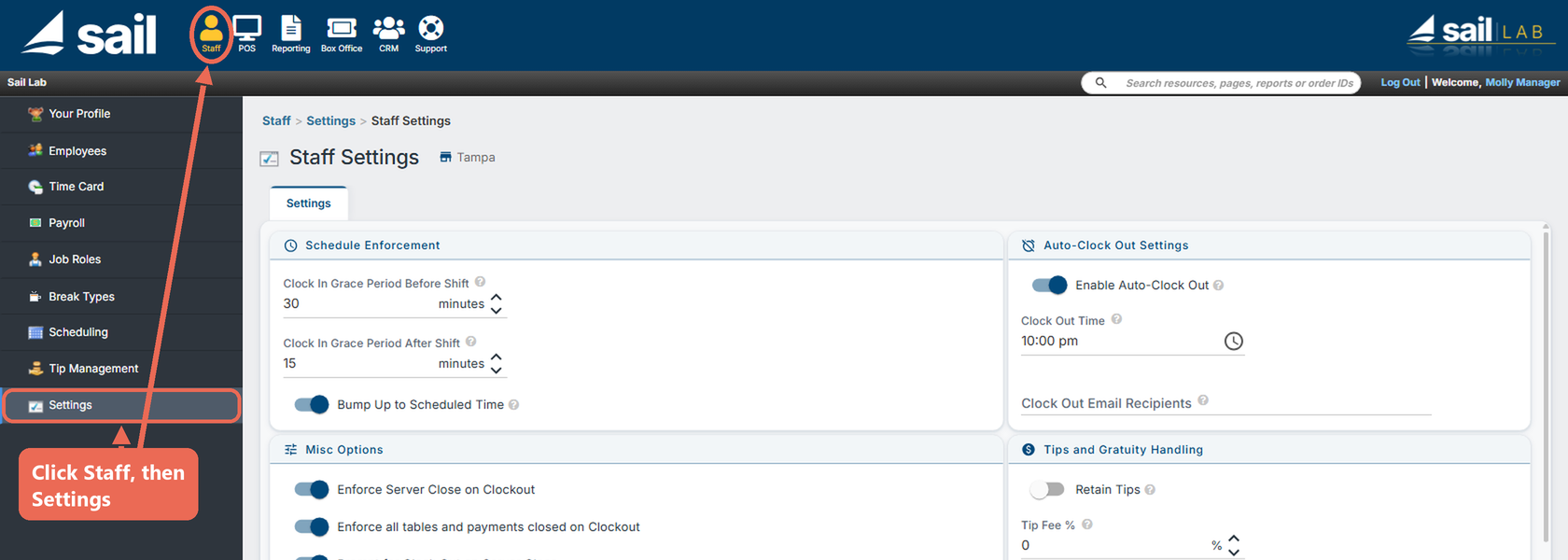
First navigate to Backoffice --> Staff --> Settings: click Staff at the
staff tabtop, thentoSettingssettings.in the menu on the left. This opens Staff Settings.
 you
Note:
TheseIfsettingslocation.areonefor -
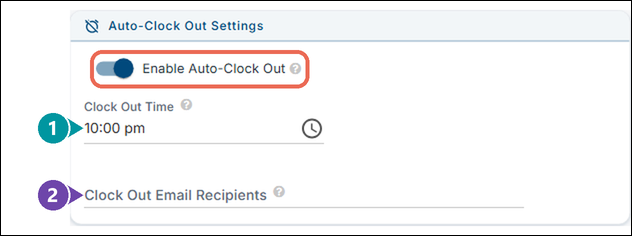
OnceTurn on the EnableAutoAuto-ClockclockOutoutswitchcheckboxinhasthebeenAuto-ClockmoreOut Settings box. More options will open up.
-
every employee who is still clocked in is clocked out automatically.
Set
thetime,ClockthisOutatTime:If there are staff members who are auto clocked out, an asterisk * will appear on the payroll report next totheir clock out time.
-
Also, an email can be sent to the recipients specified to indicate which employees were auto clocked out. You may add more than one email recipient by separating emails with ; symbols.
-


Auto Clock Out when the daily close happens
-
NavigateClicktoSavethe POS tab in back office, then to the “Closing” sectionunder settings. Select the “Auto clock out staff on daily close” feature. This will clock anyone that has not clocked out on their own when the daily close happens.Please keep in mind if the daily close happensSettings at theendbottom right of thenightpage.whileItstaffturnsisbluestillonceworking,you'veitchangedwill clock them out as soon as the close happens.something.


If you are using the Auto Close feature, the auto clock out will happen at the time you set for the close to happen. For more information on setting up an auto daily close see How to set up Auto Close.