
Employee Breaks
Employees can now clock out for a break and back in, right from the time clock — no more approximating break time after the fact.
Before You Start
Setting up Break Types requires the Manage Break Types job role permission. By default, this is granted to the Owner and Manager roles. If a job role doesn't have this permission, that role won't be able to configure break settings in Backoffice.
Set up your break types — including which job roles they apply to — before anyone tries to use them on the terminal. An employee can't take a break that hasn't been assigned to their role yet.
Setting Up Break Types
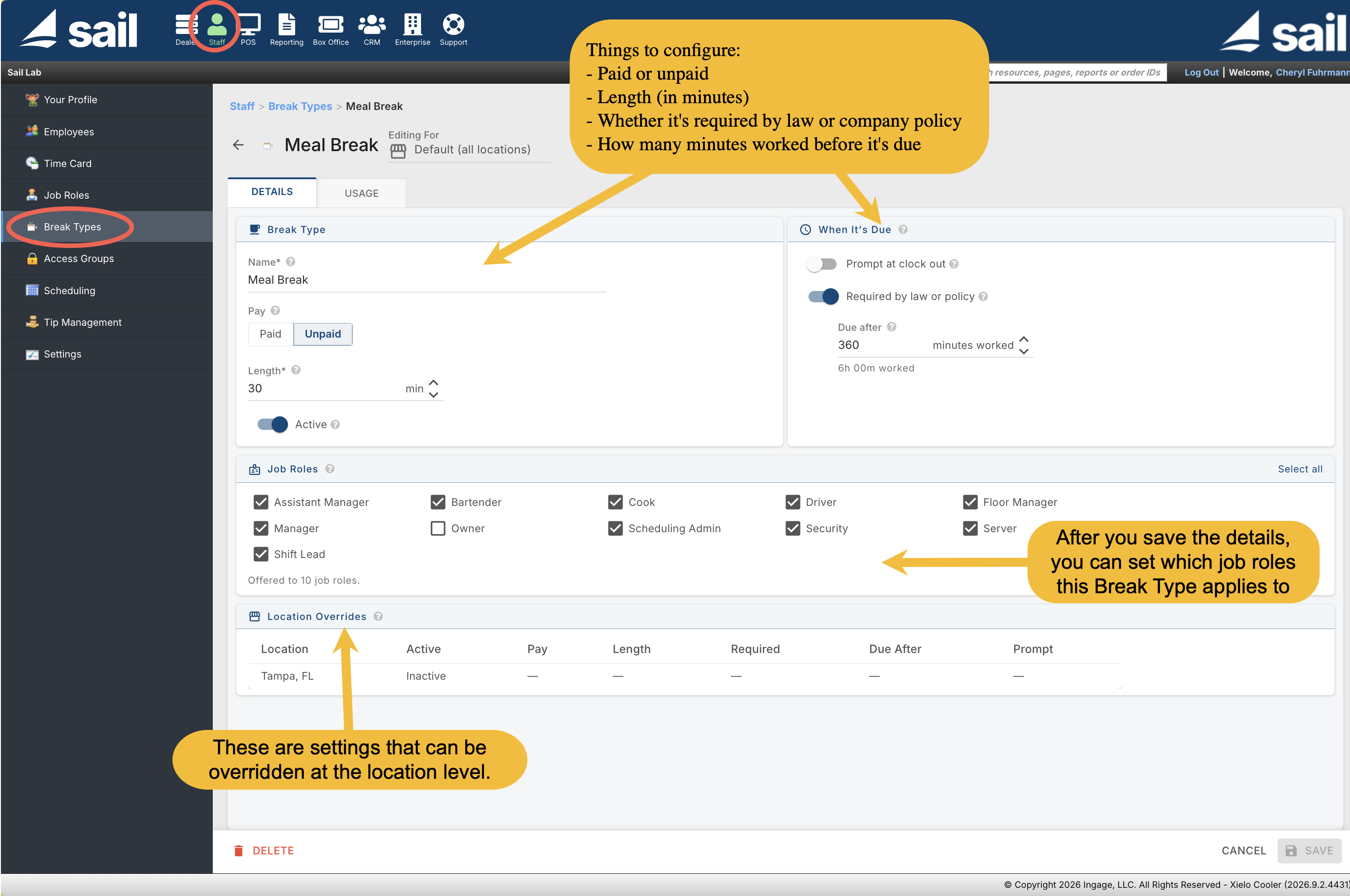
Go to Staff → Break Types in Backoffice and set up a named break for each type your policy calls for (Rest, Meal, Smoke Break, or whatever fits). For each break type, configure:
- Name - This will show up in reporting
- Paid or unpaid — paid breaks don't change the hours reported on payroll, since the employee is being paid for that time anyway. Unpaid breaks are subtracted from total hours worked, giving you a net number so employees are paid for the time they actually worked.
- Length of the break (in minutes)
- Prompt at clock out — asks the employee at clock-out whether they took this break, if they didn't. This fires every time, regardless of the "minutes worked before it's due" setting below.
- Required — whether this break is required by law or company policy.
- Minutes worked before it's due — works together with Required. This sets how many hours an employee needs to work before the required break applies. For example, if a required break is due after 6 hours worked, an employee who only works 4 or 5 hours won't be prompted about it at clock-out. But if they work more than 6 hours and didn't take the break, they'll be asked at clock-out whether they took it.
- Job roles this break applies to — this is where you assign the break to the roles that should have it.
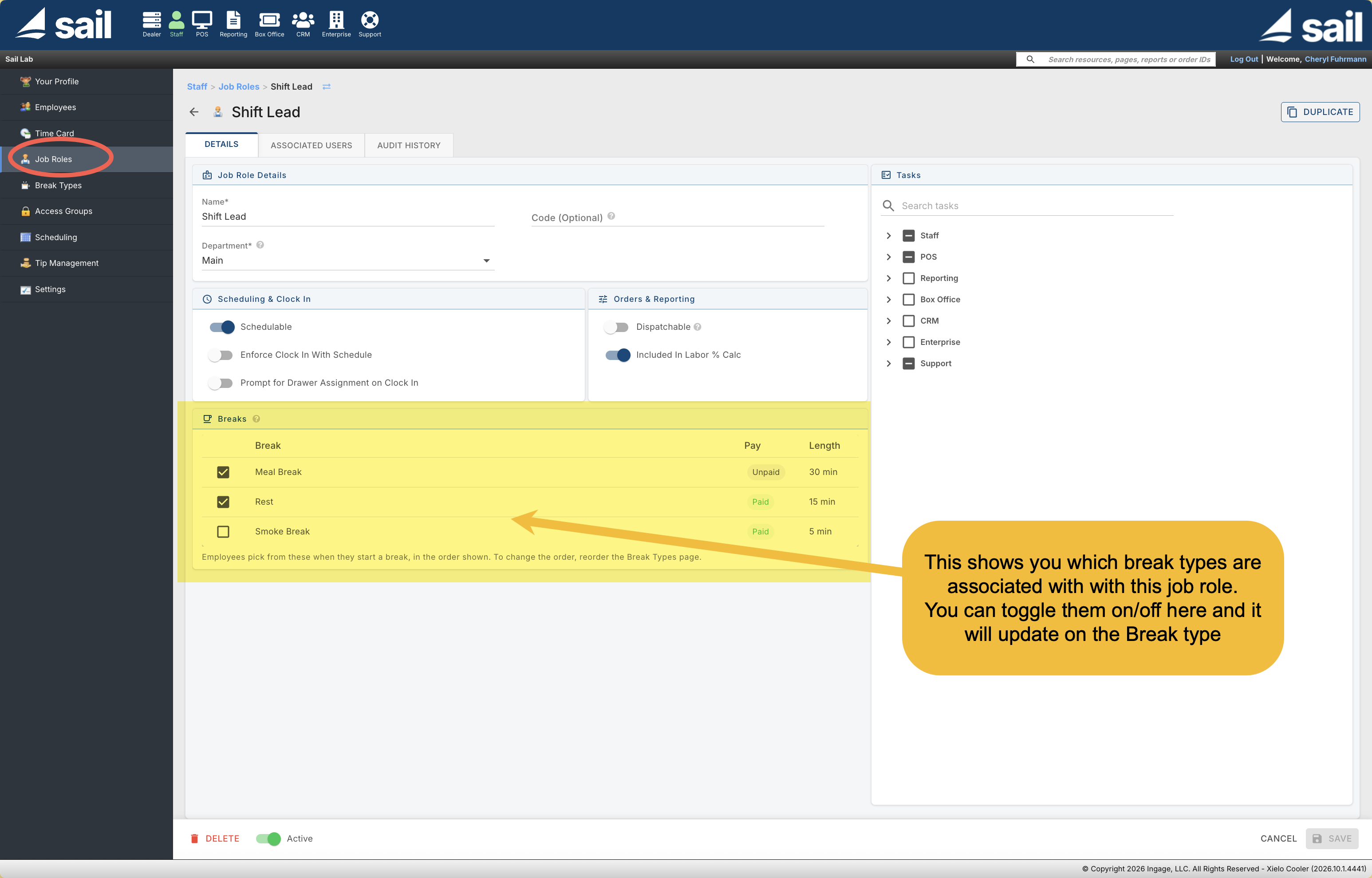
Job Role: Under Staff → Job Roles → Break, Each job role's page lists every break type the company has set up, with its pay and length shown. Toggling a break on or off for that role also updates the Break Types page — it's the same setting, changeable from either place.
How Employees Take a Break
1. Starting a break
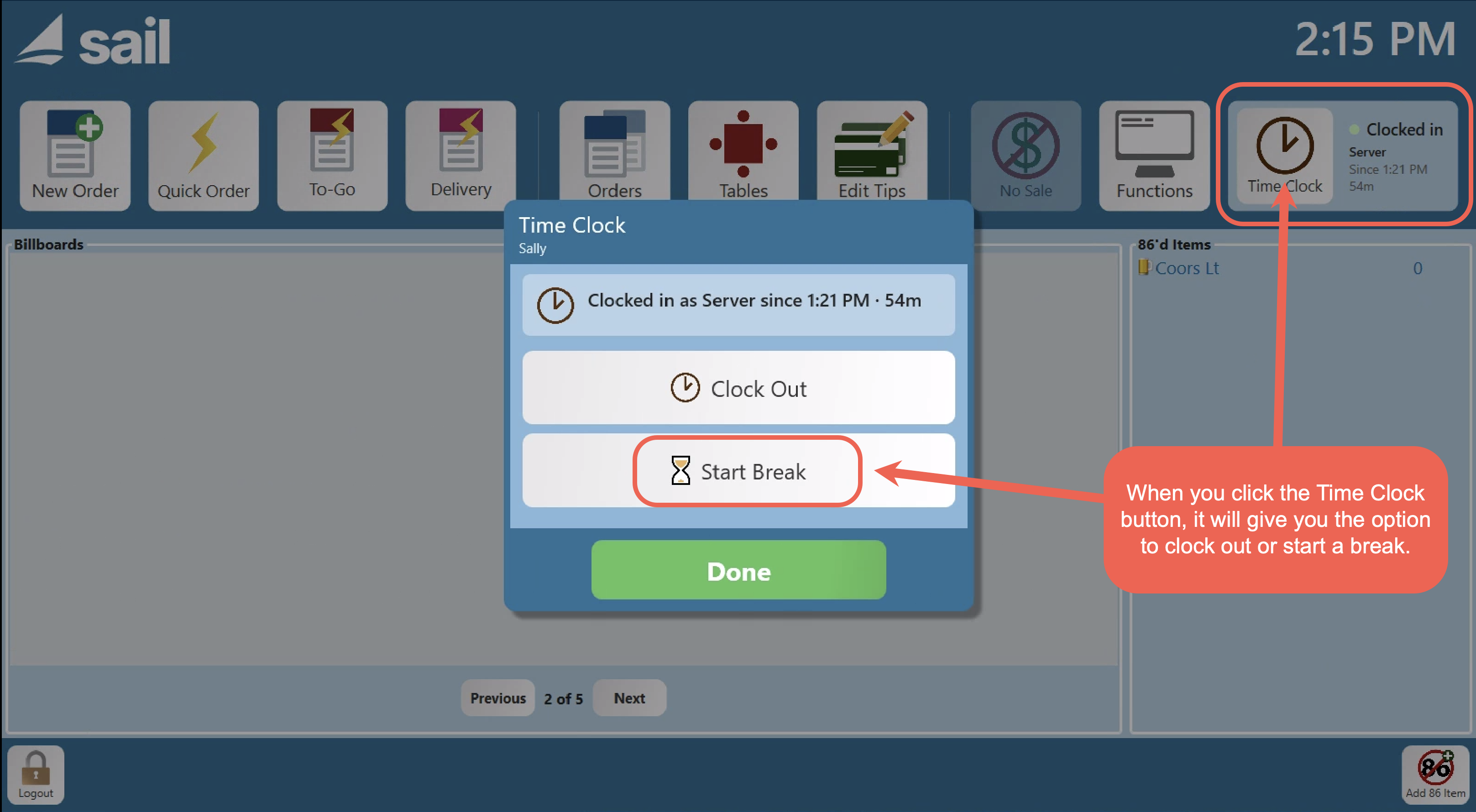
From the Launcher, an employee taps the Time Clock button and chooses Start Break.
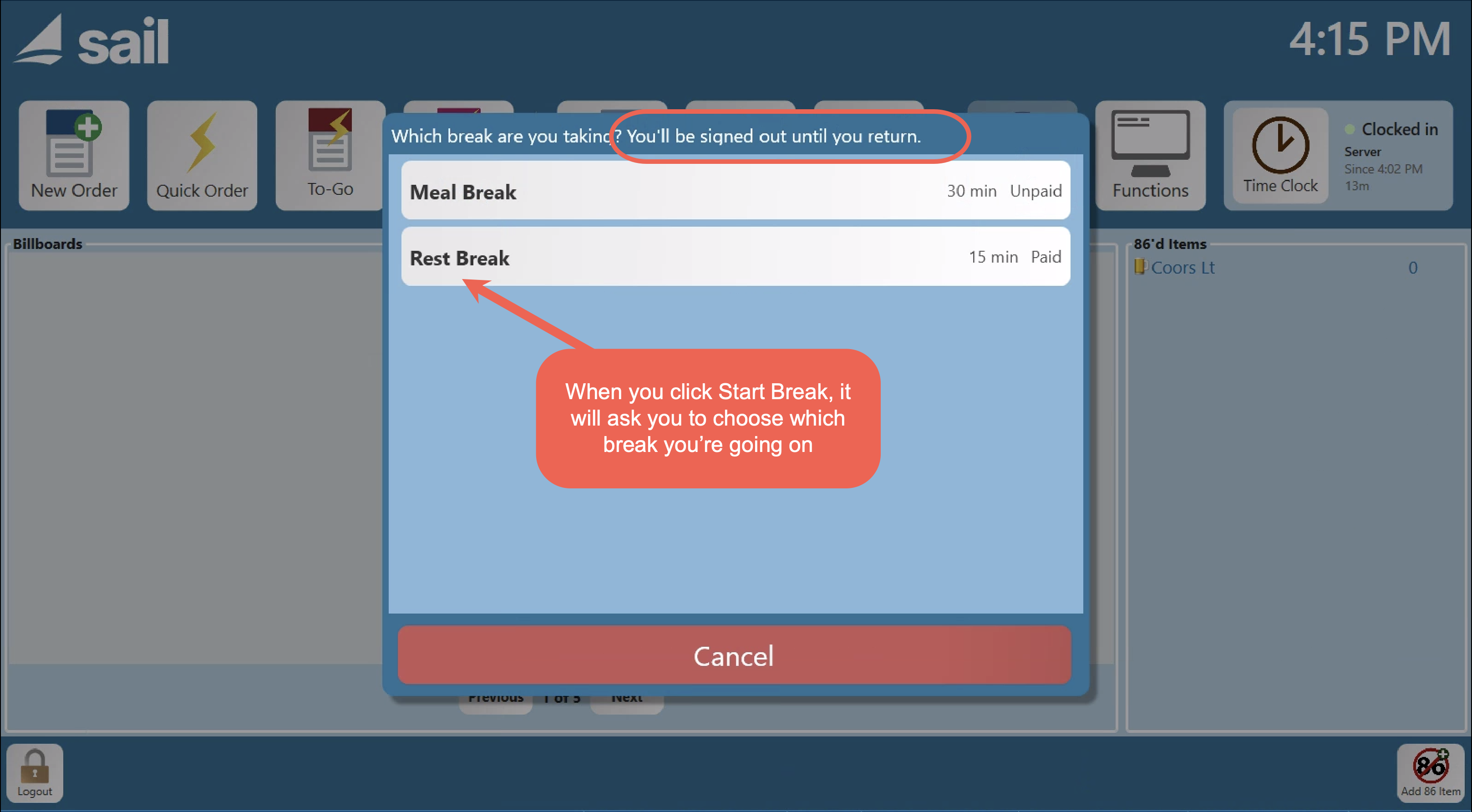
- If their job role has only one break type available, they confirm and are signed out until they return.
- If more than one break type applies to their role, they pick which break they're taking, then confirm.
2. Returning to work
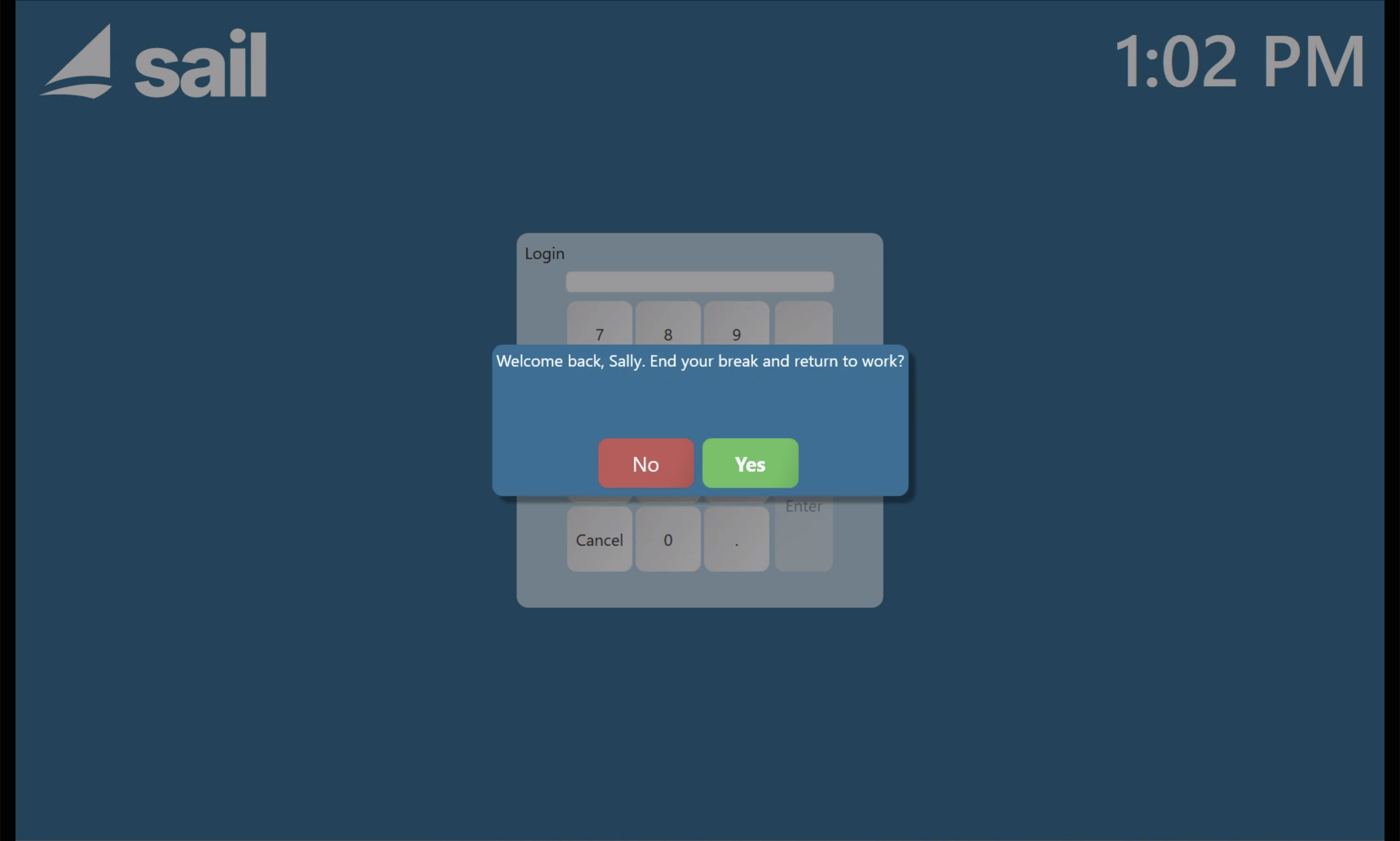
When an employee on break enters their access code, they see a confirmation screen:
Tapping Yes ends the break and logs them in. There's no way into the system while a break is still open — an employee can't skip this and start working without ending the break first.
3. Clocking out
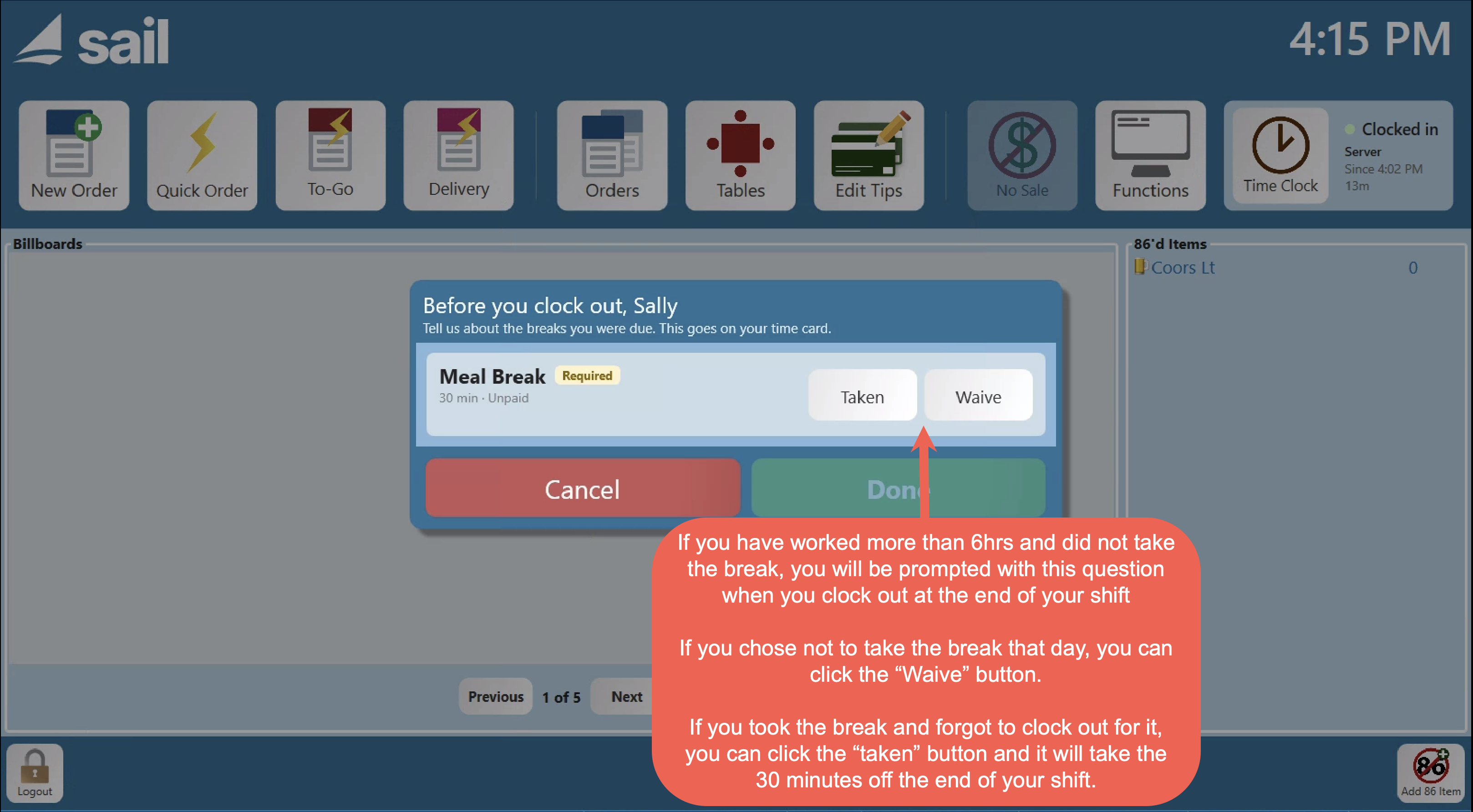
If a required break wasn't taken during the shift, the employee sees a screen listing each missed required break as Taken or Waived. Every one has to be answered before they can finish clocking out.
Any other break type with Prompt at Clock Out turned on is also flagged at clock-out if it wasn't taken, with a simple "I took this break" checkbox.
Time Card reporting
Break time is reflected accurately on the Clock-Out Receipt, the Time Card, and the Staff dashboard — hours worked and overtime are already net of unpaid break time.
Managers can add, edit, or delete break rows directly on an employee's Time Card, with audit history of changes. They can also fix breaks on a terminal, under Functions --> Edit Time Clock. Click here to learn more about editing the time clock on a terminal.
Payroll reports
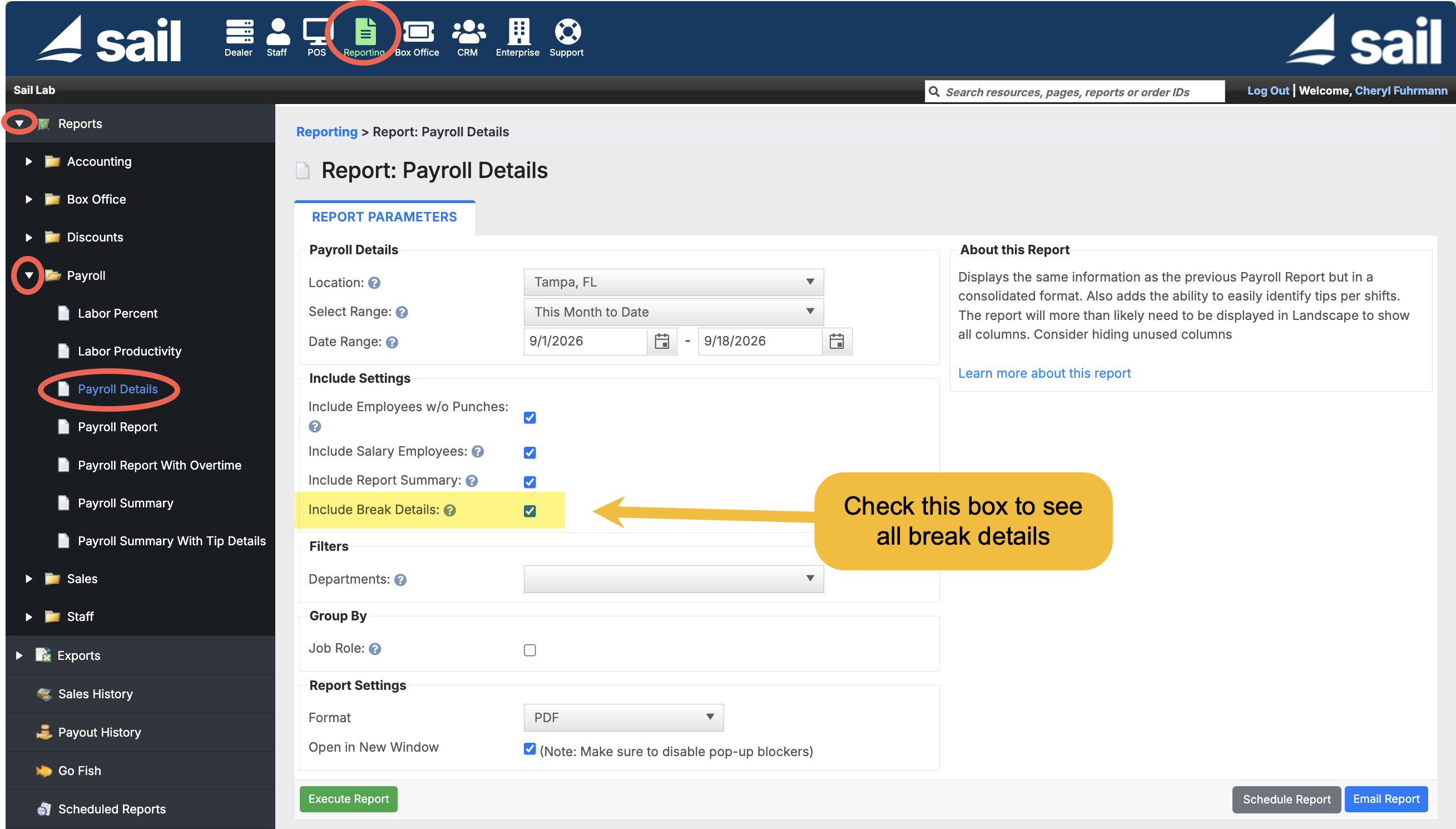
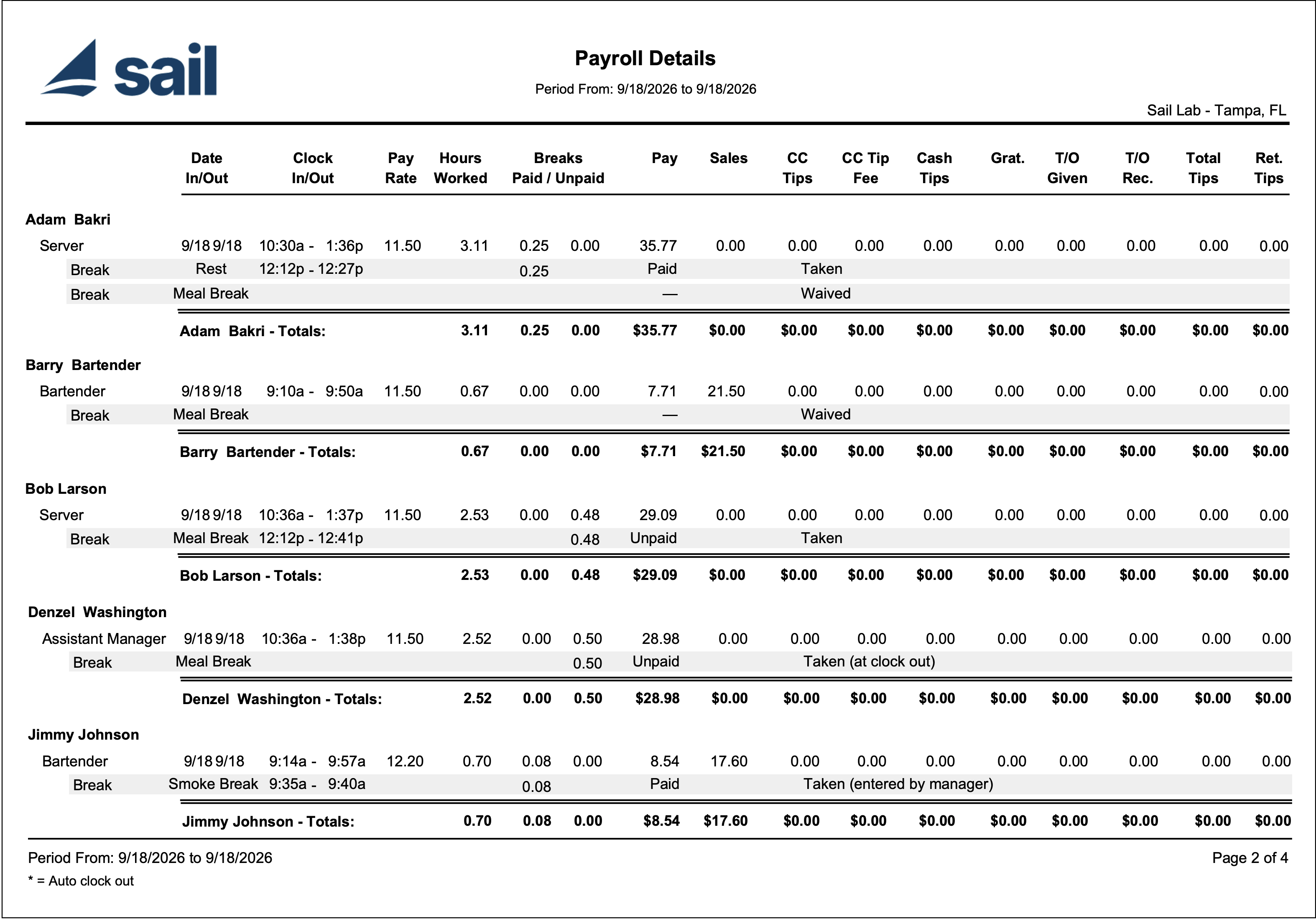
- Payroll Details has an Include Break Details checkbox. Turn it on and every break appears as its own line under the shift it belongs to, showing the break name, when it happened, whether it was paid or unpaid, and its status: Taken, Missed, Waived, or Taken (at clock out) — for a break recorded by answering the clock-out prompt rather than actually starting and ending one.
- Payroll Summary and Payroll Summary With Tip Details each get two new columns, Break Hrs Paid and Break Hrs Unpaid, showing totals for the pay period without line-by-line detail.
FAQ
How long does a break last? Until the employee comes back and confirms they're ending it. They can't access the system at all while a break is open.
Is there a limit to the number of times a break can be taken? No.
What if an employee forgets to clock back in from a break? The system will auto clock them out at the configured auto clock-out time. A manager needs to go in and adjust the Time Card in Backoffice, or the shift on a terminal under Functions --> Edit Time Clock, to reflect what actually happened.
Who can set up or edit break types? Anyone with the Manage Break Types job role permission — Owners and Managers have this by default.
If I change a break type later, does it change past shifts? Pay type and length are locked in at the time the break was taken, so editing those later doesn't rewrite history. Renaming a break type, however, updates the name everywhere, including on past shifts.
Can a manager waive a missed break after the fact? Missed required breaks are marked Taken or Waived at clock-out by the employee. Managers can still edit break rows directly on the Time Card afterward if a correction is needed.
No Comments