
How to edit the time clock on a terminal
This document will walk you through how to fix an employee's time clock from a terminal. You can change a clock in, clock out or job role, add a shift someone forgot to clock in for, clear a shift, and fix breaks. You can do this for any day, not just today.
You need the Manage Time Card permission on your job role to see the Edit Time Clock button. Everything you change here also shows in Backoffice under Staff --> Time Card. Click here to learn more about editing the time clock in Backoffice.
Opening the Time Clock
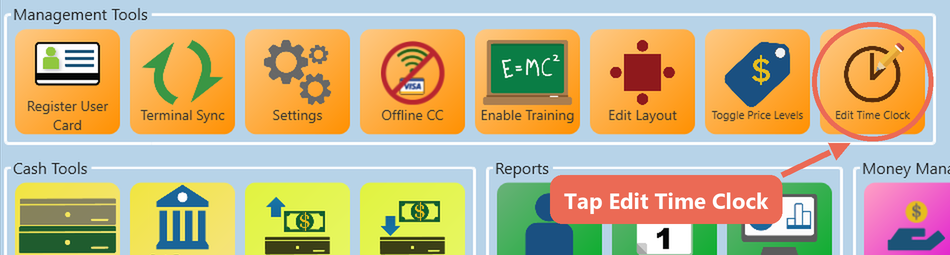
1. Log in and tap the Functions button on the launch screen. Then tap Edit Time Clock under Management Tools.
2. The Time Clock screen opens on today. All the shifts for that day are listed on the left.
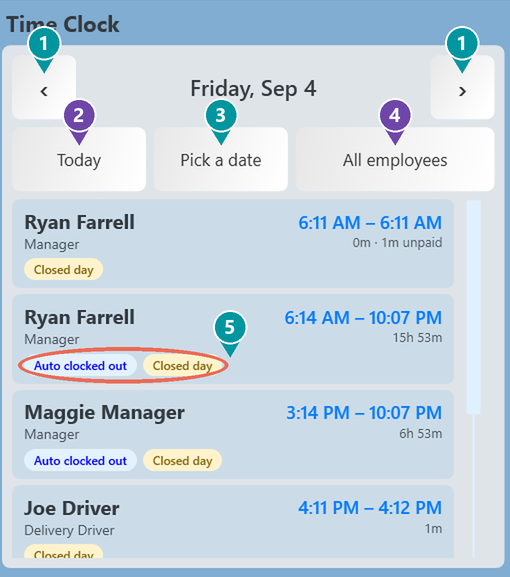
- 1. Arrows - Go back or forward one day.
- 2. Today - Jump back to today.
- 3. Pick a date - Choose any day from a calendar. Days that have already been closed can be edited too.
- 4. All employees - Show only one employee's shifts.
- 5. Tags - Tell you more about a shift: Open (still clocked in), Auto clocked out, Closed day (the day has been closed), On break and Break not ended.
If nobody worked that day, you'll see "No shifts on" and the date.
Changing a clock in, clock out or job role
3. Tap the shift you want to change. Its details open on the right.
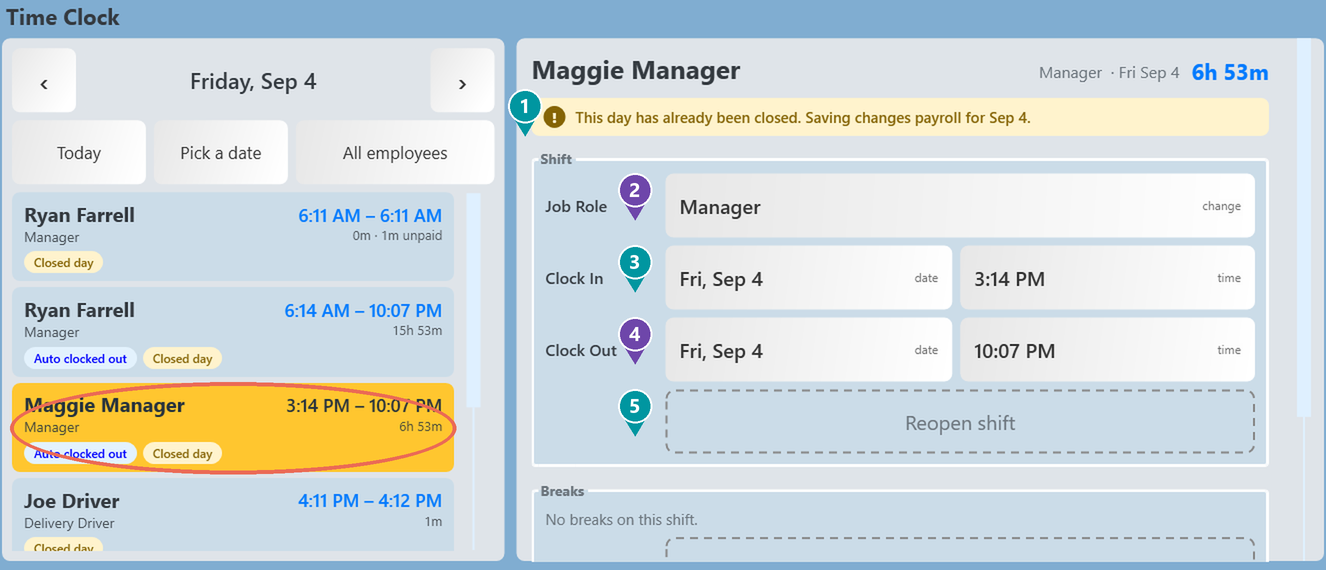
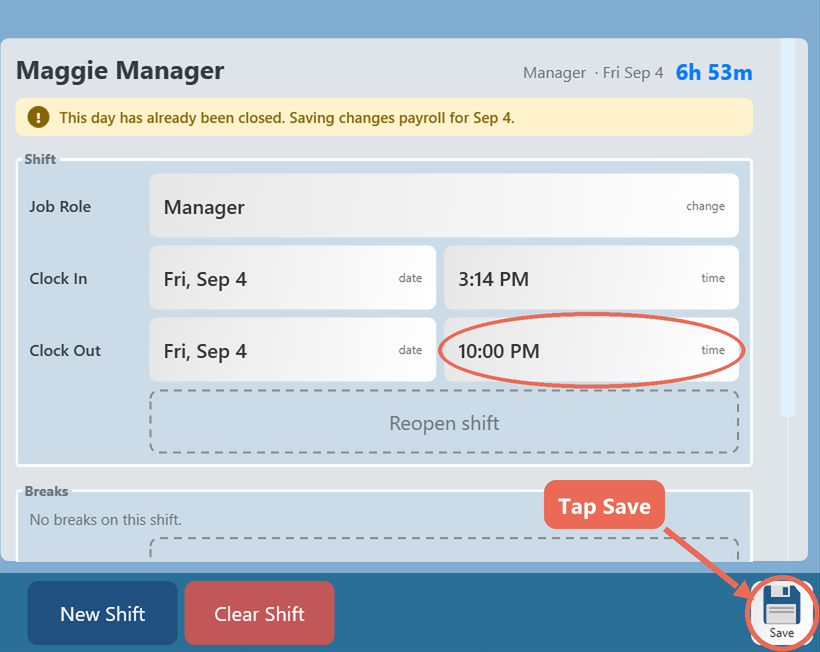
- 1. Closed day - A yellow banner shows when the day has already been closed. You can still change the shift, but saving changes the payroll for that day.
- 2. Job Role - Tap to pick a different job role, if the employee clocked in as the wrong one.
- 3. Clock In - Tap the date or the time to change it.
- 4. Clock Out - Tap the date or the time to change it.
- 5. Reopen shift - Takes the clock out away, so the employee is clocked in again. Only for today's shifts: a shift on an earlier day needs a clock out.
If the employee is still clocked in today, you'll see Open shift and Clock out now instead of the clock out date and time. Clock out now clocks them out at the current time in one tap.
4. When you tap a time, a keypad opens. Type the time like you would on a microwave, then tap AM or PM, and tap OK.
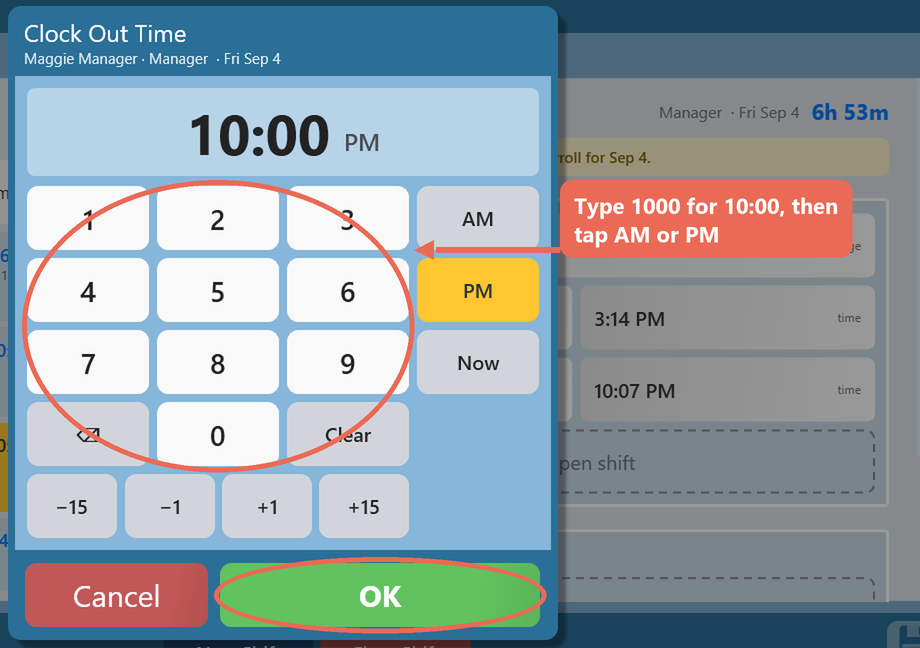
- Example: type 1000 for 10:00, or 545 for 5:45.
- -15 / -1 / +1 / +15 move the time by that many minutes.
- Now puts in the current time. Clear starts over.
Note: If the clock out time is earlier than the clock in time, Sail puts the clock out on the next day (for a shift that ran past midnight). The date next to the time shows which day it landed on.
6. Enter the reason for the change and tap Done. The reason is saved with the change and shows in the shift's history in Backoffice.
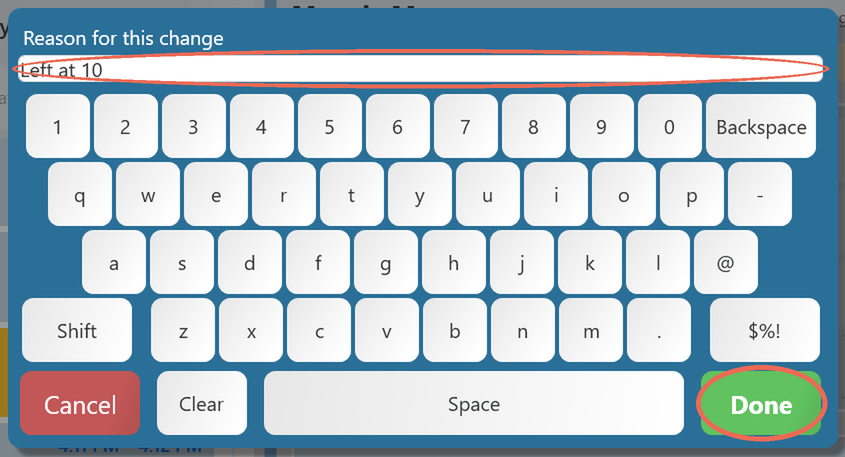
- The reason is required. Only job roles with the Allow Manual Time Clock Entries Without Audit Notes permission can skip it.
- Tapping Cancel here means nothing is saved.
7. If the day has already been closed, Sail asks before saving. Tap Save Anyway to save the change, or Cancel to leave the shift as it was.
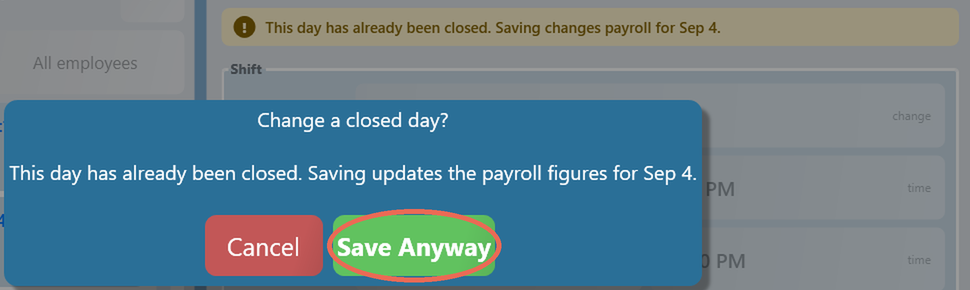
When it's saved, you'll see "Shift saved." and the shift's hours update in the list.
Adding a shift someone forgot
8. Go to the day the employee worked, then tap New Shift and pick the employee. If they have more than one job role, pick the job role too.
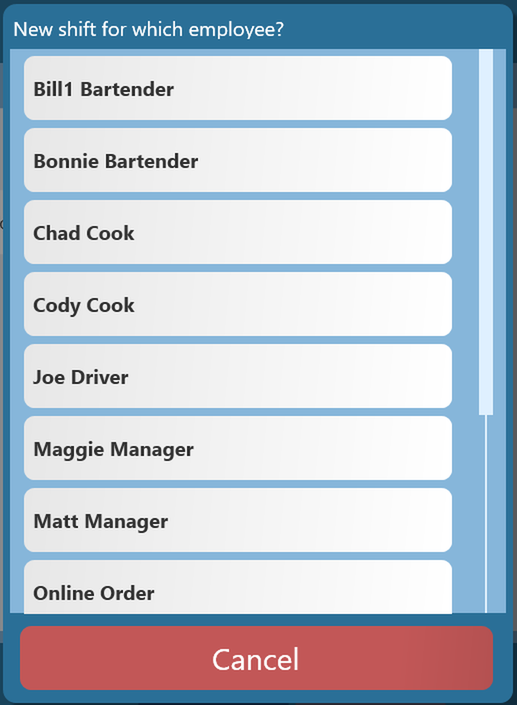
9. Fill in the clock in and clock out, then tap Save and enter the reason. You'll see "Shift added."
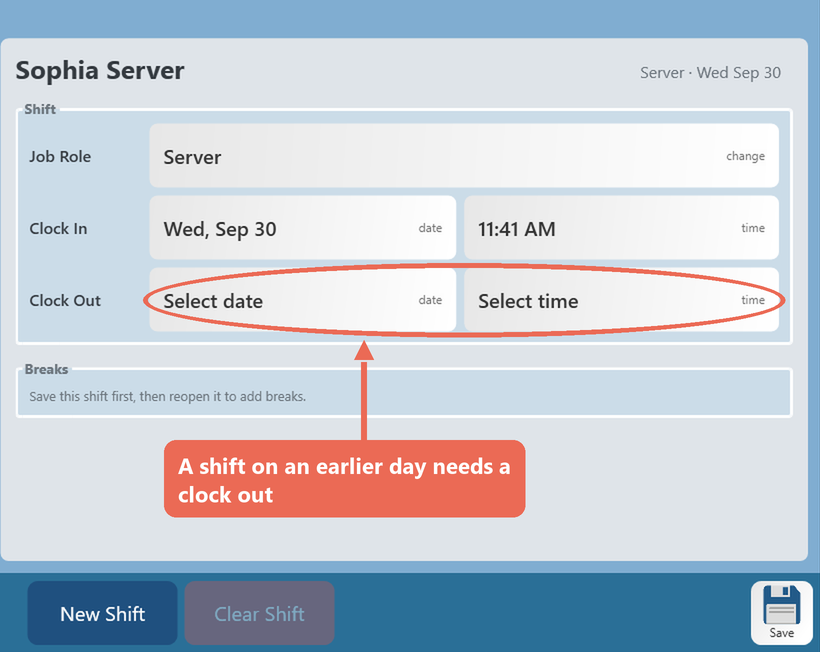
- A shift on an earlier day needs a clock out. Only a shift for today can be left open.
- A shift can't overlap another shift for the same employee.
- To add breaks to the new shift, save it first, then tap it again.
Fixing breaks
10. Tap the shift and scroll down to Breaks.
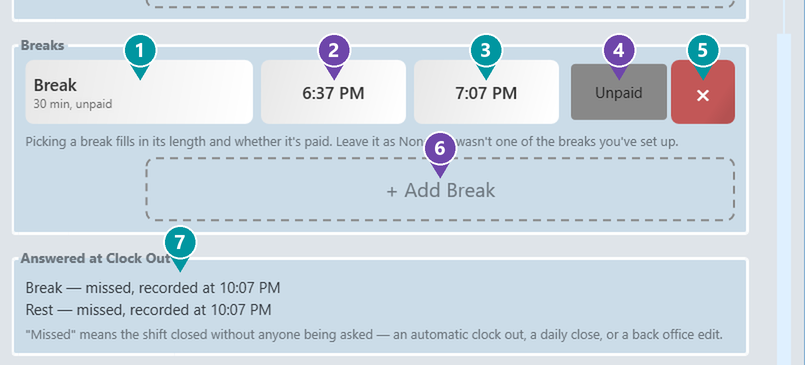
- 1. Break type - Tap to pick which break it was. Picking a break fills in its length and whether it's paid. Leave it as None if it wasn't one of the breaks you've set up.
- 2. Start and 3. End - Tap to change the break's times. If the employee is still on break, tapping the end asks whether to change the time or leave them Still on break.
- 4. Paid / Unpaid - Comes from the break type. Unpaid breaks are taken off the hours worked.
- 5. Red X - Removes the break.
- 6. + Add Break - Adds a break to the shift.
- 7. Answered at Clock Out - Shows what the employee answered about their breaks when they clocked out. "Missed" means nobody was asked, for example because the shift was auto clocked out.
Tap Save when you're done. A break can't be outside the shift or overlap another break.
Click here to learn more about Employee Breaks.
Clearing a shift
11. To clear a shift that shouldn't be there, tap it, then tap Clear Shift and confirm with Clear Shift. Enter the reason. You'll see "Shift cleared."
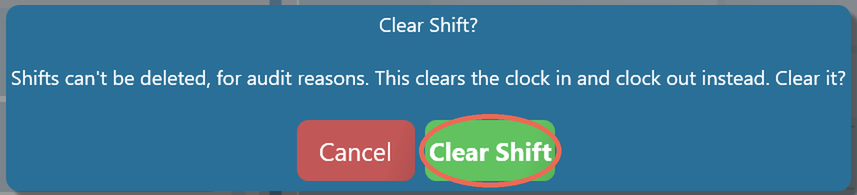
Shifts can't be deleted, for audit reasons. Clear Shift takes away the clock in and clock out, so the shift no longer counts any hours.
Leaving the Time Clock screen
12. If you tap Back or Logout before saving, Sail asks what to do with your changes: Save them, Discard them, or Cancel to stay on the shift.
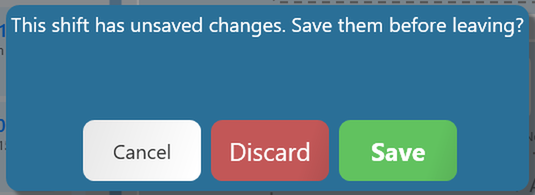
Save before you tap another shift or another day. Changes you haven't saved are lost when you move to a different shift or day.
No Comments