
How to edit time clock
This document will detail how to edit a time clock.
In Backoffice
-
Open back office then navigate to the Staff tab then go to employees. Once there select the employee you would like to edit the time clock of.
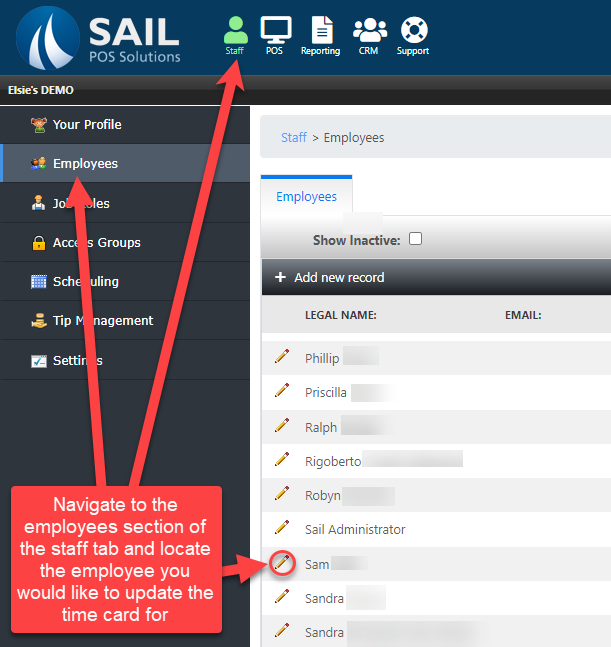
-
Navigate to the time clock tab.

-
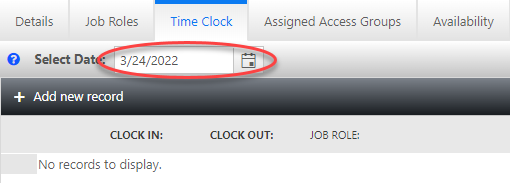
Once on the time clock tab make sure your on the date you would like to edit.
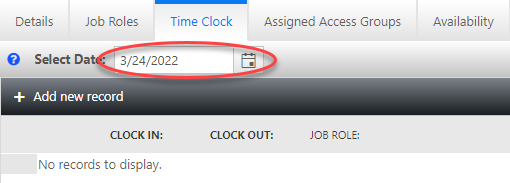
-
Once the date has been selected you there are several editing options to pick from.
-
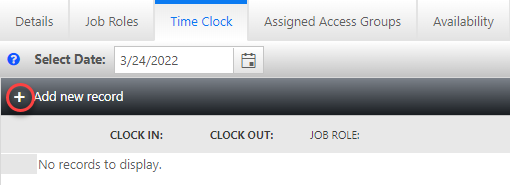
To add a new clock in or clock out. Press the plus sign.
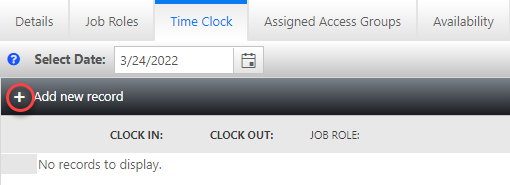
-
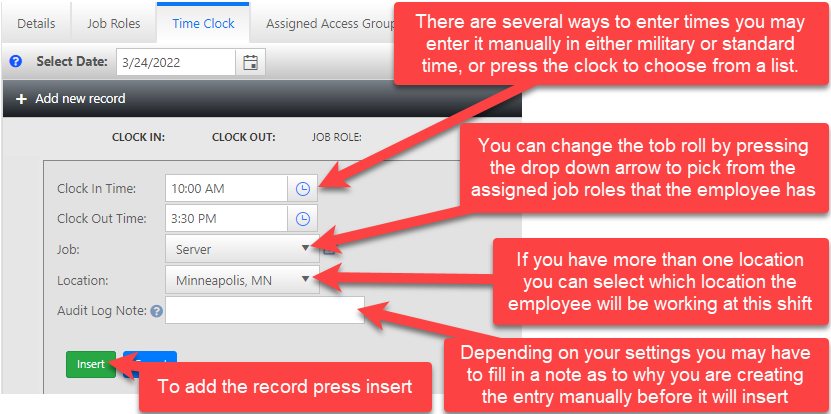
This will prompt to add a new record.
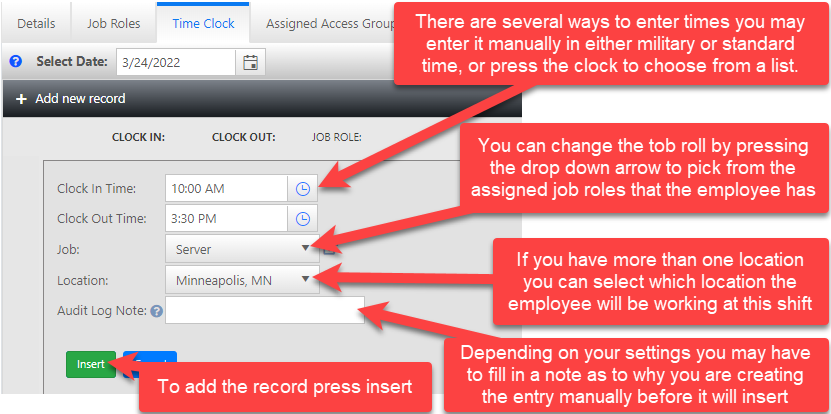
-
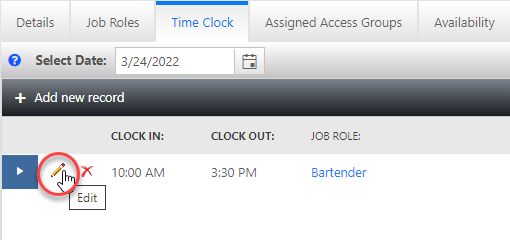
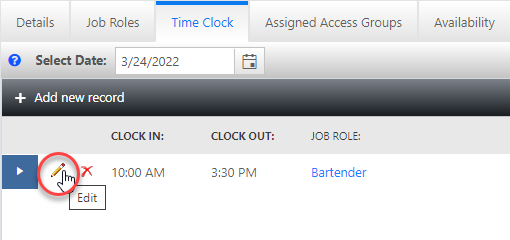
You can edit any of the settings above by pressing the pencil next to any existing time clock entry.
-
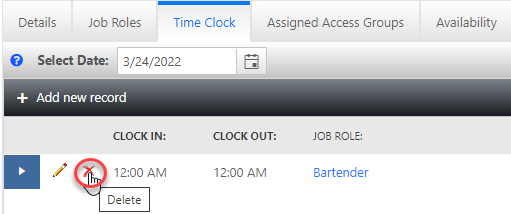
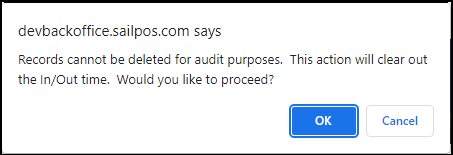
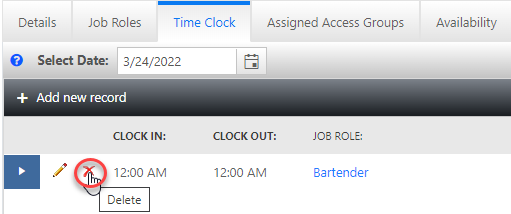
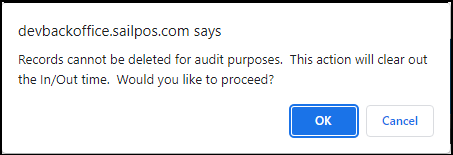
To zero out the time from an existing time clock entry click the red x and press ok when prompted.
-
-
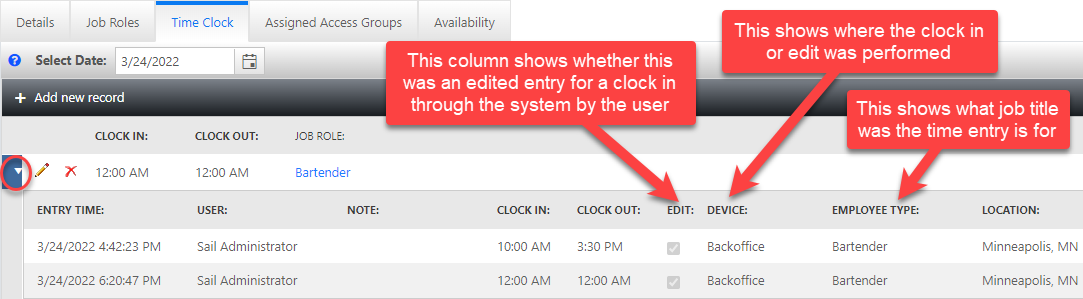
All edits are recorded. You can view the records by pressing the arrow next to the entry.
-



On a terminal
You can also edit the time clock for any day from a terminal, under Functions --> Edit Time Clock. Click here to learn more about editing the time clock on a terminal.
Required notes setting
-
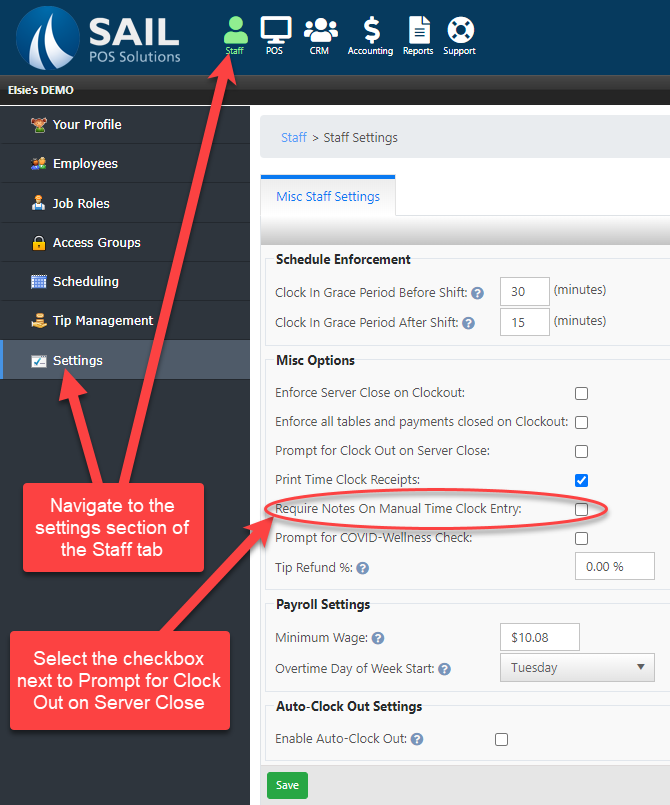
Whenever you manually enter or adjust a time clock you will be prompted to enter a note. By default you will be able to press cancel and skip adding the note. If you would like the note to be mandatory you can set the system to not let it be bypassed with the cancel button.
Note: On a terminal, a reason is always asked for when you save a change. Only job roles with the Allow Manual Time Clock Entries Without Audit Notes permission can skip it.

No Comments